Fixed assets and depreciation
A fixed asset is something the business buys to use for years: an oven, a van, a till. Its cost is not an expense on the day you pay. It stays on the balance sheet and is charged a little at a time as depreciation. Easy keeps a register of your assets and works out the depreciation for you. You add an asset when you buy it, run depreciation each month, and, when something is damaged or sold, write it down or dispose of it. This is accountant's work. It belongs with the Month-end checklist, which checks the register against the ledger every month.
One rule shapes everything here: the fixed-asset cost and accumulated-depreciation accounts are control accounts (the chart of accounts marks them), so they move only through the register. A manual journal can't touch them (Manual journals).
About the screenshots
Screenshots are from Easy's demo company, Little Polynesian Café. The demo already had five assets and had been depreciated to 30 Sep 2026. The steps below follow one more asset, Manual: pizza oven ($4,800, bought 22 Sep 2026): it is registered, charged its first month, written down by $500 and then sold. All names and amounts are made up.
Before you start
- The Assets module is switched on for the company (it is in the demo).
- Who can do what. The Owner, Administrators and Accountants can do everything on this page. Data entry can open the register and has + New asset, but can't open the Depreciation page ("You don't have access to this"). A role that only reads the books can look at the register and preview a run, and has no buttons that change anything.
- Depreciation is your accounting policy. Confirm tax rates with your accountant or RMD (Help).
- The books are open for the dates you use. Depreciation runs in whole months, and the month an asset is acquired counts in full.
Step 1. Set up asset categories
Settings → Accounting & tax → Asset categories
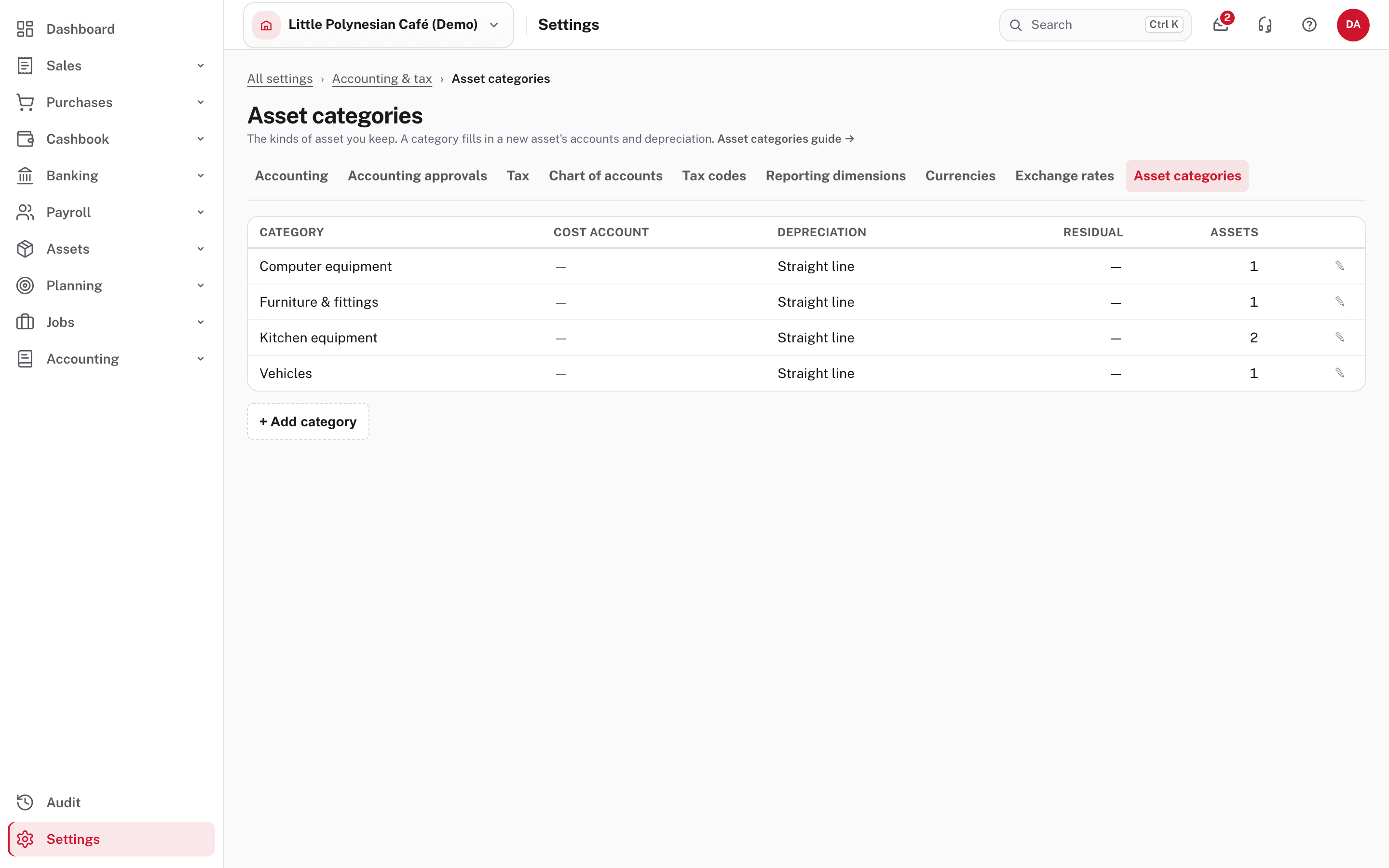
A category is a starting point for a new asset: its three ledger accounts, the depreciation method and life, and a residual value as a percentage of cost. Choose ✎ on a row to see what it holds.
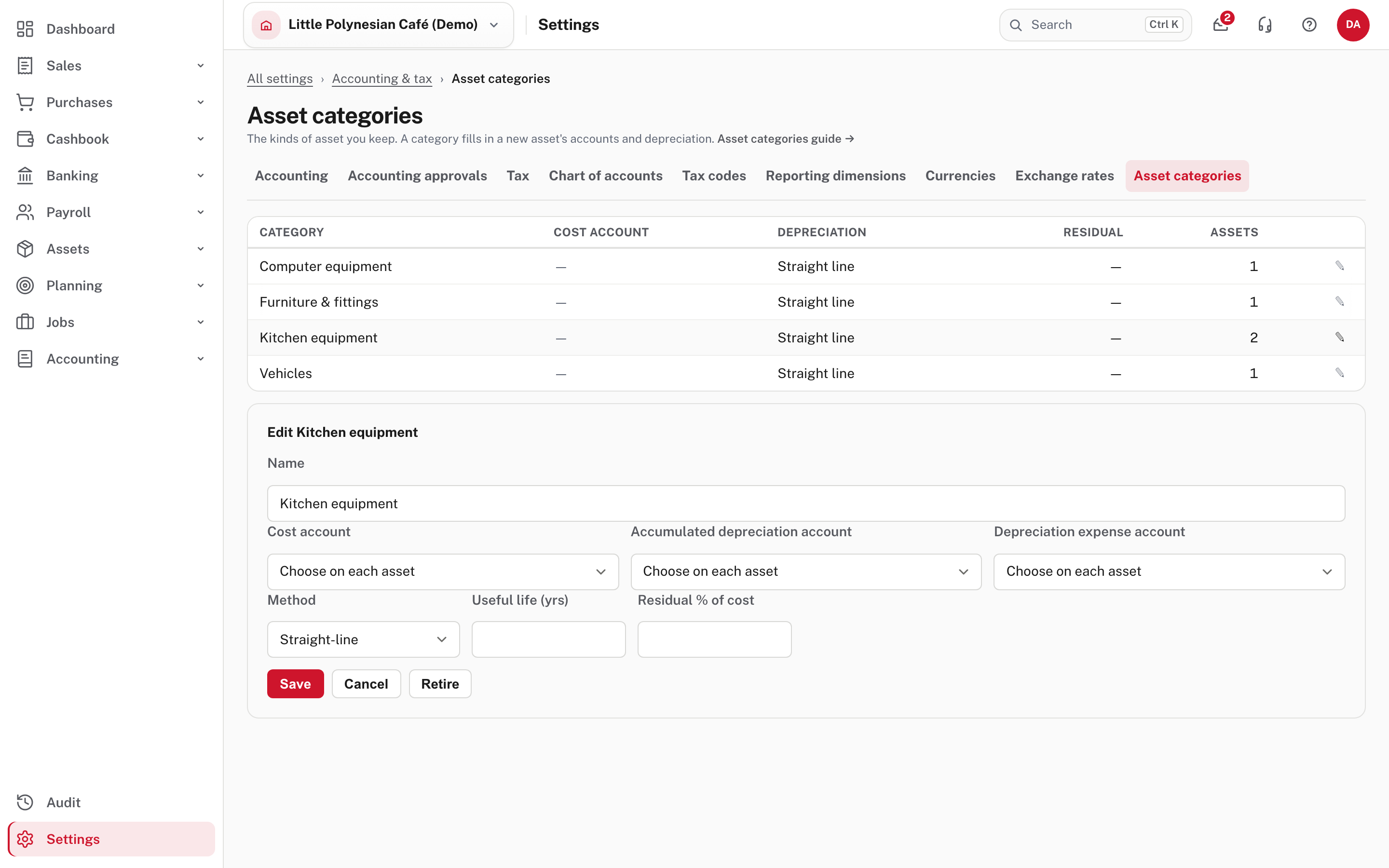
The four demo categories have no accounts or life filled in (Choose on each asset), so each new asset needs its accounts chosen by hand. Fill them in once and every new asset starts right. A new asset keeps its own copy: changing a category later changes nothing on assets you already have and posts nothing. Retire stops a category being offered on new assets; Delete is offered only when no asset carries it (Help).
Step 2. Register an asset
Assets → Register → + New asset
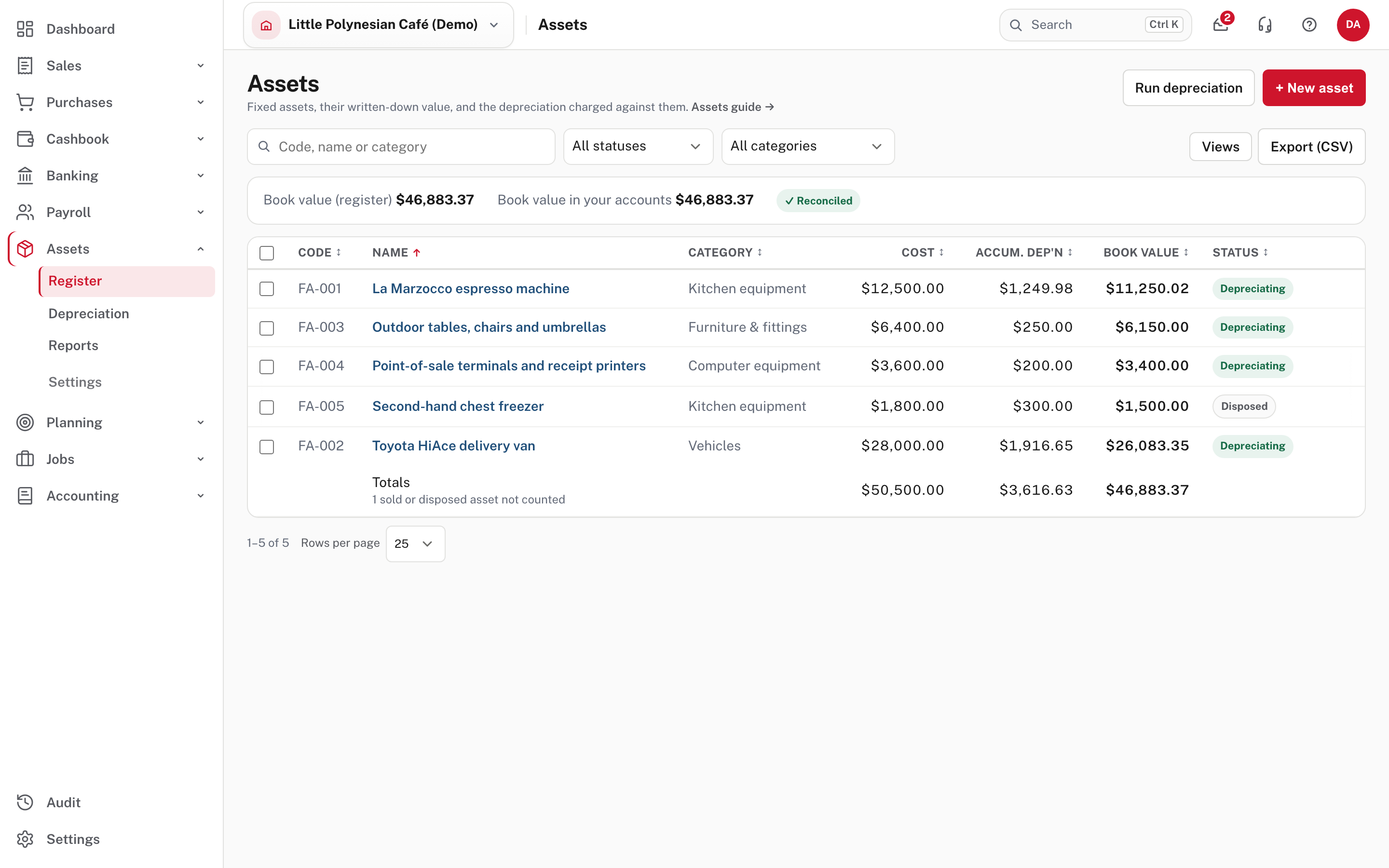
The register lists each asset with its Cost, Accum. dep'n and Book value (what it is worth in your books). The banner shows the register's book value beside the one in your accounts and says Reconciled when they agree. Disposed assets stay in the list but are left out of the totals.
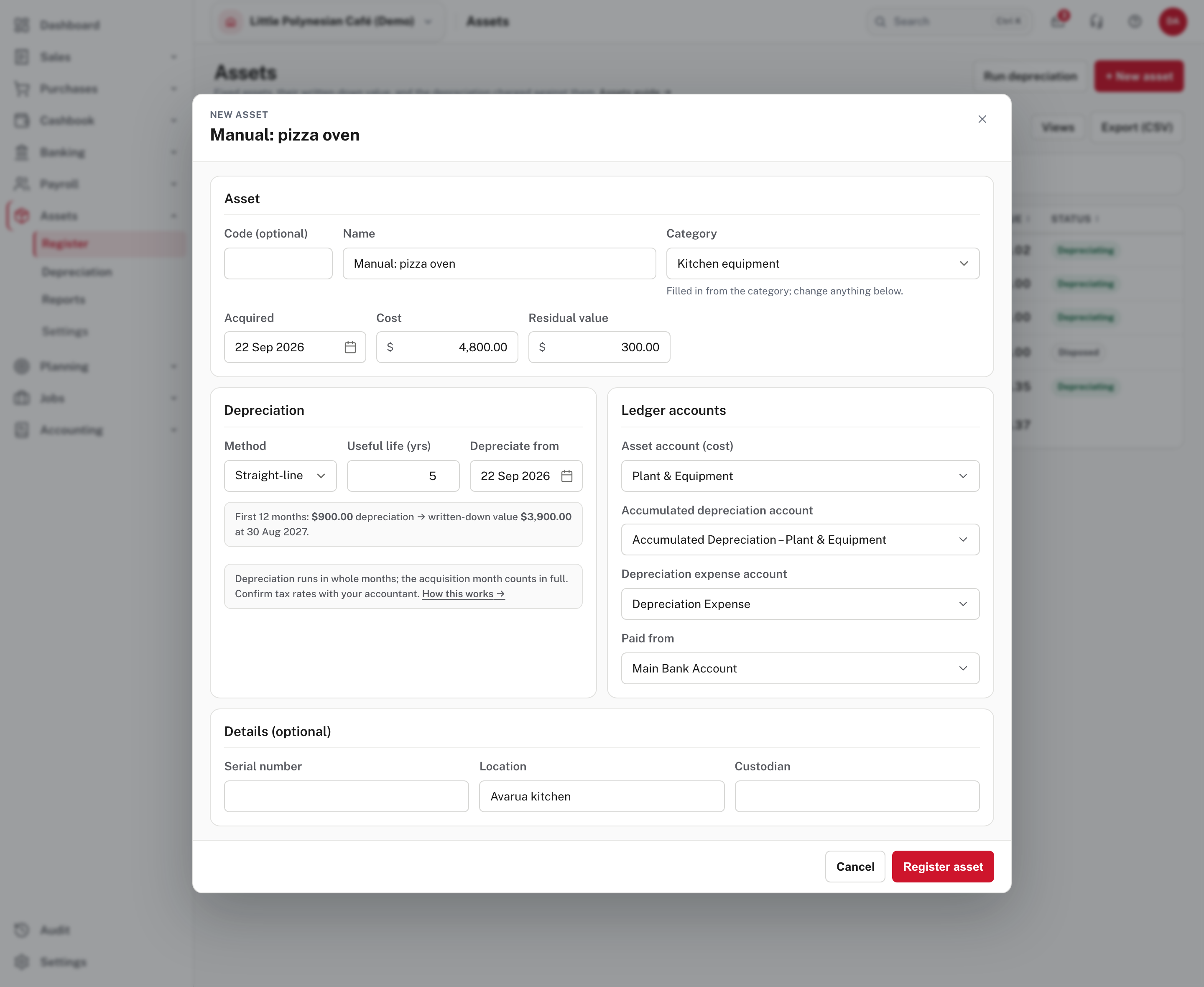
| Field | What to enter |
|---|---|
| Name, Code | A name people recognise. The code is optional and must be unique |
| Category | Fills in what the category holds |
| Acquired | The purchase date. The purchase is posted on this date |
| Cost, Residual value | What it cost, and what you expect it to be worth at the end. Depreciation never takes it below the residual |
| Method | Straight-line (with Useful life (yrs)), Diminishing value (with Rate % / year) or None (held at cost) |
| Depreciate from | The date depreciation starts |
| Asset account (cost), Accumulated depreciation account, Depreciation expense account | The three accounts the asset uses |
| Paid from | The bank or cash account that paid for it |
A line under the method shows what the first 12 months will look like (here $900.00, leaving $3,900.00 a year on). The oven's life is 5 years and its residual $300, so $4,500 is spread over 60 months: $75.00 a month.
Set Depreciate from as well as Acquired
Depreciate from is its own date. It starts on today's date and doesn't change when you type Acquired, so set both. A start date later than the purchase leaves the months in between uncharged.
Choose Register asset. Easy opens the asset's page.
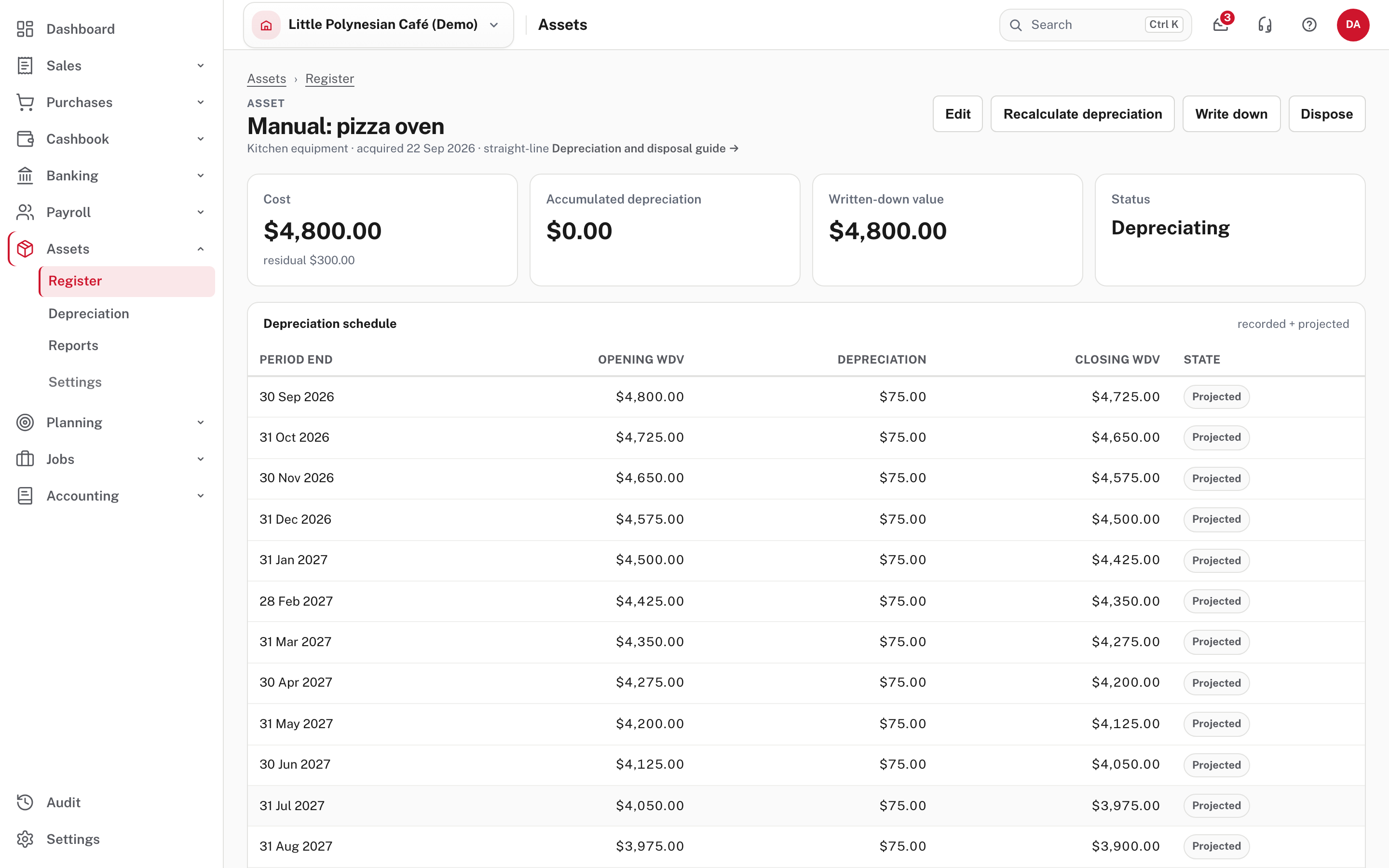
The cards show the Cost (with the residual), the Accumulated depreciation, the Written-down value and the Status (here Depreciating). The Depreciation schedule lists every month, Projected until it is charged. The buttons across the top are Edit, Recalculate depreciation, Write down and Dispose. Once an asset is in the ledger its cost and cost account can't be edited (Help).
Registering an asset by hand also posts the purchase:
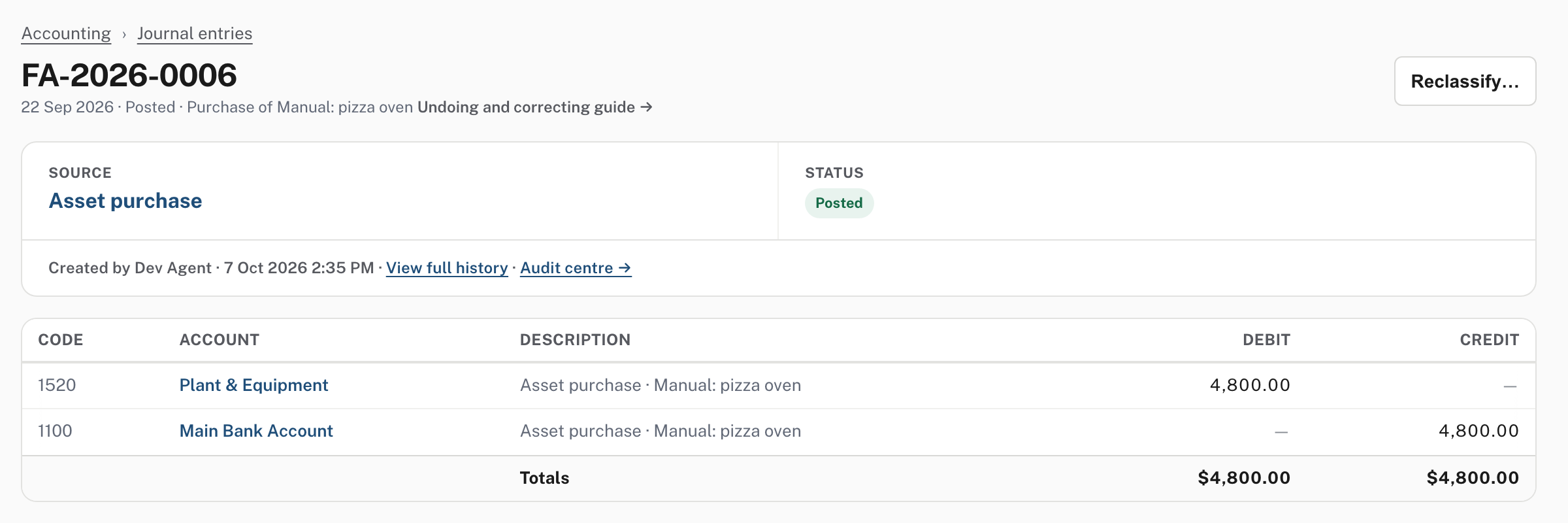
Its source is Asset purchase, and it is dated the Acquired date.
Other ways an asset gets on the register
A bill or a cashbook payment line coded to a fixed-asset account asks you to register the asset as you record it, so the cost and the register are written together. The picture shows the card on a cashbook payment; no payment was recorded.
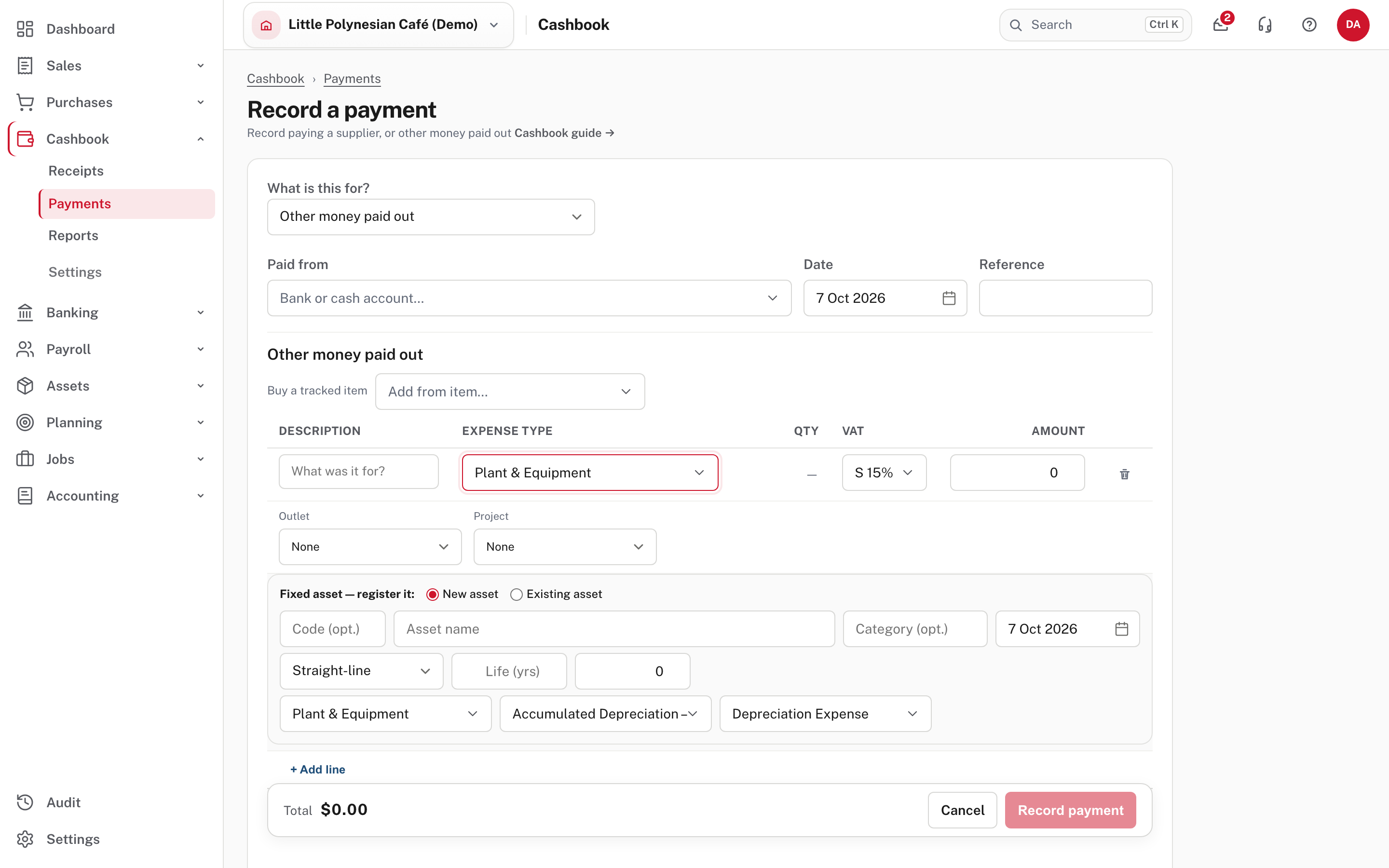
The card offers New asset (name, category, date, method, life, residual and the three accounts) or Existing asset (to add to one you already hold). The bill's card also offers Split into. See Enter and record a bill.
Check the three accounts on this card
The Accumulated depreciation account starts on the first account in its list, whatever cost account you chose, and the boxes show only the start of a long name (the picture shows Accumulated Depreciation –). Open each box and make sure the three accounts belong together.
Step 3. Charge depreciation
Assets → Depreciation
One run charges every asset's depreciation, up to a period end you choose, in a single journal. The page opens on the end of this month, which may not have finished: set Period end to the month end you mean, then choose Preview, which saves nothing.
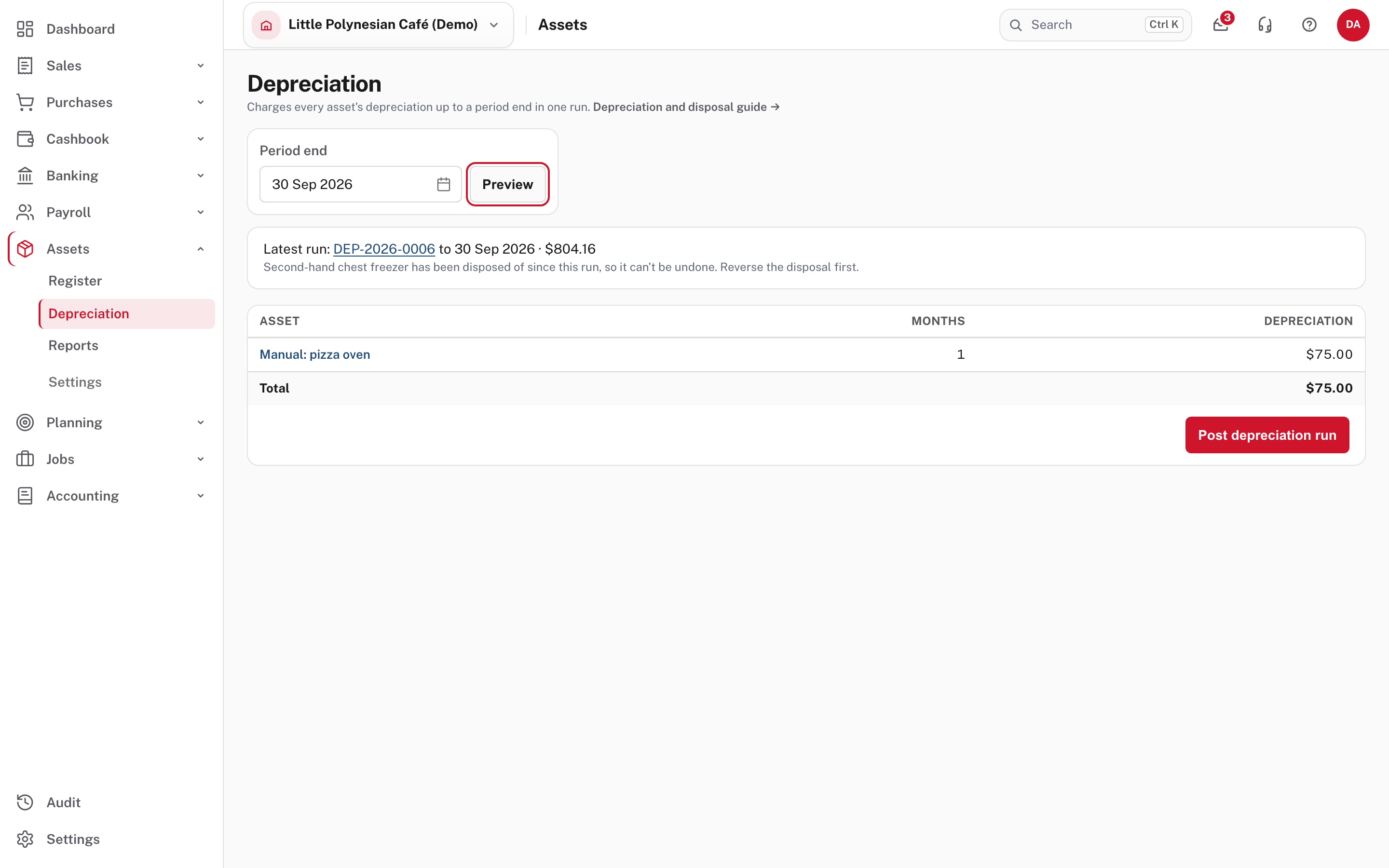
The demo's other assets were already charged to 30 Sep 2026, so a run to that date picks up only the oven: 1 month, $75.00. In a live company the preview lists each asset, its months and its charge. Read it before you continue. Choose Post depreciation run.
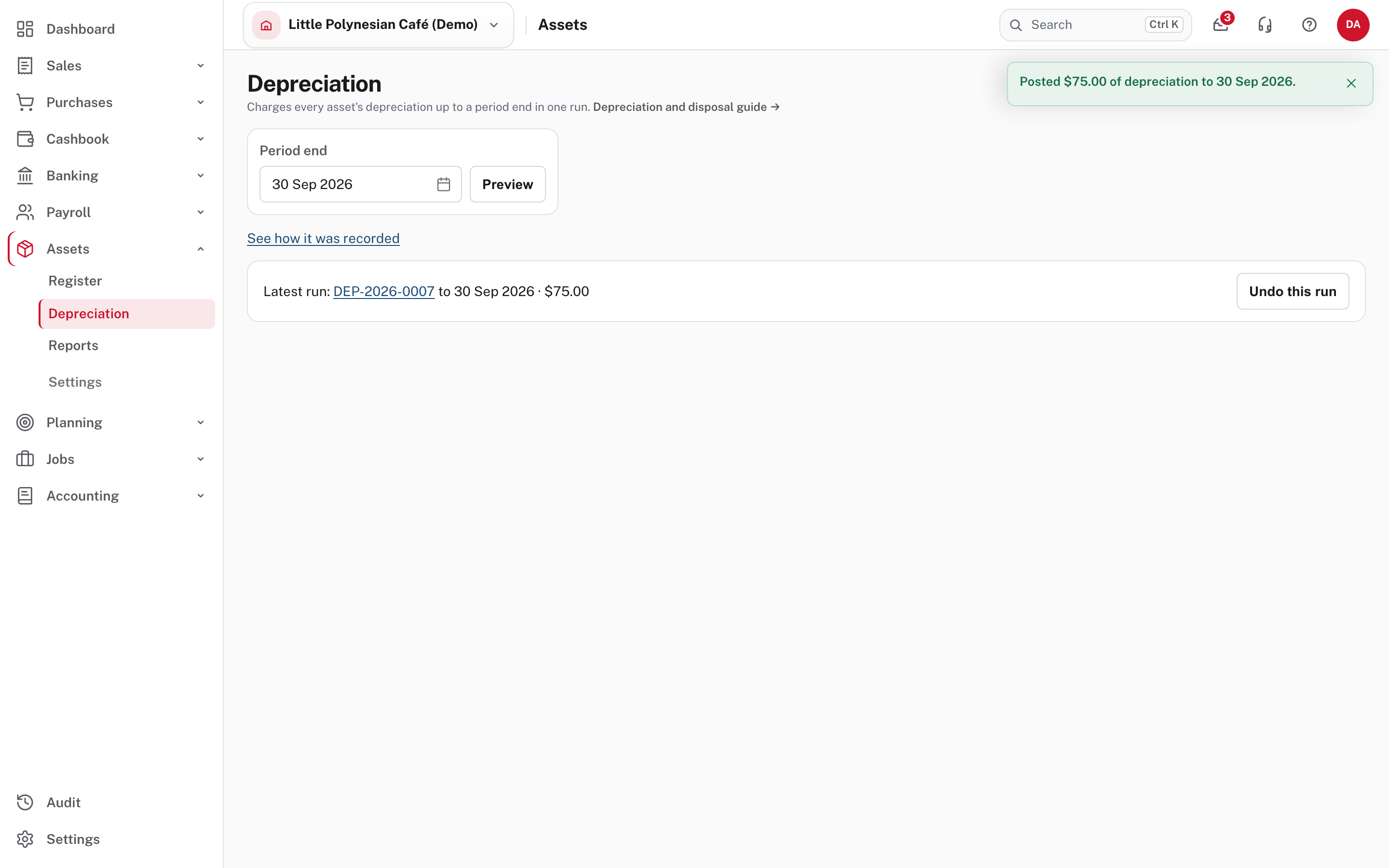
The notice reads Posted $75.00 of depreciation to 30 Sep 2026. The run is numbered (DEP-2026-0007) and shown under Latest run. See how it was recorded opens the journal:
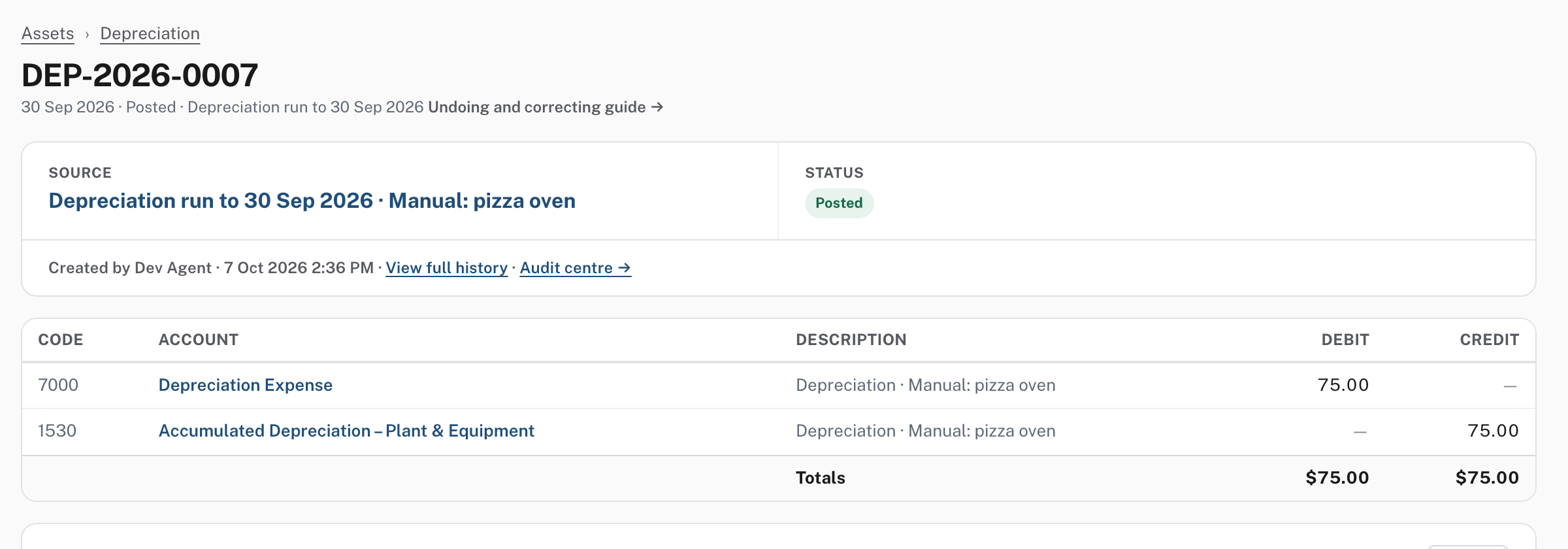
For each asset it debits the depreciation expense account and credits its accumulated depreciation account. Easy will not post a run while the register and the ledger disagree (see step 7).
Step 4. Undo the latest run
If a run was for the wrong date, choose Undo this run (next to Latest run).
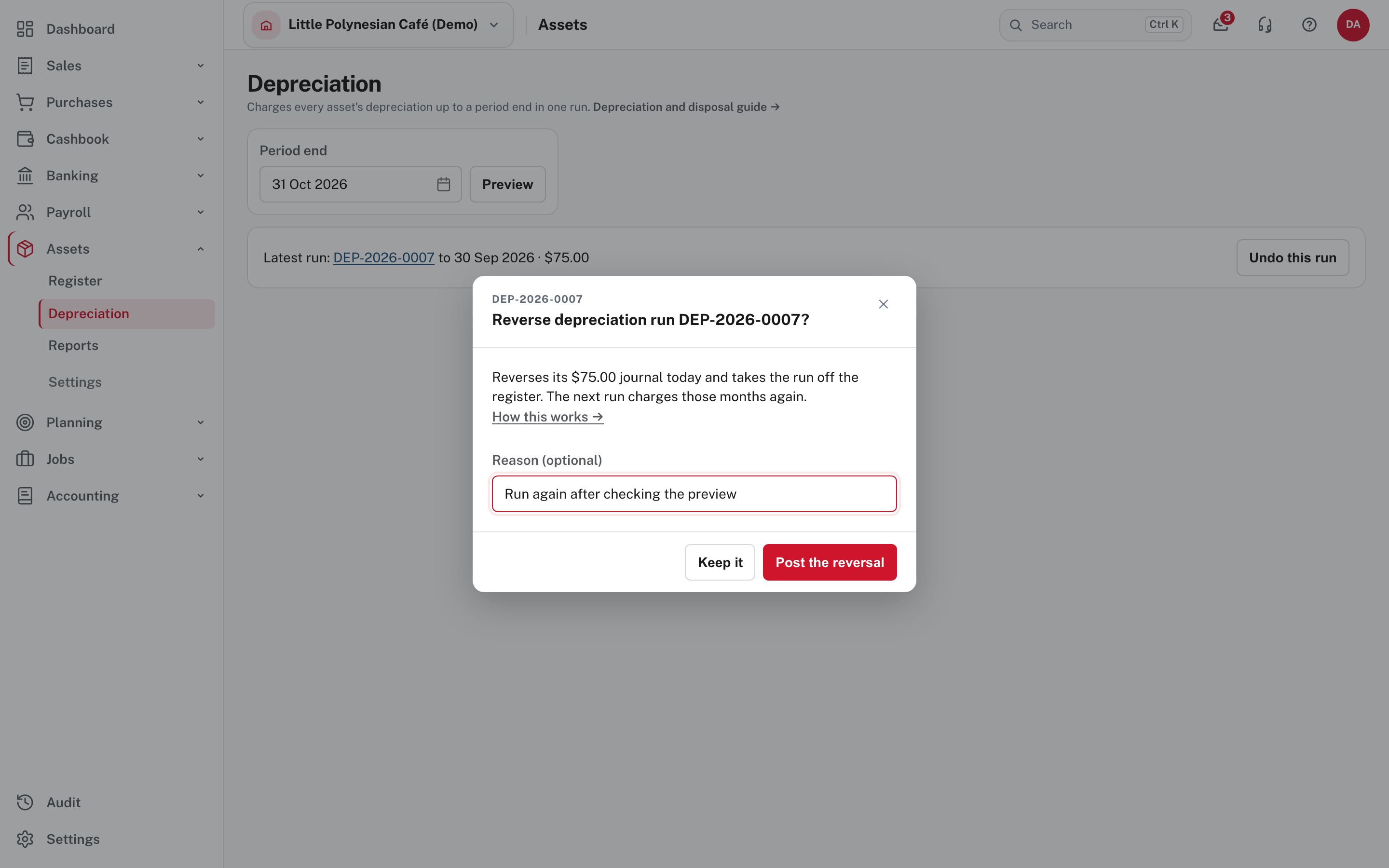
Easy reverses the run's journal on today's date and takes the run off the register, so the next run charges those months again. Give a reason if you like, then choose Post the reversal (or Keep it).
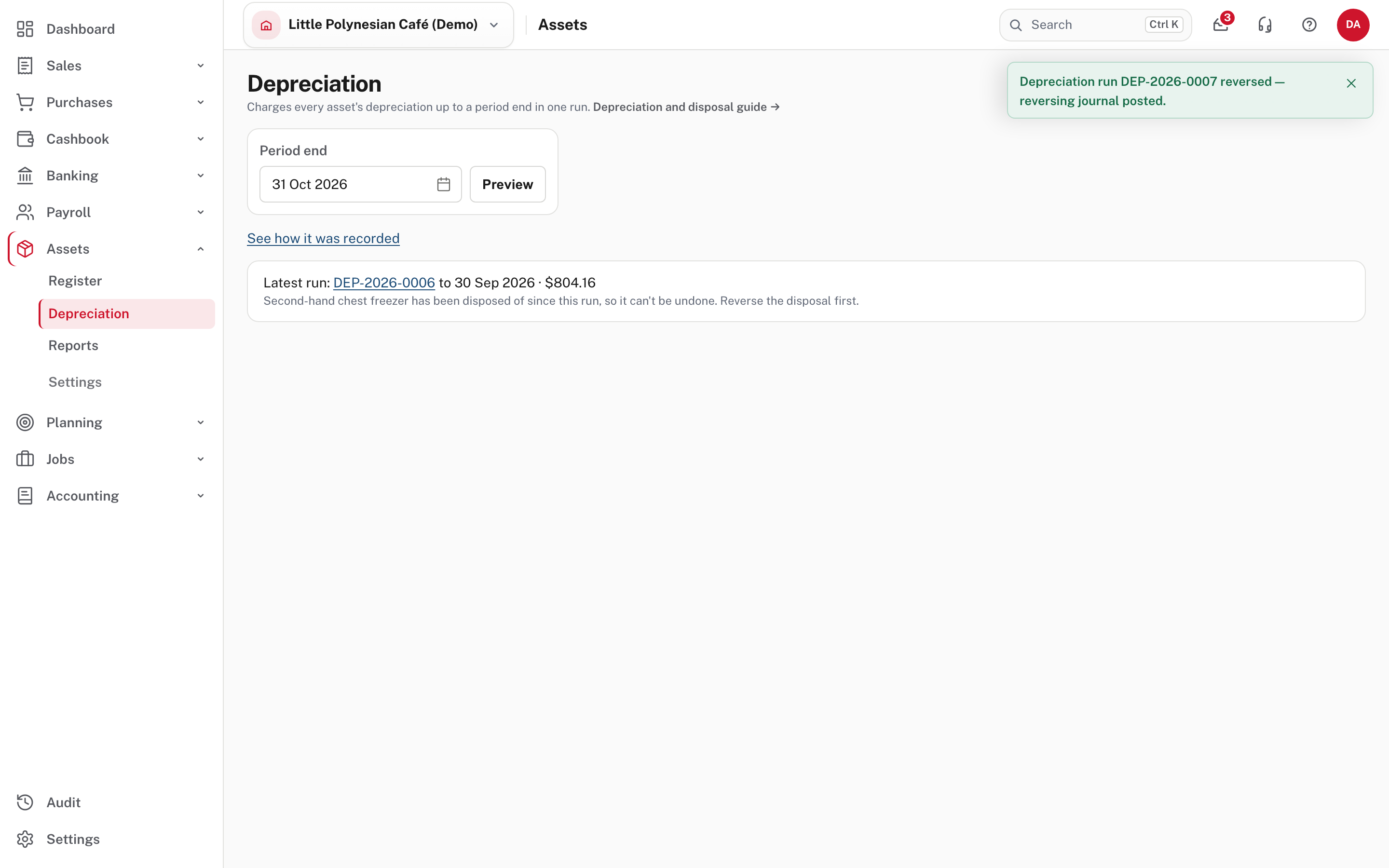
Only the most recent run can be undone, and only while its period end is after the lock date, nothing has been posted since (a write-down or a recalculation counts) and none of its assets has been disposed of. The page says which rule stops you. In the demo the run before this one can't be undone: Second-hand chest freezer has been disposed of since this run, so it can't be undone. Reverse the disposal first. (Help). After an undo, run the month again.
Step 5. Write an asset down
Do this when an asset is worth less than its written-down value, for example after damage.
Assets → Register → (the asset) → Write down
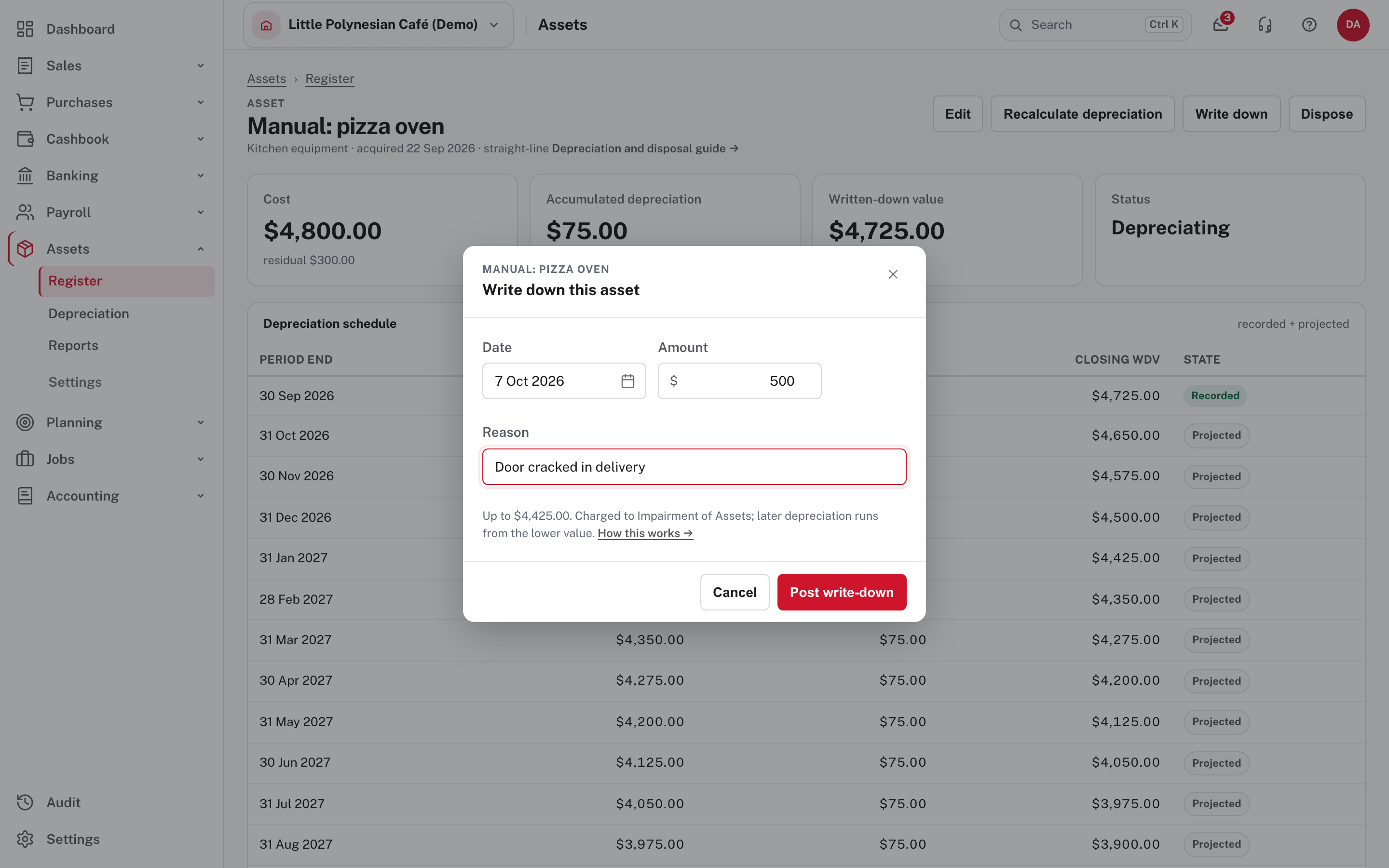
Enter the Date, the Amount and a Reason. The note under the form shows the most you can write down (here $4,425.00: the $4,725 written-down value less the $300 residual) and says it is charged to Impairment of Assets. The date can't be before depreciation already posted, or on or before the lock date.
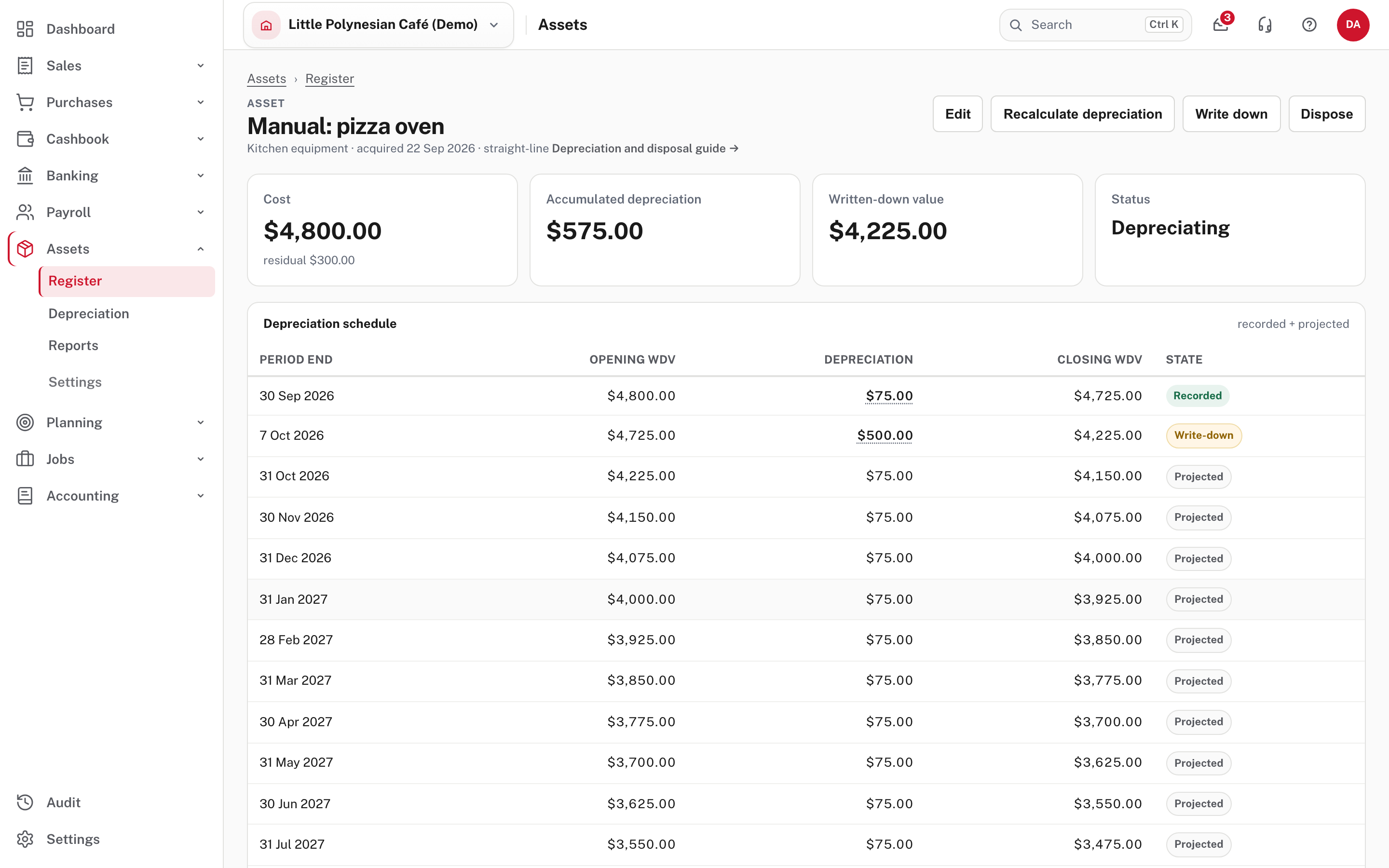
Accumulated depreciation is now $575.00 ($75 charged plus the $500) and the Written-down value $4,225.00. The write-down is a line in the schedule marked Write-down, and the months still to come stay $75: a straight-line asset keeps its monthly charge and reaches its residual sooner (Help). The Depreciation page now lists the write-down as its latest entry, which is why the last run can no longer be undone.
Step 6. Dispose of an asset
When an asset is sold or scrapped: Assets → Register → (the asset) → Dispose.
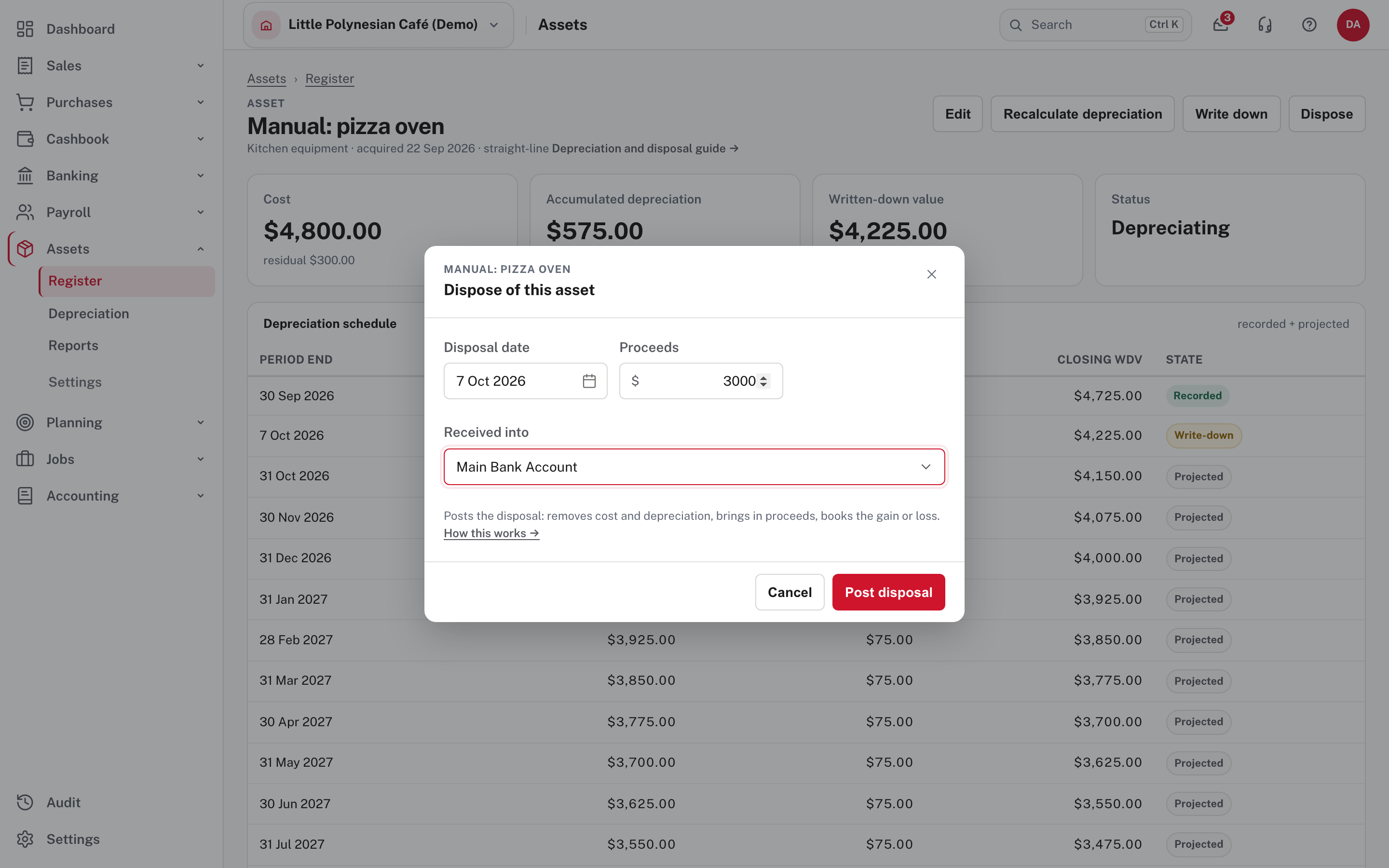
Enter the Disposal date, the Proceeds and the bank or cash account they were Received into, then Post disposal. Easy removes the cost and the depreciation, brings in the proceeds and books the gain or loss.
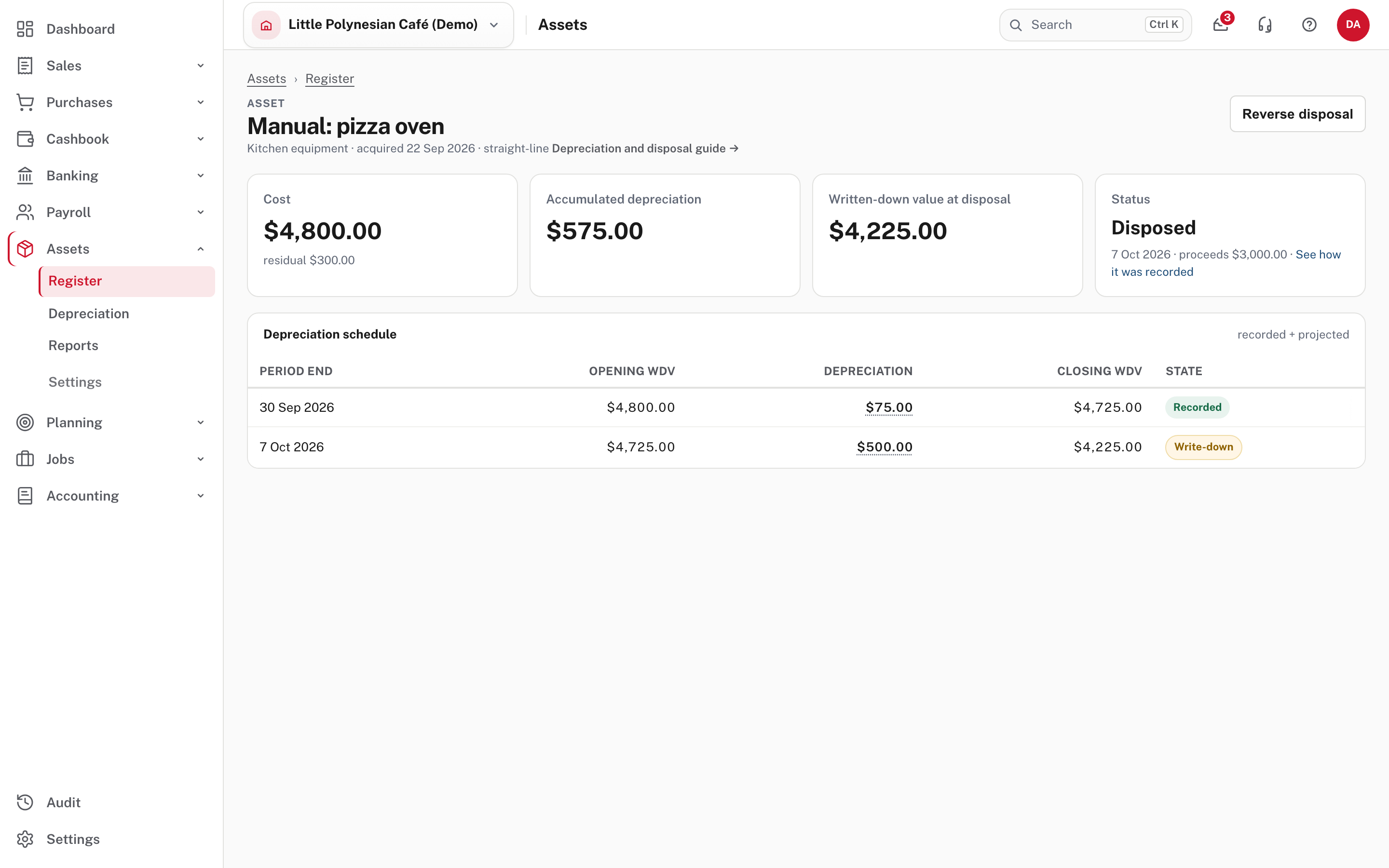
The card now reads Disposed, with the date and proceeds and a link to the journal, and the written-down value is the value at disposal. The asset stays in the register list, but the totals leave it out.
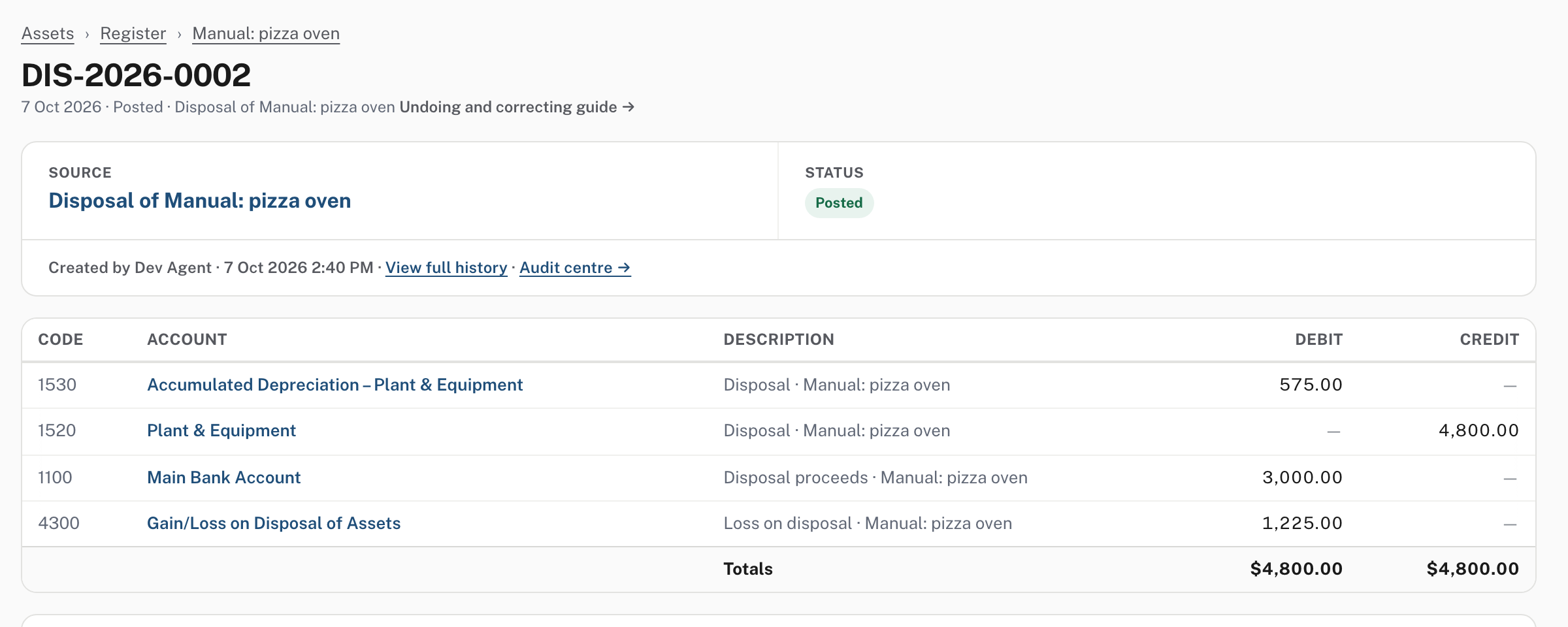
Here the oven stood at $4,225 and sold for $3,000, so the journal debits Gain/Loss on Disposal of Assets $1,225 as a loss. A sale above the written-down value would be a gain. If a disposal was wrong, the way back is Reverse disposal (top right of the disposed asset's page). It reverses the disposal journal on today's date, puts the asset back on the register, and the next depreciation run charges the months since (Help). Not shown in the demo: the box it opens and its result.
Step 7. Check the register against the ledger
Assets → Reports (and the banner on the register)
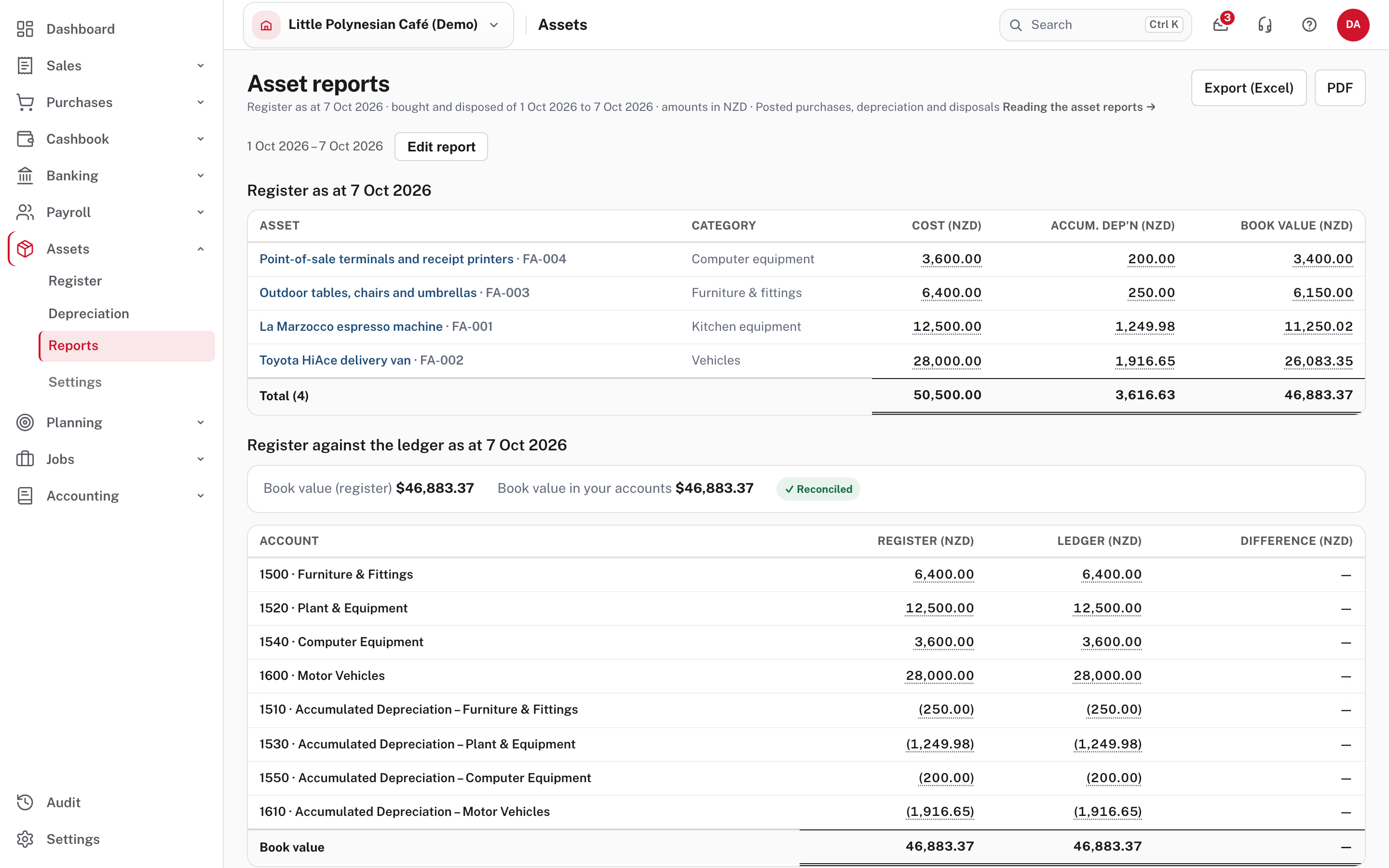
Register lists every asset you held on the date, with cost, depreciation and book value. Register against the ledger sets, for each fixed-asset account, the register's figure beside the ledger's, with the difference; depreciation shows in brackets, as on the balance sheet. Choose any figure to open the asset or the account behind it. The dates at the top (Edit report) are kept in the page address, and Export (Excel) and PDF keep a copy.
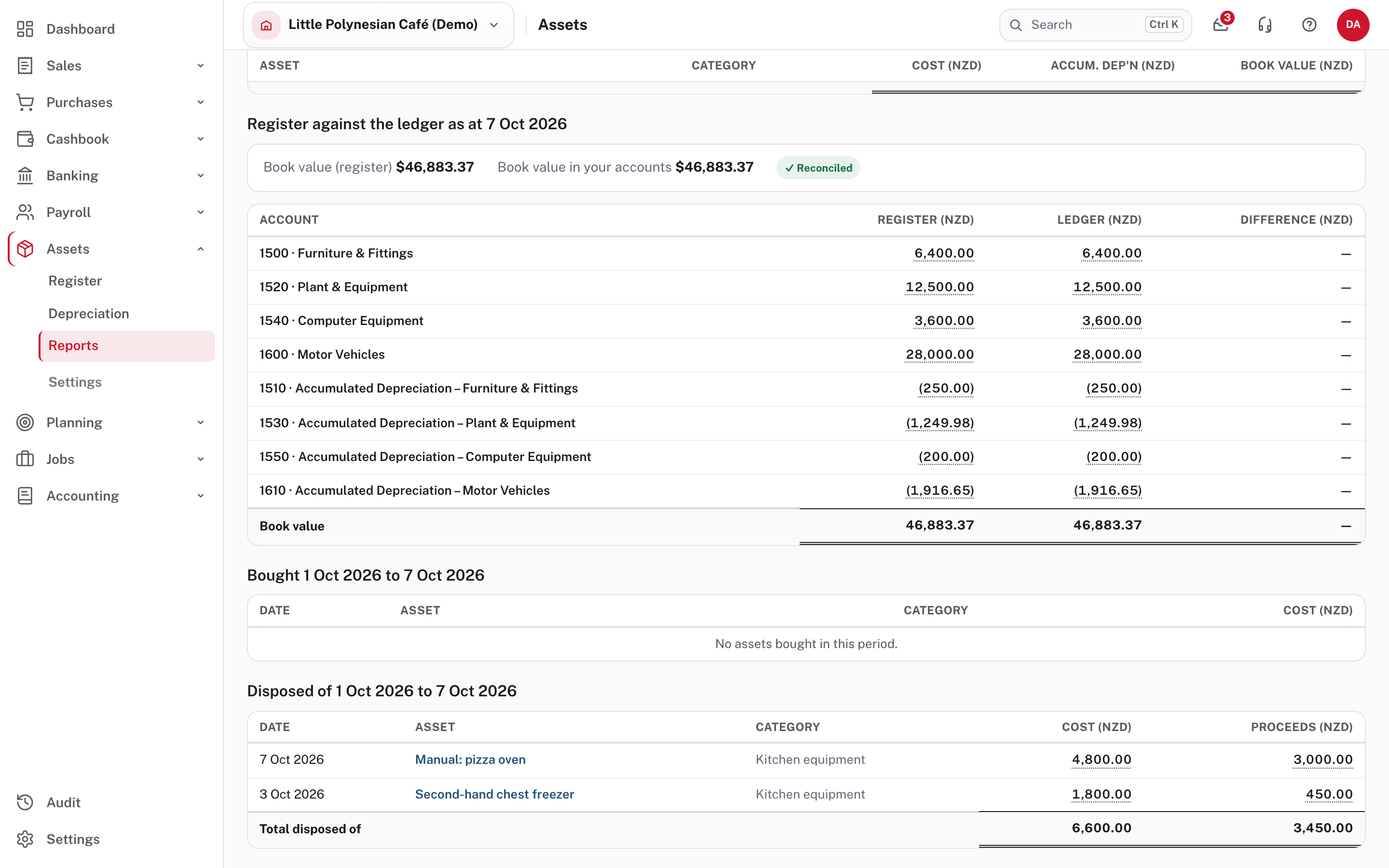
Below, Bought and Disposed of list what changed between the two dates, with cost and proceeds. The same comparison is a row on Period close each month end.
Not shown in the demo: when the register and the ledger disagree
If they differ, the Depreciation page lists each account that is out and by how much, and depreciation can't be posted until they agree. Accumulated depreciation can be corrected on that page (Correct the ledger, with a reason; it posts to depreciation expense and is recorded in the audit trail). Cost can't: a cost difference means a purchase, a reversal or an edit is missing its other half, and Asset reports is where to find it (Help).
Common mistakes
- Leaving Depreciate from on today's date. The months before it are never charged. Set it with the purchase date.
- Taking the card's default accounts. Check that the cost, accumulated depreciation and expense accounts belong together.
- Running to a month that has not ended, or to the wrong date. Preview first, and read the months and the total.
- Trying to correct a cost by editing the asset. It can't be changed once it is in the ledger. Undoing a bill or payment takes the assets it registered off the register, as long as no depreciation has been posted on them and they have not been disposed of.
- Using a journal for an asset. The asset accounts don't appear in the manual journal's account list; use the register.
More detail: Depreciation and disposal and Asset categories.
Check before you continue
Check before you continue
- Each new asset has the right cost, residual, life, Acquired and Depreciate from dates, and three matching accounts.
- The month's depreciation run was previewed, posted to the month end, and its journal is in the journal register.
- Anything damaged is written down, and anything sold or scrapped is disposed of, with its proceeds.
- Assets → Reports says Reconciled, and Period close agrees for the fixed-asset accounts.
- Depreciation rates and lives are ones your accountant has agreed.