Approvals and controls across the company
An approval asks a second person to look at something before it counts. A control is a rule that stops a mistake or a fraud (a lock on closed months, a second factor at sign-in). Easy has about twenty of them, and a new company starts with every approval off, so you decide which your business needs. This chapter shows where they are, which to turn on first, and how they behave when you are the only person.
About the screenshots
Screenshots are from Easy's demo company, Little Polynesian Café, which has four decisions on (leave, timesheets and expense claims always have a decision step) and the rest off.
Before you start
- Only the Owner or an Administrator can change approval rules. An Accountant cannot, so the person a control checks can never switch it off (People, roles and access).
- Decide who will approve. An approval asks for a different person: if only you can decide, Easy lets you approve your own item with a short reason, which is kept.
- Don't switch controls on in bulk just before a busy day. Each one adds a step for someone.
Step 1. See every control in one place
Settings → Users & security → Approvals & controls.
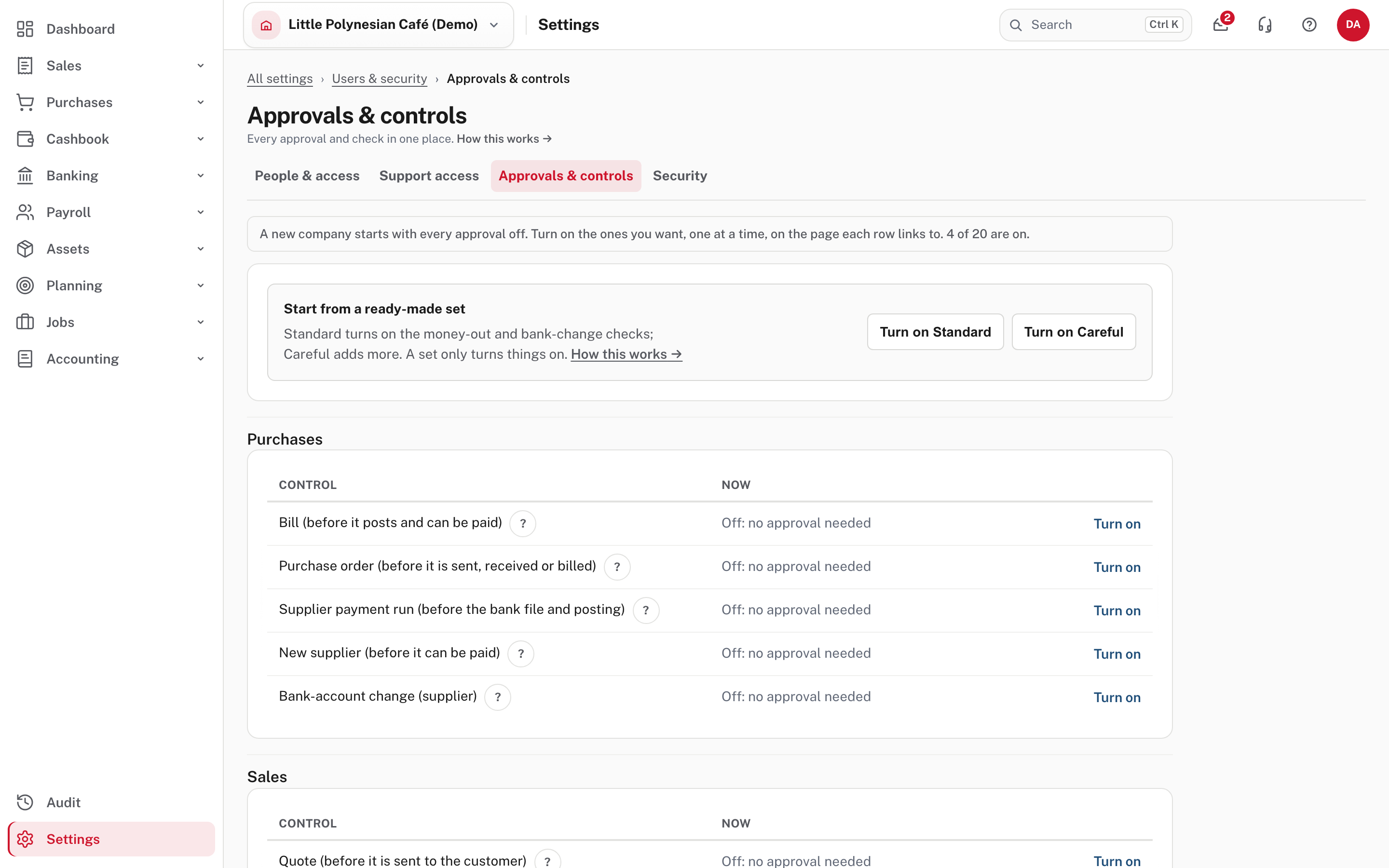
The page lists every approval and internal check in groups (Purchases, Sales, Accounting, Payroll and others): the control, now (Off: no approval needed, or what it is set to) and a Turn on link to the page where it is changed. It saves nothing itself: each control keeps its own page, so you always change a control where it belongs. The line at the top counts how many are on (4 of 20 in the demo). The ? beside a control explains it.
Two ready-made sets
Start from a ready-made set offers:
- Standard turns on sign-off for manual journals and supplier payment runs, and checks on supplier and employee bank-account changes.
- Careful adds bills, invoices and pay runs, and asks every member to sign in with a second factor.
A set only turns things on. It never changes a control that is already on (so it will not overwrite a limit or a named approver you chose), and it never turns anything off. Each control can still be changed afterwards on its own page.
Step 2. Decide which to turn on first
Turn a control on when a second pair of eyes would catch a mistake that costs real money. A good order for a small business:
| Order | Control | Why |
|---|---|---|
| 1 | Bank-account changes (suppliers and employees) | Changing where money is paid is the usual way a payment gets redirected to a fraudster. It only fires when an account changes, so it rarely gets in the way. |
| 2 | Payment runs and pay runs, once more than one person handles money | The two ways payroll and supplier fraud usually happen: a changed account and a payment nobody else looks at |
| 3 | Bills, with a delegation limit | Only larger bills wait for approval |
| 4 | Manual journals, if anyone other than your accountant can enter them | A journal can move amounts between almost any two accounts |
Leave invoices, quotes and purchase orders until you need them. If you are a one-person company, most controls add typing without adding safety; turn them on when you add someone.
A reminder where it matters
While bill approval, payment-run sign-off or pay-run sign-off is off, the screen where you enter your first bill, prepare your first payment run or review your first pay run shows a one-line note with a link to turn it on. It never stops you, goes away for the session when you hide it, and doesn't return once you have recorded your first of that kind, or the control is on. Only people who can change the setting see it.
Step 3. Turn one on
Each control is changed on its own page. The pattern is always the same: a row for each decision, a Who decides choice and, where it applies, an amount limit.
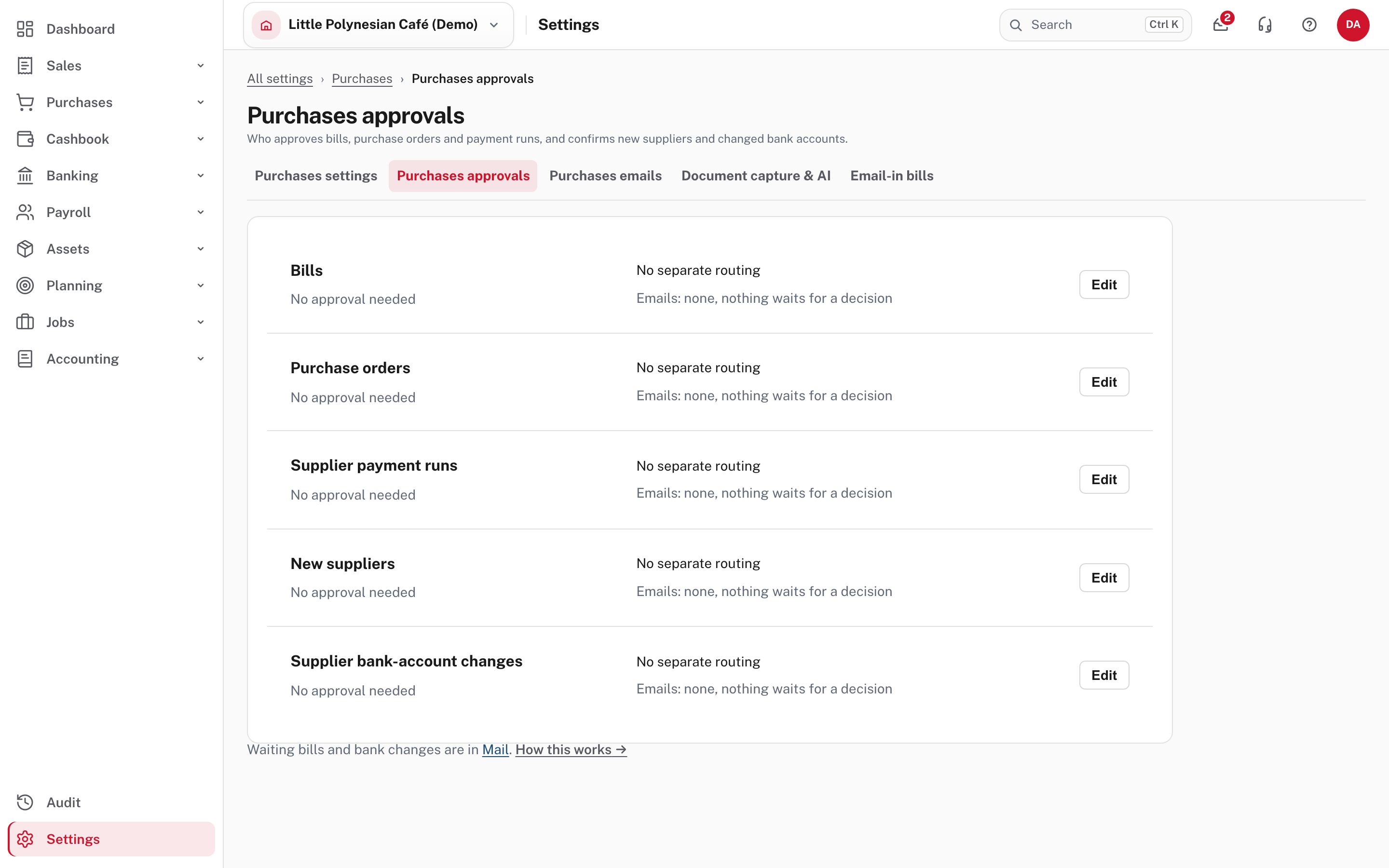
Settings → Purchases → Purchases approvals has a row for bills, purchase orders, supplier payment runs, new suppliers and supplier bank-account changes. Choose Edit on one.
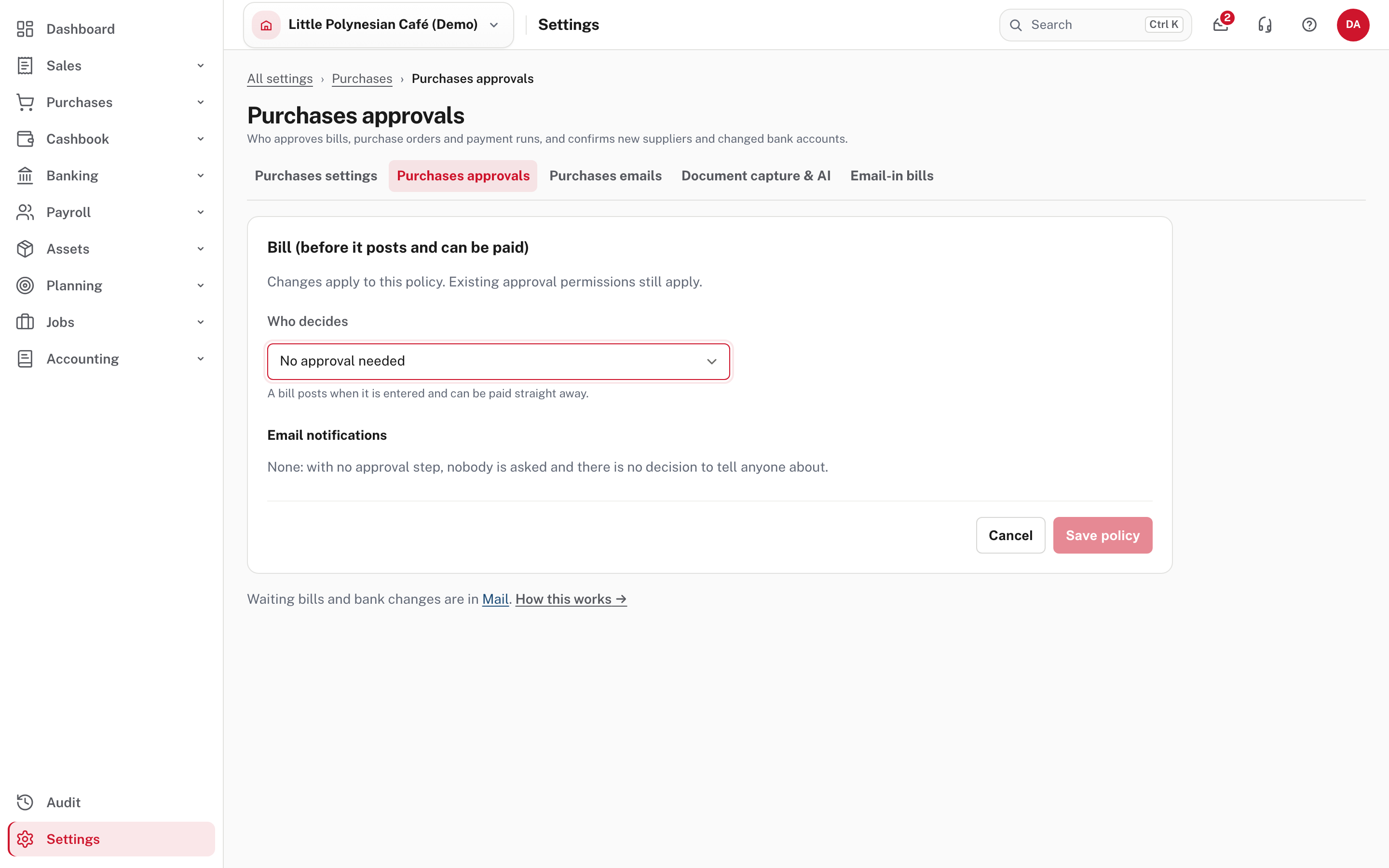
Who decides is one of:
| Choice | What it means |
|---|---|
| No approval needed | The item is recorded when it is entered |
| The person who prepared it | It waits, but whoever entered it may approve it. A record of the decision is kept |
| Someone else | It waits until a different person approves, either anyone who can approve it, or one named person |
Under it, Email notifications says who is emailed when something is submitted and when it is decided. Choose Save policy (Cancel restores the saved rule).
Financial delegation. Bills, purchase orders and supplier payment runs can each ask for approval only above an amount: edit the row, tick Only when the amount is over a limit, and enter the limit in your books' currency. At or under it the item goes straight through; over it, the approval applies as set.
The same pattern is used in each module:
| Control | Where it is changed |
|---|---|
| Bills, purchase orders, payment runs, new suppliers, supplier bank changes | Settings → Purchases approvals (Enter and record a bill) |
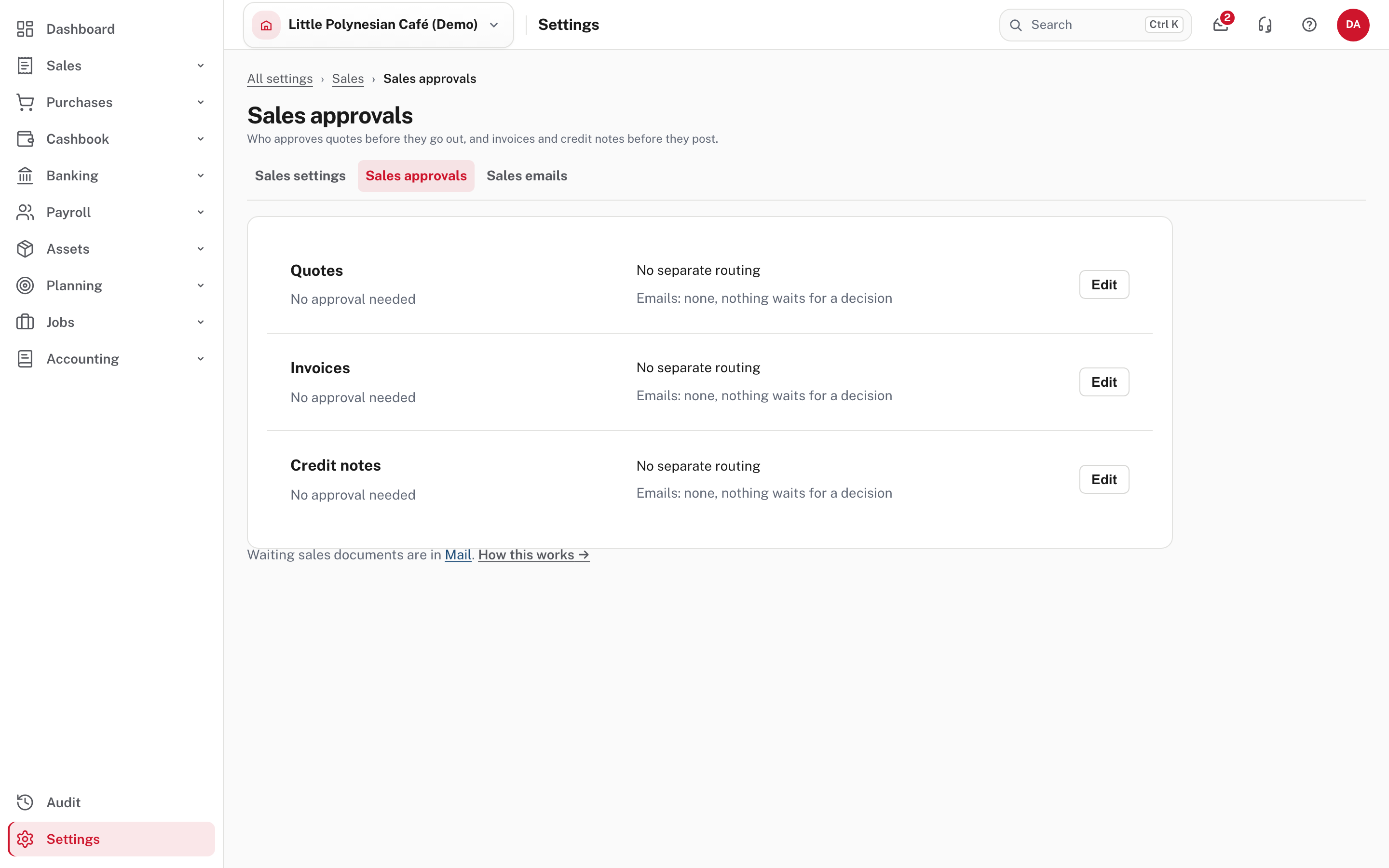
| Quotes, invoices, credit notes | Settings → Sales approvals (shown below) |
| Manual journals | Settings → Accounting approvals (Manual journals) |
| Pay runs, employee bank changes, new employees, pay-rate changes, terminations, leave, timesheets, expense claims | Payroll settings → Approvals (Set up payroll, step 7) |
| The transaction lock, Edit posted manual journals | Settings → Accounting |
| Two-factor sign-in | Settings → Security (People, roles and access) |
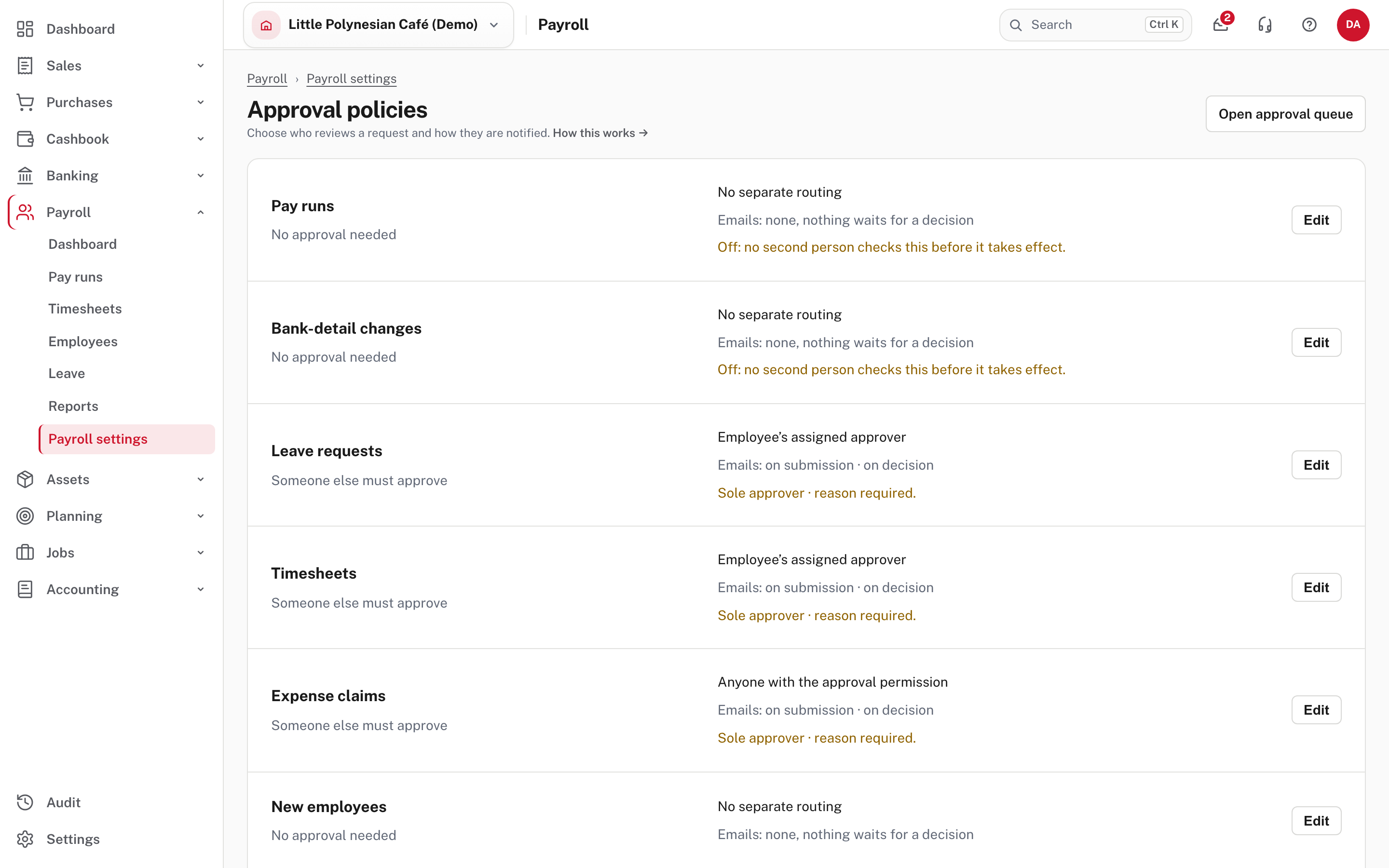
What happens to work already waiting
- Switching a control on applies to documents that have not yet been finalised or recorded, including drafts that already existed. A finalised or recorded document is not affected.
- Switching a control off lets a waiting bill be recorded directly. A change to an employee's bank account that was waiting for confirmation takes effect, and Easy records who switched the control off. A pay run that already has an open sign-off still needs it; only new pay runs skip it.
- A change to who decides never re-routes a request that is already waiting. To hand a waiting request to someone else, use Manage assignments in Mail.
- Leave requests, timesheets and expense claims always have a decision step, because deciding is what puts the leave on the timesheet or turns the claim into a bill. You can choose who decides them, but not remove the step.
Step 4. The ledger controls
Settings → Accounting is where the books are dated and locked.
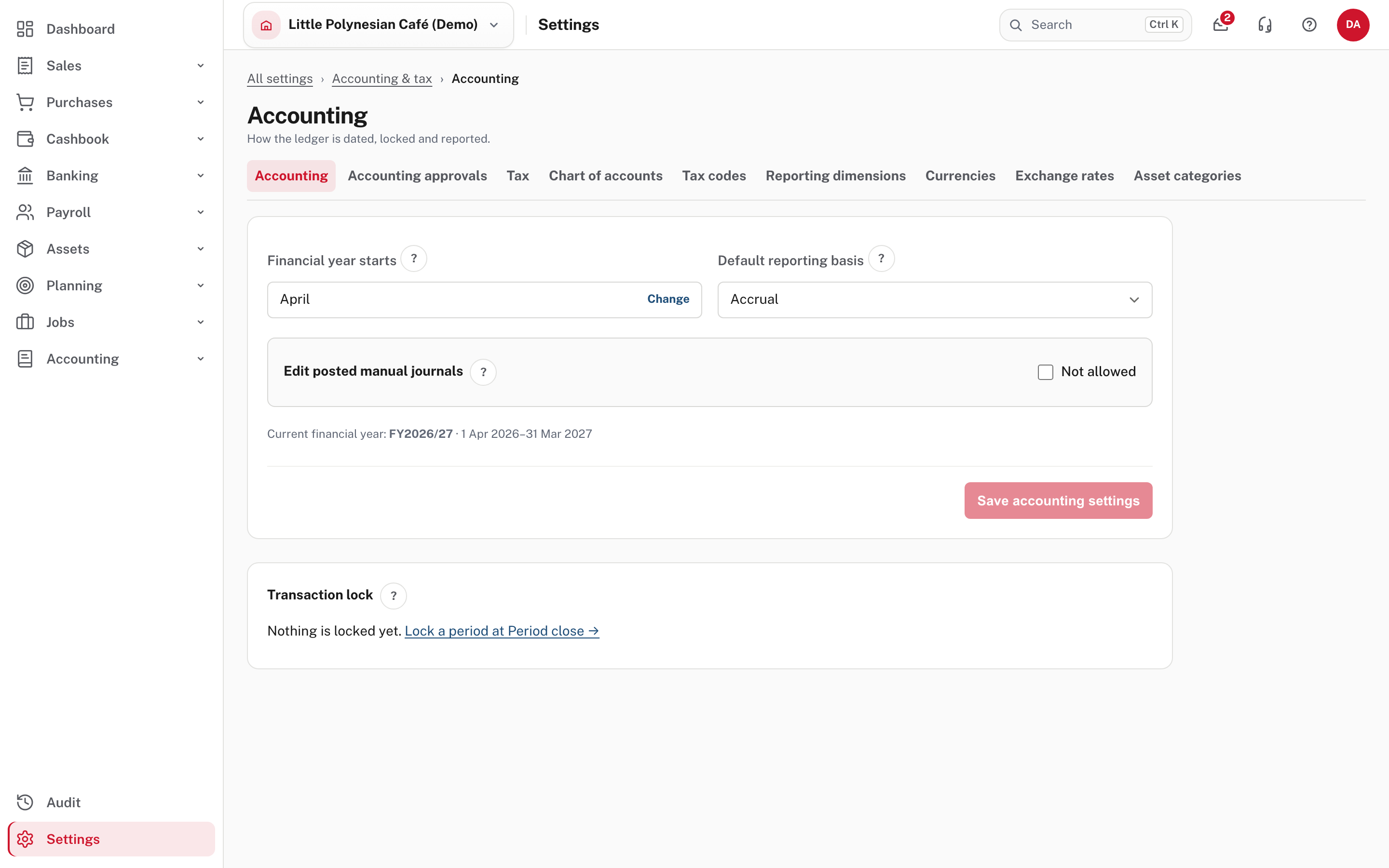
- Financial year starts sets the month used for annual reporting. It does not change the dates on transactions already recorded.
- Default reporting basis (Accrual or Cash) is the starting view for reports that offer both.
- Edit posted manual journals (Not allowed by default) gives a correction path while the period is open. The original posting and later changes remain in the audit history.
- Transaction lock stops posting or changing anything dated on or before the lock date. To lock a month, sign it off under Period close; the integrity checks must pass first (Month-end checklist). To reopen a period for an authorised correction, choose Reopen a period and give the reason: the reason, the old date and the new one go into the audit history, and you sign the period off again afterwards.
Step 5. Records and retention
Settings → Data & import → Records & retention.
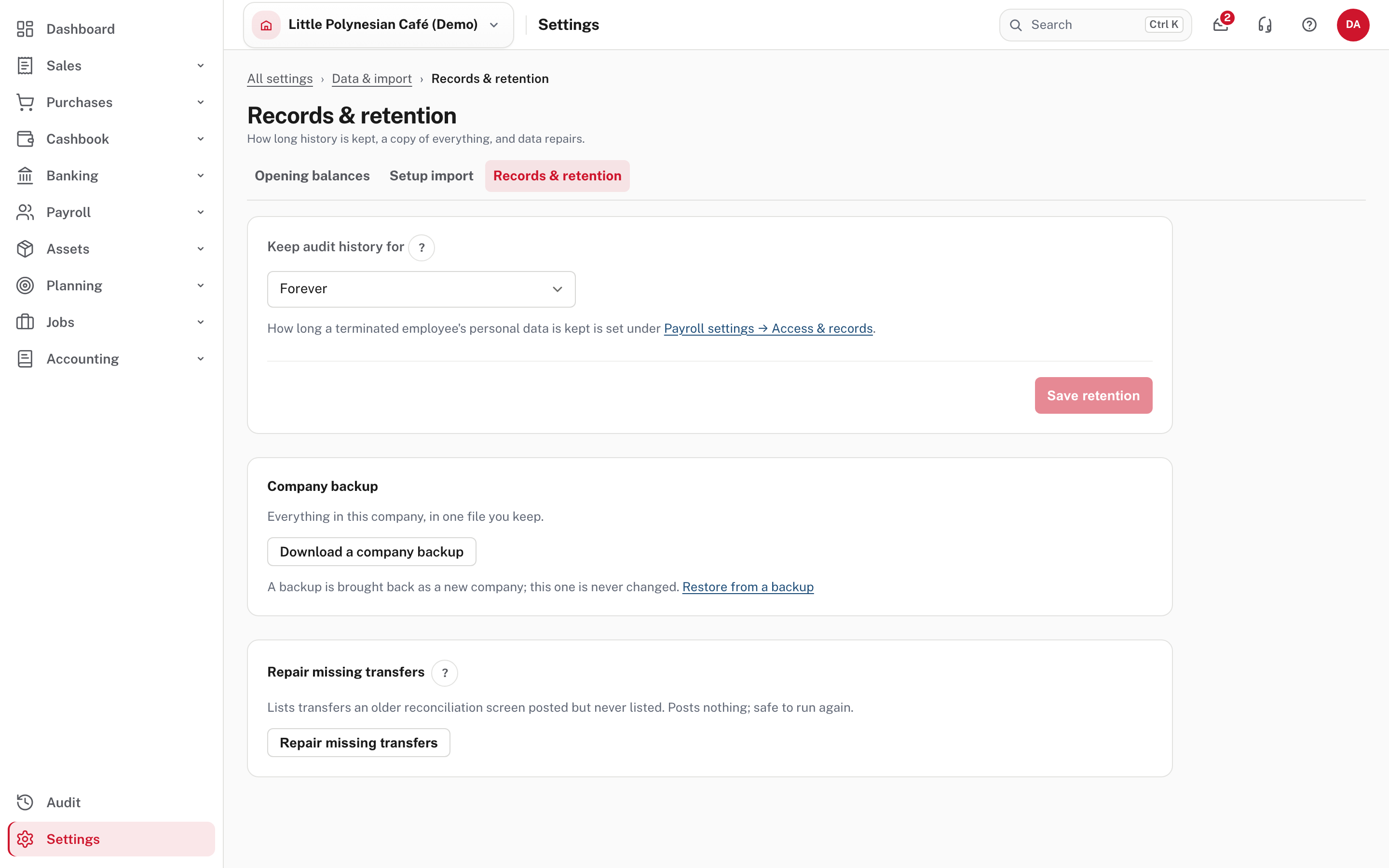
- Keep audit history for sets the retention period for eligible audit records. Forever sets no limit. Check your record-keeping requirements before choosing a shorter period. How long a terminated employee's personal data is kept is set separately under Payroll settings → Access & records.
- Company backup: Download a company backup gives everything in this company in one file you keep. A backup is brought back as a new company; the company you are in is never changed (Restore from a backup, Set up your company).
- Repair missing transfers lists transfers an older reconciliation screen posted but never listed. It posts nothing, changes no amounts, and is safe to run again.
When you're the only person
If you are the only one who can decide, you may approve your own item, but you must type a short reason, which Easy records. That keeps the control honest without locking you out. The moment a second person can decide, the different-person rule applies again, including to what you do afterwards.
When your plan doesn't include approval workflows
Some plans leave out approval workflows: the rows say Not in your plan, and bills, purchase orders, quotes, invoices, credit notes, manual journals, pay runs and employee changes go straight through. The checks that stop money being redirected stay on every plan: a changed employee or supplier bank account, a new supplier and a supplier payment run.
More detail: Approvals and controls and General ledger controls.
Good practice
Auditors and donors usually look for these, and each maps to a control above:
- one person prepares payments and a different person releases them in online banking;
- bank-detail changes confirmed by a second person;
- a monthly bank reconciliation finished by someone other than the person who entered the lines;
- manual journals approved, or reviewed monthly by the owner;
- a lock date after each month end.
Check before you continue
Check before you continue
- Bank-account changes (supplier and employee) require a second person's confirmation.
- Pay runs and supplier payment runs have a different person to approve them, as soon as more than one person handles money.
- Each control you turned on has the right approver named, and they know where the work arrives (Mail → My actions).
- The transaction lock is set after each month end, and Edit posted manual journals is off unless you need it.
- Audit history retention is set on purpose, and a company backup has been downloaded and kept.