Billing, backups and your data
Easy is paid for company by company, by the month, after a free trial of 30 days. This chapter is about the account side of your company: where your plan and its price are, how you pay, how you stop, and your data: taking a full copy of it, getting it back, and what leaves with you. The Owner and Administrators change the plan; an Accountant can also open the billing page, pay and take backups. It goes with Turning modules and features off (turning a module off does not change the plan) and People, roles and access (who owns the company).
About the screenshots
The demo company, Little Polynesian Café, has no subscription attached, so its Billing & plan page shows only a status. The plan pictures are from a practice company, Manual Lab sa, on a free trial of Easy Core. In the demo, card payments are not live, and neither company has an invoice from Easy, so the steps for paying an invoice by bank transfer are described from Easy's Help and source and not pictured.
Before you start
- You are the Owner or an Administrator to change anything: add an add-on, move to another plan, cancel. An Accountant can open Billing & plan, pay an invoice and download a backup, but not change what the company pays for.
- Know which plan you are on. Easy has three plans in the add-company screen (step 2): Easy Core (the company's books), Easy Payroll (payroll only, with the books kept elsewhere) and Easy Personal (your own money).
- Have your bank-transfer confirmation ready when an invoice is due: a PDF or a picture (step 4).
Step 1. Open Billing & plan
Your initials (top right) → Billing & plan.
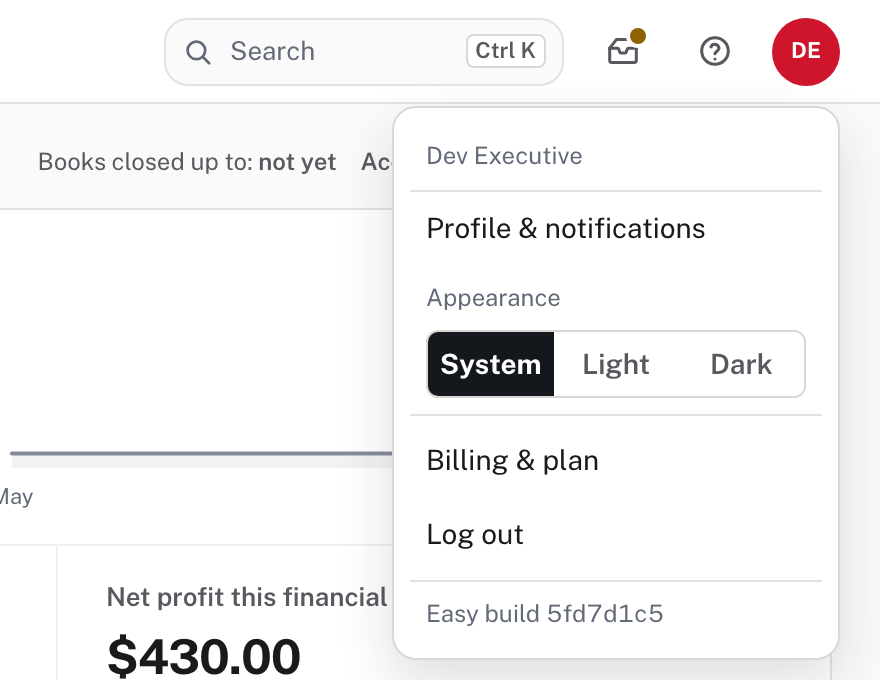
The entry is in the menu only for people who may use billing. The page tells you everything in one place.
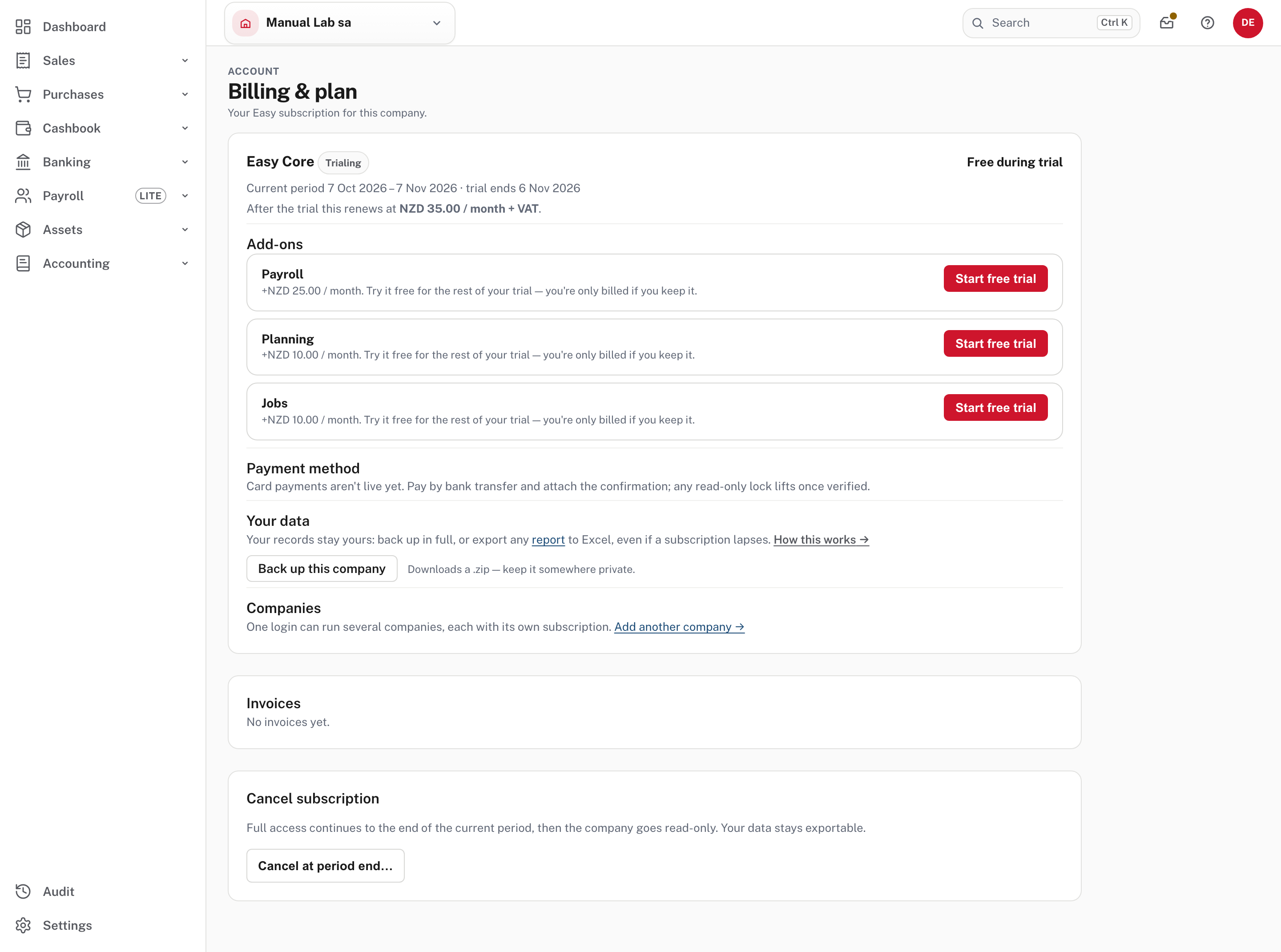
| Part of the page | What it says |
|---|---|
| Easy Core · Trialing | Your plan and its status, and Free during trial |
| Current period | The dates of the period, and when the trial ends (here 6 Nov 2026) |
| After the trial this renews at… | The price you will pay once the trial ends: here NZD 35.00 / month + VAT |
| Add-ons | Paid extras for the plan (here Payroll, Planning and Jobs), each with its monthly price and a button |
| Payment method | How to pay (step 4) |
| Your data | The company backup and the export of reports (step 6) |
| Invoices | Easy's invoices to you, with their status. Here No invoices yet. |
| Cancel subscription | Step 5 |
Step 2. What the plans cost, and add-ons
The plans and their prices are shown when you add a company (Settings → People & access → Add another company, or Billing & plan → Add another company).
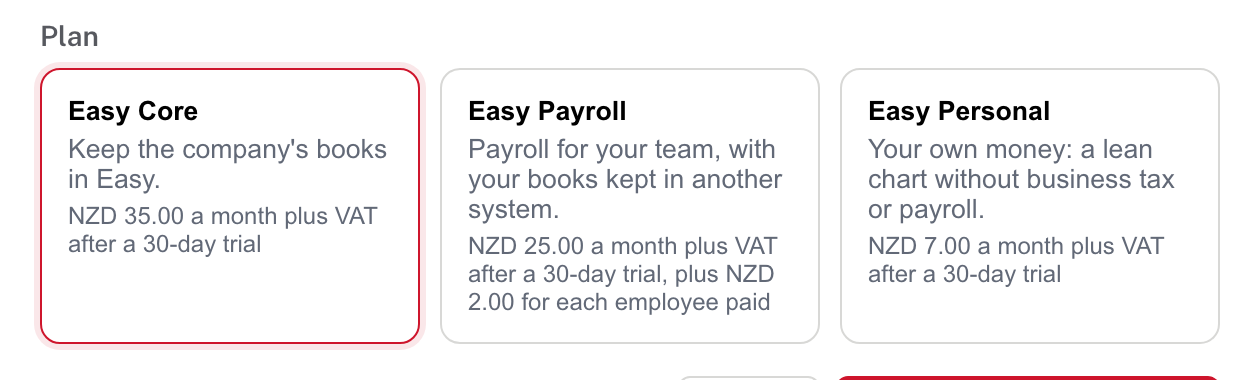
All three are a month plus VAT after a 30-day trial. Easy Payroll adds NZD 2.00 for each employee paid. Plan prices are before VAT: a Cook Islands business is invoiced the price plus 15% VAT, and a business billed outside the Cook Islands is not charged VAT (Billing, paying and your data).
An add-on is a paid extra on the plan. During the trial each one says Try it free for the rest of your trial: you're only billed if you keep it, with a Start free trial button; once started, the button becomes Stop, and after the trial it is Add or Remove and the price joins your next invoice (from Easy's source; not shown in the demo). A module the plan doesn't include shows Not in your plan in Turning modules and features off and joins the menu when you add it here.
Not shown in the demo
From Easy's Help, not seen on screen: moving to another plan (the Plan section of this page, which opens a summary of the new price, the modules gained and turned off, and whether you have more people than the new plan includes; nothing is deleted and modules come back if you move back); payroll charged per employee paid (only for employees on a finished pay run dated in the month, counted once, billed after the month ends; trial months are free); Easy Starter, for a business not registered for VAT; and complimentary accounts, which Project Five doesn't invoice. Only Project Five changes a complimentary plan.
Step 3. Adding another company
One login can run several companies, each with its own subscription and trial. An account can have at most two companies on a free trial at once (and ten in all, from Easy's source). Asked for a third, Easy refuses after Continue to subscription: You already have 2 companies on a free trial. Subscribe to one of them, or close one, before starting another. Project Five can help if you need more. The link Add another company is on Billing & plan and on Settings → People & access.
Step 4. Pay an invoice
Easy invoices each company monthly. In the page's Payment method section, card payments aren't live yet: Pay by bank transfer and attach the confirmation; any read-only lock lifts once verified. When card payments go live, an open invoice offers a Pay … by card button that takes you to the bank's secure page: Easy never sees the card number, and bank transfer still works (Billing, paying and your data).
An invoice appears under Invoices with its number, period, amount (with the VAT it includes), and a status of Open, Under review or Paid; Invoice and Receipt buttons download the tax invoice and the receipt. For an open invoice, from Easy's source and not seen on screen (no invoice exists in either company):
- The page shows Pay by bank transfer to: and Project Five's bank details, when Project Five has set them.
- Make the transfer in your online banking.
- Under Transfer confirmation (PDF or image), choose the file (up to 8 MB). Add a Reference / note if you like.
- Choose Submit for verification. The invoice is Under review and the page says Your payment confirmation is with Project Five for verification: full access is restored as soon as it's checked. A company that was made read-only for non-payment opens again when it is verified.
Step 5. Stop your subscription
Billing & plan → Cancel subscription → Cancel at period end…
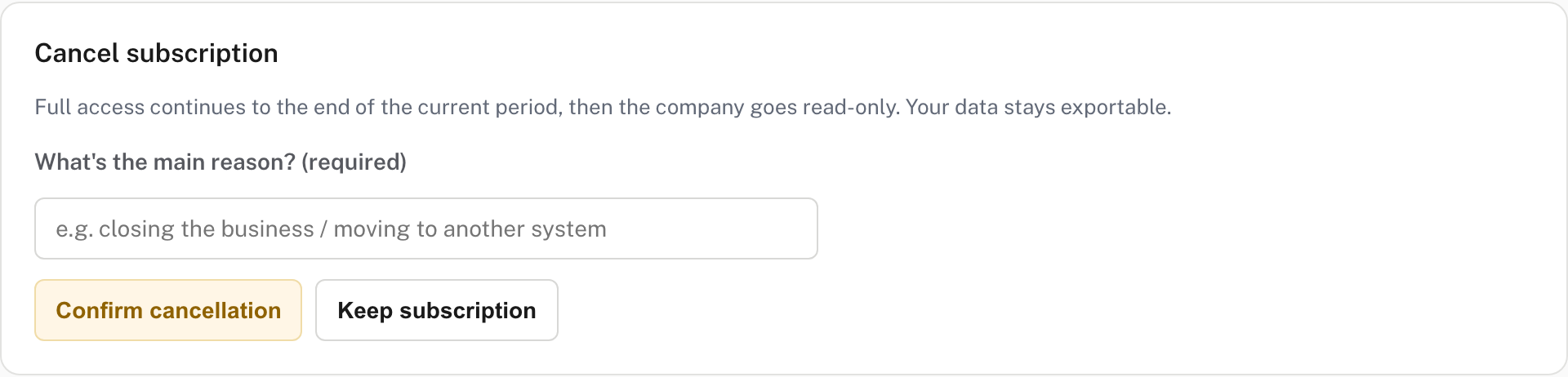
Easy asks for the main reason (required), then Confirm cancellation (or Keep subscription). Cancelling takes effect at the end of the current period: you keep full access until then, afterwards the company goes read-only, and your data stays available to export. Until the period ends the page offers Keep my subscription to take the cancellation back (from Easy's source; not shown in the demo). Only the Owner and Administrators get this card, and only while there is a subscription to cancel (from Easy's source).
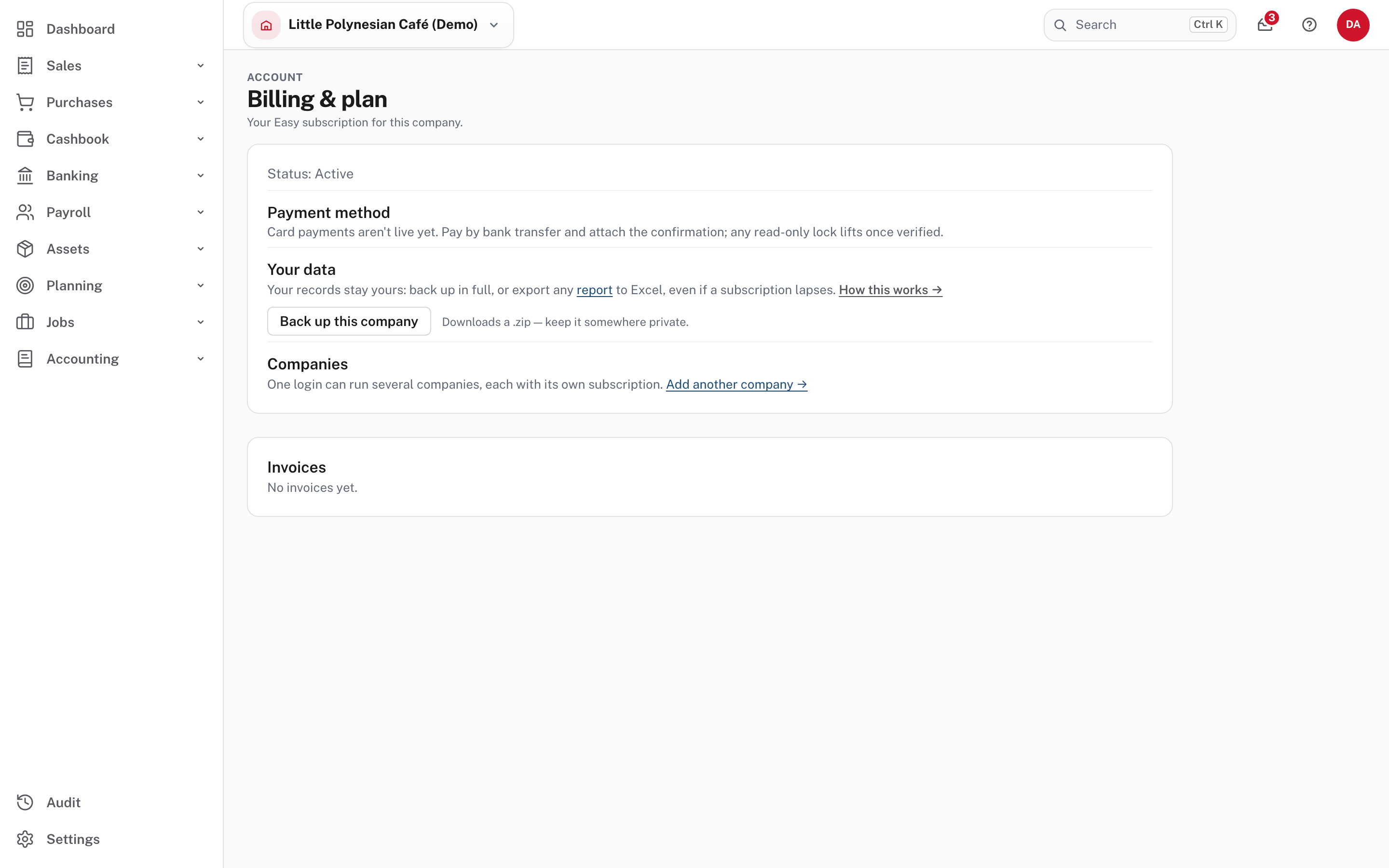
The demo has no subscription, so it has no plan, add-ons or cancel card for anyone. The Accountant can open the page and has the backup button.
Step 6. Your data
Your records are always yours. You can take them whenever you like, and the Help says both ways stay available even if a subscription lapses.
Take a full backup
Billing & plan → Your data → Back up this company. The Owner, Administrators and Accountants can. The Owner and Administrators can also use Settings → Data & import → Records & retention → Download a company backup (an Accountant cannot open that page).
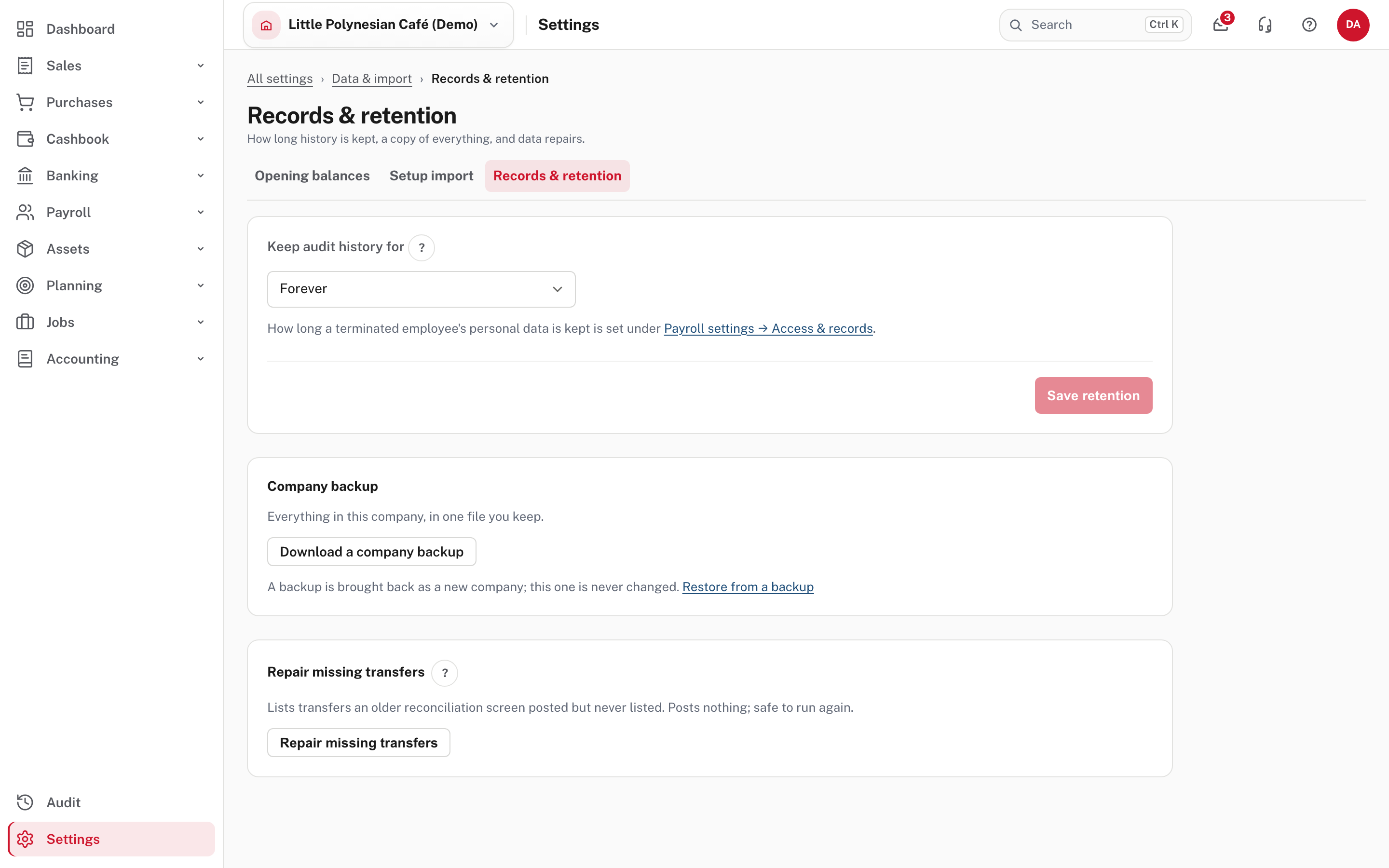
Easy builds a .zip and downloads it. It is named after the company, then the date and time (for example easy-manual-lab-sa-20261008-0106.zip), and a small company's is only tens of KB. It holds:
| In the zip | What it is |
|---|---|
| README.txt | In plain words: it is a complete copy of the company's records, how to read it without Easy, and a reminder to store it privately |
| manifest.json | The company, the plan and modules, how many rows each table has, and a SHA-256 checksum of every file, so you can tell the copy is whole |
| data/ | One file for each kind of record (accounts, customers, suppliers, sales documents and their lines, journal entries, approvals, the audit trail, settings and more), as newline-delimited JSON: one record on each line, readable in a text editor and importable by spreadsheet and database tools |
| files/ | Attachments and images as real files (the practice company has none) |
Keep it private
The README says the archive holds your full financial and payroll records, including bank-account details. Keep it somewhere private, encrypted if you can. The list of files has no table of users or passwords, but treat the archive as sensitive.
Every report also has Export (Excel) at the top right (the trial balance does, for one), and that, too, stays available.
Bring it back: restore
Settings → Data & import → Restore from a backup (Owners and Administrators only). It opens the same page as Add another company, at its restore section.
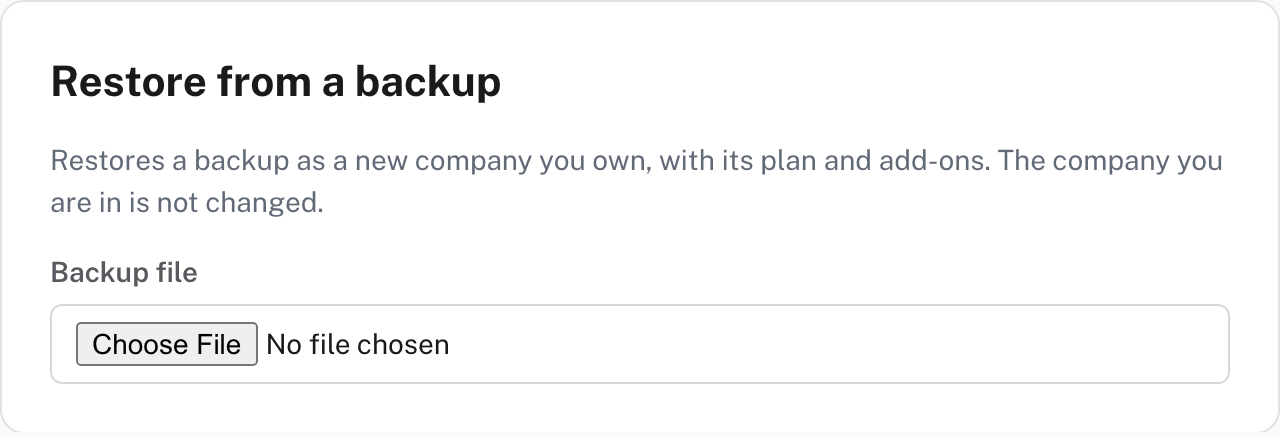
Choose the file and Easy builds a new company that you own, on the plan and add-ons the backup records. The company you are in is never overwritten. Not shown in the demo: a restore itself, because it adds another company.
Who owns the company
The company belongs to its Owner. The Owner can pass that on: on Settings → People & access, the Transfer ownership card lets the Owner choose a New owner and choose Transfer & step down. The person becomes the Owner and the previous Owner becomes an Administrator (People, roles and access). It is a decision in its own right, not a routine role change.
Good practice
- Take a backup at each year end, and before anything big (a migration, a clean-up). Keep it where it isn't on the same machine as the books.
- Check the checksum when it matters:
manifest.jsonlists a SHA-256 for every file. - Cancel only after you have a backup, and put a note in the diary for the day the period ends.
- Name who pays. If one named person is away, an Accountant can still open the page and pay; the plan itself only an Owner or Administrator changes.
Check before you continue
Check before you continue
- You know which plan the company is on, what it will cost after the trial, and when the trial ends.
- Someone who can pay Easy knows where Billing & plan is and how to attach a transfer confirmation.
- A company backup has been downloaded, opened to check it, and stored privately.
- You know a backup comes back as a new company and never replaces the one you are in.
- The Owner is the right person, and a second Administrator exists in case the Owner is away.