2. Run a pay period
Do this every pay period. Once setup (chapter 1) is done, a run takes about fifteen minutes. The order never changes:
Approve timesheets → Create the pay run → Review → Approve → Prepare payment → Finish → Hand out payslips
About the screenshots
Screenshots are from Easy's demo company, Little Polynesian Café, fortnightly pay, 28 September to 11 October 2026. All names and figures are examples.
Before you start
- Check readiness says Ready to run payroll (Payroll settings → Setup & switching). Chapter 1, step 10.
- Public holidays are entered for the year, and any new starter or leaver has been dealt with on their record.
- Leave for the period has been requested and approved, so it lands on the timesheets.
- You know who the second person is, if your company has approvals switched on (chapter 1, step 7).
Step 1. Approve the timesheets
Payroll → Timesheets.
The screen shows one pay period at a time and opens on the one being paid next. The arrows beside the dates move to the previous or next period. Under the dates, four stages show where the period stands: Enter hours, Approve, Pay run and Paid, each with how many people are done.
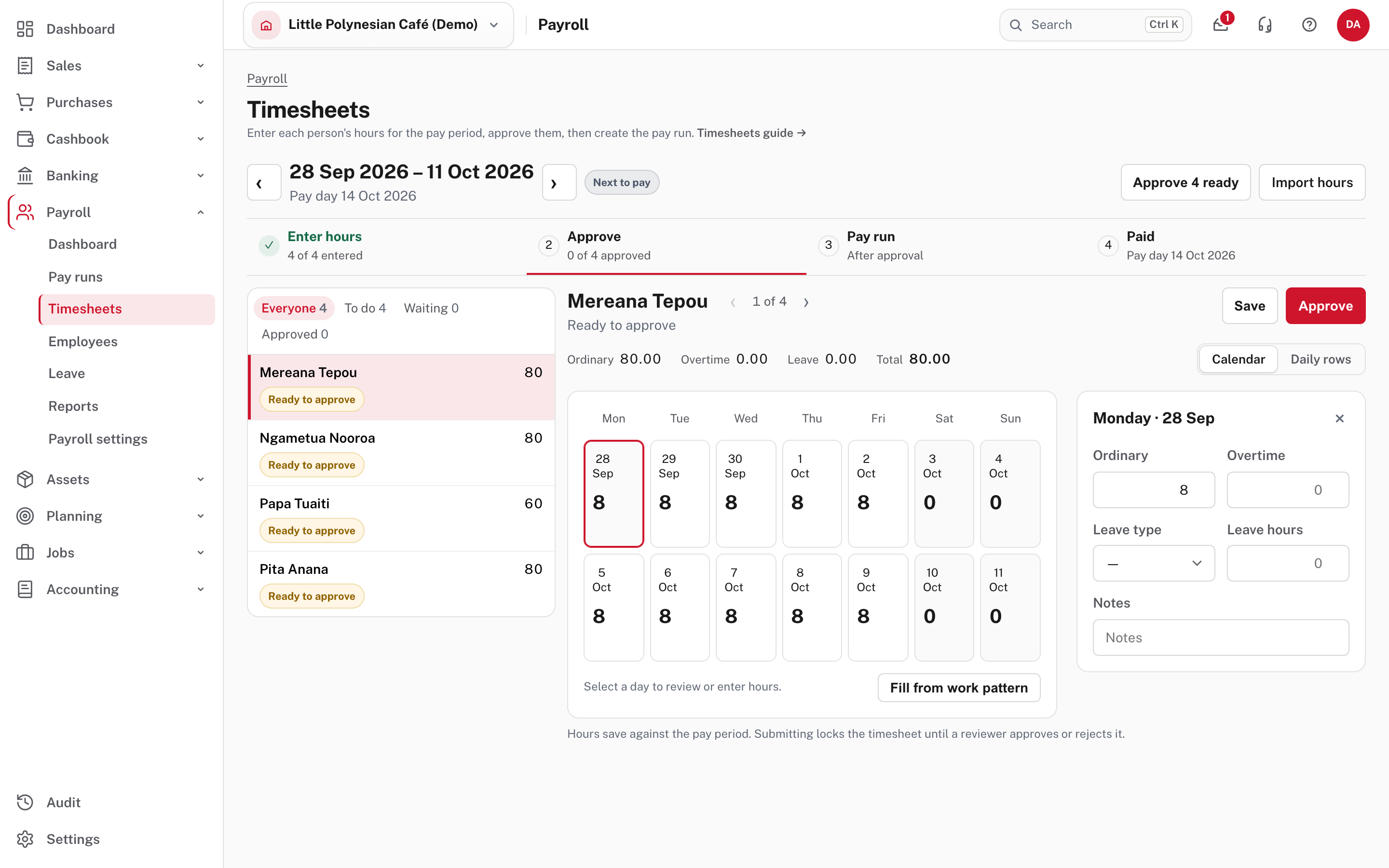
- Create the timesheets if someone has none. Create N timesheets drafts one for everybody still without a timesheet, filled from their usual hours (a new starter from their first day, a leaver to their last) and any leave already approved.
- Check each person. Choose a name on the left, then change a day, add overtime or leave, and Save. Fill from work pattern fills the empty working days with their usual hours. Import hours brings in a clock or time-sheet file instead of keying the hours.
- Approve. What the button says depends on your company's rules:
- Approve or Approve N ready: you are allowed to decide these hours. One click approves them.
- Send for approval or Send N for approval: a different person has to decide. They open the same screen, see Ready to approve, and choose Approve or Send back.
Only approved timesheets are paid. Someone who is paid from a timesheet and has no approved one is left off the run, and the run names them. A timesheet that has been approved is locked; to correct hours after that, change them on the person's payslip in the pay run (step 3).
More detail: Timesheets in payroll.
Check before you continue
- Every person who should be paid shows Approved.
- Hours look right for the period, including overtime and any leave.
- The period's stages show 4 of 4 approved.
Step 2. Create the pay run
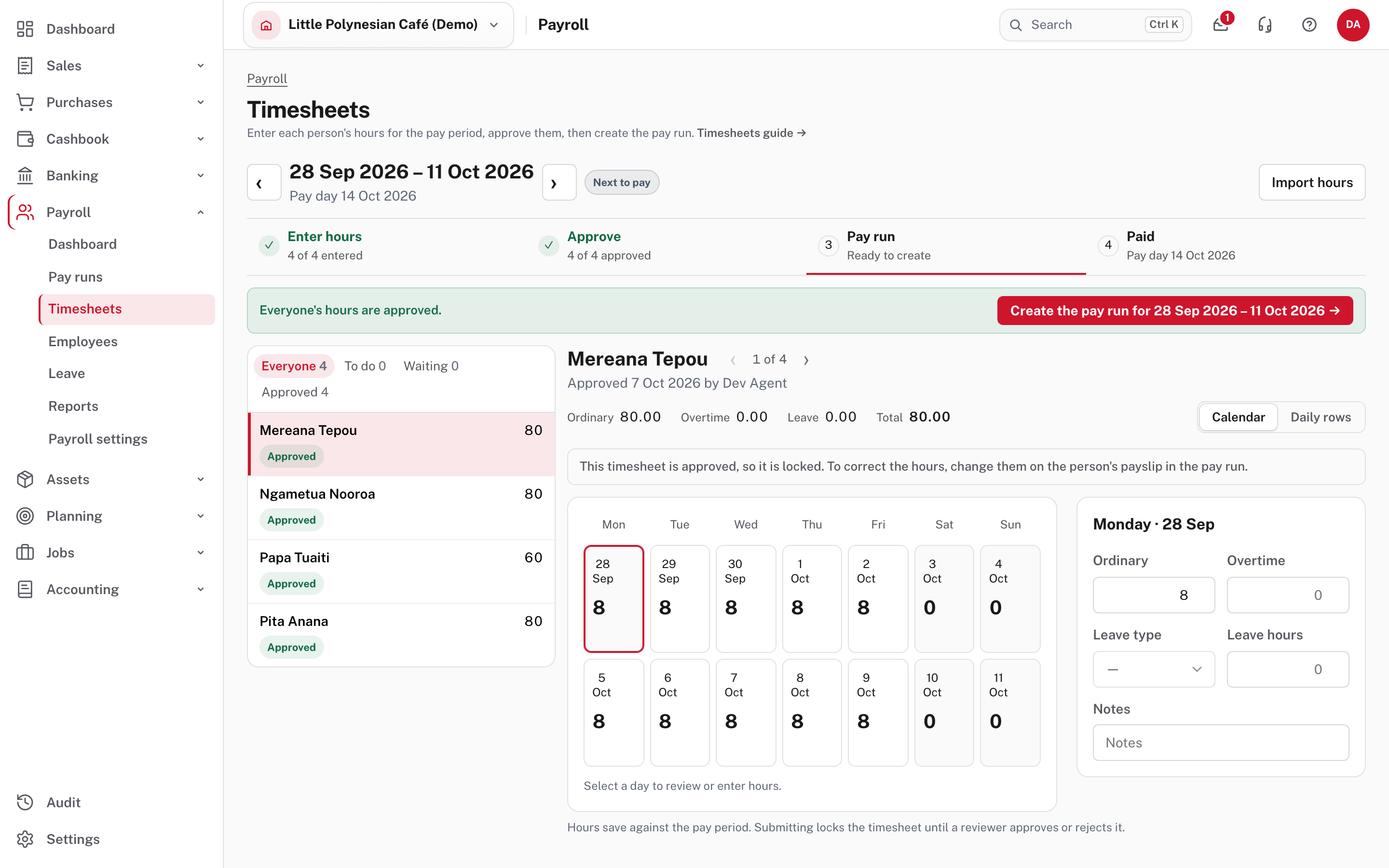
When everyone is approved, the page says so and offers Create the pay run for 28 Sep 2026 – 11 Oct 2026 →.
The New pay run page opens on Regular pay (approved timesheets and regular pay). Choose Extra one-off payment instead for a bonus, a correction or any payment outside the schedule; that starts empty, and you add what it pays.
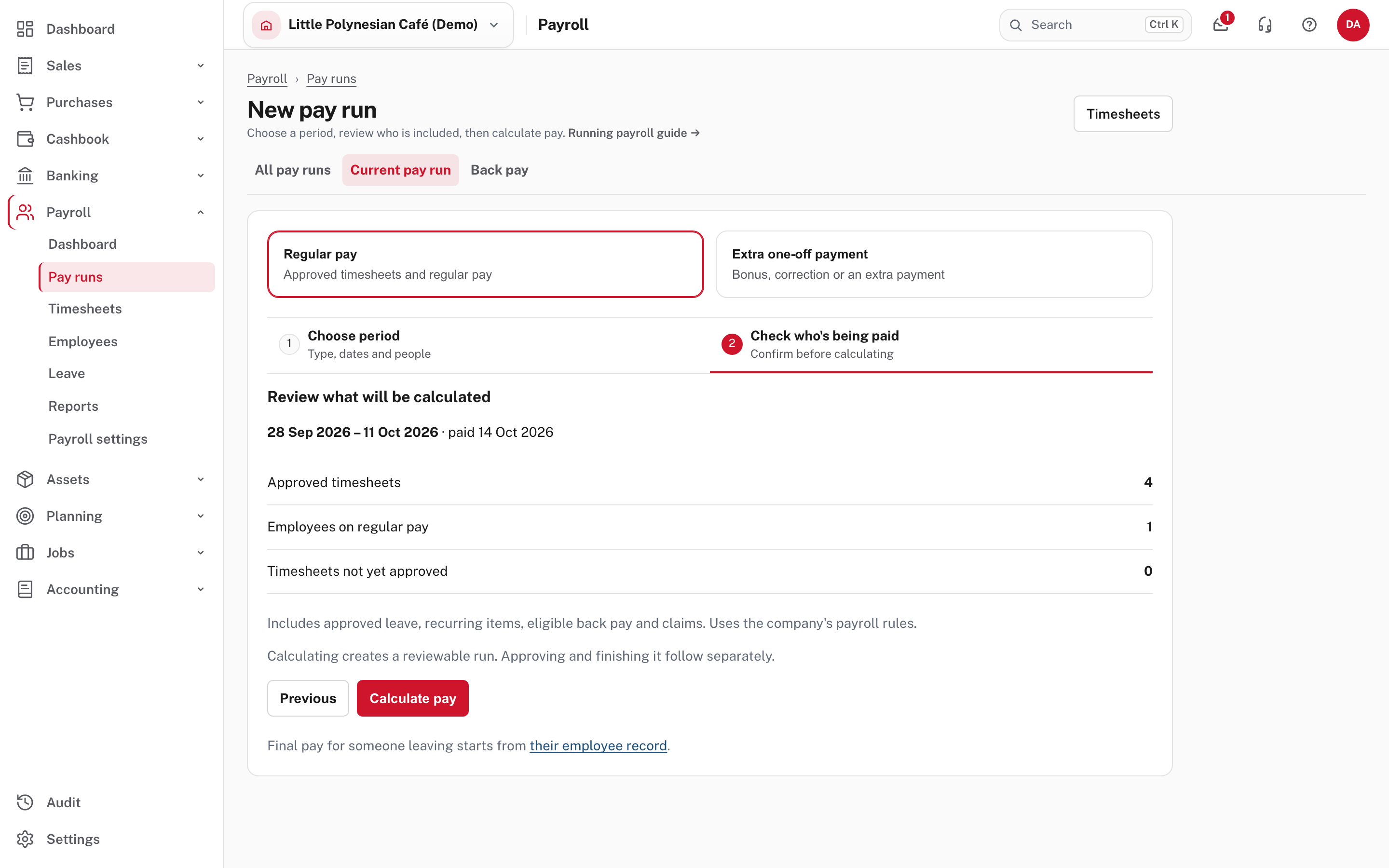
Check the three counts before you press Calculate pay:
- Approved timesheets: the people paid from their hours.
- Employees on regular pay: the people paid their standard pay with no timesheet (usually salaried staff).
- Timesheets not yet approved: should be 0. If it isn't, go back to step 1.
One regular period at a time
If an earlier regular period is still open, finish it before starting the next one.
Step 3. Review the run
Calculate pay builds the run and opens it. Nothing is paid or recorded yet; this is your chance to look.
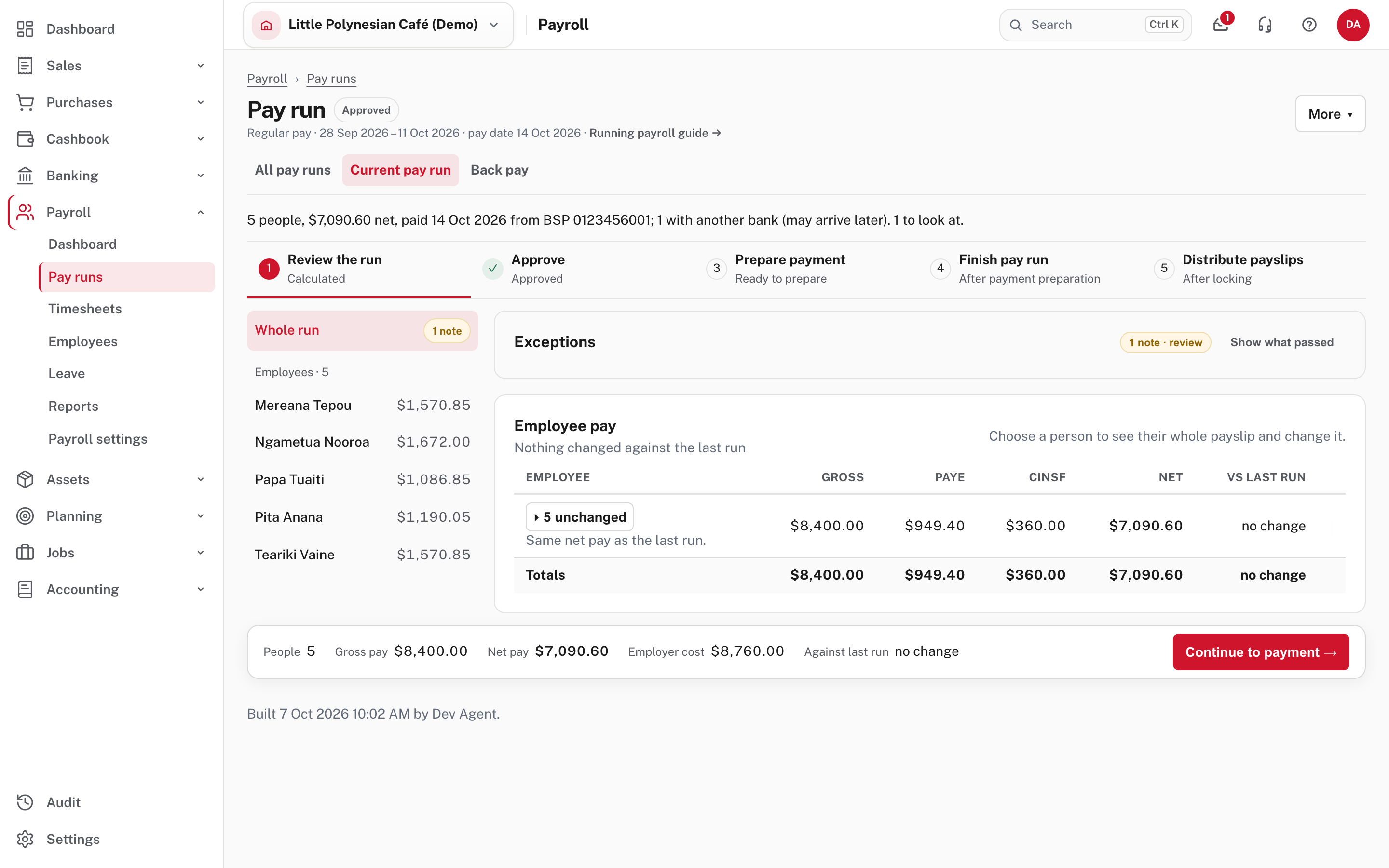
The line under the title sums it up (how many people, total net, the pay date and the bank account it is paid from, and how many items need a look). The five stages run across the top: Review the run, Approve, Prepare payment, Finish pay run, Distribute payslips. The bar at the bottom always shows the totals and the button for the next step.
What to look at:
- Exceptions. Choose 1 note · review to read each note. One here is only a reminder that the public-holiday list is empty. Clear anything marked as blocking before you go on.
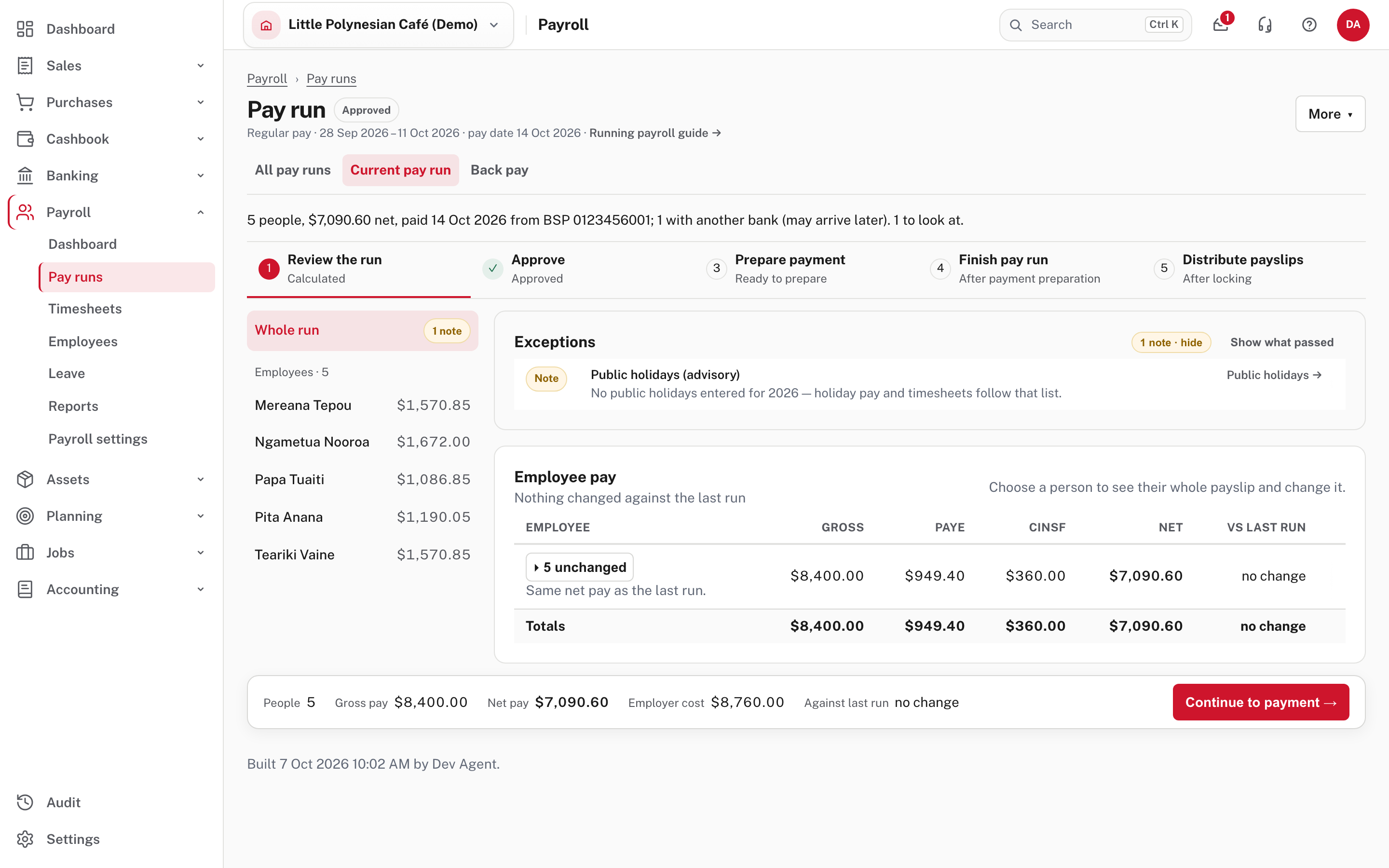
- Employee pay compares each person with the last run. Nothing changed against the last run is the quiet result you want in a settled month; a person who changed is listed on their own line, so you can see why.
- Each person's payslip. Choose a name on the left to open it.
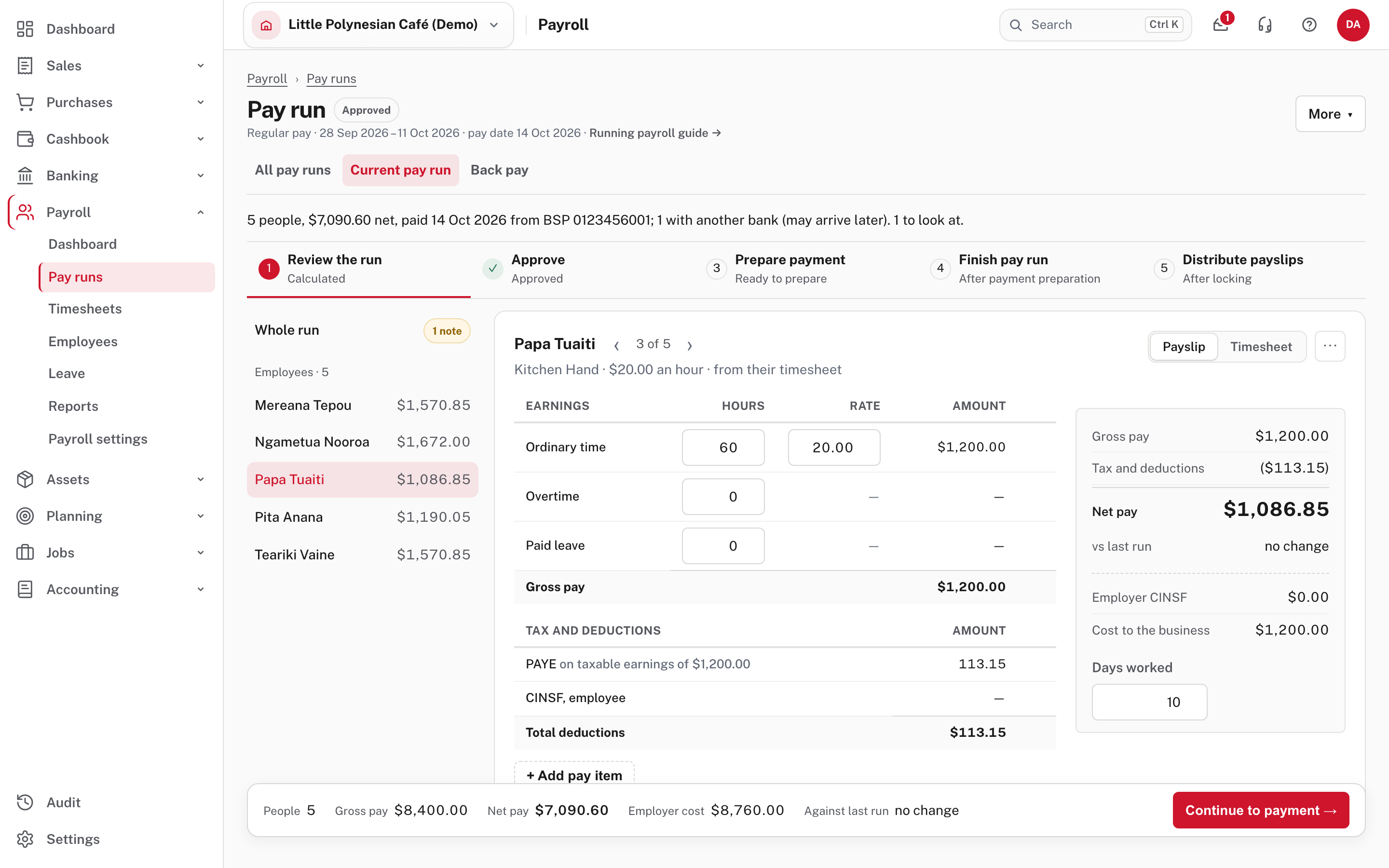
- Earnings shows ordinary time, overtime and paid leave with hours, rate and amount.
- Tax and deductions shows PAYE and the employee's CINSF.
- Change an hour or an amount and a bar appears with Save payslip; tax and net pay are worked out again when you save.
- + Add pay item adds a bonus, back pay, an allowance, a reimbursement or a deduction for this run only.
- The arrows beside the name move to the previous or next person. Payslip / Timesheet switches between the pay and the hours behind it.
Under More (top right) are the things done to the run as a whole: Rebuild from the timesheets, Discard this payroll, and links to the timesheets. To leave one person out, open them, choose ⋯, then Take off this run…; you give a reason, and it is kept with the run and in the audit trail.
More detail: Running payroll, step by step and How an employee's pay is calculated.
Check before you continue
- The people count is right, and nobody is missing or on the run who shouldn't be.
- Total gross, net and employer cost are about what you expect against the last run.
- Every person who changed against the last run has a reason you recognise.
- Nothing is flagged as blocking in Exceptions.
Step 4. Approve
The Approve stage depends on the pay-run approval policy (chapter 1, step 7).
- No approval needed (the demo's setting): the stage ticks itself and you go straight to payment.
- A second person signs off: the run waits. The Owner, Administrators and Accountants can sign off. They see the run under My actions in Mail and on the run's own page, and can sign it off or send it back with a reason. A run sent back is deleted so the worksheet can be done again, and the reason is kept.
- If the person who built the run is the only one who could sign it off, it is signed off as it is built, and the record says so.
More detail: Payroll approvals and controls.
Step 5. Prepare payment
Choose Continue to payment →.
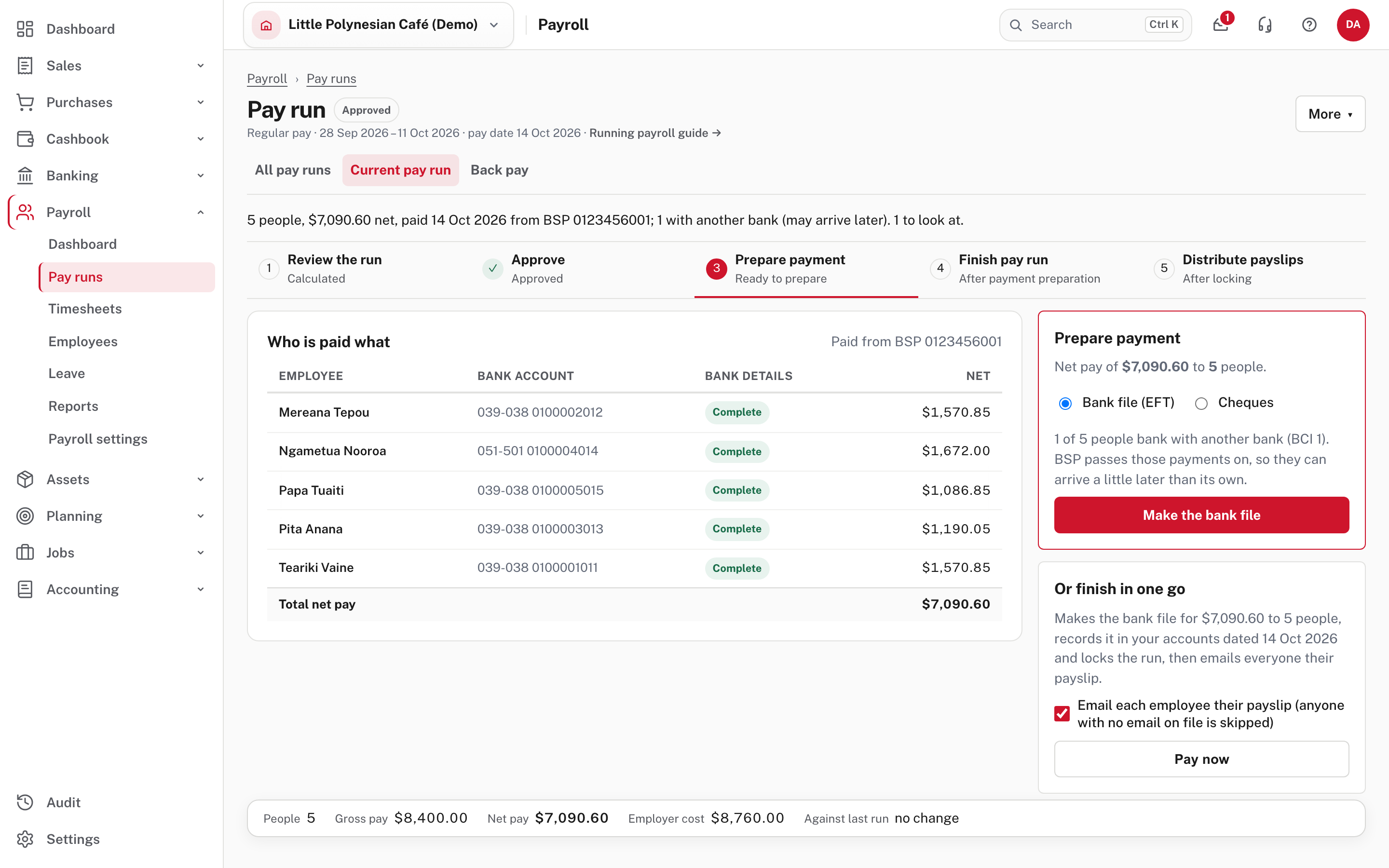
Who is paid what lists each person's bank account, whether their bank details are complete, and their net pay. Everyone should say Complete.
- Choose Bank file (EFT) or Cheques.
- For a bank file, choose Make the bank file. Easy makes the file and downloads it. Easy does not send the money. You upload the file to your bank yourself, as you would any other payment file.
- Check the total net pay matches what you expect before you upload it.
If someone banks with a different bank from the one you pay from, the screen tells you: their payment is passed on by your bank and can arrive a little later.
Pay now
Pay now (under Or finish in one go) makes the bank file, records the pay run in your accounts, locks it, and, if the box is ticked, emails each employee their payslip, all with one confirmation. It runs the same steps in the same order with the same checks, and stops at the first refusal. It isn't offered while the run waits for a second person or while anything blocks it. If you want to look at each step, use the buttons in this chapter instead.
More detail: Running payroll: Pay now.
Step 6. Finish the pay run
Choose Continue to finish →. This is the step that records the pay in your accounts.
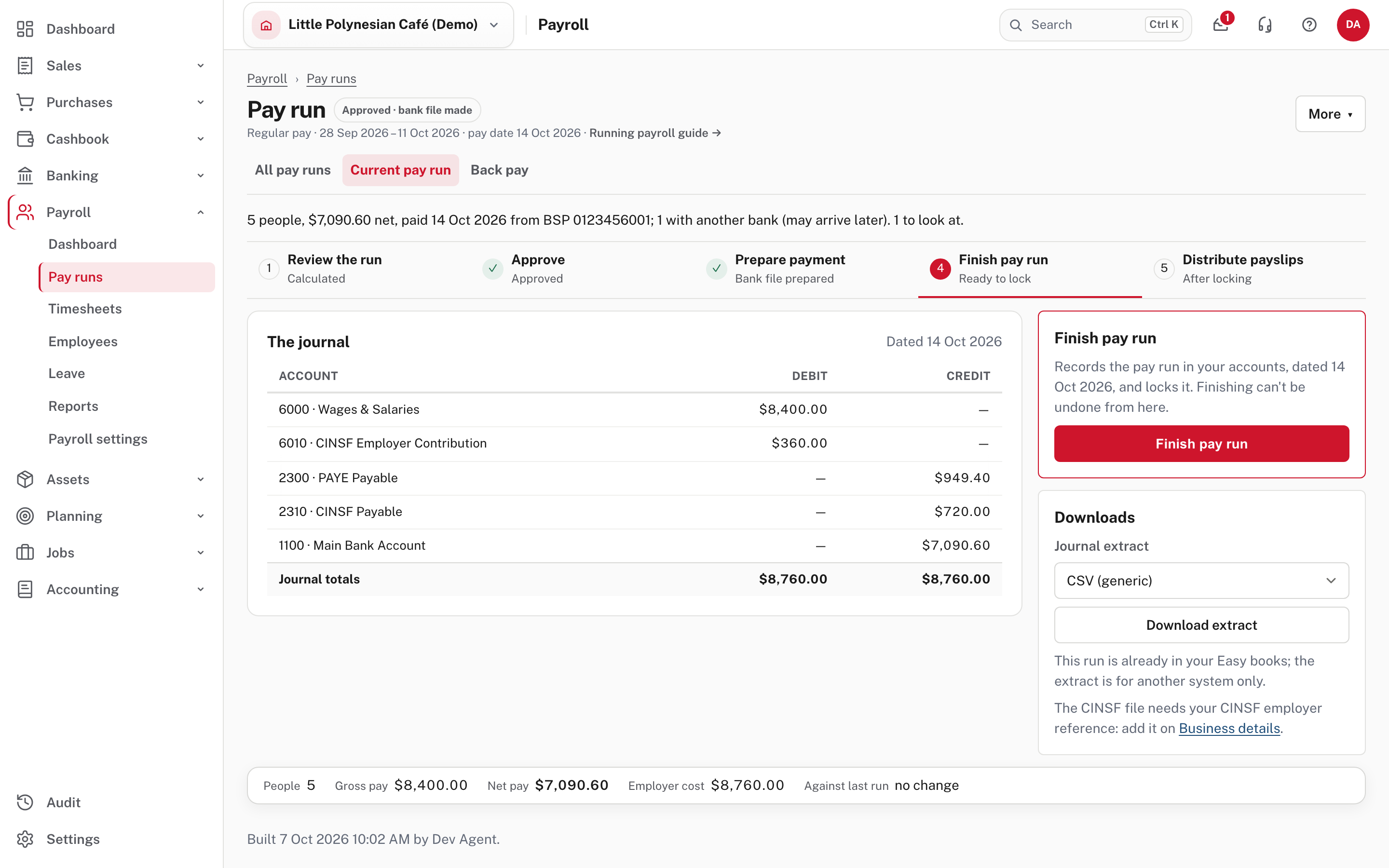
The journal shows exactly what will be recorded, dated the pay date. For this run:
| Account | Debit | Credit |
|---|---|---|
| Wages & Salaries | $8,400.00 | |
| CINSF Employer Contribution | $360.00 | |
| PAYE Payable | $949.40 | |
| CINSF Payable | $720.00 | |
| Main Bank Account | $7,090.60 |
It balances (the totals match), and the employer's contribution and the employee's both go into CINSF Payable. PAYE and CINSF stay as amounts you owe until you pay them (chapter 3).
Choose Finish pay run. Easy asks once more.
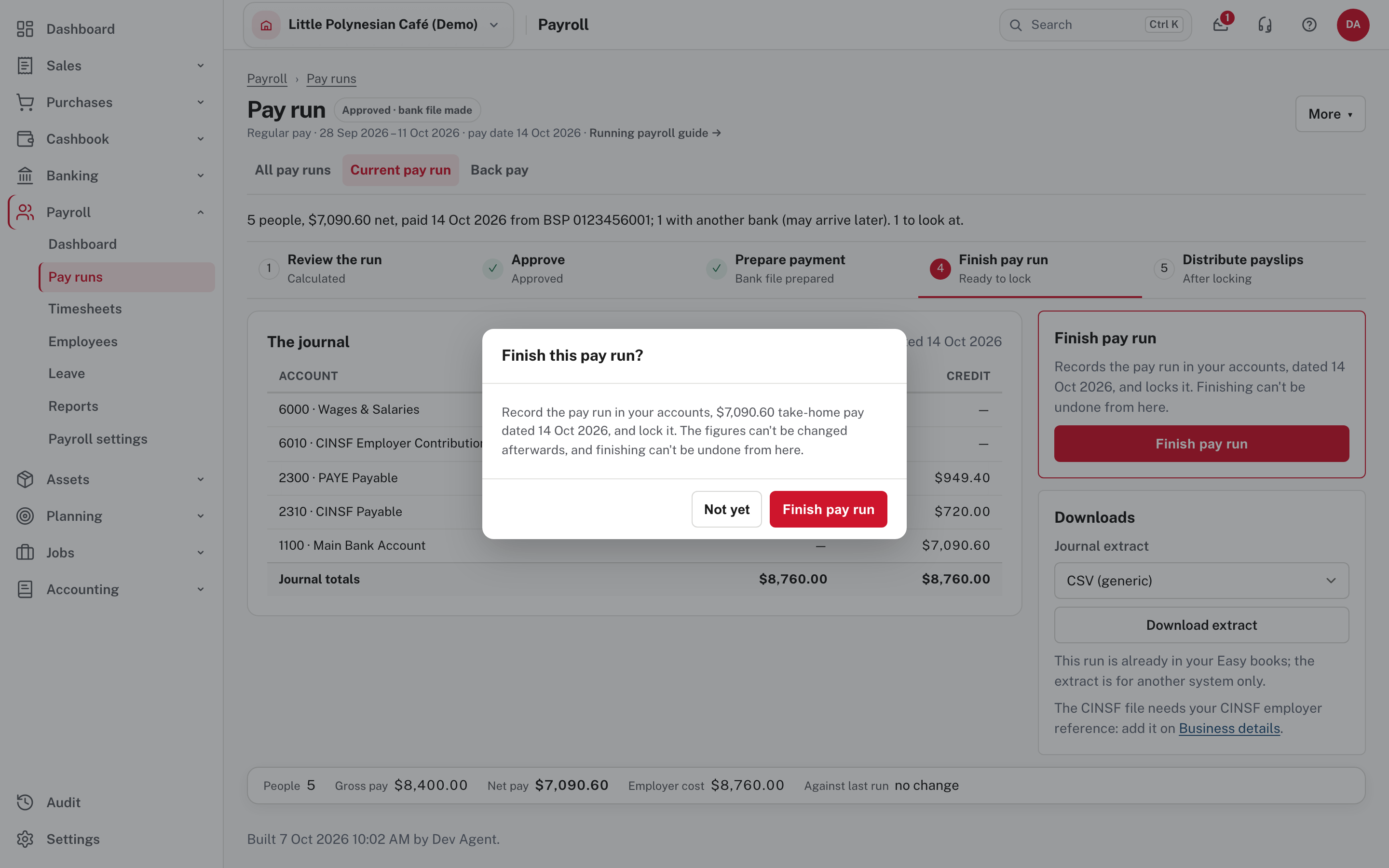
Finishing can't be undone from the run
It records one balanced entry dated the pay date and locks the run: the figures can't be changed afterwards. If a finished run turns out to be wrong, undo it from its payroll record with Undo this pay run, then run it again.
Downloads on this step gives the journal as a CSV, a PDF voucher, or a file for MYOB or Xero. It is for companies that keep their accounts in another system (Easy Payroll); if your books are in Easy, the pay run is already in them.
More detail: Payroll records and reconciliation.
Step 7. Hand out the payslips
The last stage opens when the run is locked.
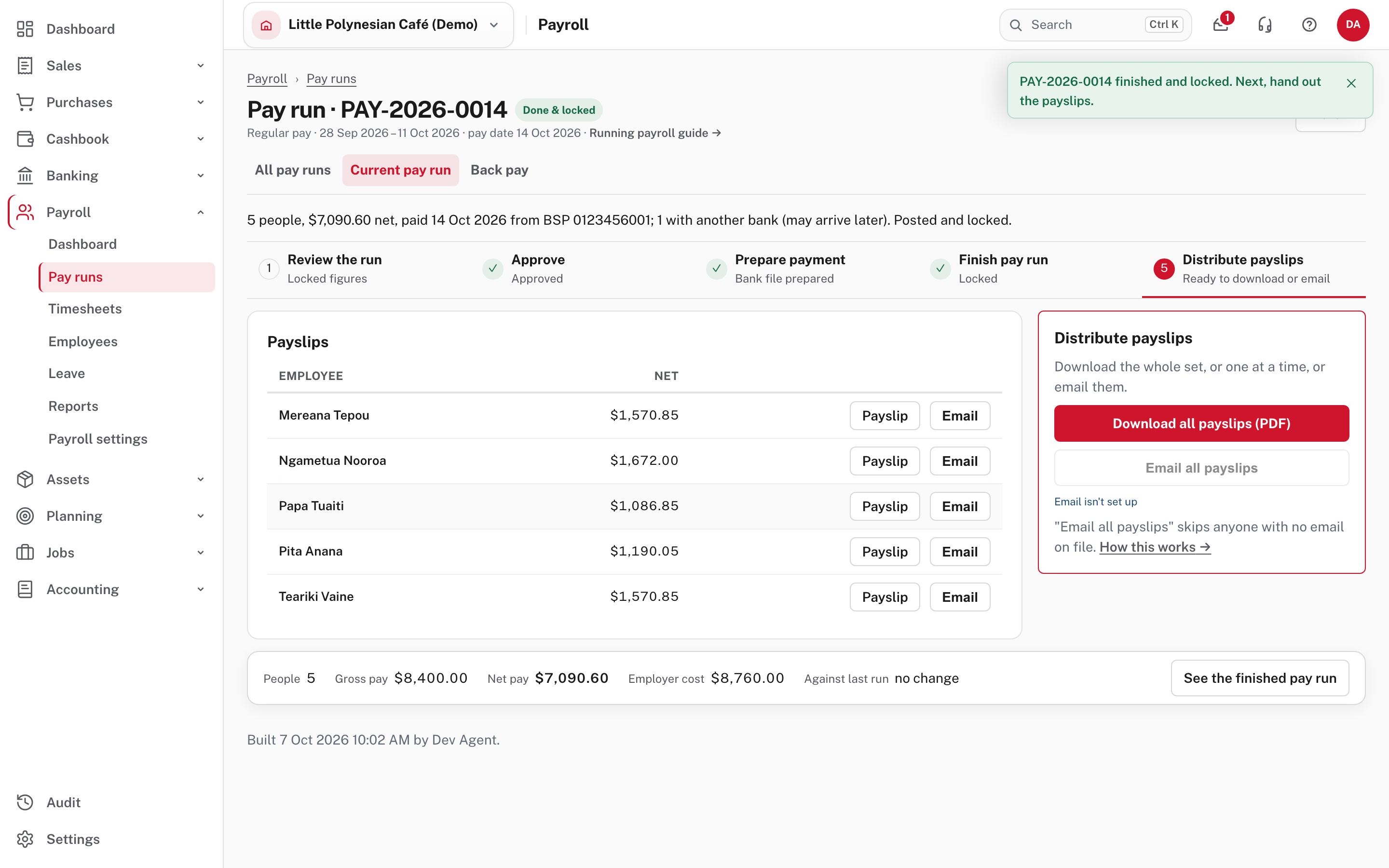
- Download all payslips (PDF) gives the whole set in one file.
- Payslip opens one person's, and Email sends it to the address on their record.
- Email all payslips sends each person theirs. It skips anyone with no email on file. If it reads Email isn't set up, email delivery hasn't been configured yet (chapter 1, step 8): download the payslips instead.
When the payslips are out, the run is finished. The bank file still has to be uploaded to your bank if you haven't done that, and the PAYE and CINSF you owe has to be paid on time (chapter 3).
If something looks wrong
| What you see | What to do |
|---|---|
| Someone is missing from the run | They have no approved timesheet. Approve it, then Rebuild from the timesheets (under More), or pay them later. |
| An employee can't be paid | Open their record: bank details, compensation, or pay below the minimum wage. The run lists them. |
| Hours are wrong after approval | Change them on the person's payslip in the run. Approved timesheets are locked. |
| The whole run is wrong, not yet finished | More → Rebuild from the timesheets, or Discard this payroll and start again. |
| A finished run is wrong | Undo this pay run from its payroll record, then run it again. |
Check at the end
Check before you finish for the day
- The run reads Done & locked and has a pay run number.
- The bank file's total equals the run's net pay, and it has been uploaded to the bank.
- Payslips are downloaded or emailed.
- You know the due dates for PAYE and CINSF (chapter 3).