Budgets
A budget is your plan for one financial year: how much income you expect and how much you expect to spend, account by account and month by month. Easy then sets what actually happens beside the plan, so you can see where you are ahead or behind. The Owner or an Accountant makes the budget once a year, and changes it (a reforecast) when the year turns out differently. How to read the comparison is in Reading the financial reports; a budget for one piece of work is part of Jobs and profitability.
About the screenshots
Screenshots are from Easy's demo company, Little Polynesian Café. The demo has an approved whole-business budget, Budget 2026/27, which these steps only read. The budgets named Manual BD … and the budget for JOB-2026-0005 are examples added for this chapter, and every amount is made up. The actual figures on the report pages change as the demo's own activity changes. The pictures show an Accountant's screens; an Owner or Administrator sees the same ones.
Before you start
- Planning is a module of its own, and your plan has to include it. It is on in the demo (Turning modules and features off).
- Who can do what. Everyone who can see Planning can open a budget and read the reports. Creating, editing, locking, importing and reforecasting need the right to manage accounting setup, which the Owner, Administrators, Accountants and Developers have. For anyone else a budget opens read-only (Budgets; not shown in the demo).
- One active budget for each financial year and scope. A budget covers the whole business or a single reporting-dimension value: one outlet, project or job. The demo already has the whole-business budget for FY2026/27, so you can't make a second one for that year. A budget for a different year, or for one outlet or job, is fine.
- Know your financial year. The demo's runs April to March, so the figures here count from 1 April 2026.
Step 1. See the plan against the actuals
Planning → Dashboard.
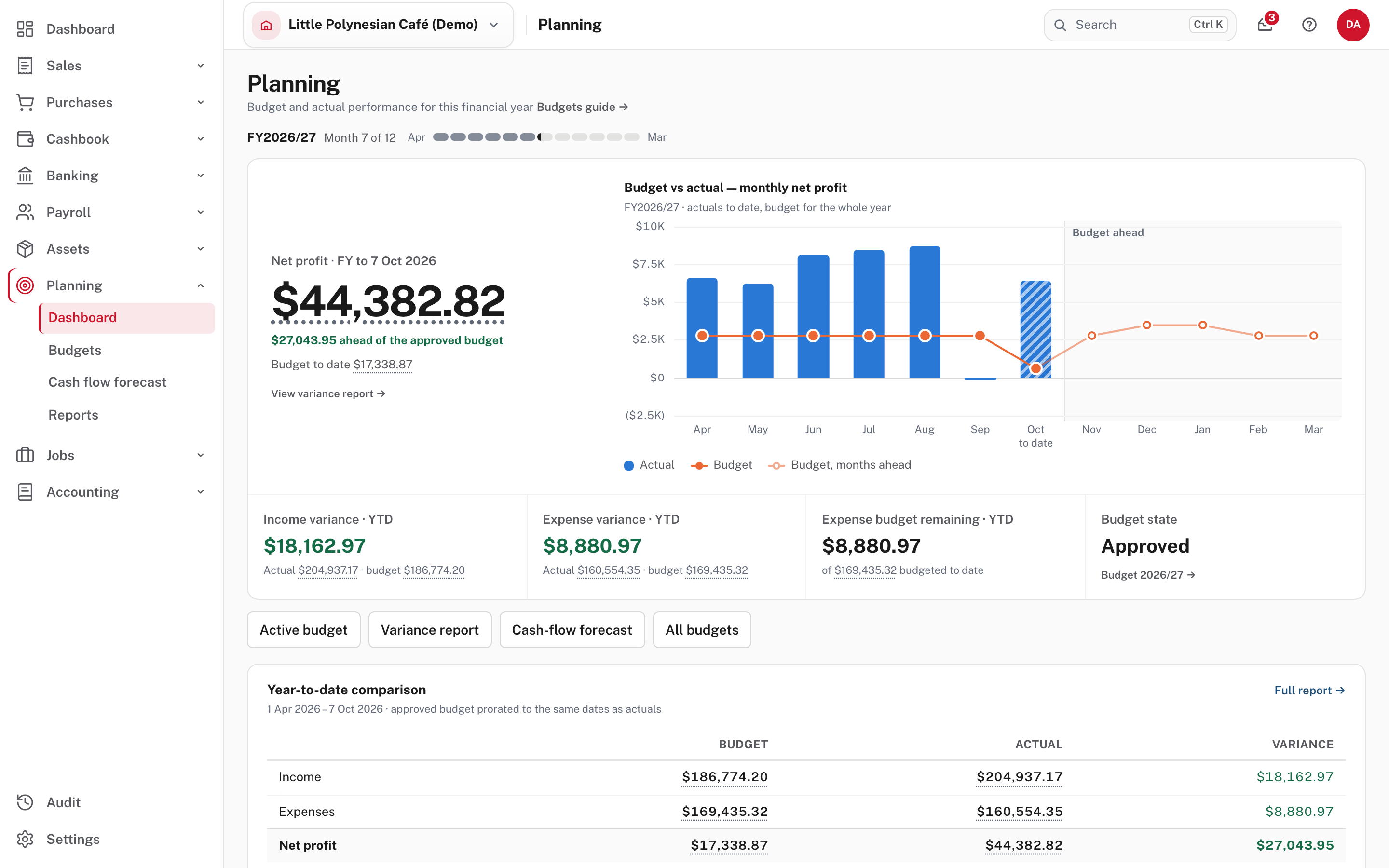
The dashboard answers "am I on plan this year?". The big figure is net profit for the financial year to today, with how far it is ahead of or behind the approved budget, which is worked out only to today's date. The chart sets each month's actual net profit against the budget, and shows the months still ahead in a lighter colour. Under it are Income variance, Expense variance, Expense budget remaining and the Budget state (here Approved). The Year-to-date comparison table lists income, expenses and net profit, and Largest unfavourable variances names the accounts furthest over plan.
For the whole list of accounts, choose Variance report. It opens Planning → Reports (titled Budget analysis): the monthly chart with the same comparison under it. For other dates, a dimension or an earlier version, choose Other dates or a dimension.
Planning → Reports → Other dates or a dimension.
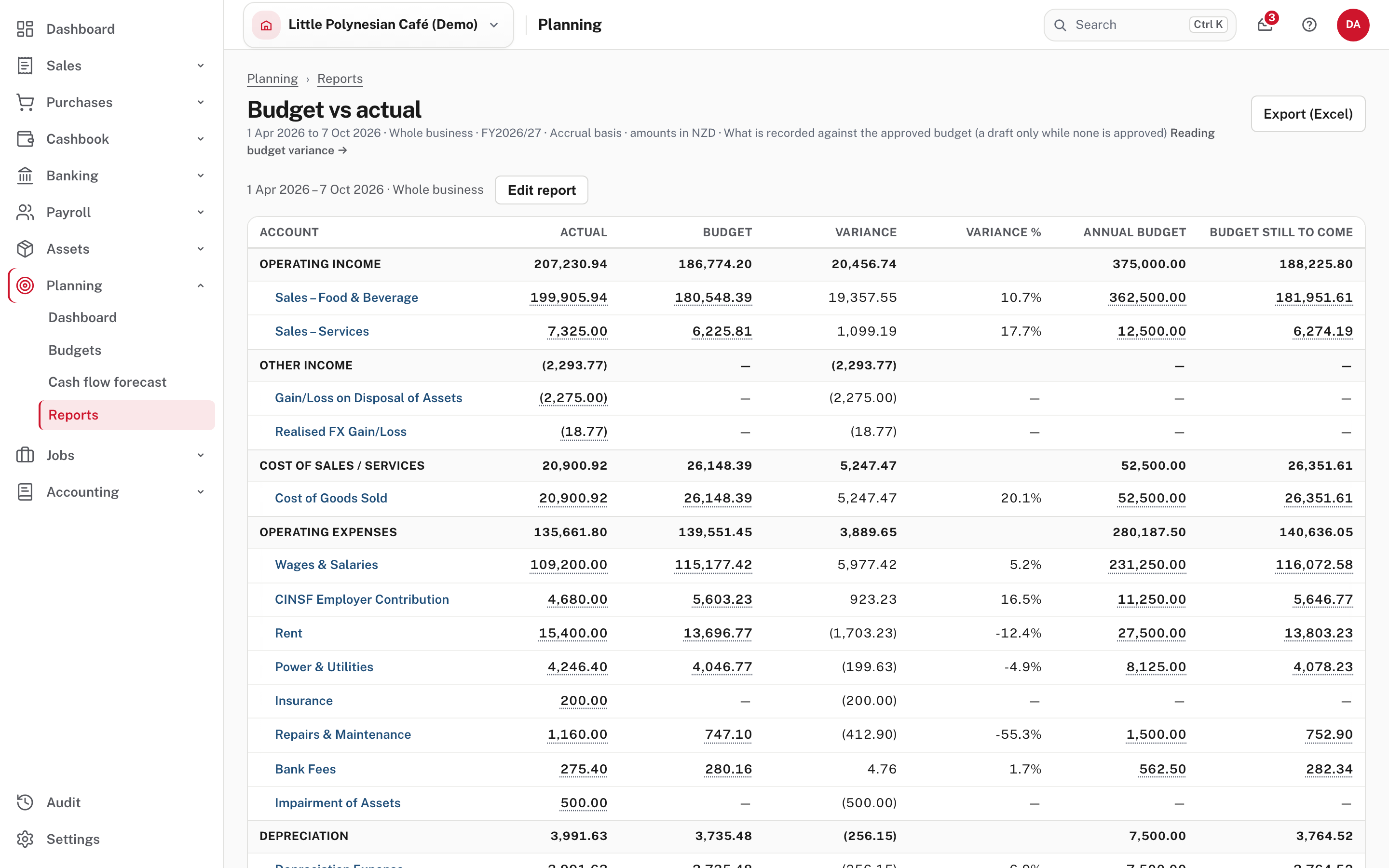
For each account, Actual is what is recorded, Budget is the planned amount for the same dates, and Variance is the difference. A positive variance is always favourable: income above budget, or an expense below it. Annual budget is the whole year's plan for the account and Budget still to come is the part planned after the period. A month that is only partly over is prorated by calendar days. Choose an account's name or its actual figure to open the transactions behind it. Edit report changes the dates, the Dimension (the whole business, or one outlet, project or job) and, when that year and scope has more than one version, the Budget version.
Step 2. Create a budget
Planning → Budgets → + New budget.
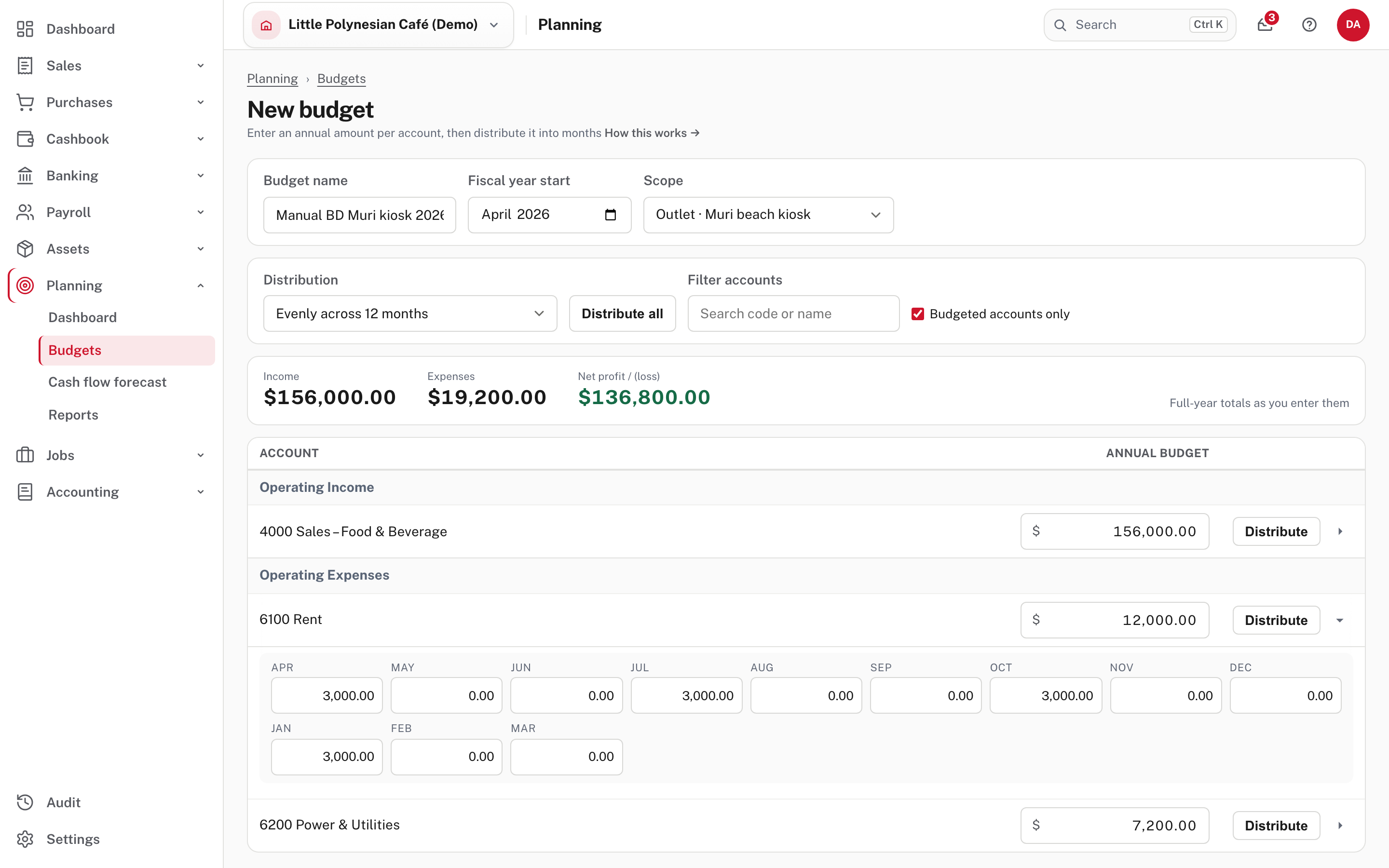
| Field | What it does |
|---|---|
| Budget name | What you will recognise it by (here Manual BD Muri kiosk 2026/27) |
| Fiscal year start | The month the financial year starts in, here April 2026 |
| Scope | Whole business, or one outlet, project or job (here Outlet · Muri beach kiosk) |
| Annual budget | A yearly amount for each income and expense account. Amounts can't be negative: income and expenses are both positive |
Type an annual amount on each account you want to plan, then spread it over the months with Distribute. The bar above the accounts adds up Income, Expenses and Net profit / (loss) as you type, so you can see whether the plan makes a loss before you go on. Budgeted accounts only hides the accounts you haven't filled in, and Filter accounts finds one by code or name.
Choose the method in Distribution before you press Distribute (Distribute all spreads every account with the same method):
| Method | What it does |
|---|---|
| Evenly across 12 months | A twelfth in each month. Any rounding difference goes in the last month |
| By days in month | Each month gets a share in proportion to its number of days |
| Quarterly — first month of each quarter | A quarter of the year in the first month of each quarter, nothing in the other two |
| Quarterly — last month of each quarter | The same, in the last month of each quarter |
The quarters count from the start of your financial year. Use a quarterly method for costs that are billed once a quarter: rent, insurance, rates. Choose the arrow at the end of a row to open its months and type any month yourself.

Here the kiosk's Sales – Food & Beverage ($156,000) was spread evenly, its Power & Utilities ($7,200) by days in month, and its Rent ($12,000) quarterly. Choose Save budget. If you typed an annual amount but never pressed Distribute, Save spreads it evenly over the 12 months for you and tells you which accounts it spread (not shown in the demo); it never leaves an amount out. A new budget is a draft: you can keep editing it, and it already shows on the Planning dashboard and in the budget reports (not shown in the demo).
Step 3. Lock the budget
When the plan is agreed, choose Lock budget at the foot of the page (or in the row's menu on the Budgets list). Easy says Budget locked. and the budget becomes the approved baseline: read-only, and it can't be unlocked. Locking uses the last saved version, so save any change first.
A lock is final
There is no unlock. To change an approved budget you start a new version (next step), which keeps the old one as history. If someone else saved the budget after you opened it, your Save or Lock is refused with a message asking you to reload, so you never overwrite their changes without seeing them (not shown in the demo).
Step 4. Change an approved budget: reforecast
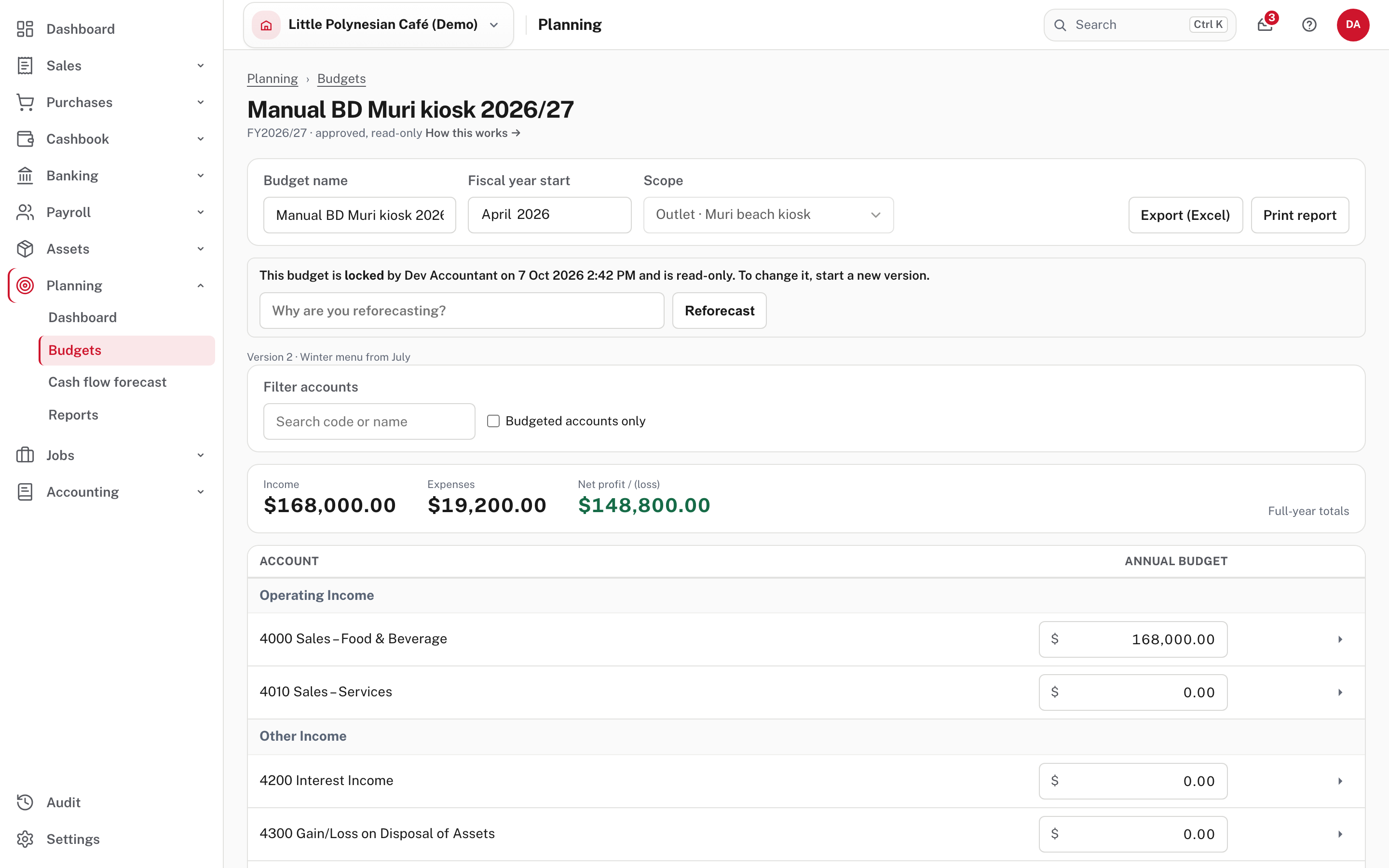
Say why in Why are you reforecasting? and choose Reforecast. Easy says New draft version started. and opens version 2, a copy of the approved one, as a draft.
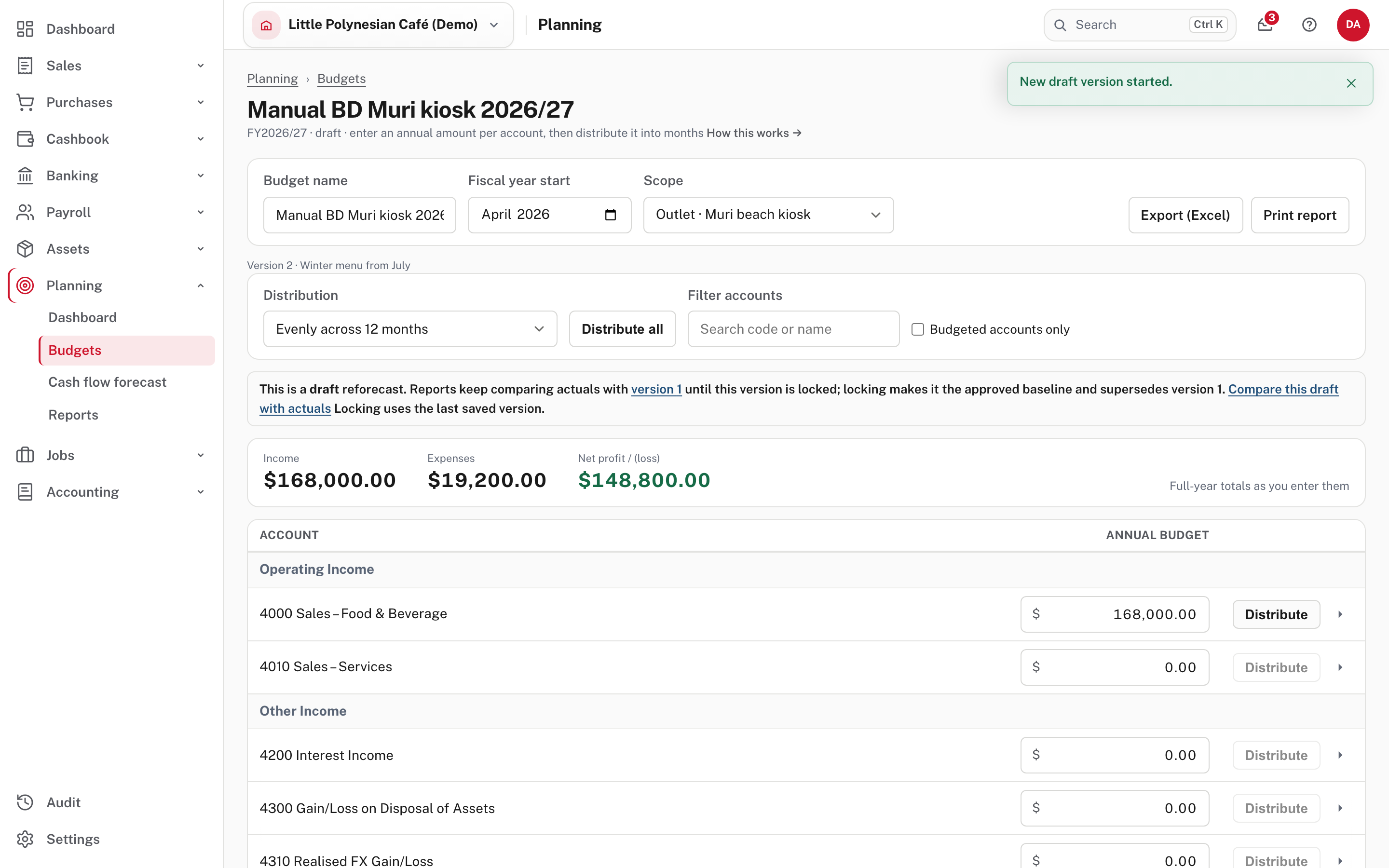
While you work on the draft, the approved version stays in force: the dashboard and Budget vs actual keep comparing with version 1. Change the amounts as you did before (here Sales – Food & Beverage went from $156,000 to $168,000) and Save budget. A budget can have only one draft reforecast at a time (not shown in the demo). Compare this draft with actuals shows the draft on Budget vs actual before you commit.
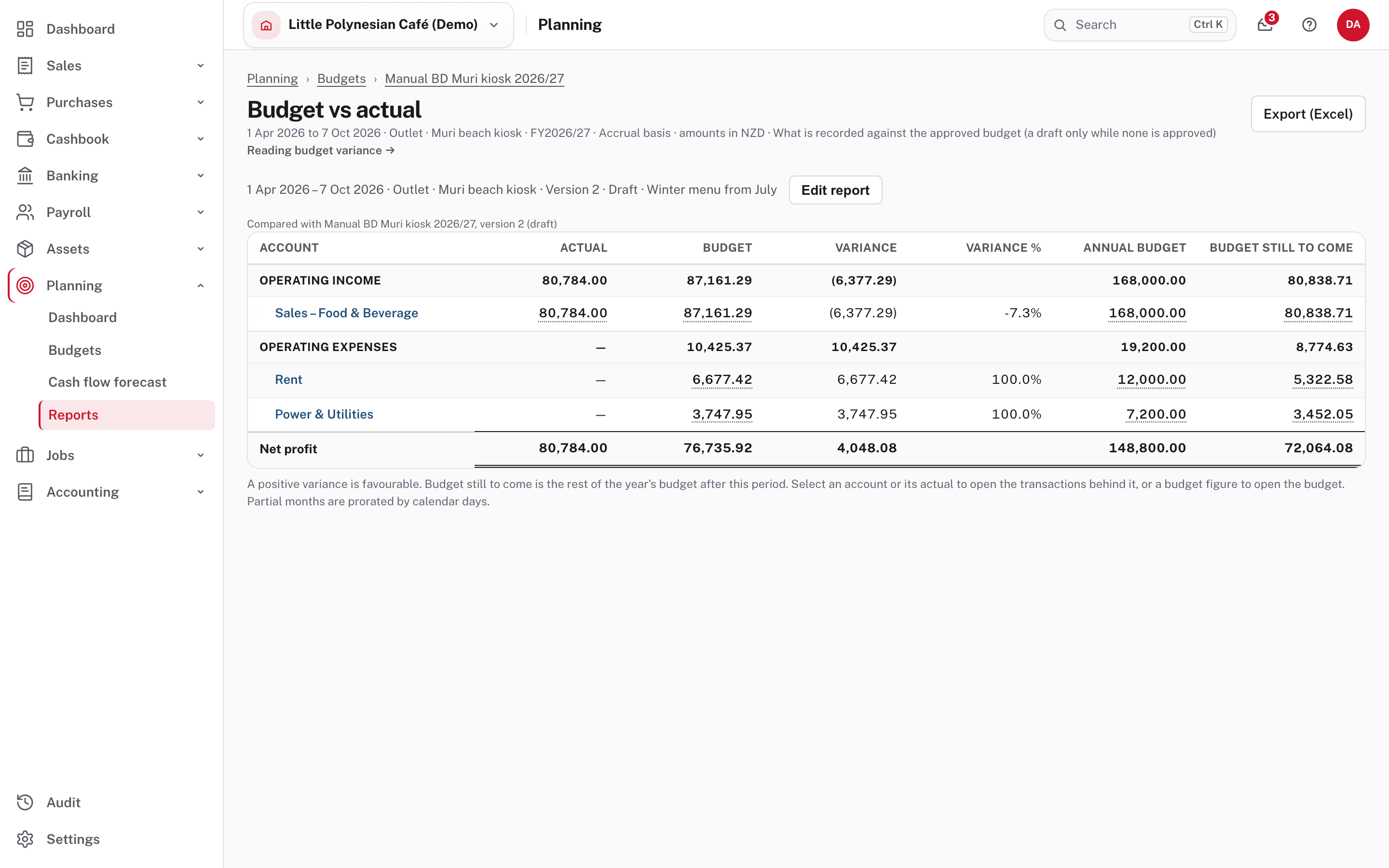
Here only the income has actuals: the demo's costs aren't tagged to this outlet, so the Rent and Power & Utilities rows show a budget and no actual. Edit report has a Budget version box once the year and scope has more than one version.
Choose Lock budget on the draft. Version 2 becomes the approved baseline and version 1 is marked Superseded: kept as read-only history that can't be edited or brought back, though you can still report against it by choosing it in Budget version.
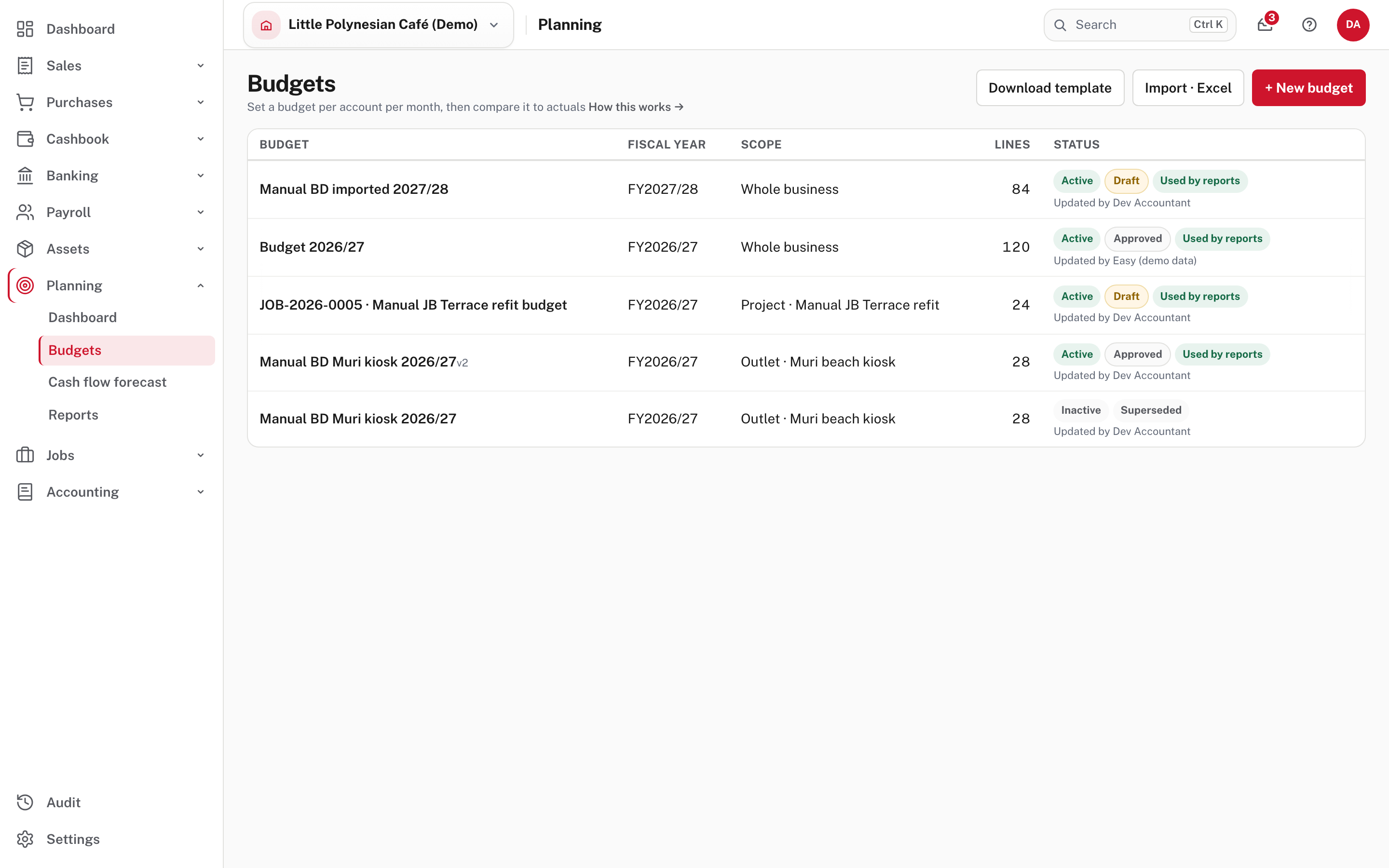
In the list, Active or Inactive says whether a budget is the live one for its year and scope, Approved, Draft or Superseded is its stage, and Used by reports marks the version the reports read. A reforecast shows v2 beside its name. The row's menu also has Export (Excel), Print report, and Deactivate or Reactivate. Not shown in the demo: Deactivate and Reactivate. Easy won't reactivate a budget when its year and scope already have an active one, or one that is Superseded.
Step 5. Import a budget from Excel
For a budget you already keep in a spreadsheet. Planning → Budgets → Download template gives a blank workbook for the current financial year, with every income and expense account down the side and the twelve months across. Fill it in, then choose Import · Excel.
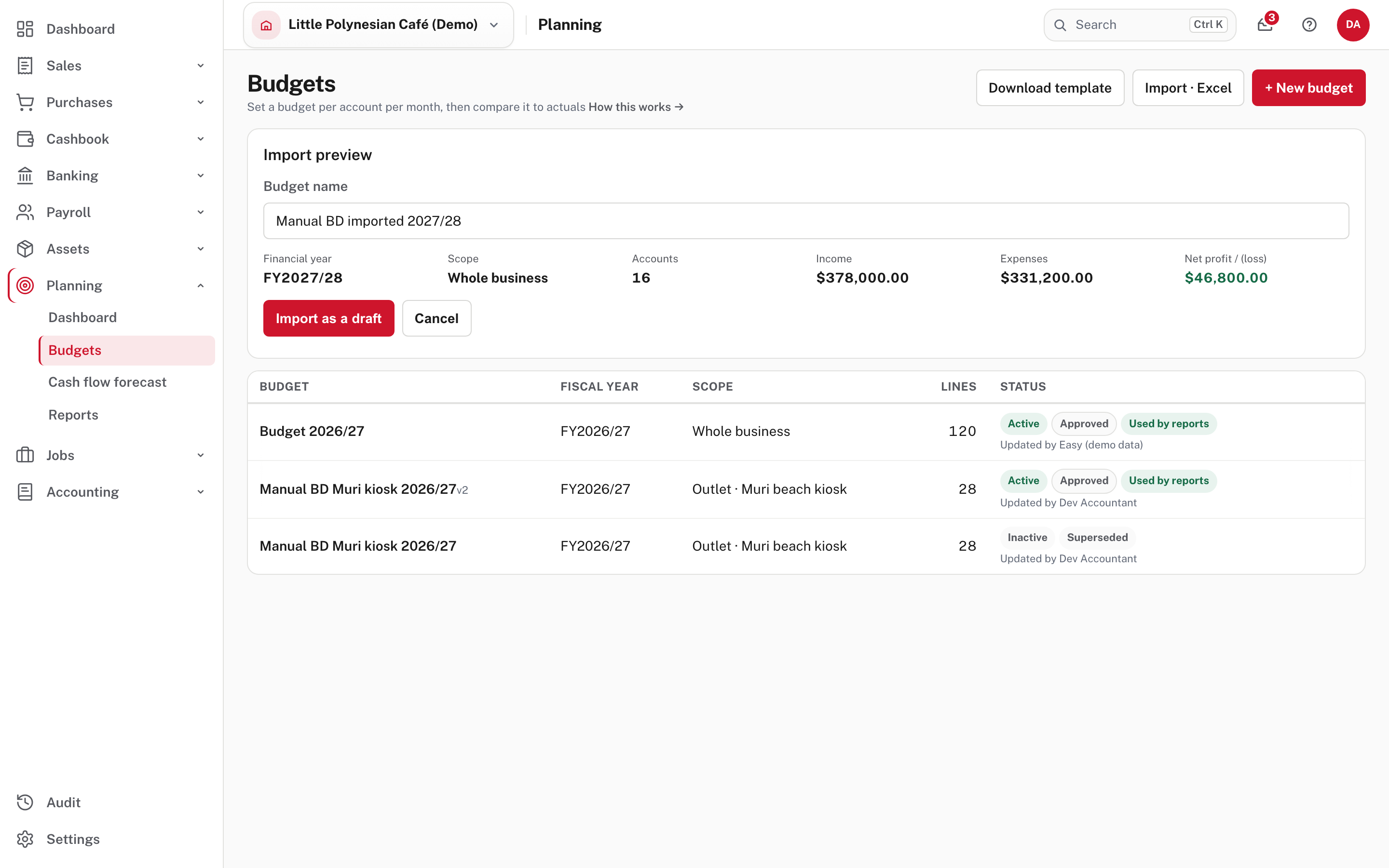
Nothing is saved yet. Easy shows what the workbook would become: the Budget name (you can change it), the Financial year, the Scope, the number of Accounts and the Income, Expenses and Net profit totals. The workbook decides the year and the scope: the year comes from its first month heading and the scope from the line under the name. Here the workbook's month headings run Apr 27 … Mar 28, so it reads as FY2027/28 for the whole business. Choose Import as a draft to save it, then review it and lock it like any other budget.
Easy refuses the import, and the preview says why, if the workbook starts in a month other than your financial year's first month, is for a scope the company doesn't have, has an unknown or repeated account code, a negative amount or text where a number belongs, or is for a year and scope that already has an active budget (not shown in the demo). A blank amount counts as zero. Export (Excel) writes an existing budget in the same layout.
Step 6. A budget for one job
Jobs → the job → Create budget opens the same editor with the job's year and scope fixed.
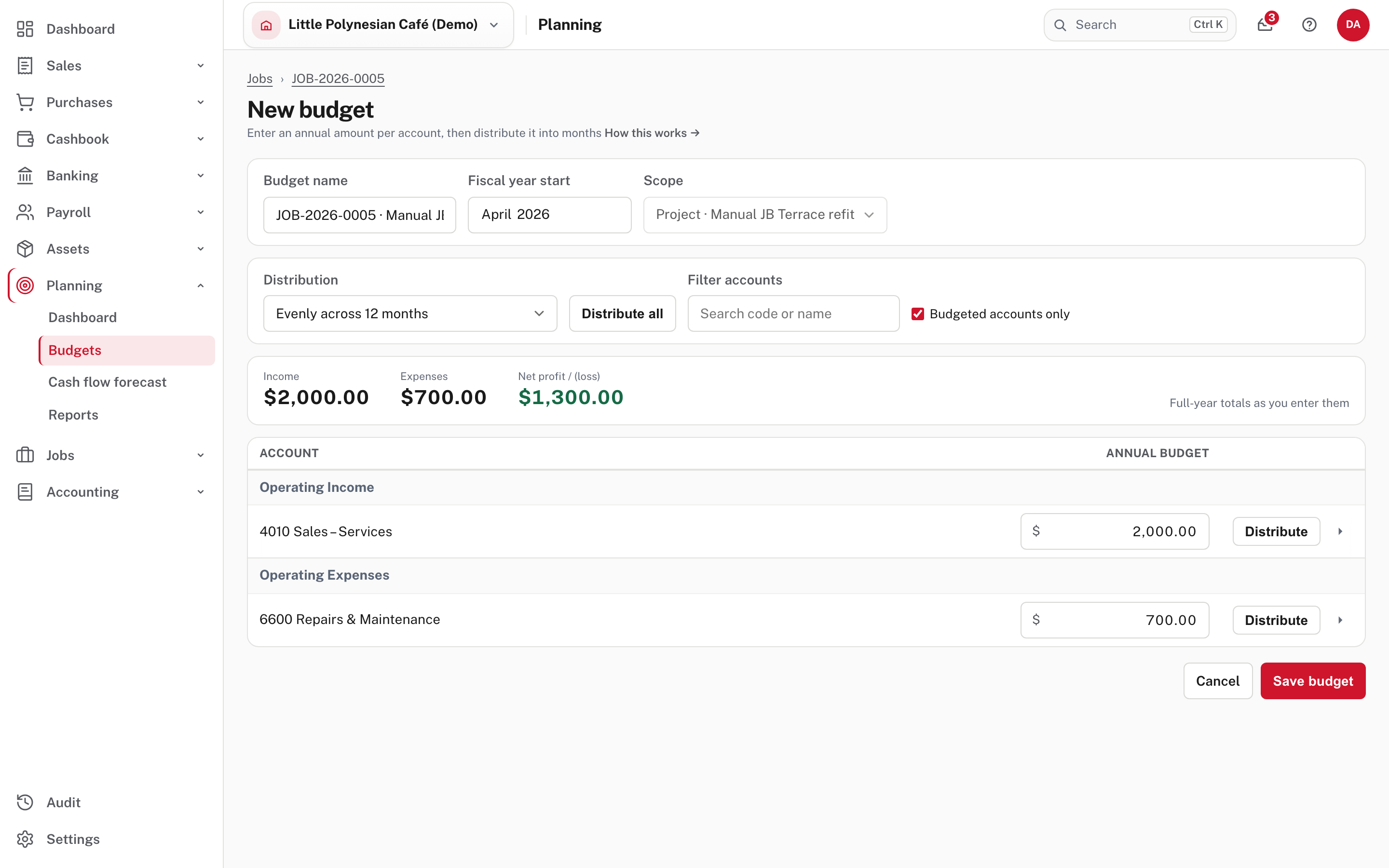
Here the job Manual JB Terrace refit has $2,000 of income and $700 of repairs. Save budget returns you to the job.
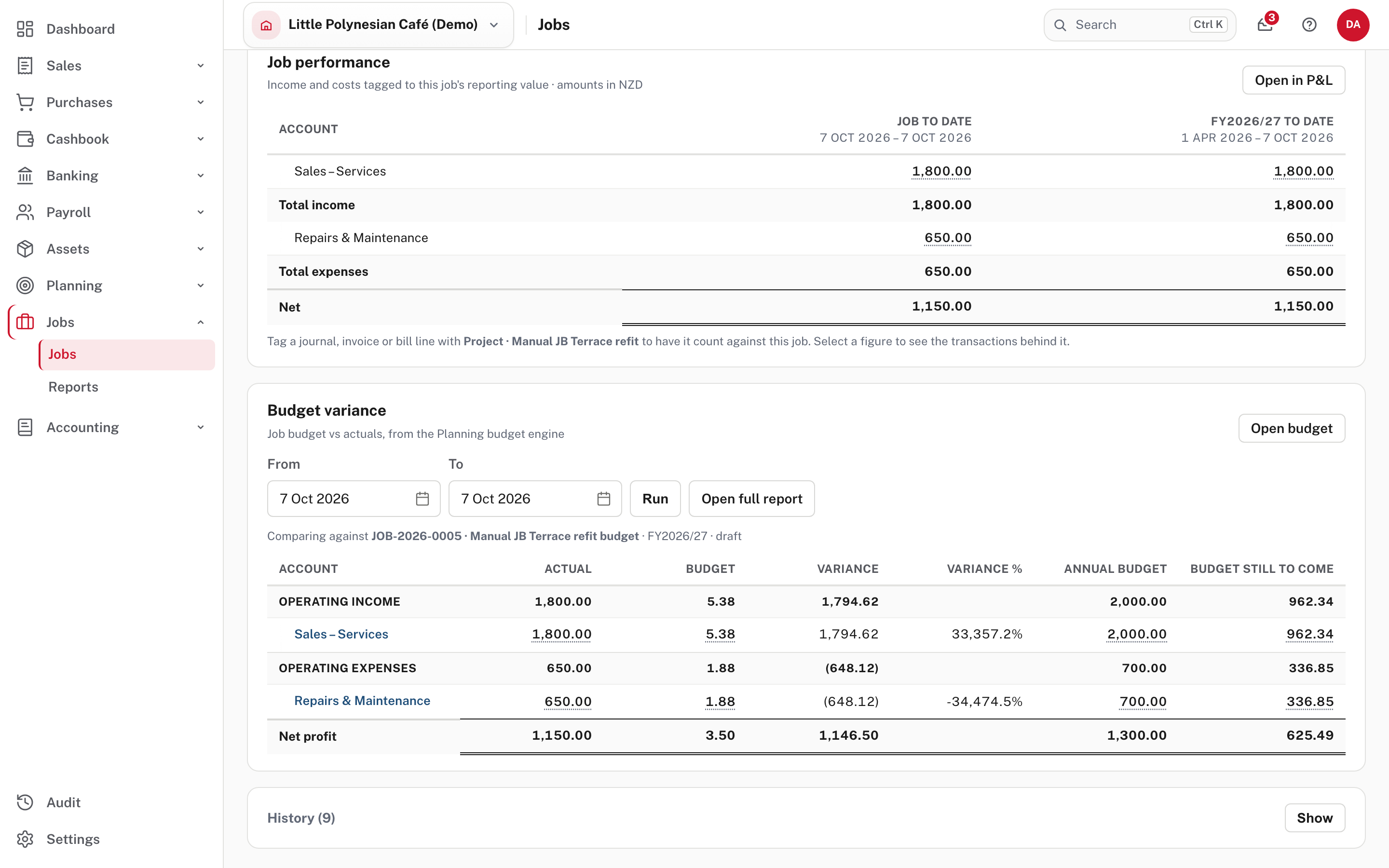
The job's Budget variance panel compares the budget with the job's actuals for the dates you give it, from the job's start date to today to begin with. Notice the Budget column: 5.38 against $2,000. A job budget is spread over the whole year like any other, and this job had run for one day. For a job that lasts days or weeks, put its amounts in the months it runs (open the account's months and type them) so the comparison for those days is meaningful.
A closed job can't be given a budget: Save budget is refused with That budget scope is inactive or unavailable. Reopen the job first (Jobs and profitability).
More detail: Budgets.
Check before you continue
Check before you continue
- The budget has the right name, financial year and scope, and the totals bar shows the profit or loss you meant to plan.
- Costs that arrive once a quarter are spread by quarter, not evenly.
- The budget is locked once agreed, and a change goes in as a reforecast with a reason.
- The budget the reports read (Used by reports) is the version you intend.
- Any job that needs a budget has one, with its amounts in the months the job runs.