People, roles and access
Do this when someone joins your business, changes job, or leaves. Everyone who uses a company has one role, and the role decides what they can see and do. Only the Owner or an Administrator can add people and change roles.
About the screenshots
Screenshots are from Easy's demo company, Little Polynesian Café. The email address is made up.
Before you start
- Decide the role (the table below).
- Have the person's email address. They use it to sign in. Staff who sign in only to see their own payslips, leave and timesheets use the Employee role, and do not count toward your plan's number of users.
- Check your plan has a free place (step 1).
Roles at a glance
| Role | For | Settings | The books | Approves |
|---|---|---|---|---|
| Owner | The person the company belongs to | All of them | Everything | Everything an approver can |
| Administrator | Someone who runs the company with the owner | All of them | Everything | Everything an approver can |
| Accountant | Your bookkeeper or outside accountant | Accounting setup only | Everything | Bills, sales documents, journals, pay runs, leave |
| Data entry | An admin officer who enters the day's work | None | Day-to-day documents only | Nothing |
| Approver | A manager who signs things off | None | Reads only | Bills, sales documents, journals, leave |
| Payroll manager | The person who runs the pays | None | Payroll only | Leave and timesheets |
| Read only / Auditor | An owner who only looks, or an outside auditor | None | Reads everything, including the audit trail | Nothing |
| Employee | Staff using self-service | None | Their own payslips, leave, timesheets and expenses | Nothing |
Things worth knowing before you choose:
- An Accountant keeps the books and their setup (chart of accounts, tax codes, VAT, the lock date, document numbering, opening balances, budgets) but does not change company administration: business details, modules, approval rules, emails, branding, people, security, integrations or card payments. Keeping approval rules away from the Accountant means the person a control checks can never switch it off. An Accountant also cannot move the lock date back, which would reopen a closed period.
- Data entry can raise quotes and invoices, enter bills, record receipts and payments and import and match bank lines, but cannot post a manual journal, undo anything already recorded, finish a bank reconciliation, run depreciation, make a payment run or a bank file, change a supplier's bank details, close a period or file a tax return. The menu only shows them the pages they can use.
- An Administrator has the same access as the Owner. Only the Owner can approve Easy support access and transfer ownership.
More detail, including the full list for each role: Roles explained.
Step 1. Open People & access
Settings → Users & security → People & access.
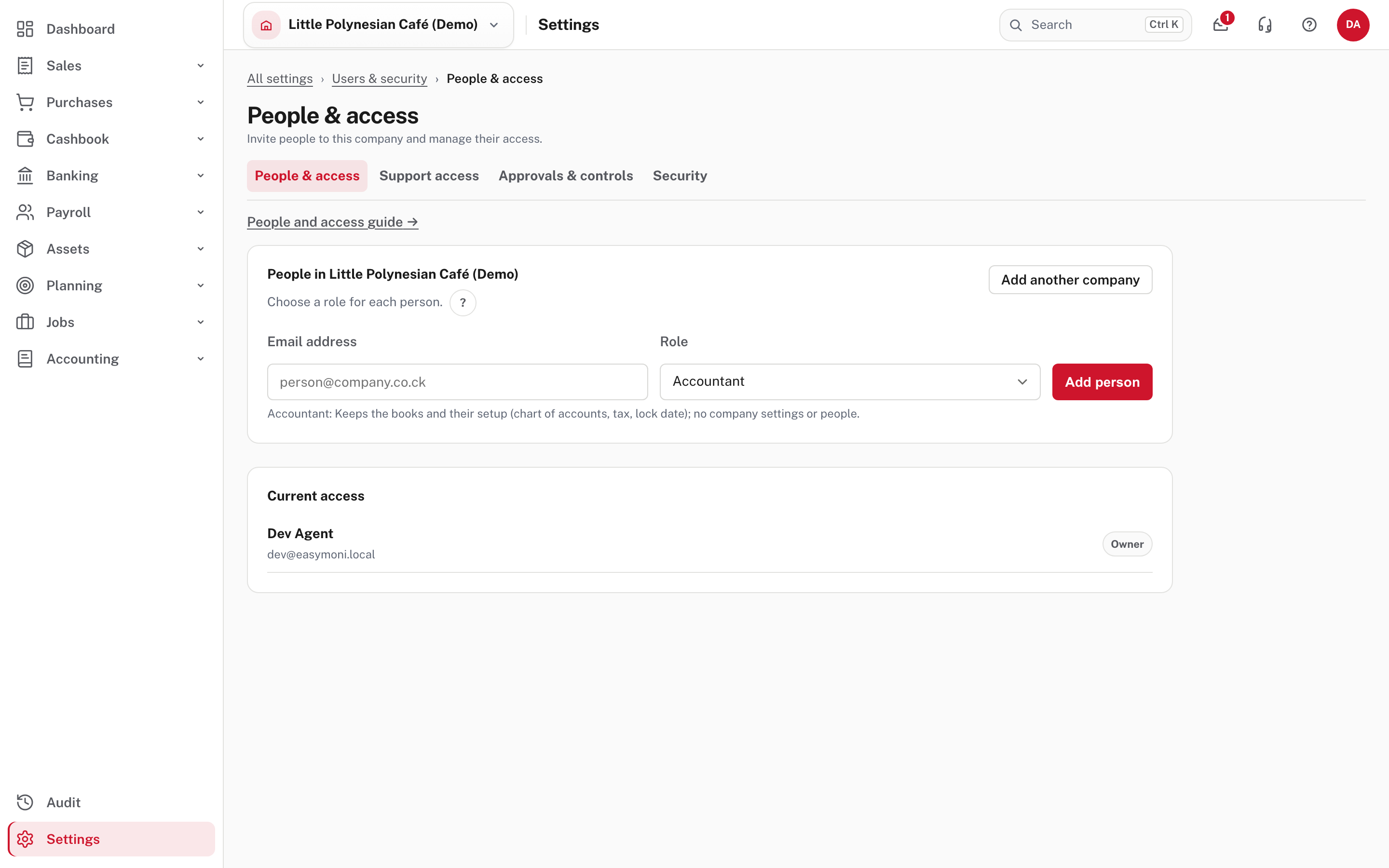
The page lists Current access (each person and their role) and Pending invitations. The tabs beside it are Support access, Approvals & controls and Security. If your plan includes a set number of users, the page shows how many places are used, and an invitation that is not yet accepted holds a place.
Step 2. Invite the person
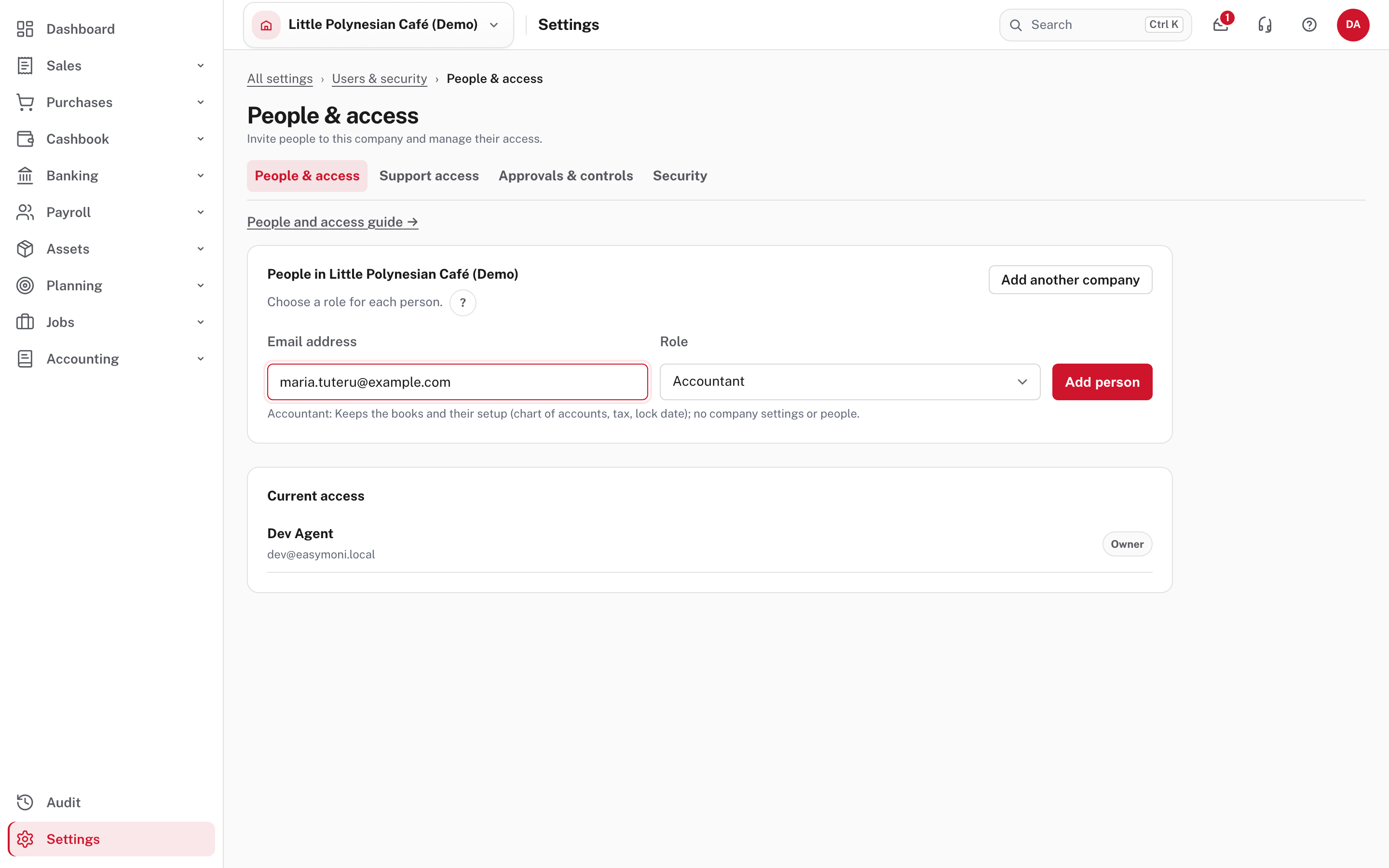
Type the email address, choose the role (the line under the list says what that role may do), and choose Add person.
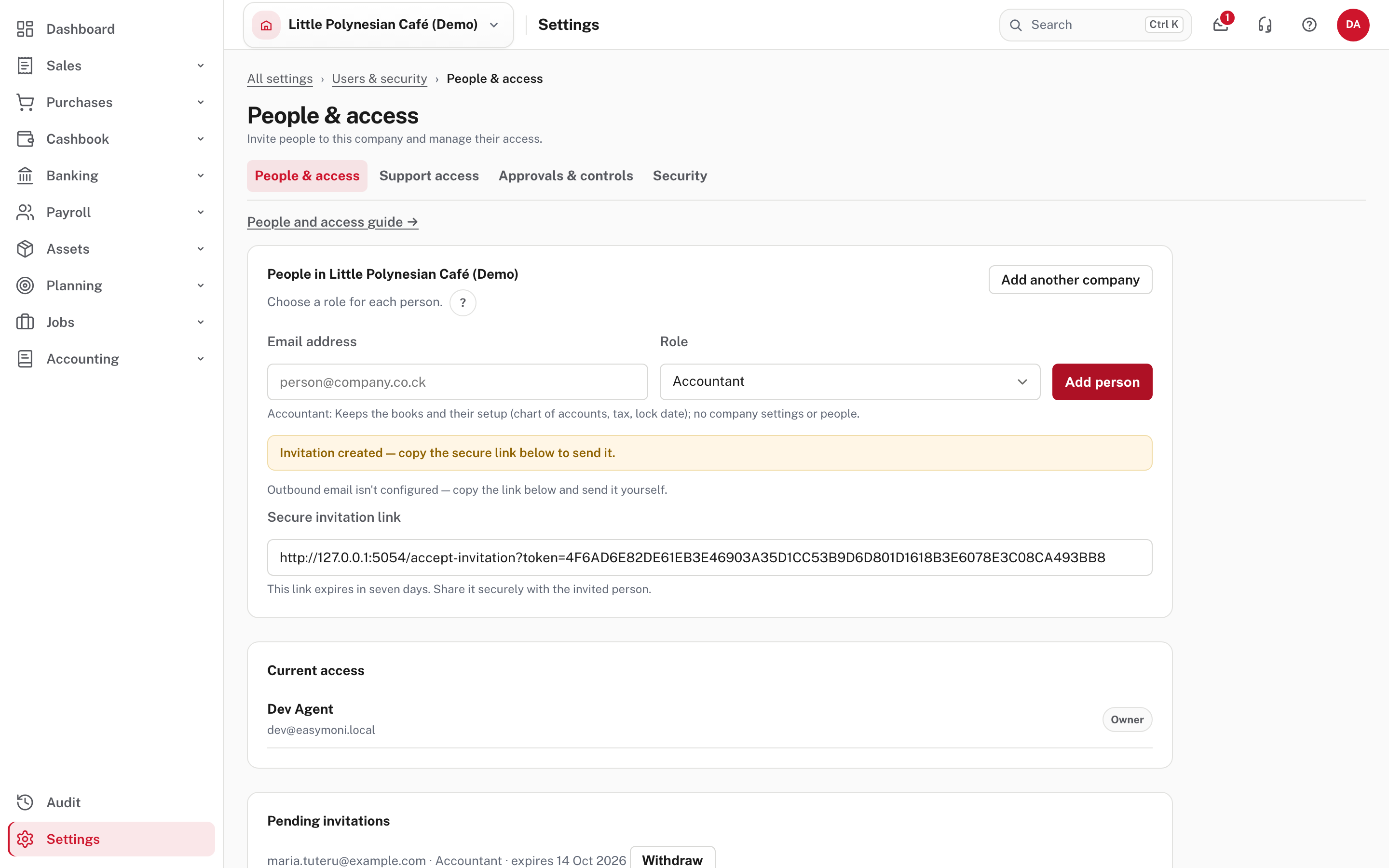
Easy emails the invitation. If email delivery isn't set up, the page says so and shows a secure invitation link: copy it and send it to the person yourself, by a channel you trust. The link expires in seven days. The person appears under Pending invitations until they accept; Withdraw cancels it.
No password is shared
The person opens the link, sets their own password and confirms their email. Google sign-in can be linked afterwards, but it never creates an account: only someone who has been invited can sign in.
Step 3. Change someone's role, or remove them
On the Current access list, review a person's role before changing it or removing their access. An Owner role can't be given through the ordinary role picker.
Transfer ownership. The current Owner can choose an active member under Transfer ownership and select Transfer & step down. That person becomes the Owner and the previous Owner becomes an Administrator. Treat it as its own decision, not a routine role change.
When a person leaves
Remove their access the day they go. The audit trail keeps everything they did.
More detail: People and access.
Step 4. Make sign-in safer
Settings → Users & security → Security.
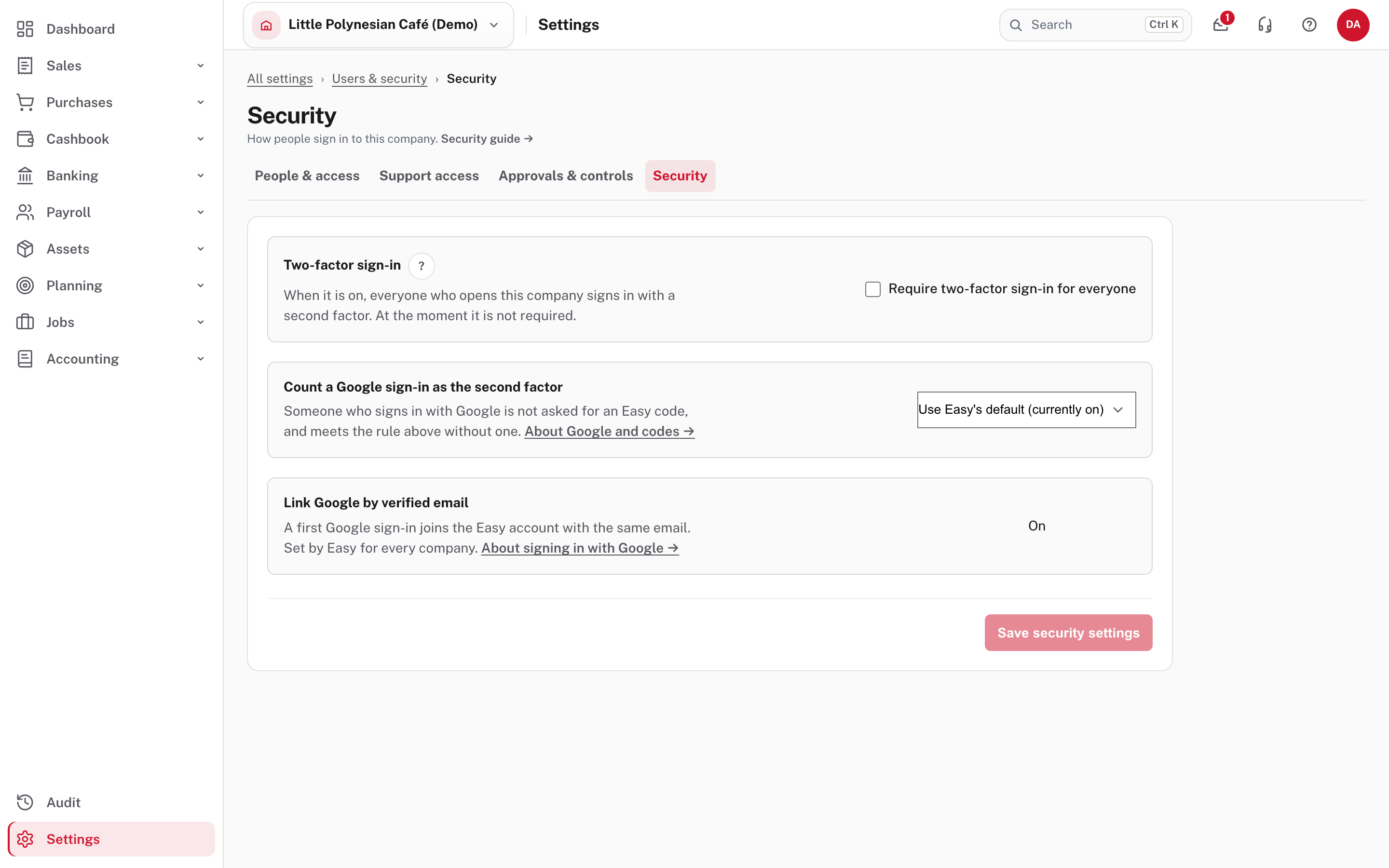
- Require two-factor sign-in for everyone. When ticked, every member must prove a second factor before opening the books; anyone who can't is held at their account page until they set one up.
- Count a Google sign-in as the second factor. The choices are Use Easy's default, On or Off. Choose Off if your team's Google accounts are not your business's own or don't use two-step verification, because Easy can't see whether Google asked for a second step.
- Link Google by verified email is set by Project Five for every company.
A session ends twelve hours after sign-in. Changing a password, or turning two-factor on or off, signs the person out on their other devices.
More detail: Two-factor requirement and AI capture.
Step 5. Give Project Five support access (only when you ask for help)
Settings → Users & security → Support access.
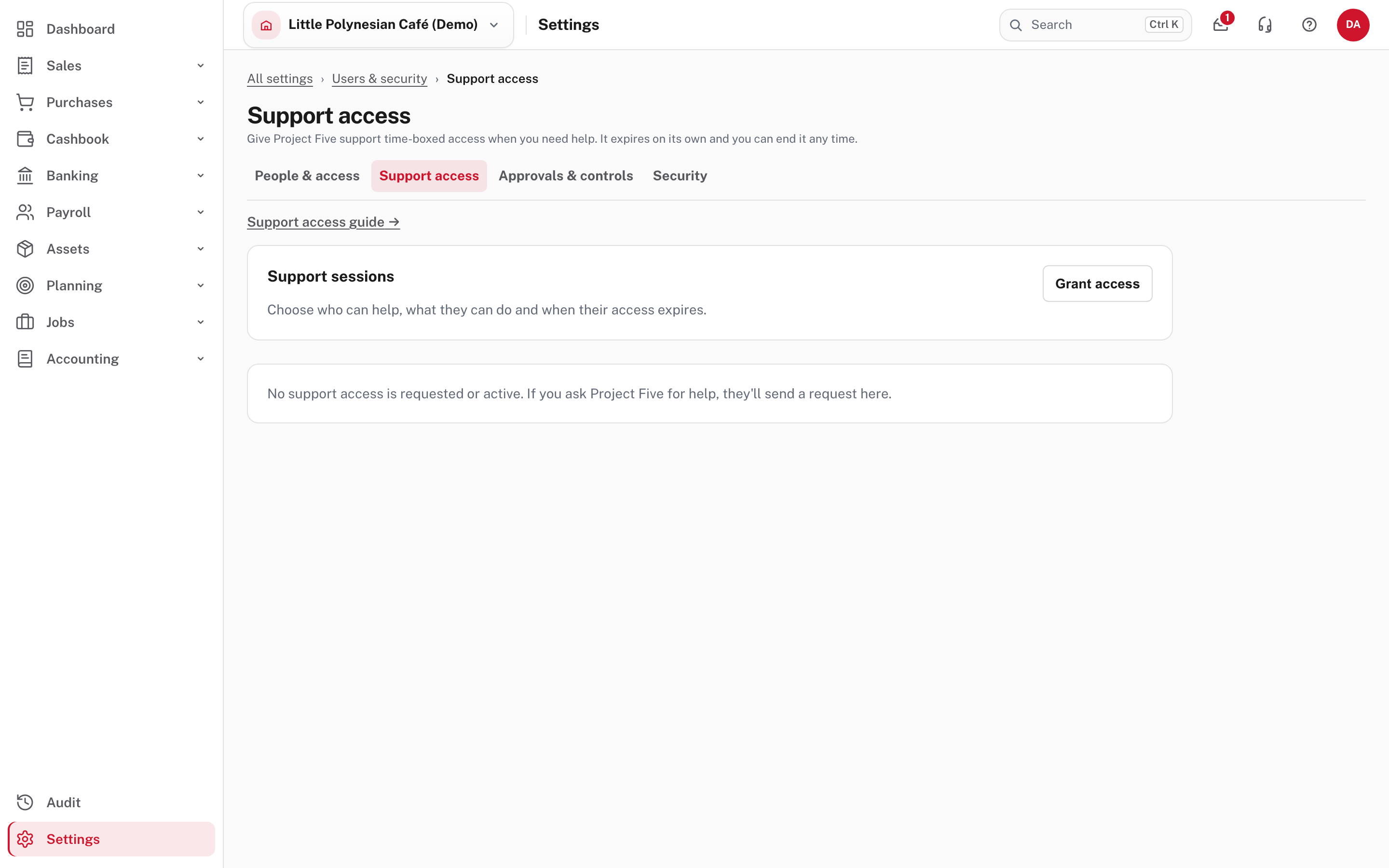
Only the Owner can manage this. Grant access lets you choose a Project Five contact, Read-only or Read & write, a duration of one to 72 hours, and the reason. Grant only the level and time needed. Project Five can also request access, which the Owner approves or declines; the page separates pending requests, active sessions and past access. Active access expires by itself, and the Owner can end it early. What happened is in the session history and the audit trail.
More detail: Support access.
Good practice for small teams
Auditors and donors usually look for these, and Easy's roles and controls are built for them:
- one person prepares payments and a different person releases them in online banking;
- bank-detail changes confirmed by a second person;
- a monthly bank reconciliation finished by someone other than the person who entered the lines;
- manual journals approved, or reviewed each month by the owner;
- a lock date after each month end (Month-end checklist).
With only one or two people, a monthly review by the owner or the board is the accepted substitute. The audit trail records who did what.
Check before you continue
Check before you continue
- Each person has exactly the role they need, no more.
- Nobody shares a login. Everyone has their own invitation.
- Pending invitations you no longer need are withdrawn.
- Two-factor sign-in is required, if anyone can see or move money.
- People who have left have had their access removed.