Personal income tax return (RM5)
Do this once a year, for the year that ended on 31 December. The RM5 is your own return of income, and Easy prepares it in a personal workspace: you type what your RM101 certificates and statements say, tell Easy which of your books' income and spending belongs on the return, and Easy works the tax out on the RMD scale. A company files the RM6 instead (Company income tax return). Easy does not send the RM5 to RMD: you print the return as a PDF, lodge the official form and pay as usual. It is due 1 November of the following year.
About the screenshots
The two pictures of the Little Polynesian Café demo company (Easy's demo business) show the way in and the page a business sees, because a business can't open the RM5. Everything else is a personal practice workspace, Manual Lab pt, with a made-up person (Teina Example), a made-up employer and made-up amounts for the year ended 31 December 2025. Its income and spending were entered as manual journals (Manual journals and journal approval); the return reads the accounts, not the way an entry was made.
Before you start
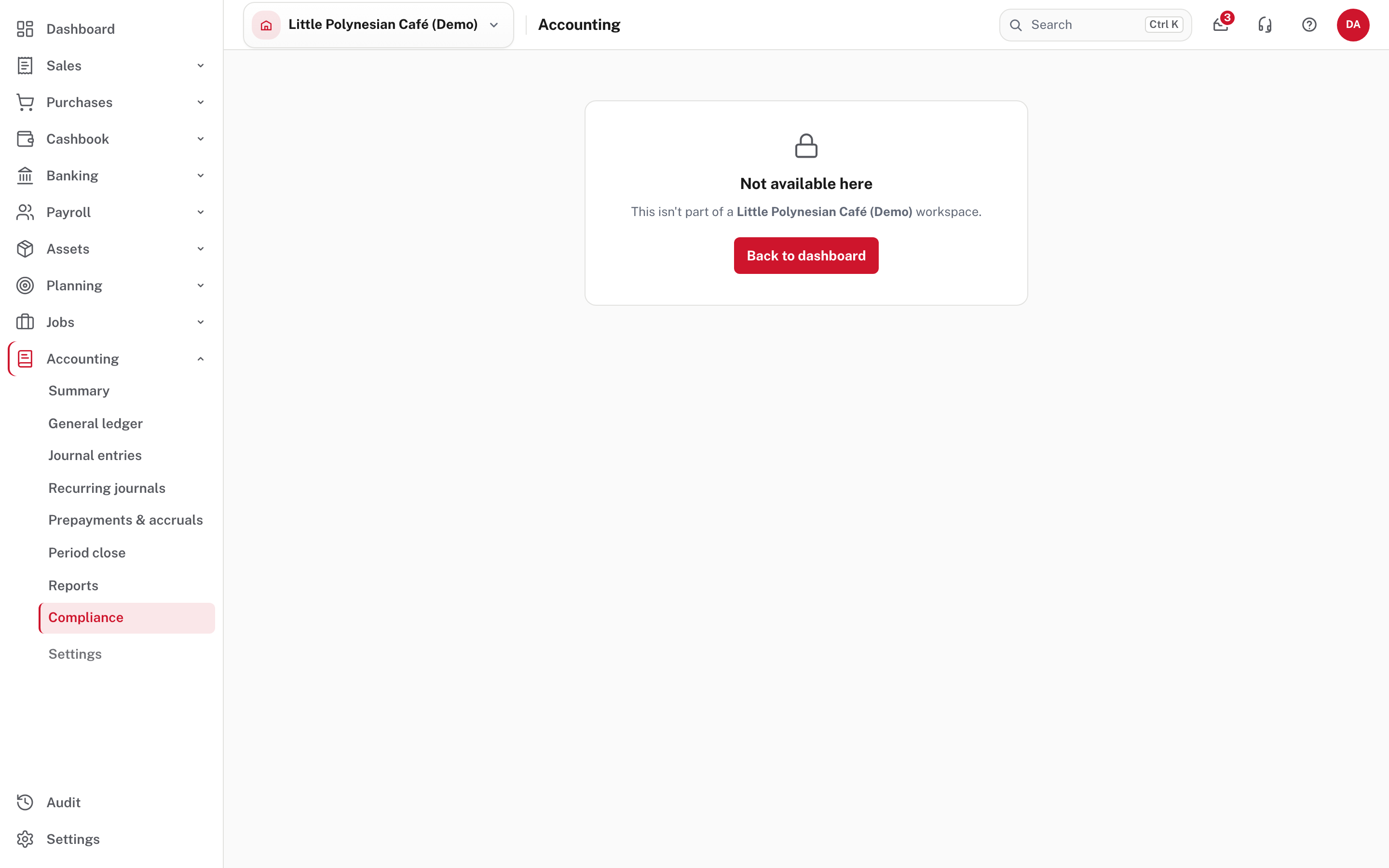
- You have a personal workspace. The RM5 exists only there (Step 1). A business workspace shows Not available here.
- Your income and spending for the year are in your books: a personal workspace keeps a lean chart of 17 accounts, such as Employment & Other Income, Interest & Investment Income, Home & Utilities and Transport.
- The papers: each employer's RM101 (gross pay and PAYE taken off), statements for interest and dividends, any partnership, estate or trust statement, overseas income, receipts for gifts to qualifying charities, and the provisional tax you paid for the year.
- Your RMD number is in Business details (Settings → Business details). The return shows it but doesn't take it from you.
- You can keep the books. Whoever keeps the books can change the return; everyone else can look but not change. Re-opening a filed year is accountant's work, so Data entry can't do it (the filing box names an owner, administrator or accountant; from Easy's source; People, roles and access).
Step 1. Get a personal workspace
Open the company switcher (top left) and choose + Add a company.
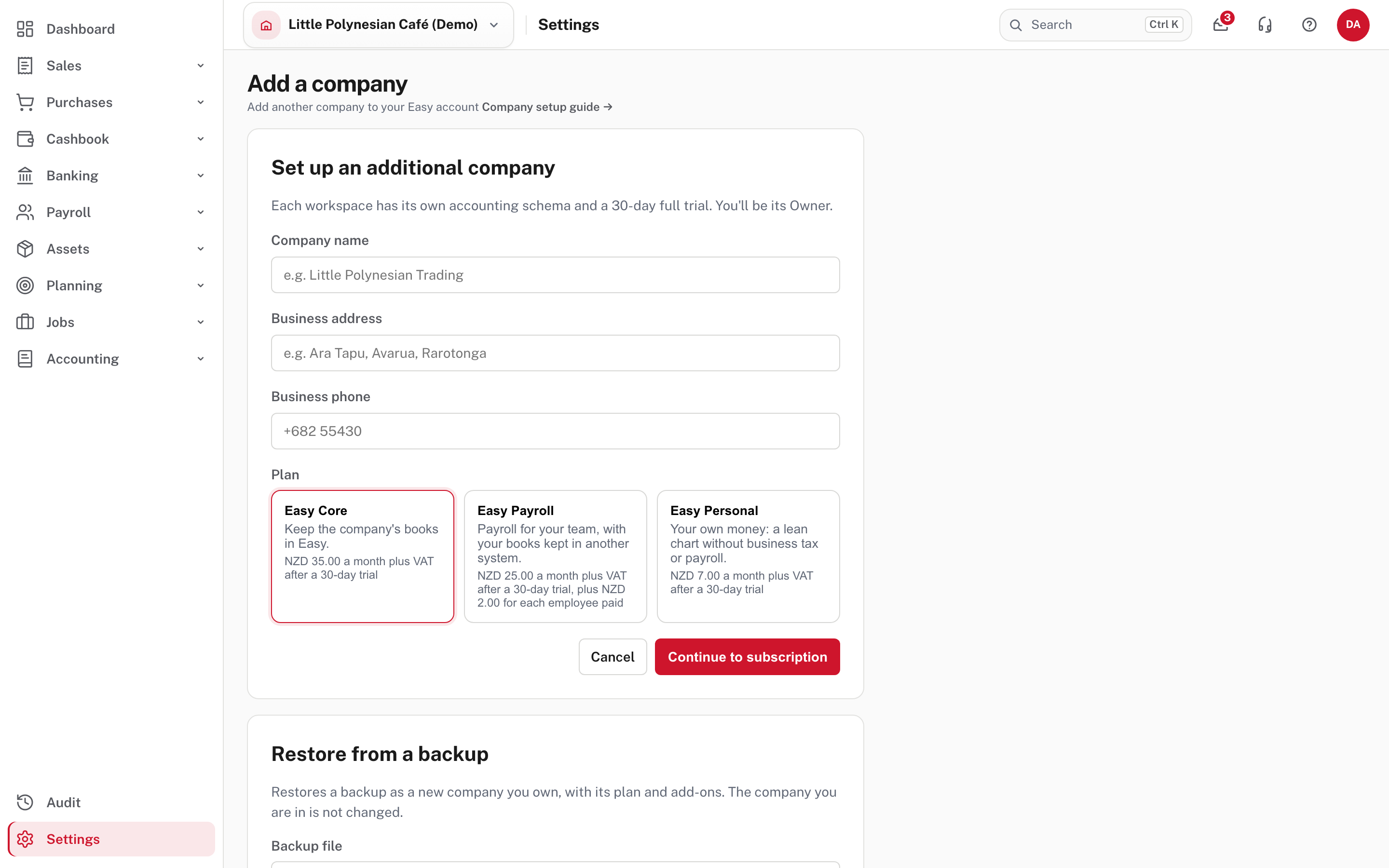
Fill in the name, address and phone, choose Easy Personal (NZD 7.00 a month plus VAT after a 30-day trial) and Continue to subscription. Easy then walks you through setting the workspace up: your details (including the RMD number), a check of the chart of accounts (17 accounts, from the "Personal / private" template), your bank accounts, your opening balances, and, if you want, people to invite (Set up your company describes the same steps for a business).
Two companies on a free trial at most
One account can have two companies on a free trial at the same time. Easy refuses a third with "You already have 2 companies on a free trial. Subscribe to one of them, or close one, before starting another." Project Five can help if you need more.
A business workspace can't reach the return:
Step 2. Open the return and say who you are
Accounting → Income tax.
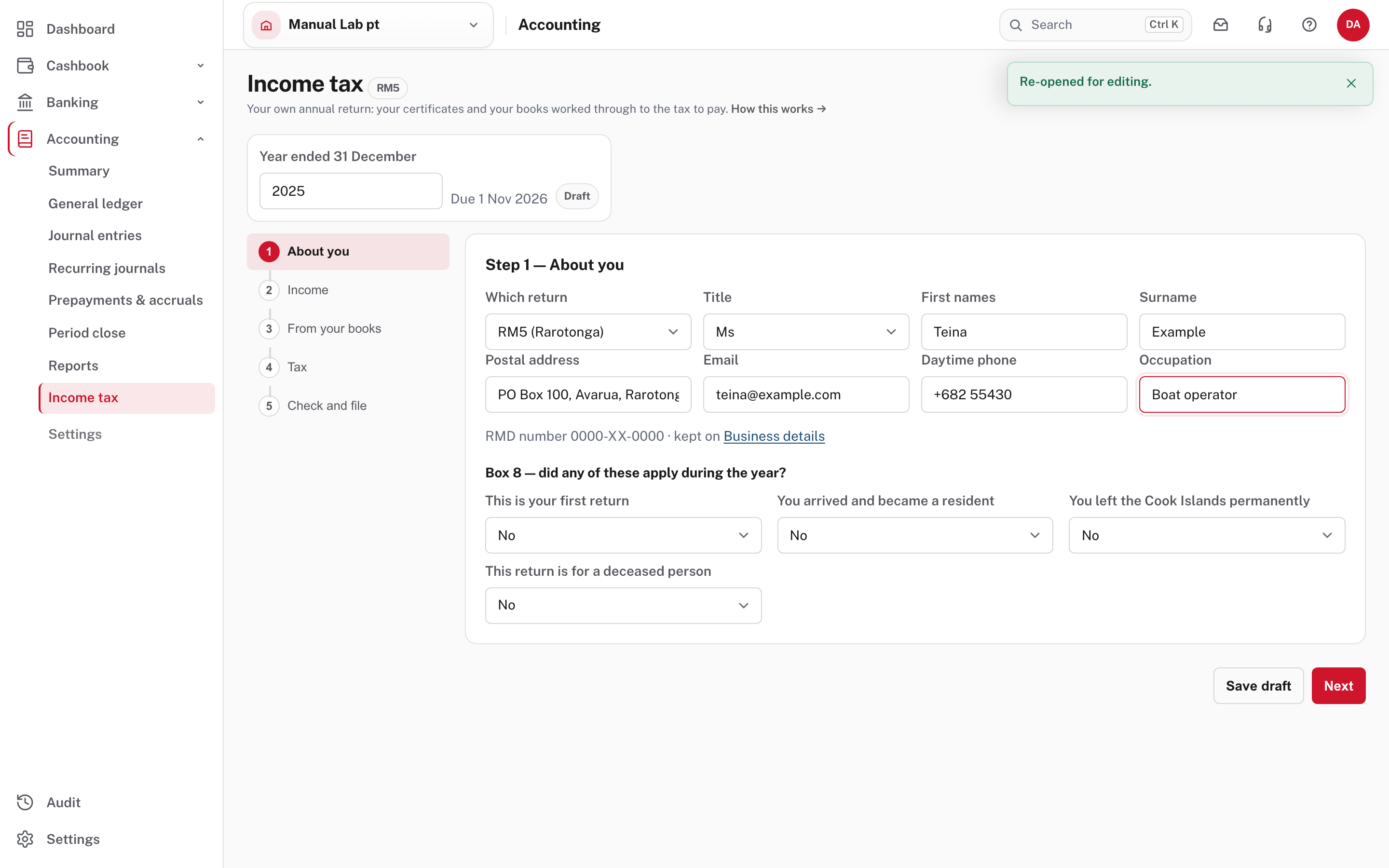
The return opens on the last year that has ended (2025 here); change Year ended 31 December for an earlier one (it goes back seven years, from Easy's source). Next to it are the due date and the status: Draft, Filed or Filed outside Easy. The five steps are down the left: About you, Income, From your books, Tax, Check and file. Choose Next to move on, Save draft to keep what you have typed.
| Field | What it does |
|---|---|
| Which return | RM5 (Rarotonga), or RM5 Pa Enua (outer islands) with its own scale |
| Title, First names, Surname | Start from your Business details. Correct them to your own name |
| Postal address, Email, Daytime phone, Occupation | Print on the return |
| RMD number | Shown, not typed: change it under Business details (the link beside it) |
| Box 8, four questions | First return, arrived and became a resident, left the Cook Islands permanently, return for a deceased person. Answer each Yes or No |
From Easy's Help, the name, address, email and phone start from your Business details, and a new year starts from last year's choices, so check each one.
Not pictured
From Easy's Help, if you say you arrived or left during the year, Easy asks for the date and the days present in the Cook Islands, and the exemption becomes that share of 365 days. The RM5 Pa Enua has no box 8.
Step 3. Type the income from your certificates and statements
Choose Next.
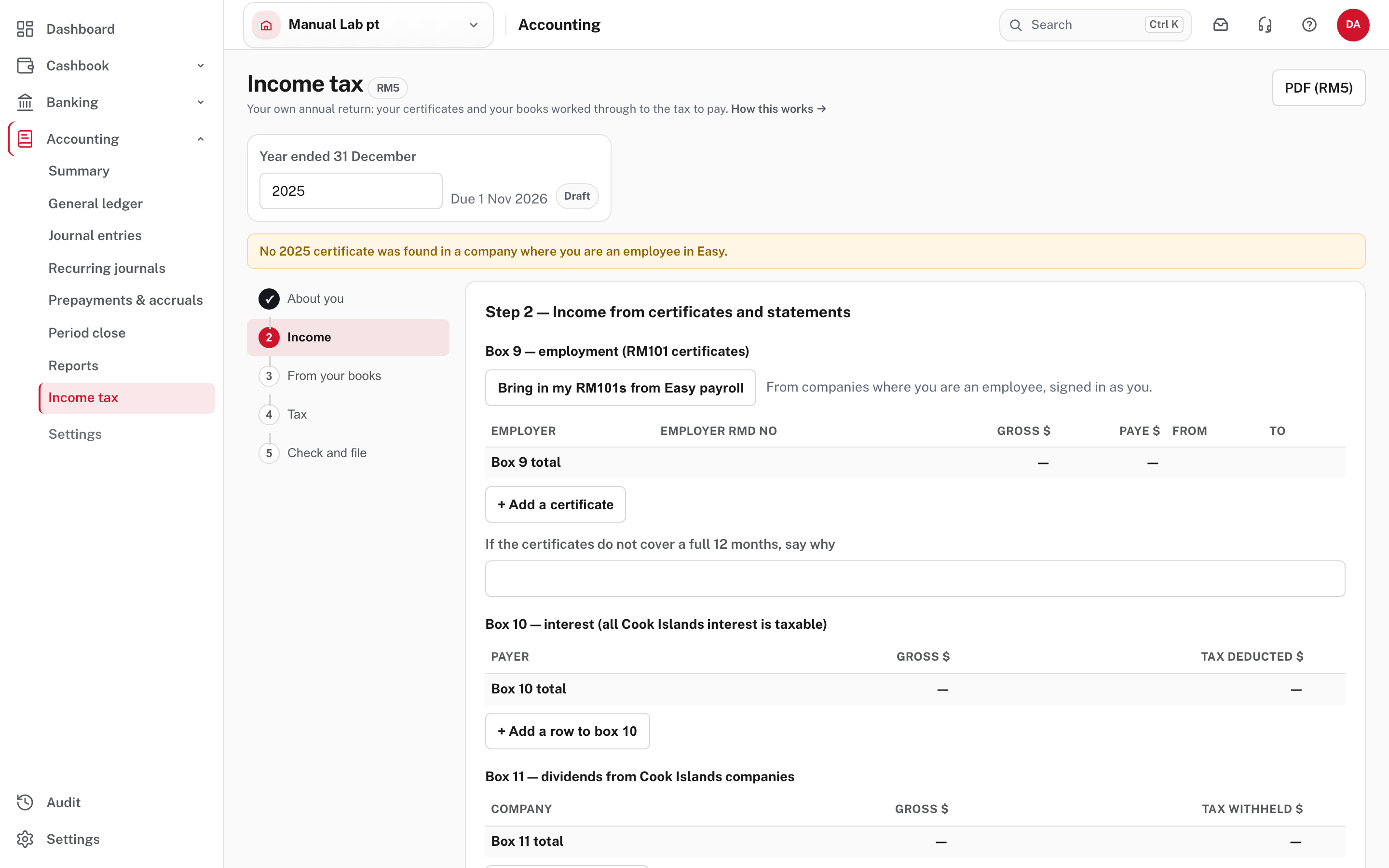
Box 9 is your employment. Choose + Add a certificate and type each employer's RM101: the employer, the employer's RMD no, the gross and the PAYE, and the dates the certificate covers. Bring in my RM101s from Easy payroll fills the rows for you, but only from a company where you are an employee and signed in as you. In the picture it found none ("No 2025 certificate was found in a company where you are an employee in Easy"), so the certificate is typed.
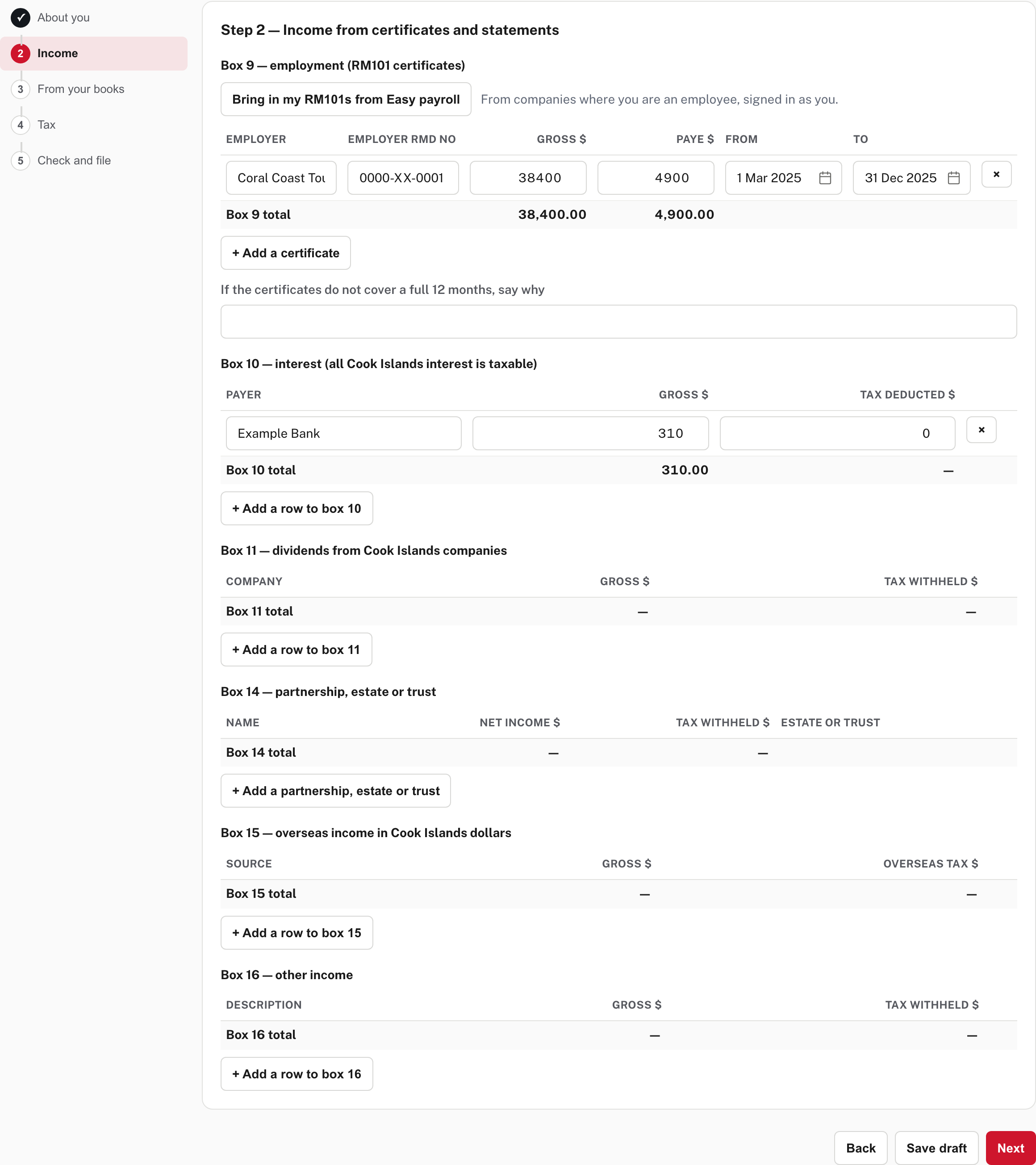
Further down, the other income is typed by payer, with the gross and the tax already taken off:
| Box | What goes in it |
|---|---|
| 10 | Interest (all Cook Islands interest is taxable) |
| 11 | Dividends from Cook Islands companies |
| 14 | Partnership, estate or trust income. Tick Estate or trust where it applies |
| 15 | Overseas income in Cook Islands dollars, with the overseas tax |
| 16 | Any other income |
Each box has a total, and the totals catch up when you press Save draft or move to another step. Under the certificates is a box for why they do not cover a full 12 months. Fill it in whenever a certificate doesn't (see "Check, file and lodge" below).
Not pictured
From Easy's Help, overseas tax counts only up to the Cook Islands tax on that income. If you paid more, box 15(b) shows the part that counts and a warning says so. Dividends and estate or trust income are added back after the exemption.
Step 4. Choose what from your books goes on the return
Choose Next.
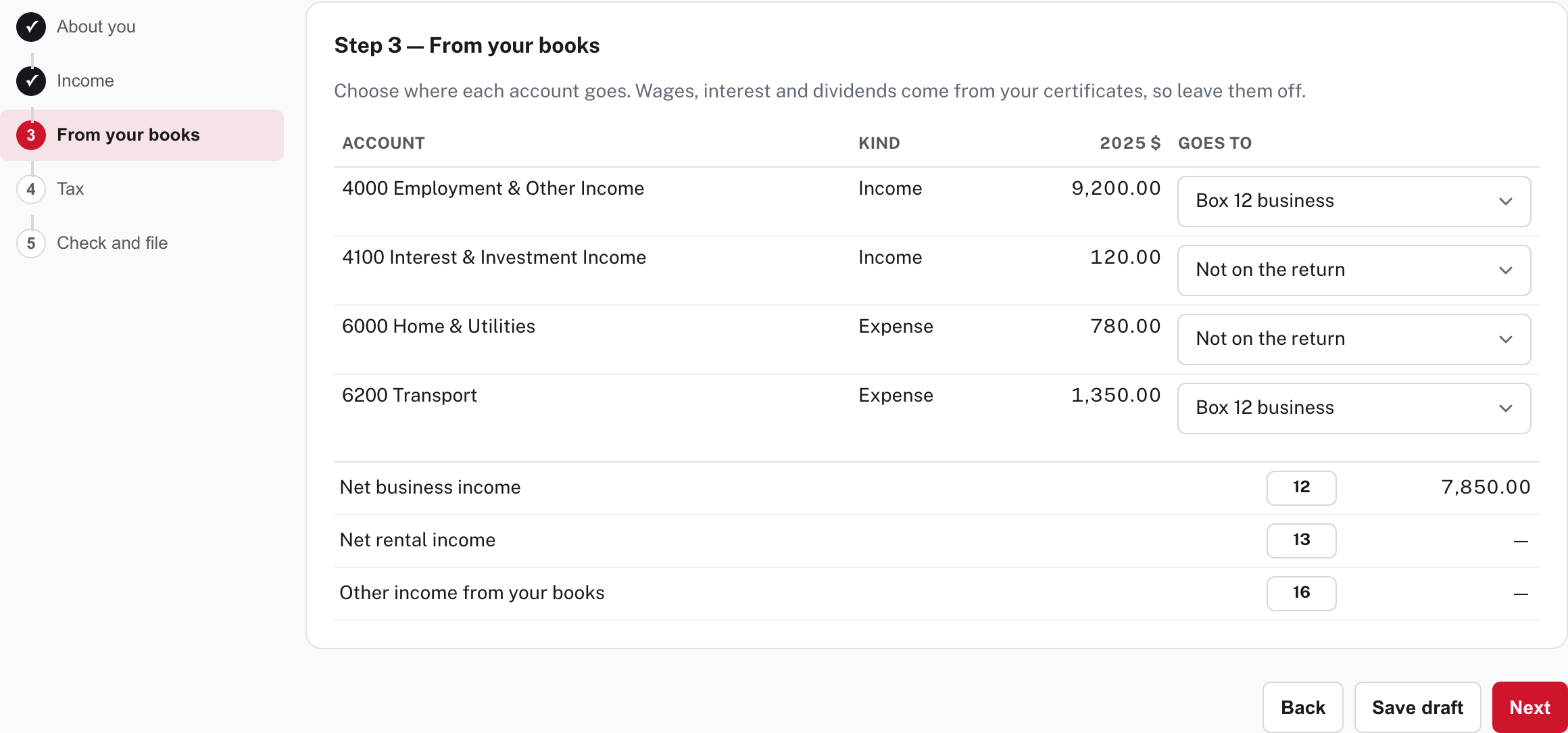
The step lists every income and expense account that has an amount in the year. For each, Goes to offers Not on the return, Box 12 business, Box 13 rental or Box 16 other. Business and rental income are the income on the accounts you choose less the expenses on the accounts you choose, so choose both sides. In the practice books:
- Employment & Other Income (9,200.00, the boat-hire income) and Transport (1,350.00, the fuel) go to Box 12 business, which gives net business income of 7,850.00.
- Interest & Investment Income and Home & Utilities stay Not on the return: the interest is already typed in the Income step, and home spending is private.
Don't count anything twice
Wages, interest and dividends come from your certificates and statements, which also show the tax taken off, so leave their accounts Not on the return. Private spending never goes on the return. Your choices are kept for next year.
Step 5. Work out the tax
Choose Next. Type the donations to qualifying charities, any loss brought forward (box 16(c)) and the provisional tax paid for the year (box 22). Then choose Work out the tax.
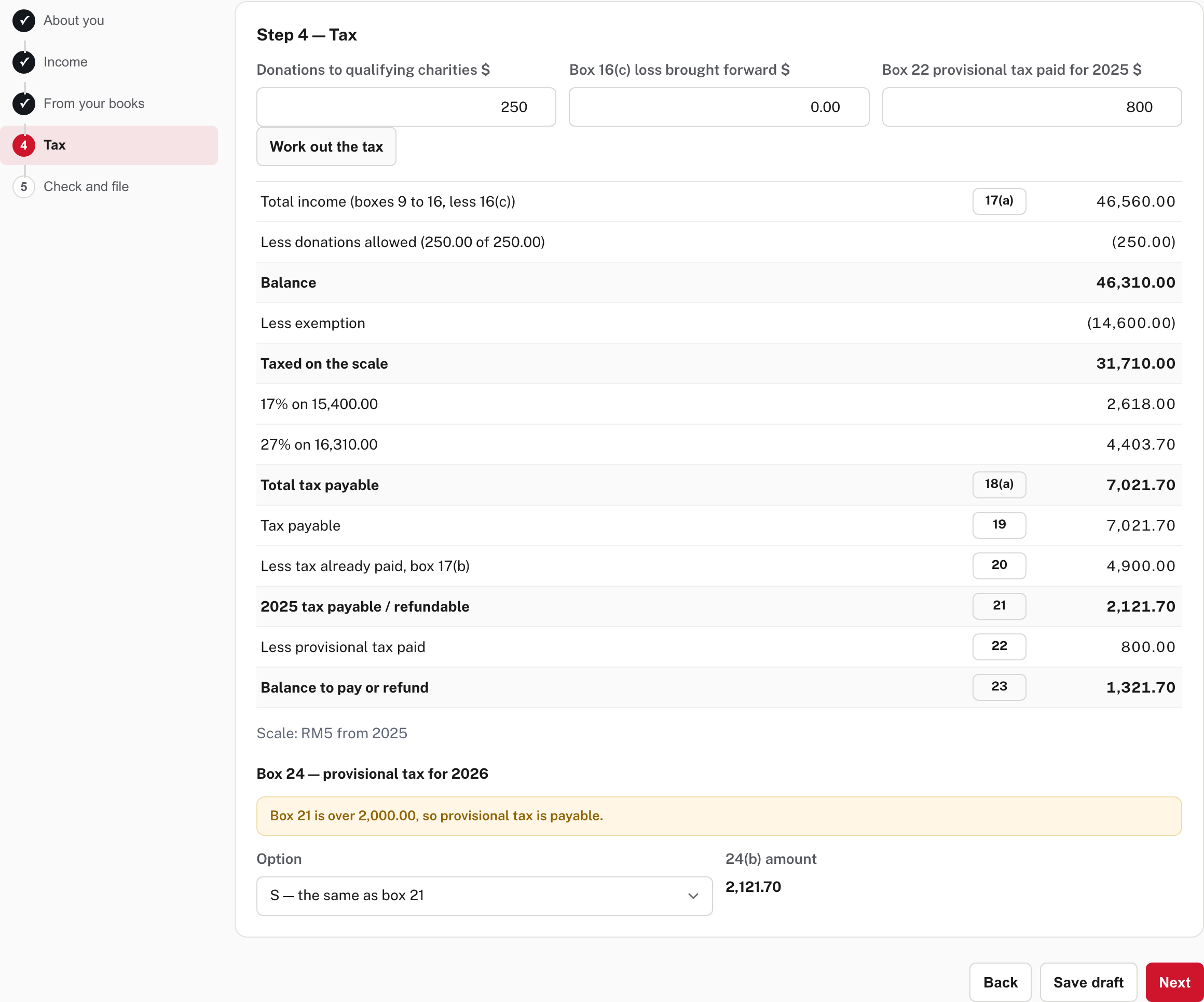
Easy works down the return:
| Boxes | The practice figures |
|---|---|
| 17(a) total income | 46,560.00: the 38,400.00 certificate, 310.00 interest and 7,850.00 business income |
| Donations | 250.00 allowed. Gifts count when they come to at least $200, up to $5,000 |
| Exemption | 14,600.00, the scale's nil band |
| Taxed on the scale | 31,710.00: 17% on the next 15,400.00 (2,618.00), then 27% on 16,310.00 (4,403.70) |
| 18(a) total tax payable | 7,021.70 |
| 20 less tax already paid, box 17(b) | 4,900.00, the PAYE on the certificate |
| 21 tax payable for the year | 2,121.70 |
| 22 less provisional tax paid | 800.00 |
| 23 balance to pay or refund | 1,321.70 |
The line Scale: RM5 from 2025 says which year's scale Easy used. Box 24 is the provisional tax for next year. Easy says when it is payable ("Box 21 is over 2,000.00, so provisional tax is payable"), and you choose S, the same as box 21 (here 2,121.70), or E, your own estimate, which you type.
Step 6. Check, file and lodge
Choose Next. The last step repeats the four figures that matter and lists anything to check.
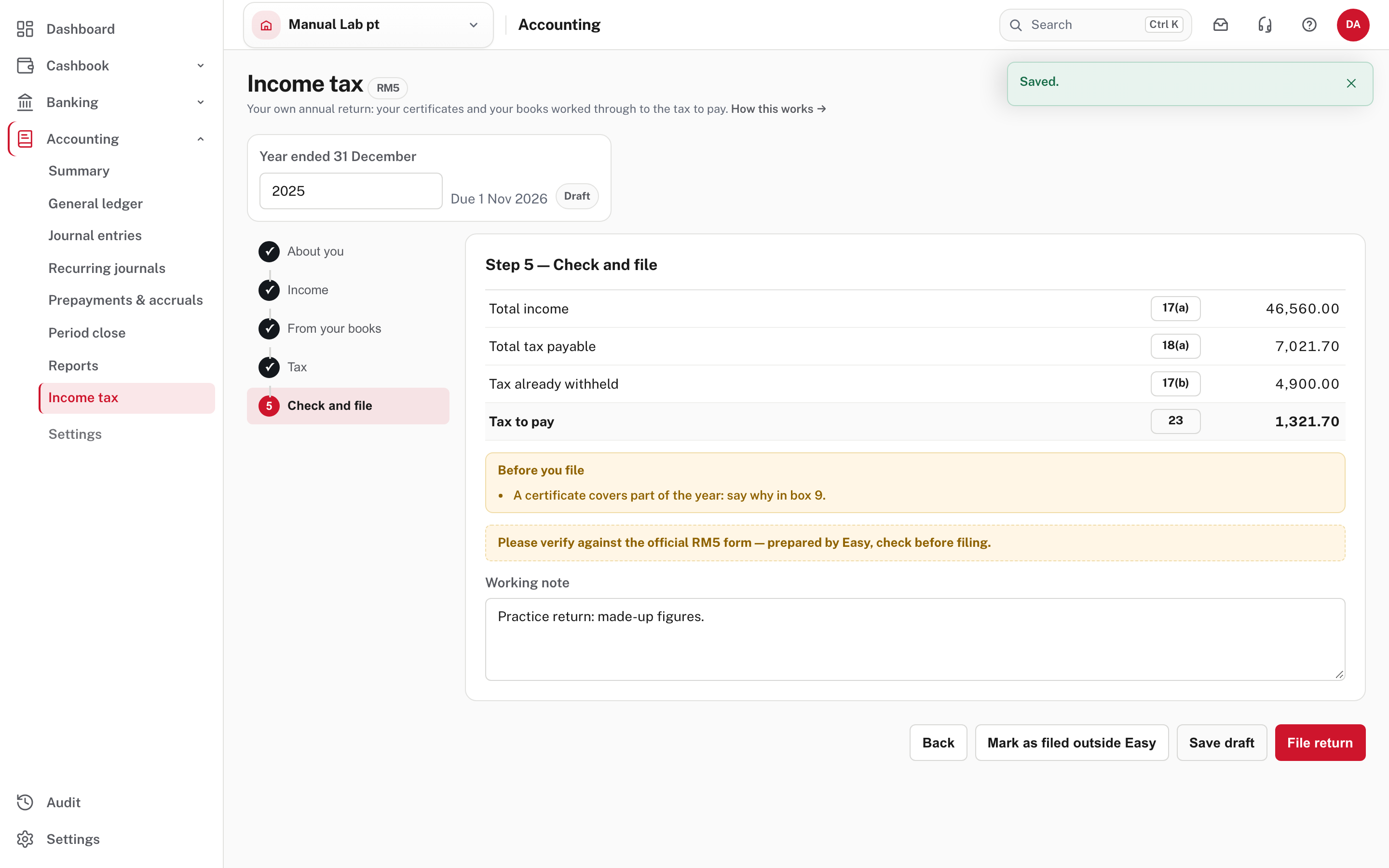
Before you file says "A certificate covers part of the year: say why in box 9." That is right here (the certificate starts on 1 March), and the fix is to go back to the Income step and fill the box under the certificates. (From Easy's source, the warning shows when a certificate has a start date and that box is empty.) The line "Please verify against the official RM5 form" is always there: Easy prepares the figures, and you check them against the official form.
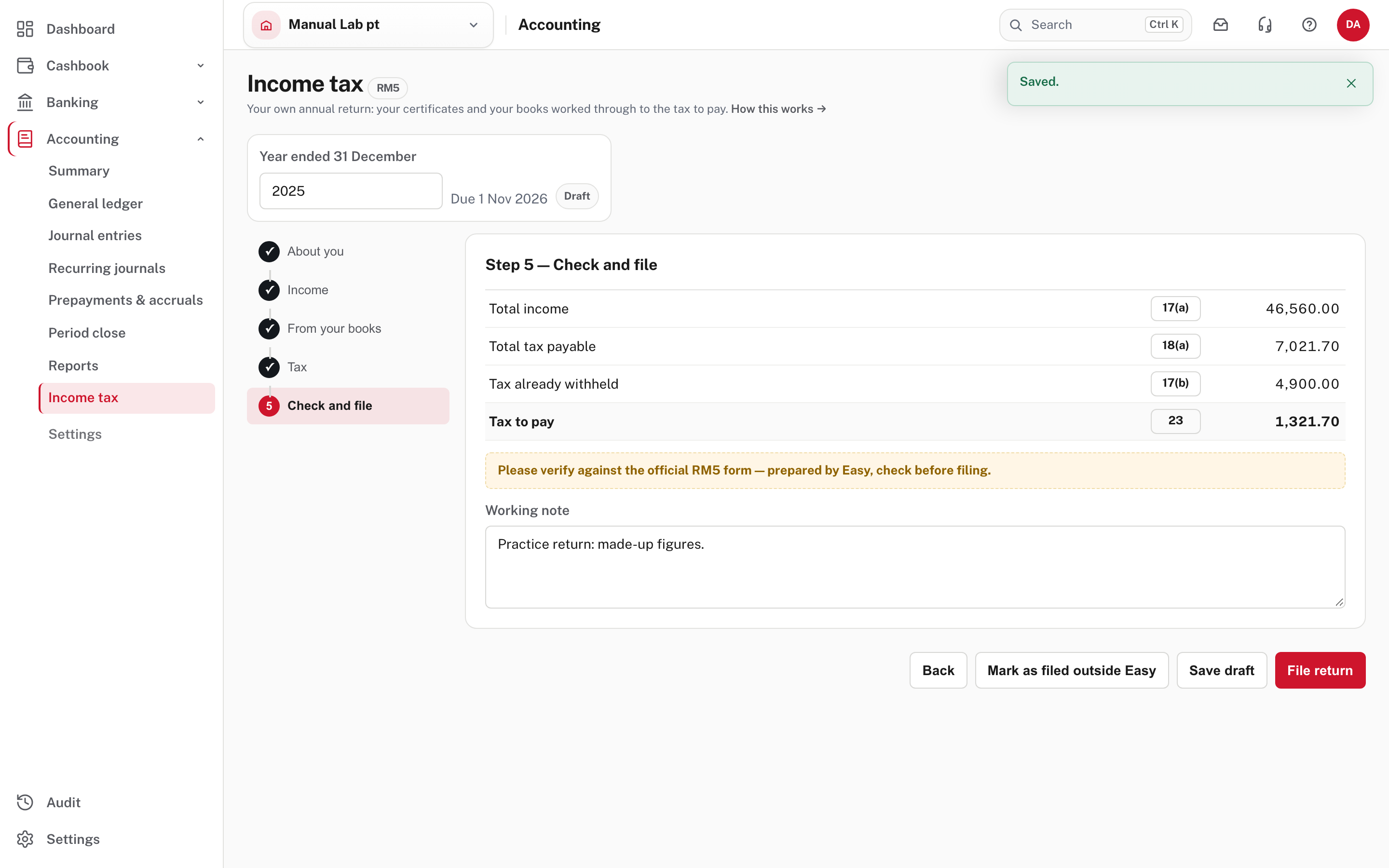
Type anything worth remembering in the Working note, and choose Save draft. A year you lodged in another system can be marked with Mark as filed outside Easy (and undone with Undo "filed outside Easy"; not shown in the demo). Otherwise choose File return.
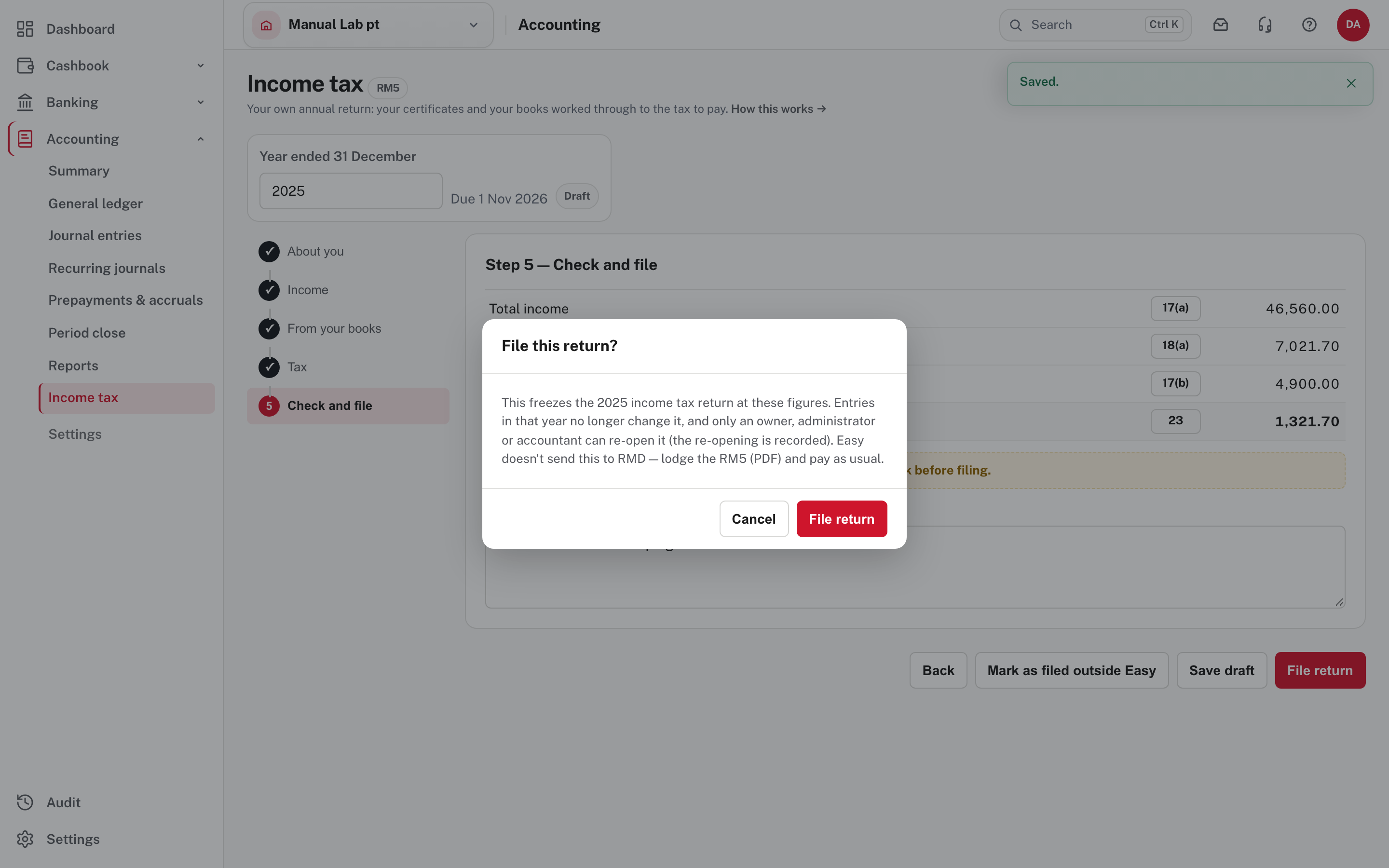
Filing freezes the year at these figures. Entries in that year no longer change it, and only an owner, administrator or accountant can re-open it, as the box says (the re-opening is recorded). While a warning is still showing, the box also asks you to tick that you have read it (from Easy's Help; not pictured, because no warning was showing).
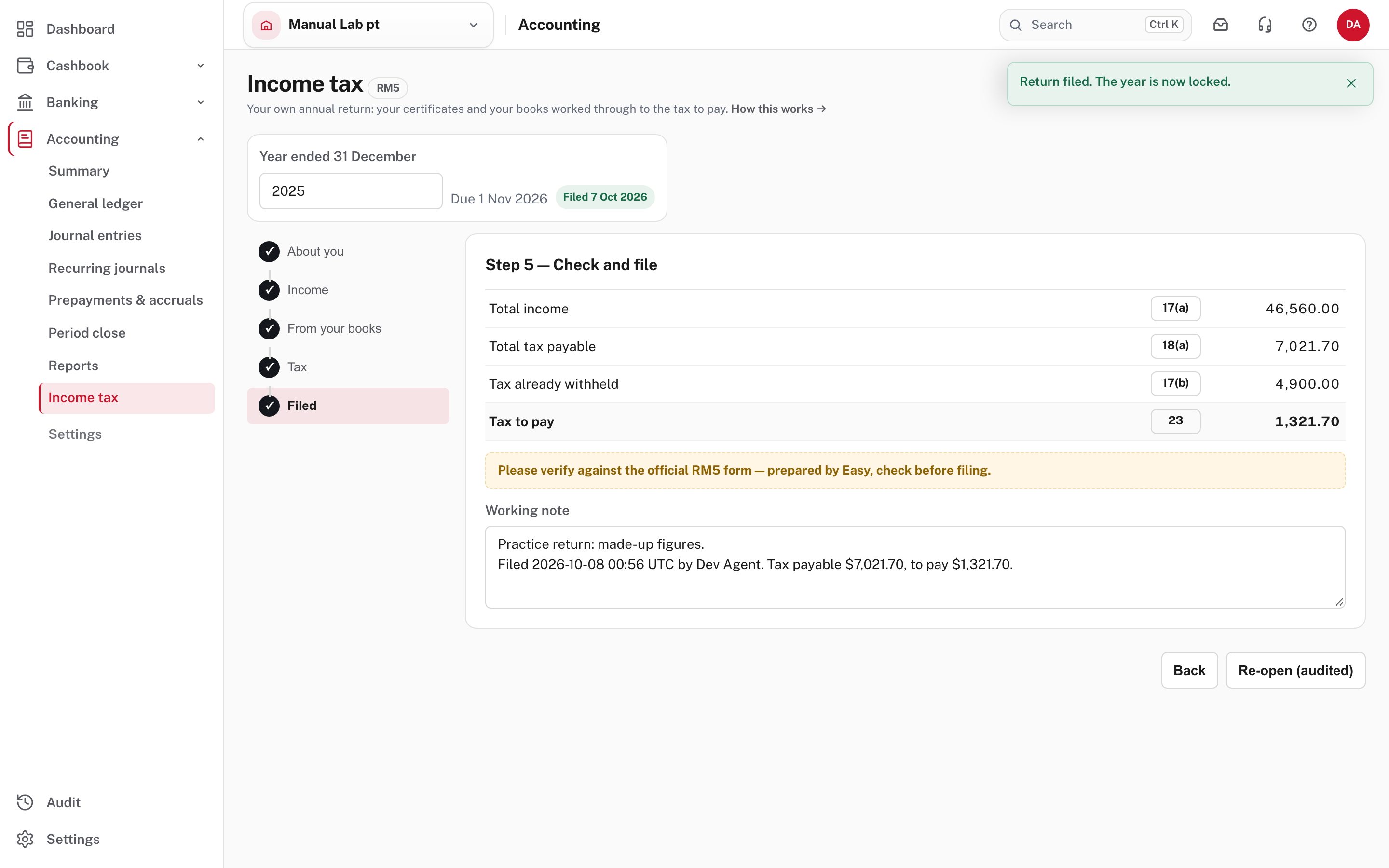
The status reads Filed with the date, the figures are locked, and Re-open (audited) is the way back in.
Now print the return. Choose PDF (RM5) at the top right.
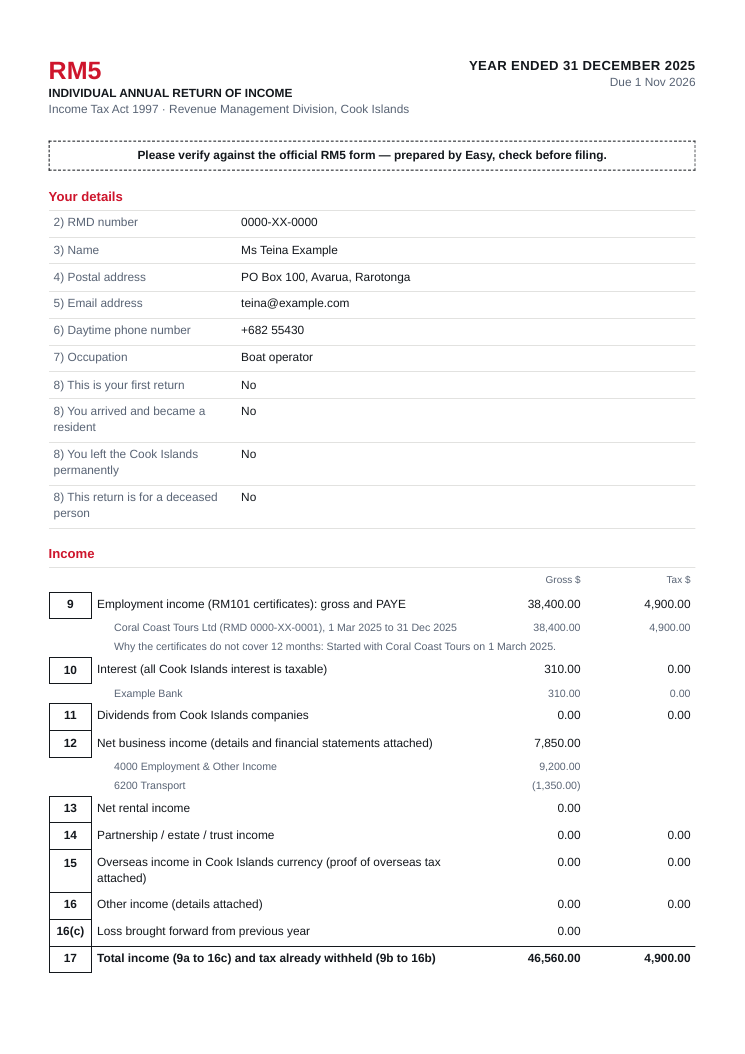
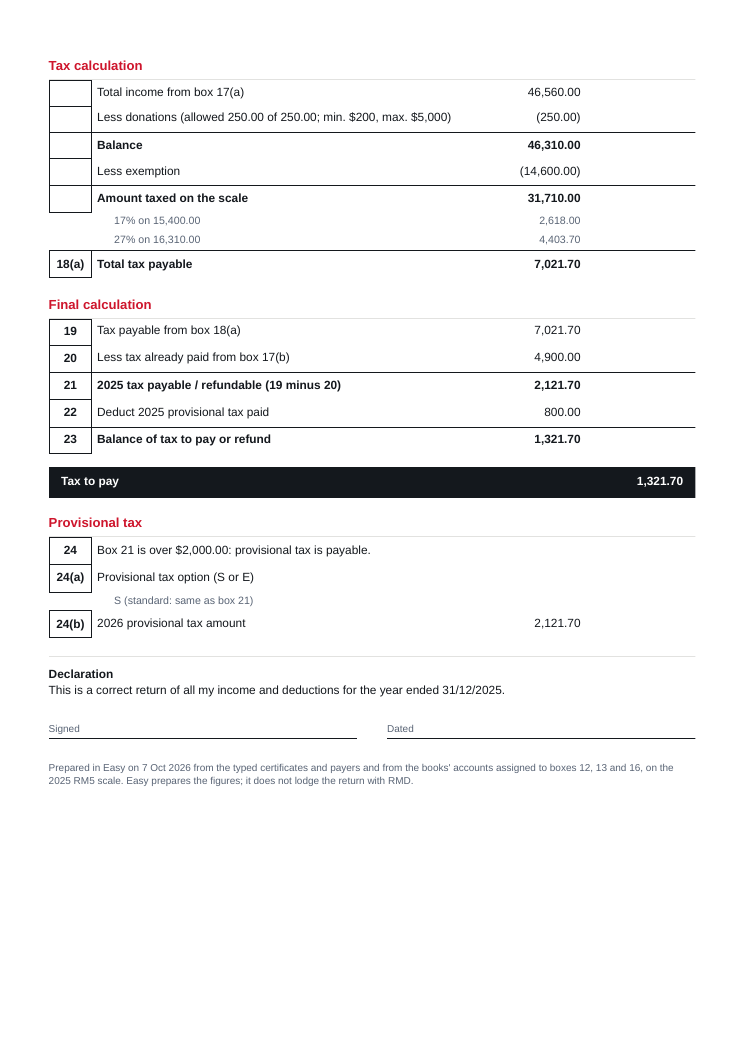
The PDF follows the form box by box, shows the accounts behind box 12, and ends with a Declaration for you to sign and date. It says at the foot that Easy prepares the figures and does not lodge the return with RMD. Lodge the official RM5 with RMD by 1 November and pay the tax.
More detail: Your income tax return (RM5). Easy's Help gives the figures it follows for 2025 (How the tax is worked out); check anything unusual with RMD or your accountant.
Common mistakes
- Typing wages again through the books. They are already in box 9 and would be taxed twice (the From your books step).
- Choosing only the income account. Choose the expense accounts for the same business too, or box 12 counts income with no costs.
- Filing with a warning you haven't read. The tick in the filing box is there on purpose.
- Waiting for the year to end to find the papers. Ask each employer for the RM101 early.
Check before you continue
Check before you continue
- The year's income and spending are in your books, and your RMD number is in Business details.
- Every RM101, interest and dividend statement and other income is typed in Step 3, with the tax already taken off.
- The books' accounts are assigned both sides (income and costs), and wages, interest and private spending are Not on the return.
- The tax, boxes 21 and 23, agree with what you expect, and provisional tax for next year is chosen if it is payable.
- Any "Before you file" warning is answered, the return is filed, the PDF (RM5) is signed, lodged with RMD by 1 November, and the tax is paid.