For employees: your details, timesheets and leave
Self-service is the part of Easy an employee signs in to for themselves: their payslips, their leave, their hours and the bank account their pay goes to. It has two sides. The person in payroll invites the employee and later decides what the employee sends. The employee asks. This chapter follows one request each way. It belongs with Leave, Run a pay period and Starters, leavers and changes to pay.
About the screenshots
The pictures are from a practice company, Dev Sandbox, not from Little Polynesian Café, because that is where Easy's test employee login is tied to an employee (only the Not linked yet picture is from the café). The employee is Dev Employee, a made-up person, and the person who decides is a payroll manager. Names, hours and pay are examples. Email isn't set up on the local demo, so no invitation or reminder email was sent.
Before you start
- The employee has an email address on their record. Easy can only invite an employee whose record has one ("Add an email address to invite them to self-service").
- Leave is part of Full Payroll (Set up payroll). With Payroll Lite, My leave isn't shown (Payroll Lite and Full Payroll).
- Someone can decide. Leave and timesheets are decided by the employee's approver, or by anyone who can approve when no one is named (step 2). Nobody can decide their own request, unless they are the only person in the company who can (When you are the only approver).
- You know two settings: whether employees enter their own hours (step 3), and whether a change to an employee's bank account needs a second person to confirm it (Approvals and controls).
Step 1. Invite the employee
Payroll → Employees → Access.
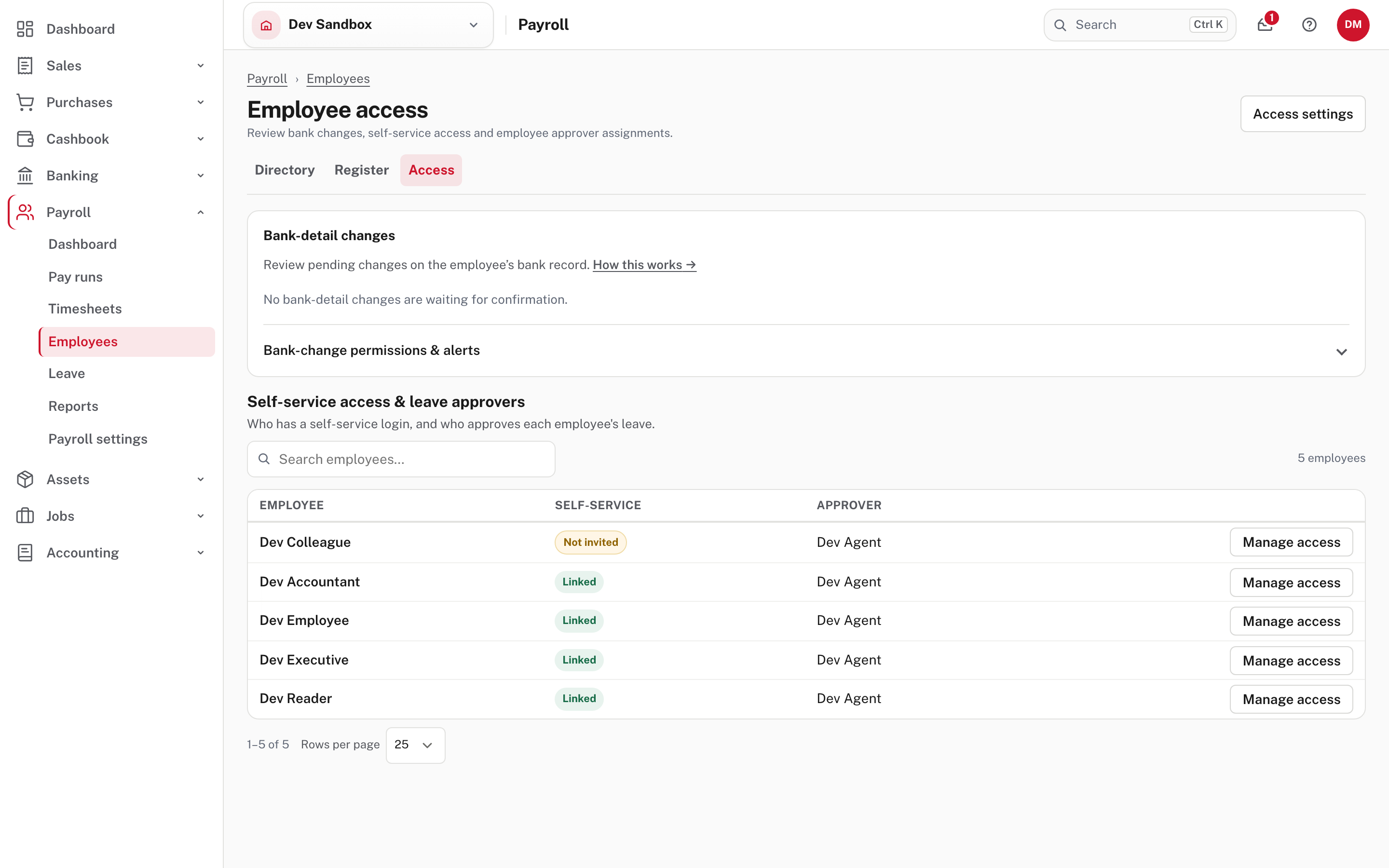
The lower table lists every active employee with Self-service and Approver. The badge says where each person stands:
| Badge | Meaning |
|---|---|
| Not invited | They have no login yet |
| Invited | An invitation is out and not yet accepted |
| Linked | They have signed in, and their login is tied to this employee record |
Choose Manage access on a person. It opens their record at Self-service access. Choose Invite.
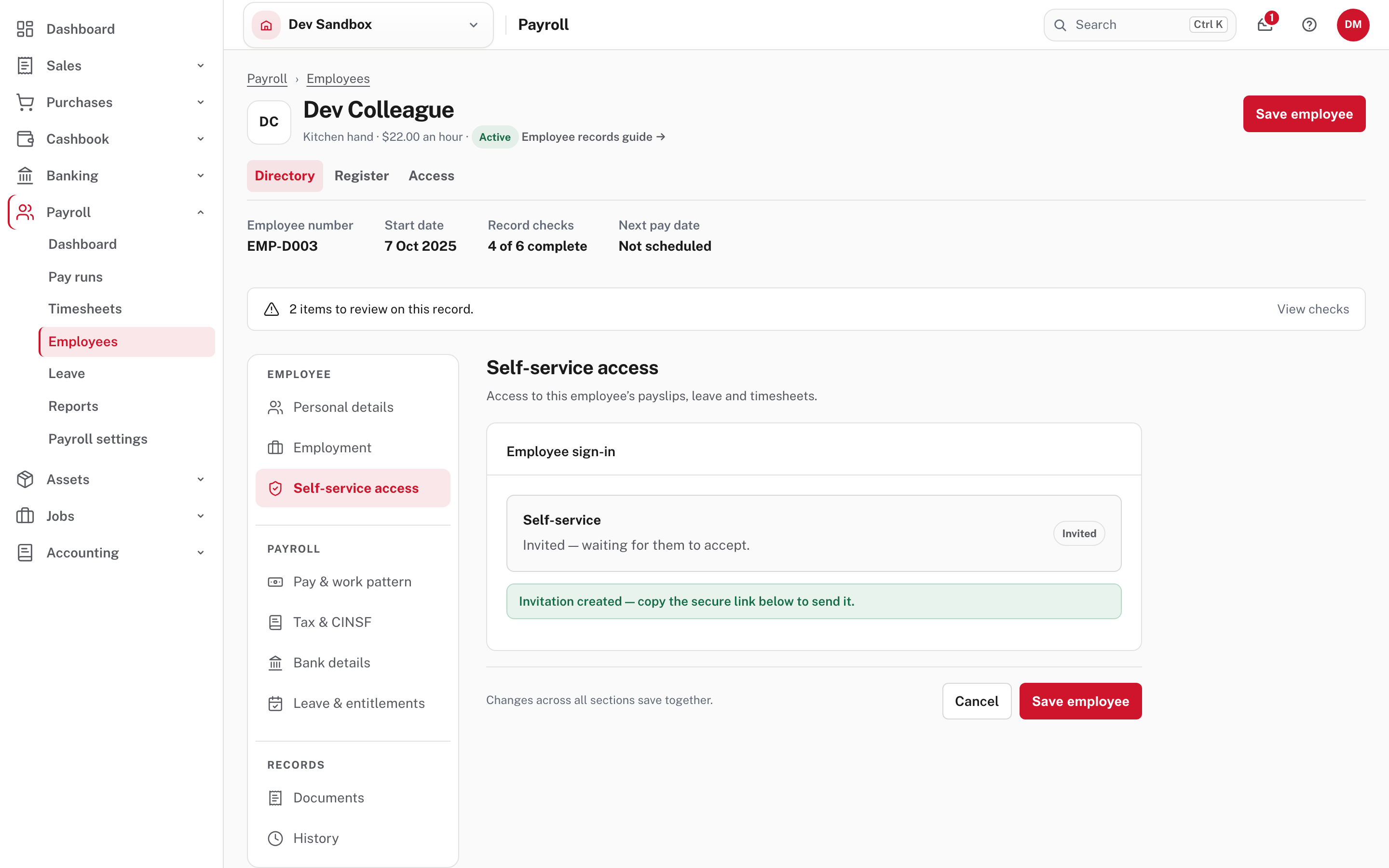
An invitation always gives the Employee role, the one role that reaches nothing but the person's own record. Staff who only see their own payslips and leave don't count towards the plan's number of users (the wording on Settings → People & access).
If email isn't set up
On a company with email set up, Easy emails the invitation ("Invitation emailed to …"). Without email there is no link to copy on the employee's record. Invite the same email address from Settings → People & access with the Employee role instead: that page shows the secure link to copy, and the employee's record is linked when they accept (from Easy's source; not tried). See People, roles and access. Not shown in the demo: the invitation email itself, and the employee accepting it.
Not shown in the demo, from Easy's source: the link works for seven days. The page it opens says to use the address the invitation was sent to. Someone new to Easy chooses a password (at least 12 characters, with upper case, lower case and a number). Someone who already uses Easy signs in as usual. Once they join, the badge becomes Linked. If the link is dead, the page says so and asks them to get a new one from you.
Step 2. Say who approves their requests
Payroll → Employees → the employee → Employment → Approver.
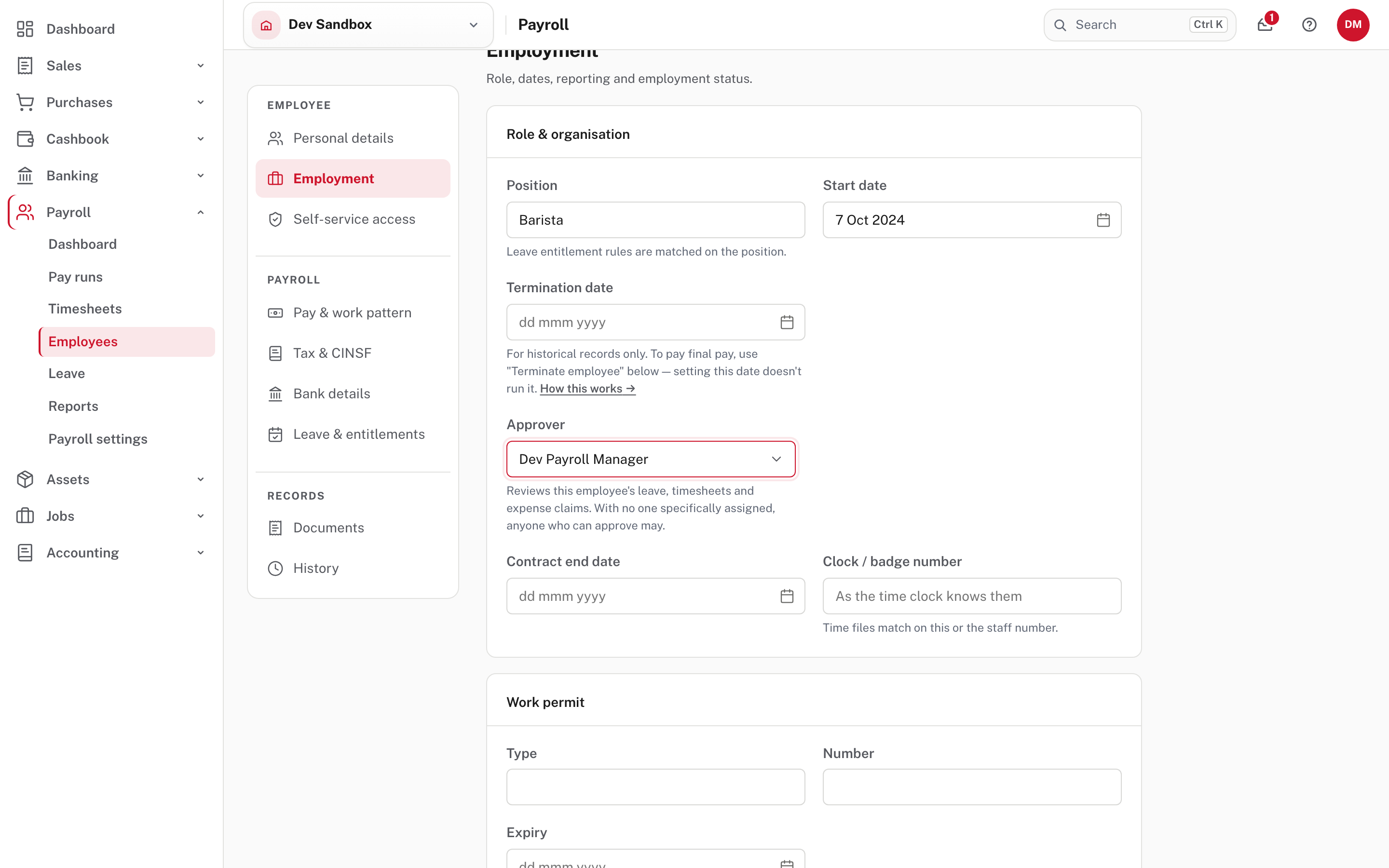
Choose a person from the list and Save employee. The list offers only people who hold an approving role; if it is empty, Easy says to invite someone with one first. With no one specifically assigned, anyone who can approve may. Whoever you choose can decide the employee's leave, timesheets and expense claims. Nobody else can, and being the Owner does not override the approver (Work inbox and email activity). The one exception is a person who is the only one in the company able to approve.
How leave is signed off (including the second sign-off when the approver is an employee) is in Leave, step 3.
Step 3. Decide whether employees enter their own hours
Payroll → Payroll settings → Employee access & records → Employee timesheet entry → Edit.
Tick Employees enter their own timesheets and choose Save setting. The card's words change from "Payroll staff enter the hours. Employees can view their timesheets" to "Employees with a self-service login can enter their hours." With it off, someone in payroll keys every person's hours, as in Run a pay period, step 1. An employee's own record can override the setting either way, under Pay & work pattern (not shown in the demo; Payroll approvals and controls).
Step 4. What the employee sees
The employee signs in and lands in My, a menu of their own pages: My payslips, My details, My leave, My timesheets, My expenses, My requests and Bank details. They see nothing of the rest of the company.
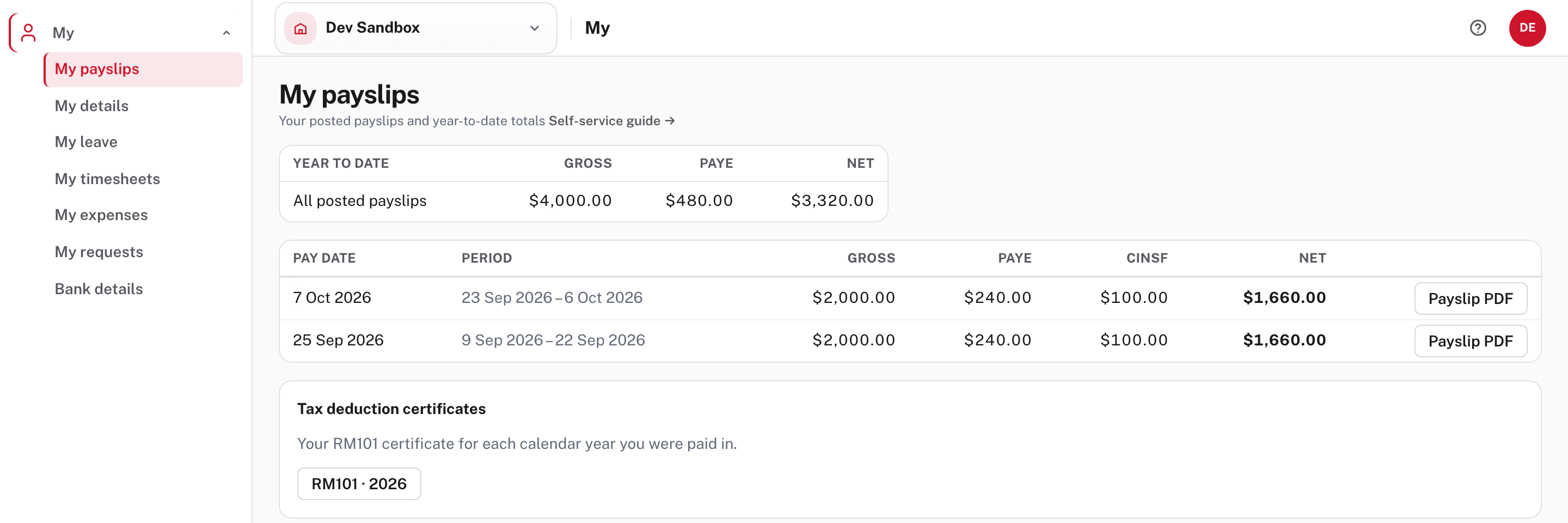
My payslips lists the employee's posted payslips (pay runs that are finished), newest first, with gross, PAYE, CINSF and net, and the year to date above. Each row has Payslip PDF, and a Tax deduction certificates card offers the RM101 for each calendar year they were paid in. Not opened in the demo: the PDFs, which need Easy's PDF engine.
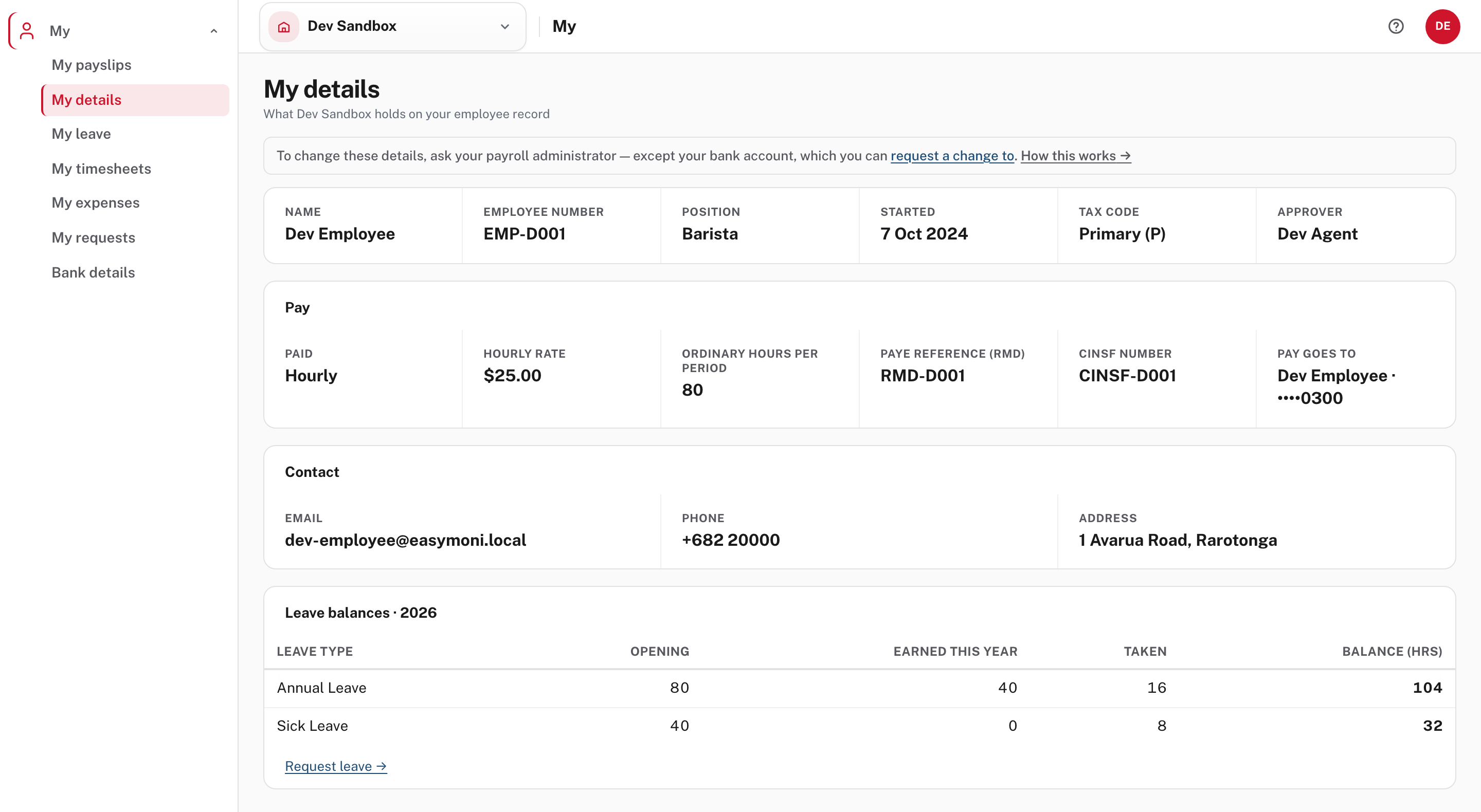
My details shows what the company holds on them: name, number, position, tax code, approver, pay, bank (the account number masked), contact details and leave balances. It is read only. To change anything, they ask the payroll administrator, except the bank account (step 7).
Step 5. The employee asks for leave
My → My leave → + New request. The page opens with their balances.
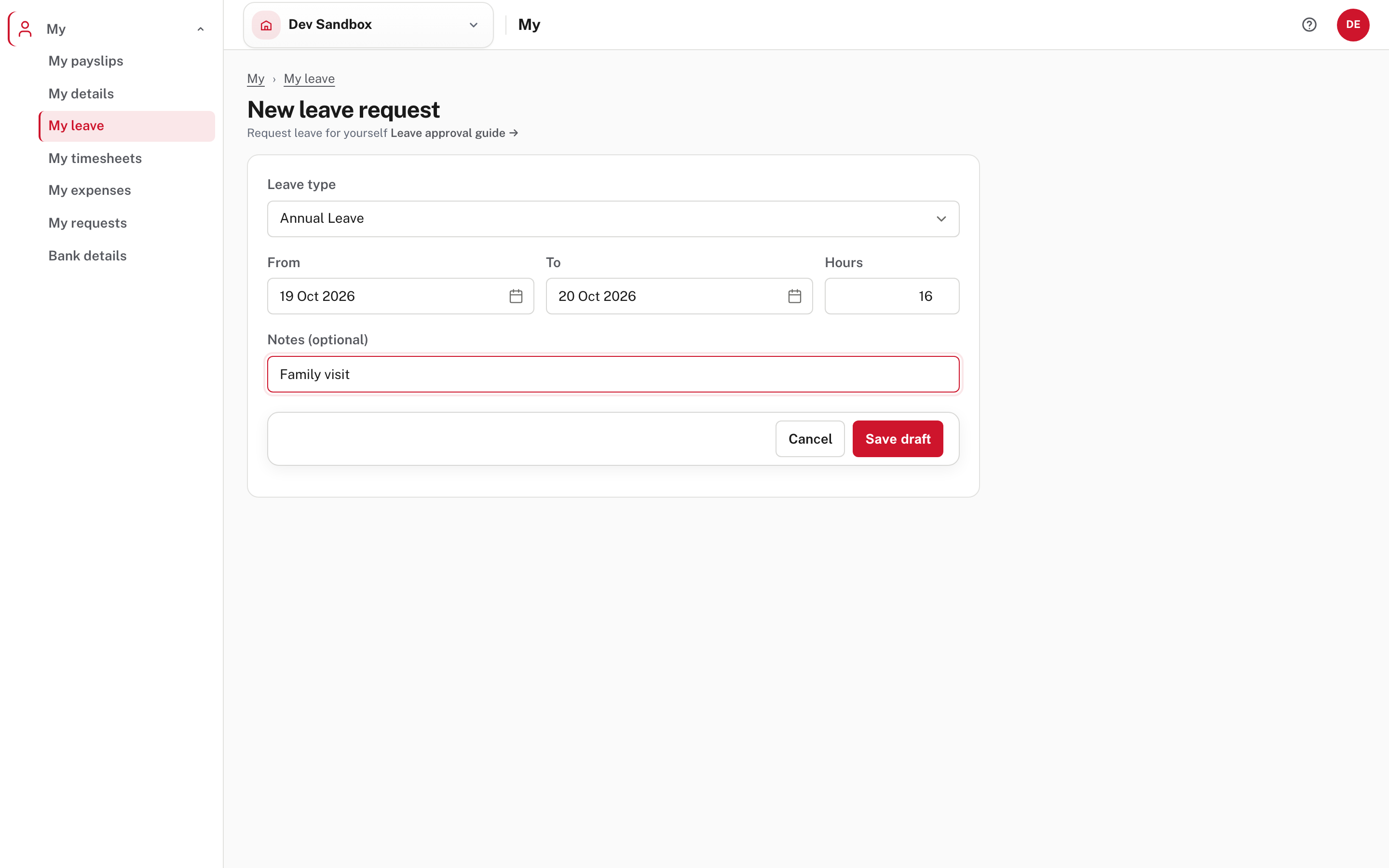
Choose the leave type, From and To, the Hours, and an optional note. Easy does not work the hours out from the dates: type the total (two eight-hour days is 16). Choose Save draft, then Submit for approval. The request page then reads Submitted and waiting for approval, and Cancel this request is offered while it can still be cancelled.
The request goes to the approver from step 2. It reaches them as Leave request in their Work inbox (step 8).
Step 6. The employee enters and sends their hours
My → My timesheets. With step 3 switched on, a card Pay period without a timesheet lists each pay period they can start, with Enter hours. A period is offered once it has begun, while payroll has not started processing it, and if the person was employed in it (from Easy's source).
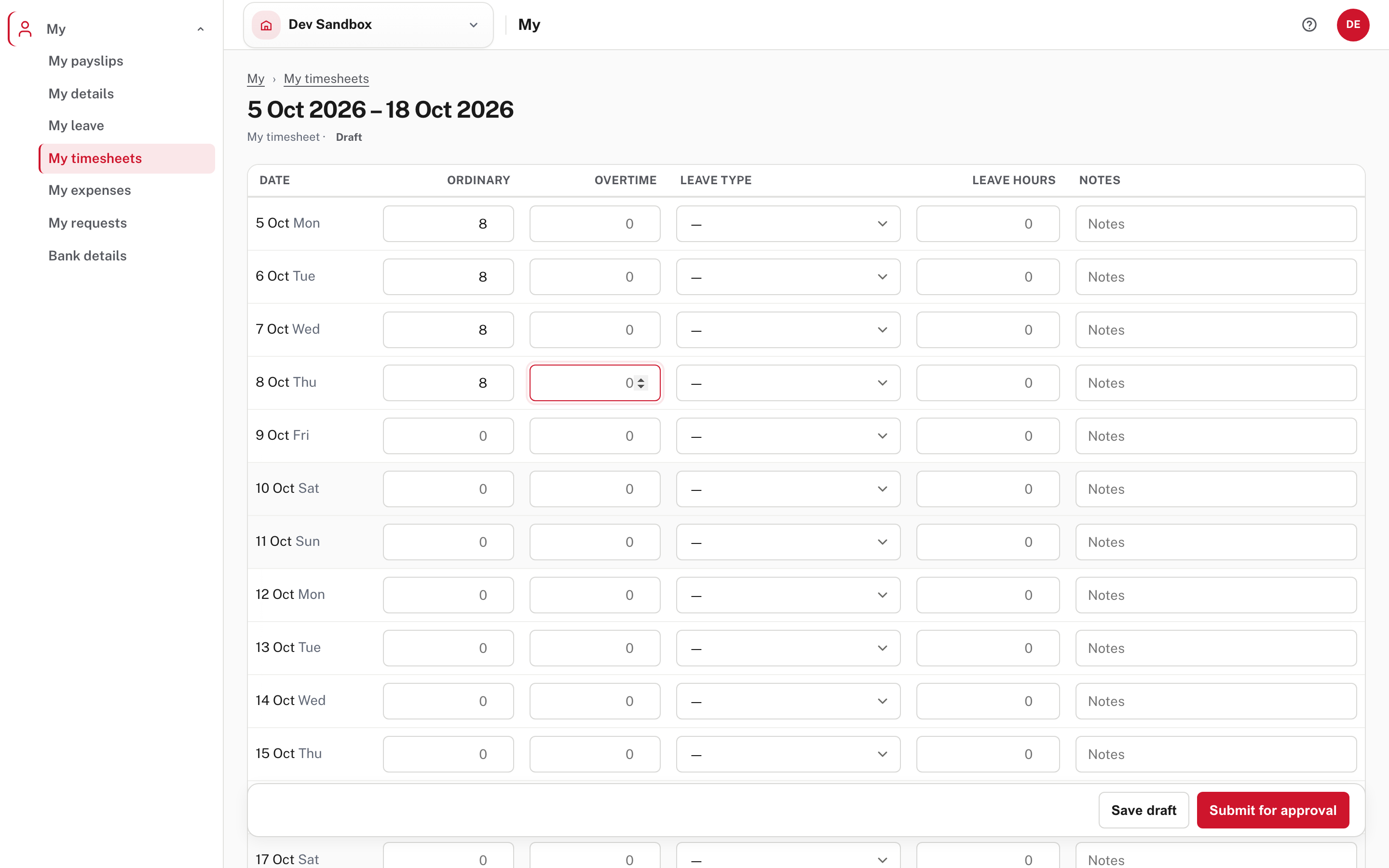
Fill in the days: Ordinary, Overtime, and a Leave type with Leave hours for a day of leave. A row of totals follows the days. The bar at the bottom has two buttons:
- Save draft keeps the hours. They can come back and change them.
- Submit for approval sends them. The timesheet is then locked: "This timesheet has been submitted and is waiting for approval." The list in My timesheets shows the hours and the status Submitted.
Not shown in the demo, from Easy's source: a timesheet sent back shows the reason ("Declined: …") and is open again to change and send. Public holidays in the period are marked Holiday, with a note to enter hours worked on one as Overtime. With step 3 off, the page says "Once your manager generates a timesheet for a pay period, it shows here", and a timesheet payroll made is read only, with Submit for approval if it is still a draft.
Step 7. Bank details
My → Bank details.
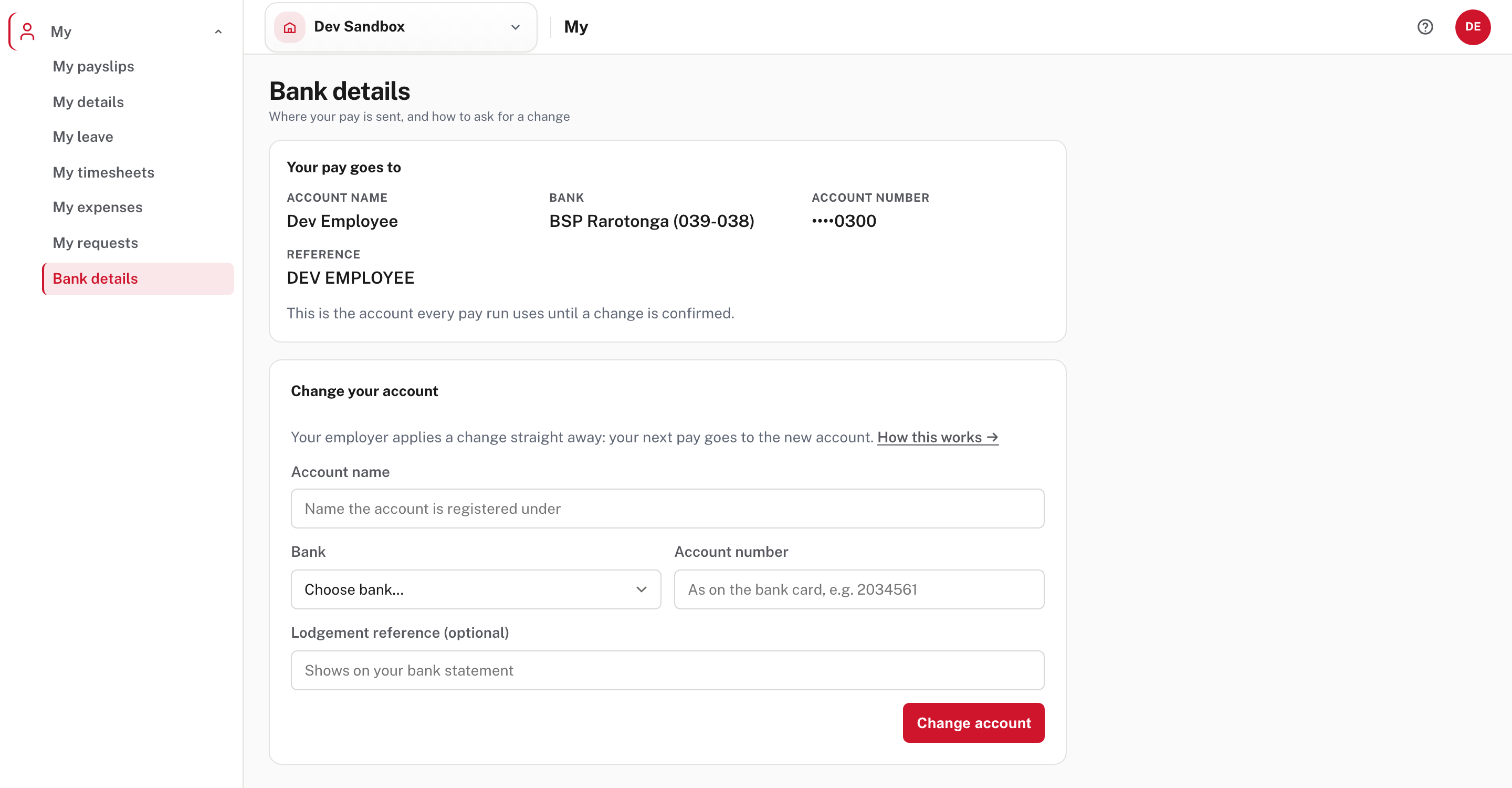
The top card shows the account every pay run uses: name, bank, the account number with only its last four digits, and the lodgement reference. Below it is a form: Account name, Bank, Account number and an optional Lodgement reference.
What the button does depends on the company's bank-change approval:
- Approval off (as in the demo, where the page said "Your employer applies a change straight away"): the button is Change account, and the next pay goes to the new account at once. Nobody else sees it first.
- Approval on (not shown in the demo, from Easy's source): the form is headed Request a change and the button is Submit request. The page then shows Pending: your current account is still used, with Cancel request, until a different person confirms it. A confirmed or declined request is reported on the same page, with the decliner's reason.
Switch the approval on
Easy's Help names a changed bank account as one of the two usual ways payroll fraud happens (the other is a pay run nobody else checks). A new company starts with this approval off. See Approvals and controls and Changing your bank account.
Not shown in the demo: submitting a request, and the person who confirms it. A different person confirms it on the employee's record under Bank details, or from Payroll → Employees → Access, which lists changes waiting for confirmation ("No bank-detail changes are waiting for confirmation" when there are none). This is described from Easy's Help and source.
Step 8. Decide what the employee sent
Mail (the envelope in the top bar, with the number of things waiting) → Work inbox → My actions.
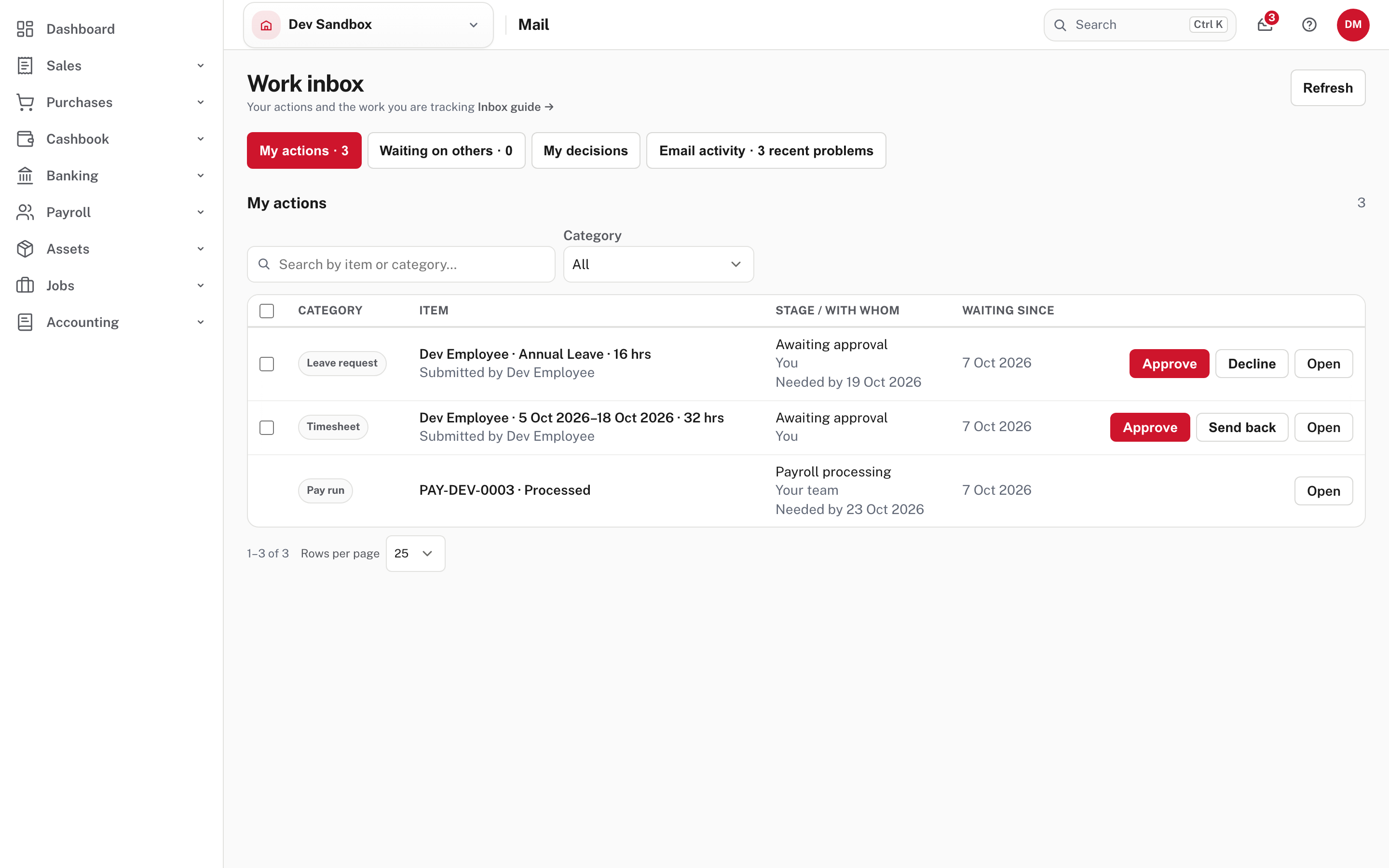
Each request shows who submitted it and what it is. A leave request has Approve, Decline and Open; a timesheet has Approve, Send back and Open. A request is listed here only for someone who can decide it. The other rows are other work waiting for you (here a pay run).
- Leave. Choose Open to see the request and its Decision box, then Approve or Decline (Leave, step 3). Approving does not take the hours off the balance: they come off when the pay run for the period is finished (Leave balances and accrual).
- Timesheets. Open Payroll → Timesheets, choose the person, and check the hours.
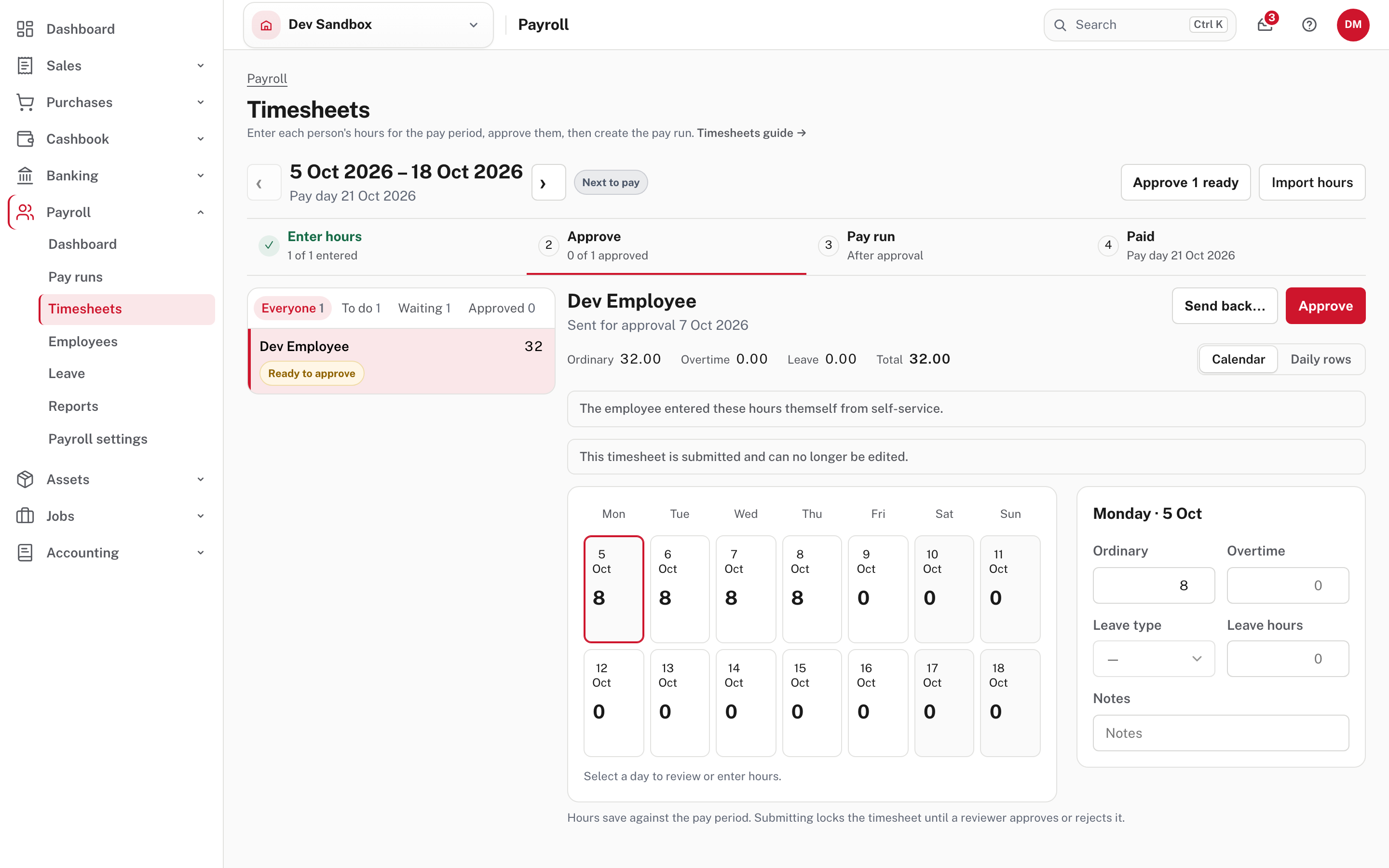
The screen says "The employee entered these hours themself from self-service." Choose Approve, or Send back… with a reason. Once everyone is approved the screen offers Create the pay run for …, and only approved timesheets are paid (Run a pay period).
Step 9. The employee sees the answer
My → My requests.
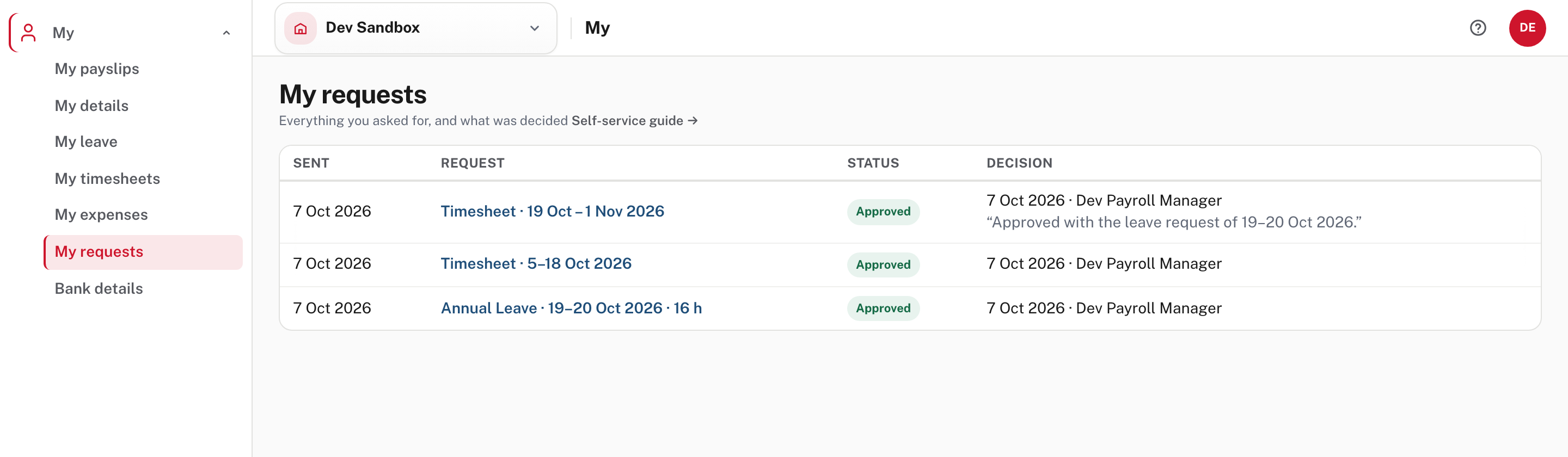
This lists every leave request, timesheet, expense claim and bank change the employee sent, with its status and the decision: the date, who decided, and any reason they gave. A declined item stays here.
Approving leave also writes it onto the timesheet of the pay period it falls in. Here that made a third row: an approved timesheet for 19 Oct to 1 Nov, noted "Approved with the leave request of 19-20 Oct 2026". Opened, it holds the two leave days, 8 hours of Annual Leave each, marked "Approved leave request"; they are paid in that period's pay run (Leave, step 4).
Also on the menu: expenses
My expenses → + New claim is where an employee claims back what they paid for the business: the date, what it was for, a line per item (amounts with the VAT included), and receipts attached to a saved draft, then Send for approval. The approver decides whether it is paid as a reimbursement or added to the next payslip. Not shown in the demo: this is described from Your expense claims.
When something goes wrong
| What the employee sees | What it means |
|---|---|
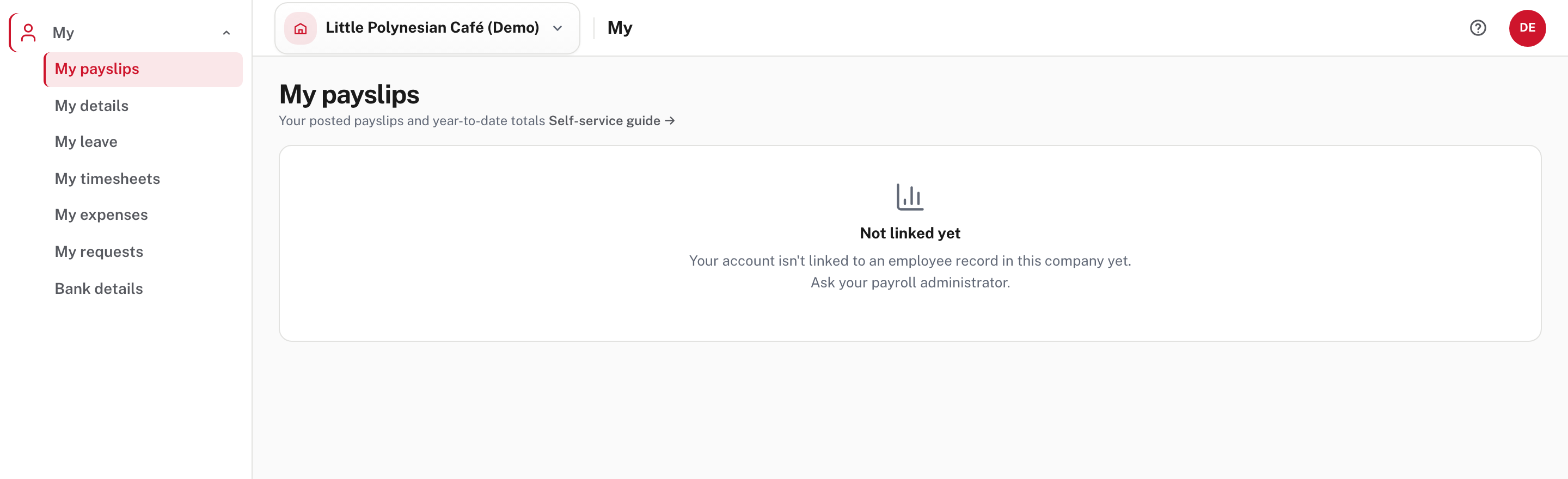
| Not linked yet (picture): "Your account isn't linked to an employee record in this company yet." | Their login has no employee record in the company shown in the switcher. Check the badge in Payroll → Employees → Access, and that they are in the right company. |
| No My leave page, or "Leave isn't recorded in Easy for this company" | The company uses Payroll Lite (Help and source; not shown in the demo). |
| My timesheets has no Enter hours | Step 3 is off for them, the period hasn't begun or is closed, or a timesheet already exists for it. |
| "This invitation link is invalid or has expired" | Send a new invitation (source; not shown in the demo). |
| A request is never decided | Check the approver on Employment (step 2): that person decides it. The Team queue in Mail, for people who manage company settings, reassigns routing (Work inbox and email activity). |
Check before you continue
Check before you continue
- Every employee who should have a login shows Linked in Payroll → Employees → Access, and nobody shares a login.
- Each employee has an approver, or you know anyone who can approve may decide.
- You have decided whether employees enter their own hours, and the setting matches.
- Bank-account changes need a second person's confirmation.
- The Work inbox has nothing from employees waiting past the day they need an answer.
- Employees can see their answer under My requests, with a reason for anything declined.