Extra one-off payments and back pay
Not everything paid through payroll is a regular pay-day run. A bonus, a correction, a reimbursement or any other extra payment is made as an extra one-off payment: a separate pay run, outside the pay calendar. Back pay is the arrears that build up when someone's pay rate is changed from a date in the past. This chapter covers both.
About the screenshots
Screenshots are from Easy's demo company, Little Polynesian Café. The bonus and amounts are examples.
Before you start
- Full Payroll is on, and payroll is set up (Set up payroll).
- You know who is being paid, what for, and how much, and whether the amount is gross (before tax) or what the person should take home.
- A bonus has tax and CINSF taken (see step 3), so work out the net figure before you promise it.
- For a final pay when someone leaves, don't use this: start from their employee record (Starters, leavers and changes to pay).
Step 1. Start an extra one-off payment
Payroll → Pay runs → + New pay run, then choose Extra one-off payment (the other choice is Regular pay).
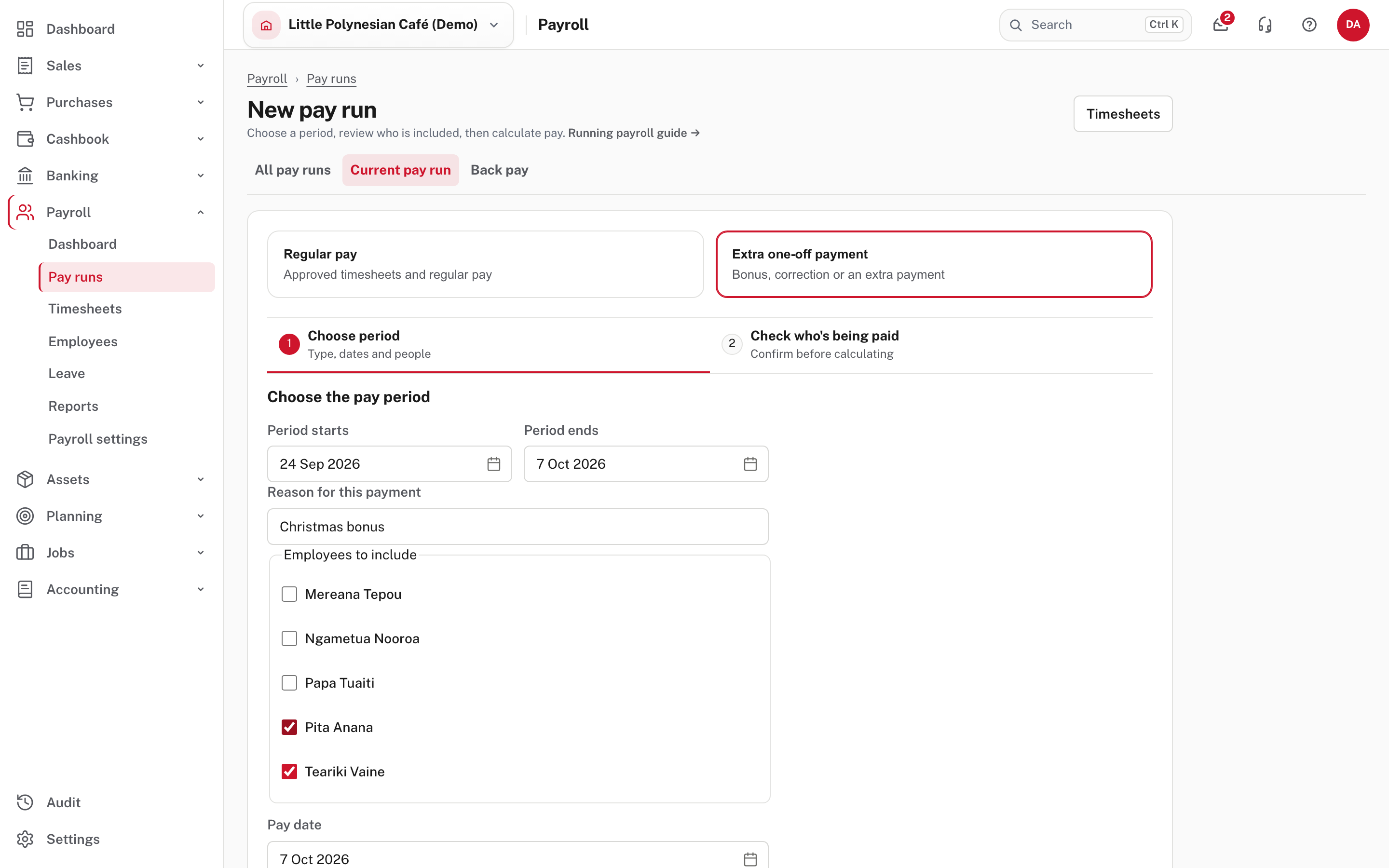
- Period starts / ends: the dates this payment is for. They default to the last fortnight to today and can be changed.
- Reason for this payment: a short name, such as Christmas bonus. It is kept with the run and shows on the list.
- Employees to include: tick each person. No one is ticked to begin with, and the button stays greyed out until you tick someone and give a reason.
- Pay date.
Choose Next: check who's being paid.
An extra payment does not block the regular one
An extra one-off payment is outside the one-payroll-per-period rule, so an open regular period does not block it. Leave is not accrued for it, so a later regular pay run for the same period still accrues correctly. A regular run, by contrast, must be finished before the next regular period starts.
Step 2. Check and create the run
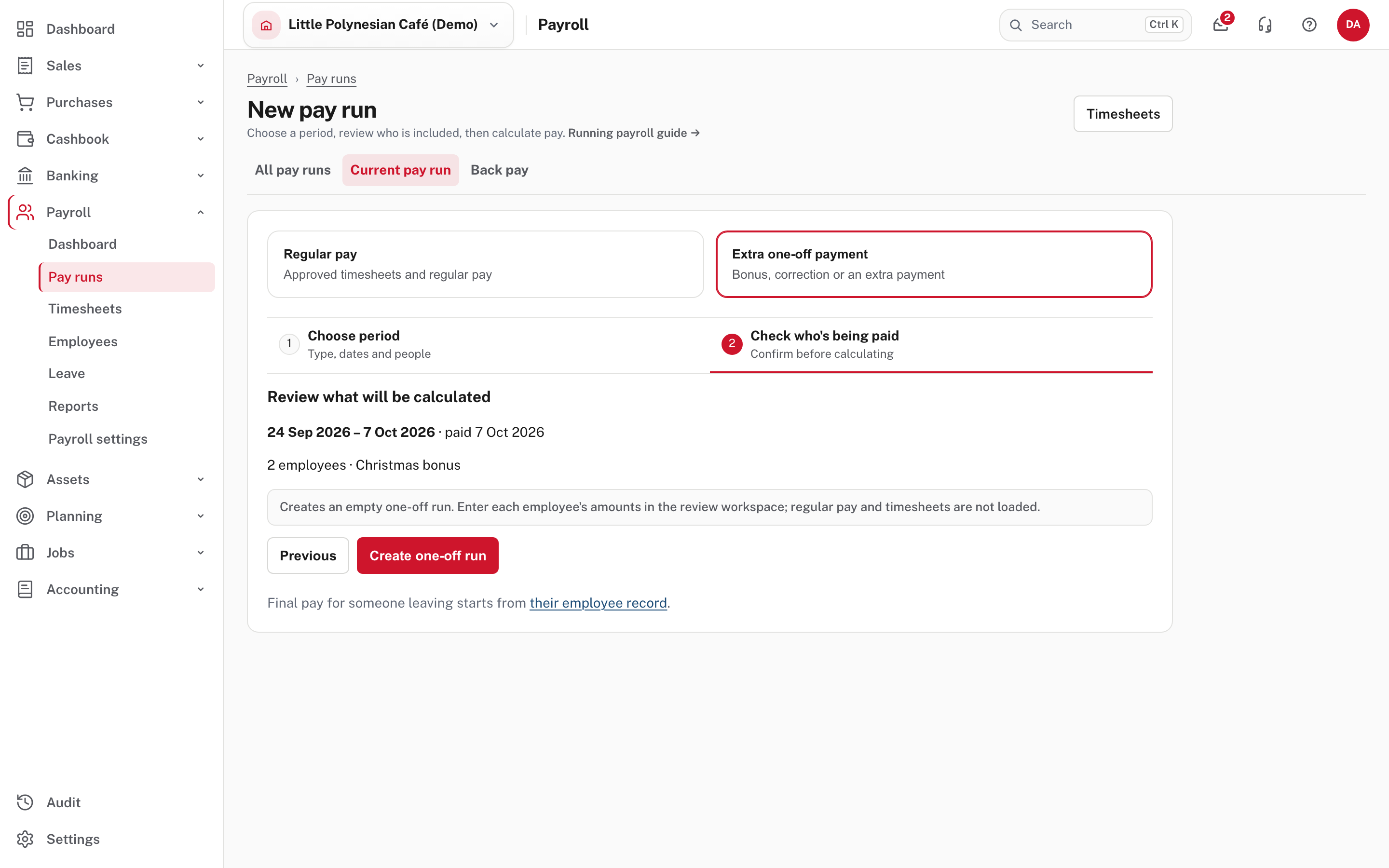
The page confirms who and what, and says "Creates an empty one-off run. Enter each employee's amounts in the review workspace; regular pay and timesheets are not loaded." An extra payment starts empty: the employee's regular allowances and deductions are not added, because regular pay already pays and takes them. Choose Create one-off run.
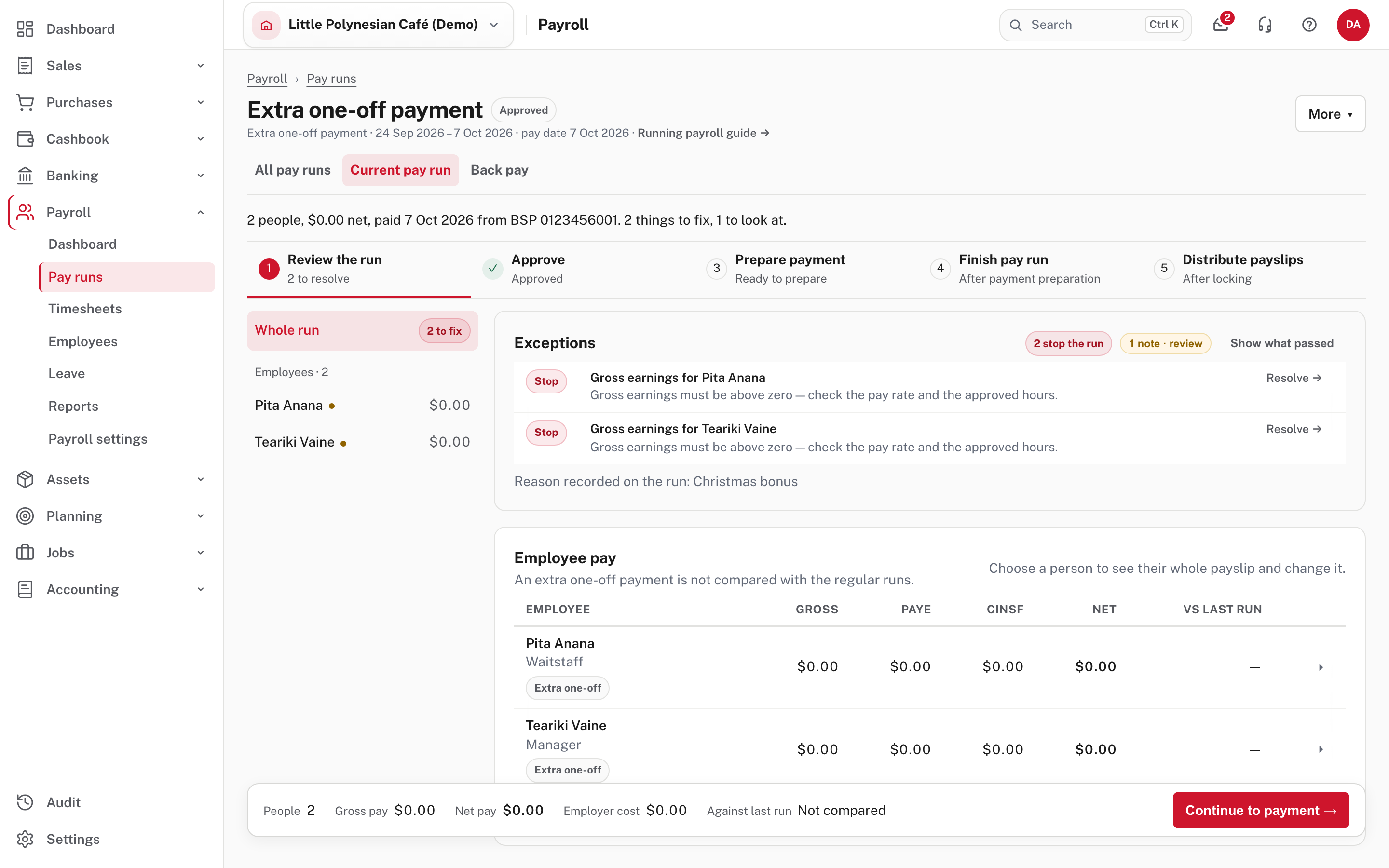
The run opens with the same five stages as a regular one (Review the run, Approve, Prepare payment, Finish pay run, Distribute payslips), with each person at $0.00. Until you add something, the run says there are things to fix.
Step 3. Add what each person is paid
Choose a person, then + Add pay item (scroll down to its form).
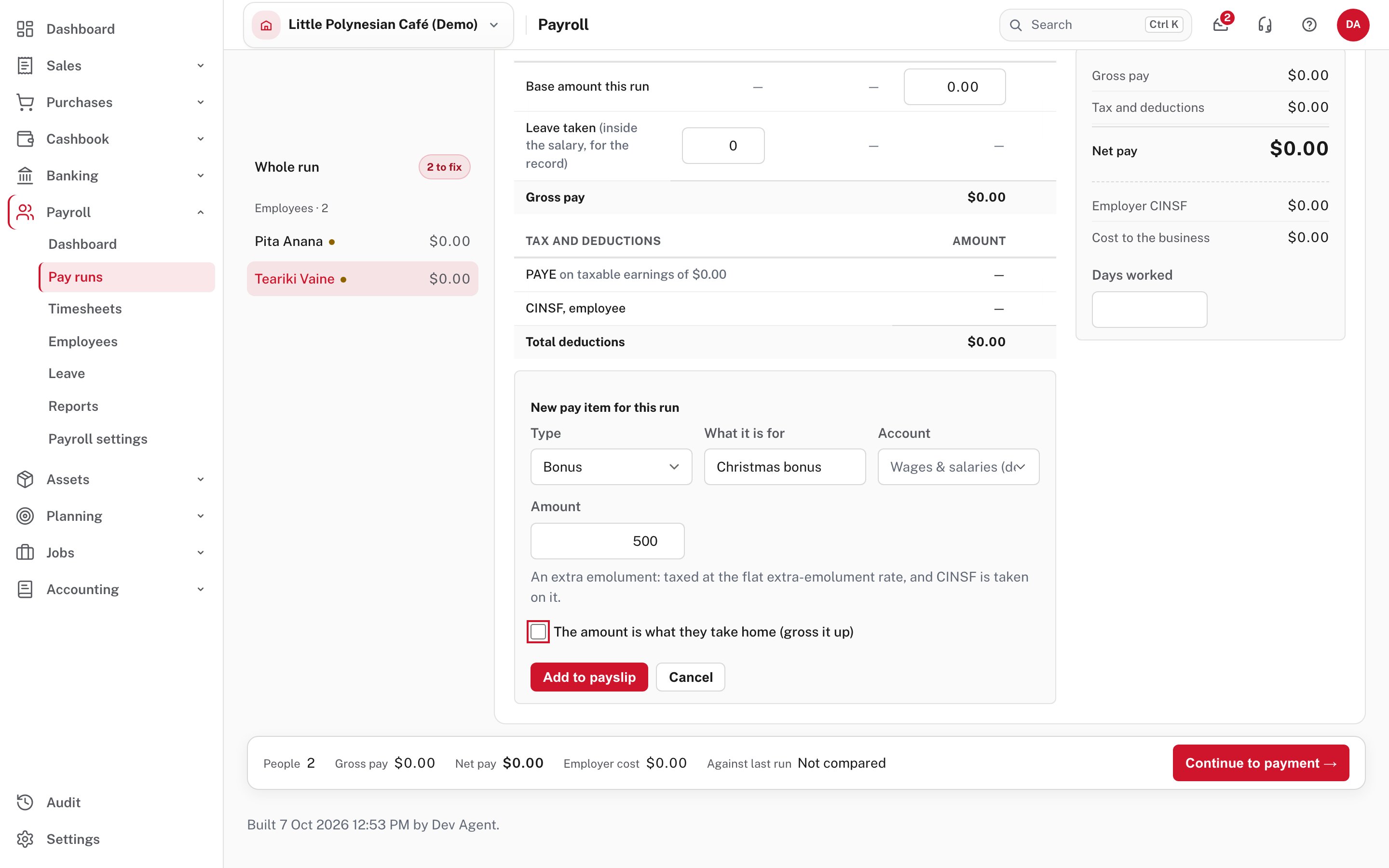
- Type: Bonus, Back pay, Allowance, Reimbursement or Deduction.
- What it is for, and the account it is recorded against (wages and salaries is filled in).
- Amount.
- The amount is what they take home (gross it up): tick it if you promised a net figure. Easy works back to the gross.
The page explains the tax treatment of the type you chose. For a bonus: "An extra emolument: taxed at the flat extra-emolument rate, and CINSF is taken on it." Choose Add to payslip.
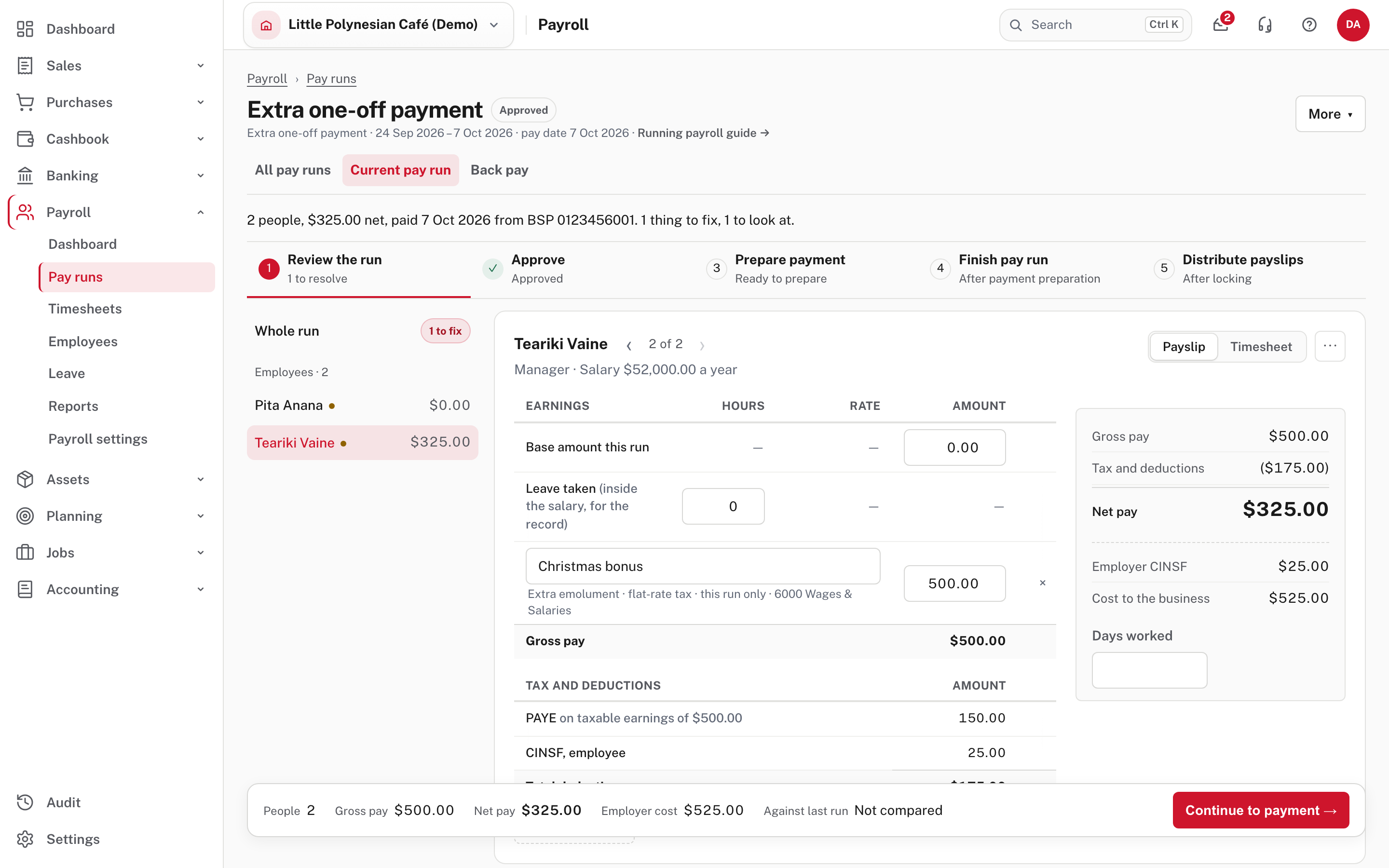
The payslip updates: gross pay $500.00, tax and deductions ($175.00) (PAYE $150.00 and the employee's CINSF $25.00), net pay $325.00, and employer CINSF $25.00, giving a cost to the business of $525.00. The cost is more than the bonus: the employer's CINSF comes on top.
- A reimbursement (money paying back an expense the employee met) is not earnings and has no CINSF. Mark a non-taxable pay item as a Reimbursement. An expense claim paid with the pay is always a reimbursement.
- A lump sum paid on leaving (a bonus, gratuity or retiring allowance) added to the final pay has no CINSF; holiday pay paid out on leaving still does. See How an employee's pay is calculated.
- Allowances and deductions that recur belong on the employee's record as pay items, not here: they are pulled into every regular run.
- Back pay as a pay item is for a one-off you work out yourself. The automatic kind is in step 5.
Do the same for each person. Remove a pay item with the × beside it, and use Take off this run… (the ⋯ beside the name) for someone who shouldn't be paid, giving a reason.
Step 4. Approve, pay and finish
From here the run behaves like any other. Use Continue to payment → and follow the stages in Run a pay period (steps 4 to 7): Approve (if your policy needs a second person), Prepare payment (the bank file), Finish pay run (this records the pay and can't be undone from the run), and Distribute payslips. The same checks apply: the bank details must be complete, and the run is locked once finished.
Check the net, not just the gross
Tax and CINSF come out of a bonus, so the person receives less than the bonus. If you meant the person to take home the full amount, tick gross it up so Easy works back to the gross.
Step 5. Back pay
When someone's pay rate is changed with a date in the past, the difference for the days already paid is back pay.
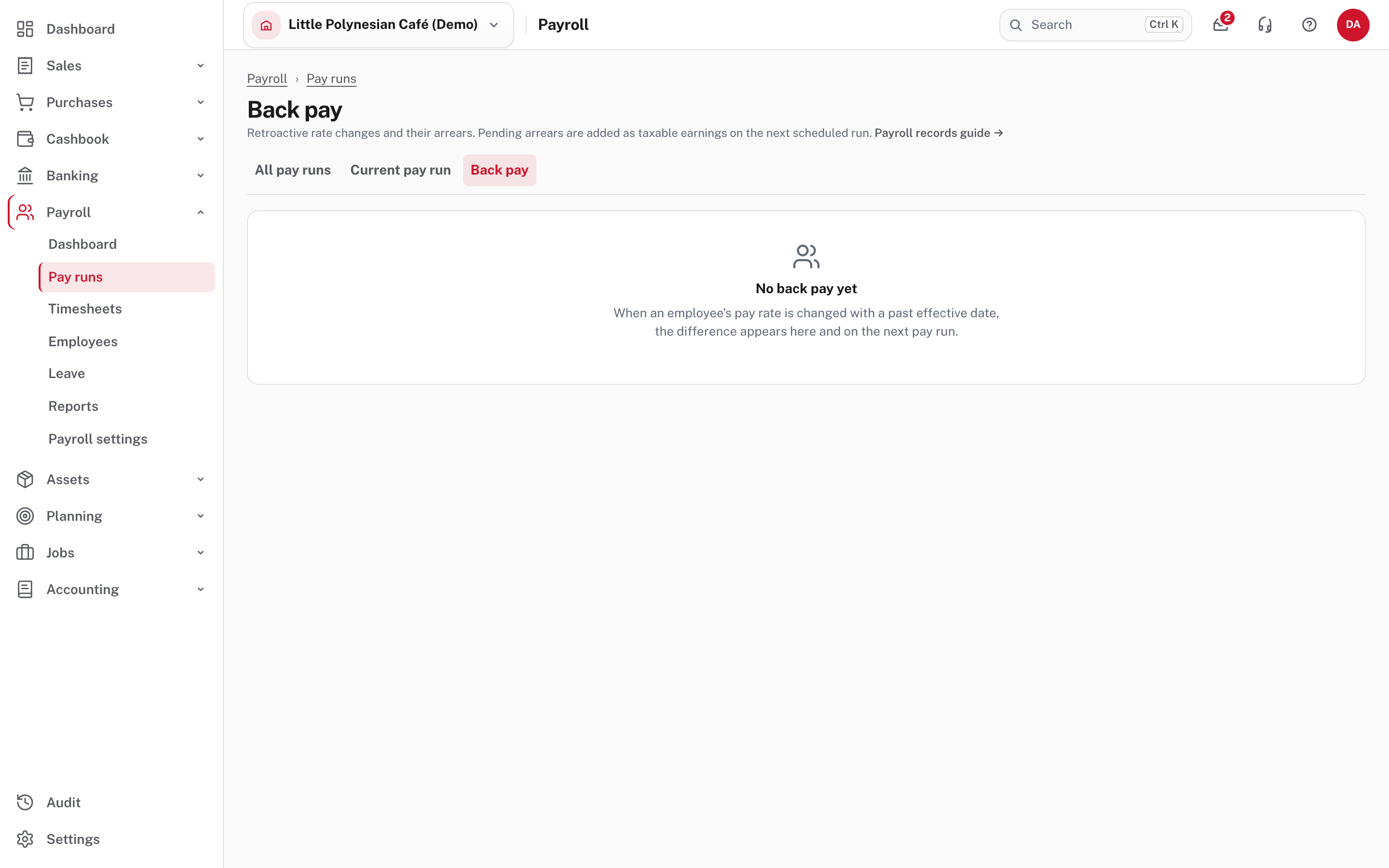
Payroll → Pay runs → Back pay lists each retroactive rate change and the arrears it queued. Here it says No back pay yet: it fills only when a rate is changed from a date in the past. A pending row is added automatically as a taxable earning line on the next scheduled pay run, so you do not enter it by hand.
- To change a rate, edit the employee's Pay & work pattern and give the new rate its effective from date (Set up payroll, step 9). The previous rate closes the day before.
- If your company asks for approval of pay-rate changes, the employee's pay waits for the decision: the bank file and Finish pay run refuse a run while a change on it is waiting. Declining puts the previous rate back and removes any back pay it queued that has not been paid. See Payroll approvals and controls.
- The Rate history on the employee's record lists every rate they have been paid at, newest first.
If something looks wrong
| What you see | What to do |
|---|---|
| The run says there are things to fix | An employee has nothing on their payslip yet, or a bank detail is missing. Add the item, or take the person off. |
| The net is lower than the bonus | Normal: PAYE and employee CINSF are taken. Tick gross it up if the person should take home a set amount. |
| A regular run is blocked | An earlier regular period is still open. Finish it first. An extra payment is not blocked. |
| A finished run was wrong | Undo it from its payroll record (Undo this pay run), then make it again. |
Check before you continue
Check before you continue
- The reason is clear, the right people are ticked, and each has the right pay item with the right amount.
- You checked the net pay and the employer's cost, not only the gross.
- Reimbursements are marked as reimbursements, so no CINSF is taken on them.
- The run is approved, the bank file is uploaded to the bank, and the run is finished and locked.
- Back pay from a rate change appears on the next scheduled run, and the amounts agree with the rate history.