Tax audit: checking VAT before you file
Do this each month before you file the RM205. The tax audit is the working paper behind the VAT half of the return: it lists every sale and purchase that carries VAT, one line at a time, adds them up the way the return does, and says whether the two agree. If a VAT box on the return surprises you, this is where you find the line that explains it. It is for whoever prepares the return, usually the accountant. It belongs with Monthly VAT and PAYE returns and VAT: registration, tax codes and rate changes.
About the screenshots
Most screenshots are from Easy's demo company, Little Polynesian Café, for September 2026 on the invoice (accrual) basis. A few show states the demo doesn't have (a figure that doesn't agree, the payments basis, VAT switched off). Those come from a separate practice company, Manual Lab ta, which has a handful of made-up entries (its name shows in the top corner of its full-page pictures). Customer names and amounts are examples.
Before you start
- The company is registered for VAT. If it isn't, the page is empty (see the last section).
- The month's documents are all entered: invoices finalised, bills recorded, cash-book receipts and payments coded with the right VAT code. A draft is not in the paper, and not in the return either.
- Bank reconciliation for the month is done, so nothing is missing (Bank reconciliation).
- You know which VAT return basis the company files on, because the audit follows it (Step 2).
Step 1. Open the tax audit
Accounting → Compliance → Tax audit.
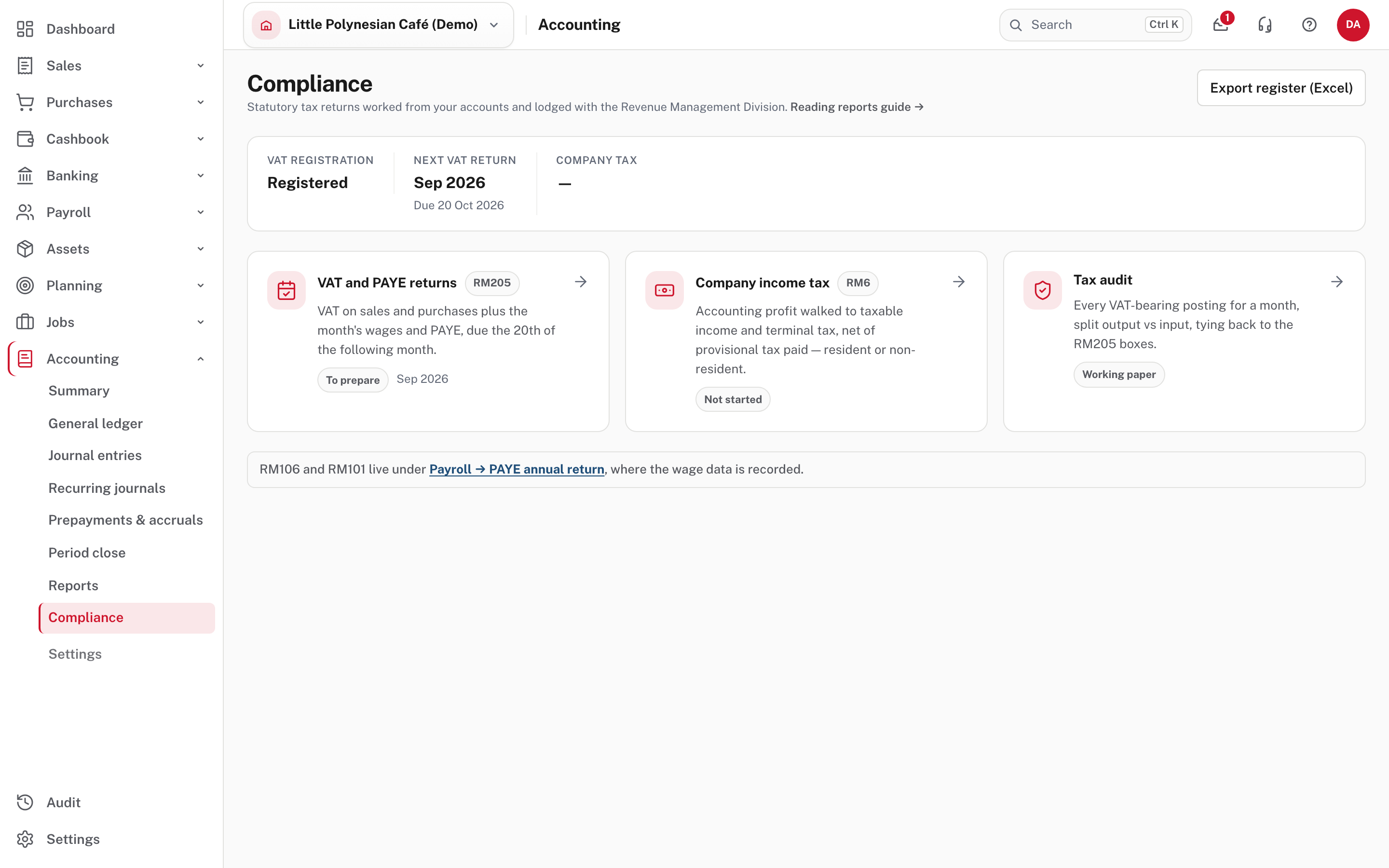
There are three ways in. The Tax audit card on Compliance, the Tax audit button on VAT and PAYE returns, and What makes up these figures → at the top of the return itself (Step 6). The page opens on last month, the one you are about to file.
Step 2. Choose the month and read the top of the page
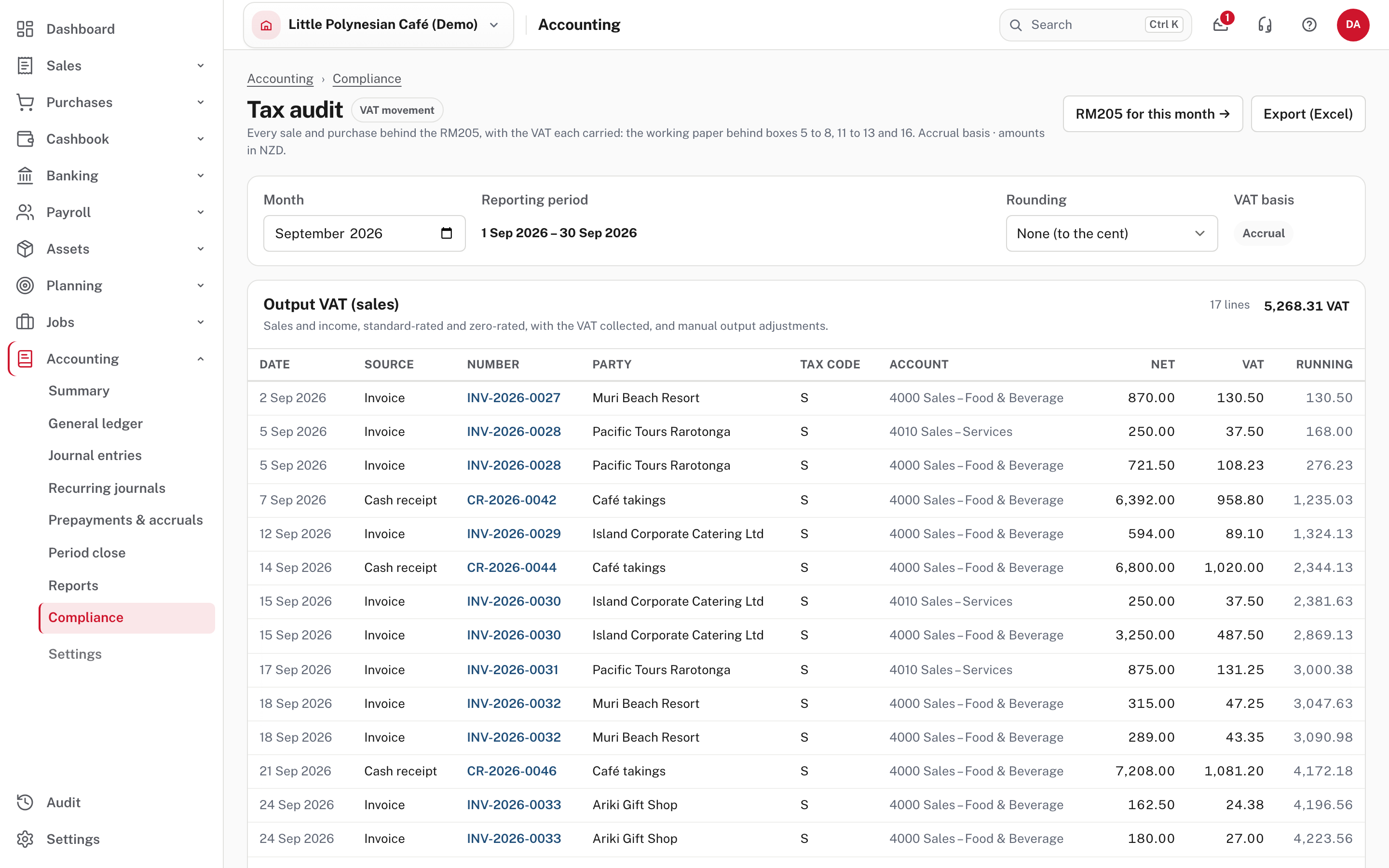
| Control | What it does |
|---|---|
| Month | The month you are auditing. It always covers one whole calendar month, from the 1st to the last day |
| Reporting period | The dates that month covers |
| Rounding | How figures are shown: to the cent, whole dollars or thousands (Step 7) |
| VAT basis | Accrual (VAT counted when the invoice or bill is dated) or Payments (when the money moves). You can't change it here: it is the company's setting under Settings → Accounting & tax → Tax |
The line under the title names the basis and the currency ("amounts in NZD" is the company's own currency). RM205 for this month → opens that month's return, and Export (Excel) saves the paper. The month picker stops at last month (from Easy's source), so you audit a month once it has ended.
Step 3. Read the sales side
The first card is Output VAT (sales): the VAT you have collected.
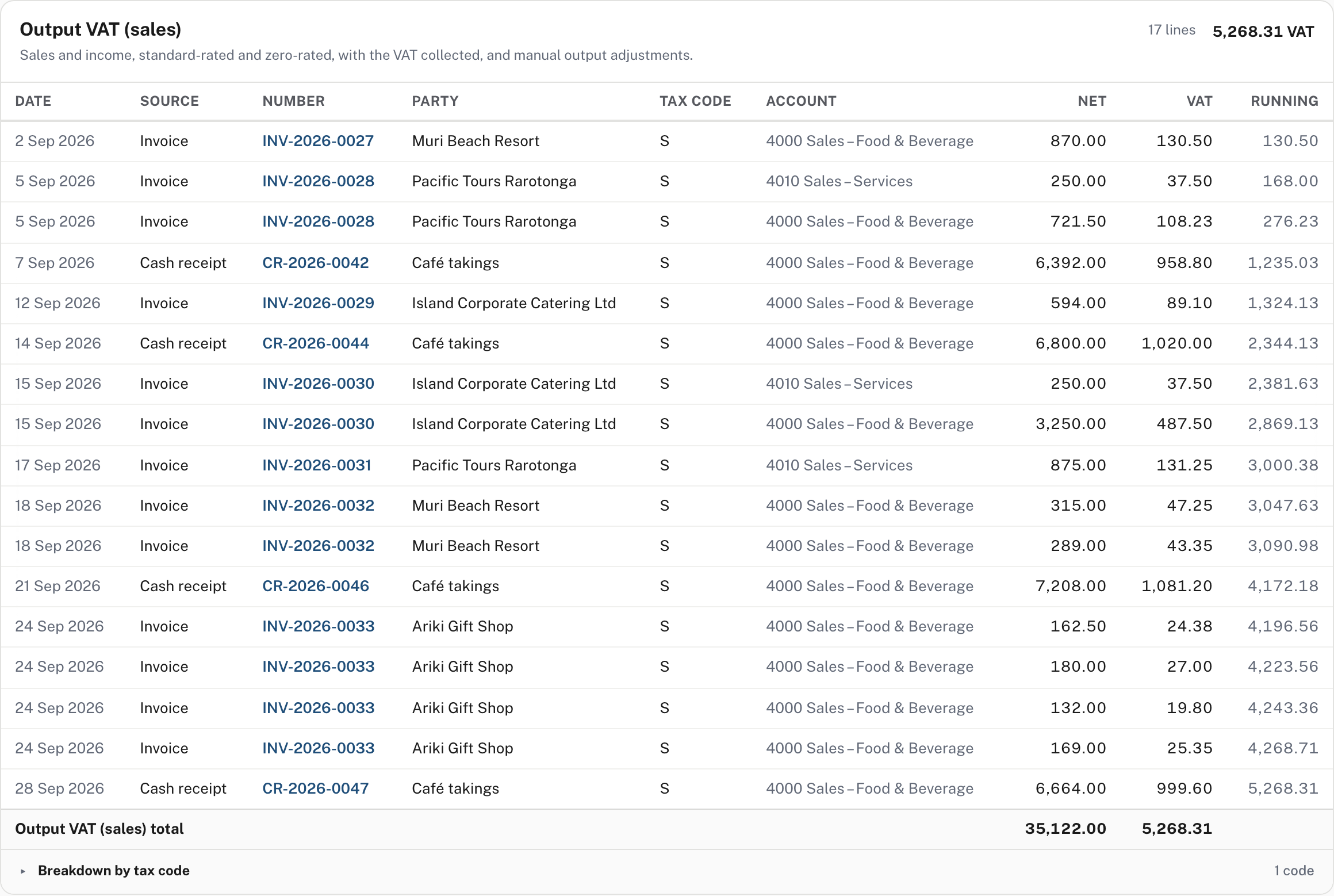
The card heading gives the number of lines and their VAT. Each line is one document line:
| Column | What it shows |
|---|---|
| Date, Source, Number | When it happened, what made it (here Invoice or Cash receipt), and its number. Choose the number to open the document |
| Party | The customer. A cash-book receipt with no customer says (cash sale), or the name it was recorded under (here Café takings) |
| Tax code | The VAT code the line carries (here S, standard 15%) |
| Account | The income account the line was coded to |
| Net, VAT | The amount before VAT, and the VAT on it |
| Running | The VAT added up line by line, so the last line equals the card's total |
An invoice with several lines appears once for each (INV-2026-0028 has one line for services and one for food). The total row adds up net and VAT, and Breakdown by tax code opens the same totals split by code.

What is listed. Standard-rated sales (with their VAT) and zero-rated sales (with none, but they count in boxes 5 and 6). Exempt and no-VAT lines are in no box, so they are not listed. If a sale you expected is missing, check whether it was coded E or N (VAT: registration, tax codes and rate changes, Step 2).
Not shown in the demo
The demo's September has no credit notes, refunds or journals. From Easy's source: a credit note appears with the source Credit note and negative amounts. Money paid back to a customer on a sale appears as Cash refund paid, also negative. A journal that moved the VAT account without an invoice, bill or cash entry appears with the source Journal, as an adjustment line.
Step 4. Read the purchases side
The second card is Input VAT (purchases): the VAT you claim back. It has the same columns.
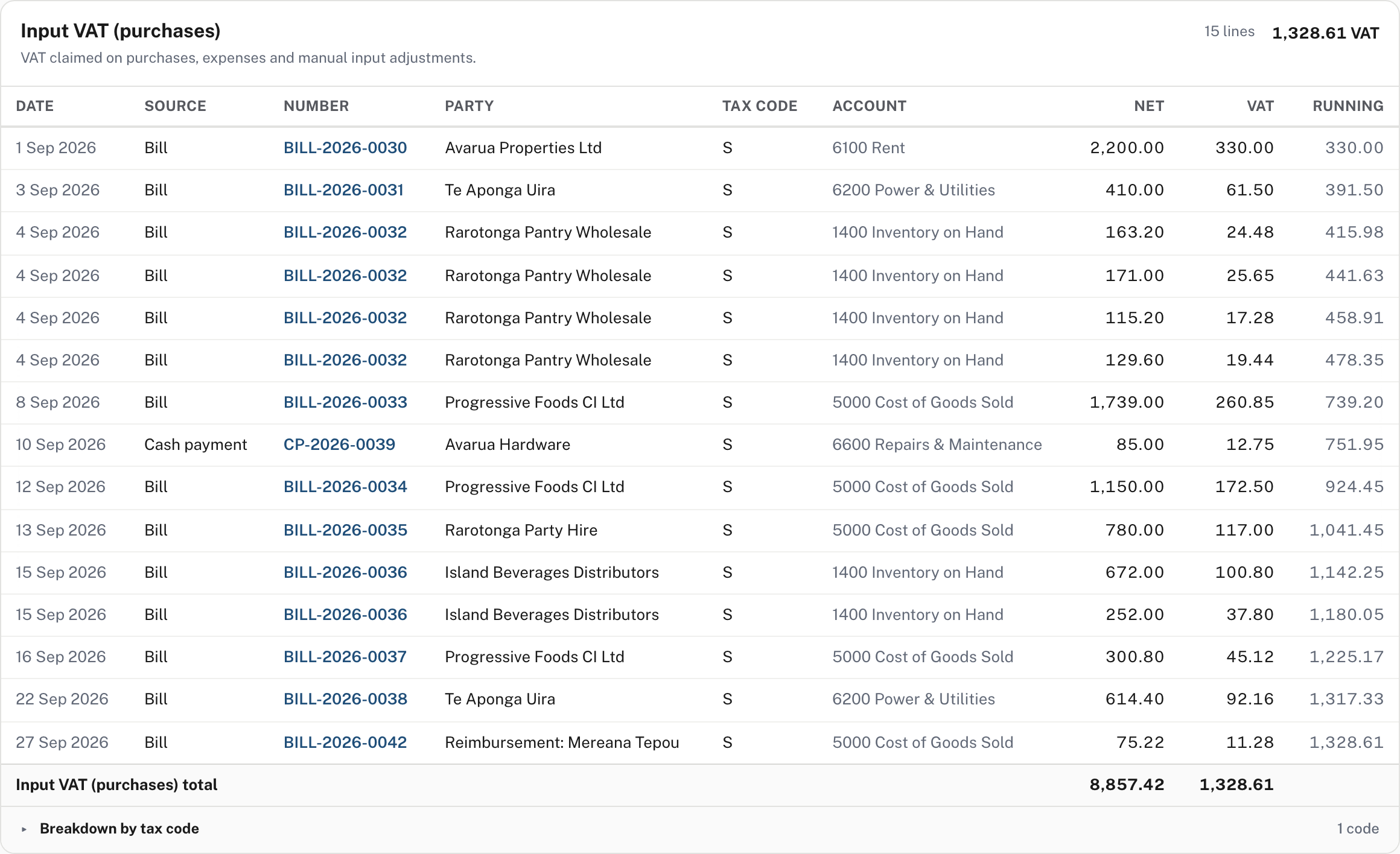
It lists Bills and Cash payments that carry VAT, with the expense or stock account each line was coded to. Stock purchases show the Inventory on Hand account, because the VAT on stock is claimed too. A bill with four lines (BILL-2026-0032) shows four rows. As on the sales side, lines coded N or E aren't here.
Not shown in the demo
VAT you paid to Customs on an import, entered on a bill with the import VAT code, appears as its own line with the source Import VAT: the whole line is VAT, and it is box 13 of the return, not box 12. A supplier credit note appears as a negative line.
Step 5. Check Net VAT and the tie-out
At the foot of the page are two cards.
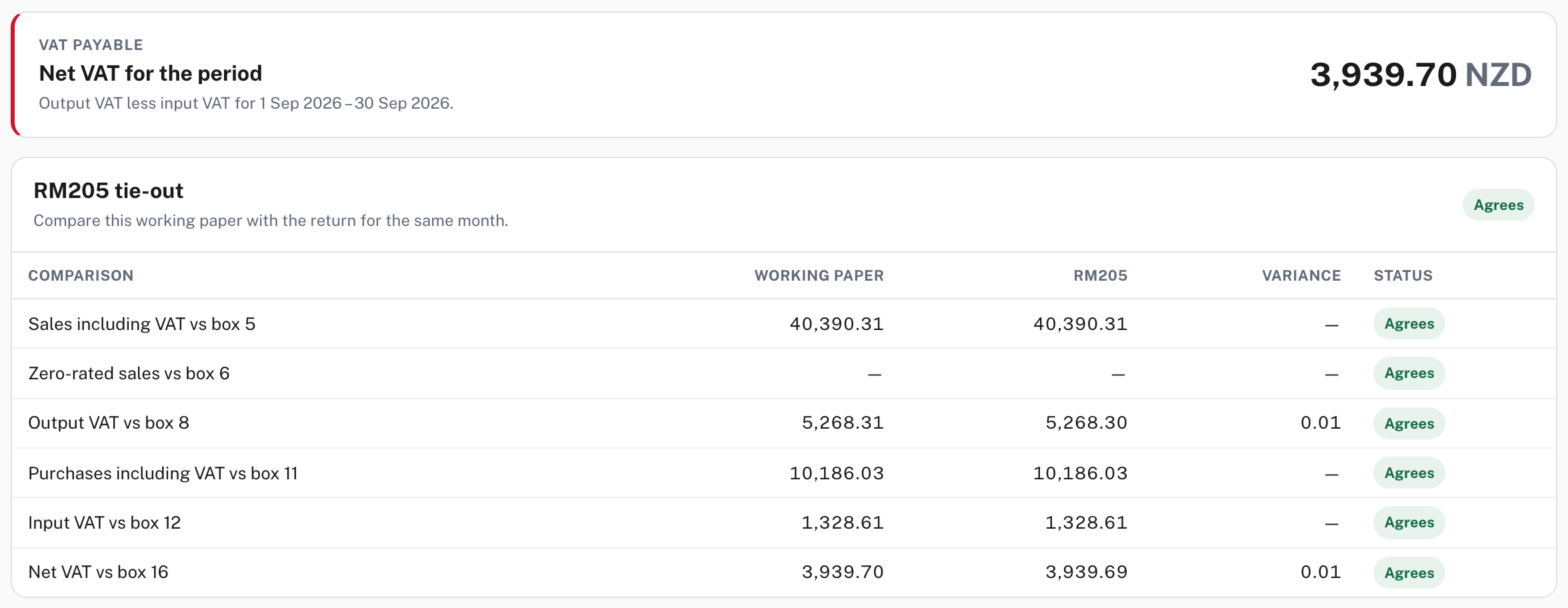
Net VAT for the period is output VAT less input VAT: 3,939.70 for September. The card says VAT payable (it reads Refund position when input VAT is the bigger figure; not shown in the demo).
RM205 tie-out puts the paper next to the return for the same month:
| Row | Compares |
|---|---|
| Sales including VAT vs box 5 | All sales lines with their VAT, against box 5 |
| Zero-rated sales vs box 6 | The zero-rated part, against box 6 |
| Output VAT vs box 8 | The VAT on sales, against box 8 |
| Purchases including VAT vs box 11 | All purchase lines with their VAT, against box 11 |
| Input VAT vs box 12 | The VAT on purchases, against box 12 |
| Net VAT vs box 16 | Output less input, against the VAT to pay |
A row says Agrees when the two figures are within two cents, and Check when they are further apart. The badge at the top of the card says Agrees only when every row does, and Review otherwise. A row for Import VAT vs box 13 (bills) is added when the month has import VAT.
A cent either way is not a problem
In the demo, Output VAT vs box 8 differs by 0.01 (5,268.31 against 5,268.30), and so does Net VAT vs box 16 (3,939.70 against 3,939.69). The return works box 8 once, from box 7 (× 3 ÷ 23, as the form says), while the paper adds up the VAT line by line. Easy treats up to two cents as agreeing.
Step 6. Follow a box on the return to its lines
On the return (VAT and PAYE returns → Work this return), every worked-out sales and purchases box that isn't nil is a link.
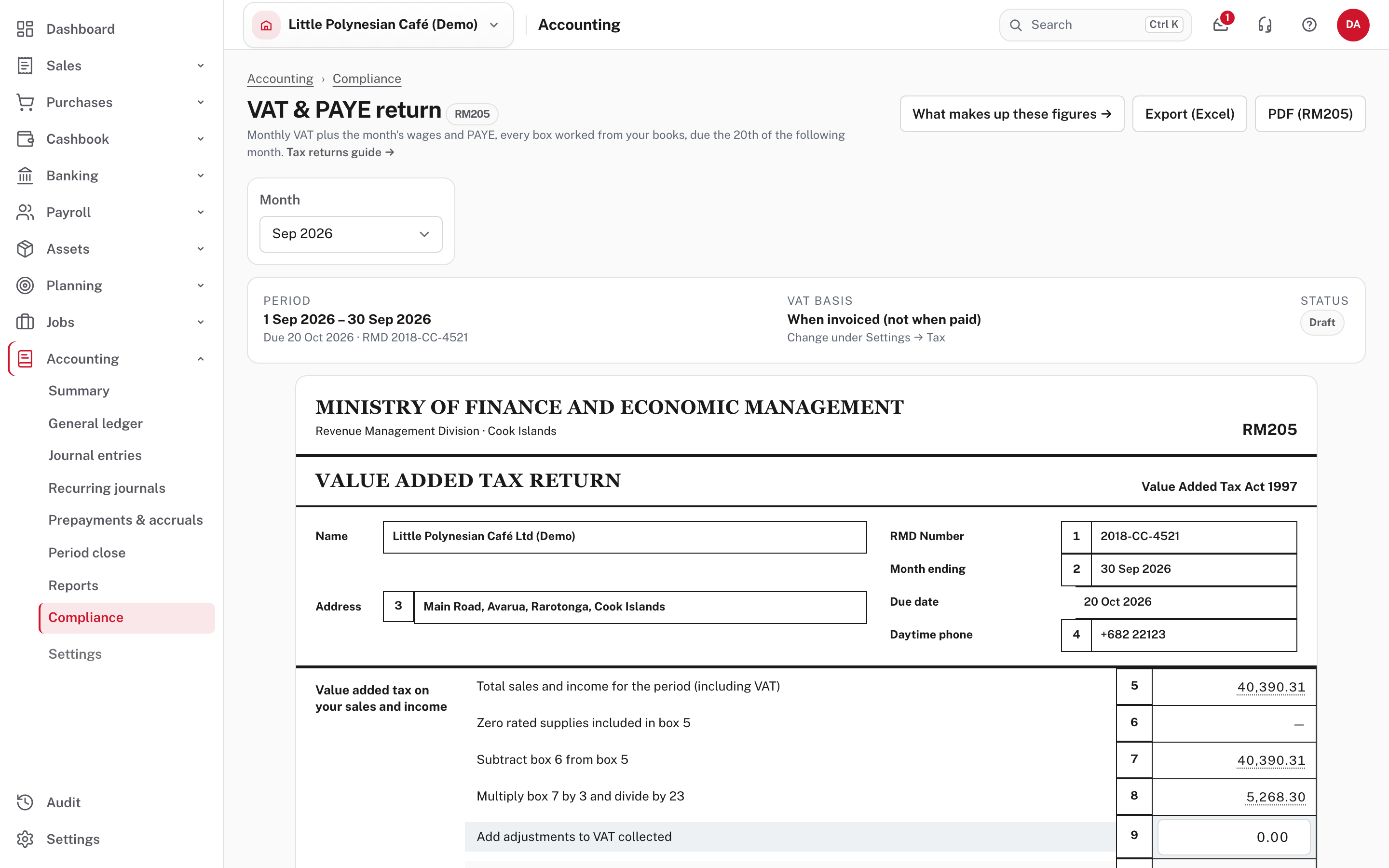
Choose the figure in box 8:
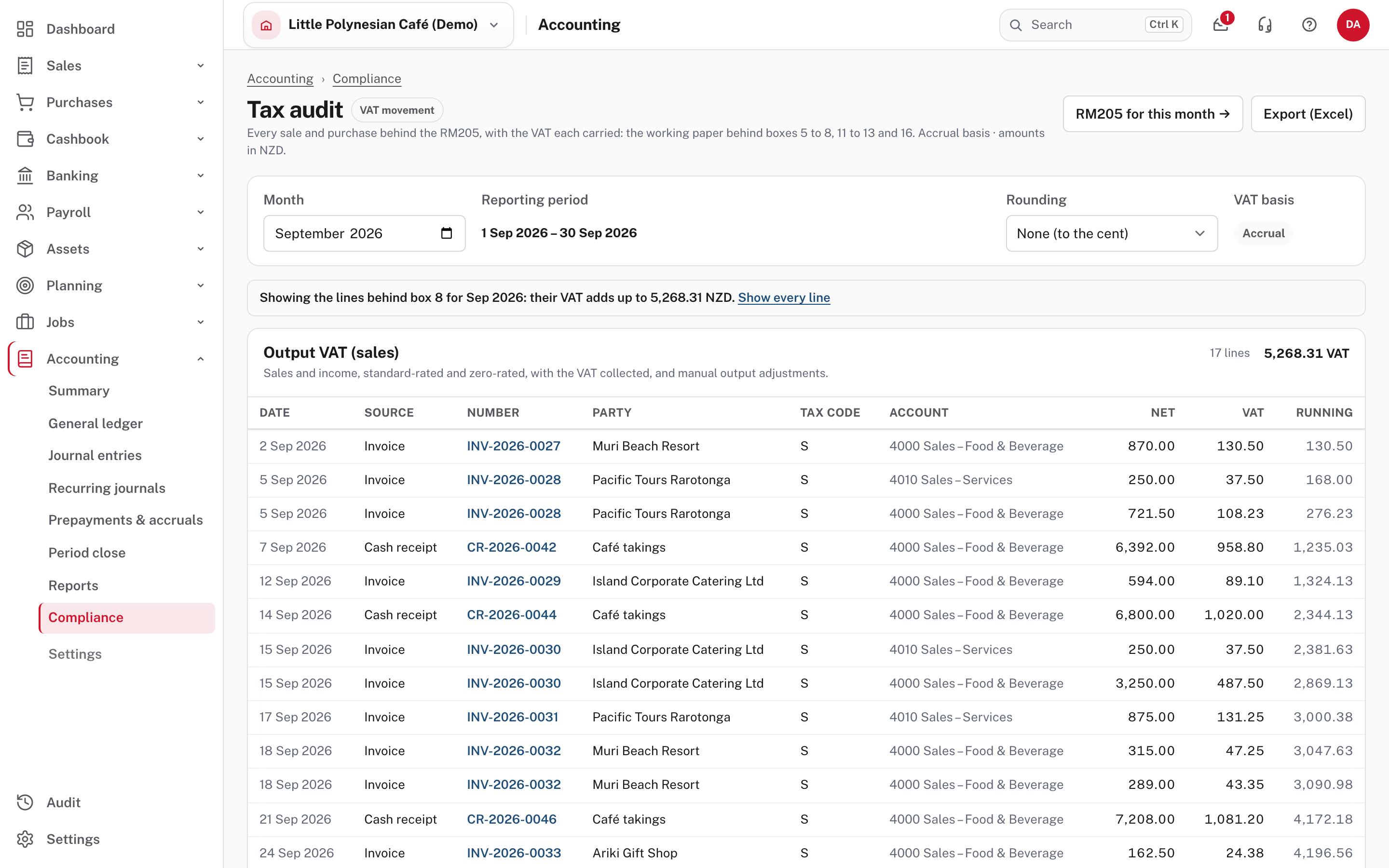
The paper opens with only the lines behind that box, and a note above them: "Showing the lines behind box 8 for Sep 2026: their VAT adds up to 5,268.31 NZD." Show every line takes the filter off. The boxes that open lines are 5, 6, 7, 8, 11, 12 and 13 (box 13 when it is made only of bills to Customs, from Easy's Help). Boxes 9 and 14, and the part of box 13 you type, are typed figures, so they have no lines behind them.
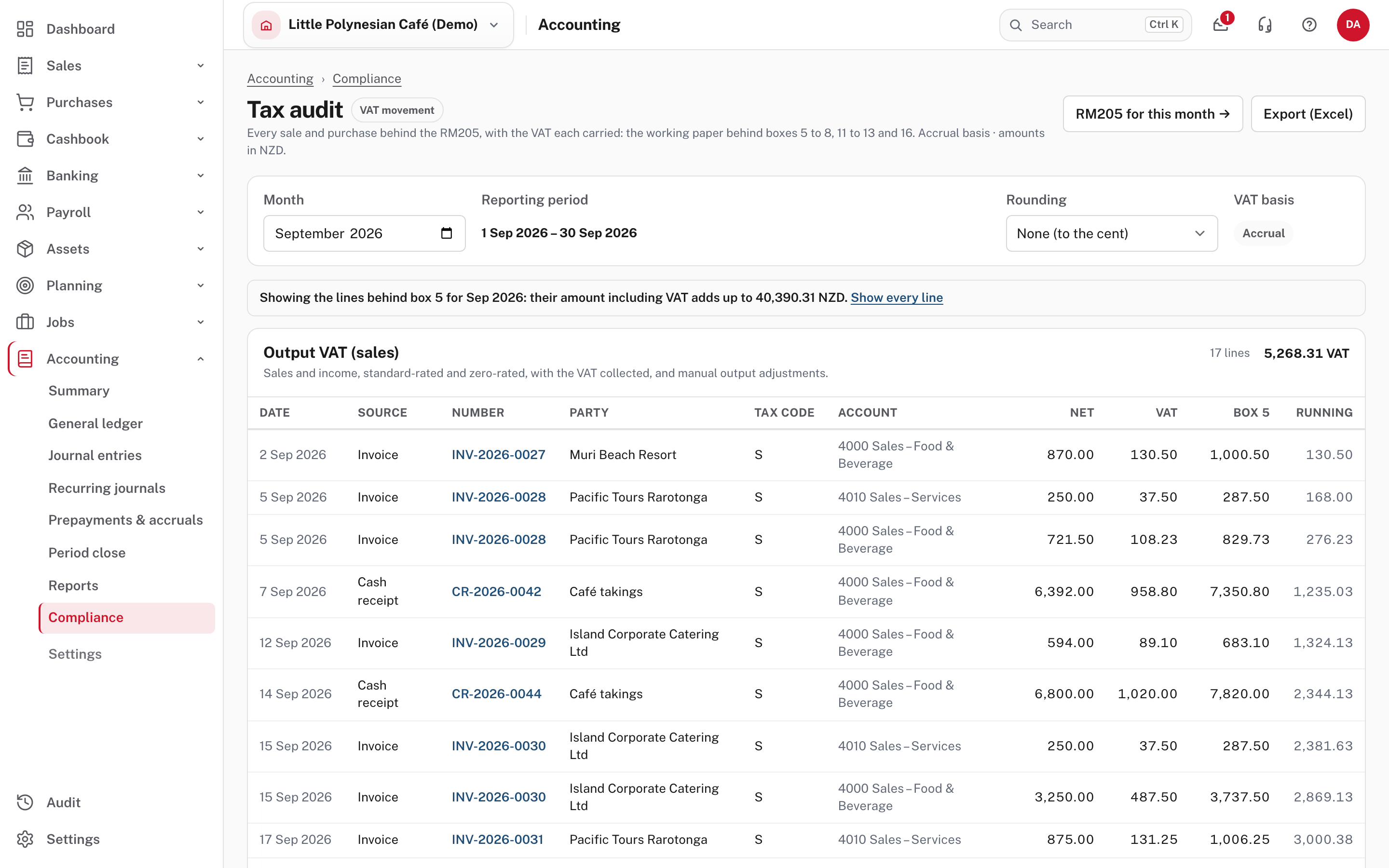
Boxes 5, 6, 7 and 11 are amounts including VAT, not VAT, so the table adds a column named for the box (here Box 5) with each
line's share, and the total row adds that column up. The lines behind boxes 5, 6, 7 and 11 add up to the box exactly. Boxes 8 and 12 add
up to within the return's own rounding. The address holds the month and the box (?month=2026-09&box=8), so you can send someone the
exact view.
Step 7. Round the figures, or export them
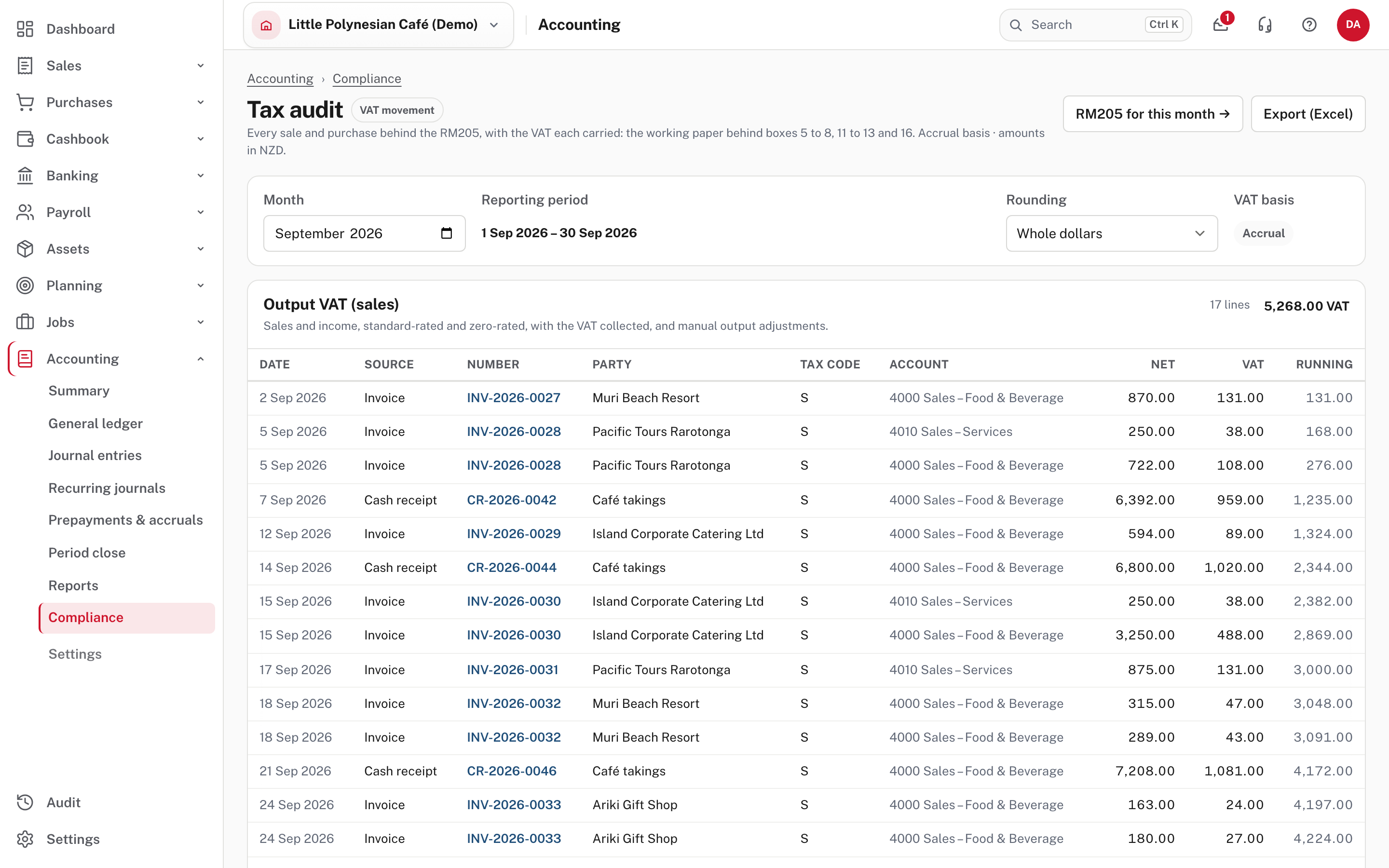
Rounding changes how the page shows figures: None (to the cent), Whole dollars or Thousands. Every figure is rounded on its own, so the rounded lines may not add up exactly to the rounded total (above, 131 and 38 are shown for two lines whose running total is 168). Use whole dollars to read, and cents to check. Export (Excel) saves the month's paper as a workbook. Not shown in the demo: the downloaded file. From Easy's source, the export carries the month and the rounding you chose.
Step 8. When the tie-out says Review
Work out why before you file. Easy's Help lists the usual causes (When a tax figure doesn't tie):
- Rounding of a cent or two (the tip above): nothing to do.
- A document still in draft: finalise or record it, or delete it, so that it is in the month's books.
- Box 13 import VAT with no accounting entry, or a manual VAT adjustment typed in box 9 or 14 of the return.
Here is the most useful case. September's return was filed, and then two more sales dated in September were recorded.
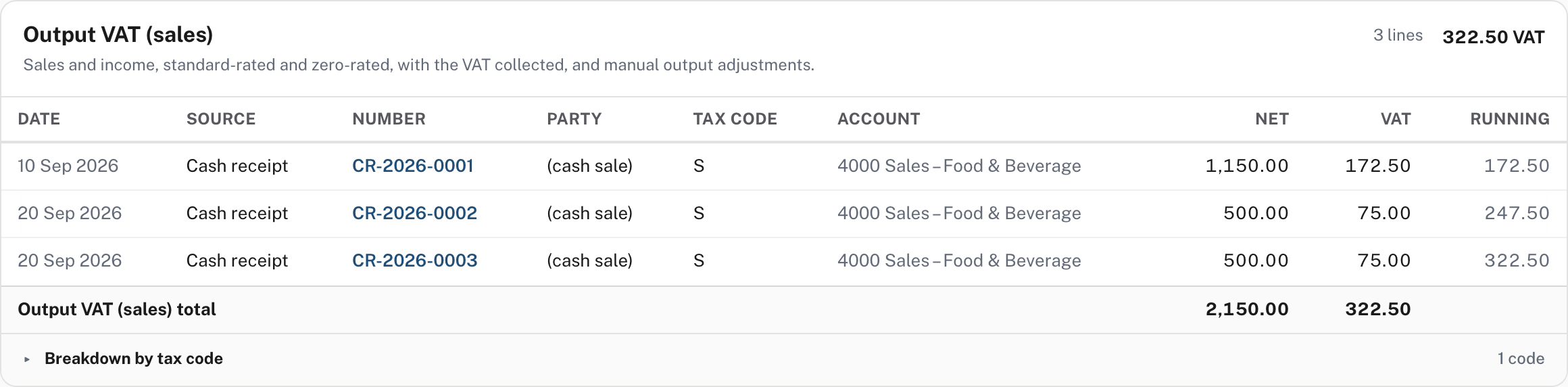
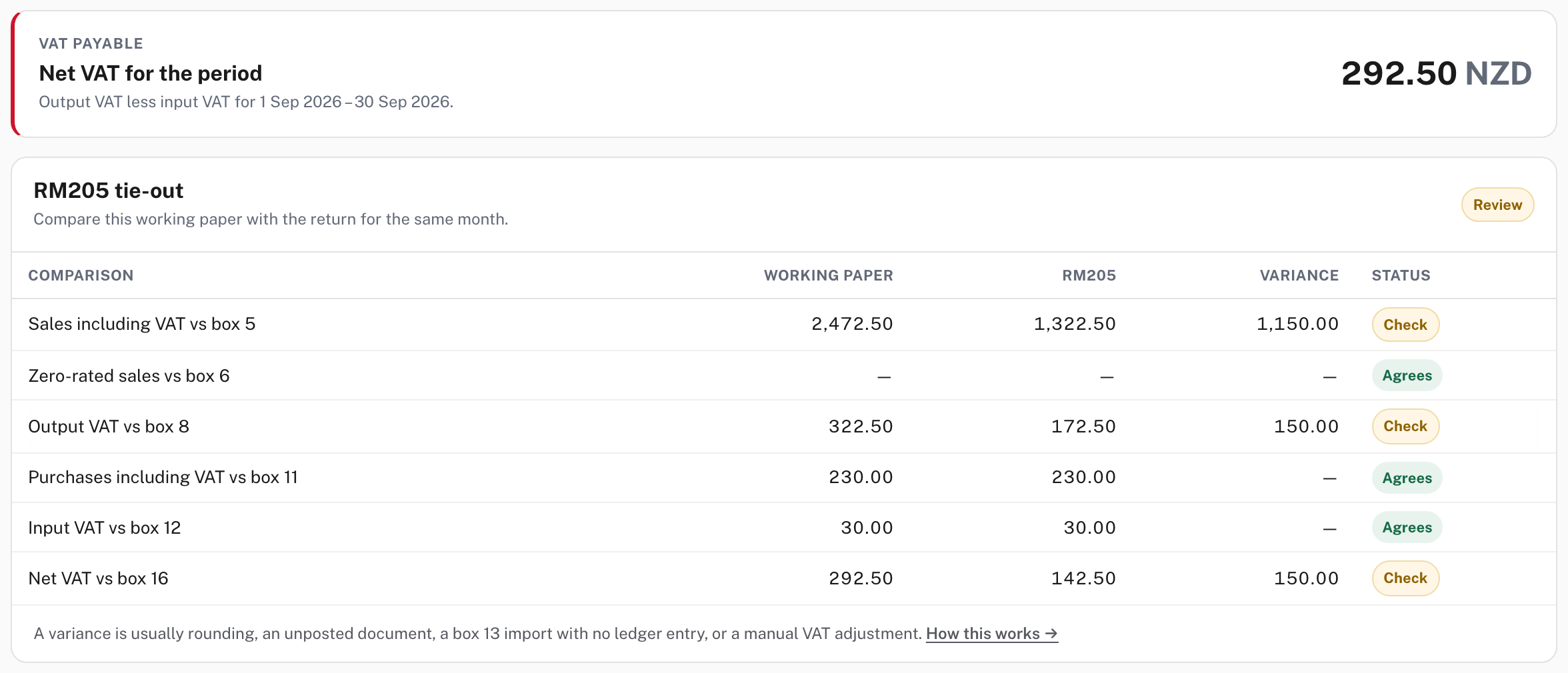
The paper reads the books as they are now, so it holds all three sales. The return is frozen at the figures it was filed with, and the RM205 column still shows 1,322.50 for box 5 and 172.50 for box 8. The rows that depend on sales show Check with a variance of 1,150.00 and 150.00, and the card says Review.
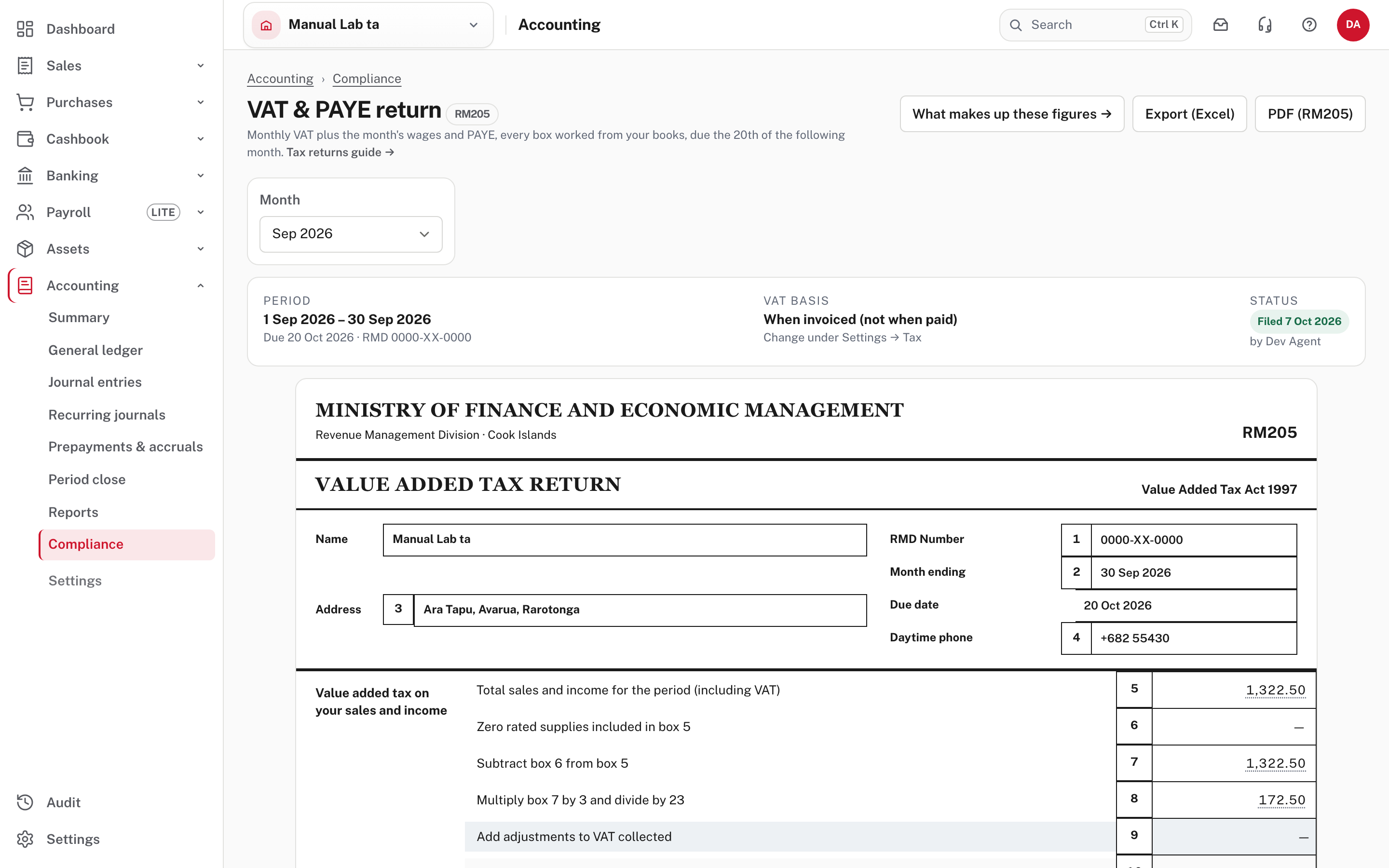
The audit is how you catch an entry made after you filed. To put it right, re-open the return (accountant's work, so not Data entry; the re-opening is recorded), check that the figures now agree, and file it again (Monthly VAT and PAYE returns, "If you need to change a filed return"). If you had already lodged the earlier figures with RMD, Easy doesn't send anything on your behalf, so ask RMD or your accountant how to correct a return you have lodged.
Not shown in the demo
From Easy's source, the return page itself warns, before you file, about invoices and bills still in draft that are dated in the month, unfinished pay runs with a pay date in the month, and an import figure typed in box 13 that may repeat one already on a bill. The demo's September has none of these, so no warning is pictured.
Step 9. On the payments basis
A company that files on the Payments basis counts VAT when the money moves, so the audit lists what each receipt or payment settled that month instead of the invoices and bills themselves.
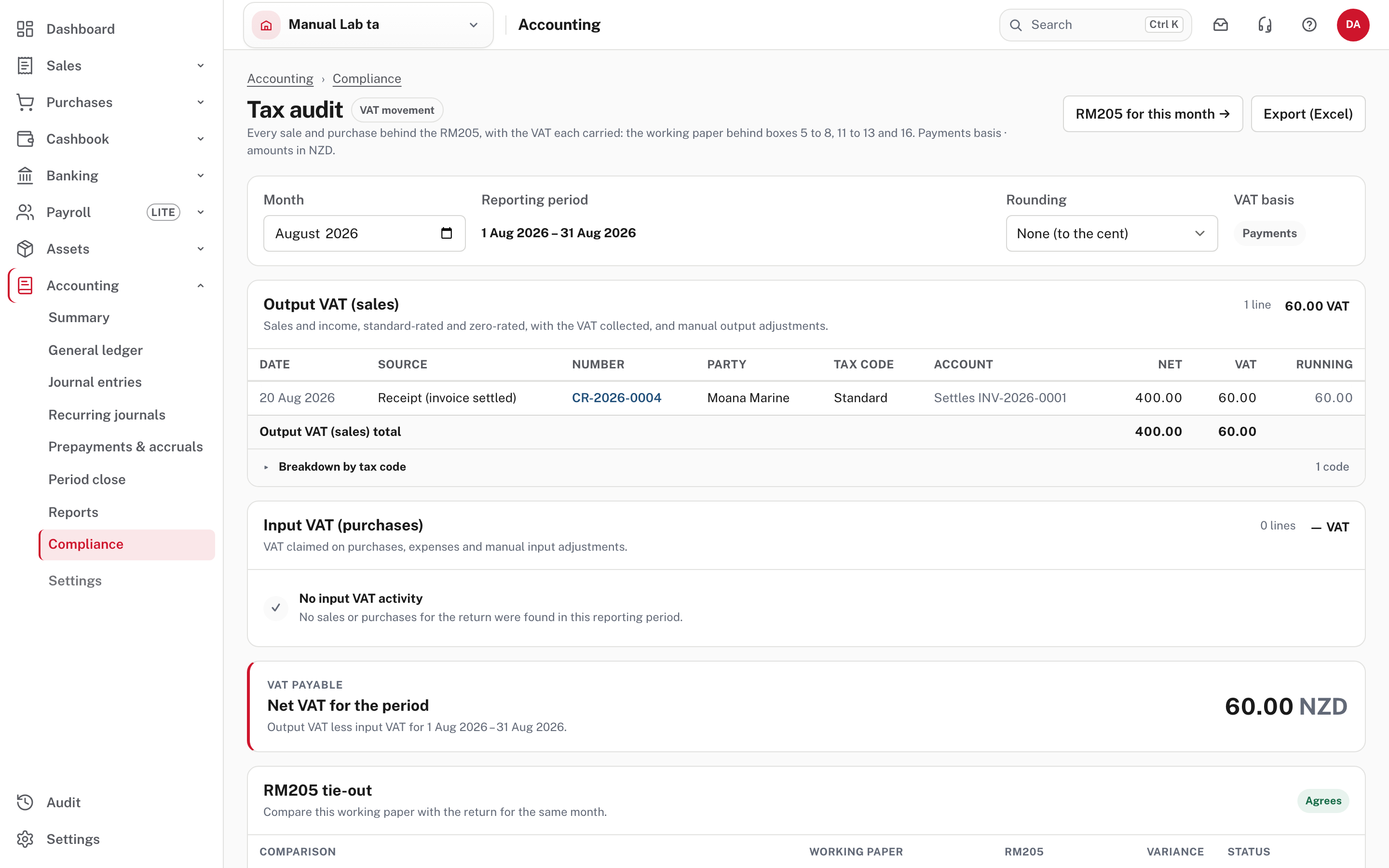
In the practice company, an invoice for $400 plus VAT was paid on 20 August. The paper for August lists one line: the source is Receipt (invoice settled), the number is the receipt's, and the Account column says which invoice it settles (Settles INV-2026-0001), with 400.00 net and 60.00 VAT. The invoice itself isn't a line, because on this basis it is the payment that counts. The tax code reads Standard, a word instead of S. Cash-book receipts and payments coded straight to an income or expense account are listed on either basis. A bill paid in two parts appears as two lines, one for each payment (that last point is from Easy's source: the demo has no part-paid bill).
When the company is not registered for VAT
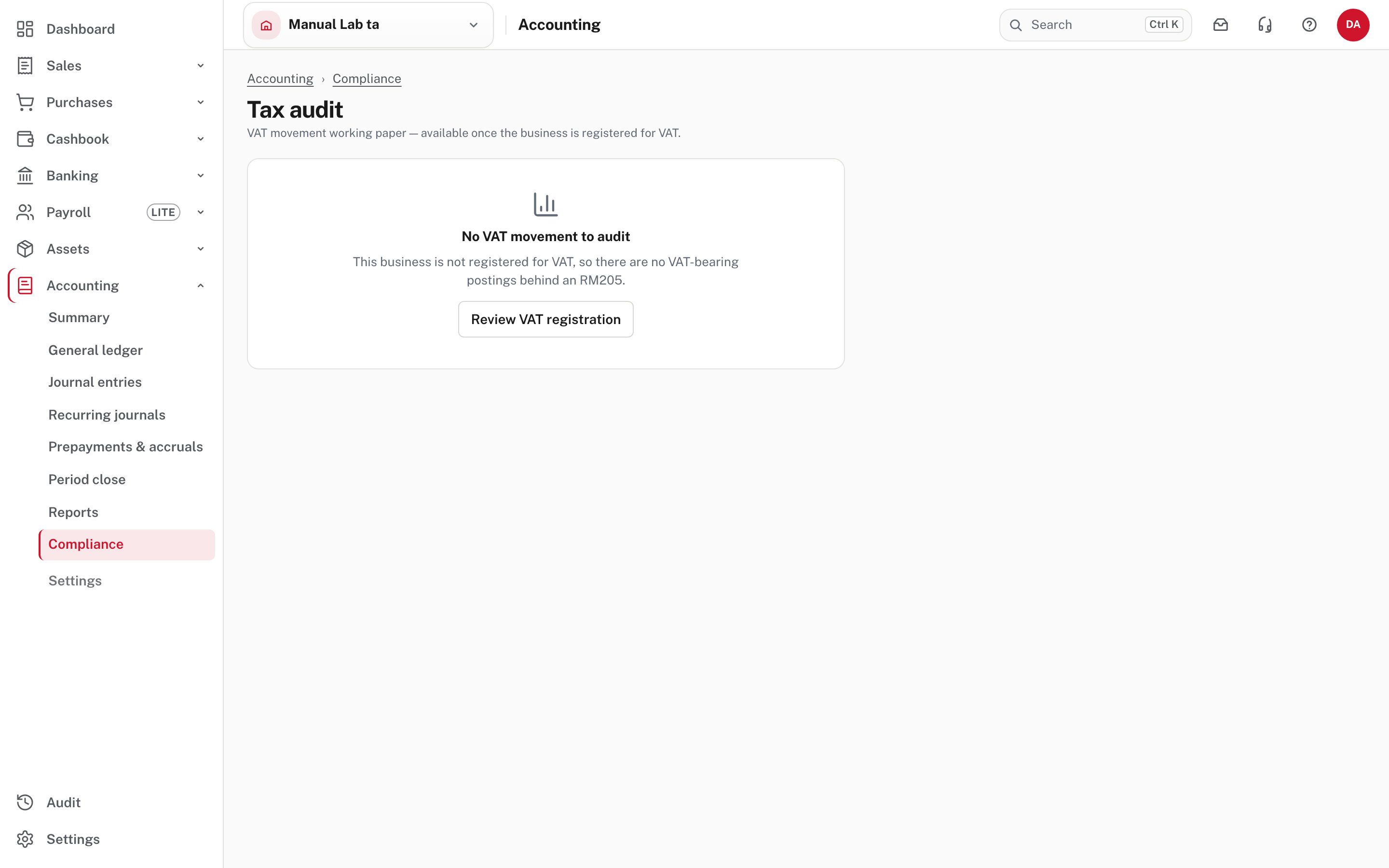
With VAT registration off, the page says No VAT movement to audit, and Review VAT registration takes you to Settings → Accounting & tax → Tax. There is no RM205 either (VAT: registration, tax codes and rate changes).
More detail: Reading the reports: tax returns.
Check before you continue
Check before you continue
- The audit is open on the month you are about to file, on the right VAT basis.
- Every sale and purchase you expected to carry VAT is a line; anything missing has been looked at (coded E or N on purpose?).
- Net VAT matches your own idea of the month, and the RM205 tie-out says Agrees, or you can explain every difference.
- You followed any box that surprised you from the return to its lines, and fixed the document behind it.
- After you filed, you looked at the audit again for entries dated in the filed month.