Month-end checklist and closing a period
Do this once a month, after the month's work is entered and reconciled. Closing a period proves that Easy's records agree with its accounts, and then locks the period so nothing dated in it can be recorded, changed or undone. Nobody then edits last month's figures by accident after you have filed a return on them.
About the screenshots
Screenshots are from Easy's demo company, Little Polynesian Café, closing September 2026. All figures are examples.
The checklist
Work down this list. The links are the chapters that explain each step.
| # | Check | Where |
|---|---|---|
| 1 | Every invoice is raised and every receipt recorded | Raise, send and get paid for an invoice |
| 2 | Every bill is entered and every supplier payment recorded | Enter and record a bill, Pay suppliers |
| 3 | Every bank account is reconciled to its statement | Bank reconciliation |
| 4 | Every pay run for the month is finished, and PAYE and CINSF paid | After the pay run |
| 5 | The VAT and PAYE return is filed and paid | Monthly VAT and PAYE returns |
| 6 | Journals the month needs are posted (depreciation, prepayments, accruals) | Manual journals, Prepayments and accruals |
| 7 | Period close shows every control account agreeing | step 2 below |
| 8 | The reports look right | step 3 below |
| 9 | Download the month-end pack and sign off | steps 4 and 5 below |
Step 1. Look at the accounting summary
Accounting → Summary shows the balance sheet and the profit and loss side by side, as at a date you choose.
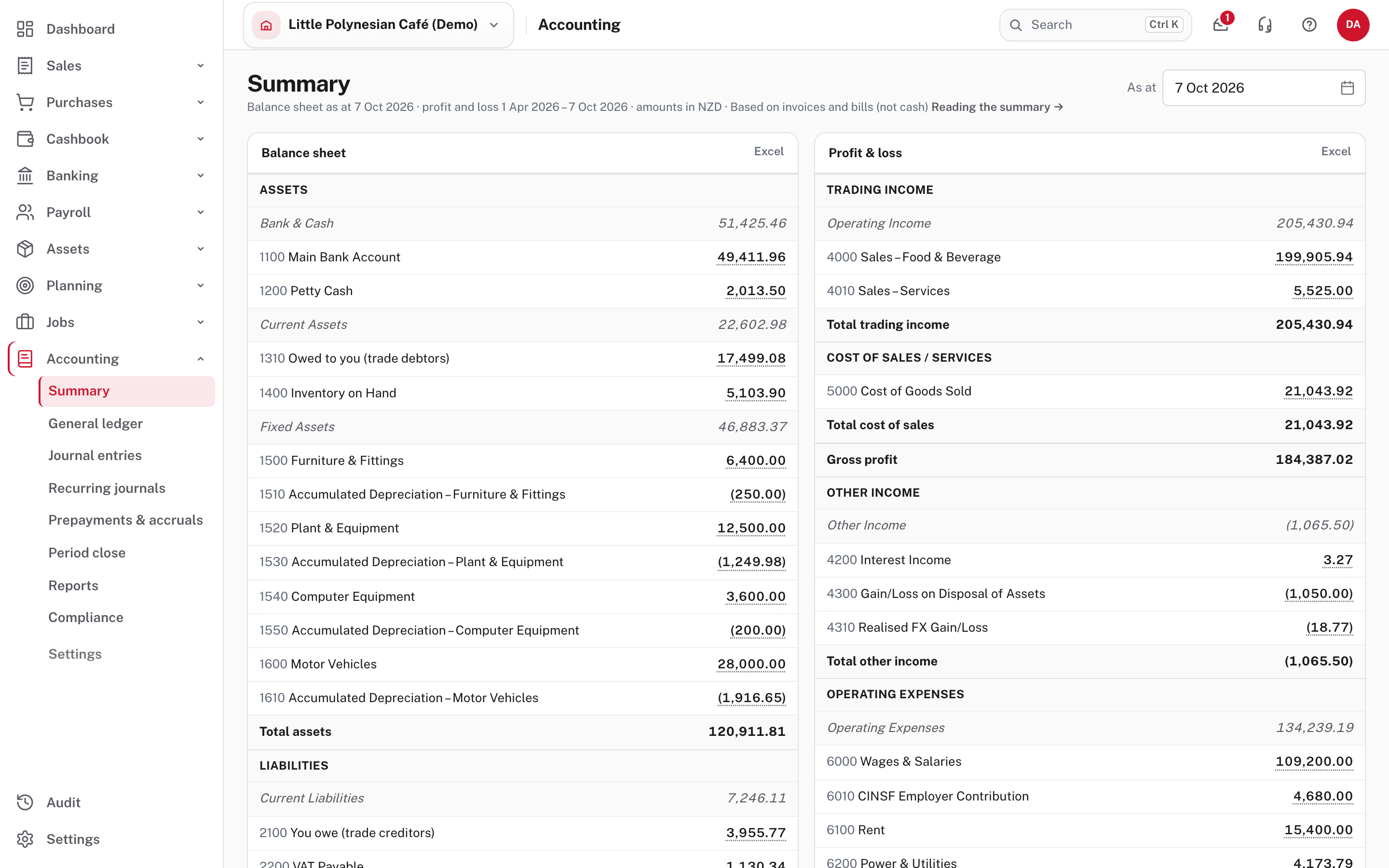
Use As at to set the month end. Before you close, read it as an owner would: do the bank balances look right, is what you owe and what you are owed sensible, is the profit what you expected? A surprise here is easier to fix before the lock than after. Every figure opens the entries behind it.
Step 2. Open Period close
Accounting → Period close. Choose the Period ending date (the last day of the month).
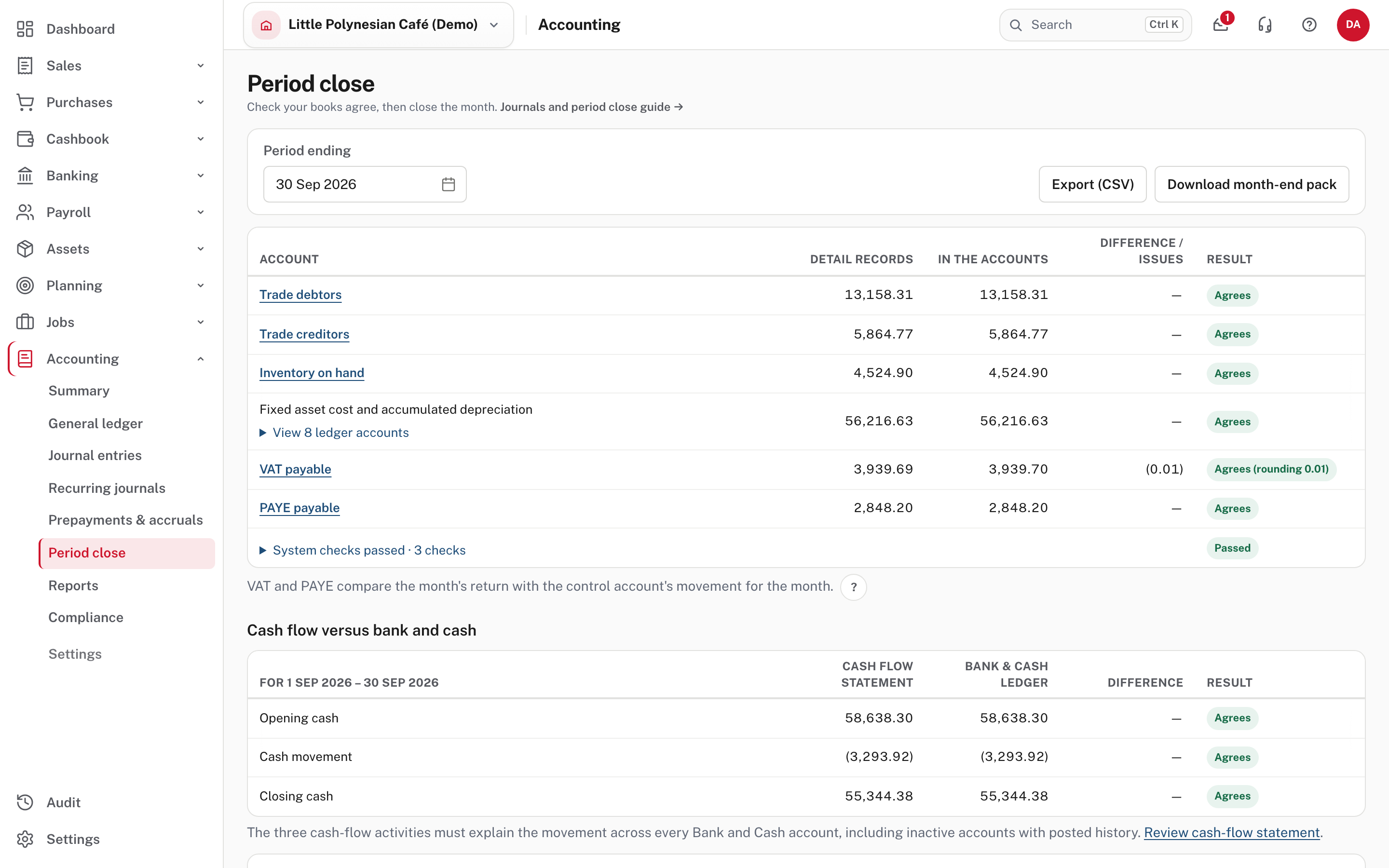
For each control account, Easy compares two figures and shows whether they agree:
| Account | Detail records is what… | In the accounts is… |
|---|---|---|
| Trade debtors | the open invoices add up to | the control account's balance |
| Trade creditors | the open bills add up to | the control account's balance |
| Inventory on hand | the stock records add up to | the control account's balance |
| Fixed asset cost and accumulated depreciation | the asset register adds up to | the ledger accounts' balance |
| VAT payable, PAYE payable | the month's return says (box 16, box 20) | what the control account moved in the month |
The difference must be nil. A cent or two of rounding still agrees and is shown as Agrees (rounding 0.01). System checks (for example, that every posted journal is balanced) have no figures, only a count of problems. Export (CSV) downloads the table.
Below it, Cash flow versus bank and cash compares the cash-flow statement's opening cash, cash movement and closing cash with the posted movement across every bank and cash account (inactive accounts with posted history included). All three rows must agree before you sign off. Review cash-flow statement opens the same dates so you can investigate a difference.
If anything shows a difference
Don't sign off. Follow the account name (each is a link) to the entries behind it, find the cause (usually a late entry, a wrong date, or a payment not recorded) and fix it first. A control account that moves without its matching records is the classic sign of an entry made in the wrong place.
More detail: Journals and period close and System control accounts.
Step 3. Review the reports
Before you lock, open the reports you rely on, set to the month end: Reports → Profit and loss, Balance sheet, Trial balance and Cash flow, and the aged receivables and payables. Reading the financial reports explains them. The month-end pack (next step) holds the same reports, so you can read them from the pack too.
Step 4. Download the month-end pack
Choose Download month-end pack.
Easy downloads one ZIP file for the period end (month-end-pack-2026-09-30.zip). It holds the trial balance, the profit
and loss for the month and for the financial year to date, and the balance sheet (as Excel files); aged receivables and
aged payables, the control-account table and the month's posted journals (as CSV files); and an index.txt that
lists each file and says whether all controls agree. Keep it with the month's papers.
Step 5. Sign off and lock
Add a note if you want one, then choose Sign off 30 Sep 2026.
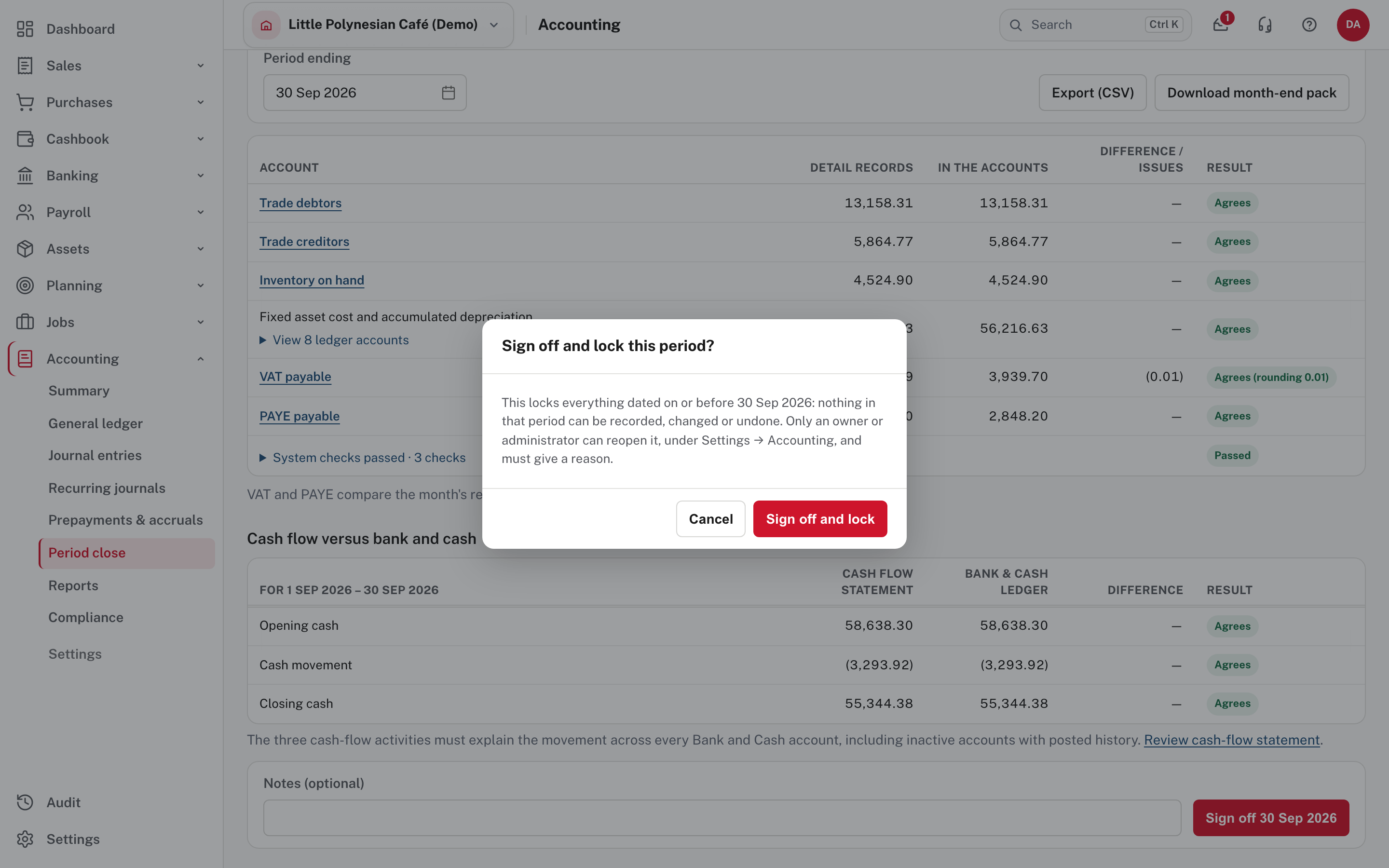
Easy asks you to confirm. If any warnings are still showing it asks you to tick that you have read them. Signing off locks everything dated on or before that date: nothing in that period can be recorded, changed or undone. Only an owner or administrator can reopen it, under Settings → Accounting, and they must give a reason.
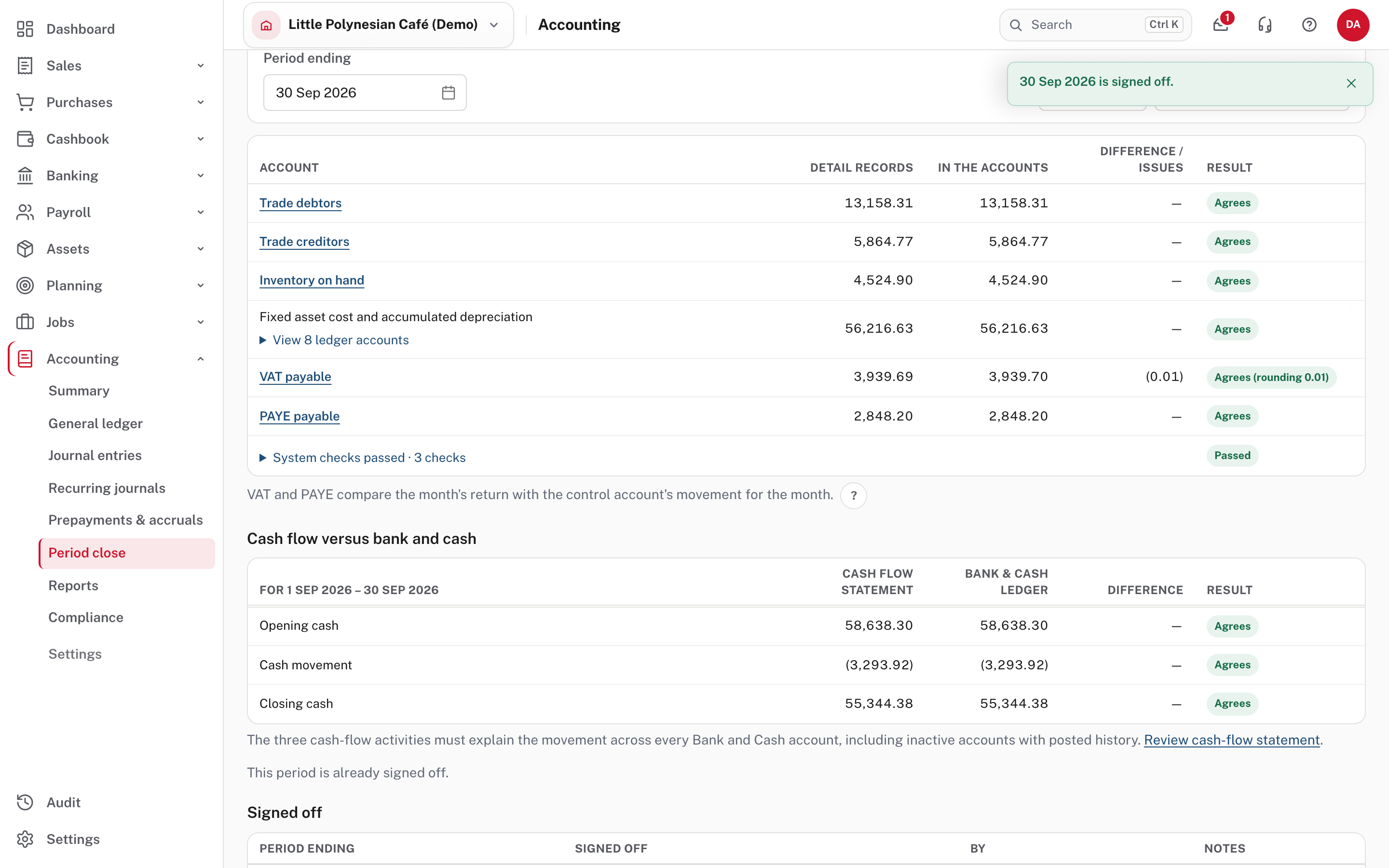
The page now says This period is already signed off, and the Signed off table lists each closed period, when, by whom and the note.
Step 6. Check the lock
Settings → Accounting → Transaction lock shows how far the books are closed.
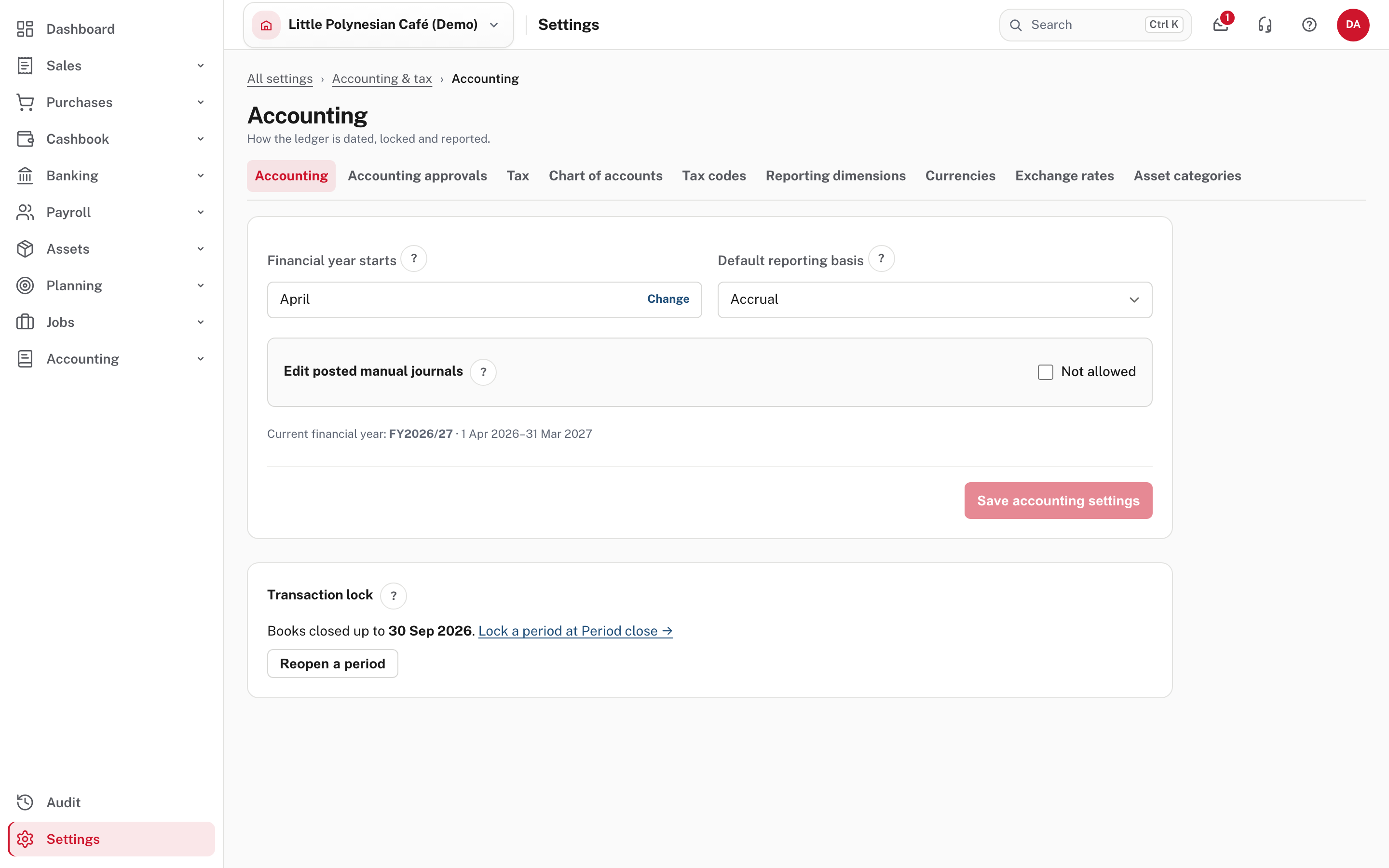
It reads Books closed up to 30 Sep 2026. The same page holds the financial year start and the default reporting basis, and Edit posted manual journals (off, Not allowed, unless you switch it on).
Reopening a period
Choose Reopen a period only for an authorised correction. Give the reason, make the correction, check the affected reports and returns again, then sign off again to restore the lock. If you reopen a month you have already filed a return for, tell whoever files it: the return was frozen at the figures it was filed with, so a correction needs the return re-opened too.
More detail: Journals and period close.
Check before you continue
Check before you continue
- Every control account says Agrees, and the three cash rows agree.
- The month's bank accounts are reconciled, pay runs finished and the VAT and PAYE return filed and paid.
- You have read the summary and the profit and loss and nothing surprised you.
- The month-end pack is downloaded and kept.
- The period is signed off, and Books closed up to shows the right date.