Quotes
A quote is an offer: the prices you will charge a customer, held open for a number of days. It records nothing in your accounts. You write it, send it, and when the customer says yes you turn it into an invoice in one step, so nothing is typed twice. Whoever keeps the books (Owner, Administrator, Accountant, Developer or Data entry) writes quotes. It comes before Raise, send and get paid for an invoice, and a company can ask for a second person to approve quotes first (Sales approvals).
About the screenshots
Screenshots are from Easy's demo company, Little Polynesian Café. The customer, Aroa Diving (Manual quotes), and the prices are made up. Email isn't set up on the demo, so Email quote is greyed out with an Email isn't set up note: this chapter sends nothing by email, and the customer's side is shown through the quote's link instead. Quote approval is switched off in the demo, so that card never appears.
Before you start
- The customer exists (Sales → Customers) and, if you will email the quote, has an email address on their record.
- Items you sell often are saved (Sales → Items), so a price is typed once. A line can also be typed freehand.
- You know the VAT position. Each line carries a VAT code, shown as S 15% on the demo's standard-rated lines; the quote totals show Subtotal, VAT and Total the way the customer will see them.
Step 1. Open the Quotes list
Sales → Quotes.
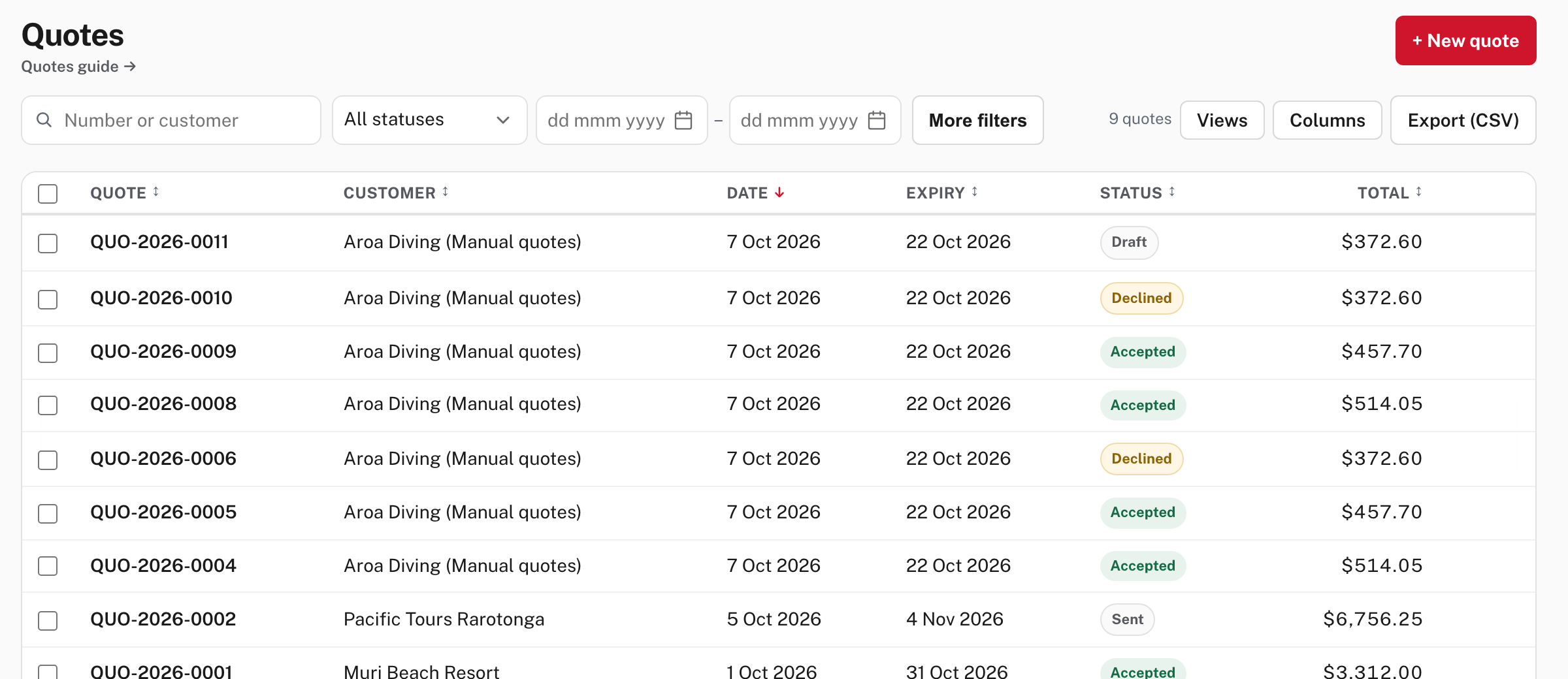
Each row shows the quote number (QUO-2026-…), the customer, the date, the expiry, the status and the total. The status is one of Draft (saved, not sent), Sent, Accepted, Declined or Expired. The toolbar is the one every list has (search, filters, Views, Columns, Export (CSV)): see Find things and work faster. Press N, or choose + New quote, to start one.
Step 2. Write the quote
Sales → Quotes → + New quote.
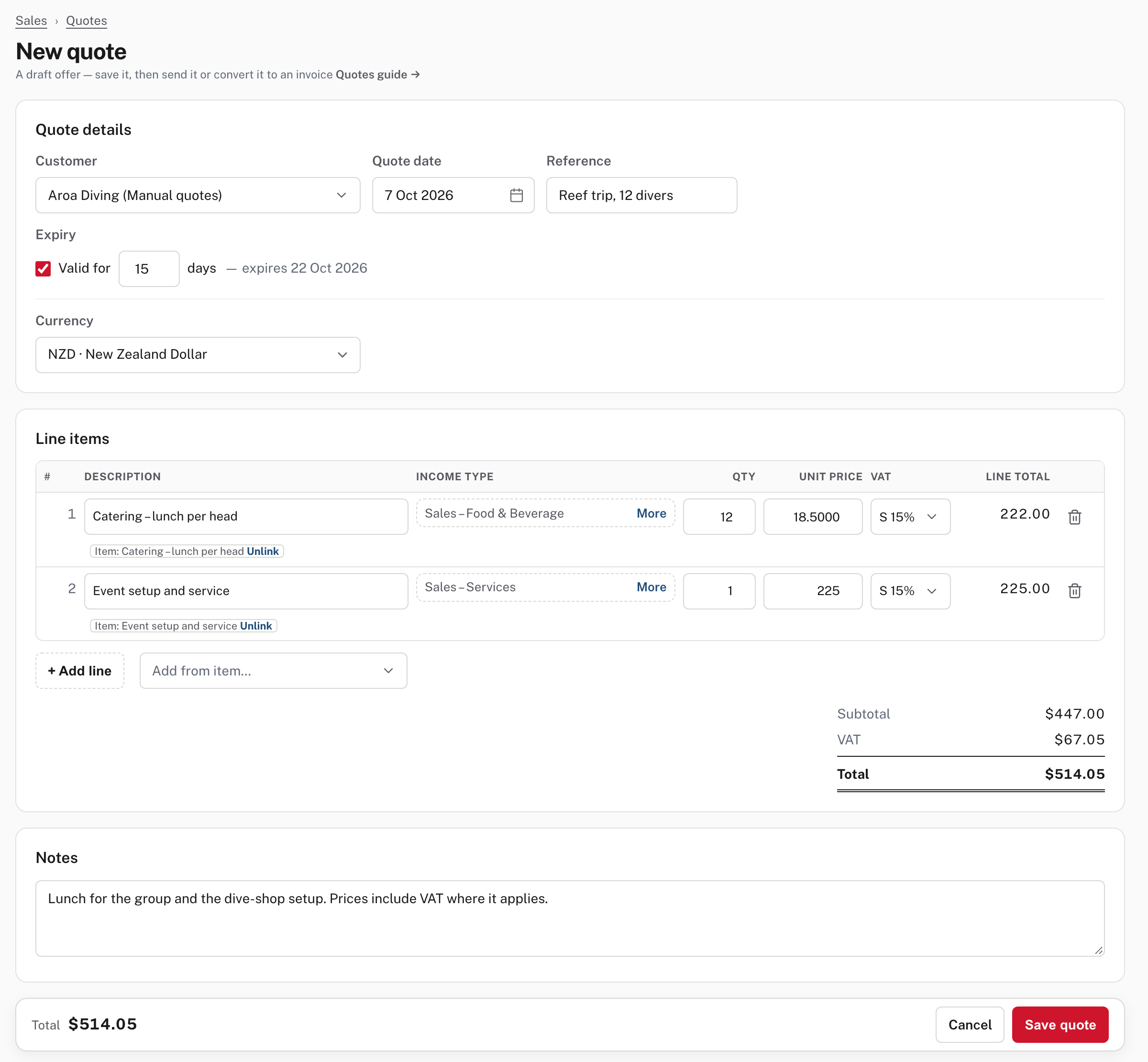
| Field | What it does |
|---|---|
| Customer | Search and choose. The customer's name and email print on the quote. |
| Quote date | Today unless you change it. |
| Reference | Optional. It carries onto the invoice, so use something the customer will recognise (here Reef trip, 12 divers). |
| Expiry | Valid for 15 days by default, and the screen says the date it gives (expires 22 Oct 2026). Change the number of days, or untick the box for a quote that doesn't expire. |
| Currency | The company's currency, or another one if your company has foreign currency switched on (the demo offers AUD). |
| Line items | One row per thing you are pricing: description, income type, quantity, unit price, VAT code. |
| Notes | Optional. Printed on the quote below the lines. |
Pricing the work. Choose Add from item… and pick a saved item: Easy fills the description, the income type, the unit price and the VAT code, and the row says Item: Catering – lunch per head. The saved price is only a starting point: in the picture the second line starts at the item's 250.00 and has been typed over with 225, and the Line total and the Total at the bottom follow at once. Change a quantity the same way (here 12 lunches). Unlink cuts a line's tie to its item and keeps what is typed; + Add line adds a freehand row with nothing saved behind it; the bin removes a line. The bar at the bottom shows the Total beside Save quote.
Choose Save quote. The quote is saved as a draft with its number and you land on its page. Nothing has gone to the customer and nothing has changed in your accounts.
Step 3. Check it, then send it
You are now on the quote's page.
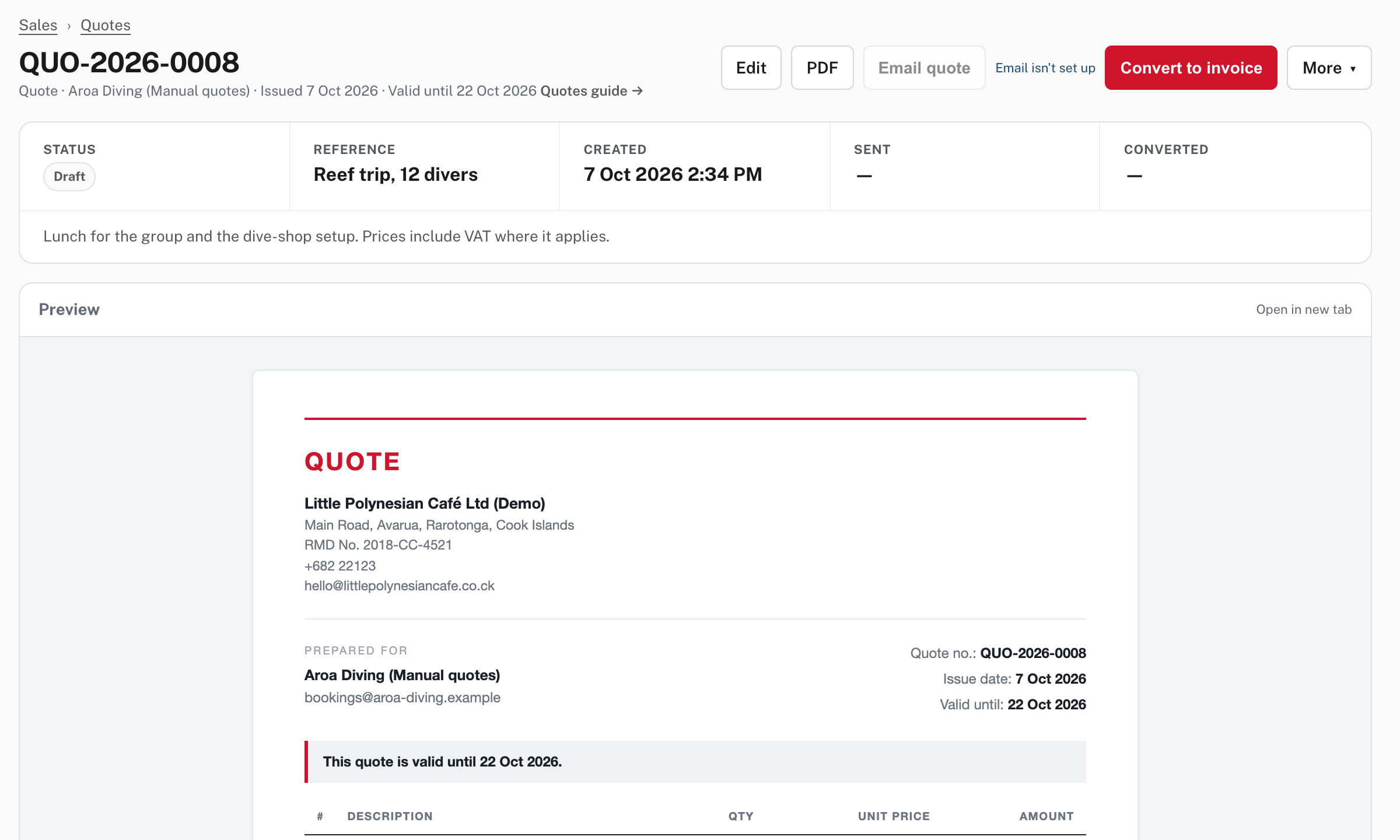
The buttons at the top are Edit, PDF (what the customer would get), Email quote, Convert to invoice and More (Duplicate, and Delete draft while it is still a draft). Under them are the summary (Status, Reference, Created, Sent, Converted, plus Accepted or Declined once either has happened) and a Preview of the quote exactly as it prints. Read the preview before you send anything: it is what the customer sees. Edit works while the quote is a draft or sent; an accepted or declined quote can't be edited (its page has no Edit button, as the later pictures show).
Email quote opens a send window with the customer's address, a subject and a message to check and change, and the quote's PDF attached, and the quote's Sent date fills in when it goes. Not shown in the demo: email isn't set up here. The wording is under Settings → Sales → Sales emails (Chasing overdue invoices shows that page). If you can't email from Easy, open the PDF and send it yourself.
Or send a link the customer can answer
Below the preview, Customer link has Create a link.

The link opens a page for the customer without signing in, where they can read the quote and approve or decline it. Copy it into your own message. The card shows when the link expires (Expires 29 Oct 2026; from Easy's source, a quote's link runs seven days past the quote's own expiry, or 37 days from today when the quote has none), how many times it was viewed and the customer's answer. Revoke switches the link off. Anyone holding the link can answer for the customer, so send it only to them. (The address in the picture has been shortened: a real link ends in a long random code.)
Step 4. When the customer answers through the link
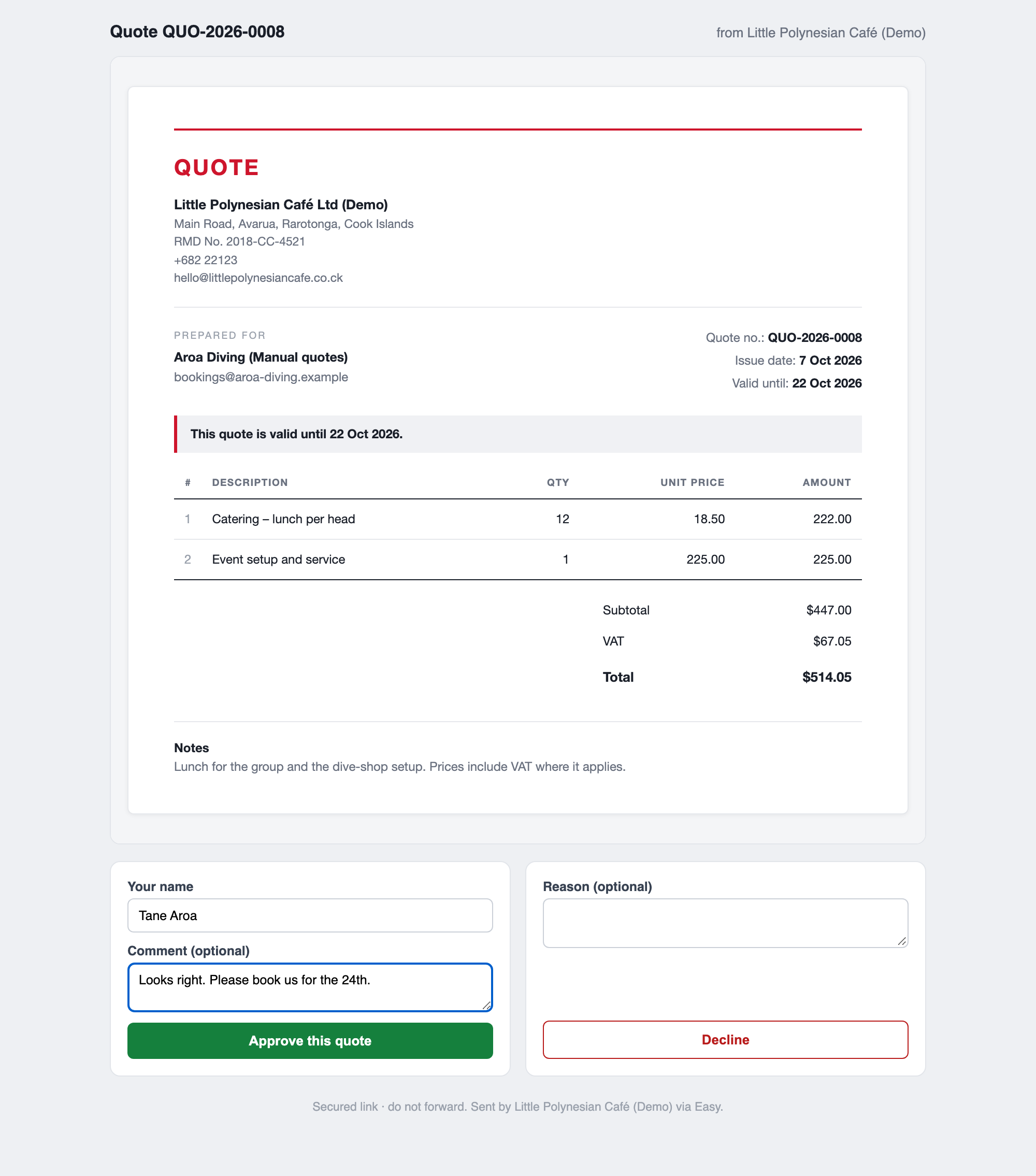
The customer sees the quote as it prints, then two boxes: Your name and an optional Comment with Approve this quote, or an optional Reason with Decline. In the picture a made-up name and comment have been typed, and the quote is about to be approved.
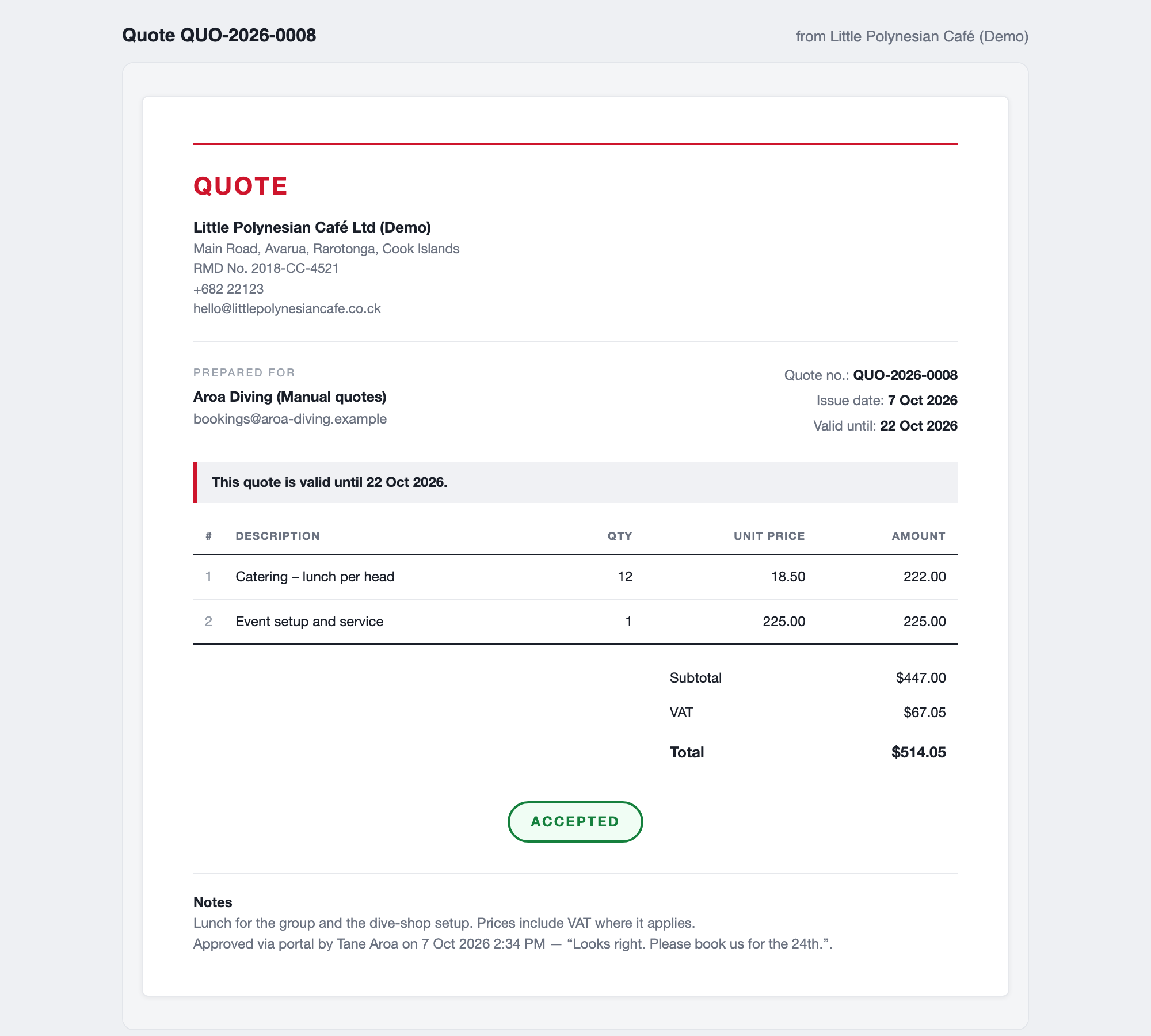
The page then shows ACCEPTED, and the approval (who, when and their comment) is added to the quote's Notes line. Back in Easy the link card reports it.

An approval raises a draft invoice for you, and Open the draft invoice → goes to it. Easy does not finalise or send anything on its own: you check the draft and finalise it yourself (Step 5).
Step 5. Turn an accepted quote into an invoice
When the customer has said yes by phone, email or in person, open the quote and choose Convert to invoice.
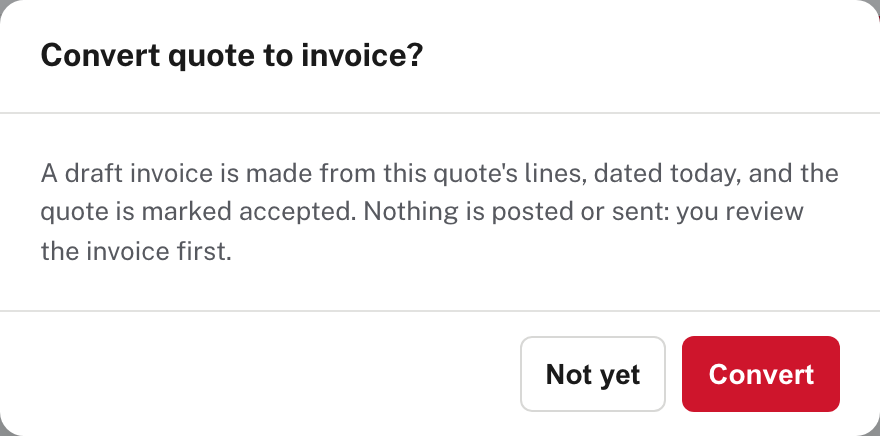
Easy says what will happen before it does it: a draft invoice is made from this quote's lines, dated today, and the quote is marked accepted. Nothing is posted or sent: you review the invoice first. Choose Convert.
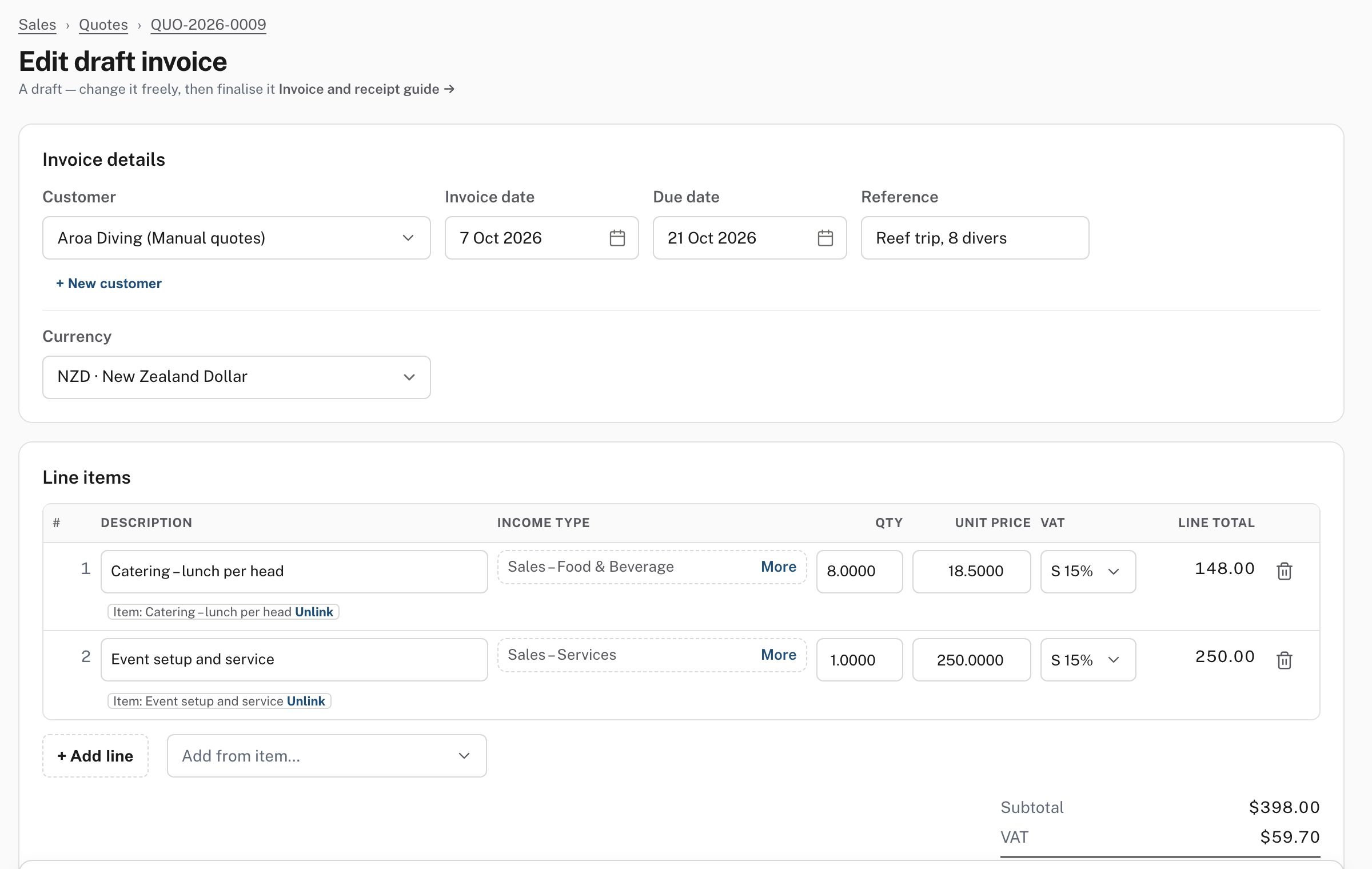
You land on Edit draft invoice. It has the quote's customer, reference and lines (quantity 8 here, at the item's own price), today's date and a due date (14 days on in the demo), and the trail above it reads Sales › Quotes › the quote. It is a draft: it isn't in your accounts and the customer hasn't been told. Check it, change what needs changing, and finalise it as in Raise, send and get paid for an invoice. Until then it is not owed by anyone.
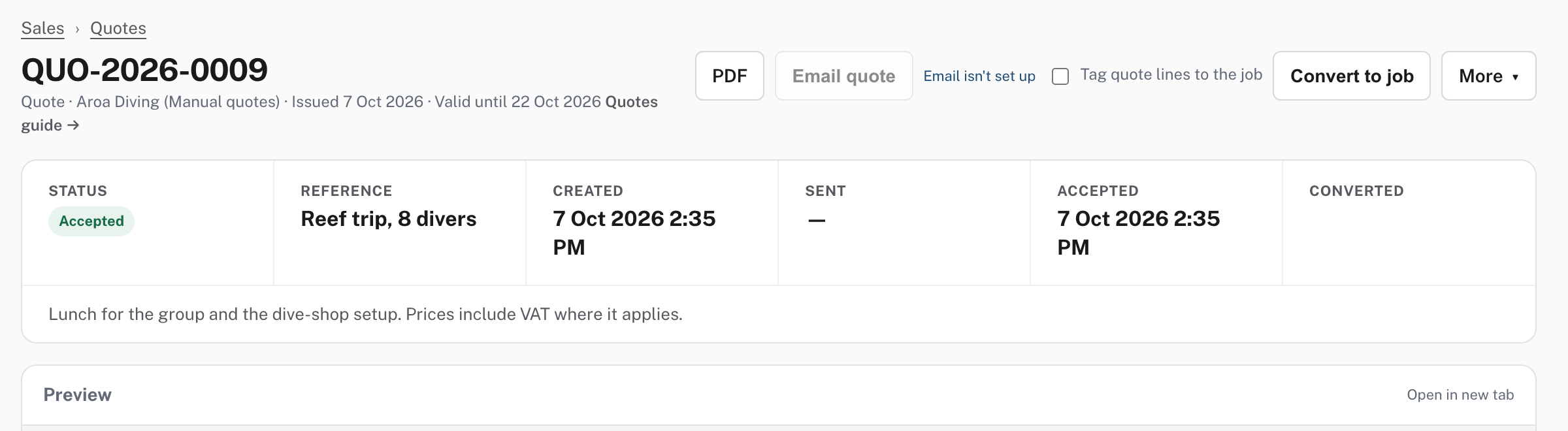
The quote now reads Accepted with the Accepted date, and can't be converted a second time or edited. Its Converted box shows the invoice's number once the invoice is finalised, and a draft invoice has no number yet. Until then, open the draft from Sales → Invoices (filter Draft), or from the quote's link card if the customer approved through the link.
Where Jobs is switched on (as in the demo, and in the picture above), an accepted quote also has Convert to job, with a Tag quote lines to the job tick box. Pressing it is not shown in the demo. See Jobs and profitability and Make a job from a quote.
Step 6. When the customer says no, or the quote runs out
On a draft or sent quote, the Customer declined? card at the bottom has a Reason (optional) box and Mark declined.
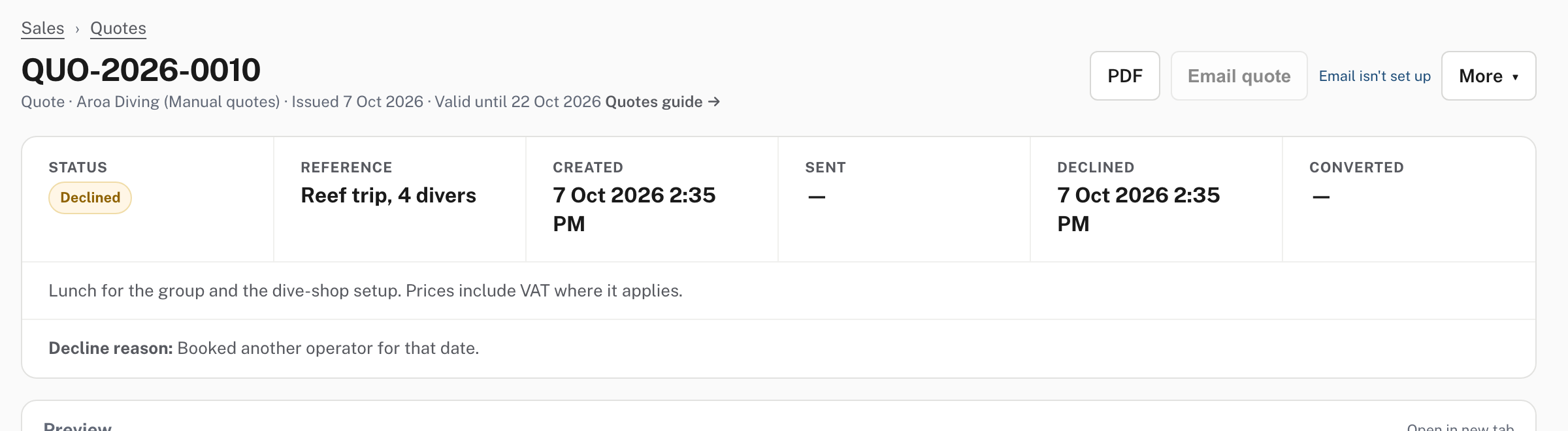
The quote shows Declined, the date and Decline reason, and it can no longer be edited or converted. A quote whose expiry date has passed shows Expired by itself and can't be converted or declined either (from Easy's Help; not shown in the demo).
To make a fresh offer from a declined or expired quote, choose More → Duplicate. The copy opens in the editor as a new draft with its own number and today's date (with the same length of validity, counted from today), ready to change. A draft you no longer want is removed with More → Delete draft, which asks first.
Several quotes at once
On the list, tick rows and a bar offers Email, PDF (one file of the ticked quotes) and Duplicate. Each row's ⋯ menu offers Open, PDF, Print, Email, Duplicate, Convert to invoice (while the quote can still be converted) and Delete draft (drafts only). This is from Easy's source; the list's bar and menu were not used in the demo.
If your company asks for quote approval
Switched on, a quote must be approved before it can be emailed, marked sent or given a link; the card on the quote reads Submit for approval, and the approver decides from the quote or from Mail. Converting a quote to an invoice is not held back, because the invoice is a new document. Not shown in the demo: approval is switched off. See Sales approvals and Quotes: approval.
Common mistakes
- Converting before the customer has agreed. Converting marks the quote Accepted and can't be repeated. If the customer hasn't said yes, send the quote first.
- Quoting from memory. Use Add from item… so the price and VAT code are the ones you set, and type over the price only on purpose.
- Forgetting the expiry. Unticking Valid for leaves a quote open for ever. Leave it on unless you mean it.
- Sending the link to the wrong person. The link answers for the customer without a password. Check where it goes, and Revoke it if it went astray.
More detail: Write a quote, Send it and When the customer answers.
Check before you continue
Check before you continue
- The quote's customer, reference, lines, quantities and prices are right, and the preview reads the way you want the customer to see it.
- It has an expiry date you are happy to honour (or you chose none on purpose).
- You sent it by email or link, or gave the customer the PDF, and the quote says so (Sent).
- An accepted quote has been converted once, and the draft invoice has been checked and finalised (or deleted if the job fell through).
- Declined and expired quotes are marked as such, so the list shows only live offers.