Import a bank statement and set bank rules
Do this each time you download a statement from your bank, before you reconcile. Importing brings in what the bank says happened; it does not change your books. Bank rules then code the repeating lines (bank fees, interest, a monthly direct debit) the same way every time.
About the screenshots
Screenshots are from Easy's demo company, Little Polynesian Café, importing a small made-up CSV. The CSV used for the
pictures is in the manual's repository (screenshots/samples/statement-oct-2026.csv) if you want to practise with it.
Before you start
- The bank account exists in Easy. Choose + New bank account on Banking and pick the kind: a bank account, cash on hand, a credit card or a loan. Cash on hand has no statement to import.
- The statement belongs to that account, and its period follows the last statement you reconciled.
- Download it from your bank as CSV, OFX or QIF. OFX and QIF go straight to the review; a CSV needs its columns set up once per account.
Step 1. Open Banking
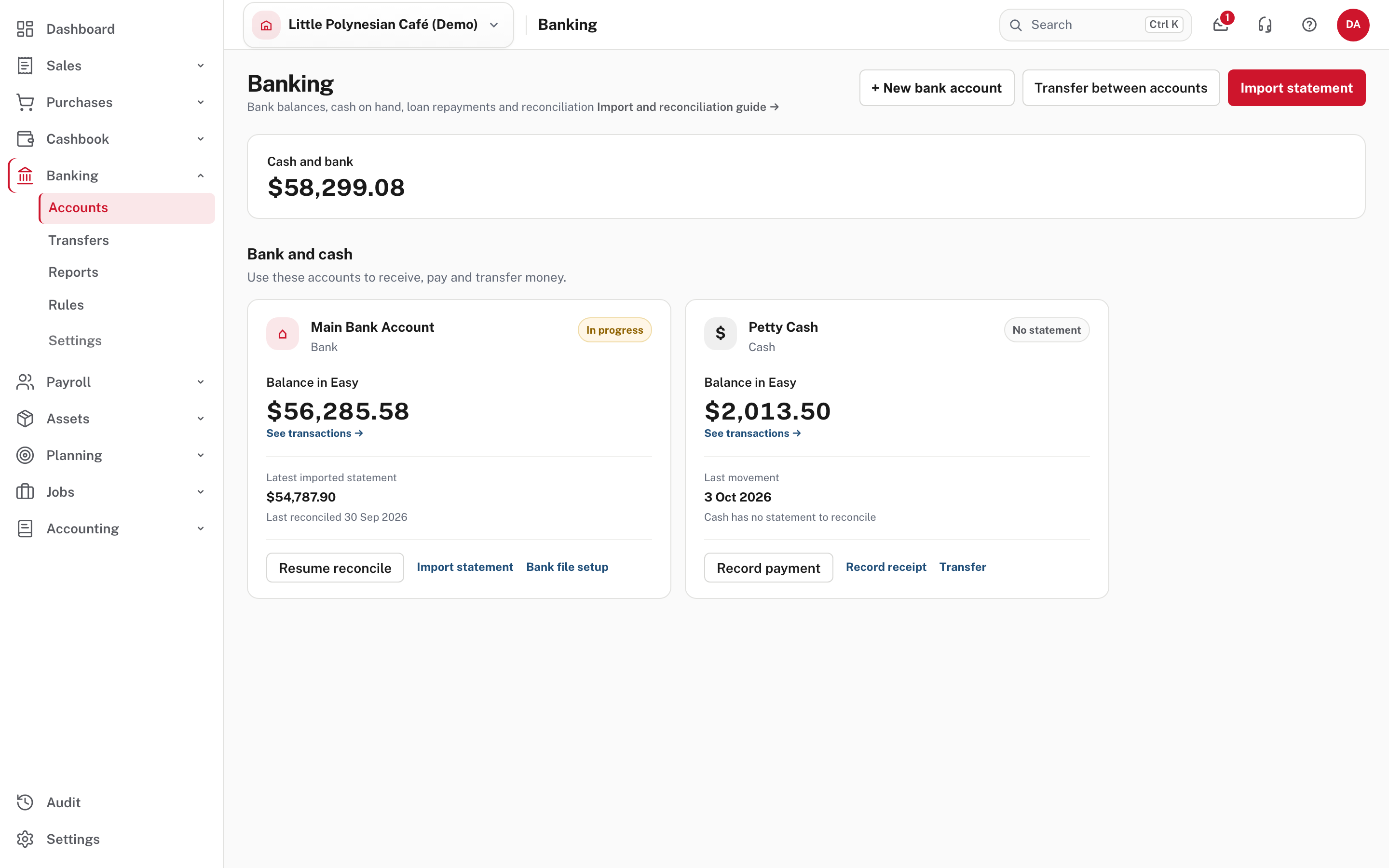
Each account has a card. The bank account shows its balance in Easy, the latest imported statement and when it was last reconciled, with buttons for Import statement, Bank file setup and Resume reconcile. Petty Cash says No statement: Cash has no statement to reconcile, so it only has Record payment, Record receipt and Transfer.
Choose Import statement on the account.
Step 2. Choose the account and the file
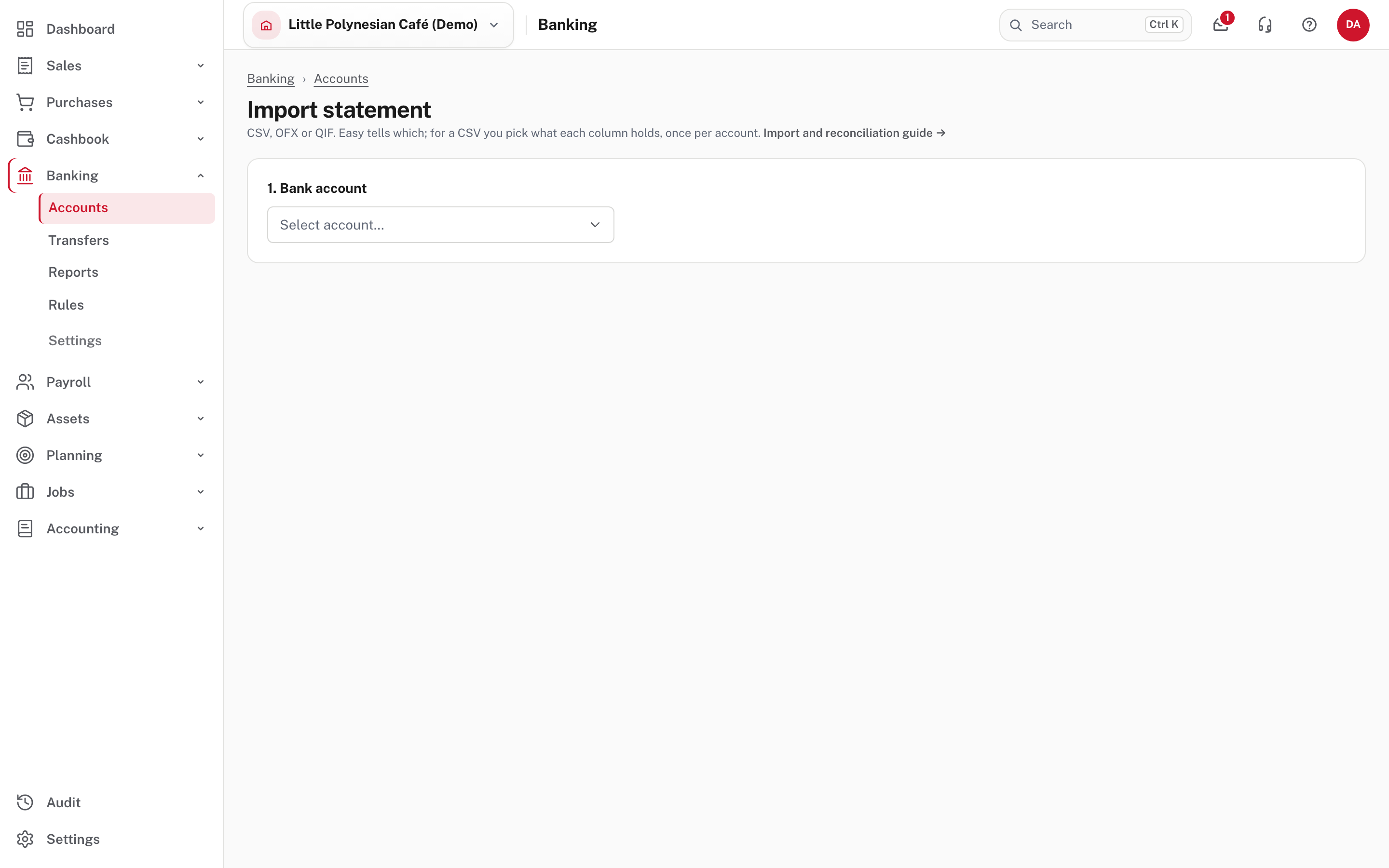
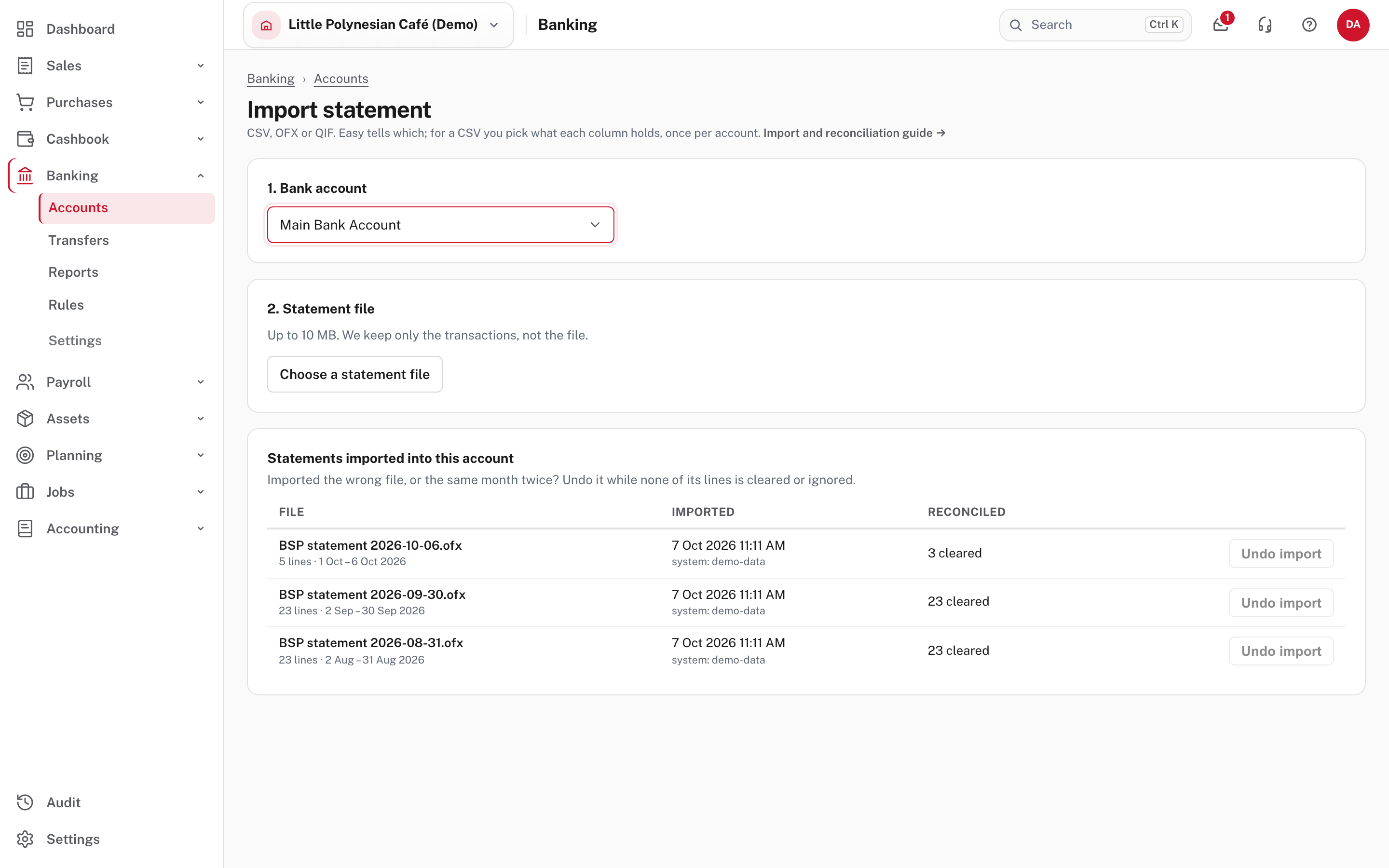
Choose the bank account, then Choose a statement file (up to 10 MB; Easy keeps only the transactions, not the file). The page lists Statements imported into this account, with how many lines each had, when it was imported and how many of its lines are already cleared in a reconciliation.
Easy refuses an empty file, a PDF, a spreadsheet or a picture. If it refuses a file named .ofx or .qif that isn't one,
download the statement from your bank again.
Step 3. Set up the columns of a CSV (once per account)
The first time you choose a CSV for an account, Easy shows its first rows with a picker for each column.
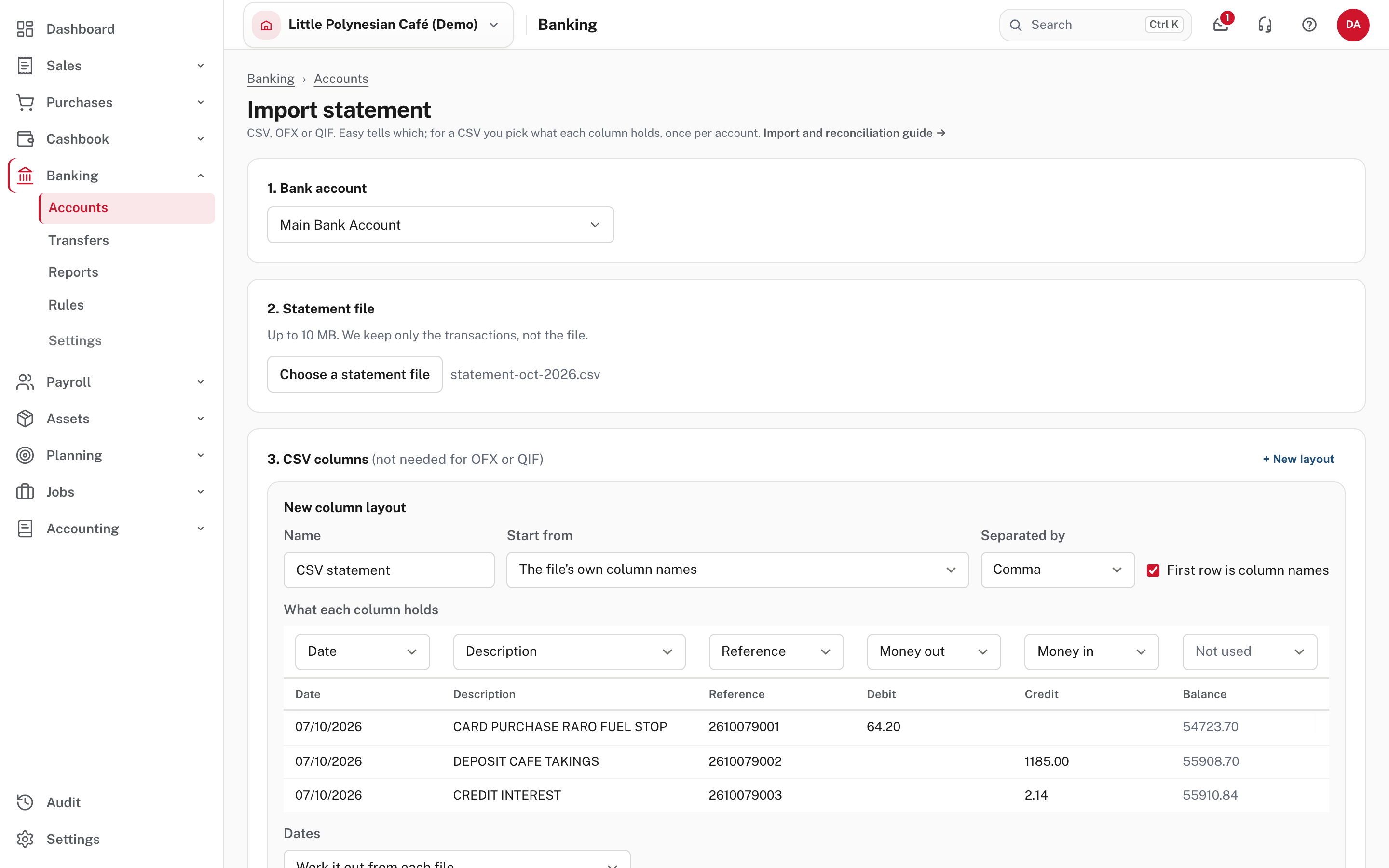
- Pick what each column holds: Date, Description, Reference, Amount, Money in, Money out, or Not used (a running balance, for example). Easy guesses from the column names, so often there is nothing to change. Use either one Amount column or a Money in and Money out pair. If the bank shows payments as positive numbers in its one amount column, tick Payments are shown as positive numbers.
- Start from fills the columns with a typical BSP, ANZ or BCI export. These are only a starting point: check every column against your own file.
- Separated by is worked out from the file (comma, semicolon or tab). First row is column names is ticked when the first row has no date in it.
- Dates are worked out from each file: day first (05/10/2026 is 5 October 2026), year first, or month first only when a date can be nothing else. If your bank writes dates month first, pick that form so an early-month statement is not read day first.
- How Easy reads it shows the first lines exactly as they will import.
When they look right, choose Save and read the file. The layout is saved for that account, so next month's CSV goes straight to the review. Change the columns on the review reopens it, and one account can keep several layouts.
Step 4. Review, then import
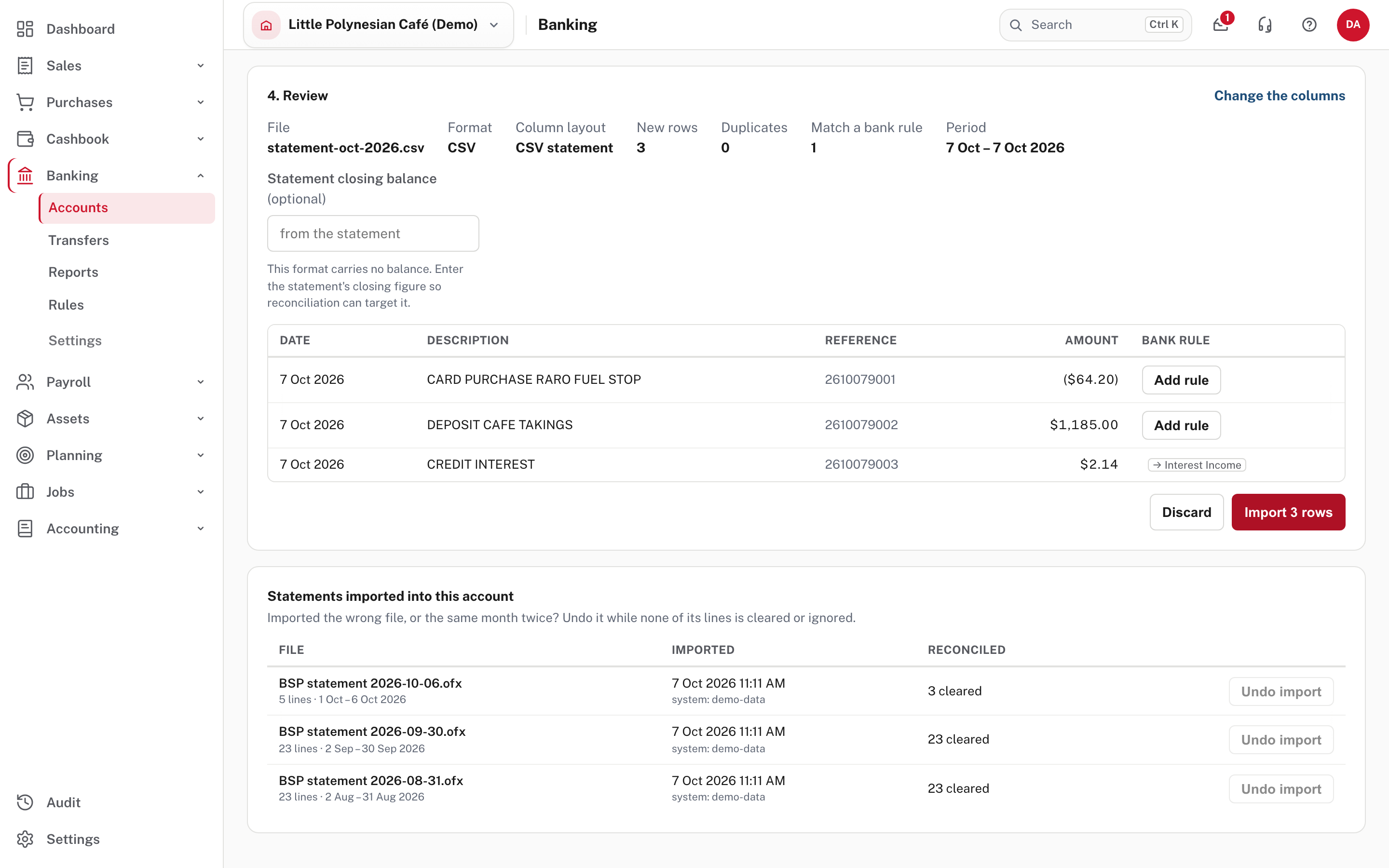
The review shows the file, its format, the column layout, how many new rows there are, how many are duplicates, how many match a bank rule, and the period the statement covers. For a CSV (which carries no balance) you can type the statement closing balance from the statement, so the reconciliation has a figure to aim for.
Read the rows. The Bank rule column shows the account a rule will pre-fill (here → Interest Income), and Add rule on the rest.
- A row already imported is a duplicate and is skipped, so uploading the same file twice adds nothing.
- A row marked Possible duplicate has the same date and amount as one already imported under different wording (the same month downloaded as CSV and again as OFX, for example). It is a warning only: untick Import beside it if it is the same money, and leave it ticked if it is a genuine second payment on the same day.
- A row dated on or before the last finished reconciliation still imports, but Easy lists it: check it isn't already part of that statement.
Choose Import 3 rows.
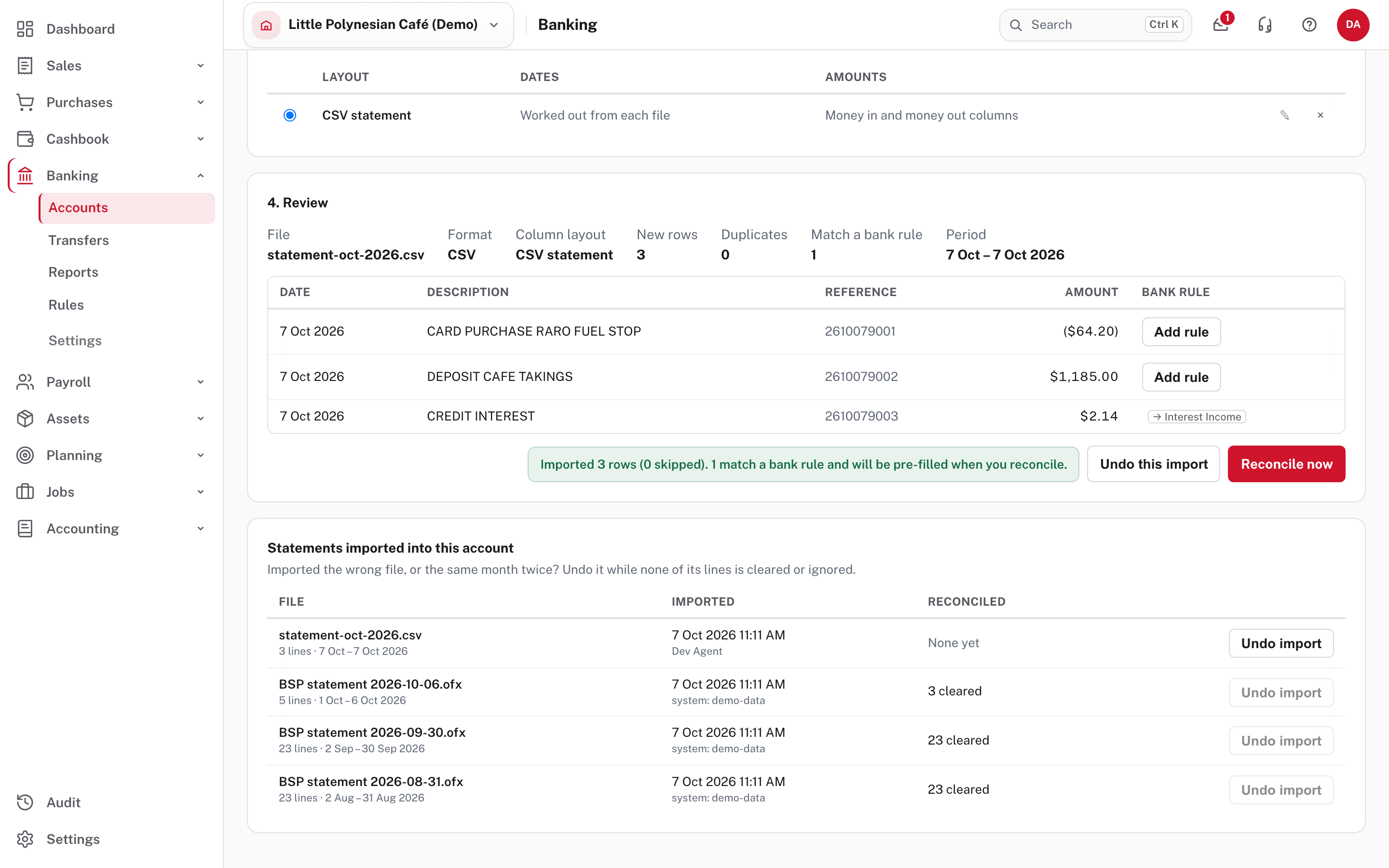
You can Reconcile now, or Undo this import straight away. Imported rows are what the bank says happened; each still needs to be matched to your records, or recorded, when you reconcile.
Undo an import
Imported the wrong file, or the same month twice? The page lists the statements already imported into the account. Undo import removes that file's rows from Easy after you confirm; nothing in your books changes, and you can import the file again. It is greyed out once any of the file's lines has been matched or ignored in a reconciliation (the Reconciled column says how many): undo those matches first, then undo the import.
Step 5. Bank rules
A bank rule codes a repeating statement line the same way every time. Rules only suggest: nothing is recorded until you record it in the reconciliation.
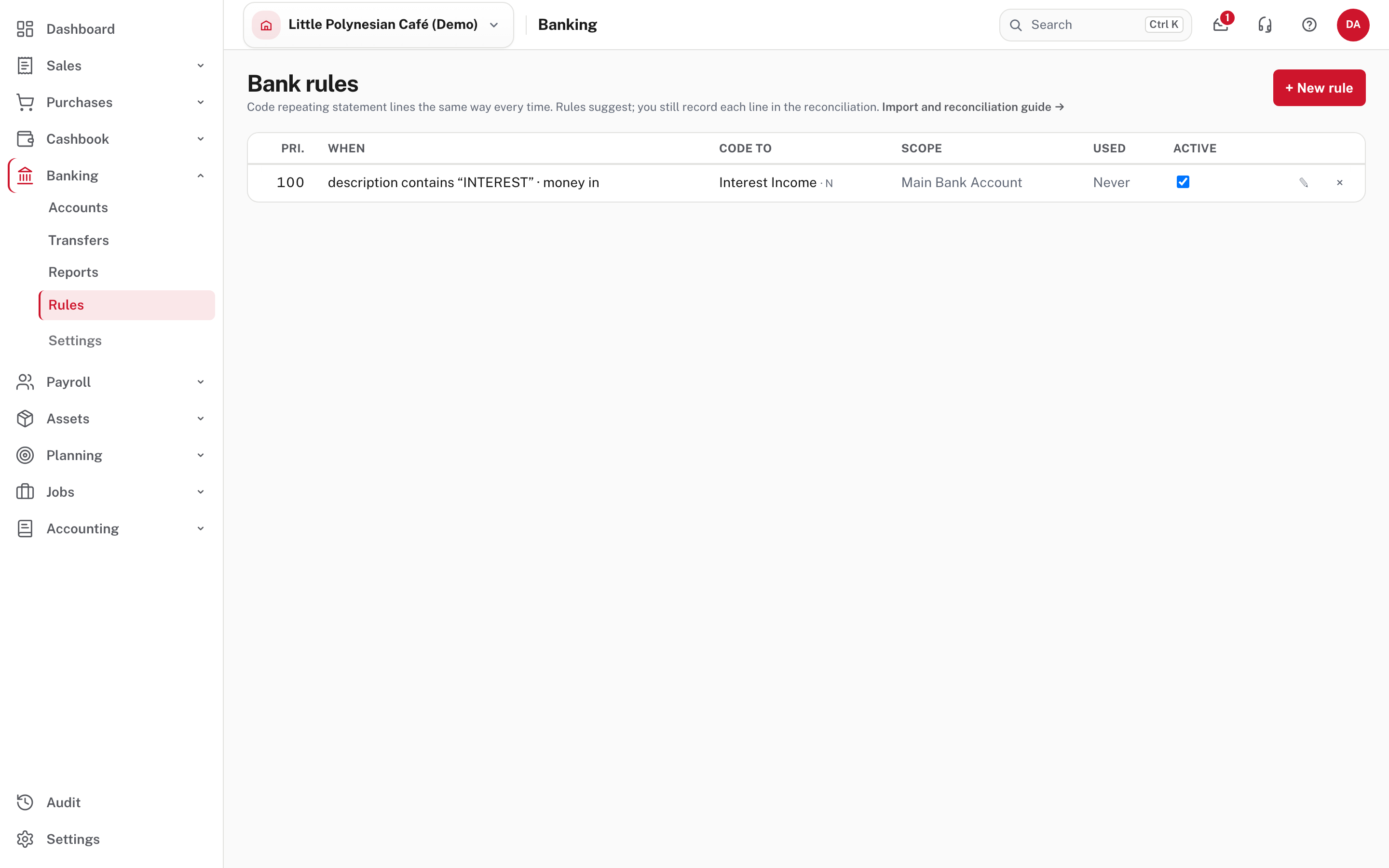
Banking → Rules lists every rule: its priority, when a line matches, what it is coded to, its scope (which bank account), how often it was used, and whether it is active. A rule that says Never matches nothing you record, and is usually safe to delete. A line a rule recorded says so once matched ("by rule …").
Make a rule from a line
On the import review, choose Add rule on a line (or Create a rule after you code a line by hand in the reconciliation).
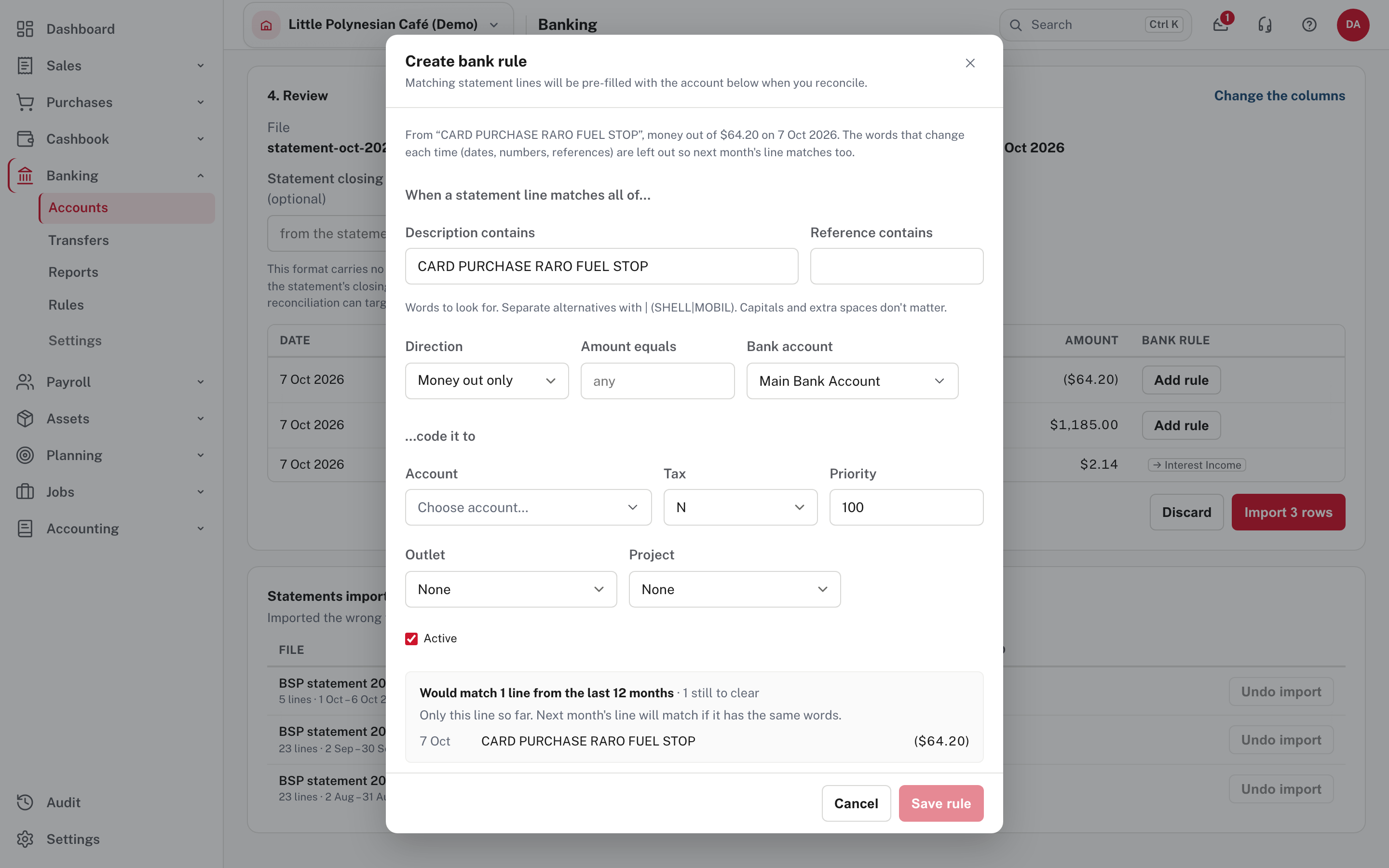
- Description contains holds the words that repeat. Easy keeps the usual payee and leaves out dates, card numbers and the
bank's reference, which change every time. Capitals and extra spaces don't matter, and
|separates alternatives:SHELL|MOBILmatches either. - Direction, Amount equals and Bank account narrow it. The account you code it to decides the direction: an income account takes money in only and an expense account money out only.
- Account, Tax and Priority say what it is coded to. Outlet and Project tag it for reporting.
- Check it before you save. The box at the bottom says how many of your statement lines from the last 12 months the rule would match (here Would match 1 line, only the line you started from). If only that line matches, shorten the words so next month's line matches too.
- Untick Active to stop a rule for now; delete it when it is no longer wanted. Lines it already coded stay as they are.
Accounts you can't code to. A rule (or a line) can't be coded to a system account that only its own part of Easy records to: payroll clearing, goods received not invoiced, landed costs clearing, opening balance equity, gain or loss on disposal and the two exchange gain/loss accounts. Use Suspense for a line you can't place yet. An asset, liability or equity account carries no VAT.
More detail: Import and reconcile a bank statement.
Check before you continue
Check before you continue
- The statement is for the right account and the right period, and imported once (no duplicates).
- You entered the statement's closing balance if the file had none.
- The rules you made would match next month's lines as well as this one.
- Any row dated before the last finished reconciliation has been checked against that statement.