Bills by email and the capture inbox
Instead of typing every bill, send it to Easy. Upload a photo or PDF (or forward it by email) to the capture inbox; Easy reads it, fills in a bill, and a person checks and records it. Nothing is ever recorded without a person confirming.
About the screenshots
Screenshots are from Easy's demo company, Little Polynesian Café, with a made-up supplier bill. AI reading is off in the demo, so the pictures show the manual path: the document waits and you enter the bill beside it. With AI switched on, the same screen arrives with the supplier, dates and lines already filled in for you to check.
Before you start
- Suppliers exist in Easy (or you will add them from the review page with + New supplier).
- Decide how bills reach you: upload (including a phone photo), forward by email, or both.
- Decide whether to switch AI reading on (step 4). Without it, the inbox still keeps the files tidy and next to the bill form.
Step 1. Open the capture inbox
Purchases → Capture inbox.
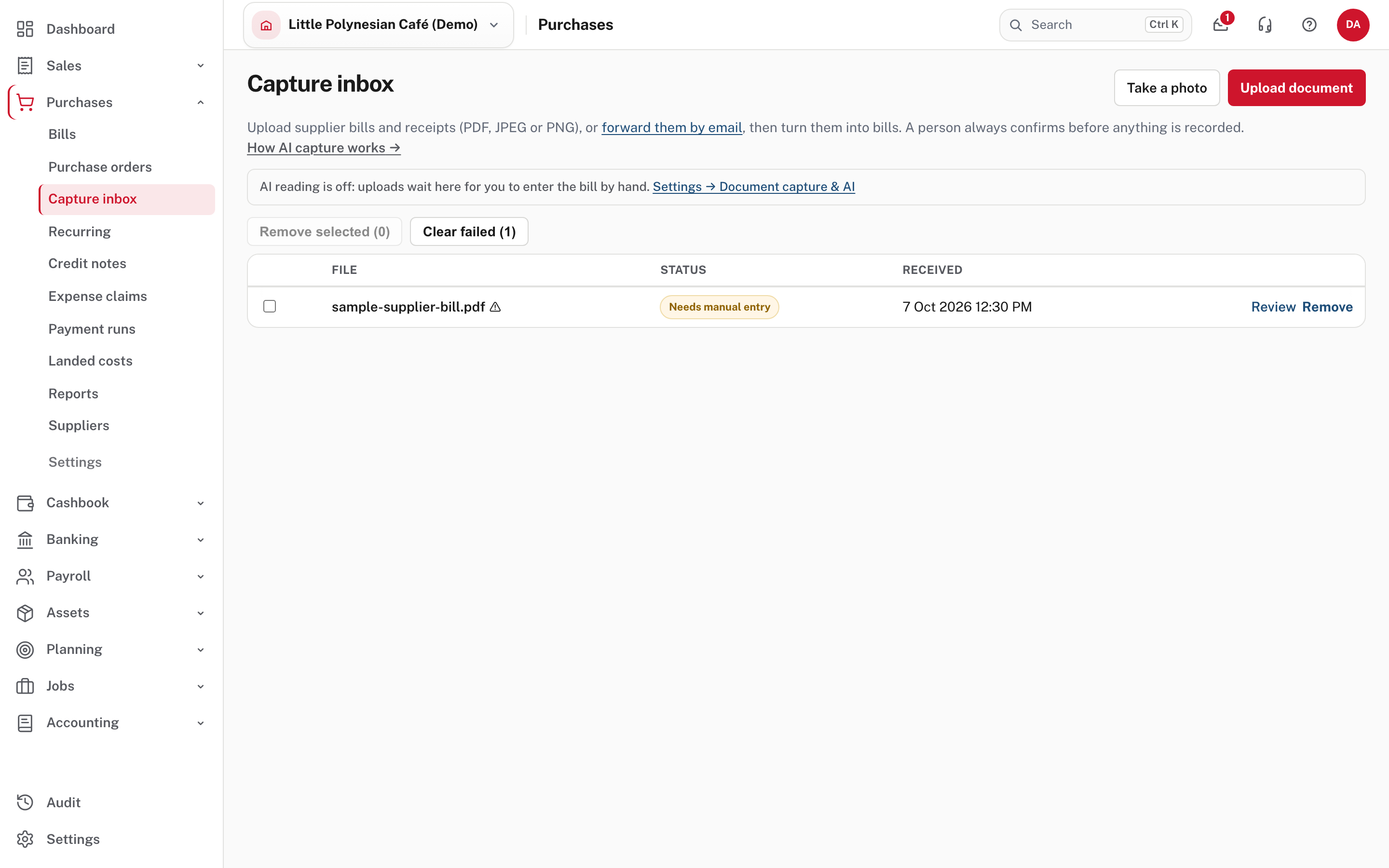
Two buttons at the top: Take a photo (on a phone, this opens the camera) and Upload document. A banner says whether AI reading is on. The inbox accepts PDF, JPEG and PNG files up to 10 MB. Easy checks what the file really is, not what it is called.
A few files are refused
A PDF with a password (remove it and upload again). A HEIC photo from an iPhone picked from your files (take it with the camera button instead, or save it as JPEG). A PDF of more than 10 pages is kept but not read by the AI: it opens empty so you can enter the bill by hand, or capture just the bill's page.
Step 2. Upload a bill
Choose Upload document, or Take a photo.
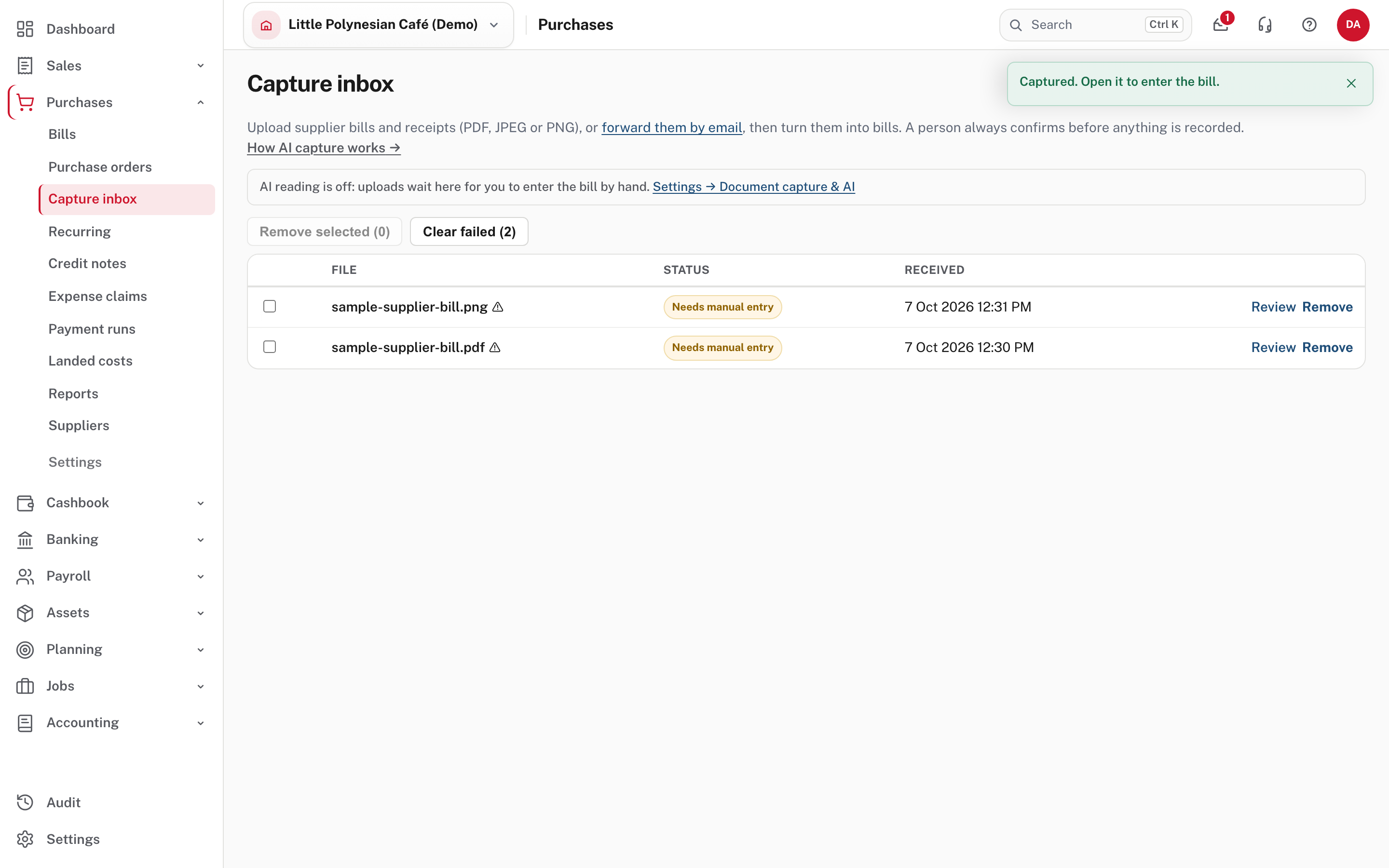
The file appears in the inbox with its status and when it was received. Here the status is Needs manual entry because AI reading is off; with it on, Easy reads it first. A phone photo is shrunk to at most 2,000 pixels on its longest side before it is uploaded, and the location and camera details inside it are removed.
Step 3. Review it and turn it into a bill
Choose Review.
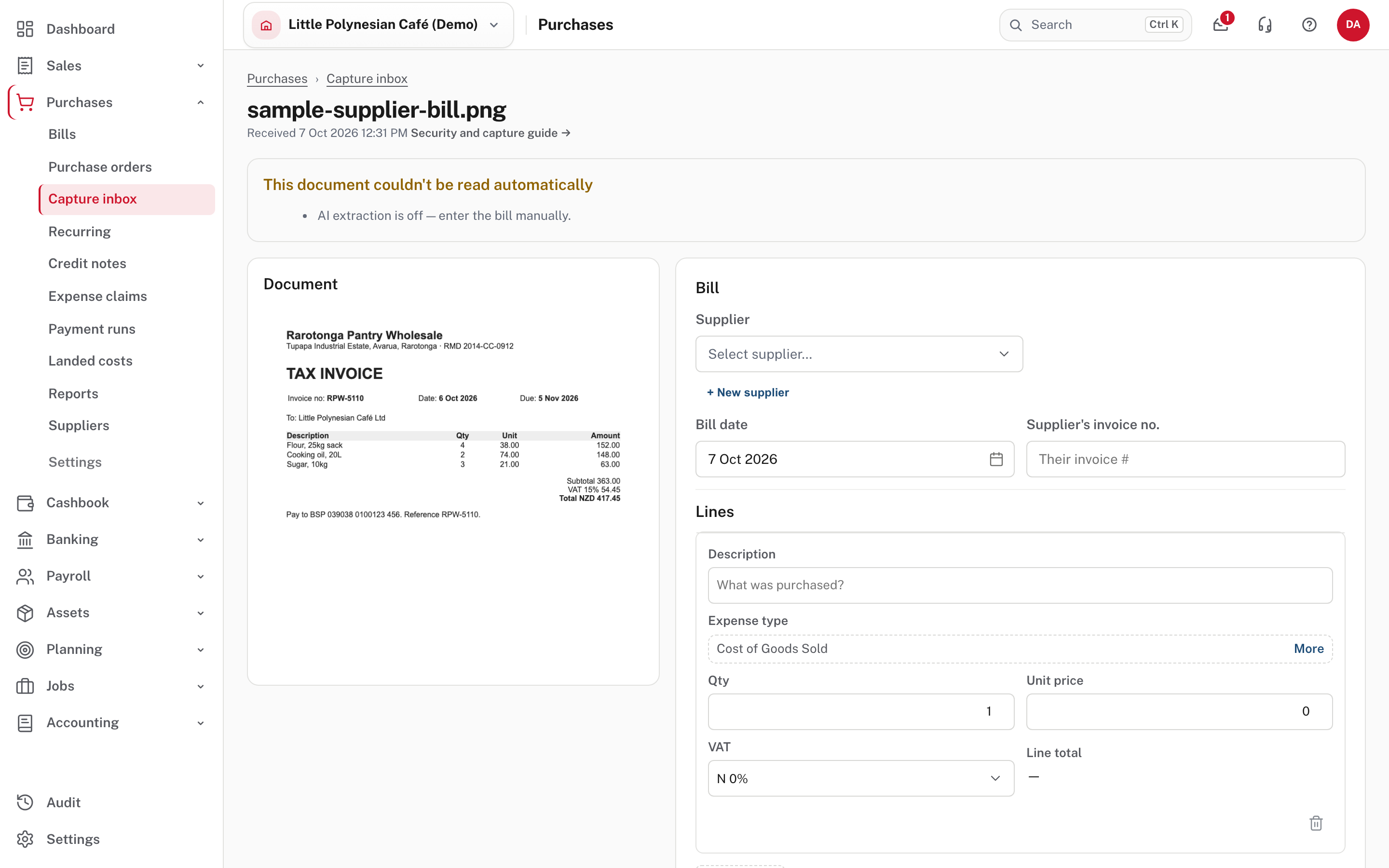
The page shows the document on the left and the bill on the right, so you can read one and type into the other. Choose the supplier, the bill date, the supplier's invoice number, then the lines: description, expense type, quantity, unit price and VAT. Add more lines as needed (the bin removes one). The bill you build is the same one as Enter and record a bill, so the same advice applies: the total must match the supplier's invoice.
When you record it, the document stays as the bill's attachment, so the supplier's invoice is kept with the bill. If bill approval is on, it is submitted for approval instead of recorded, as any bill is.
To get rid of a document you do not want (a photo that did not come out, a duplicate), use Remove in the inbox or on the review page. Clear failed removes those Easy could not read.
Step 4. Switch AI reading on (optional)
Settings → Purchases → Document capture & AI.
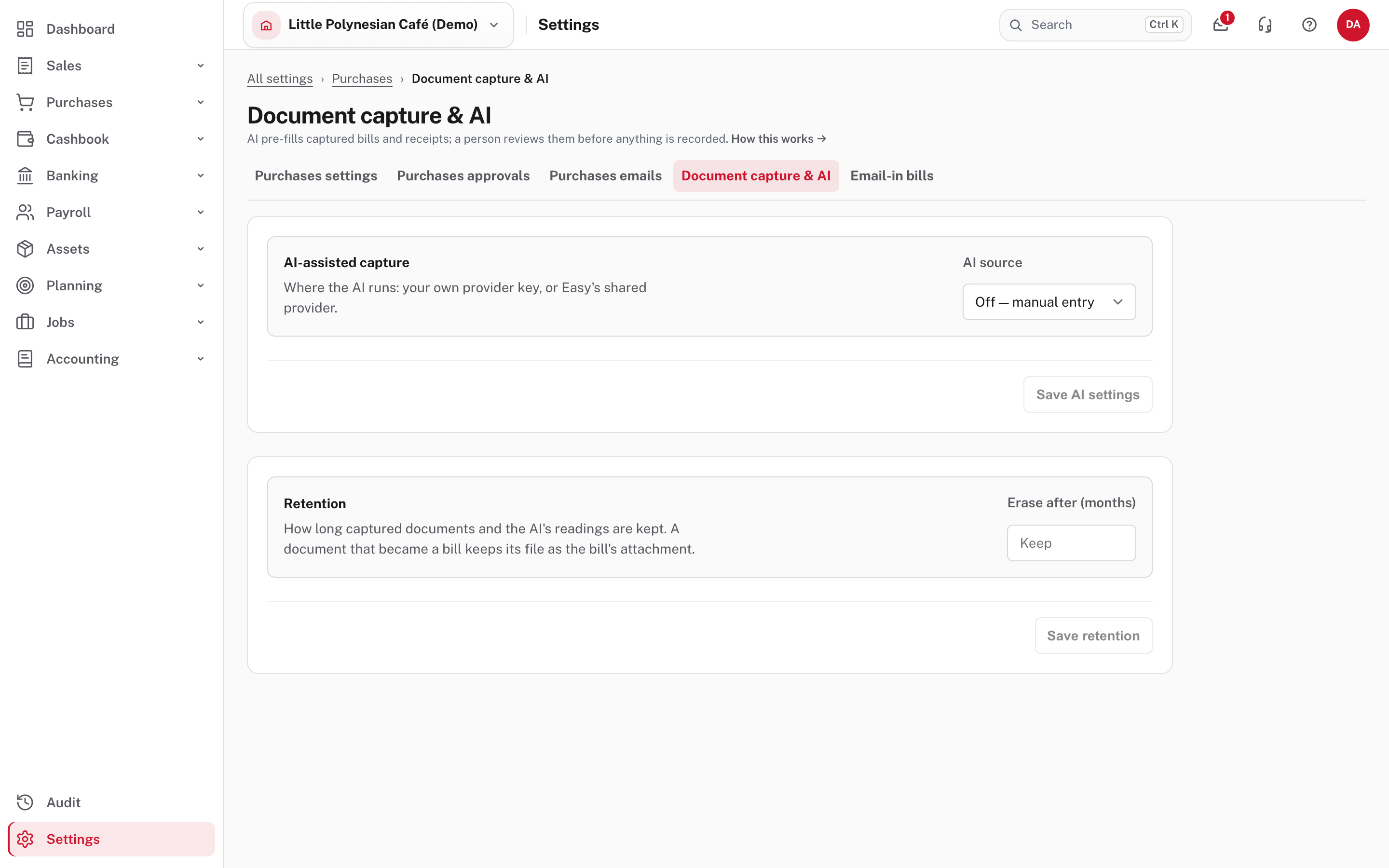
AI source picks where reading happens:
- Off, manual entry: nothing is read; you enter each bill by hand.
- My own provider key: your own AI provider account.
- Use Easy's AI: Easy's shared provider (see the page for what it costs and what you agree to).
Retention sets how many months captured documents and the AI's readings are kept before they are erased. A document that became a bill keeps its file as the bill's attachment.
With AI on, the review page is pre-filled with what the AI read. You still check every field. A file that could not be read this way costs none of your monthly allowance.
More detail: Two-factor requirement and AI capture.
Step 5. Send bills by email
Settings → Purchases → Email-in bills.
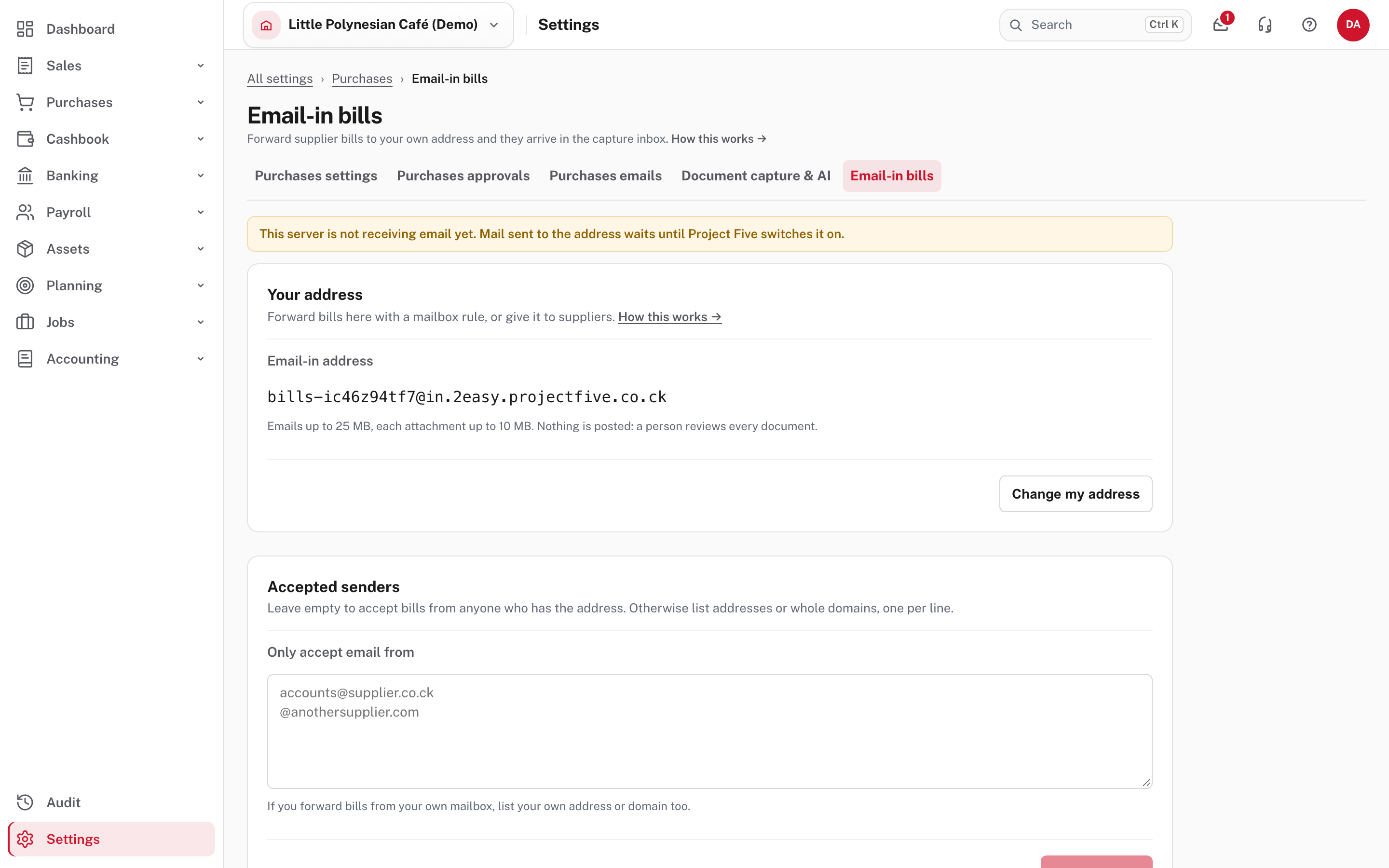
Every company has its own address for bills, shown on this page (it looks like bills-…@in.2easy…). Email or forward a bill to it, and
each PDF, JPEG or PNG attachment goes into the capture inbox, marked as received by email with the sender and subject. From there it is
exactly like an upload. Two common ways to use it:
- A rule in your own mailbox (Outlook, Gmail and others) that forwards emails from your suppliers, or with "invoice" in the subject, to your Easy address.
- Give the address to suppliers and ask them to send bills straight to it.
Limits: an email up to 25 MB, each attachment up to 10 MB. Only attachments are read, not the email's text. A document already in the inbox is not added twice. A PDF forwarded "as an attachment" (a whole email attached to another) is found too.
Accepted senders. List the addresses (accounts@supplier.co.ck) or whole domains (@supplier.co.ck) you accept bills from, one per
line; email from anyone else is turned away. If you forward bills from your own mailbox, list your own address as well, because a
forwarded email comes from you. Leave it empty to accept anyone who has the address.
The email log lists the last 50 emails and what happened to each: added to the inbox, no attachment, wrong type of file, a sender not on your list. The sender is never told why an email was turned away, so check the log if a supplier says they sent something.
Change my address gives you a new address at once, and mail to the old one is no longer accepted. Do it if the address ends up on a mailing list or you start getting junk, then update your forwarding rule and tell your suppliers.
On the demo
The page warns that this server isn't receiving email yet: mail sent to the address waits until Project Five switches receiving on. On a live company, the page shows the log of what arrived.
More detail: Two-factor requirement and AI capture.
Check before you continue
Check before you continue
- Every captured document has been recorded as a bill or removed: the inbox is empty or holds only what you are waiting on.
- Each bill's total equals the supplier's invoice total, and its supplier's invoice number is filled in.
- You know your company's bill address, and your forwarding rule includes your own address if you forward.
- AI reading is on or off on purpose, and the retention period is one you are happy with.