Audit: who changed what
Easy writes a line in the audit trail every time something in your books is created, changed, deleted, posted, approved or sent: who did it, what, and when. You don't switch it on and you don't fill it in. You open it when someone asks "who changed this?", when you review a month, when an auditor asks how a figure came about, or to check that an approval was really given. The Owner, Administrators, Accountants, Approvers and Read only / Auditor people can open it. It goes with Approvals and controls (the decisions it records) and Sales approvals (a worked example), and it is worth a look at month end (Month-end checklist).
About the screenshots
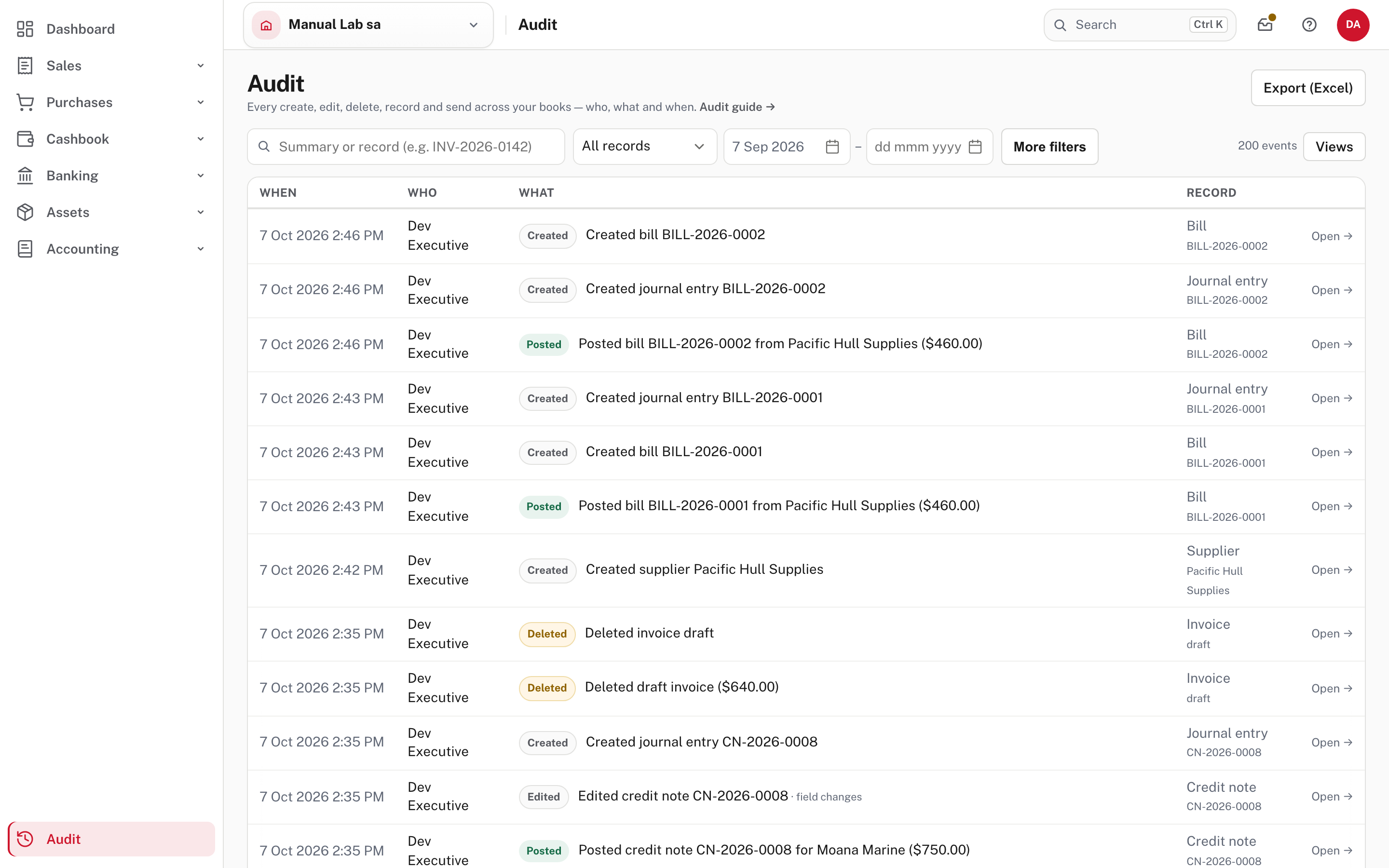
Most pictures are from a practice company, Manual Lab sa, because its trail is short and readable: it holds the actions of two made-up people, Dev Executive and Dev Approver. The demo company Little Polynesian Café has about a thousand events from its setup, so it is used only for the rows Easy writes itself and for the retention page. Every picture is a read: nothing was changed to take it.
Before you start
- Your role can open it. If the menu has Audit at the bottom, you can. People who enter the day's work (Data entry), run pays (Payroll manager) or use self-service (Employee) can't (Roles explained).
- Nothing to set up. The trail fills as people work. The one setting is how long it is kept (step 5).
- It tells you what happened, not what the books say now. To see the current document or entry, open the record. An audit line describes an action; it doesn't replace the invoice or the journal (Find who changed a record).
Step 1. Open the Audit centre
Audit (at the bottom of the menu).
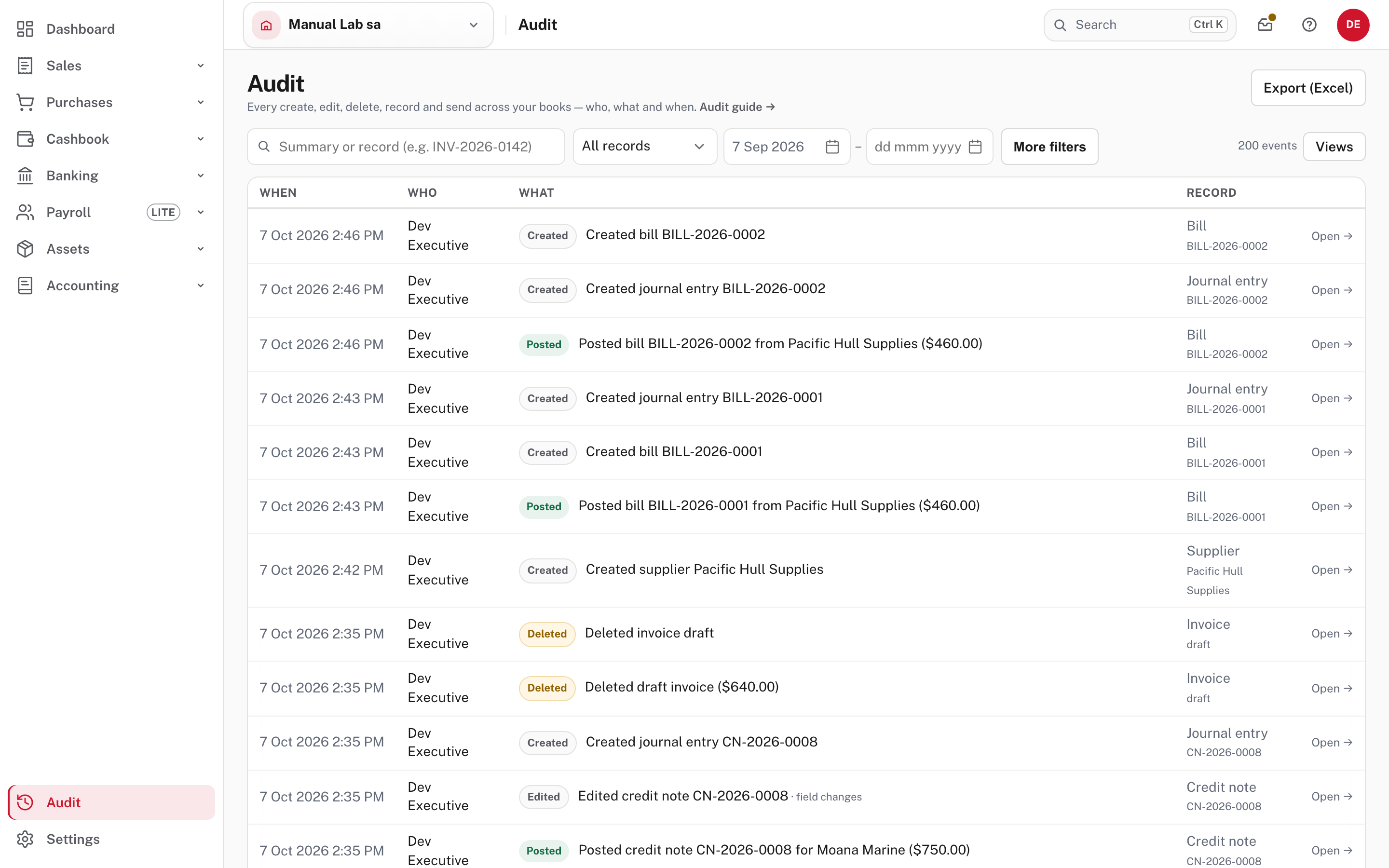
It opens on the last 30 days, newest first. Each row has:
| Column | What it shows |
|---|---|
| When | The date and time, in Rarotonga time |
| Who | The person who did it. When an action did not come from someone using the screens, a badge says where it came from: Job (Easy's own jobs, shown as Easy), Import, Portal or Api |
| What | A badge for the action (Created, Edited, Deleted, Posted, Approved, Rejected and others) and a sentence. · field changes means the line carries before-and-after values |
| Record | The kind of record and its number or name. Open → goes to it |
One action can leave more than one row. Recording a bill left three: Created bill, Created journal entry and Posted bill from Pacific Hull Supplies, and deleting a draft invoice left a general line and a line that names the amount. A few kinds of record, such as a statement import or a tax code, have no page of their own, so their row has no Open →.
The number of events is at the right of the toolbar, and Export (Excel) is top right.
Step 2. Narrow it down
Use the toolbar. The filters are:
| Filter | What it does |
|---|---|
| Search | Text from the summary, or a record number (for example INV-2026-0142) |
| All records | One kind of record, from Account to VAT/PAYE return (about sixty kinds, in alphabetical order) |
| From / To | The dates. From starts 30 days back; clear it to look at everything |
| More filters → Action | Created, Edited, Deleted, Posted, Voided, Reversed, Sent, Approved, Rejected, Reconciled, Un-reconciled, Filed, Reopened, Imported, Status changed, Attached, Removed attachment, Link shared, Link revoked, Signed off |
| More filters → Person | Anyone who appears in the trail |
| More filters → Per page | 25, 50 or 100 |
Clear filters puts it back. The filters are kept in the address, so a link to a filtered list gives someone else the same list.
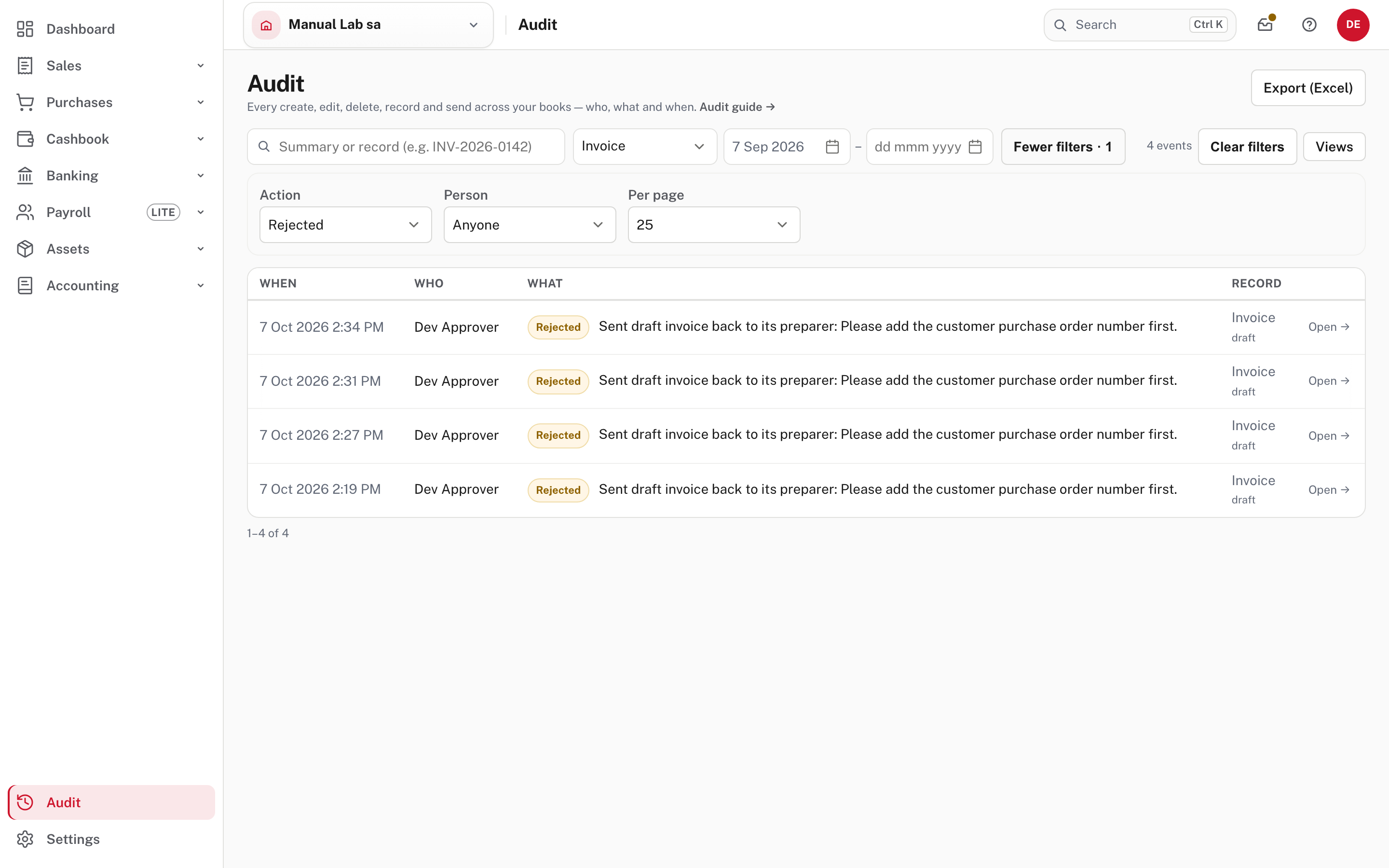
This one answers "which invoices were sent back, and why?": record type Invoice, action Rejected. The reason the approver typed is part of the line.
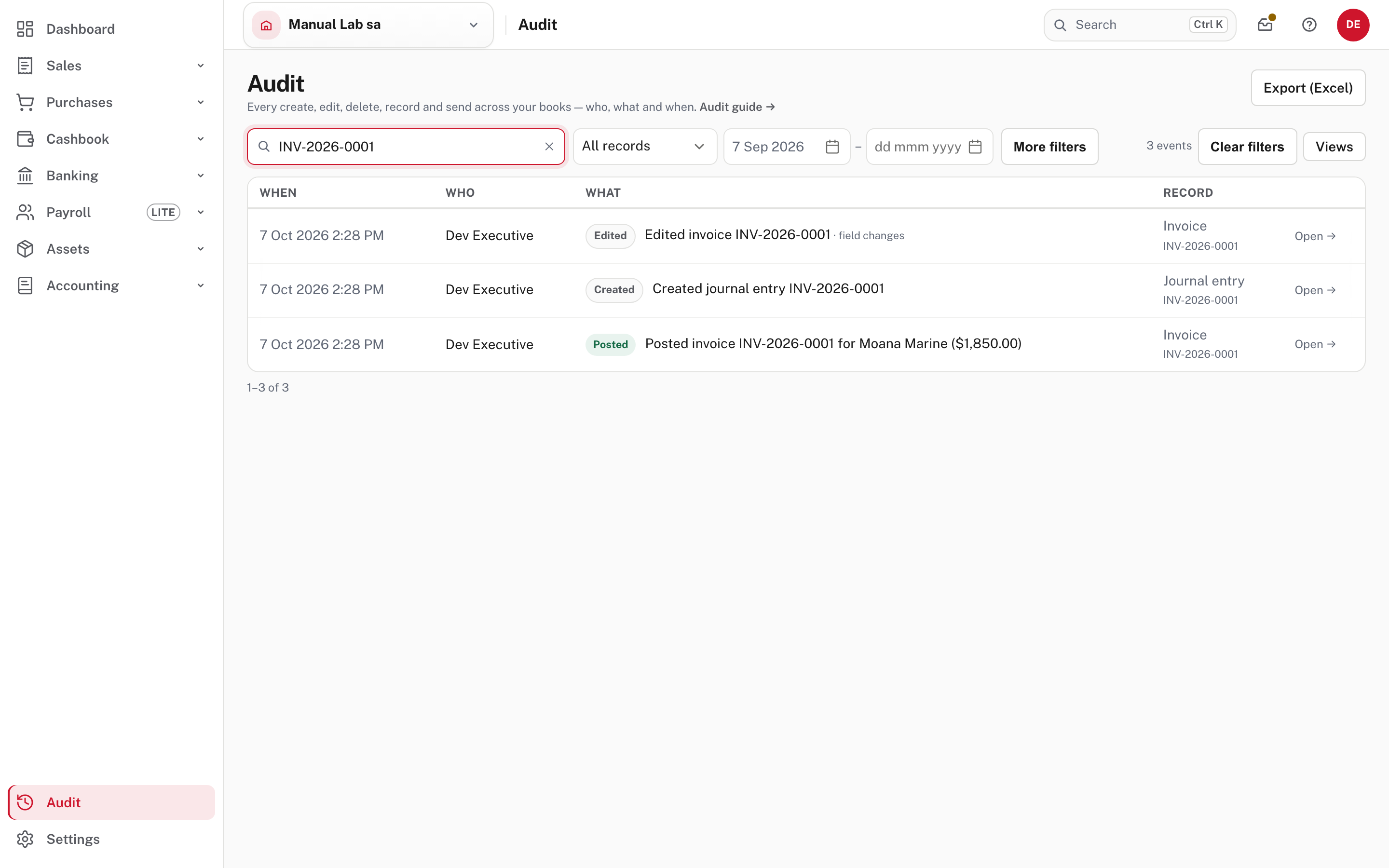
Searching INV-2026-0001 finds the three rows that carry that number. Its earlier life as a draft, before it had a number, isn't among them, because those rows say draft. For a record's whole story use its own history (step 3).
Step 3. Open the record and its history
Choose a row, or Open →, to go to the record. A finalised invoice or credit note shows a line under its status, such as Edited by Dev Executive · 7 Oct 2026 2:28 PM · View full history · Audit centre →.
View full history goes to the History panel at the bottom of the page: choose Show.
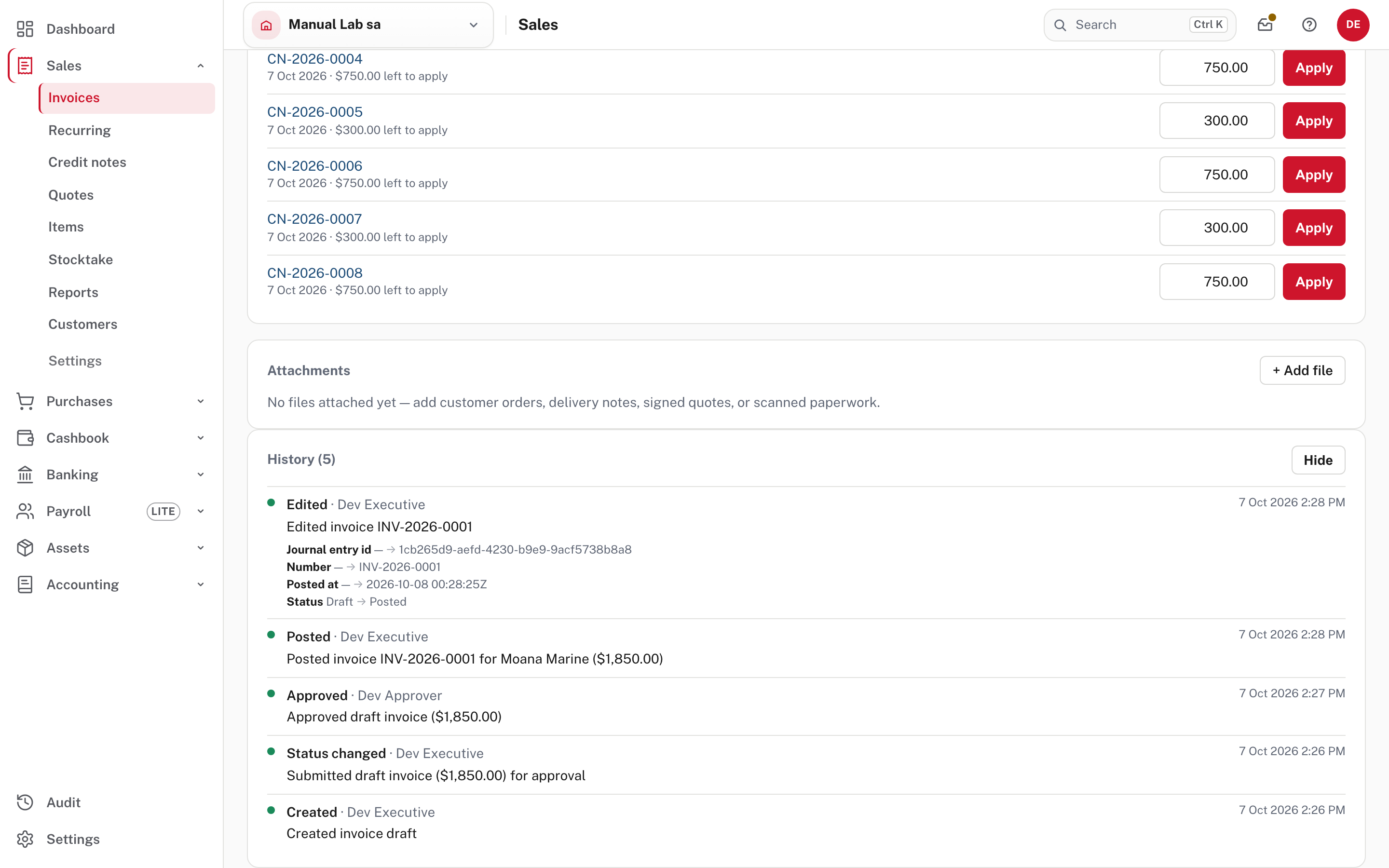
Each line says who did what and when. Where fields changed, they are listed with the old and new value: here, finalising the invoice changed Status from Draft to Posted and gave it its Number.
Audit centre → opens the Audit centre for that one record, over all dates.
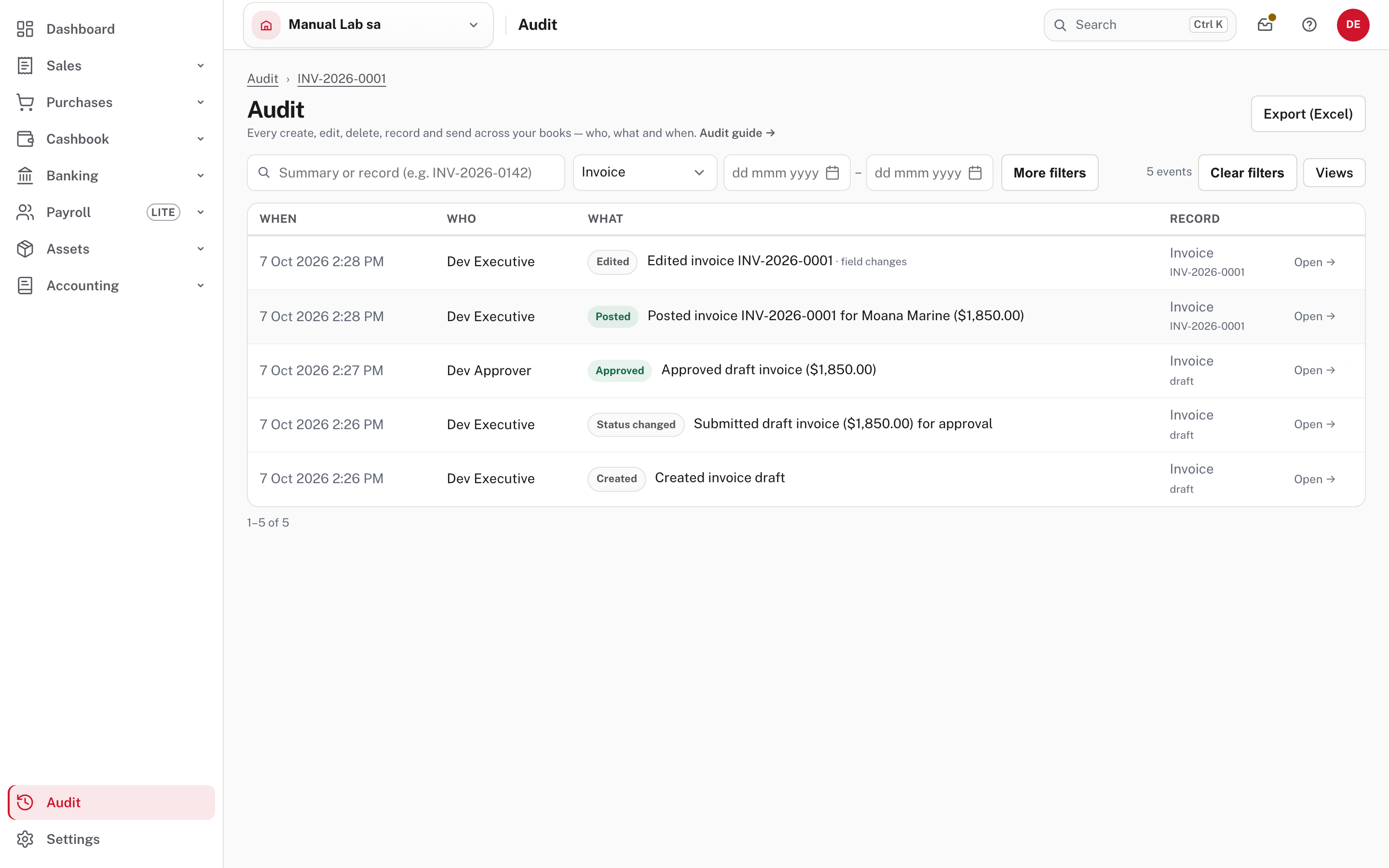
The five lines are the invoice from start to finish: Created invoice draft, Submitted draft invoice for approval, Approved draft invoice (by Dev Approver), Posted invoice INV-2026-0001 and the Edited line for the same posting. The trail at the top reads Audit › INV-2026-0001, and Clear filters returns to the full list.
What Easy writes itself
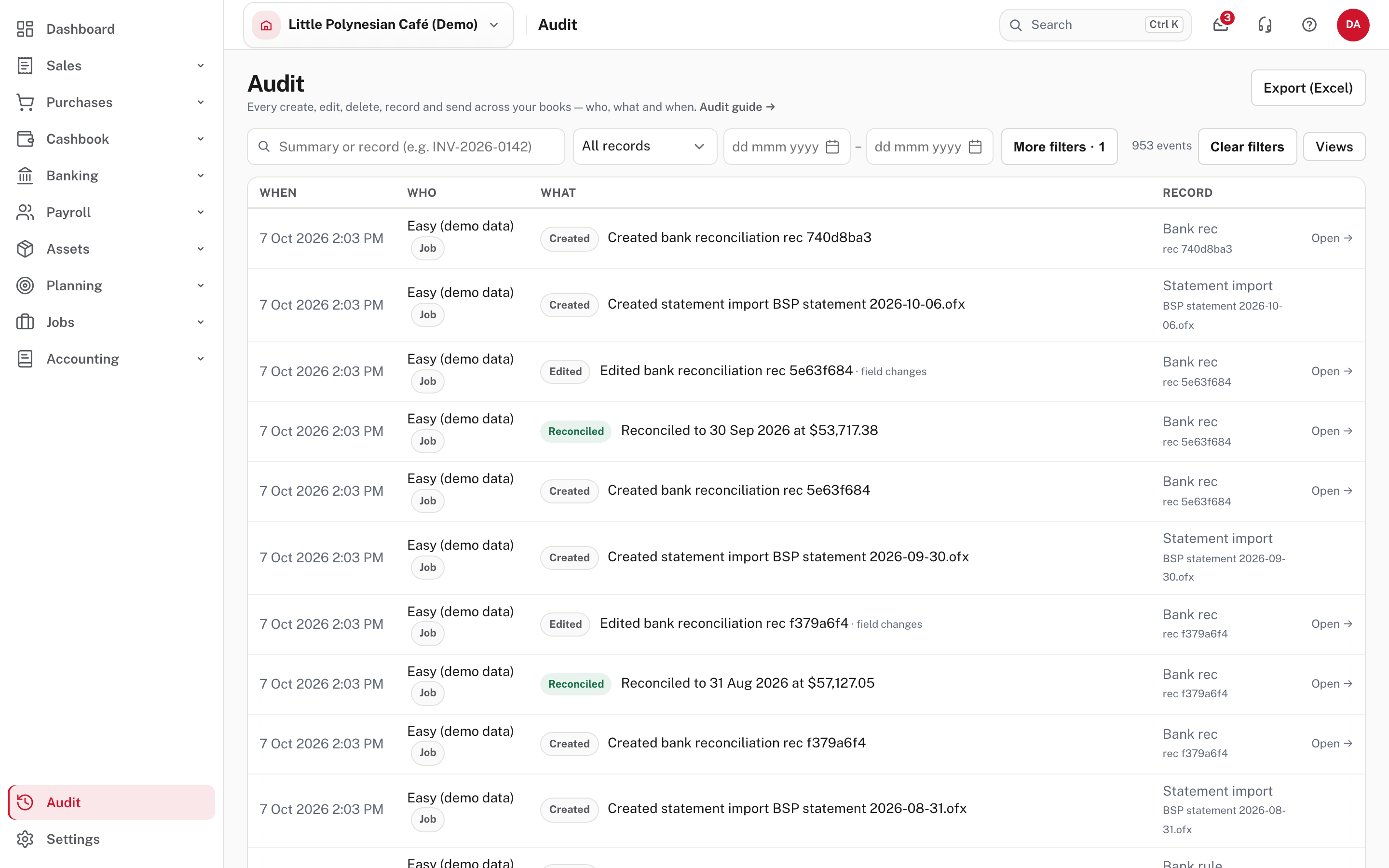
In the demo company, filtering Person to system: demo-data lists what its setup job created. Who reads Easy (demo data) with a Job badge. Imports, a customer acting through a shared link and the API carry their own badge in the same place (from Easy's source; only Job is in the demo), and that customer appears as Customer portal in the Person list.
Step 4. Export it
Choose Export (Excel), top right. It gives you the activity the page is showing now, with the filters you set, as an Excel workbook named audit- followed by the date and .xlsx. Set the dates and filters first, then export, to hand an auditor one period or one person. An export holds up to 10,000 rows, and the workbook says so when it was cut short, so narrow the dates and export again (from Easy's source; the workbook was not opened in the demo).
Step 5. Who can see it, and how long it is kept
The Audit centre is for the roles that need it. This table comes from Easy's source:
| Role | Opens Audit |
|---|---|
| Owner, Administrator, Accountant | Yes |
| Approver | Yes (shown above) |
| Read only / Auditor | Yes |
| Data entry, Payroll manager, Employee | No |
Anyone who can open it can also export it. No screen edits or deletes a line.
How long it is kept: Settings → Data & import → Records & retention. Only the Owner or an Administrator can open this page.
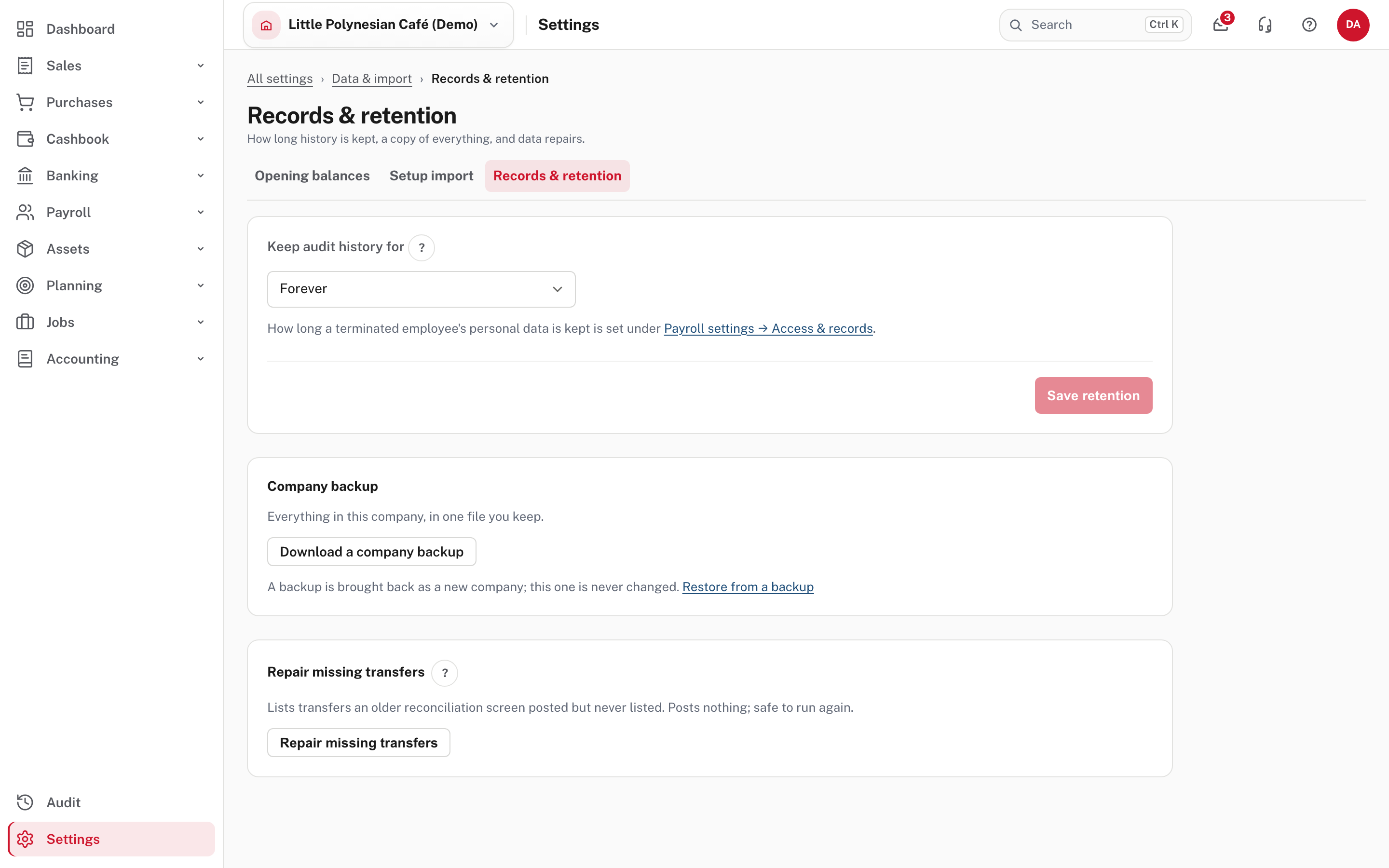
Keep audit history for offers Forever, 12 months, 24 months, 36 months and 7 years, and the demo is on Forever. Choose a period and Save retention. Check what you are required to keep before you shorten it. Changing the setting is not the same as deleting a transaction: your invoices and bills stay. From Easy's source, not shown in the demo: the trail is trimmed only by a background job, never to less than 12 months, and the job leaves pay-run sign-offs and employment-record lines alone (a former employee's personal data has its own period, set under Payroll settings → Employee access & records). The same page holds the company backup (Billing, backups and your data).
Good practice
- Look at what is risky each month. Filter Action to Deleted, Reversed and Reopened, and read who did them and why.
- After someone leaves, filter Person to their name for the period before they went, and keep the export.
- Check approvals. Approved and Rejected lines show who decided, so a document that should have waited can be checked against them.
- Before an audit, set the dates to the year under review and export it.
Check before you continue
Check before you continue
- You can find the Audit entry, and you know who else in the business can.
- You can answer "who did this, and when?" for one record, from its History or its Audit centre → link.
- You know to export after setting the filters, not before.
- The retention period is a choice you made on purpose, and is not shorter than the record-keeping you owe.
- Someone other than the people who enter the work looks at the trail each month.