Sales approvals: a second person signs off before it goes out
Some businesses want a second pair of eyes on what leaves the building: a manager who checks the price on a quote, a board member who signs off any credit note over a set amount. Easy can ask for that on quotes, invoices and credit notes. You switch it on once, the person who prepares a document sends it for approval, and a different person approves it or sends it back. Owners and Administrators set it up; whoever prepares sales documents and whoever approves them follow the steps below. It sits beside the other controls in Approvals and controls across the company, and the documents themselves are covered in Raise, send and get paid for an invoice, Quotes and Credit notes, undoing and correcting.
About the screenshots
Approval is off in every new company, including the demo company Little Polynesian Café, so these pictures are from a practice company (its name, Manual Lab sa, shows in the top corner). Its two made-up staff are Dev Executive (an Administrator, who sets the rules and prepares the documents) and Dev Approver (an Approver), and the customer, Moana Marine, is made up. Email sending isn't set up, so no approval emails went out, and the Email activity tab in Mail counts them as problems (24 recent problems). On a company with email set up that count is not there.
Before you start
- Decide whether you need it. With one or two people in the business it adds a step without adding safety. Turn it on when someone other than the person who decides prices and credits starts preparing documents.
- Only company administrators can switch it on: the Owner or an Administrator (from Easy's source, the Developer role can too). An Accountant keeps the books but cannot change approval rules (People, roles and access).
- Know who will approve. The people who can are the Owner, Administrators, Accountants and the Approver role: the same people who approve supplier bills. An approval always needs a different person from the one who prepared the document.
- Your plan includes approval workflows. If it doesn't, the rows say Not in your plan and everything goes straight through.
Step 1. Choose what needs approval
Settings → Sales → Sales approvals.
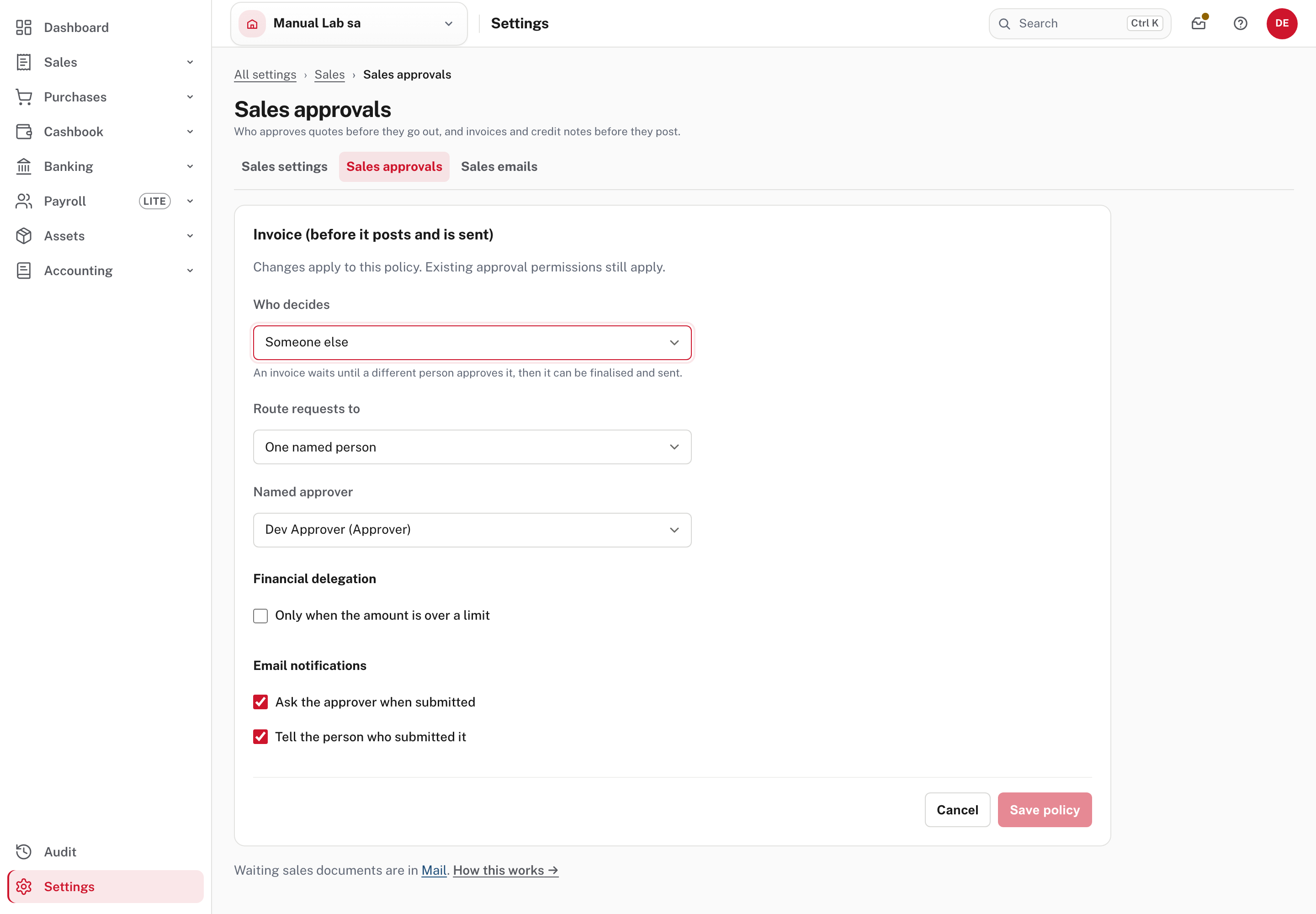
There is one row for Quotes, Invoices and Credit notes, each starting at No approval needed. Choose Edit on a row. The editor is the same one used for bills and pay runs, so the Who decides choices are explained once in Approvals and controls. What is particular to sales:
| Field | What it does here |
|---|---|
| Who decides | Someone else means a different person approves it. The person who prepared it still makes the document wait, but they may approve it themselves, and the record says so. |
| Route requests to | Anyone with the permission sends it to everyone who can approve sales documents. One named person sends it to that person only. The list holds the people who can approve, shown with their role. |
| Only when the amount is over a limit | Financial delegation: at or under the limit the document goes straight through, over it the rule applies. A limit suits credit notes best, for example "credit notes over $500". A document in another currency is compared on its value in your books currency. |
| Ask the approver when submitted / Tell the person who submitted it | The two emails: one to the approver when something is submitted, one to the preparer when it is decided. Both are ticked in the picture. |
Choose Save policy. In the picture below, quotes go to anyone who can approve, invoices go to one named person (Dev Approver), and credit notes go to anyone who can approve but only above $500.
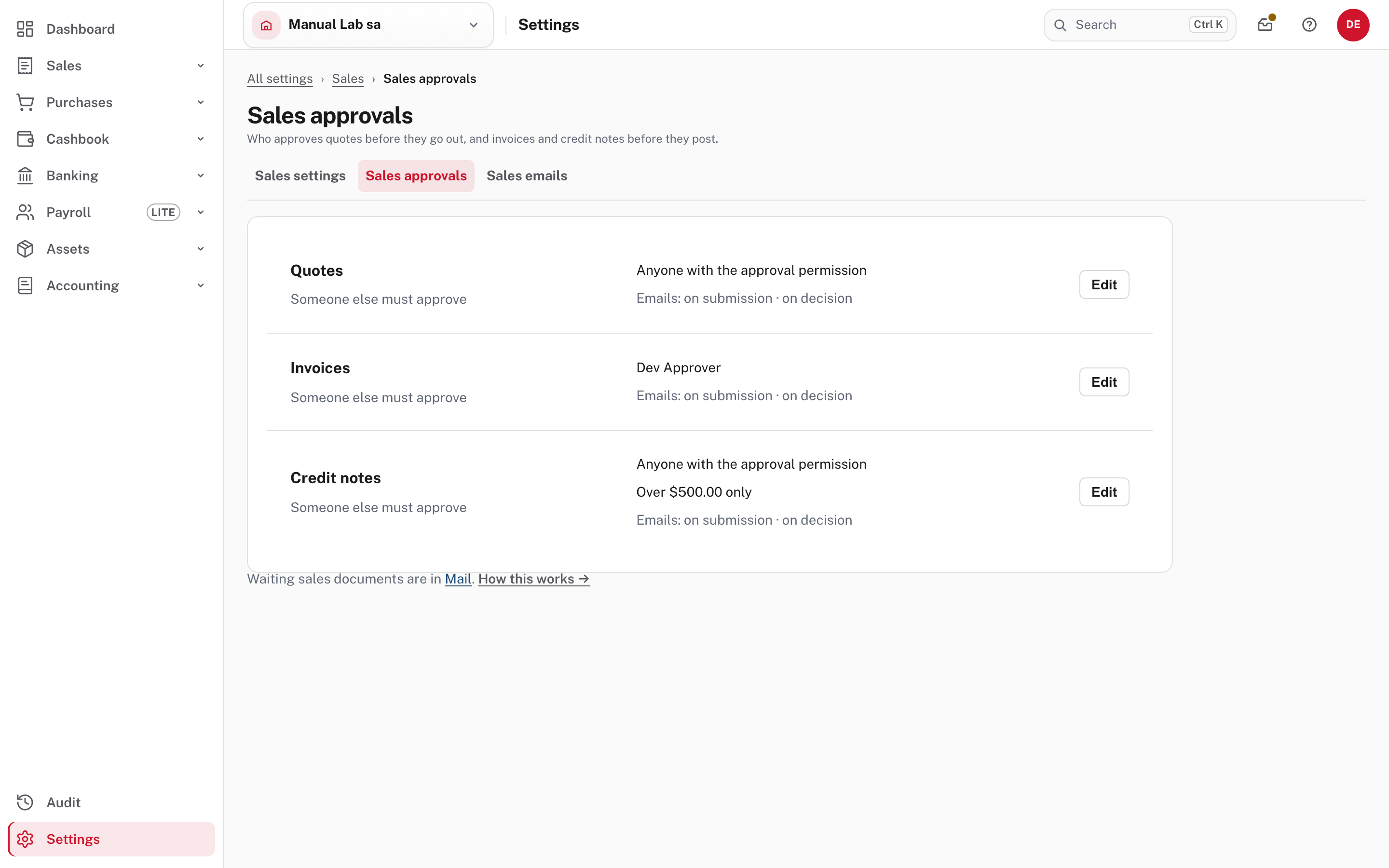
What changes for documents that already exist. A quote that was open before you switched approval on needs approving before it is next sent. An invoice finalised before you switched it on is not touched. More: Sales approvals.
Step 2. Prepare the document and send it for approval
An invoice
Sales → Invoices → New invoice. Fill it in as usual and choose Save & finalise. Nothing about the invoice screen changes.
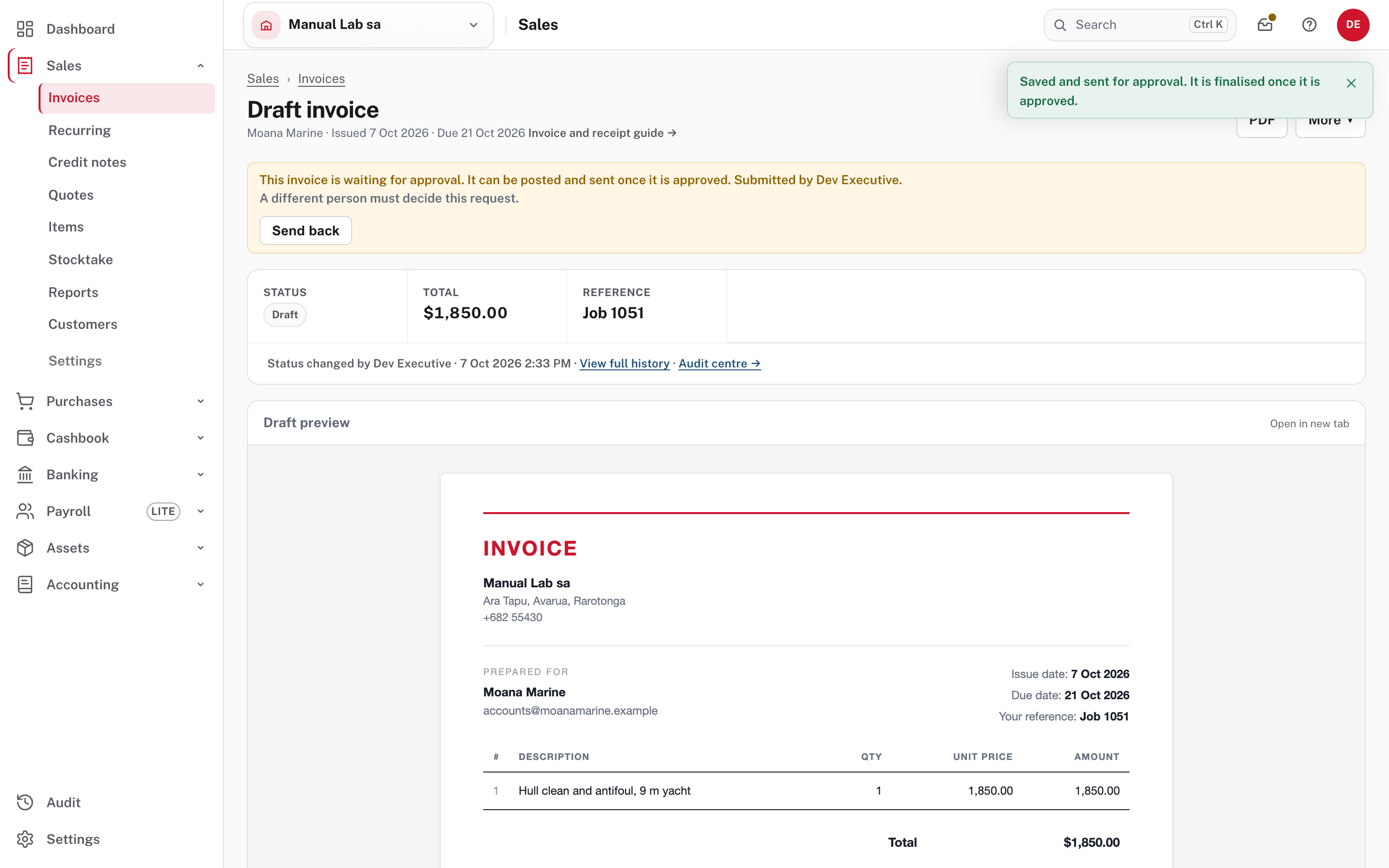
If the invoice needs approval, the one click does two things: it saves the invoice as a draft and sends it for approval. A notice says Saved and sent for approval. It is finalised once it is approved. and an amber card says it is waiting and who submitted it. Until it is approved:
- it is still a Draft: it has no number, can't be emailed, shared or paid, and doesn't count in what customers owe;
- it is locked. There is no Edit button; the page offers PDF and More. Choose Send back on the card to take it back and change it;
- you may see A different person must decide this request. on the card. You can approve sales documents, but you submitted this one, so you can't decide it.
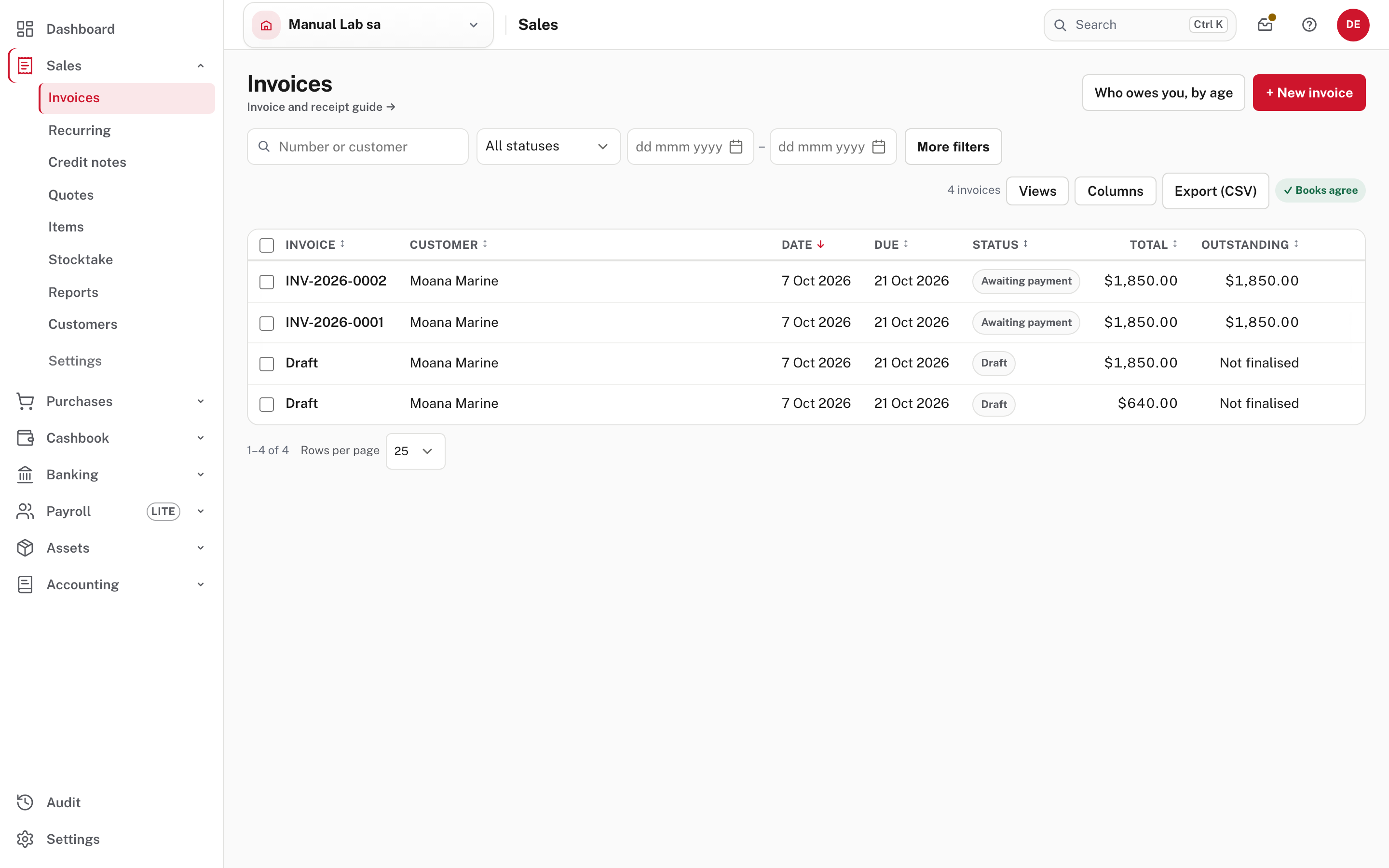
In the Invoices list a waiting invoice is a Draft with Not finalised under Outstanding, next to invoices that have been finalised and have numbers.
To see everything you have sent, open Mail (the envelope in the top bar) and choose Waiting on others.
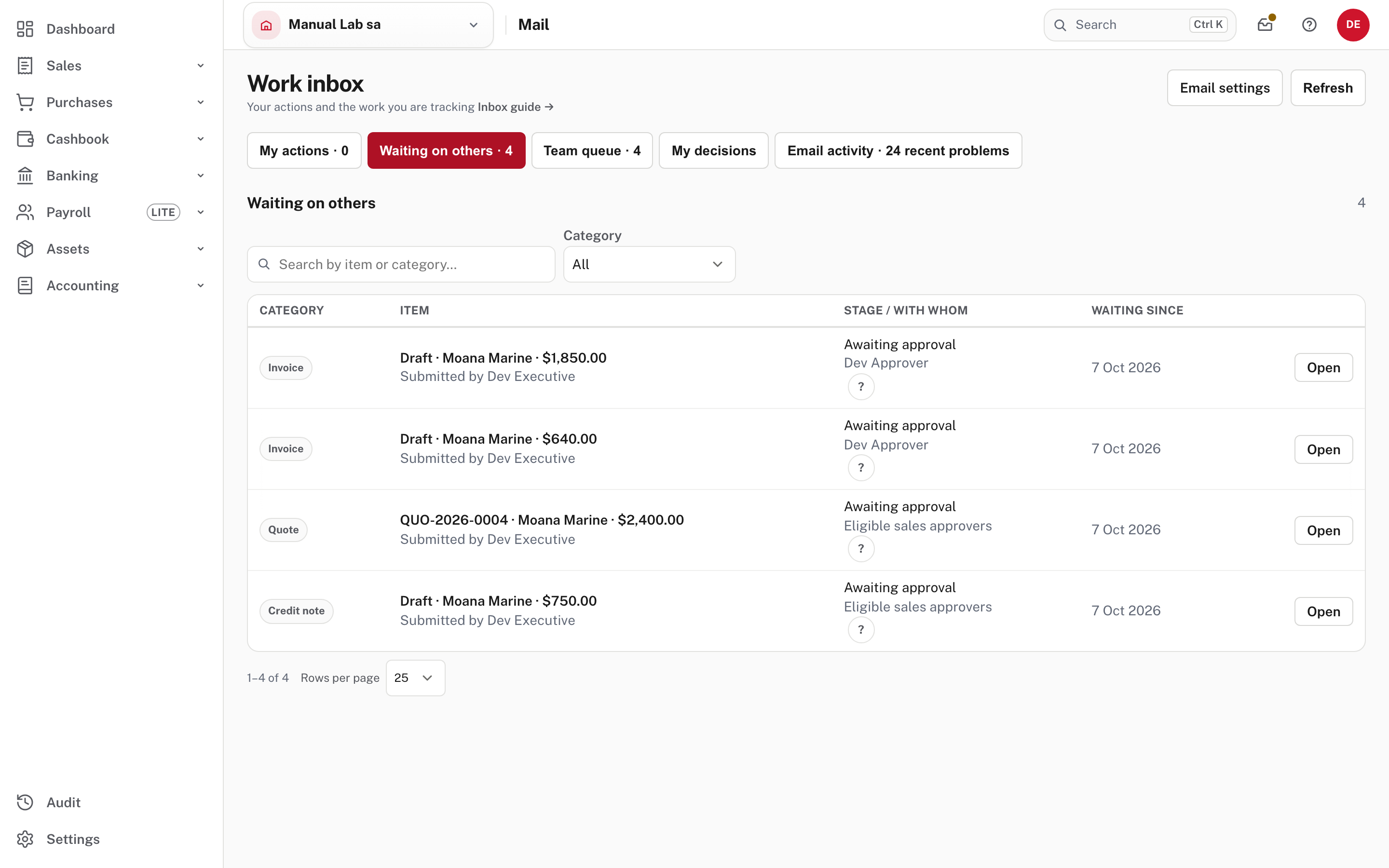
Each row says what it is, its amount, and with whom it is waiting: Dev Approver for the invoices (named person) and Eligible sales approvers for the quote and credit note. Open goes to the document.
A quote
Sales → Quotes → New quote, then Save quote. A quote is not sent for approval by saving it: the card says This quote needs approval before it is emailed or shared. Submit it for approval first. Choose Submit for approval.
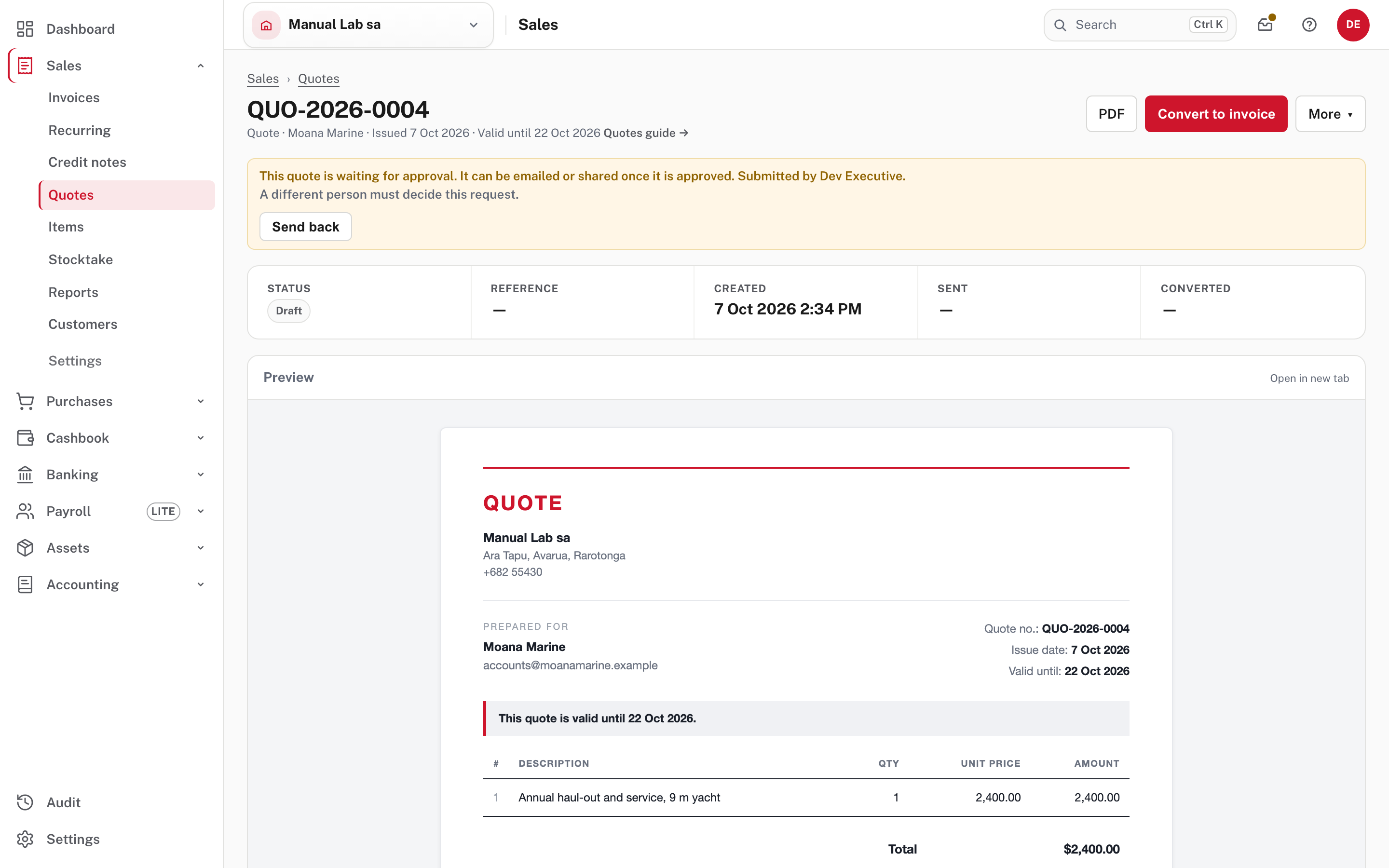
While it waits there is no Email quote button and the Customer link section says Once the quote is approved. The quote is locked like the invoice (no Edit). Convert to invoice is still there: converting is not held back, because the invoice it creates is a new document that meets the invoice rule on its own (Sales approvals).
A credit note
Sales → Credit notes → New credit note, then Save & finalise. With a limit set, the amount decides: with the $500 limit above, a credit note for $300 was finalised at once (CN-…, nothing waiting), and one for $750 was saved as a draft and sent for approval. A credit note reduces what a customer owes, so it takes nothing off their balance and can't be applied to an invoice until it is approved.
A Data entry user can save a credit note as a draft but not finalise it, whatever the approval settings (from Easy's source; not pictured: finalising a credit note is the accountant's work), so an Accountant, Administrator or Owner finalises it.
Step 3. The approver decides
The approver finds the work in Mail → My actions. This is also where an approver lands from the envelope in the top bar, which shows a number.
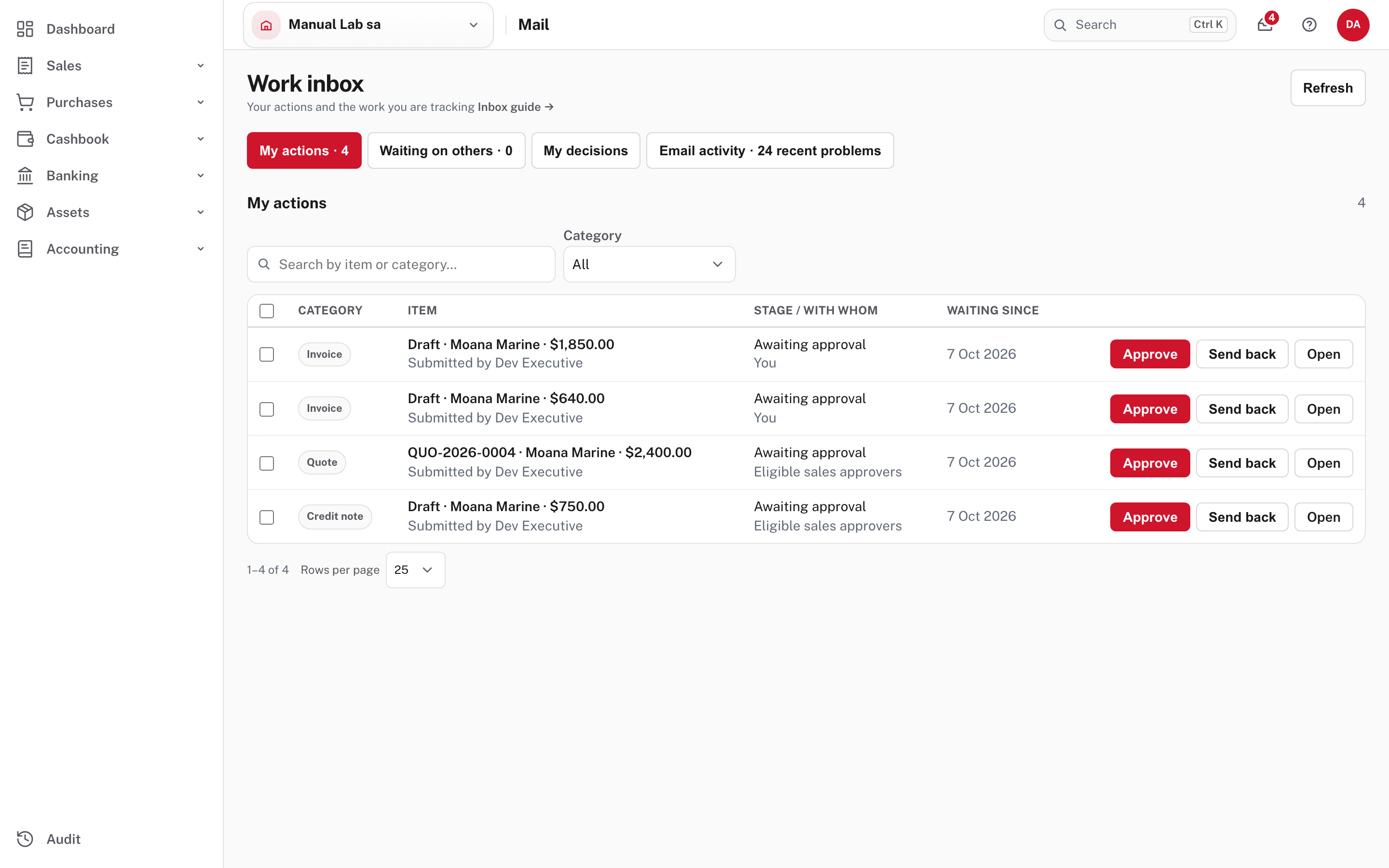
Each row names the kind of document, the customer and the amount, who submitted it, and with whom it is waiting: You when the policy names you, Eligible sales approvers when anyone can decide. Choose Open to read the document first, or Approve and Send back straight from the row. The number on the envelope counts what is waiting for you.
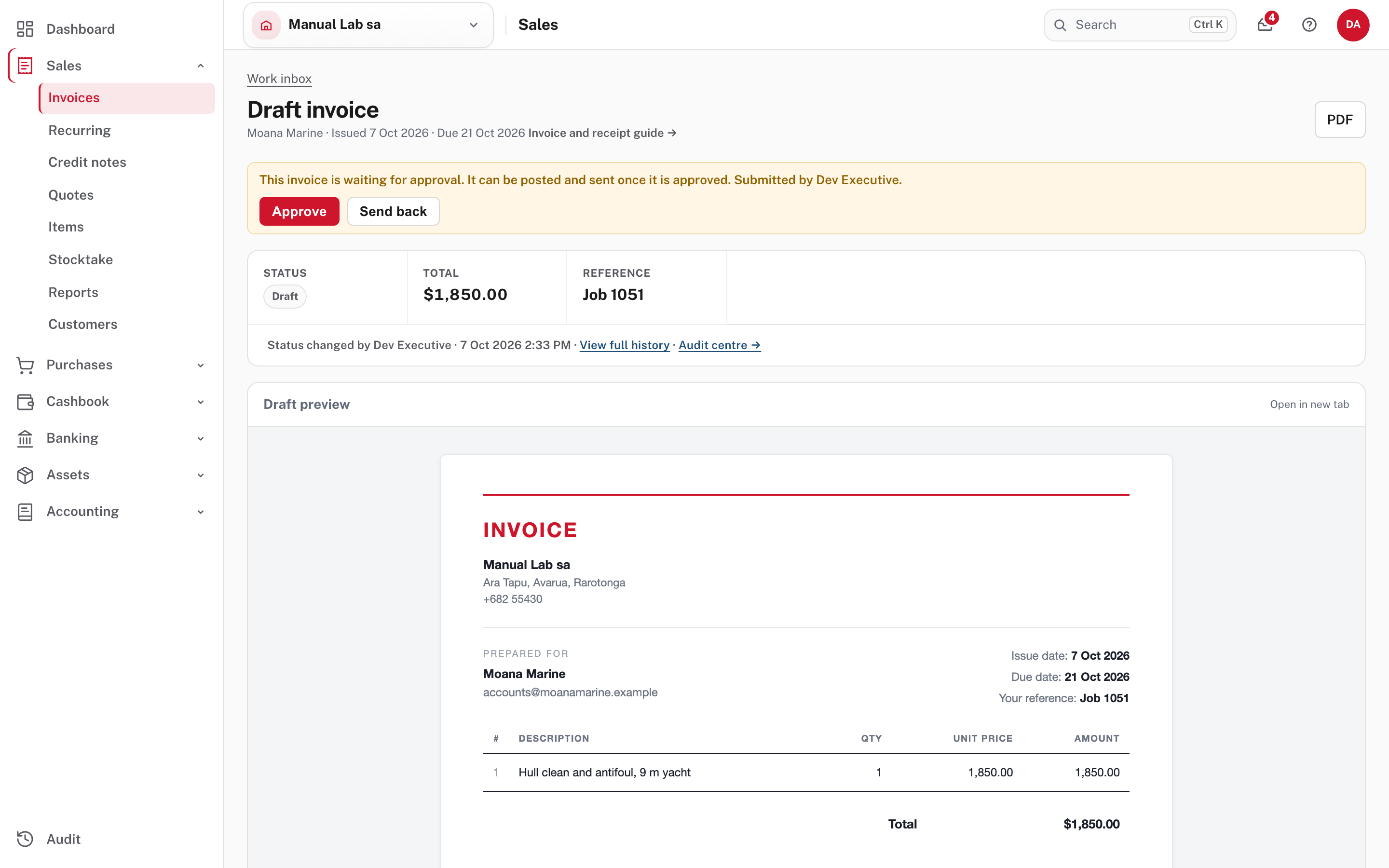
An Approver sees the document but cannot change it: the page offers PDF, and the Approve and Send back buttons on the card, and nothing else. Their menu has no Settings. Choose Approve and the card turns green. Nothing is posted yet: the preparer finalises the document in step 4.
Step 4. Send it back, and what the preparer does next
Choose Send back in the Mail row. A box asks for a Reason (optional): Say what needs changing (optional). The person who submitted it will see it.
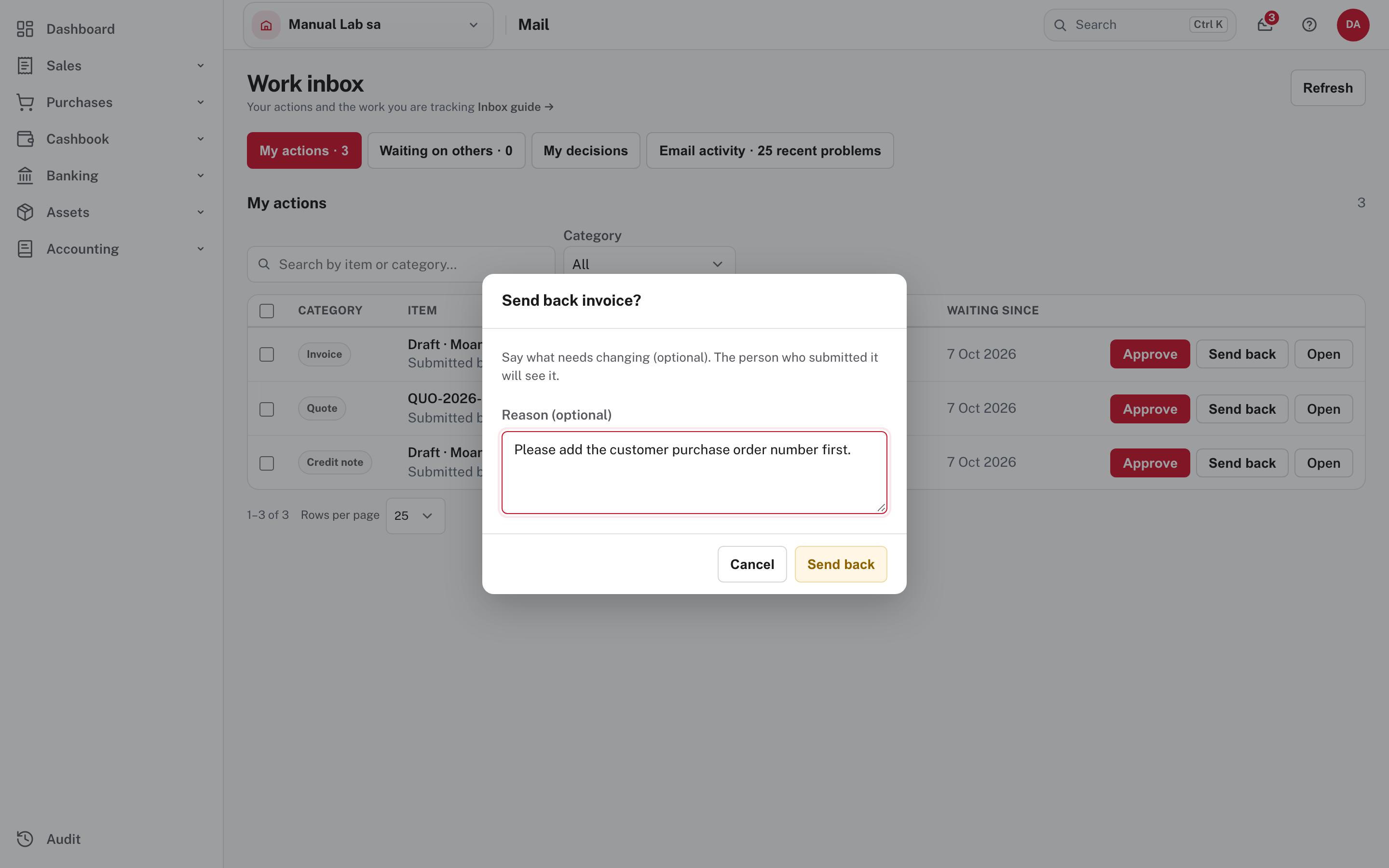
Write the reason, then choose Send back. Mail confirms Sent back to its preparer. On the document's own page the Send back button on the card sends it back at once with no box for a reason (from Easy's source; not pictured), so use Mail when you want to say why.
When it was approved
The preparer opens the document.
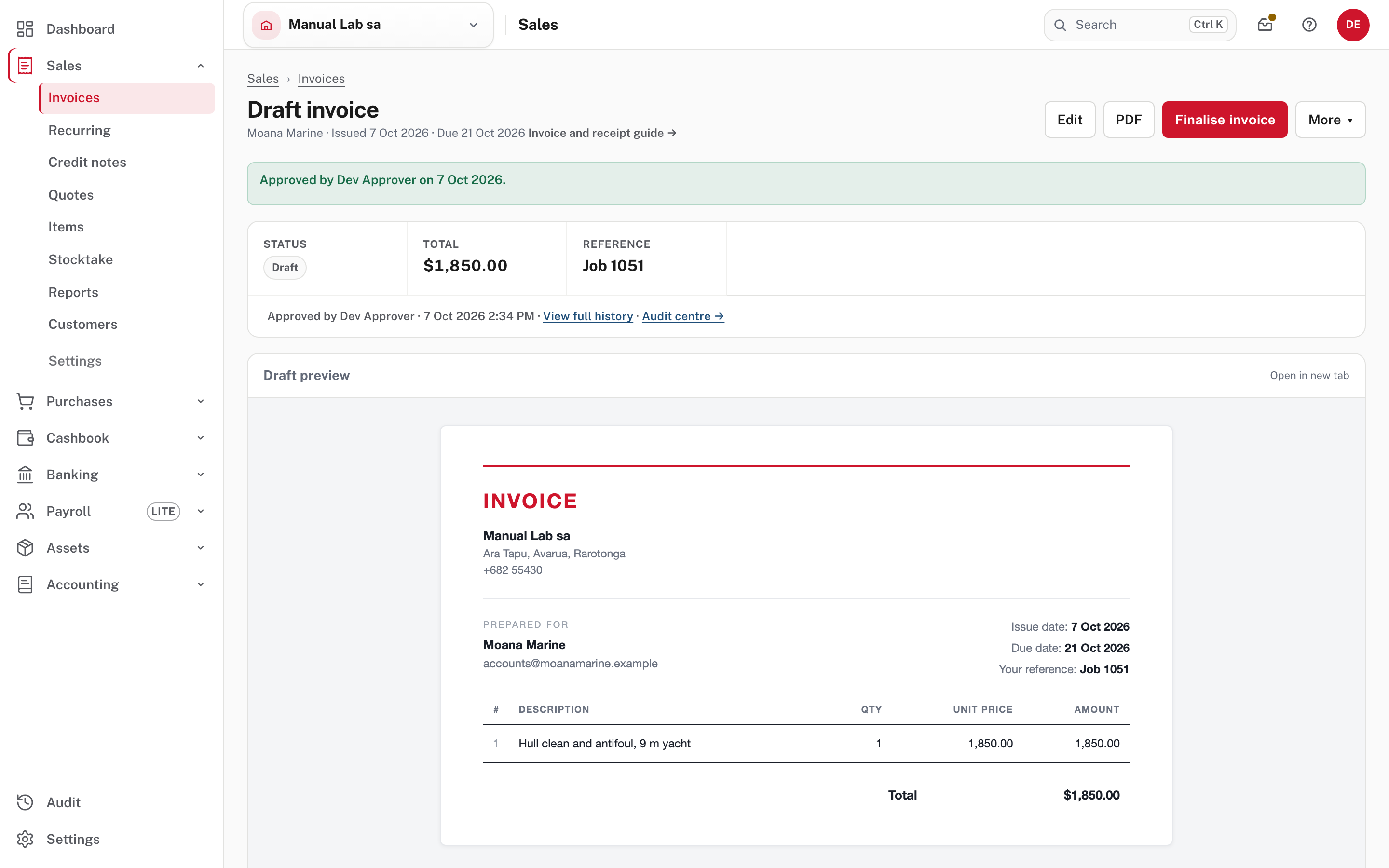
The card says Approved by Dev Approver on 7 Oct 2026. and the page offers Edit and Finalise invoice. Choose Finalise invoice: it gets its number (INV-…), and from then on it can be emailed, shared and paid as in Raise, send and get paid for an invoice. A credit note offers Finalise credit note in the same way (from Easy's Help; not pictured).
An approved quote goes out as usual.
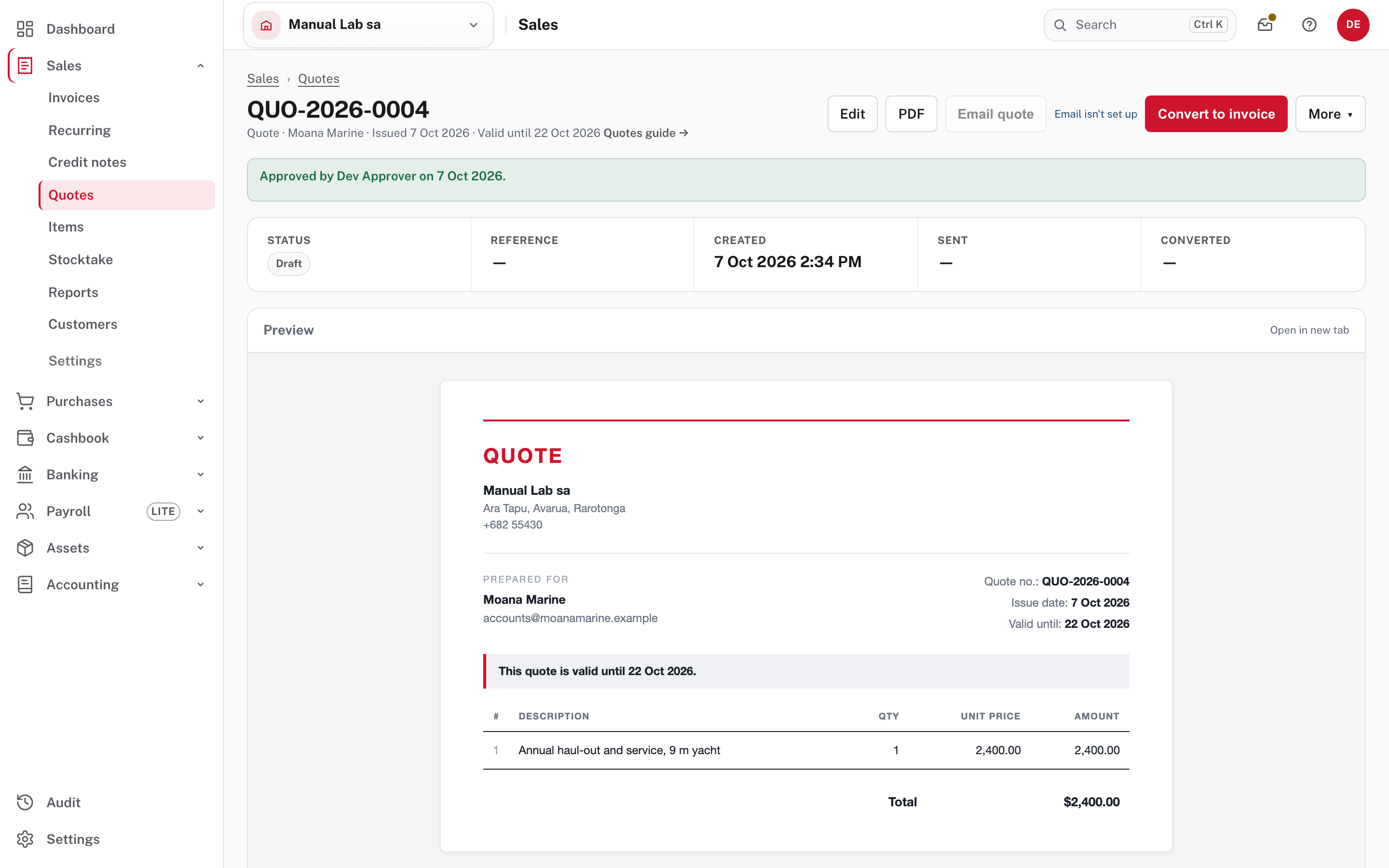
Email quote is offered again, and so is Create a link further down the page (not in the picture). Here Email quote is greyed out with Email isn't set up: that is the email setting, not the approval.
Changing an approved draft withdraws the approval
The approval is for what the document said when it was approved. Change an approved credit note, say its description, and choose Save draft: the card goes back to This credit note needs approval before it posts with The credit note changed after it was approved. and Submit for approval. Send it again; the approver decides again.
When it was sent back
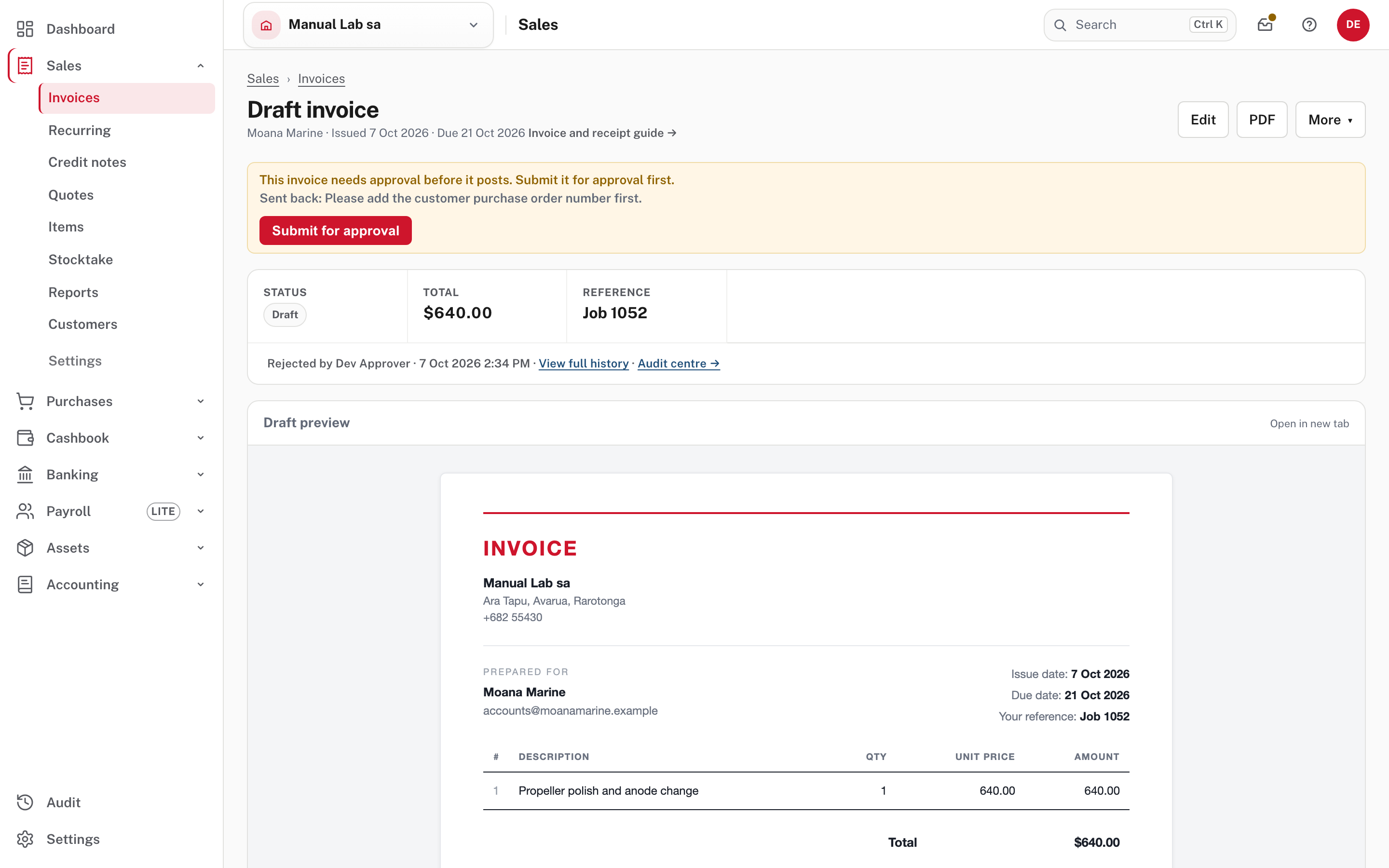
The card shows Sent back: and the reason, Edit comes back, and the footer line says Rejected by Dev Approver with the date. Change what was asked and choose Submit for approval. It starts again from step 2.
Who can do what
| Person | Can | Cannot |
|---|---|---|
| Owner, Administrator | Switch the rules on and off, prepare documents, approve other people's. | Approve a document they submitted themselves when someone else can approve it: the card says A different person must decide this request. Being the Owner does not override a named approver or the different-person rule (Work inbox). |
| Accountant | Prepare and finalise documents (including credit notes), approve. | Change the approval rules. |
| Approver | Open the documents waiting for them, approve, send back with a reason. | Edit a document, finalise it, open Settings. |
| Data entry | Prepare invoices and quotes and send them for approval. Save a credit note as a draft. | Approve anything, or finalise a credit note. |
If you are the only person who can approve, Easy lets you approve what you submitted yourself, but asks for a short reason, which is kept with the approval (Sales approvals).
Not shown in the demo
These come from Easy's Help and source and were not seen on screen: the approval emails (email is not set up); The person who prepared it as the Who decides choice; the only approver case (the company in the pictures has several people who can approve); recurring invoices set to Create and send, which are saved as drafts and submitted for approval instead of being sent; and invoices created through the API, which are kept as drafts waiting for approval. Invoices that Easy makes from records decided elsewhere, such as an import, are not held back (Sales approvals).
The record of who decided
Every submission, approval and send-back is written to the audit trail with the person, the time and, for a send-back, the reason (from Easy's source; the audit pages themselves are not pictured). Open Audit to look (Audit: who changed what). The footer line on the document (Approved by Dev Approver, Rejected by Dev Approver, as in the pictures above) shows the last decision too.
Check before you continue
Check before you continue
- Only the documents that need a second pair of eyes are switched on, and credit notes have a limit if small ones should go straight through.
- Each row says who decides, and the person named (or each person who can approve) knows to look in Mail → My actions.
- Preparers know a document waits as a Draft with no number and is locked until it is decided, and that Send back is how they change it.
- Approvers give a reason when they send something back, from Mail.
- A preparer finalises after approval: nothing sits approved but not finalised.
- Nobody expects the Owner to approve their own work when someone else can.