Find things and work faster
Easy has a handful of habits that save a lot of clicking: one search that opens almost anything, a few keys, lists that remember how you like them, bulk actions on the lists, a trail that walks you back to where you came from, and one place (Mail) that says what is waiting for you. Learn them once and they work across the app. Everyone who signs in to a company can use them, except the Employee role, whose screens are their own pay and leave. For roles, see People, roles and access; for the first time in the app, see Set up your company.
About the screenshots
Screenshots are from Easy's demo company, Little Polynesian Café. Names and amounts are made up. Email sending isn't set up on the demo, so the email buttons are greyed out with an Email isn't set up note, and the two emails in Email activity are samples marked Not sent.
Before you start
- Nothing needs setting up. What the search and the menus show depends on your role and on the modules your plan includes: a page you can't open isn't offered.
- The Employee role has no search and no Mail icon. Signed in as an employee, the top bar has neither; the employee lands on their own page (see Employee self-service). Everything below is for the other roles.
- A Mac uses ⌘K where this chapter says Ctrl+K.
Step 1. Search and go anywhere
Press Ctrl+K, or /, or choose Search in the top bar.
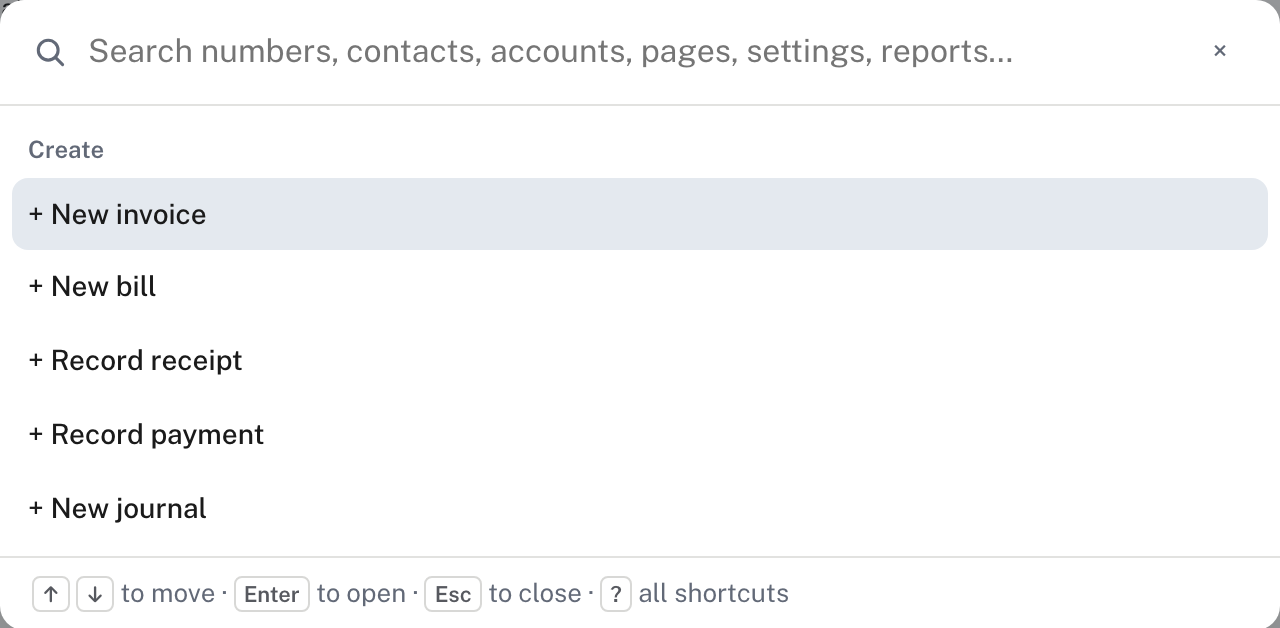
With nothing typed it offers + New invoice, + New bill, + Record receipt, + Record payment and + New journal, for the roles that can record them. Press Enter to start one.
Type a few letters and the list narrows as you type.
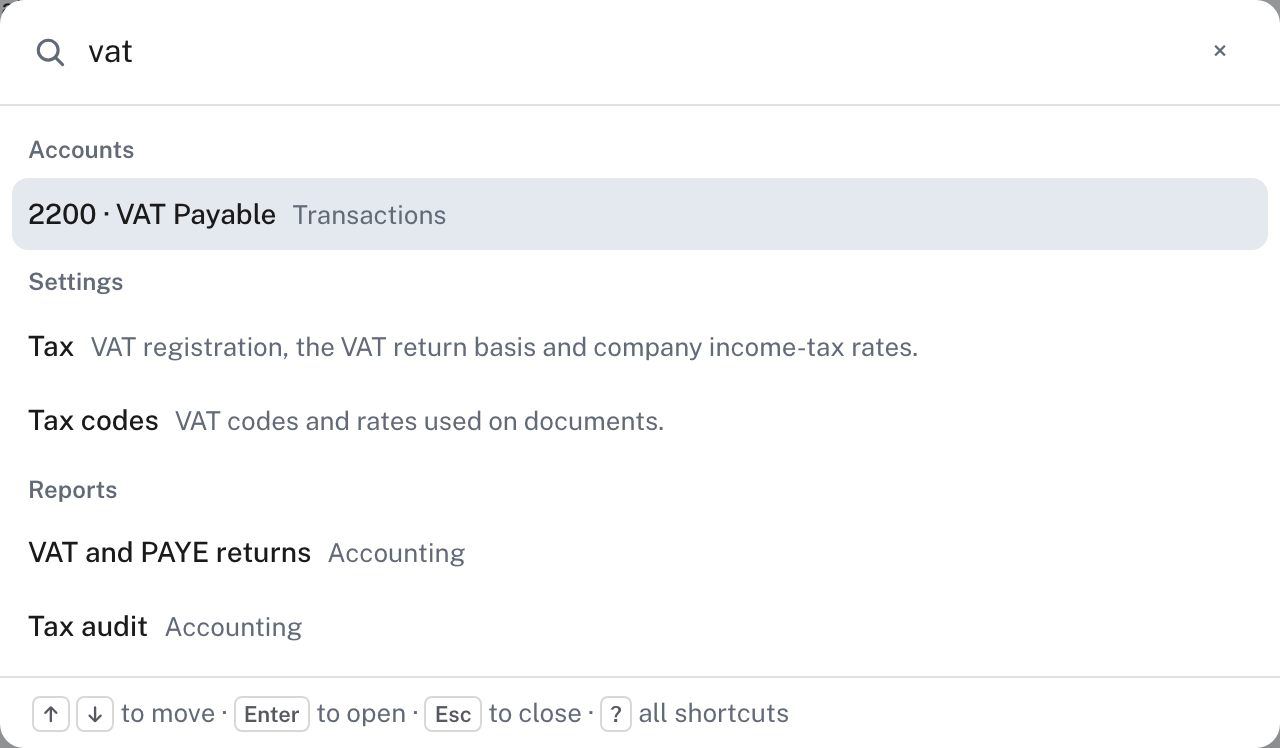
You can search for:
| Type | What it finds |
|---|---|
Part of a document number (0037, INV-2026-0037) |
The invoice, quote, credit note, bill, purchase order, supplier credit note, receipt or payment with that number. 0037 found an invoice, a bill, a receipt and a payment in the demo |
| A customer or supplier name | The customer or supplier, not their invoices. To see a customer's invoices, open the Invoices list and type their name in its search box |
| An account code or name | The account, with a grey word saying where it opens (here Transactions) |
| A page, setting or report | The page, with the module it lives in or a line saying what it holds |
Use the up and down arrows to move, Enter to open what is highlighted, and Esc to close. The results are grouped (Invoices, Bills, Customers, Accounts, Settings, Reports and so on), and only what your role and plan can open appears. More detail: Search and go anywhere.
Step 2. Keyboard shortcuts
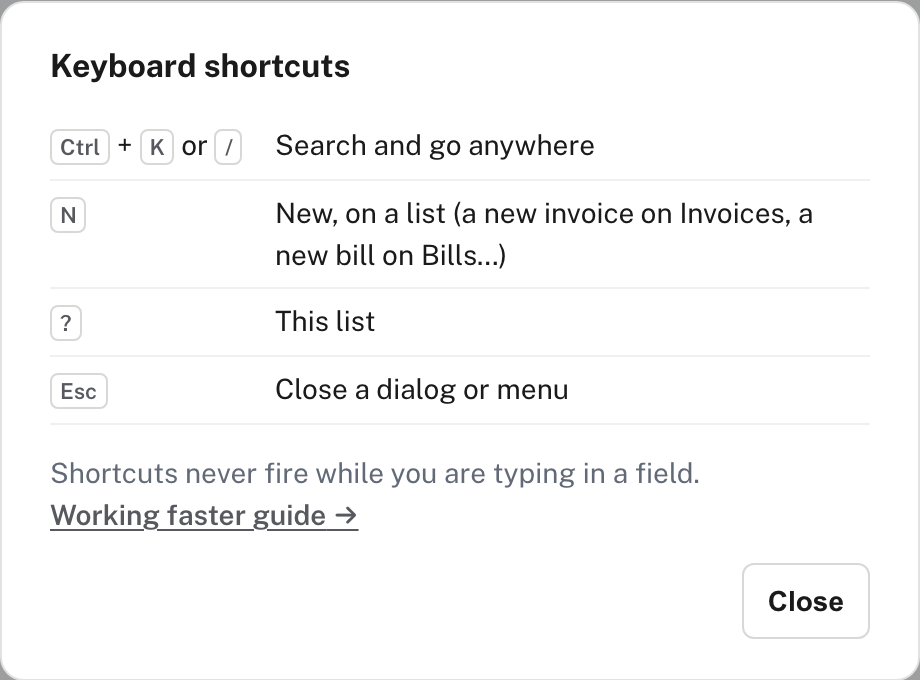
Press ? (anywhere except in a field) to see them.
| Key | What it does |
|---|---|
| Ctrl+K or / | Search and go anywhere |
| N | New, on a list: on Invoices it opens a new invoice, on Bills a new bill |
| ? | This list |
| Esc | Close a dialog or menu |
In the demo, N opened the new-document page on both Invoices and Bills. The keys never fire while you are typing in a field, and / and N do nothing while a dialog is open, so you can't start something by accident while writing a narration.
Step 3. Lists that remember how you like them
The registers (Invoices, Bills, Receipts, Payments, customers, suppliers and more) share one toolbar. Which buttons a register has (Views, Export) differs a little; the lists are below.
Sales → Invoices, with the status set to Overdue:
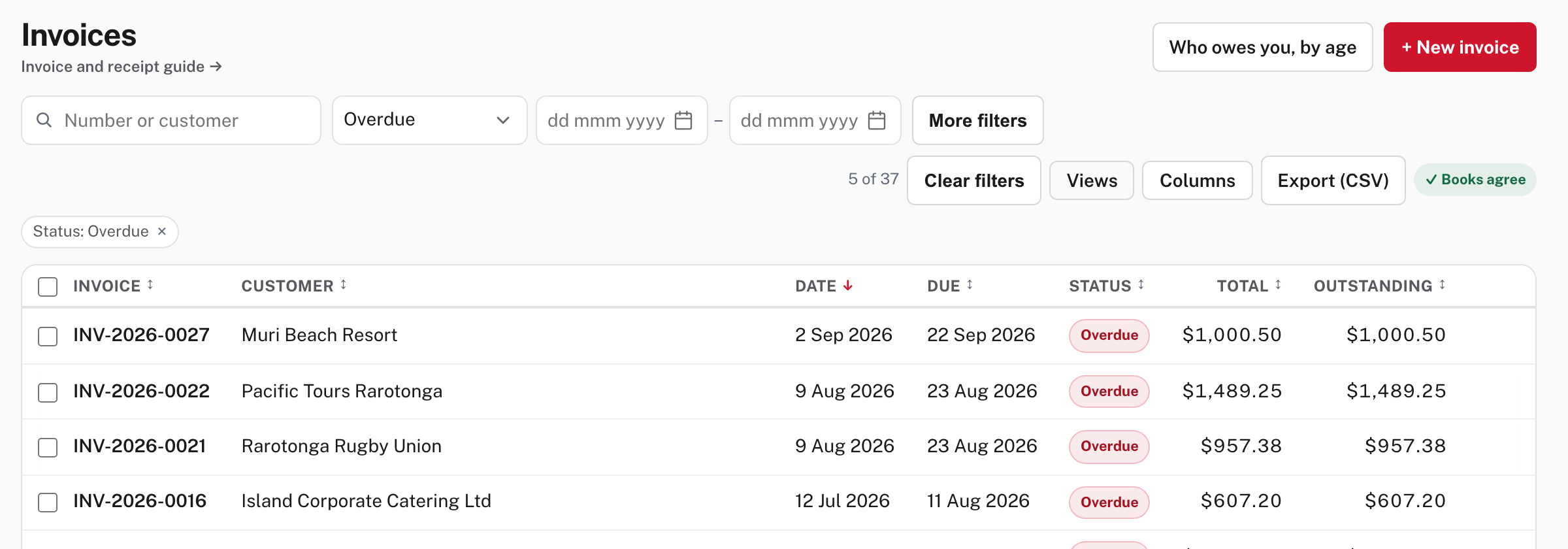
- The search box and filters. On Invoices the box reads Number or customer; beside it are the status, a date range and More filters. The line above the table says how many rows match (5 of 37), and a chip under the toolbar names each filter (Status: Overdue). Clear filters removes them all.
- The filters are in the page's address. After choosing Overdue the address read
/sales?status=overdue, so a bookmark returns you to the filtered list. - Columns is a menu of tick boxes for the optional columns (on Invoices: Customer, Date, Due, Status, Outstanding). Your choice goes into the address too.
- Export (CSV) downloads every row the current filters match, across all pages, as a spreadsheet file. Its link carries the filters
(on Invoices:
sales/invoices/export?status=overdue), so what you see is what you get. Not shown in the demo: the downloaded file. This is from Easy's Help (Export a list). - Books agree (Invoices and Bills) is a check that the unpaid documents on the list add up to the matching account in your books. From Easy's source: when they disagree, a warning replaces the chip, with a link to the period-close check (Month-end checklist).
Save a list as a view
Set the search, filters and sort you want, choose Views, type a name under Save these filters as, and choose Save view.
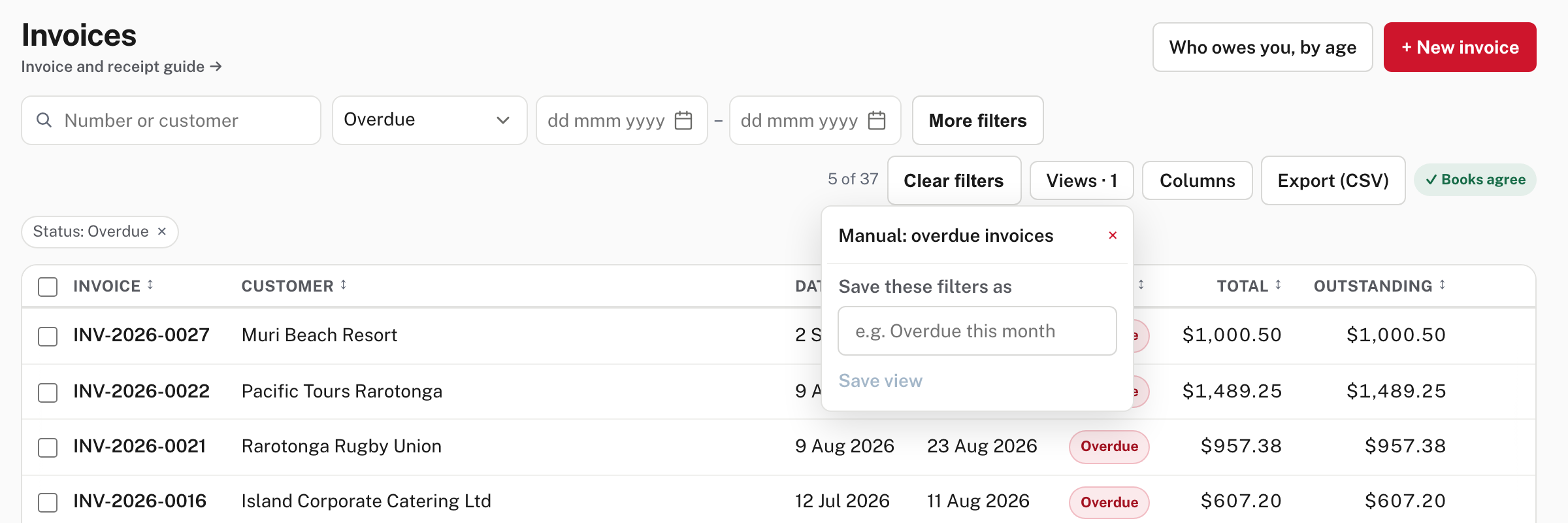
The button then reads Views · 1. Choosing a view's name later opens the list exactly that way. Help says a view is yours alone (nobody else in the company sees it) and belongs to this company. To delete one, choose the × beside it and confirm Delete this view?.
Help lists the registers that have Views and Export: Invoices, Quotes, Credit notes, Items, Bills, Purchase orders, Receipts and Payments have Views, and Customers, Suppliers and Supplier credit notes join them for Export. Only Invoices was tried in the demo. See Saved views of a list.
Step 4. Act on several rows at once
Tick the box at the start of two or more rows. A bar appears above the table.
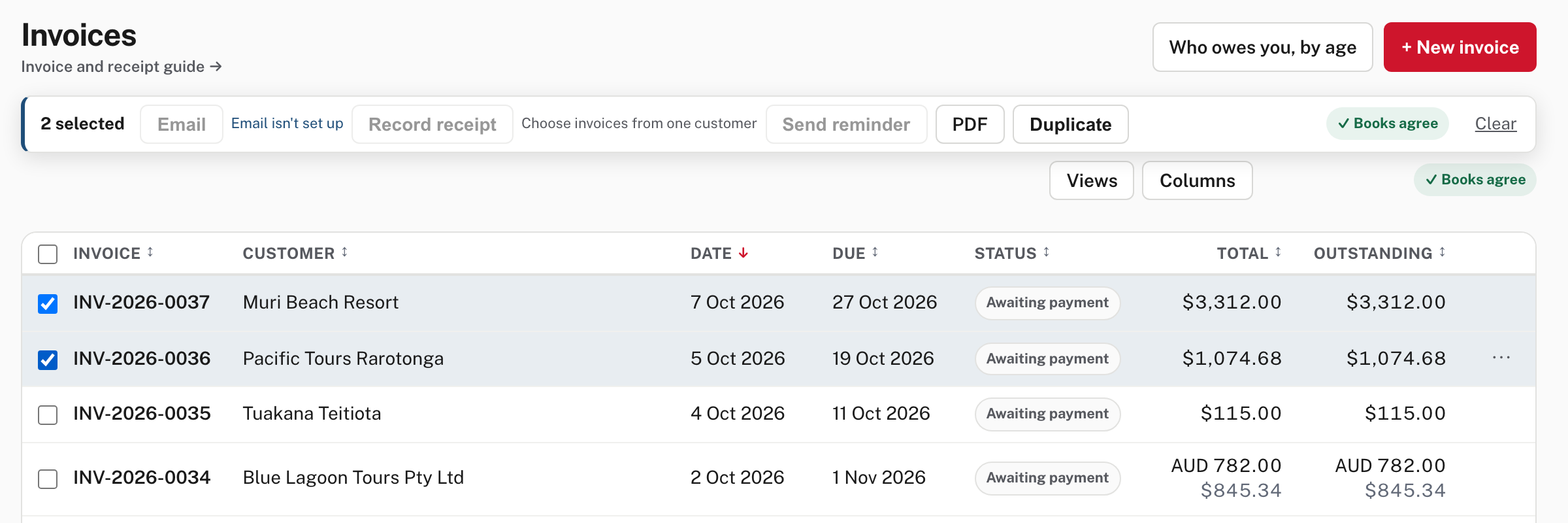
On Invoices the bar offers Email, Record receipt, Send reminder, PDF and Duplicate, with a count (2 selected) and Clear at the far end. It takes the place of the filter row while rows are ticked, so choose Clear to get the filters back.
- Greyed out is information. Email and Send reminder are greyed out because email isn't set up on the demo. Record receipt is greyed out with Choose invoices from one customer, because the two ticked invoices belong to different customers.
- Send reminder asks you to confirm first (it emails customers) and leaves out paid invoices and customers with no email address. Not shown in the demo (email isn't set up): this is from Easy's source.
- Record receipt (and Record payment on Bills) saves nothing itself: Help says it opens the form ready to check, and nothing is saved until you save that. It needs documents from one customer or supplier, in one currency, that are recorded and still owed.
- The same bar on Bills offers Record payment, a PDF of the payment vouchers and Duplicate; on Purchase orders it offers Email, one PDF and Duplicate. That is from Help (Act on several rows at once); only Invoices was tried in the demo.
For one row, the ⋯ menu at the end of the row has Open, PDF, Print, Email and Duplicate (as seen on Invoices).
Step 5. Follow a figure, and find your way back
Every figure on the dashboard is a link to the report behind it.
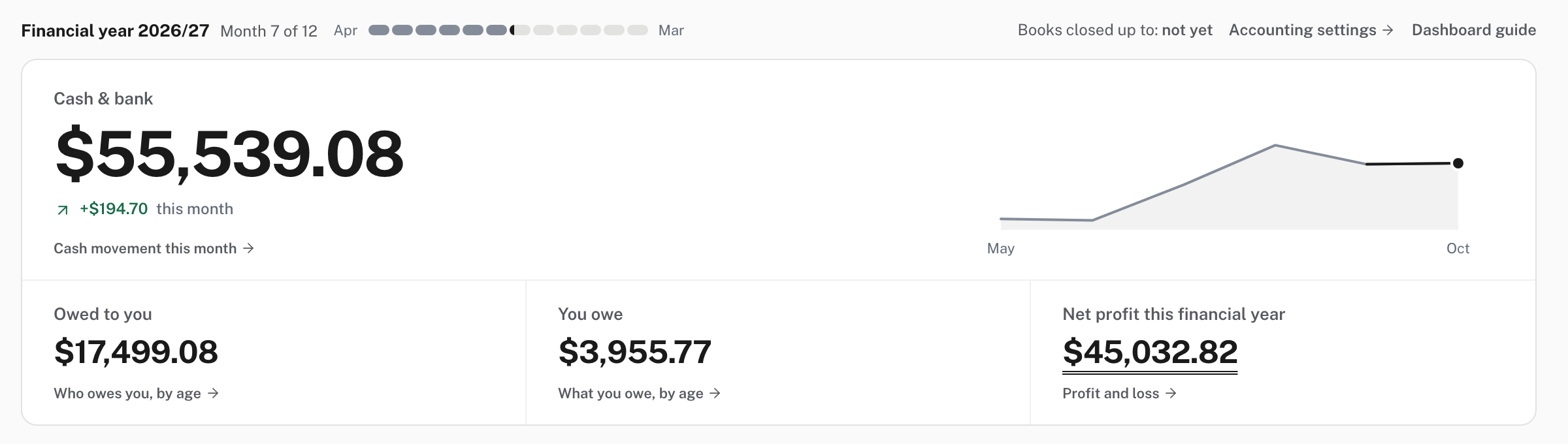
Choosing Who owes you, by age under Owed to you opens the aged receivables report as at today. Help gives the rest: the cash figure opens the month's cash movement, You owe opens aged payables, Net profit opens Profit and loss from the start of the financial year, and so on, each for the same dates, so the page you land on shows the same number (Follow a figure). Check the financial year and date shown beside a figure before you compare it with something else.
As you drill down, Easy keeps a trail above the page heading. Here it follows Who owes you, by age from the dashboard, then an amount for Island Corporate Catering Ltd, then an invoice:

Each step is a link that re-opens that page as you left it (the same dates, filters and page of the list). The page you are on is not in the trail: its heading is right below. Following a figure from a report starts the trail at the module:

Use the trail instead of the browser's Back button when you have gone several steps in. A module's own first page, such as Invoices, shows
no trail (as in the earlier pictures). From Easy's source: a page below a tab that you open from the menu shows where it lives (for example
Sales › Invoices), and the trail is kept in the page address (returnTo=), so a link you copy from a drilled-down page carries it.
Step 6. Mail: what is waiting for you
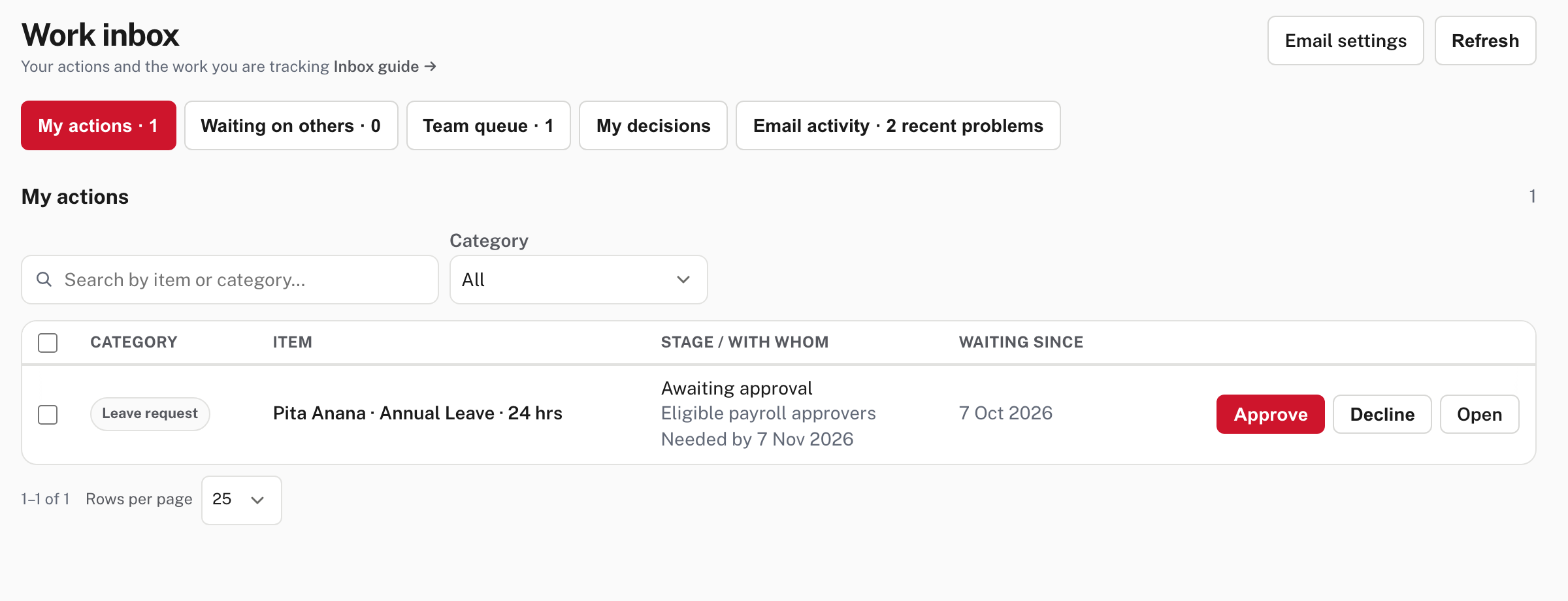
The Mail icon in the top bar is the one door to what needs a decision from you and to the record of the emails Easy sent.

The red number is how many decisions are waiting for you (from Easy's source, its tooltip reads Mail · 1 waiting for you). When nothing is waiting but a notification email didn't go out since you last looked at Email activity, a small amber dot shows instead of a number (not shown in the demo; from Easy's source). Choose the icon to open the Work inbox.
| Tab | What it holds |
|---|---|
| My actions | Work you can act on now. Each row shows its category, the item, the stage and who can decide it, and when it has waited since, with Approve, Decline and Open. In the demo it holds one made-up leave request. |
| Waiting on others | Requests you submitted and can't decide yourself. Its count is 0 in the demo (the empty list says Nothing waiting on others). |
| Team queue | For people who manage company settings: every pending approval within their access, with Manage assignments to move a request to another eligible person. |
| My decisions | Your last 15 decisions from the last 30 days (an empty list says No recent decisions). |
| Email activity | The company's email history. |
Being the Owner doesn't let you approve something that is assigned to someone else. A separation-of-duties rule can stop the person who submitted something from approving it, and if you are the only eligible approver the sole-approver rule applies. See Approvals and controls across the company and Work inbox and email activity.
Email activity
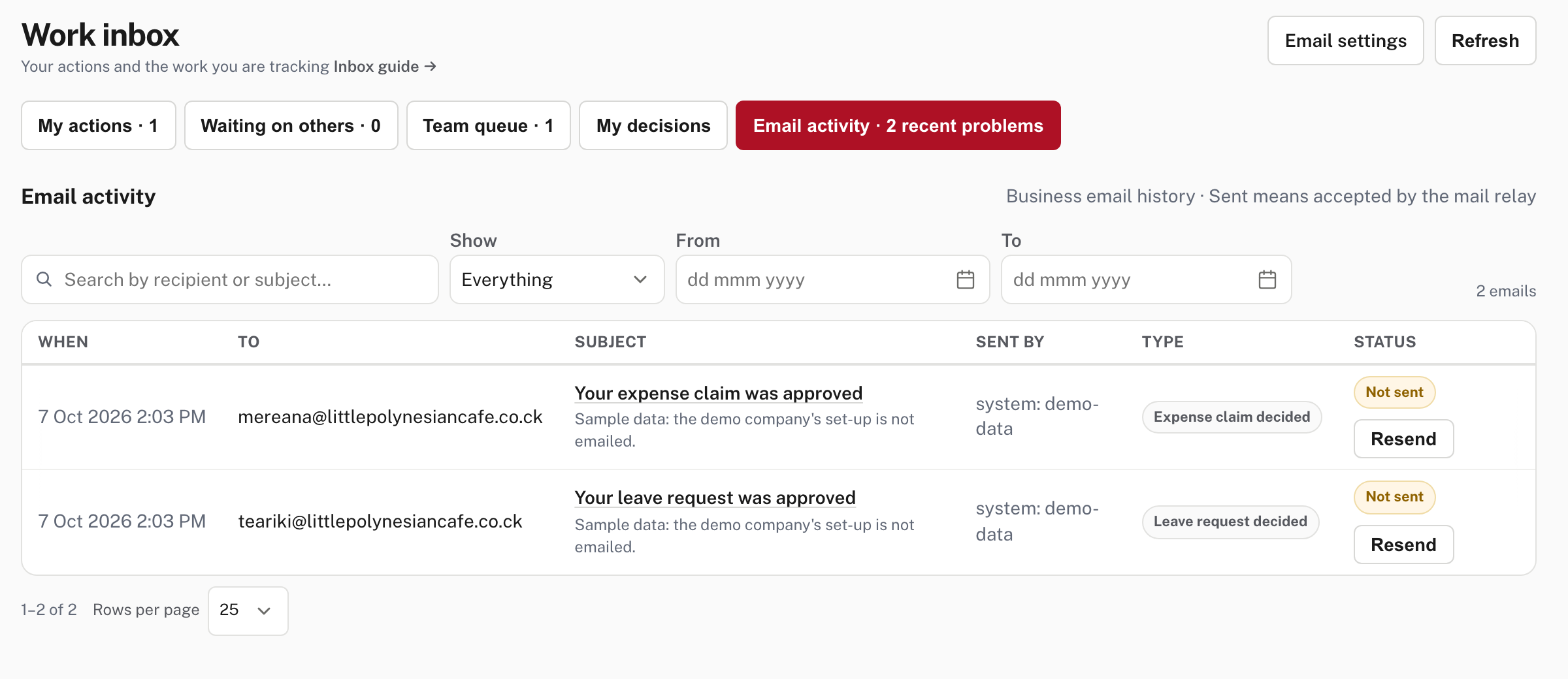
Search by recipient or subject, choose Show (Everything, Sent, Failed, Not sent, Didn't go out, Documents), and set a
date range. Each row shows when, to whom, the subject, Sent by (a person, an API key, or a scheduled job such as system: demo-data),
the type and the status. Sent means the mail relay accepted the message, not that it reached the inbox. A Failed or Not
sent row gives a reason: read it before you try again. A leave, timesheet, expense claim or bill-approval email that didn't go out has a
Resend button (the two demo rows show it; pressing it is not shown in the demo). Email settings, top right, is for people who
manage settings (Emails Mail sends and
Emails and notifications).
When something goes wrong
- The search doesn't find an invoice by its customer's name. It finds the customer. Open Sales → Invoices and type the name in the list's own search box, or open the customer.
- A key does nothing. You are typing in a field or a dialog is open. Click on the page, or press Esc, and try again.
- An export has fewer rows than you expect. It uses the filters on screen. Check the chips under the toolbar and choose Clear filters.
- A saved view opens differently from how you left it. A view keeps the search, filters, sort and chosen columns; it doesn't keep ticked rows or the page you were on.
- The Mail number doesn't change when someone sends you something. From Easy's source, the count refreshes about once a minute, when you open Mail and when you act on an approval; Refresh in the inbox is the manual button.
Check before you continue
Check before you continue
- You can open an invoice, a customer and a report from Ctrl+K without using the menu.
- You know what N and ? do, and that they don't fire inside a field.
- The lists you use every week have a saved view with the filters you always set.
- You have looked at the Mail icon today, and My actions is empty or planned for.
- You know that Sent in Email activity means accepted by the mail relay, not delivered.