Pay suppliers: payment runs and bank files
Use a payment run to pay several supplier bills together. It makes one bank file for your bank, records one payment per supplier in your books, and locks the run. Plan to do it on the same day each week or fortnight.
Easy does not send the money. It makes a file; you upload that file to your bank yourself.
About the screenshots
Screenshots are from Easy's demo company, Little Polynesian Café, paying from an account set up for BSP QuickPay. Supplier names and amounts are examples.
Before you start
- The bank file is set up for the account you pay from (step 1).
- Every supplier you will pay has bank details, confirmed by a second person if your company requires it. The run shows Bank set up? for each bill.
- Supplier credits are applied first. If a supplier owes you a credit, apply it to the bill before the bill goes into a run.
- You are paying in your company's own currency. A run pays base-currency bills only; a foreign-currency bill is left out when the run is built.
Step 1. Check the bank file setup for the paying account
Banking → Accounts, choose the account's Bank file setup.
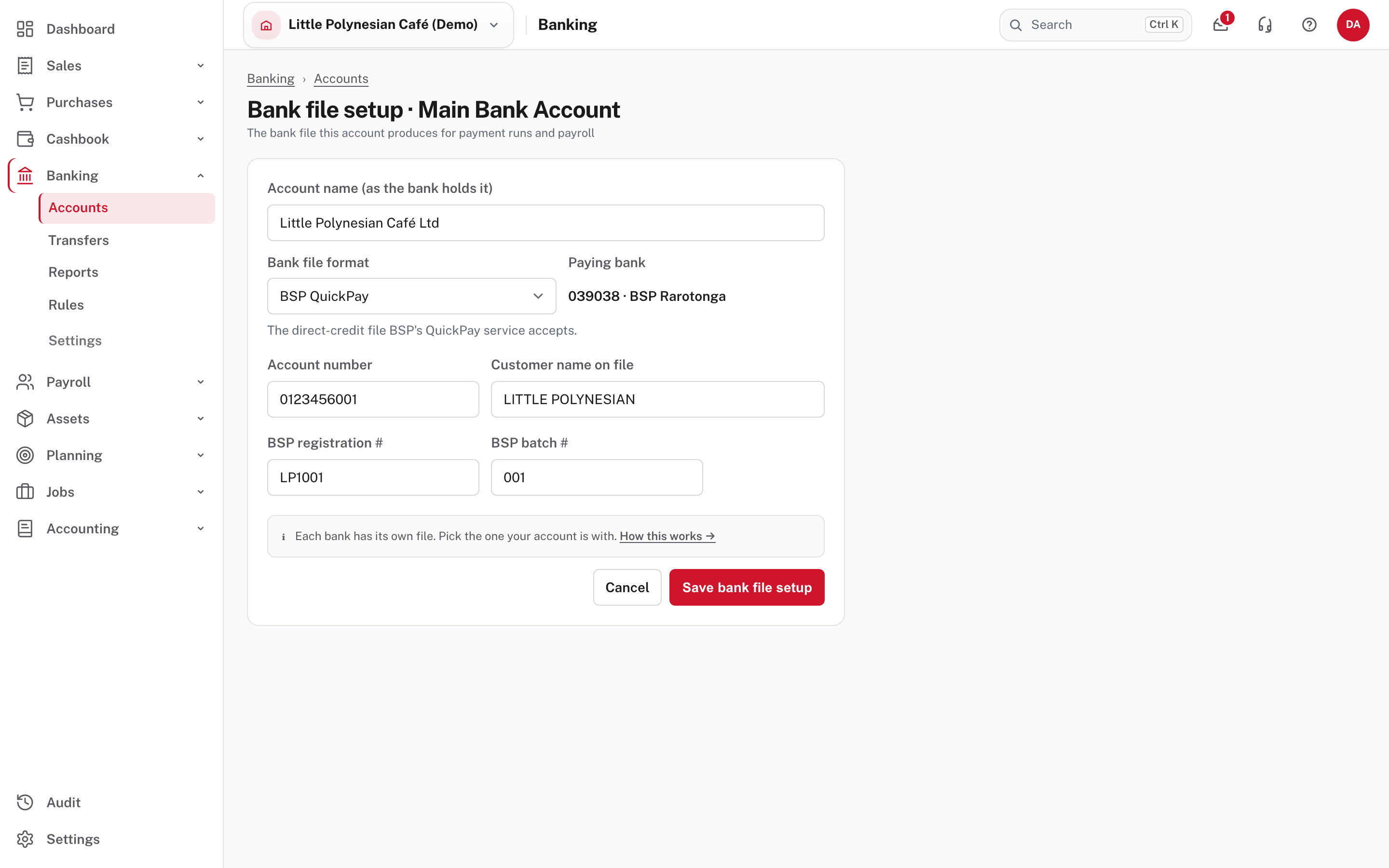
Each bank account that pays by bank file produces its own bank's file. Choose the Bank file format; the paying bank follows from it, so a BCI account cannot be set up for a BSP file.
| Your bank | Choose |
|---|---|
| BSP | BSP QuickPay (needs your registration number and the 3-digit batch number BSP issues) |
| BCI | BCI ABA (the remitter number BCI issues, and a 2-digit reel number) |
| ANZ, uploading in ANZ Internet Banking | ANZ Internet Banking |
| ANZ, using the ANZ Transactive portal | ANZ Transactive |
If you are not sure which ANZ product you have, look at where you approve payments: Transactive is a separate site with its own log-in. The account number is needed before the setup saves; the other details can be saved as they arrive from the bank. Until the setup is complete, a payment run from the account is refused and says what is missing. The same file serves payroll.
ANZ Internet Banking: payees must bank with ANZ for now
That file identifies a payee's bank by a number ANZ issues, and Easy only knows ANZ's own. A run containing a payee at BSP or BCI is refused and names them. Pay those suppliers from a BSP or BCI account, or by cheque.
More detail: EFT payment files.
Step 2. Start a payment run
Purchases → Payment runs → + New payment run.
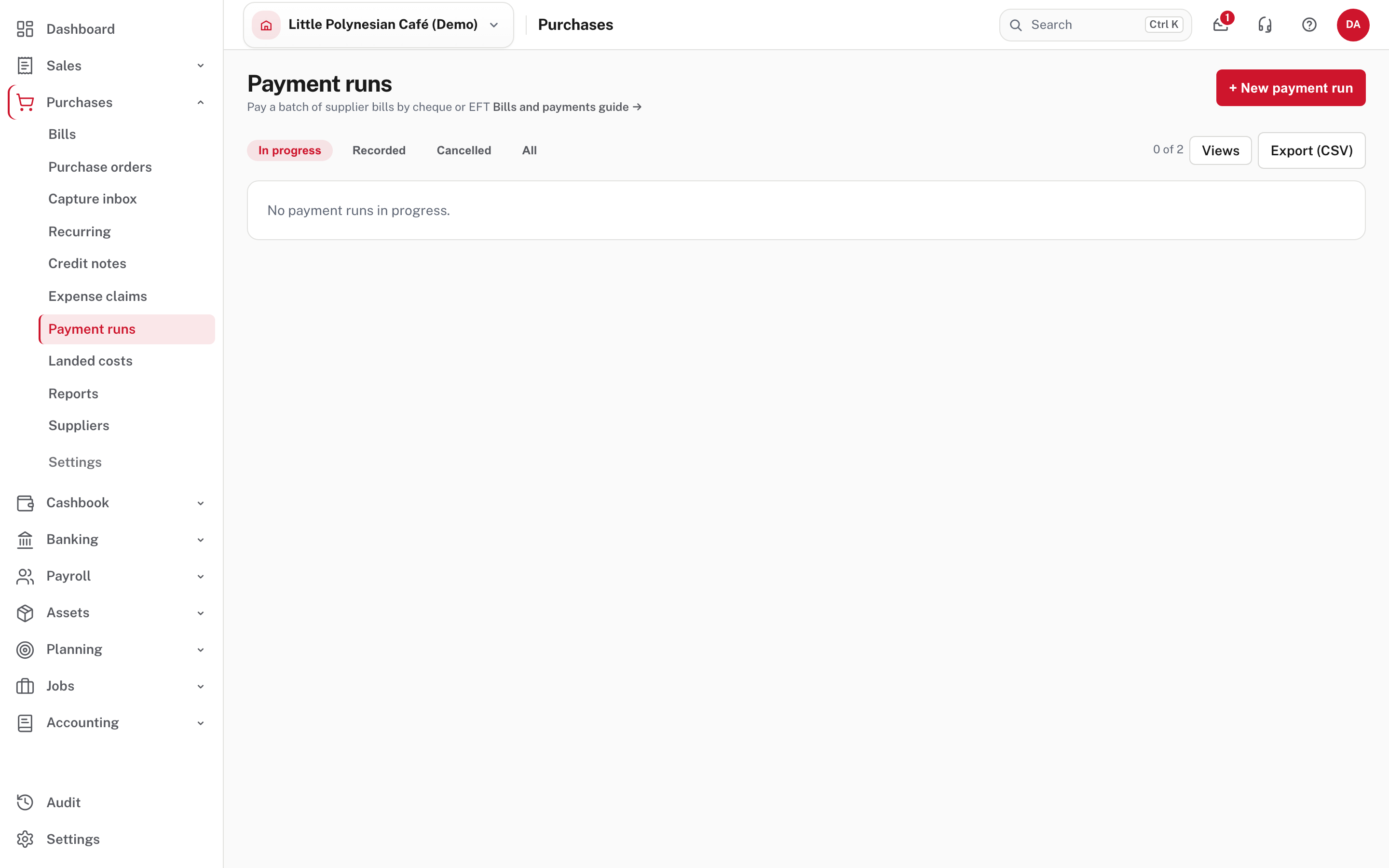
Choose the account to pay from, the method (EFT file or Cheque) and the date, then Create batch.
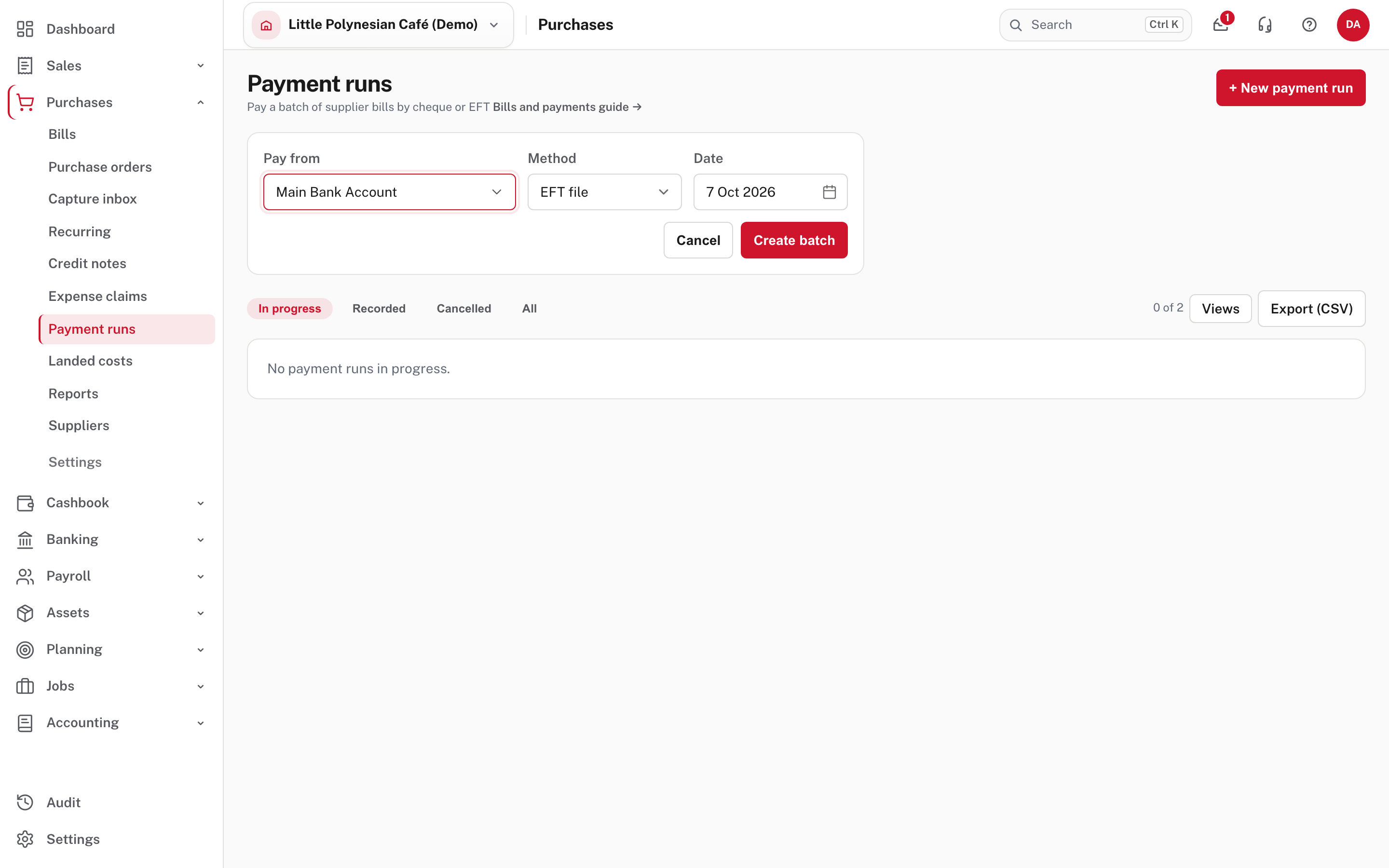
The run opens as a four-step page: Select bills, Create bank file, Remittance advice, Record & lock. The summary shows its status, how many bills are selected and excluded, the total to process and the method. Cancel run (top right) throws a run away before it is recorded.
Step 3. Select the bills
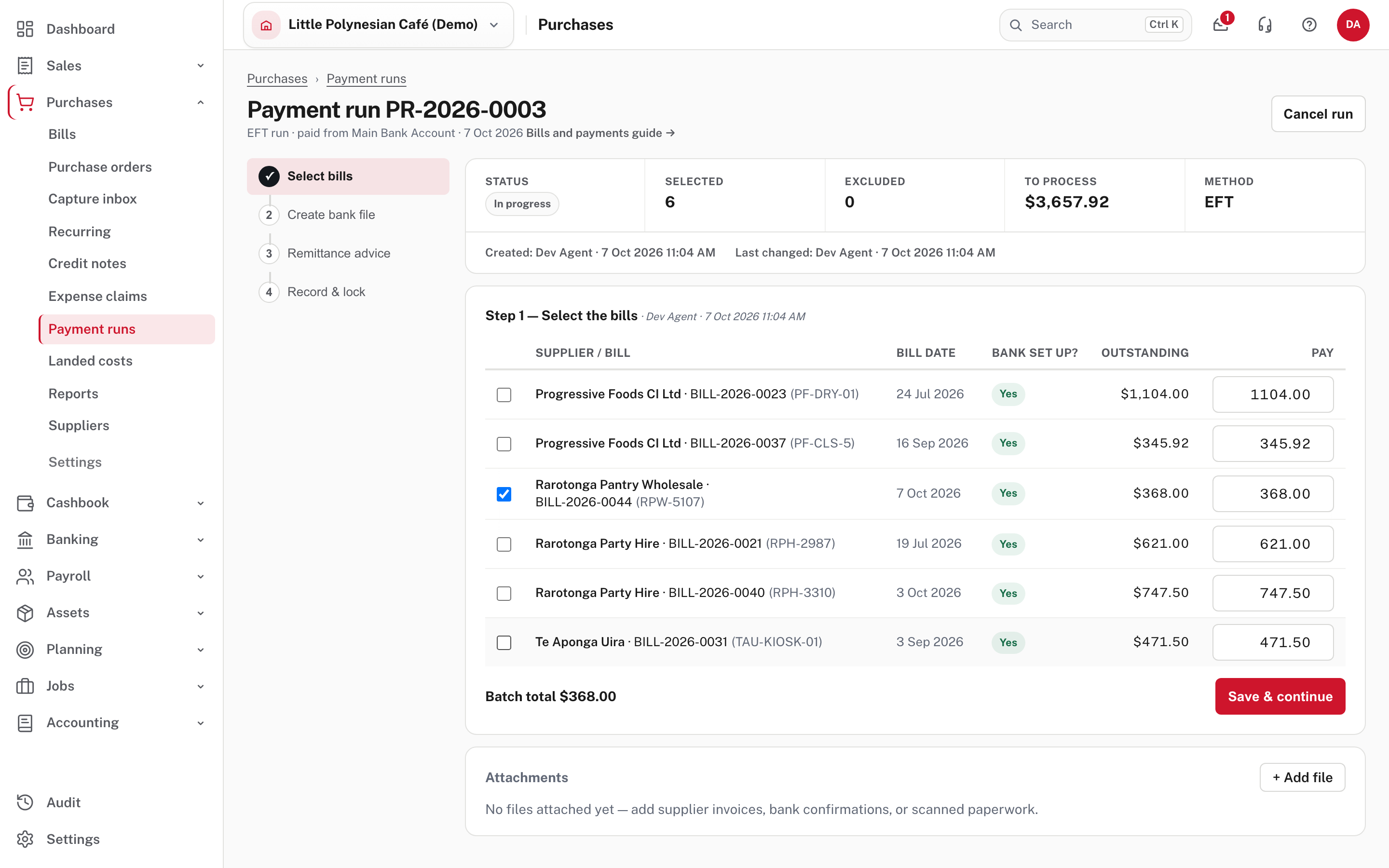
Every open bill is listed with its supplier, date, whether the supplier's bank is set up, what is outstanding, and a Pay box. Tick the bills to include. You can pay less than the full outstanding amount by changing the amount. Batch total at the bottom is what the file will pay. Choose Save & continue.
Check the date of each bill
A run dated before a bill it pays is allowed, but warns you: until the bill's date, what you owe suppliers won't agree with your books.
Step 4. Create the bank file
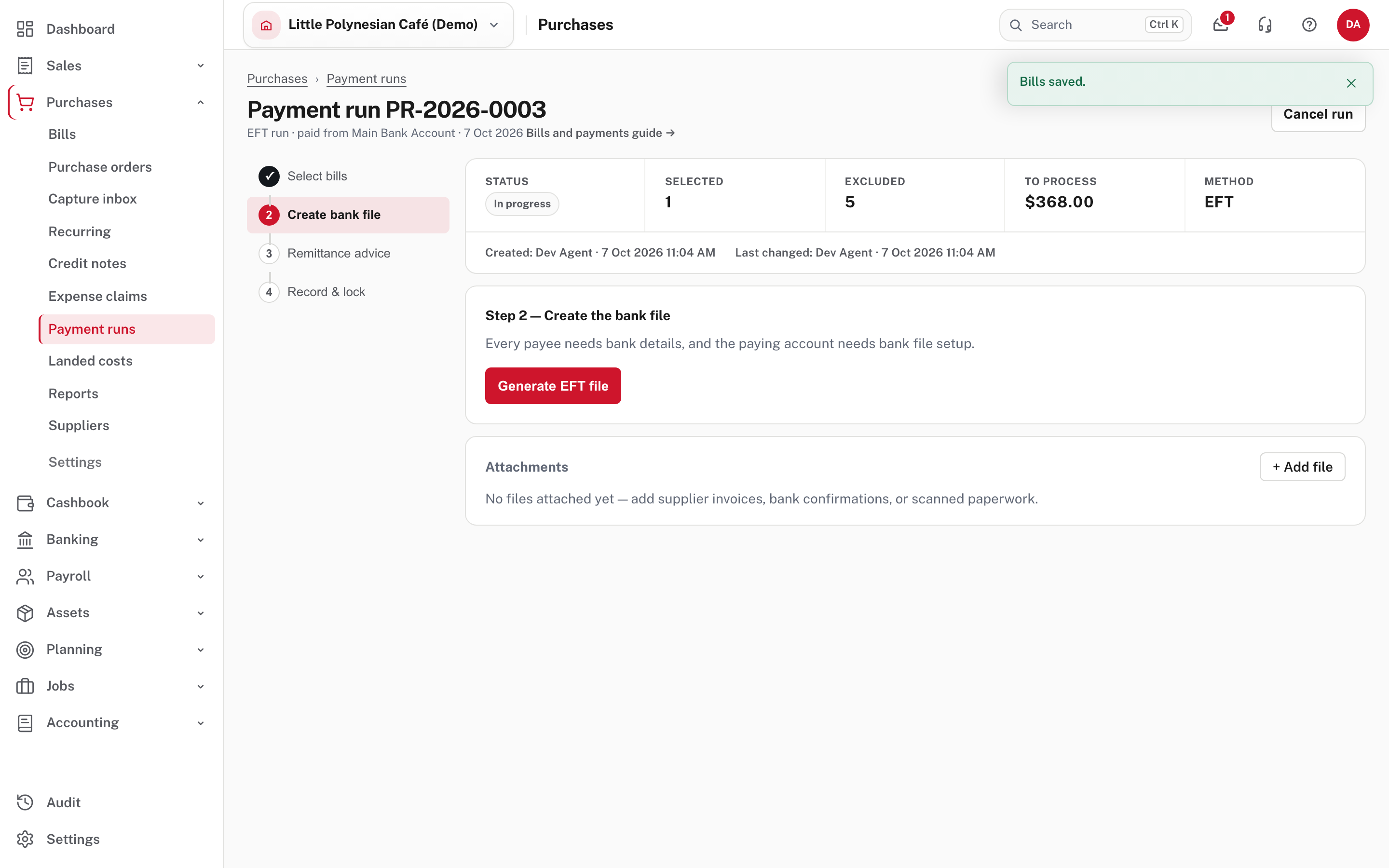
Choose Generate EFT file. Every payee needs bank details, and the paying account needs its bank file setup (step 1); if anything is missing the run refuses and says what.
Easy makes the file, named for the run and the bank (here PR-…-bsp-quickpay.txt), and tells you it is ready to
download. Download it, then upload it to your bank and approve it there as you would any other payment file.
Every file is kept
A run can be generated more than once (to re-download it, or after bank details changed). Every file is kept, with who made it, when, the number of payees, the total and a short checksum, so if a payment is ever queried the checksum tells you which file was the one you uploaded.
Step 5. Remittance advice (optional)
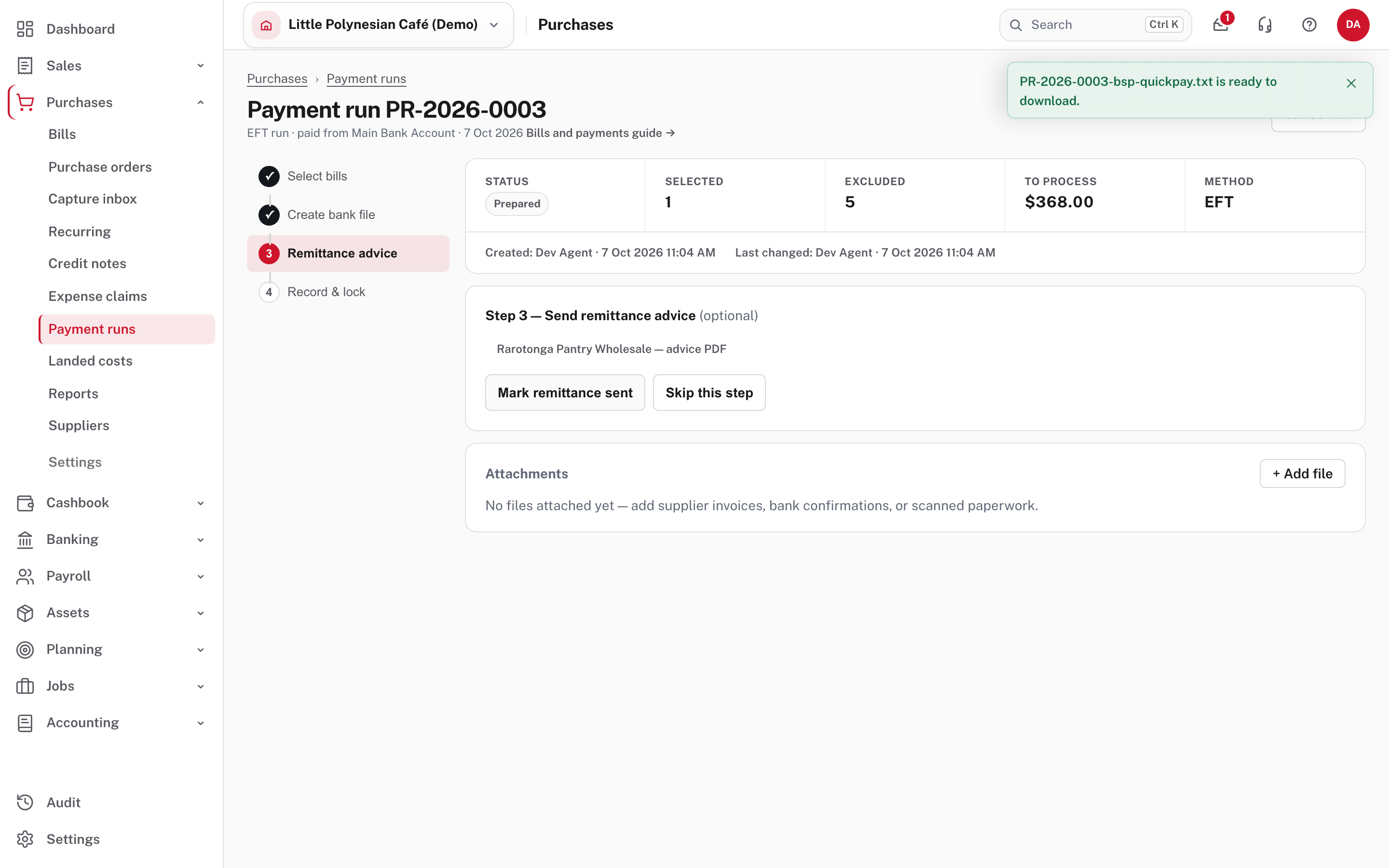
Each supplier in the run has an advice PDF telling them what is being paid. Send them if you want, then choose Mark remittance sent, or Skip this step.
Step 6. Record the payments and lock the run
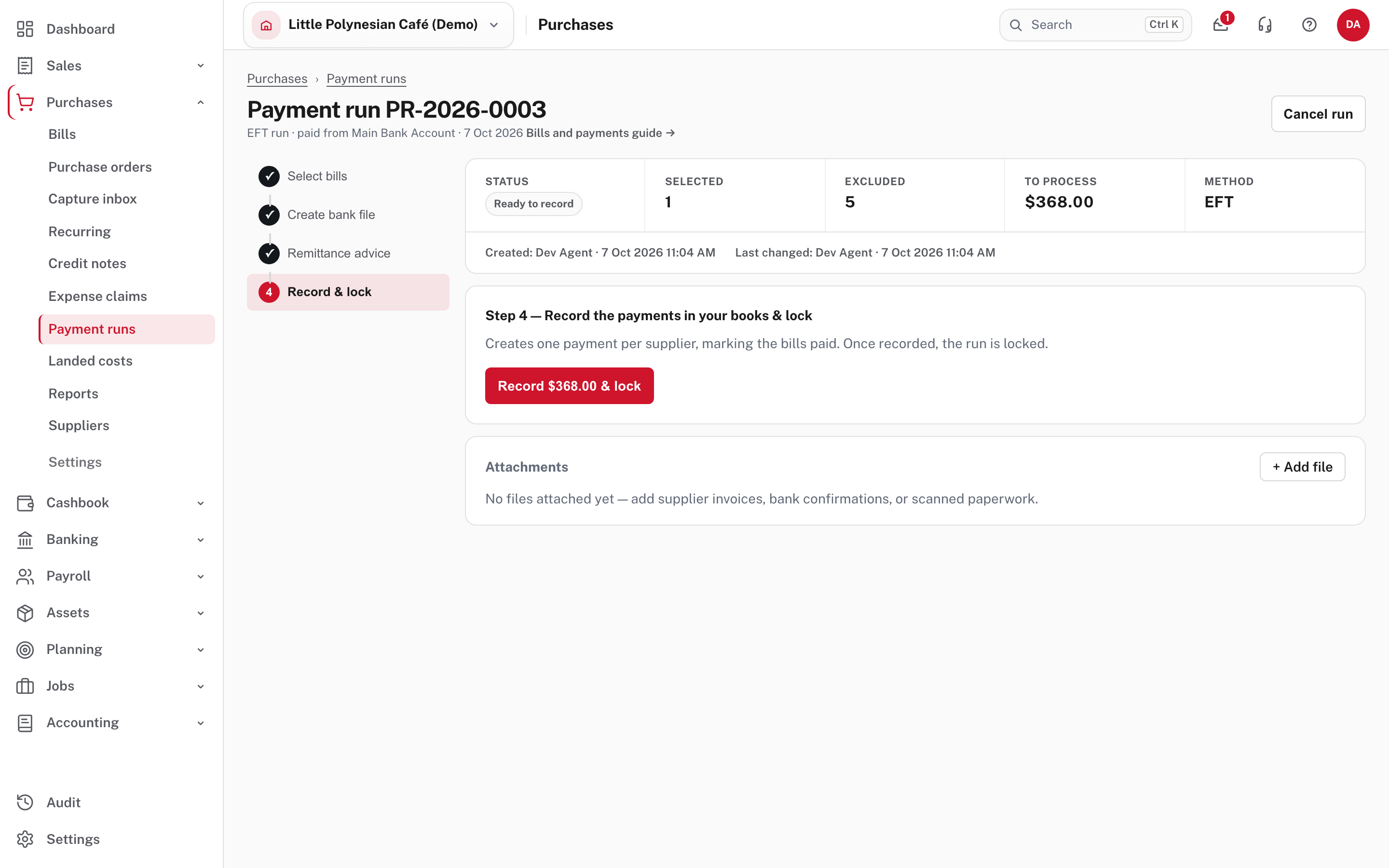
Choose Record $… & lock. This creates one payment per supplier in your books and marks the bills paid. Do it when the file has gone to the bank.
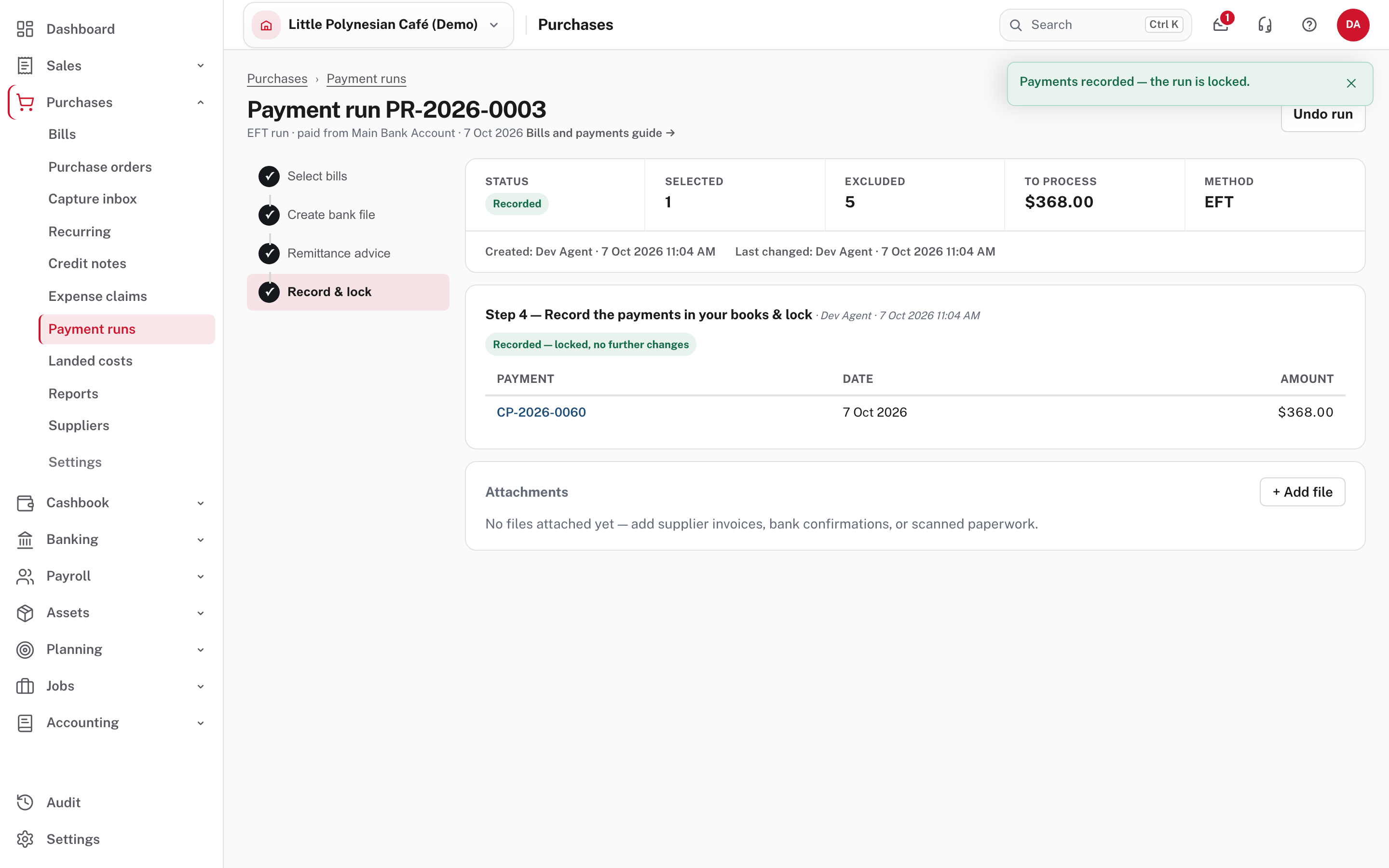
The run reads Recorded: locked, no further changes, and lists the payments it made. Undo run (top right) undoes the payments it created if something was wrong.
More detail: Bills and supplier payments.
If something goes wrong
| What you see | What to do |
|---|---|
| A bill shows Bank set up? No | Open the supplier, add and confirm their bank details, then come back. |
| The run says the account needs bank file setup | Step 1: complete the bank file setup for the paying account. |
| A payee is refused in an ANZ Internet Banking run | They bank with BSP or BCI. Pay them from a BSP or BCI account, or by cheque. |
| A foreign-currency bill is missing | Runs pay base-currency bills only. Pay it by a single payment. |
| You recorded the run and the bank rejected the file | Undo run, fix the cause, and run it again. |
Check before you continue
Check before you continue
- The bank file setup is complete for the paying account, and the file format is the one your bank accepts.
- The batch total equals what you meant to pay, and no bill is paid twice.
- The file was uploaded to the bank and approved there before you recorded the run.
- The run reads Recorded, and the bank reconciliation will match the payments to the bank's debit lines.