Bank reconciliation, month by month
Do this once a month for each bank account, as soon as you have the statement. Reconciling proves that what Easy says is in the bank agrees with what the bank says is there, and that every line on the statement is in your books exactly once.
About the screenshots
Screenshots are from Easy's demo company, Little Polynesian Café, reconciling 1 to 6 October 2026. The demo has two lines left to deal with: an interest line that a bank rule codes, and a direct debit to code by hand.
Before you start
- The statement is imported (Import a bank statement).
- Last month is finished. The statement you are reconciling follows the last finished reconciliation.
- You have the paper (or PDF) statement for the dates and the opening and closing balances.
- Payments and receipts in Easy are up to date, including supplier payment runs and customer receipts.
Step 1. Open the reconciliation
On Banking, choose Resume reconcile (or Reconcile if you have none in progress) on the account.
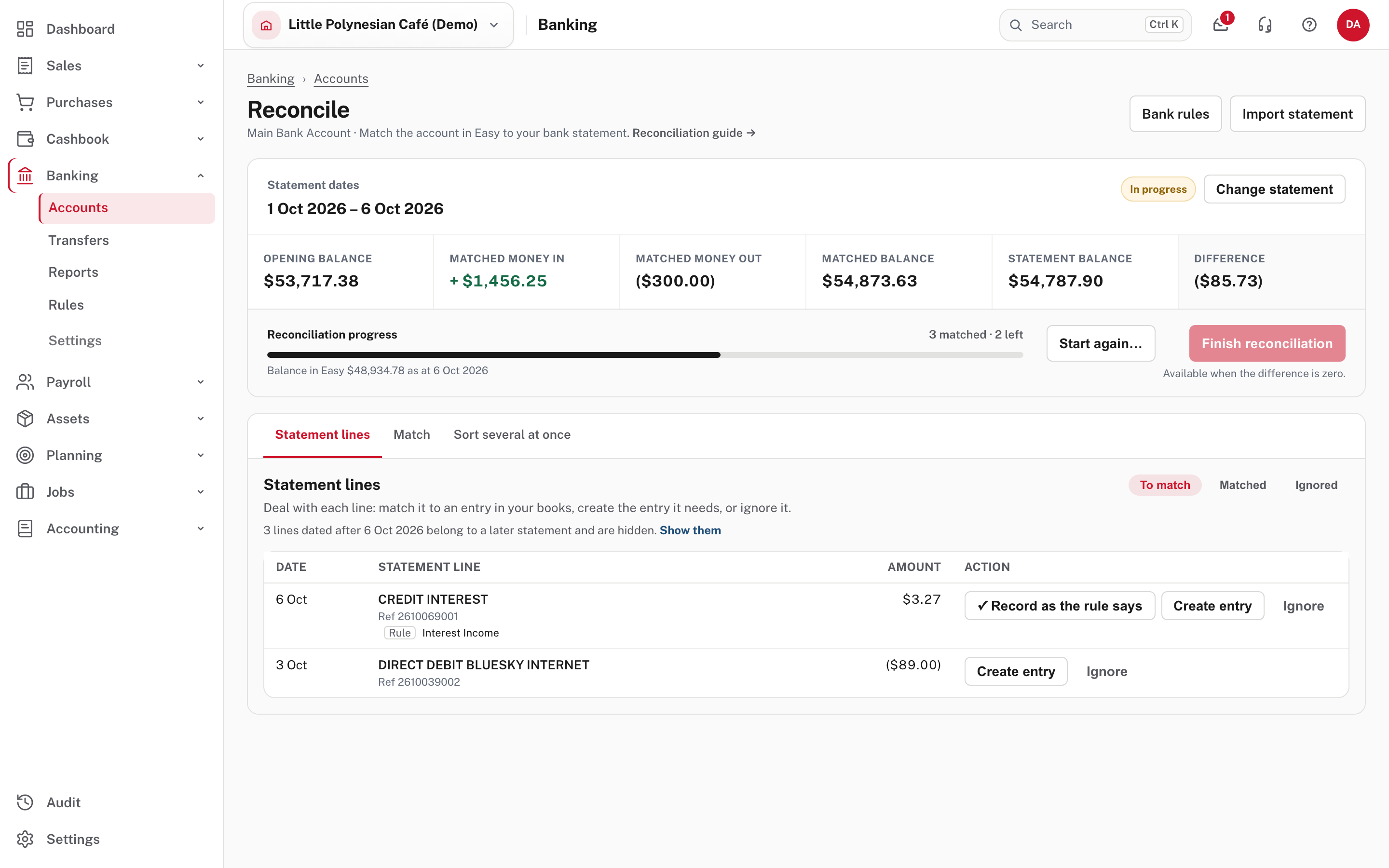
At the top: the statement dates and the status In progress, with Change statement and Start again…. Then six figures:
| Figure | What it is |
|---|---|
| Opening balance | Where the statement starts |
| Matched money in / out | What you have matched so far |
| Matched balance | Opening plus matched in, less matched out |
| Statement balance | The statement's closing balance |
| Difference | Matched balance less statement balance. It must be zero to finish |
The progress bar shows how many lines are matched and how many are left, and Balance in Easy is what the books say as at the statement date. The workspace shows this statement's lines only; lines dated after its end wait for the next reconciliation (Show them lists them too).
Step 2. Work through the statement lines
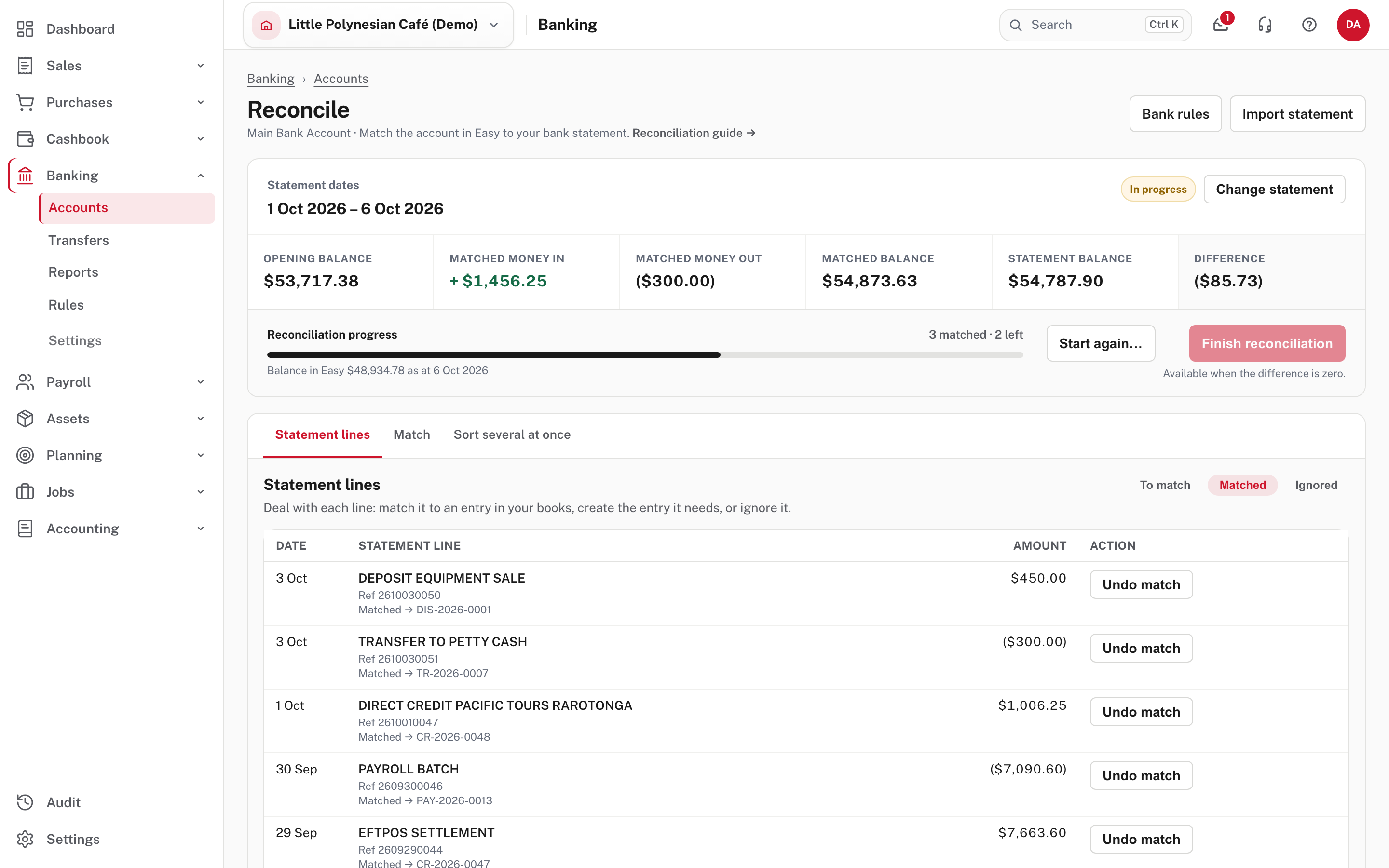
On Statement lines, use To match, Matched and Ignored to see each group. Easy has already matched what it can, and each line left says what it can be matched with:
- ✓ Match: an entry in your books with the same amount, and why it was picked (for example "same amount, 2 days apart, RC-0042 on the statement line"). ✓ Match 3 entries means several entries add up to the line, such as a payment run's payments against one bank debit, or the day's receipts against one deposit.
- ✓ Receipt for INV-… or ✓ Payment for BILL-…: an open invoice or bill fits the line. One click records the receipt or payment and matches it.
- ✓ Record as the rule says: a bank rule codes the line (a Rule tag shows the account).
- Create entry: nothing in your books fits yet, so you create what the line needs (step 3).
- Ignore: the line doesn't belong in your books. It moves to the Ignored tab, where Restore brings it back.
The Match tab
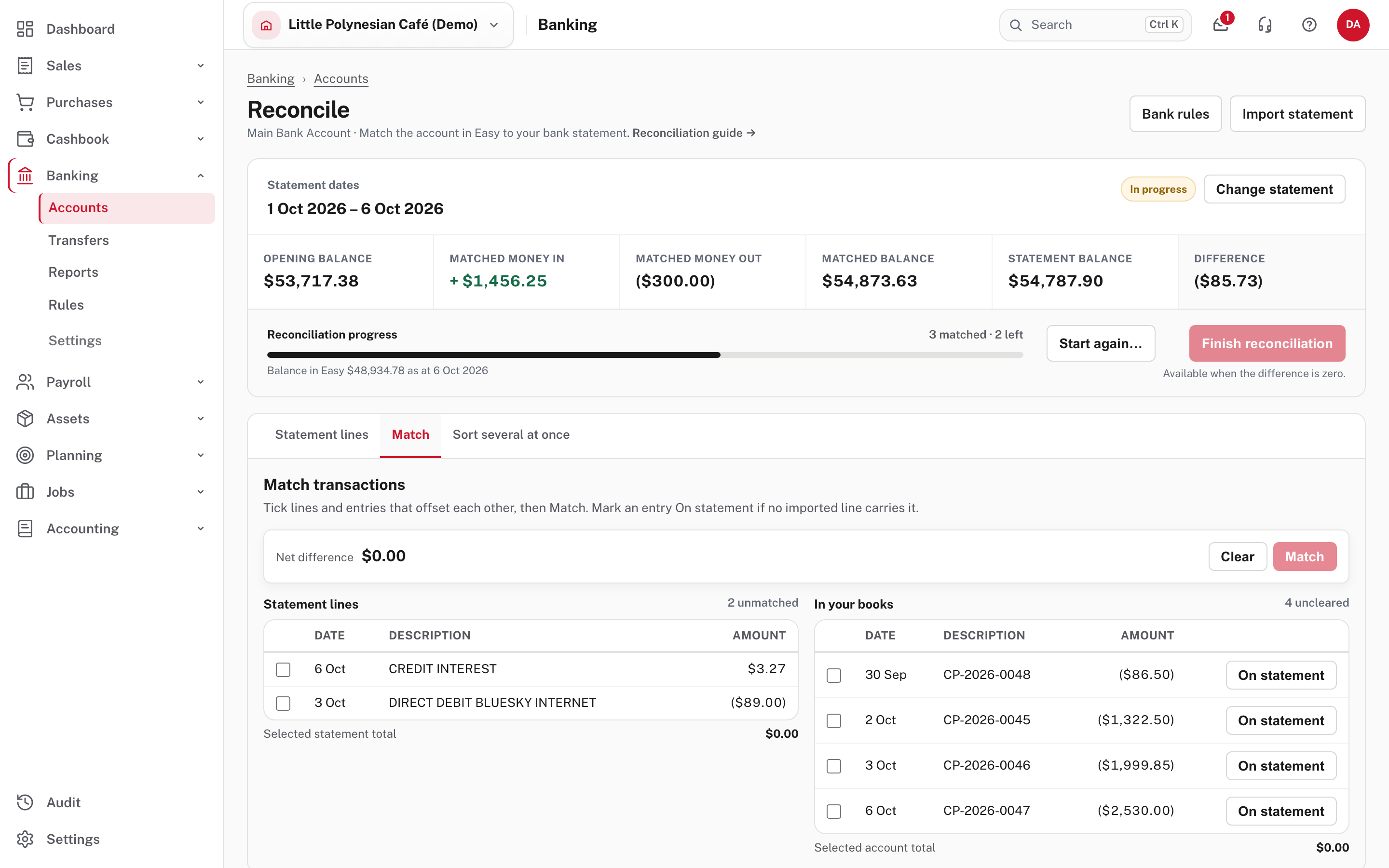
Use Match for lines and entries that offset each other and that Easy could not pair: tick them, check the net difference is $0.00, and choose Match. An entry you recorded that the bank shows but no imported line carries can be marked On statement.
Sort several at once
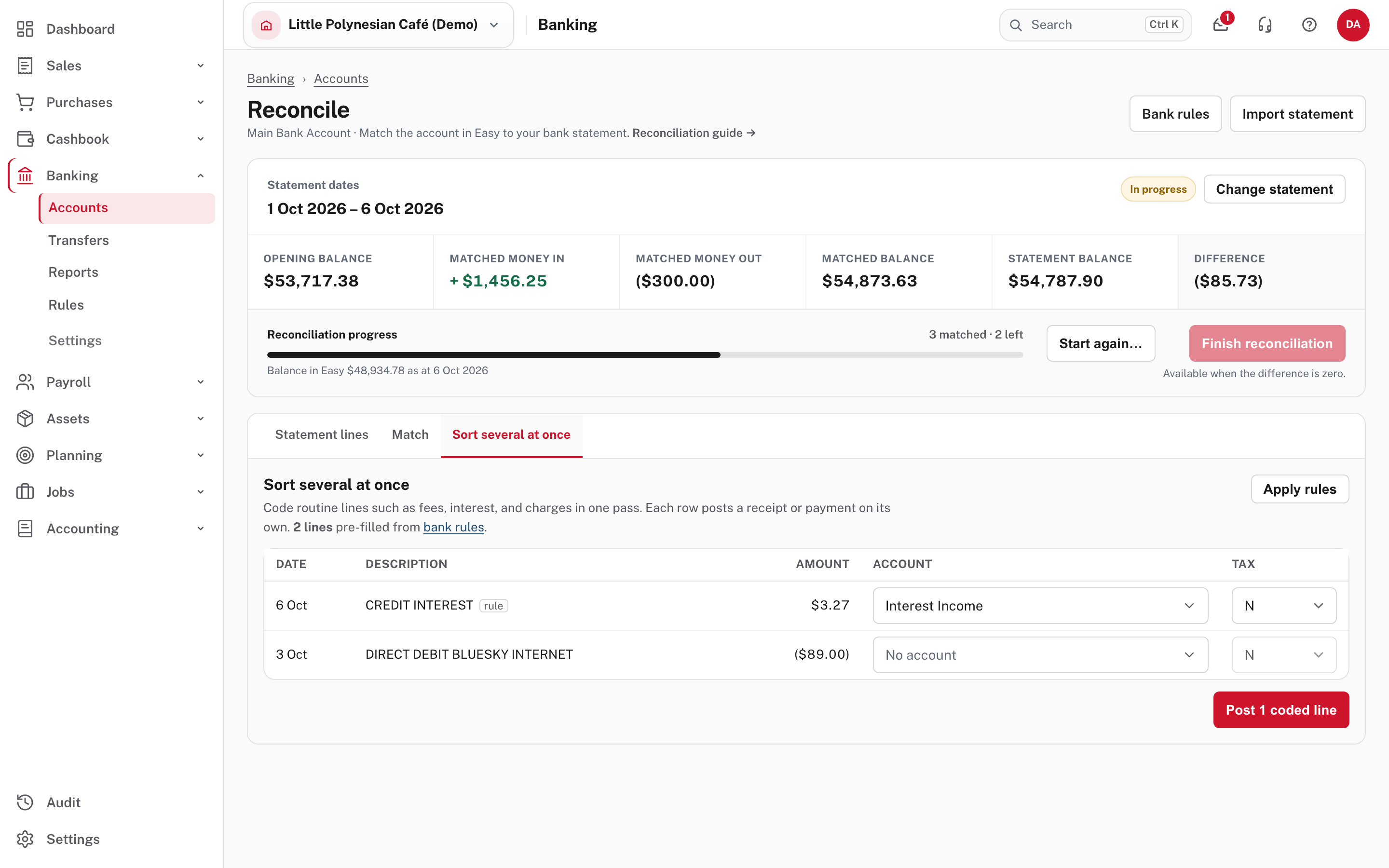
Sort several at once pre-fills the same bank rules for recording several lines in one go. A line that can't be recorded is named, and the rest are still recorded.
Step 3. Create the entry a line needs
A line with no matching entry needs one. Choose Create entry.
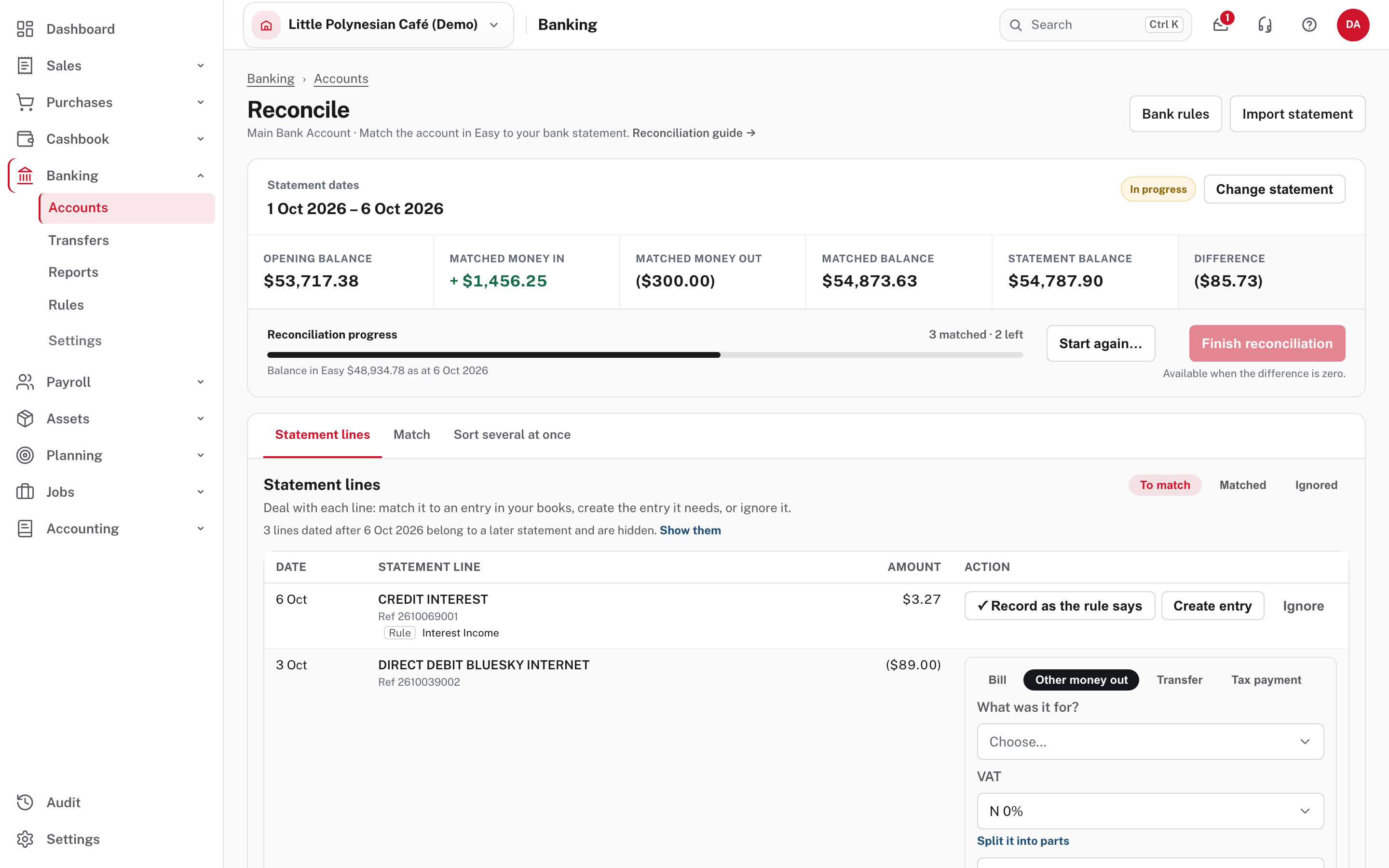
Choose the kind: Bill or Invoice (to settle open ones; the amounts must add up to the line), Other money out (or in), Transfer, or Tax payment. If an entry already matches the line, Easy asks before creating a second one.
For Other money out, say What was it for? (the account) and the VAT.
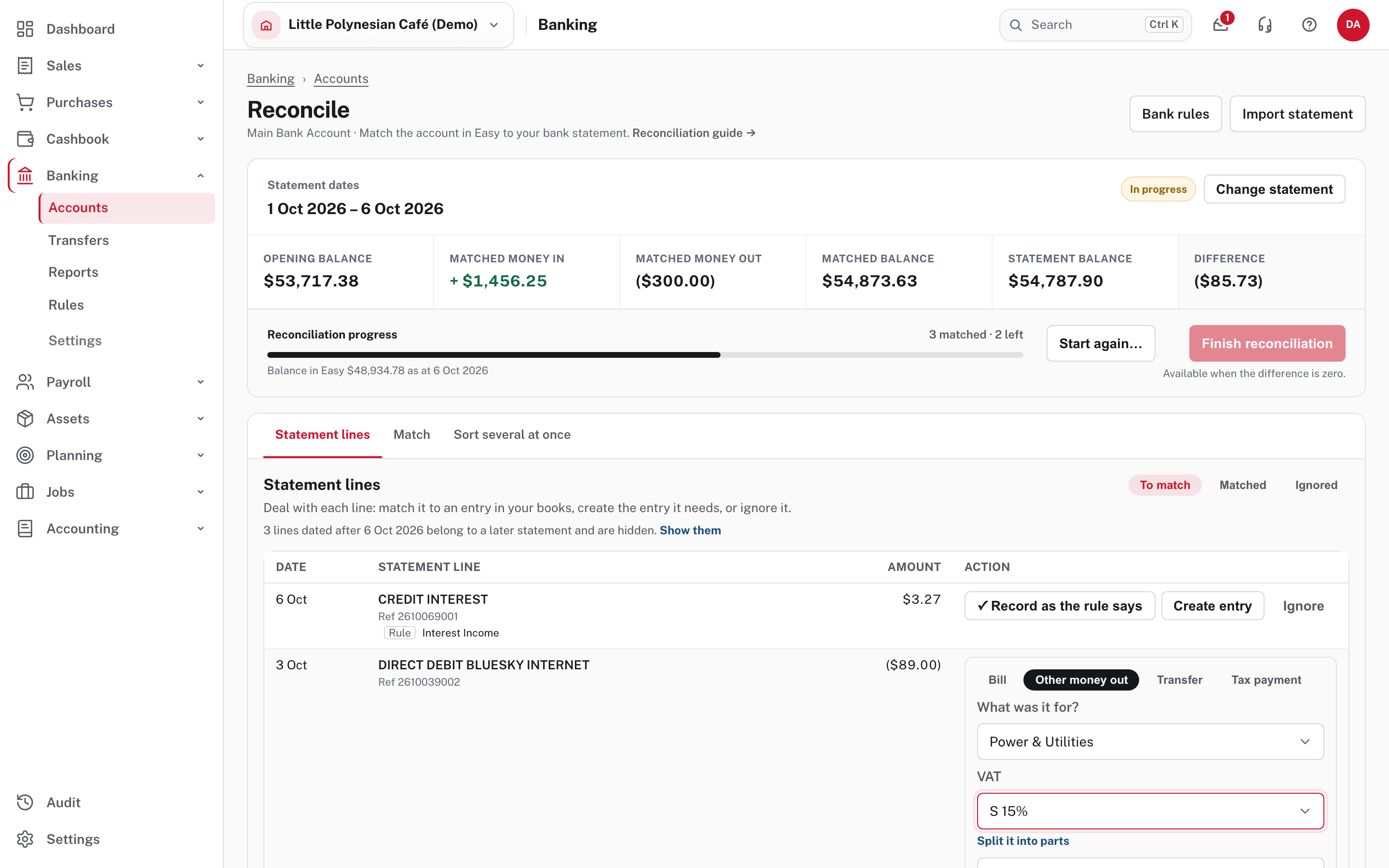
VAT is inside the bank amount
A statement amount is what the bank moved, so it already includes VAT. Coding this $89.00 debit at 15% records $77.39 plus $11.61 VAT, and the bank moves by exactly $89.00. For about one amount in seven no figure plus its VAT lands exactly on the total, and the odd cent goes on a second line with no VAT.
- Money in to an expense account is money back on that expense (a supplier's refund), recorded as a receipt that lowers the expense. Money out to an income account is money paid back on a sale with no invoice behind it. The editor says which one it will record before you record it.
- Split it into parts codes one line to several accounts; the amounts include VAT and must add up to the line. A part that goes the other way is entered as a negative amount.
Choose Record & match.
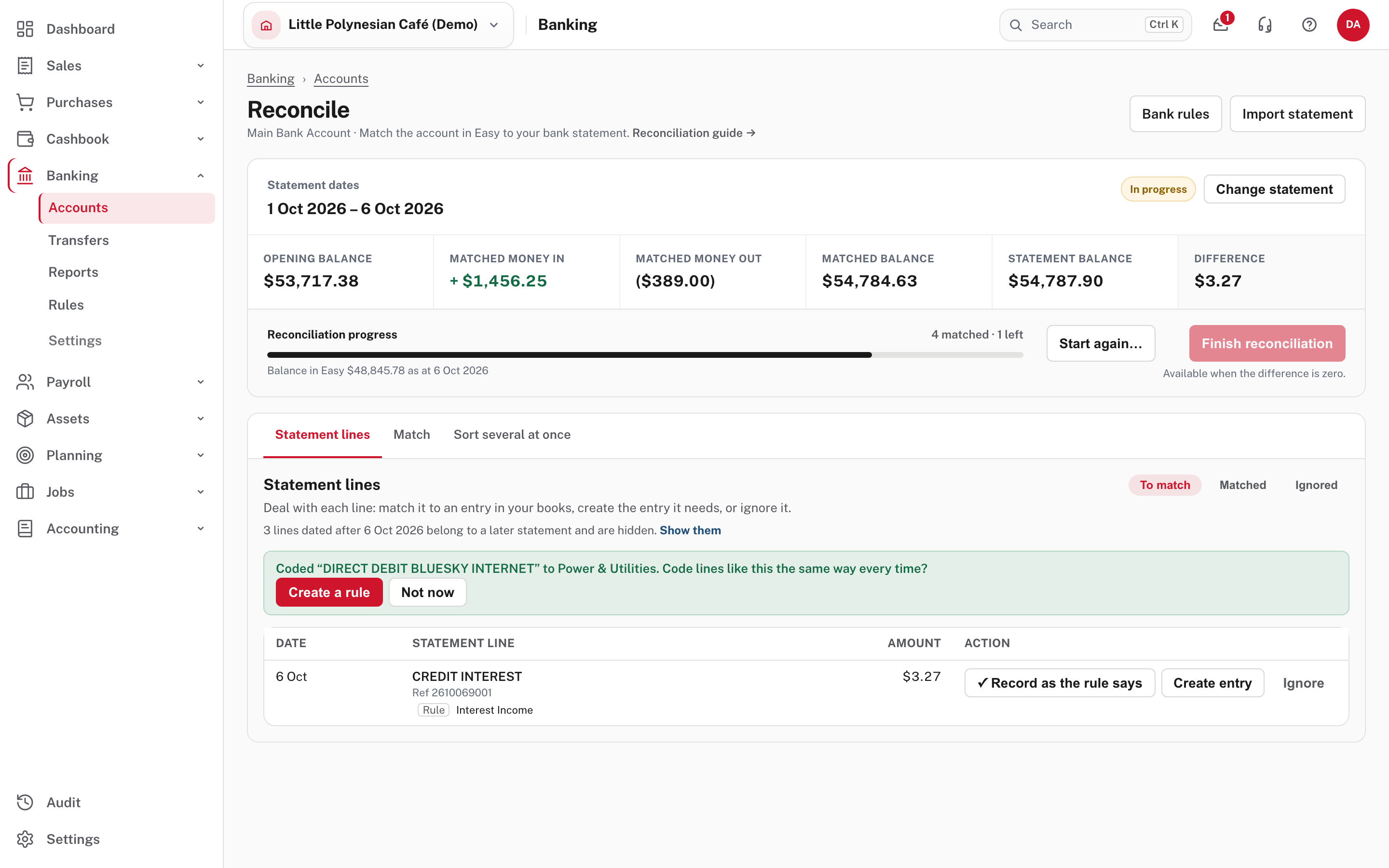
Easy then asks Code lines like this the same way every time? Choose Create a rule if the line will repeat next month (see Bank rules), or Not now.
Step 4. Balance it and finish
For a line a rule codes, choose ✓ Record as the rule says. When every line is dealt with, the Difference is $0.00 and the status reads Balanced.
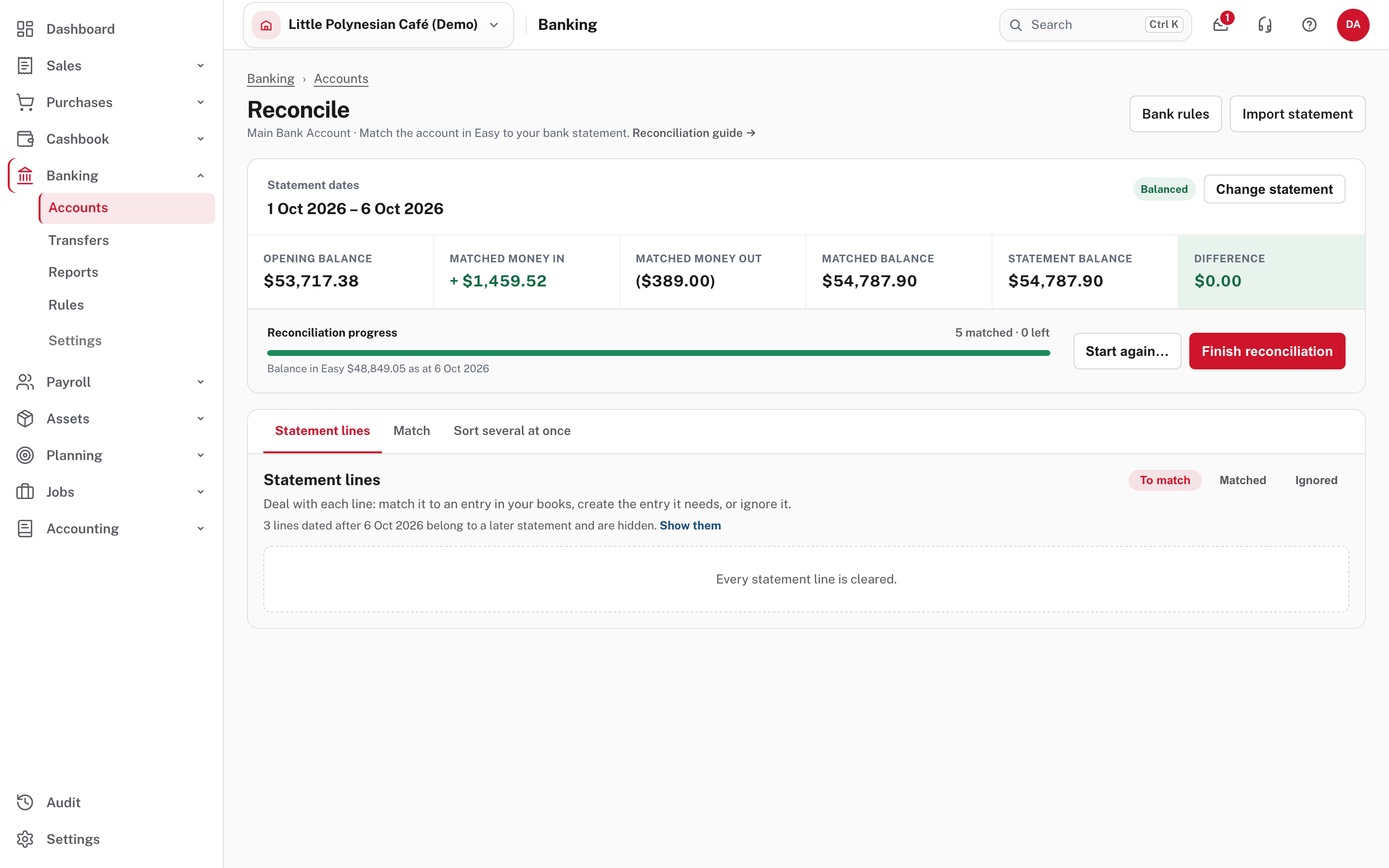
Choose Finish reconciliation (it is only available when the difference is zero).
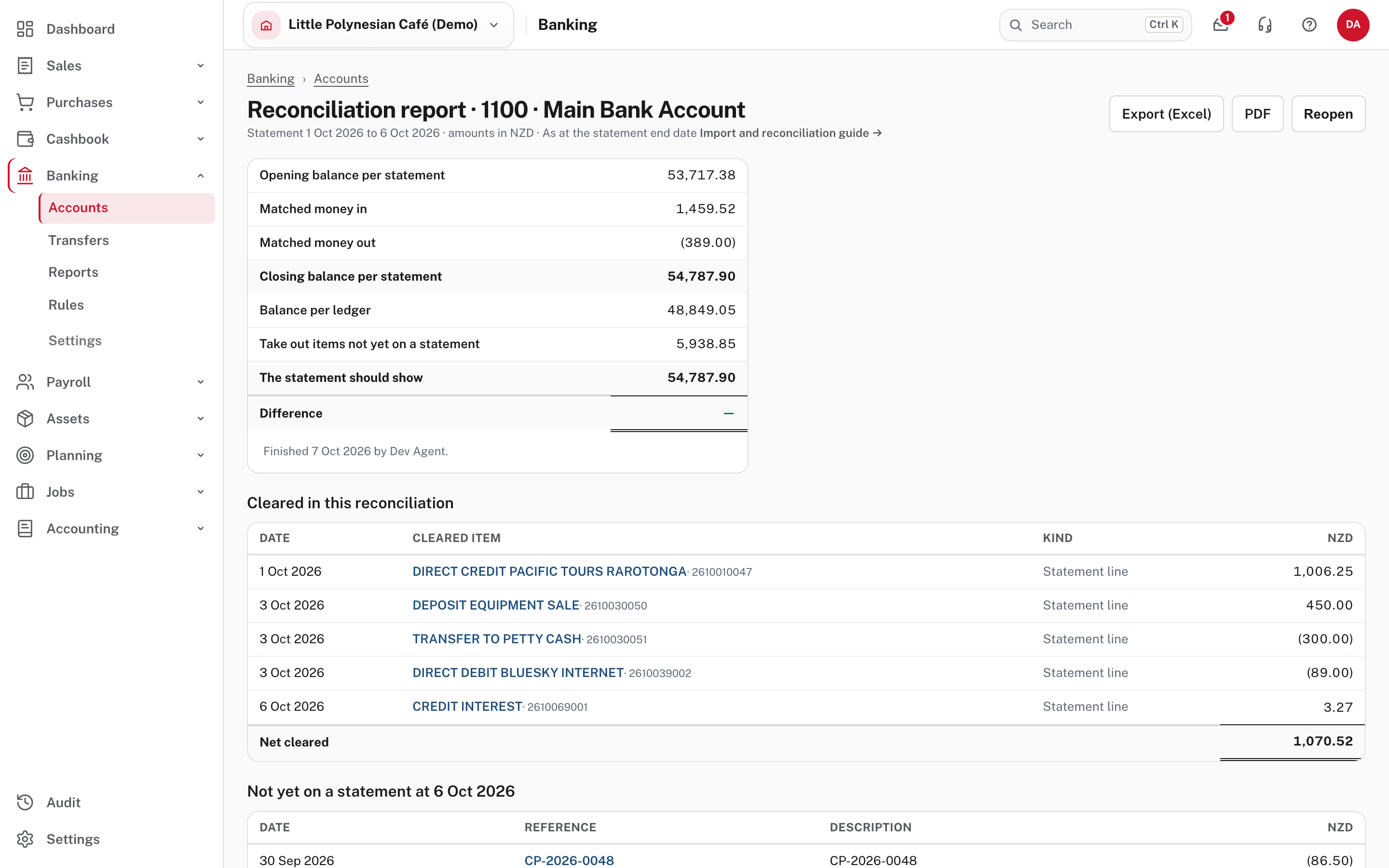
The reconciliation report opens. It shows:
- the opening balance, matched money in and out, and the closing balance per statement;
- the balance per ledger, less the items not yet on a statement, which gives the statement should show, and the difference, which must be nil;
- every line cleared in this reconciliation; and
- the items not yet on a statement at the end date (payments you have recorded that the bank has not yet paid).
Export (Excel) and PDF save it. Finish also checks your books: if your ledger less the items not yet on a statement does not equal the statement's closing balance (usually an opening balance that differs from the books'), Easy says by how much and asks before finishing.
Step 5. Check the month-end banking reports
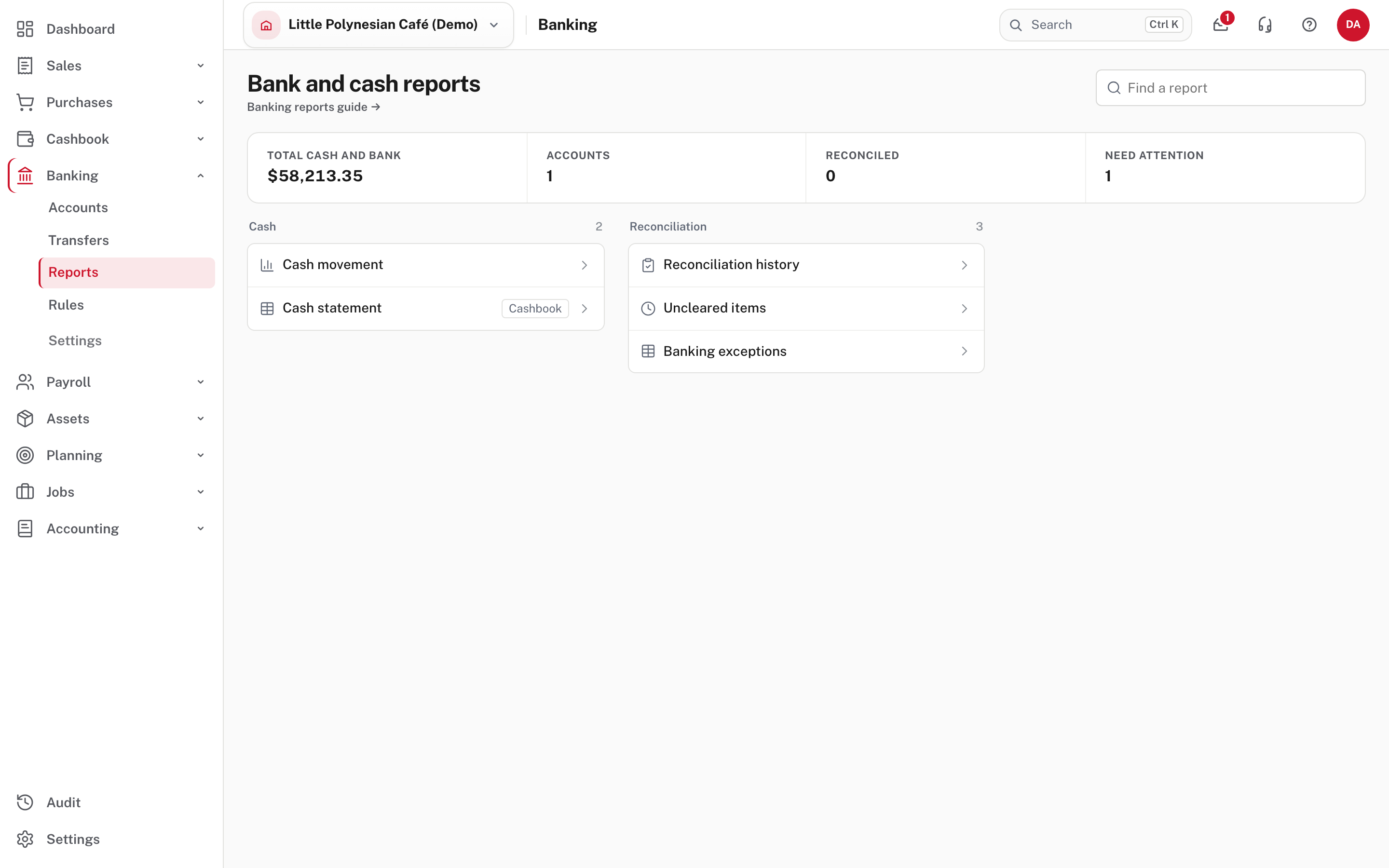
Banking → Reports has the reports you need to look at after every reconciliation.
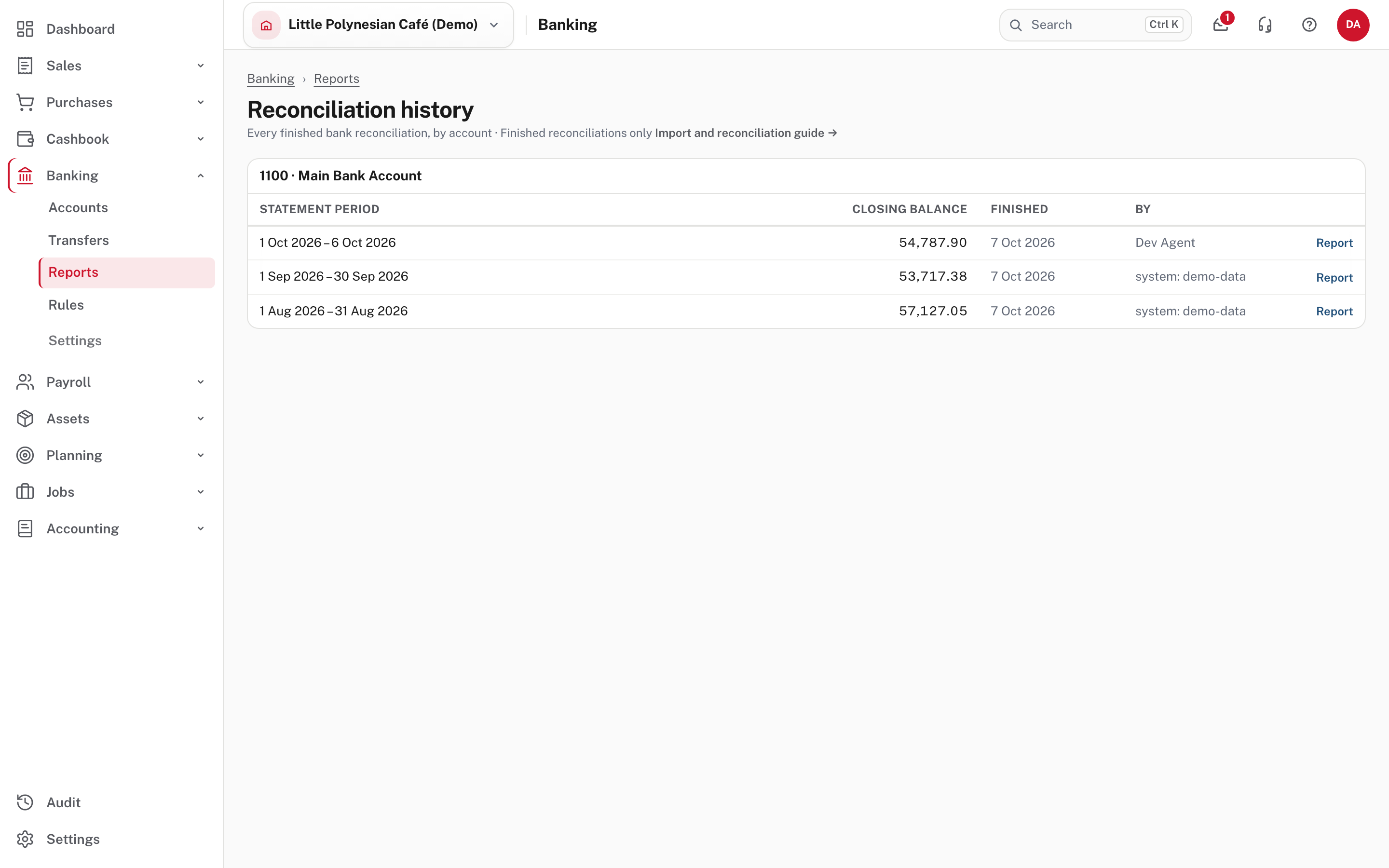
- Reconciliation history lists every finished reconciliation by account, newest first, with a link to each report.
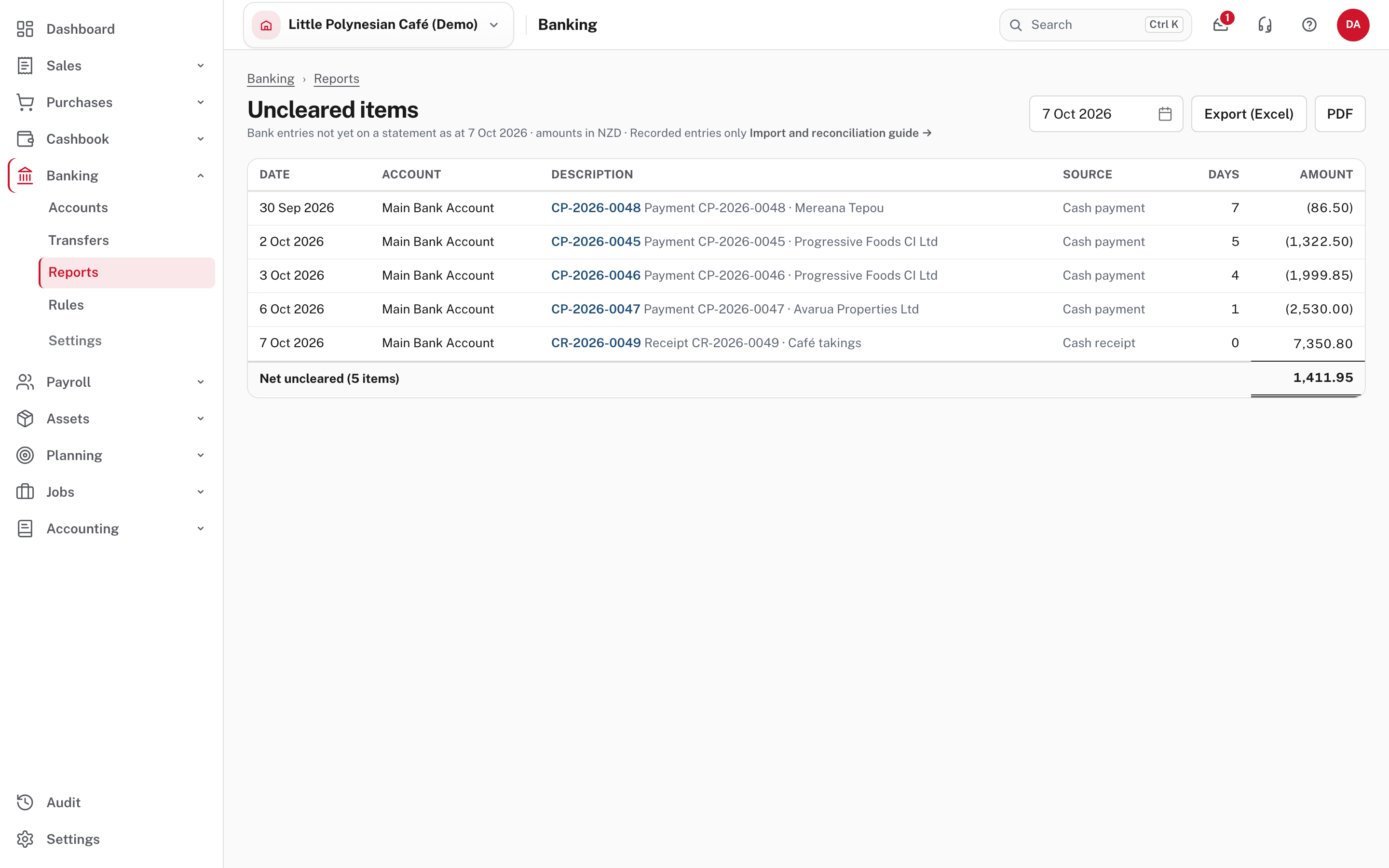
- Uncleared items lists bank entries not yet on a statement at the date you choose. After a reconciliation it should hold only what you expect to reach the bank soon: recent payments and receipts, and cheques not yet presented.
- Banking exceptions shows, for each account, how many imported statement lines are unmatched, how many have a rule suggestion, how many are rule gaps (lines no rule covers, so a new rule may save work), how many are ignored and how many duplicates were skipped. Use the page trail at the top of any report to step back.
A finished reconciliation's report is read as at its statement end date, so matching an item next month does not change a finished month.
If something is wrong
| What you see | What to do |
|---|---|
| The difference won't reach zero | Check the statement dates and opening balance, a missing movement, or a duplicate import. Don't add an adjustment until you know why. |
| You started on the wrong statement | Change statement (beside the dates) changes its dates and balances; what is already matched stays matched. Start again… throws everything away: lines you coded here are undone with an opposite entry and need coding again. |
| A finished month was wrong | Open the reconciliation report (Banking → Reports → Reconciliation history) and choose Reopen. Only the latest finished reconciliation of an account can be reopened, and you must give a reason, which is kept in the audit trail. |
| You undid a payment the bank never saw | If neither it nor its opposite is on any statement, the two cancel out and drop off the lists from the date it was undone. |
| An entry is matched but needs cancelling | Undo the match in the reconciliation first (Undo match), then cancel the entry. |
More detail: Import and reconcile a bank statement.
Check before you continue
Check before you continue
- The statement dates and balances are exactly as printed on the statement.
- The difference is nil, and every statement line is matched or deliberately ignored.
- The reconciliation report is saved (PDF or Excel) with the month's papers.
- Uncleared items holds only what you expect to reach the bank soon.
- You then close the period (see Month-end checklist).