Enter, approve and record a bill
Do this for every bill a supplier sends you. Recording the bill adds it to what you owe that supplier and to your books. Paying it is a separate step (Pay suppliers).
About the screenshots
Screenshots are from Easy's demo company, Little Polynesian Café. Supplier names and amounts are examples. The demo has bill approval switched off, so the "send for approval" path is described from Easy's Help and not photographed.
Before you start
- The supplier exists. You can add one from the bill with + New supplier. Add the supplier's bank details now if you will pay by bank file; changing a supplier's bank details later needs a second person's confirmation.
- You have the supplier's invoice in front of you: their invoice number, the date, the due date, the lines and the tax.
- You know whether bill approval is switched on for your company (Settings → Purchases approvals).
Step 1. Open Purchases → Bills
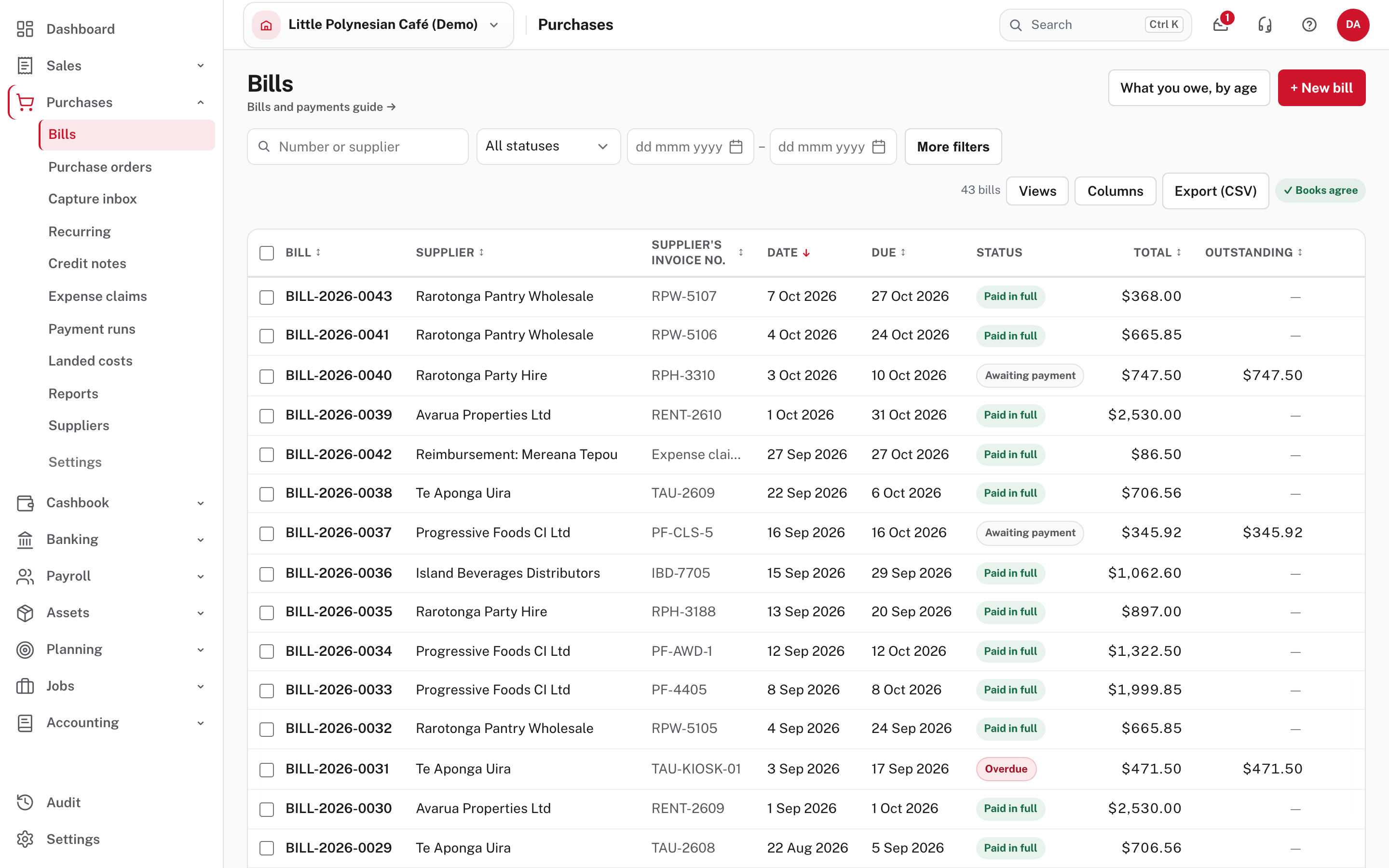
The list shows each bill with the supplier, the supplier's invoice number, date, due date, status, total and what is
outstanding. Filter by status: Draft, For approval, Recorded or Undone. What you owe, by age at the top
opens the aged payables report. A bill that came from an expense claim shows as Reimbursement:
Choose + New bill.
Step 2. Fill in the bill
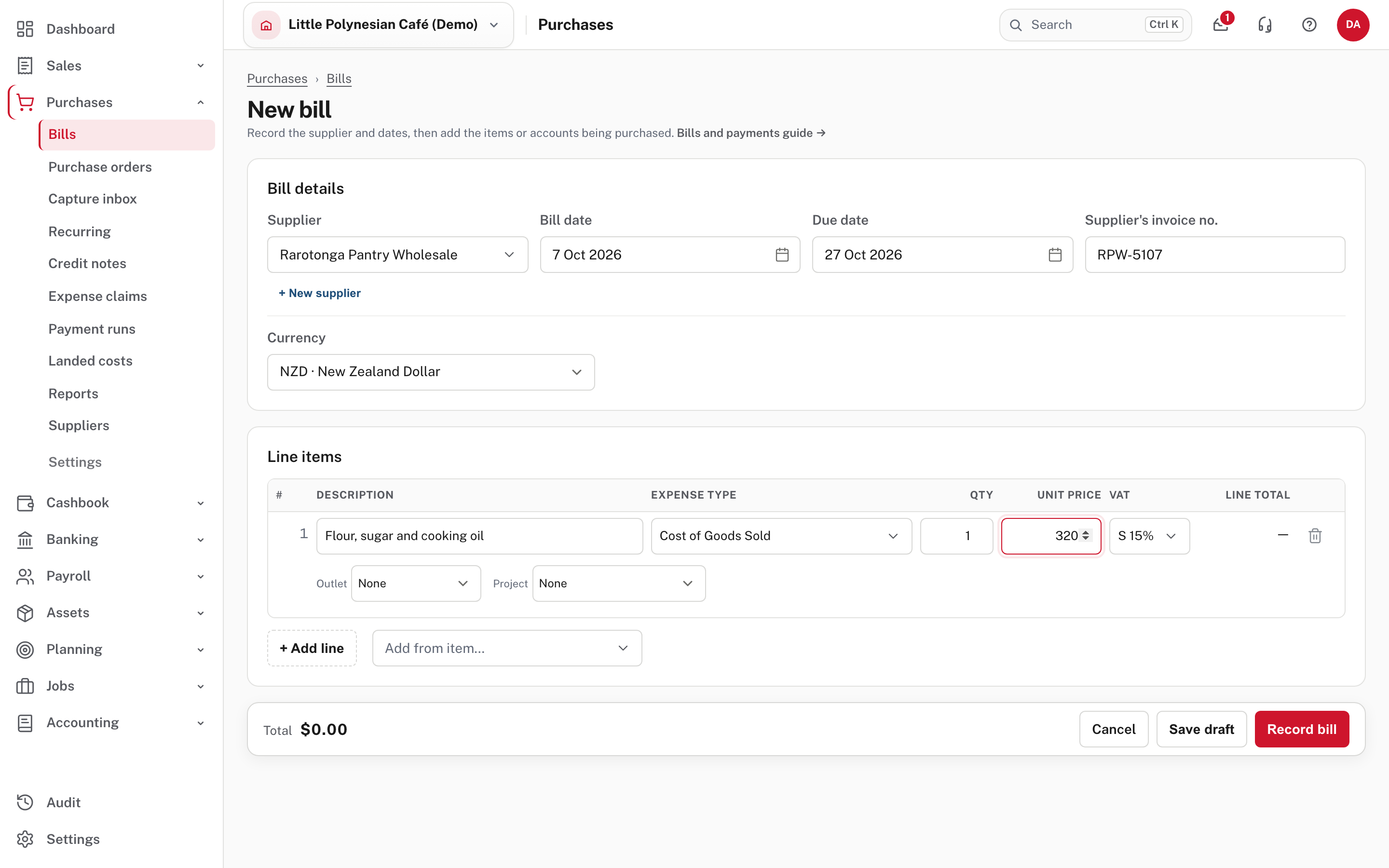
- Supplier: type to search. The list shows what you already owe each one.
- Bill date is today and Due date is filled in for you; change either to match their invoice.
- Supplier's invoice no. is their number. Always fill it in: it is how you find the bill later and how you spot a bill entered twice.
- Currency: the company's currency, or another you have switched on.
- Line items: a description, the expense type (the account the cost goes to), quantity, unit price and VAT code. The first line starts on the expense type of the supplier's last bill; for a supplier with no bills yet, choose one. Outlet and Project tag the line for reporting, and Add from item fills a line from a stock item.
Enter amounts as they are on the supplier's invoice. The total at the bottom must match the supplier's total.
Step 3. Save it, or send it for approval
At the bottom:
- Save draft: keep it while someone checks it. A draft is not yet a debt in your books.
- Record bill: the bill is added to what you owe and to your books.
- If bill approval is switched on, the button reads Save & submit for approval instead. The bill then waits for the approver named by the approval policy when it was submitted. Changing the policy later does not move it; to hand it to someone else, use Manage assignments in Mail.
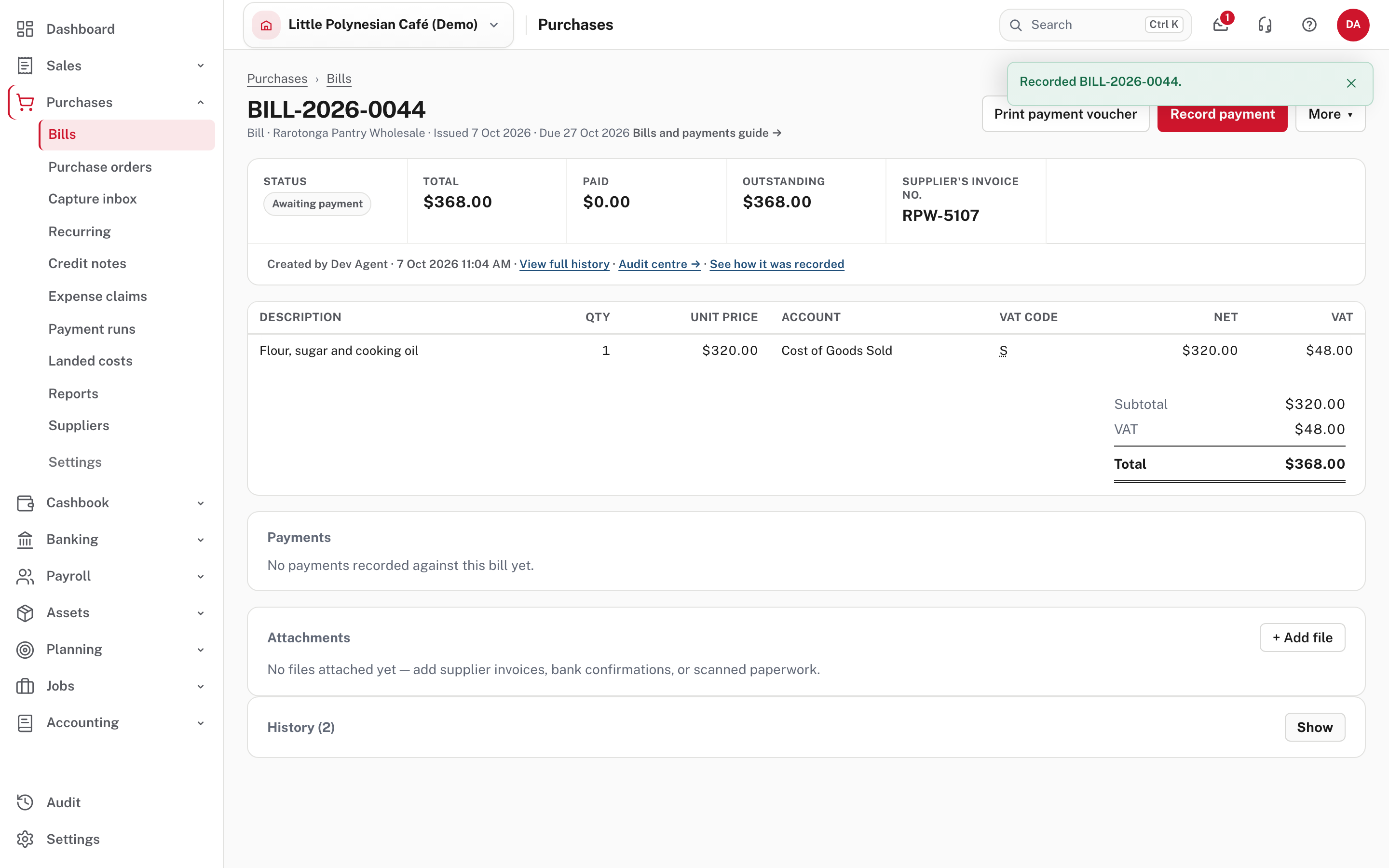
Once recorded, the bill shows its status (here Awaiting payment), the total, what has been paid and what is outstanding, and the lines with the account and VAT code each went to. Print payment voucher prints a voucher for whoever signs the bill for payment. Attachments keeps the supplier's invoice with the bill (add it with + Add file), and History shows what has happened to it.
More detail: Bills and supplier payments.
Step 4. Pay it
You can pay it straight away or later:
- One bill: choose Record payment on the bill.
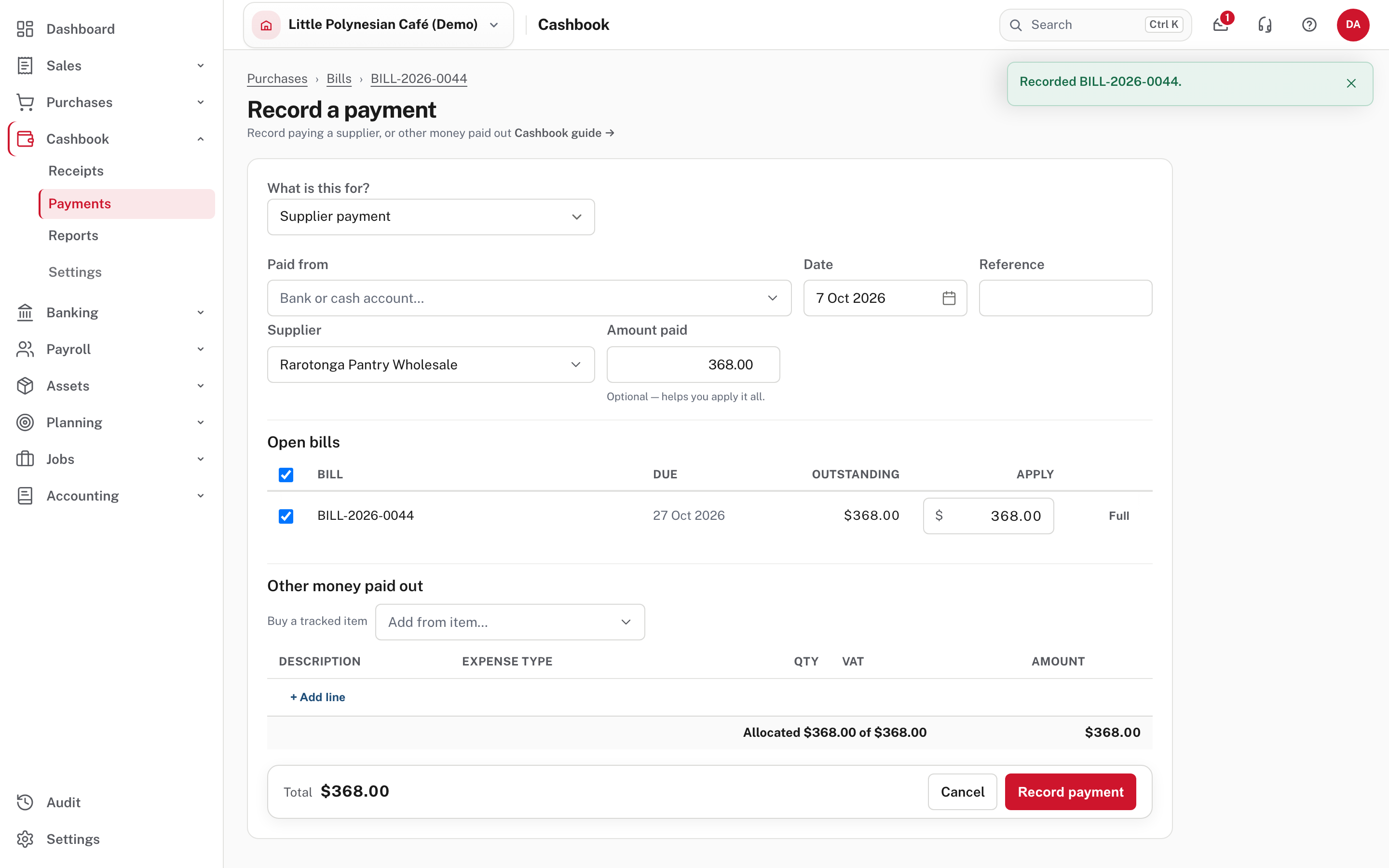
Choose Paid from (the bank or cash account), check the date, and the bill is already ticked under Open bills with the amount applied. Then Record payment. - Several bills at once, by bank file: use a payment run (Pay suppliers).
Check the date
A payment dated before the bill it pays is allowed, but the form warns you: until the bill's date, what you owe suppliers won't agree with your books.
Other ways bills arrive
- Recurring bills repeat on a schedule, such as rent: Purchases → Recurring → New recurring bill. Each run either creates a draft for you to check, or creates and records the bill. A bill that needs approval is submitted for approval instead.
- Bills by email go to the Capture inbox, where Easy reads the file and fills in a bill for a person to check. See Bills by email and the capture inbox.
- Expense claims from staff become bills when approved. See Purchase orders and expense claims.
Checking a supplier's statement
Purchases → Reports → Supplier statement lists every bill, credit note, payment and refund for a supplier in a period, with the balance after each line, so you can check it against the statement they sent. Supplier bills due lists what is overdue and what is due in the next 14 days.
If you made a mistake
Open the bill and use More: Undo bill takes it back out of your books, and Credit this bill raises a supplier credit note against it. Don't change what you owe with a journal. See Undoing, correcting and allocating.
Check before you continue
Check before you continue
- The bill total equals the supplier's invoice total, and the supplier's invoice number is filled in.
- Each line has the right expense type and VAT code.
- The supplier's invoice is attached to the bill.
- The due date matches the supplier's terms (check it: Easy fills one in), so it shows up in Supplier bills due on time.
- If approval is on, the bill is with the right approver.