Opening balances and moving your history in
Do this once, on the day your books start in Easy. Opening balances tell Easy what the business owned and owed the day before, so that reports are right from day one without re-entering old transactions.
About the screenshots
Screenshots are from a test company, Tamarind Café, with made-up balances. The wizard remembers where you stopped, so you can leave with Save and exit and come back.
Before you start
- The company is set up (Set up your company): the chart of accounts exists and the financial year starts in the right month.
- Decide the go-live date: the first day Easy holds your transactions. Everything before it becomes one opening entry.
- Have the closing figures from the old system, as at the day before go-live: each bank account's balance as the bank statement shows it, every unpaid customer invoice and supplier bill, loans and credit cards, prepayments and deposits, the fixed assets, and any VAT owed or refundable.
- Customers and suppliers exist if you will list open invoices and bills (add them under Sales → Customers and Purchases → Suppliers first).
Step 1. Open Opening balances
Settings → Data & import → Opening balances. (In the setup wizard, this is the Balances step.)
There are two ways in, chosen with Guided and Advanced at the top right. Both make the same opening entry.
- Guided (the default) asks plain questions and works out the debits and credits for you.
- Advanced is a debit and credit trial balance, for an accountant who already has one.
This chapter follows Guided. The seven steps run down the left.
Step 2. Start date
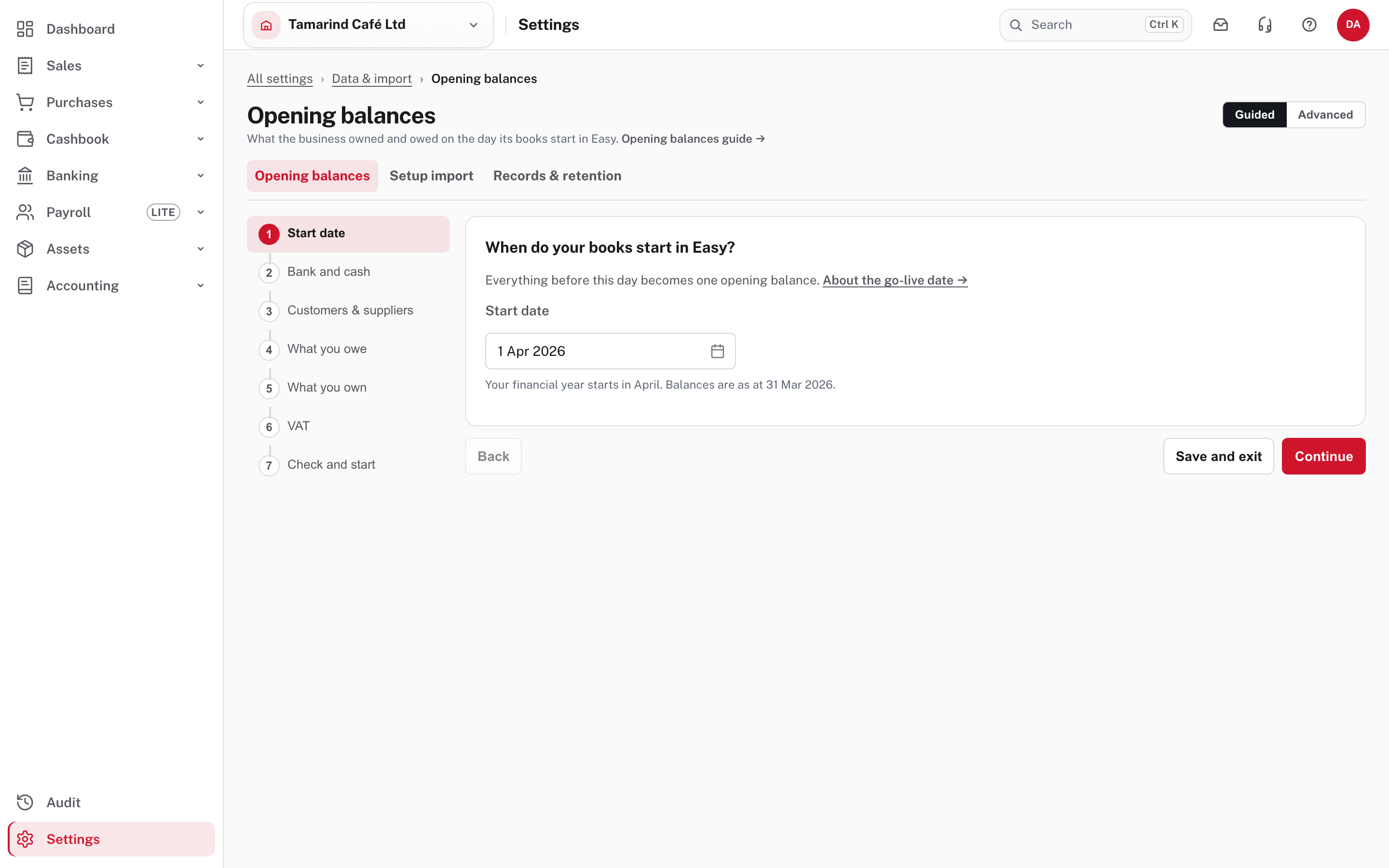
Pick the start date. It is suggested from the month your financial year starts (April here, so 1 April). The page says the balances are "as at" the day before (31 March). Choose Continue.
Step 3. Bank and cash
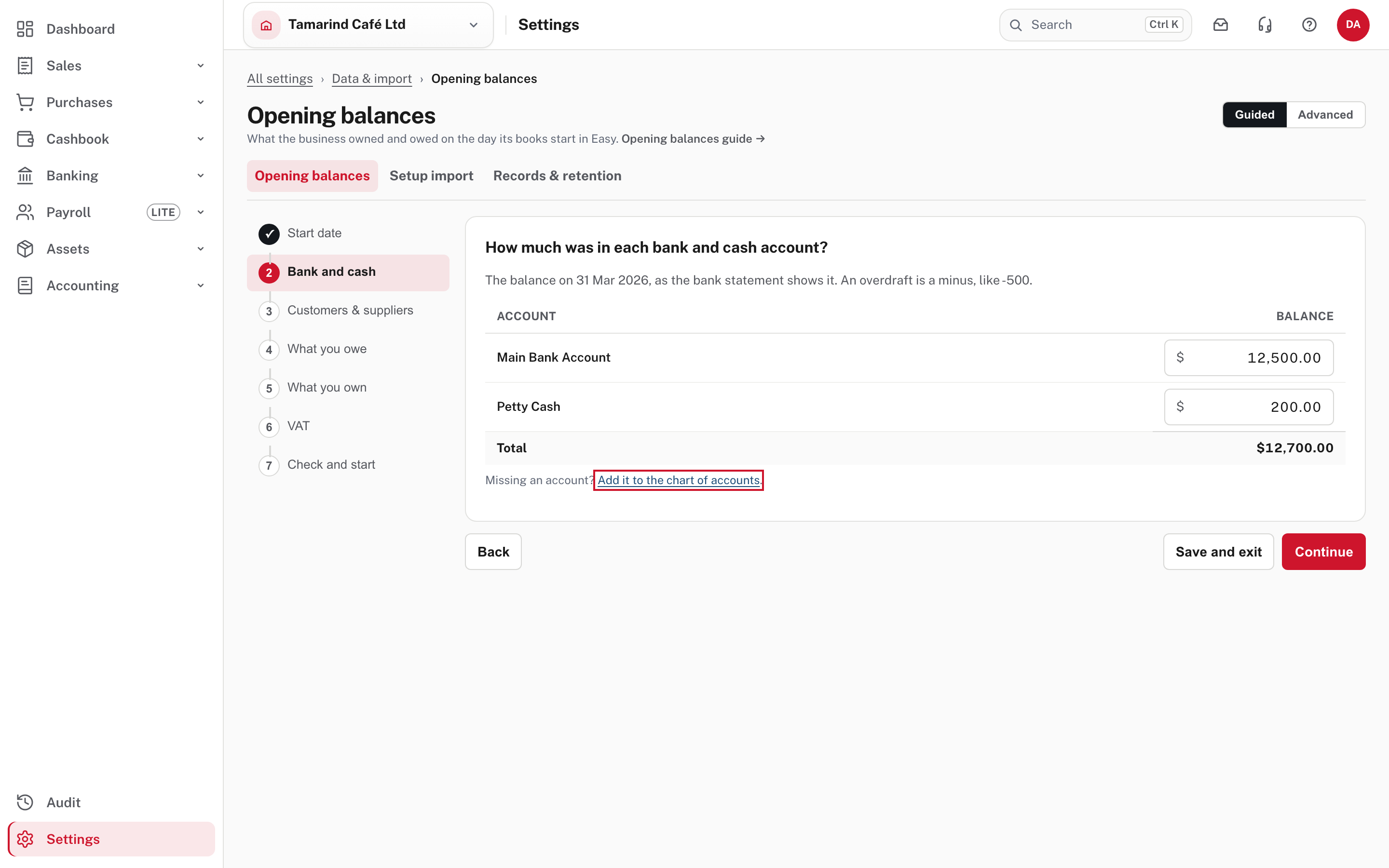
Enter the balance of each bank and cash account as the bank statement shows it on the day before go-live. An overdraft is a minus amount, like -500. If an account is missing, add it to the chart of accounts and come back.
Step 4. Customers and suppliers
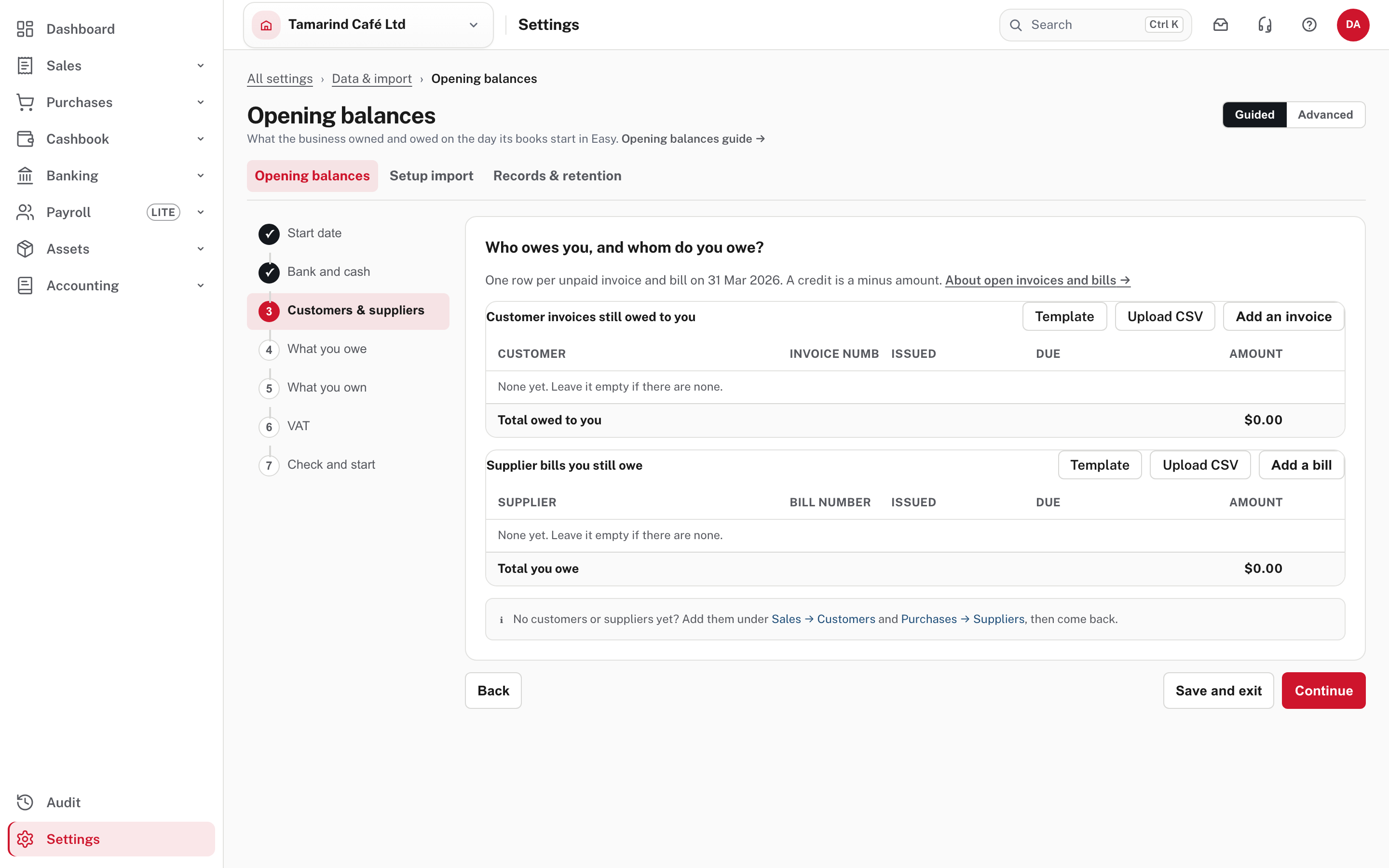
List one row per unpaid customer invoice and supplier bill on the day before go-live. Each becomes a real, recorded opening document that you settle normally, with its own number and dates, so your aged debtors and creditors are right from day one.
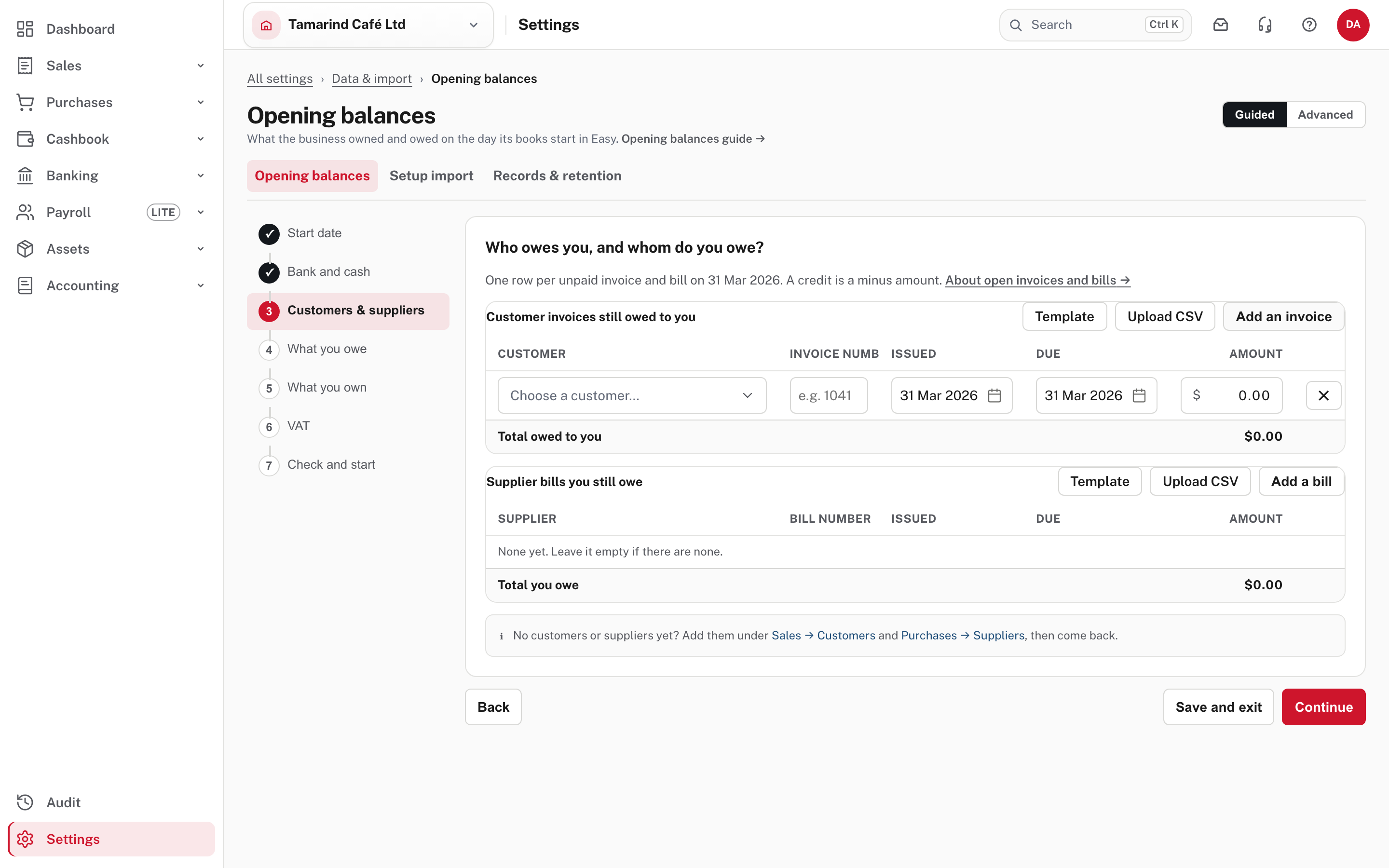
Choose Add an invoice (or Add a bill) and fill in the customer (or supplier), invoice number, issued and due dates and the amount. A customer in credit, or a supplier who owes you, is a minus amount. Template downloads a CSV layout and Upload CSV brings in a long list at once. If there are none, leave it empty.
Step 5. What you owe
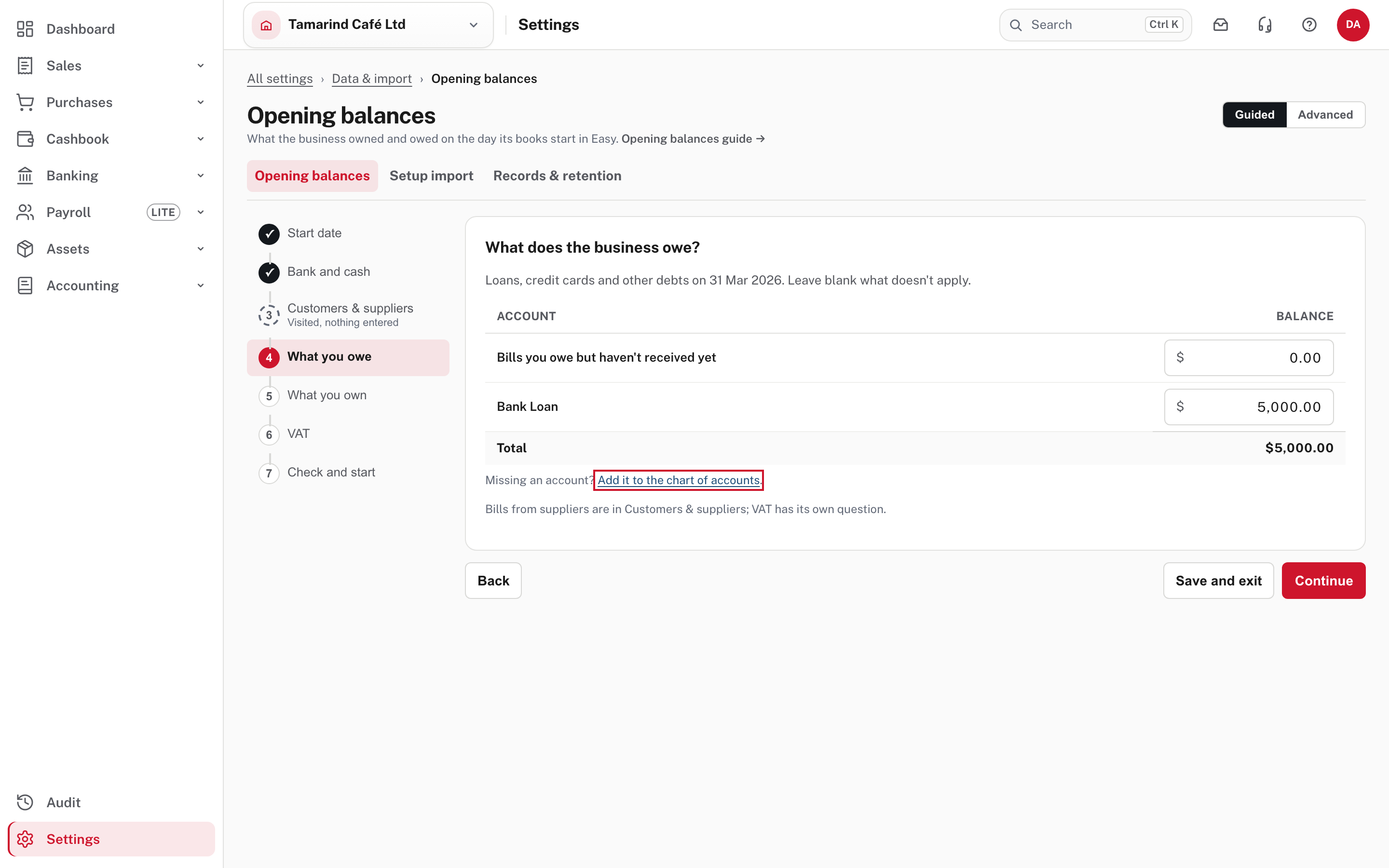
Loans, credit cards, bills you owe but haven't received yet, and other debts. Type what is owed; Easy makes it a credit. Bills from suppliers belong in the previous step, and VAT has its own question.
Step 6. What you own
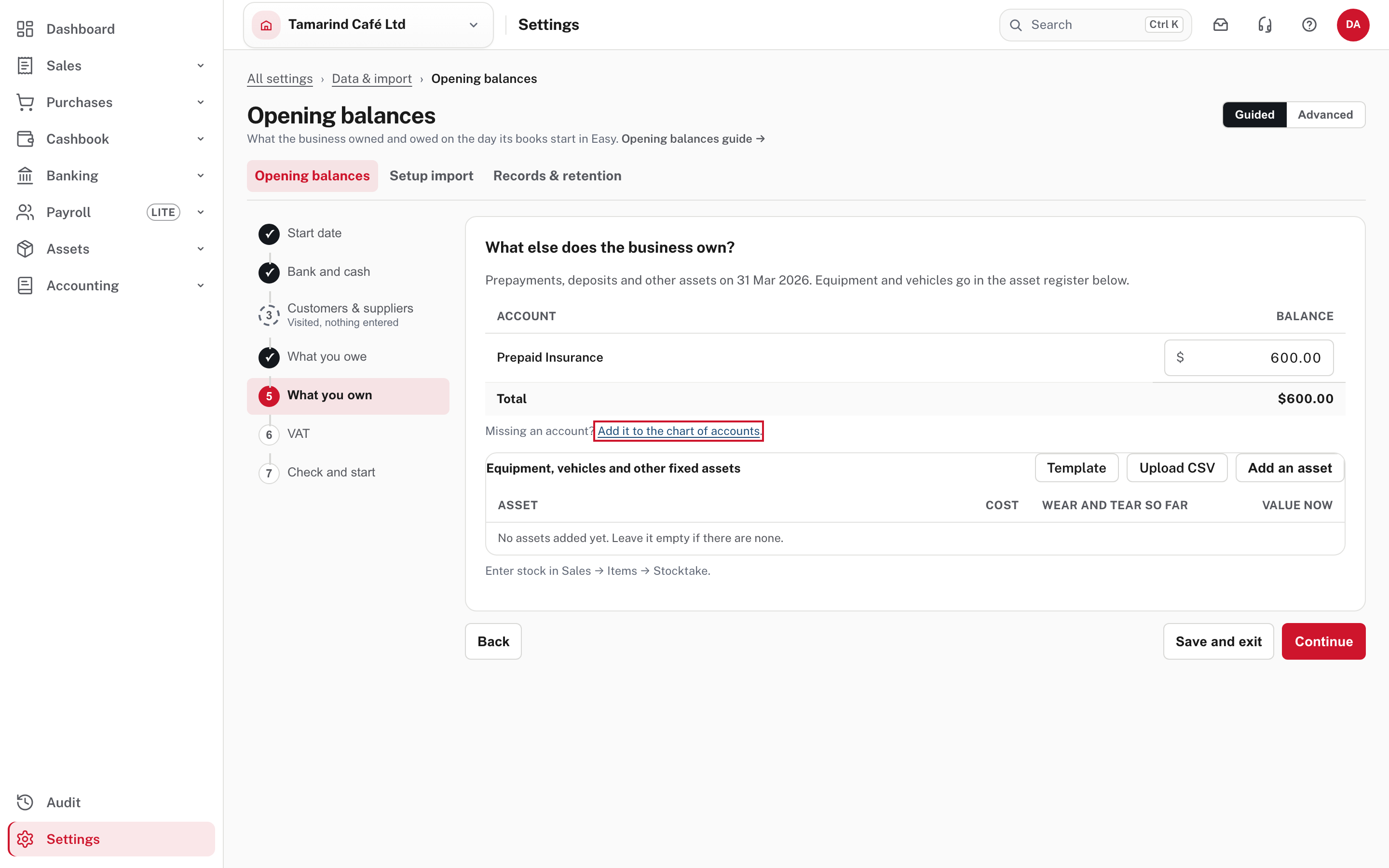
Prepayments, deposits and other assets go in the table. Equipment and vehicles go in the asset register below it (Add an asset, or Upload CSV): enter each asset's cost and the wear and tear so far, so depreciation carries on. Stock you track item by item is not entered here: Easy values it from the stock records (enter it under Sales → Items → Stocktake).
Step 7. VAT
Shown only if the company is VAT registered.
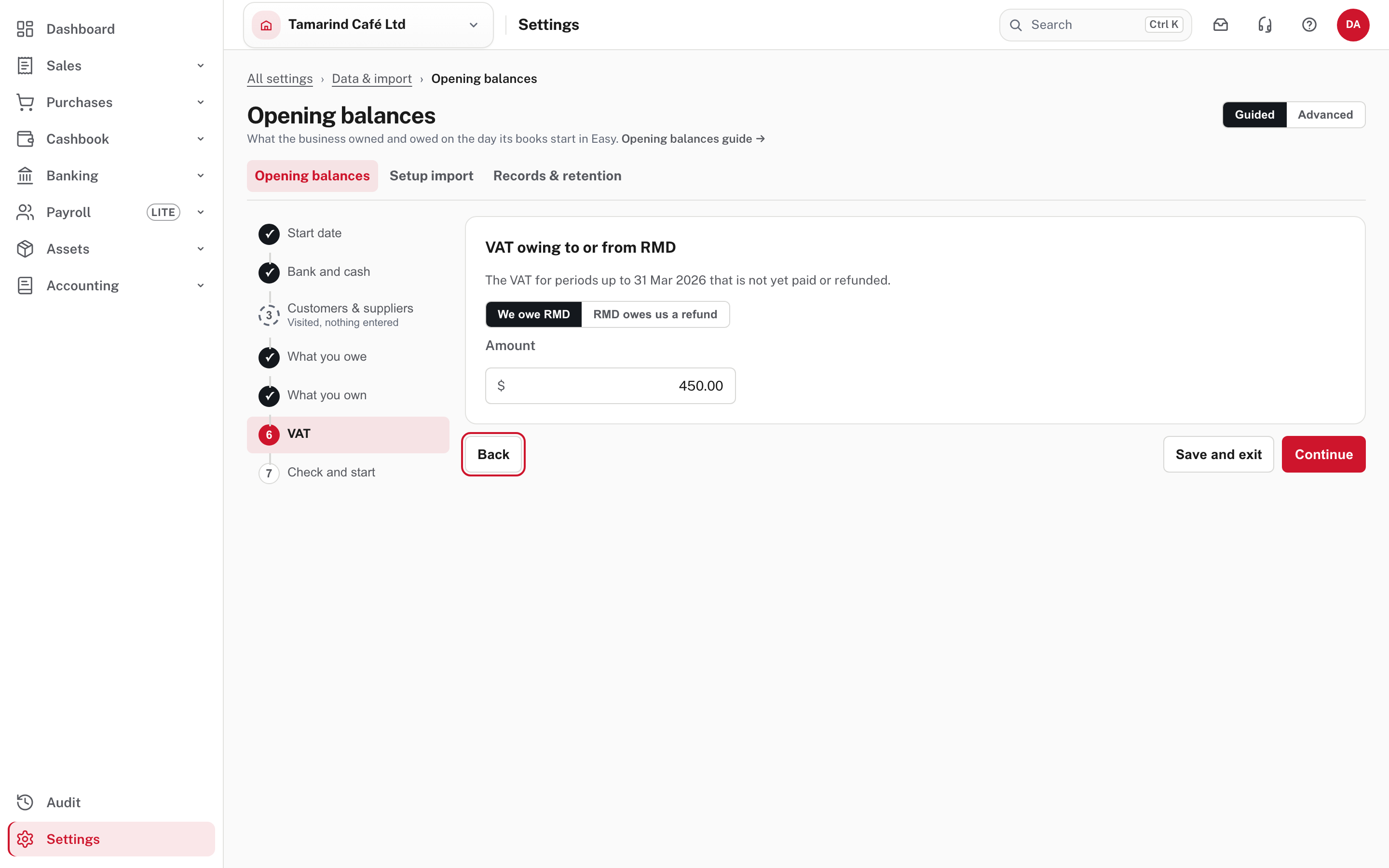
Choose We owe RMD (VAT for periods up to the start date not yet paid) or RMD owes us a refund, and type the amount.
Step 8. Check and start
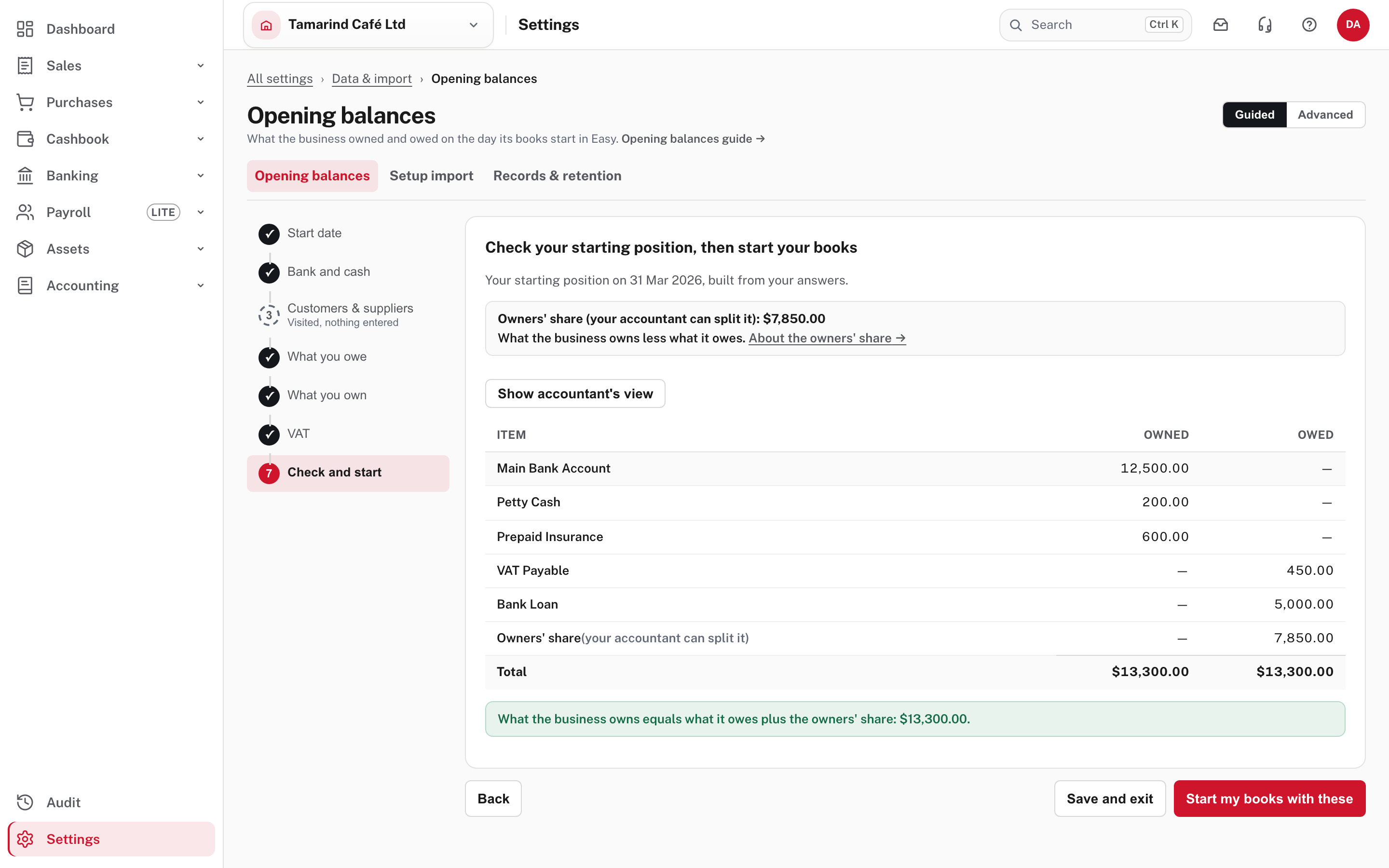
Easy shows your starting position: what the business owns, what it owes, and the owners' share.
The owners' share. Easy never asks what the business is worth. It works it out: everything the business owns, less everything it owes, belongs to its owners. That figure is kept on the Opening Balance Equity account. If the business owes more than it owns, it is a minus amount. Your accountant can later split it into owner's capital and retained earnings. If you start part way through your financial year, the year's income and expenses so far are part of this figure; enter them in Advanced if you want them on their own accounts.
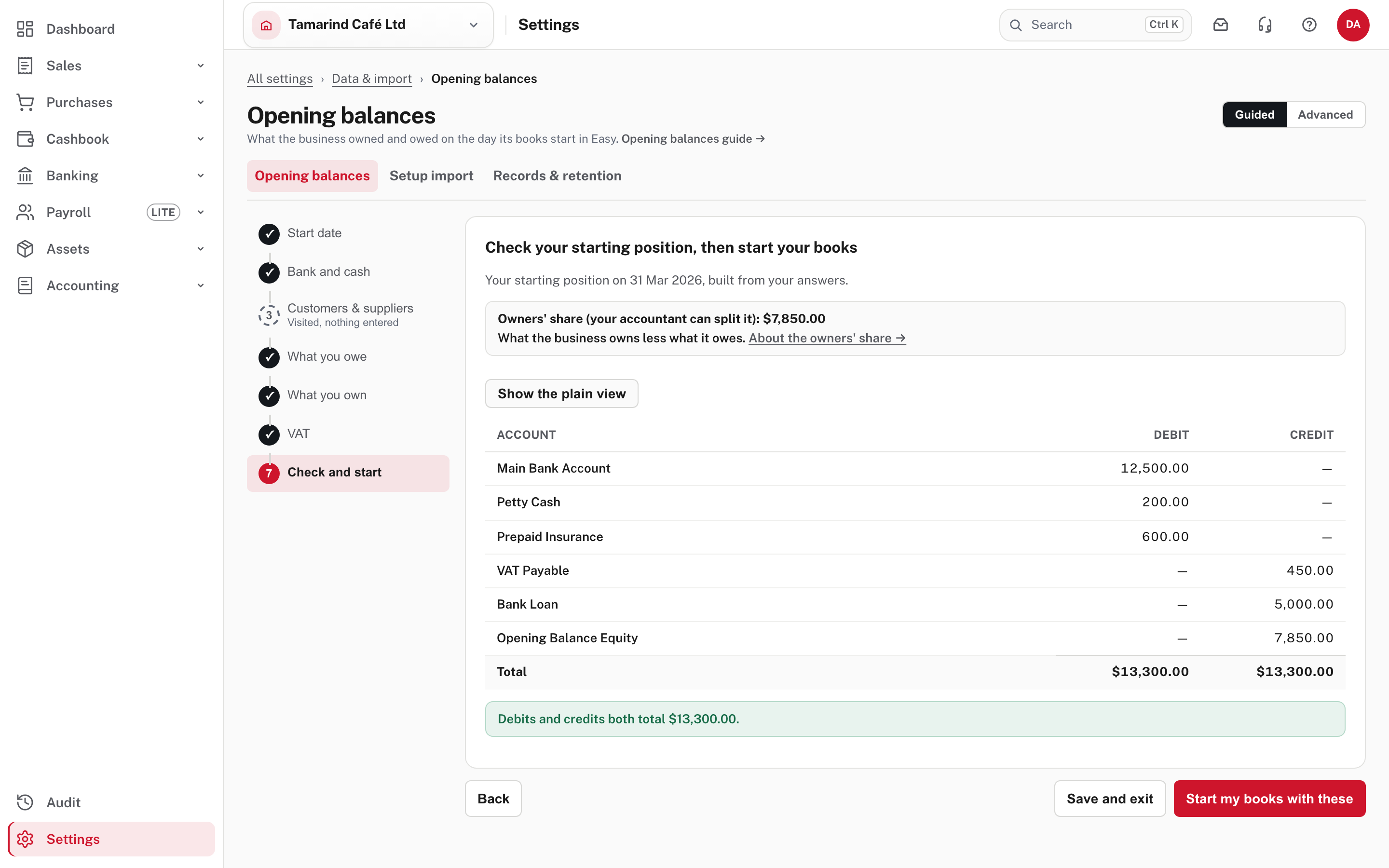
Show accountant's view shows the same figures as debits and credits. In Guided, the owners' share always closes the gap, so the check says what the business owns equals what it owes plus the owners' share.
Start my books with these
This records the opening entry. After it, use Change the opening balances to open the steps again (starting again replaces the opening entry), and Adjust opening balances to correct them once you are live.
Choose Start my books with these.
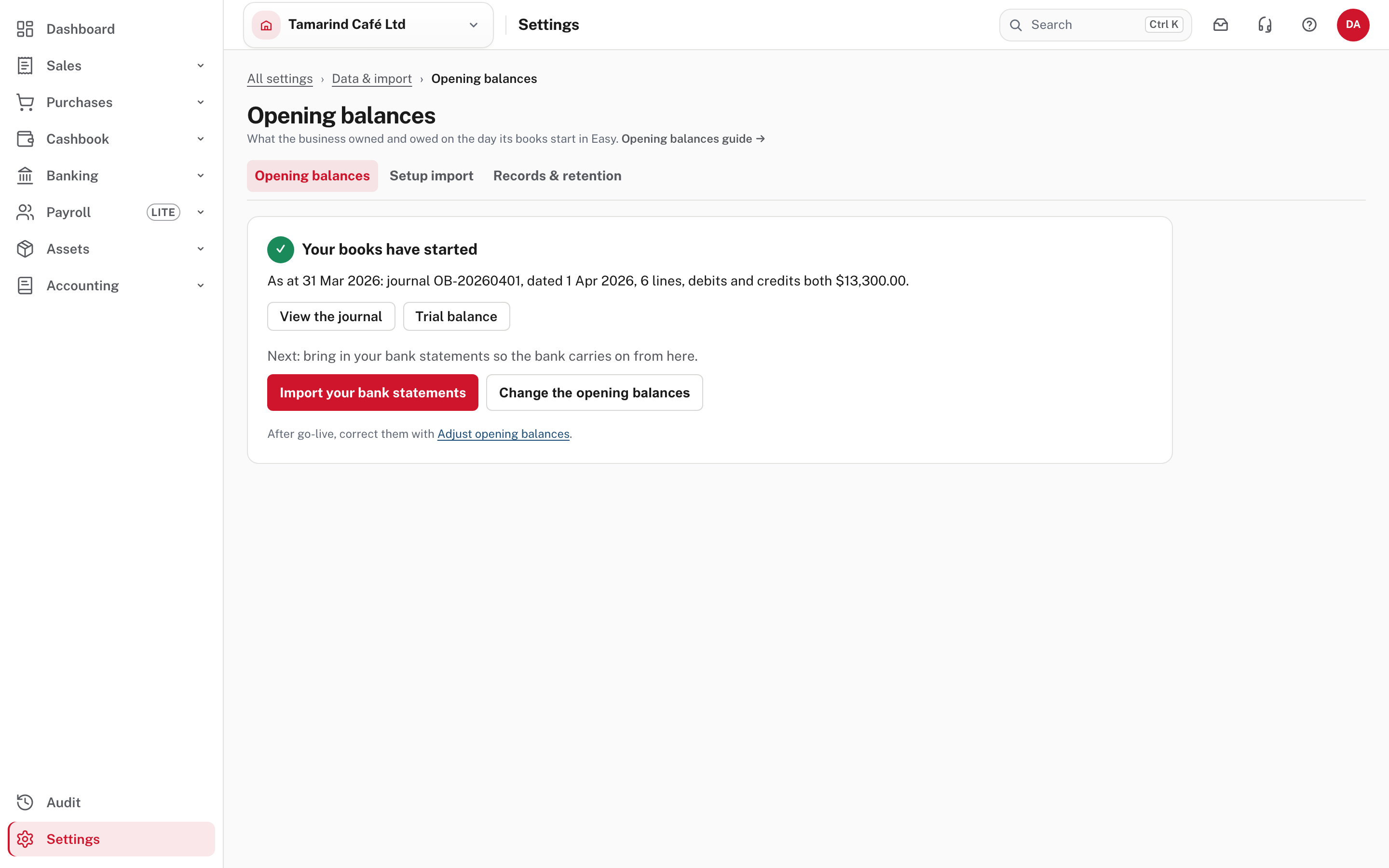
The page now says Your books have started and shows the opening entry: its journal reference, its date, its number of lines and that debits and credits both total the same. View the journal and Trial balance open it. The next step it offers is Import your bank statements, so the bank carries on from here (see Import a bank statement).
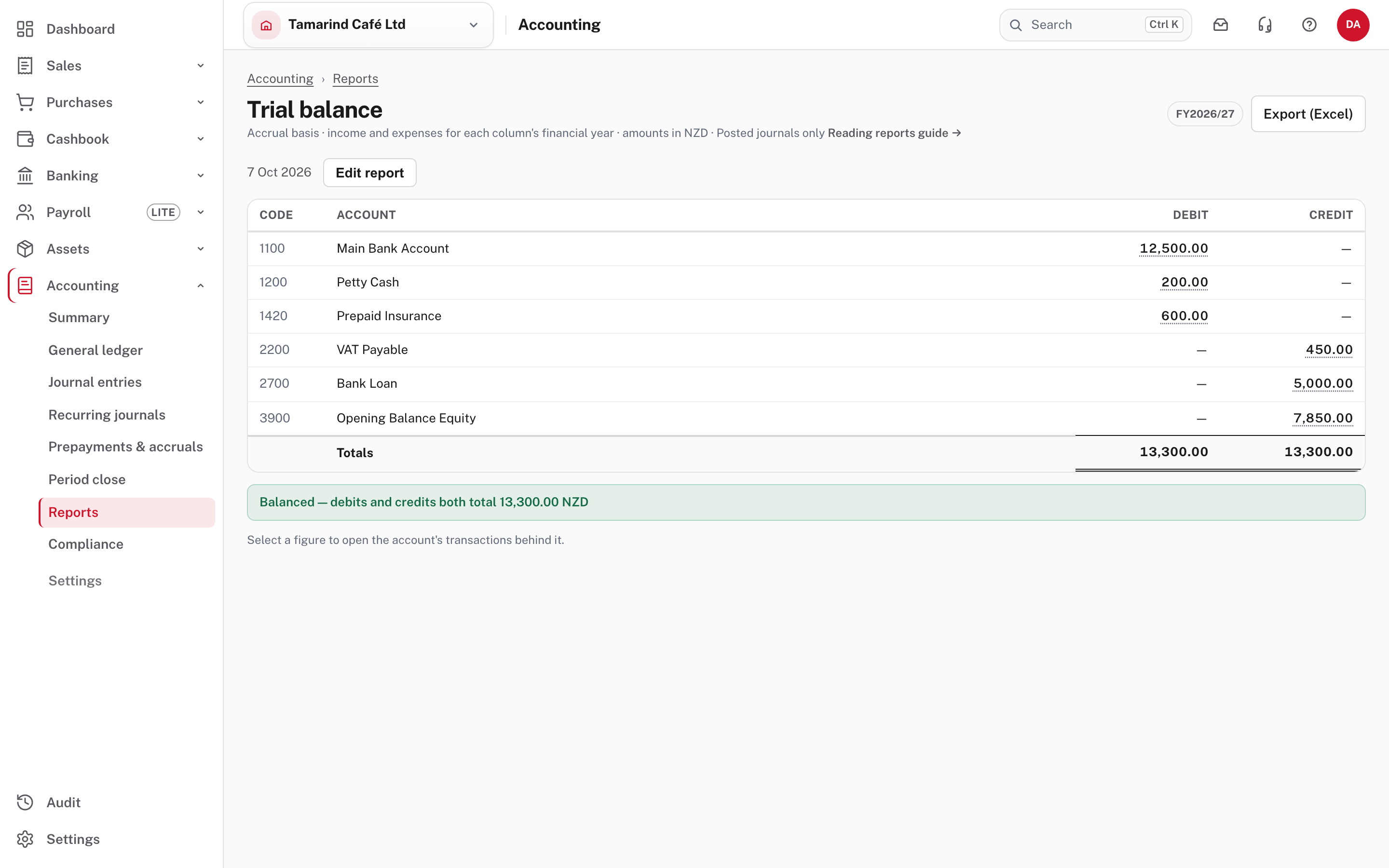
Read the trial balance: every figure should be what you entered.
Advanced: the trial balance
Switch to Advanced to type in or import a trial balance from your old system. Trade debtors and creditors are not entered here (you list the open invoices and bills instead). The VAT control account is: what you owe RMD is a credit, a refund due is a debit. While you type, an "out of balance so far" figure is shown; it can include the customers and suppliers step still to come. Switching from Guided to Advanced shows the trial balance your answers made, so an accountant can adjust it.
Importing a company's whole history
If you want transactions and not only balances, use Setup import (the tab beside Opening balances): a journal import from a company workbook that posts straight to the ledger. It is for moving a company in, and for accountants. See Importing a company's history.
More detail: Opening balances.
Check before you continue
Check before you continue
- The start date is the first day Easy will hold transactions, and the figures are as at the day before.
- Each bank balance equals the bank statement, and each customer and supplier total equals the old system's.
- The owners' share is what you expect (assets less liabilities).
- The trial balance, after you start, shows every figure you entered, and it balances.
- You know how to correct it later (Adjust opening balances), and the lock date is still before go-live.