Grants
Do this if you receive donor grants that come with conditions: use the money for the agreed activity, or give it back. Until the money is spent it is not your income. Easy holds it as a liability, then releases it to income month by month as you spend it, so a grant's income always equals what was spent on it. It is accountant's work, with the Owner starting it. It belongs with Manual journals and journal approval, Reporting dimensions and Month-end checklist and closing a period.
About the screenshots
Grants are off in Easy's demo company, Little Polynesian Café: its Accounting menu has no Grants tab and the page offers Start keeping grants. Starting grants adds a reporting dimension and two accounts to the whole company, so the pictures come from a practice company where grants are on. The donor (Pacific Aid Partners), the grant (PAK-26, 10,000.00 for water tanks) and the spending are made up.
Before you start
- You have the agreement. Note the donor's name, the agreement reference, the amount and its start and end dates.
- A free reporting dimension. Grants use one of the company's three reporting dimensions for their Grant tag (Reporting dimensions). If all three are used, Easy can't start grants.
- Who can do what. Only an Owner, Administrator or Accountant can start grants (the page says so to anyone else) and add or change a grant. Running the release is accountant's work too (People, roles and access). Not pictured: what other roles see.
- Grants are outside VAT. Easy sets the two new accounts to the No VAT code (step 1).
Step 1. Start keeping grants
Accounting → Grants → Start keeping grants.
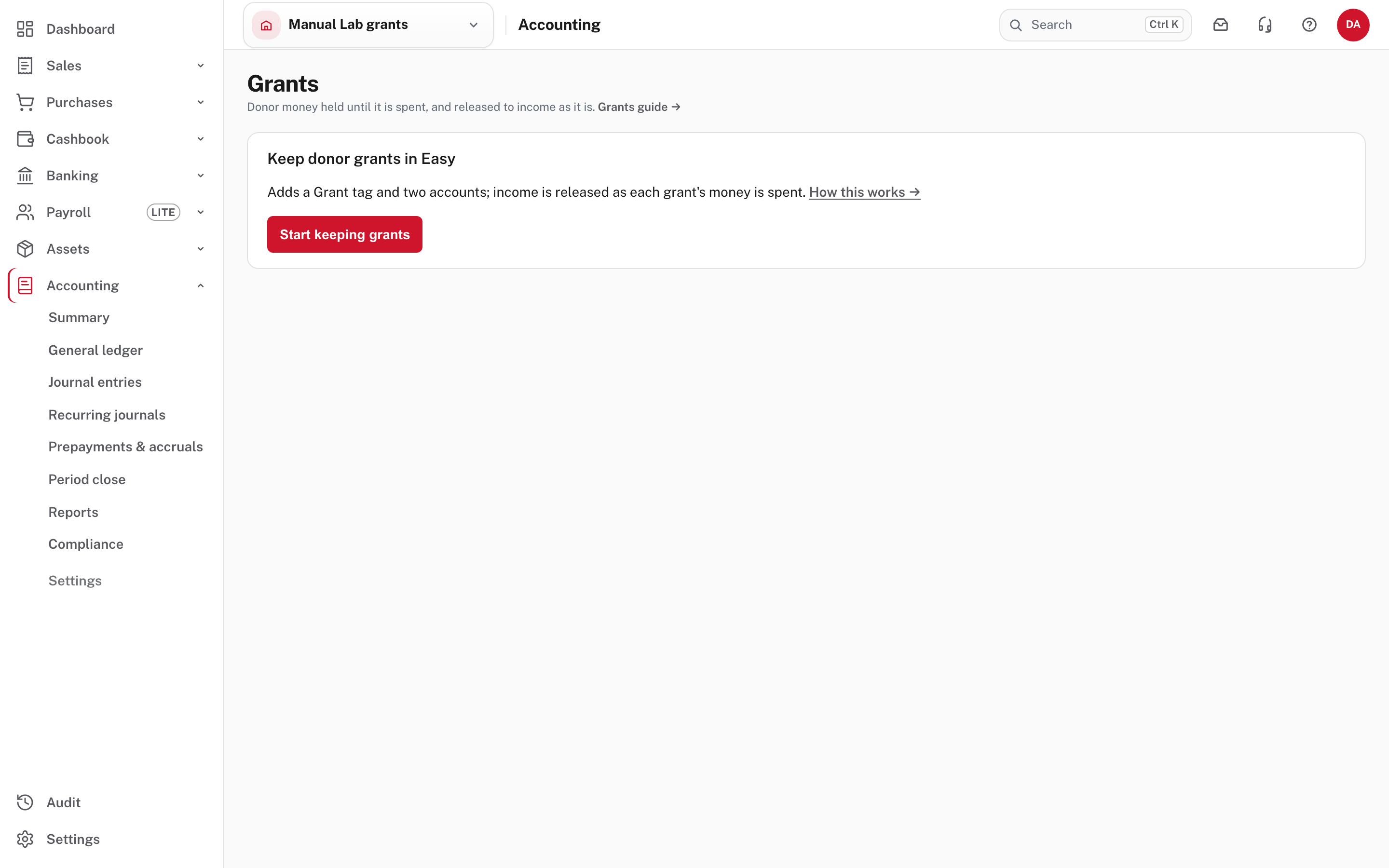
Choose Start keeping grants. It is a company-wide switch: Easy adds
- a Grant reporting dimension, whose values are your grants (it also holds a reserved value, Organisation (unrestricted), for anything that is not grant money);
- an Unexpended Grants liability account (here 2420), for money received and not yet spent;
- a Grant Income account (here 4100), for what the release recognises.
Both accounts are set to the No VAT code.
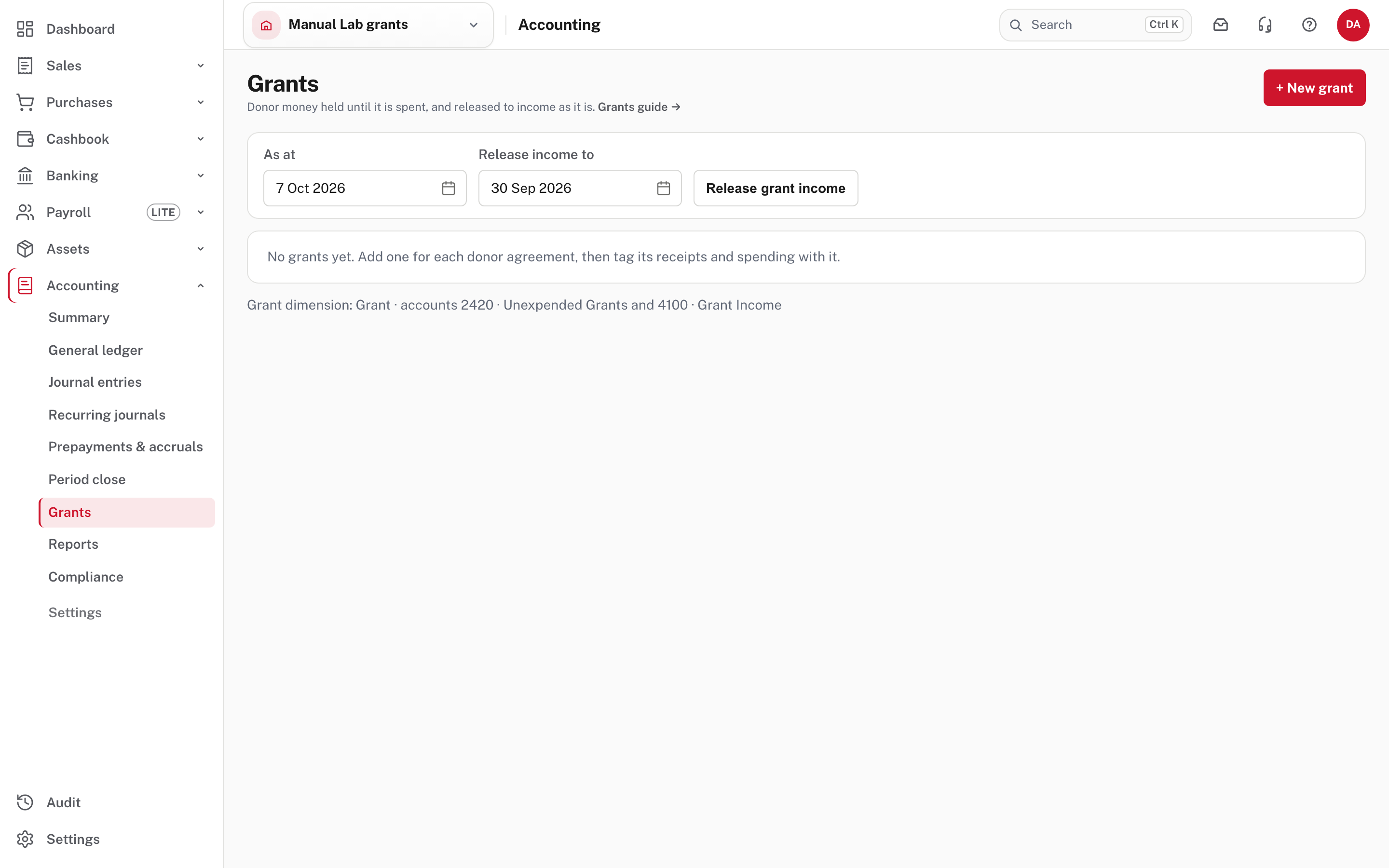
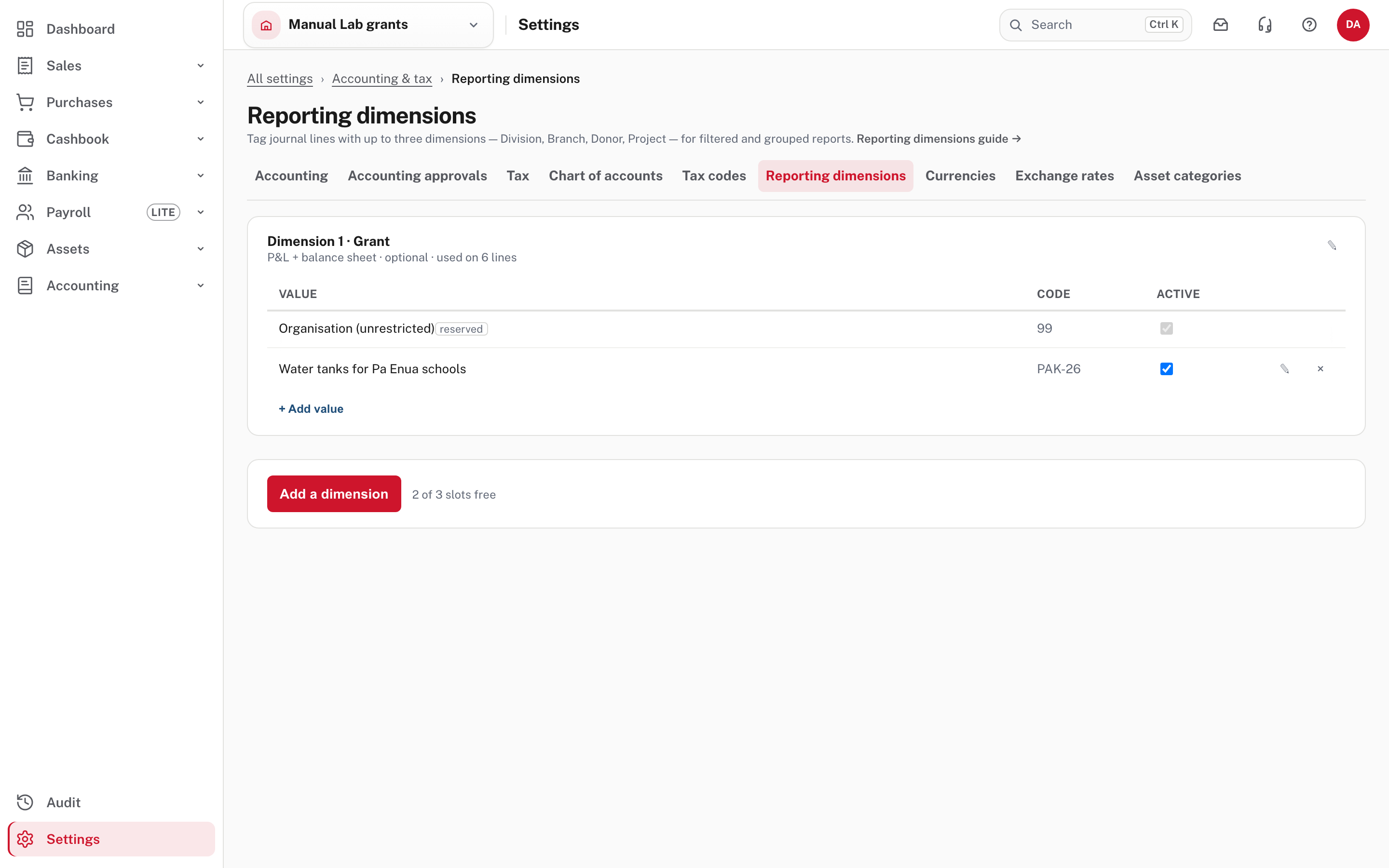
The Grants tab appears in the Accounting menu. On the dimensions page the new dimension covers profit and loss and balance sheet accounts, and is optional (keep it that way: see Leave the Grant tag optional).
Step 2. Record a grant
Choose + New grant (one for each donor agreement).
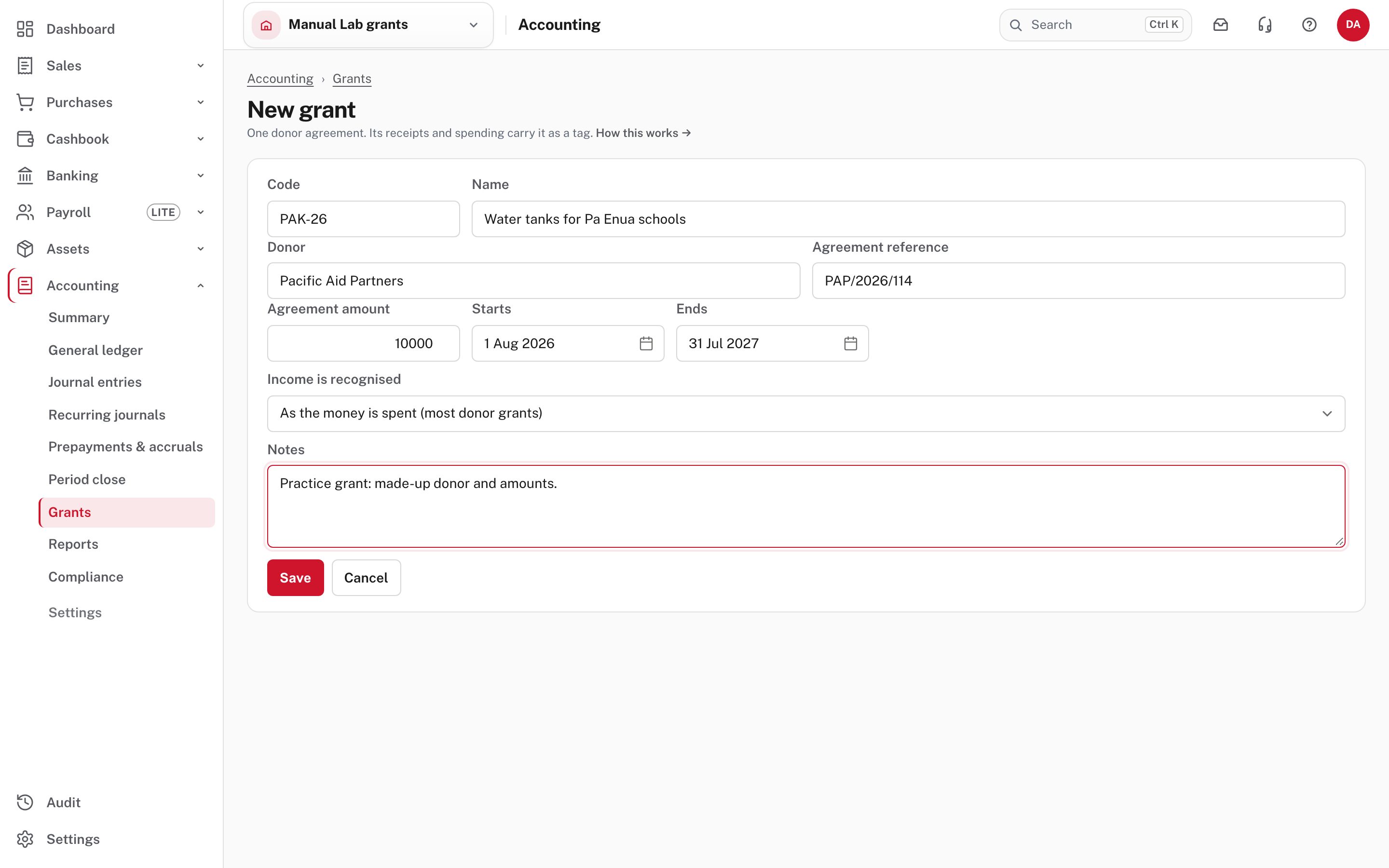
| Field | What it does |
|---|---|
| Code | A short code you will recognise, such as PAK-26. It is also the grant's value of the Grant tag, so it must be unique |
| Name, Donor, Agreement reference | As on the agreement |
| Agreement amount | The cap: income is never released beyond it |
| Starts, Ends | The grant's dates. The acquittal starts from the start date |
| Income is recognised | As the money is spent (most donor grants), When it is received (a donation with no conditions), or Never: it is held for someone else |
| Notes | Free text |
Choose Save. The grant opens with Acquittal (its report) at the top right and Close grant at the foot.
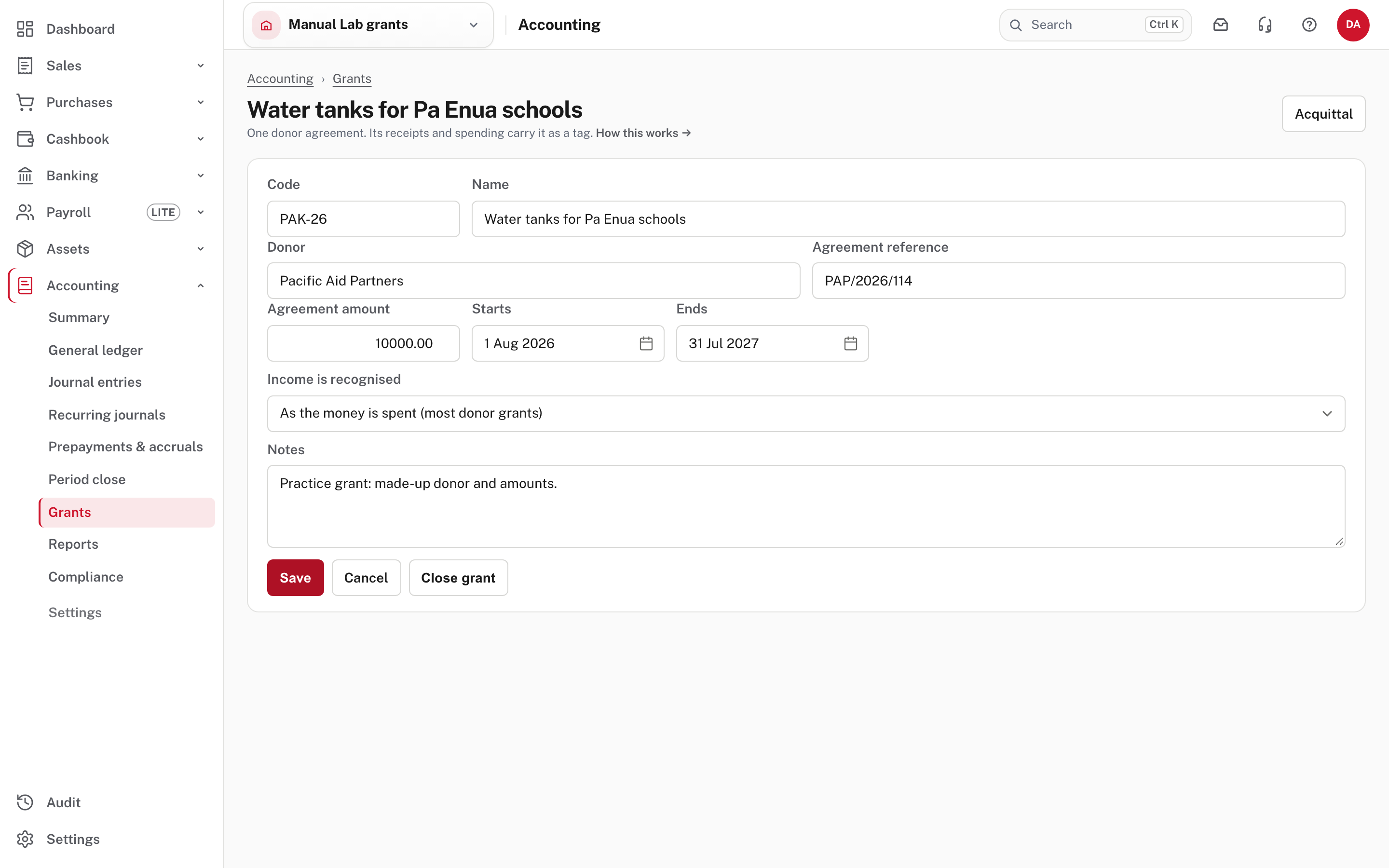
The three ways of recognising income (only the first is pictured):
- As the money is spent. The donor's payment goes to Unexpended Grants and the monthly release moves it to Grant Income as you spend.
- When it is received. Code the receipt straight to an income account, tagged with the grant; nothing is released.
- Never. Money you only pass on. Receive it into, and pay it out of, a liability. It is never income or expense.
Step 3. Record the donor's payment
The donor's money has to land on Unexpended Grants, tagged with the grant. The Cashbook → Receipts form can't do that: its Income type list holds income and owner accounts only. Record the payment from the bank statement instead. Import the statement (Import a bank statement and set bank rules), then start the reconciliation (Bank reconciliation, month by month).
The reconciliation's Create entry panel has no Grant tag, but a bank rule can carry it, so make a rule for the donor first: Banking → Rules → + New rule.
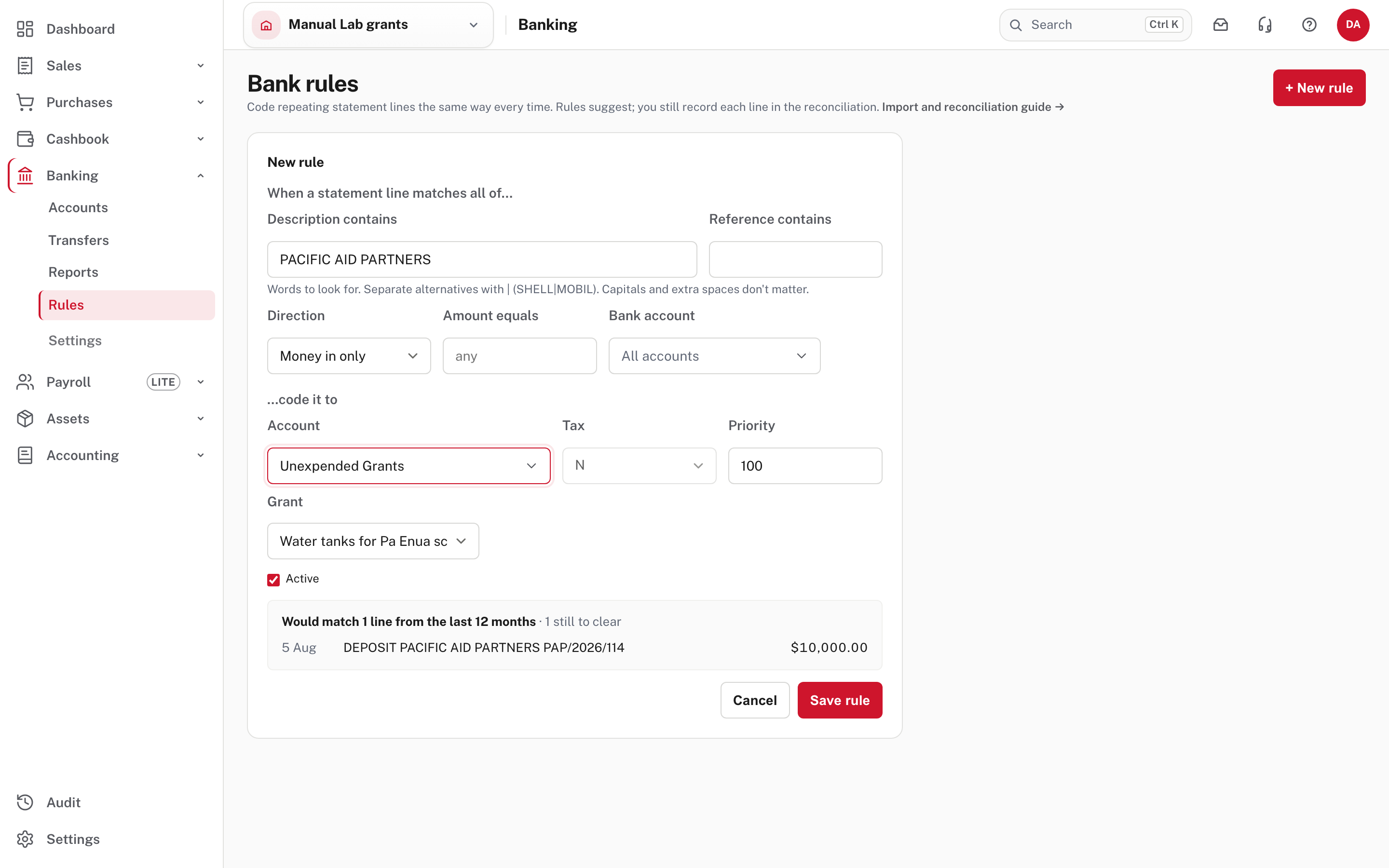
Here the rule looks for PACIFIC AID PARTNERS in the description, for money in only, and codes it to Unexpended Grants with tax N and the grant Water tanks for Pa Enua schools. The editor shows how many statement lines it would match.
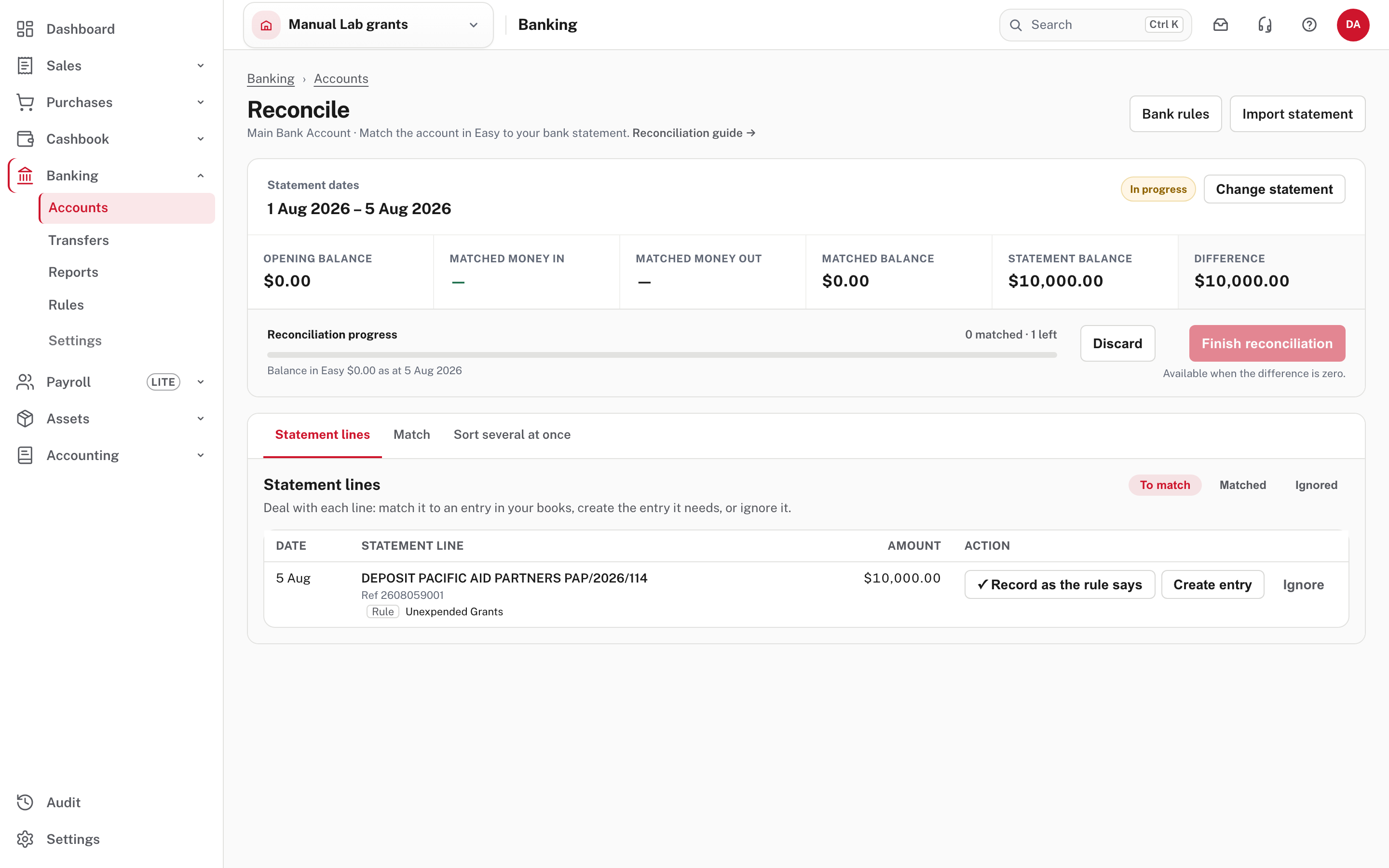
Choose Record as the rule says. The line is matched and the difference goes to $0.00.
If a payment reaches Unexpended Grants with no tag, the Grants page warns: "A line on that account names no grant".
Step 4. Tag everything you spend from the grant
Spending is recorded as usual: bills, the cash book, payroll. What makes it the grant's is the Grant tag on the line.
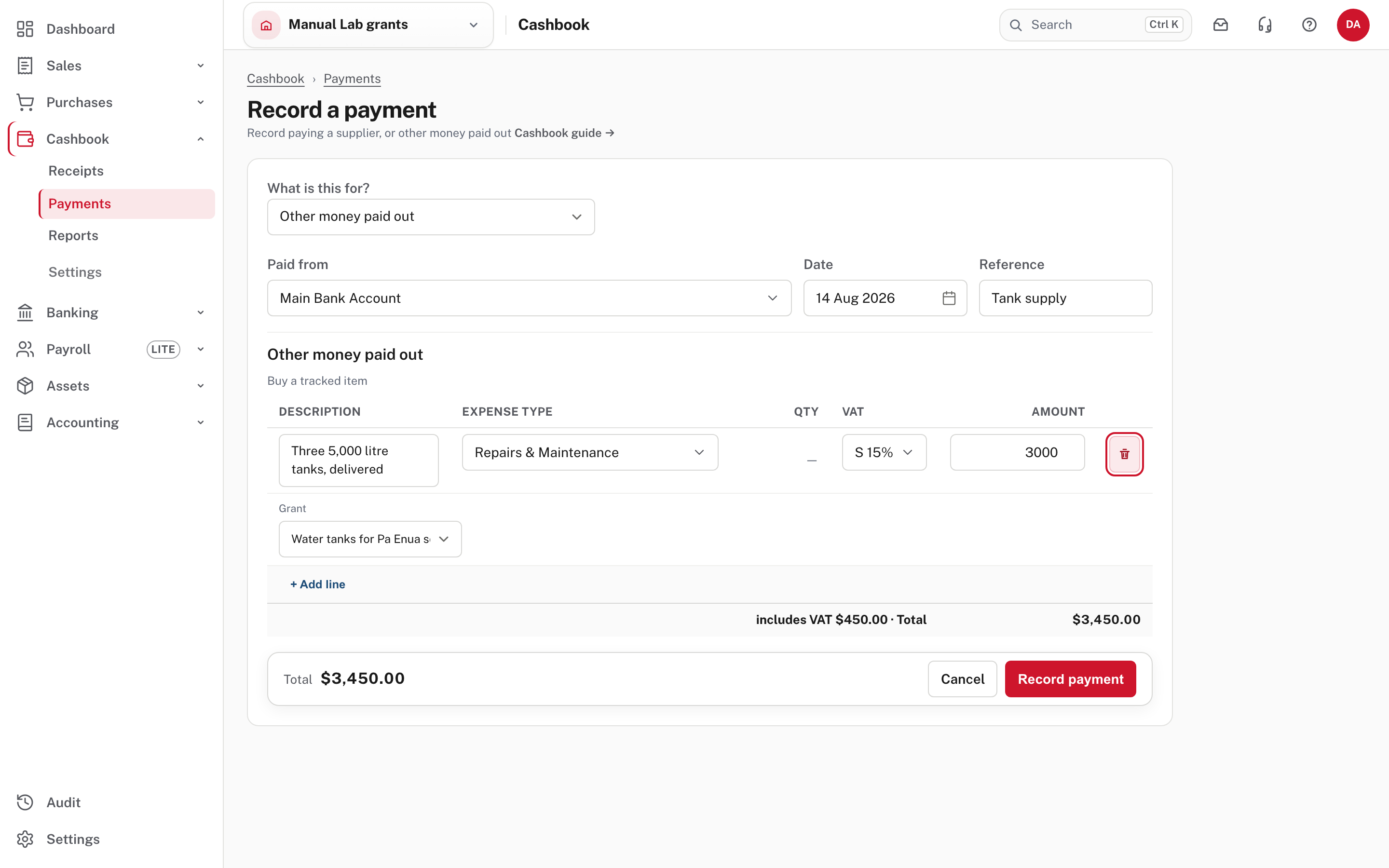
On Cashbook → Payments → Record payment, each line shows a Grant box once grants are started. Its choices are None and each grant. Here a $3,000 payment for three tanks is tagged with the grant, with VAT at 15% claimed as on any purchase (the VAT stays with the VAT return, the $3,000 is the grant's spending). Bills, payroll and the other screens carry the tag the same way (not pictured).
Step 5. Check where things stand
Accounting → Grants.
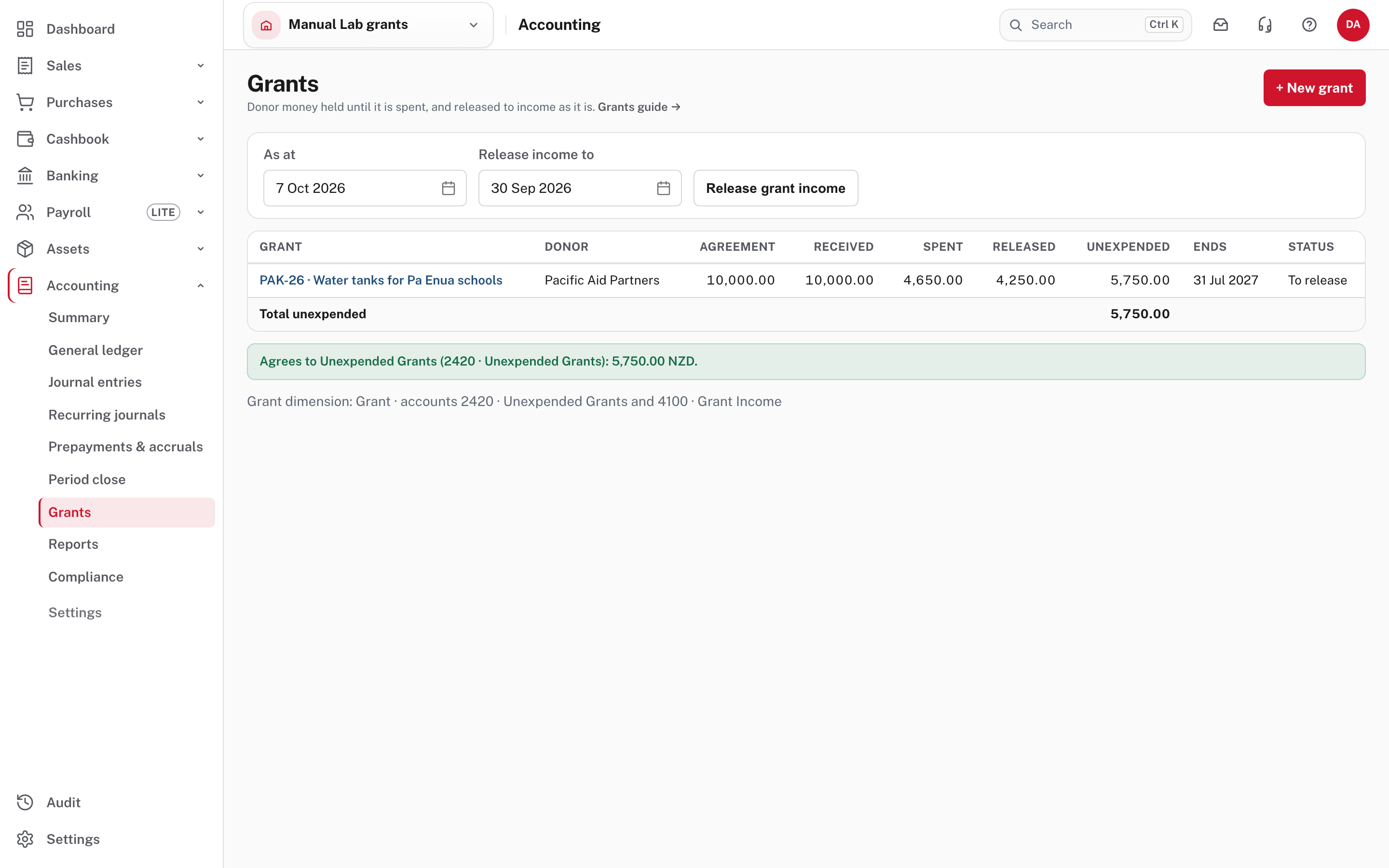
| Column | What it shows |
|---|---|
| Agreement | The amount you recorded |
| Received | Money from the donor (less any refunds to the donor) |
| Spent | What the grant's tagged spending adds up to, VAT excluded (here 3,000 + 1,250 + 400 = 4,650) |
| Released | Income already moved out of Unexpended Grants |
| Unexpended | What the grant still holds on Unexpended Grants. A negative balance reads receivable: the grant has spent ahead of the donor's payment |
| Status | Up to date, To release, Spent over the agreement, Income when received, Held for others or Closed (the first two are in the picture) |
The green line Agrees to Unexpended Grants says the grants add up to the account. If it turns amber, a line on the account names no grant. As at (top) changes the date the table is read at.
Step 6. Release the income
Easy releases on the 1st of each month, for the month before. Not pictured: the automatic release. You can also run it yourself: choose a date in Release income to, then Release grant income.
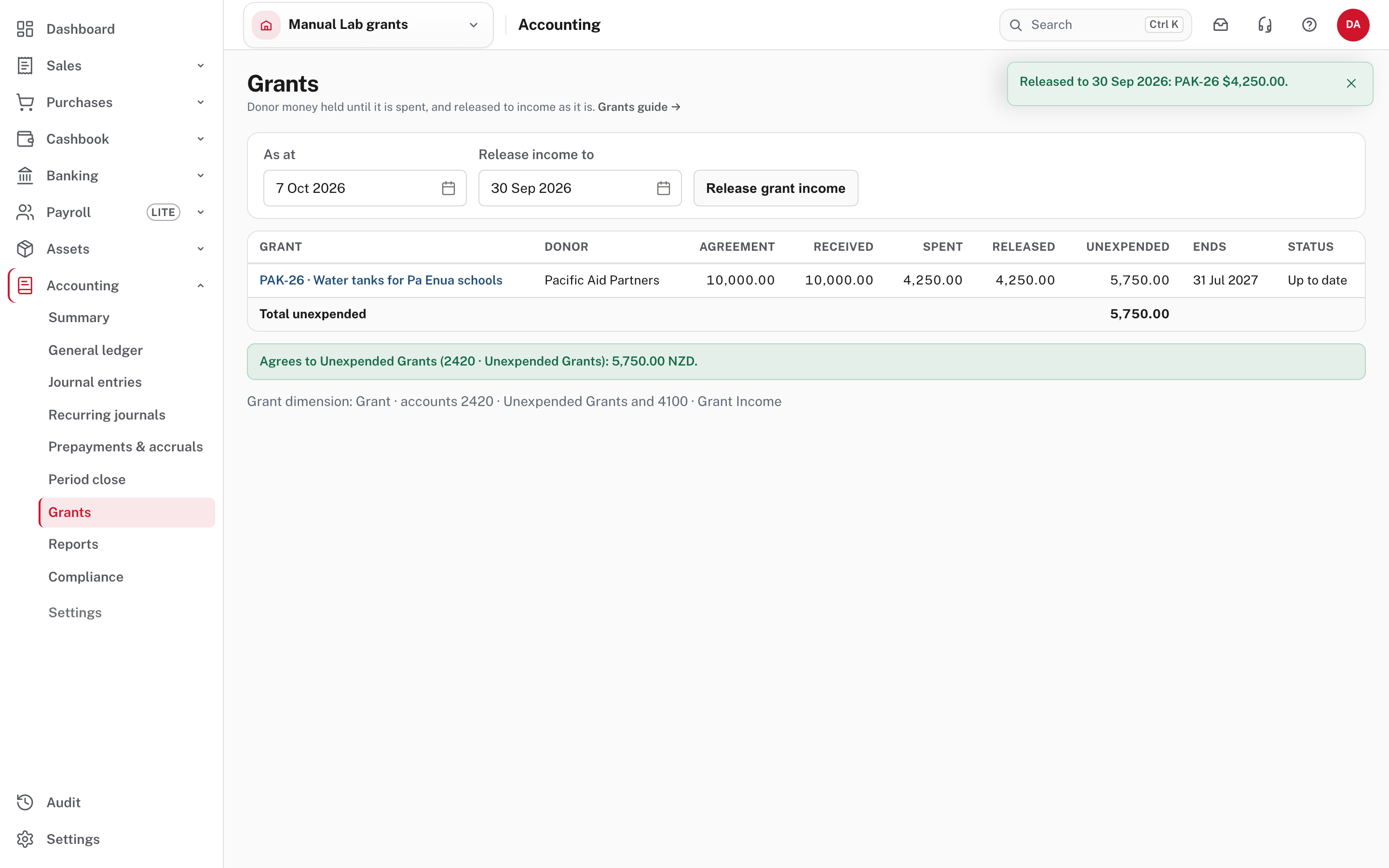
For each grant recognised "as the money is spent" Easy posts one journal: the spending to date, capped at the agreement amount, less what was already released. The notice reads "Released to 30 Sep 2026: PAK-26 $4,250.00." (3,000 + 1,250: the spending dated up to 30 September). Open it from Accounting → Journal entries (the source is Grant income release).
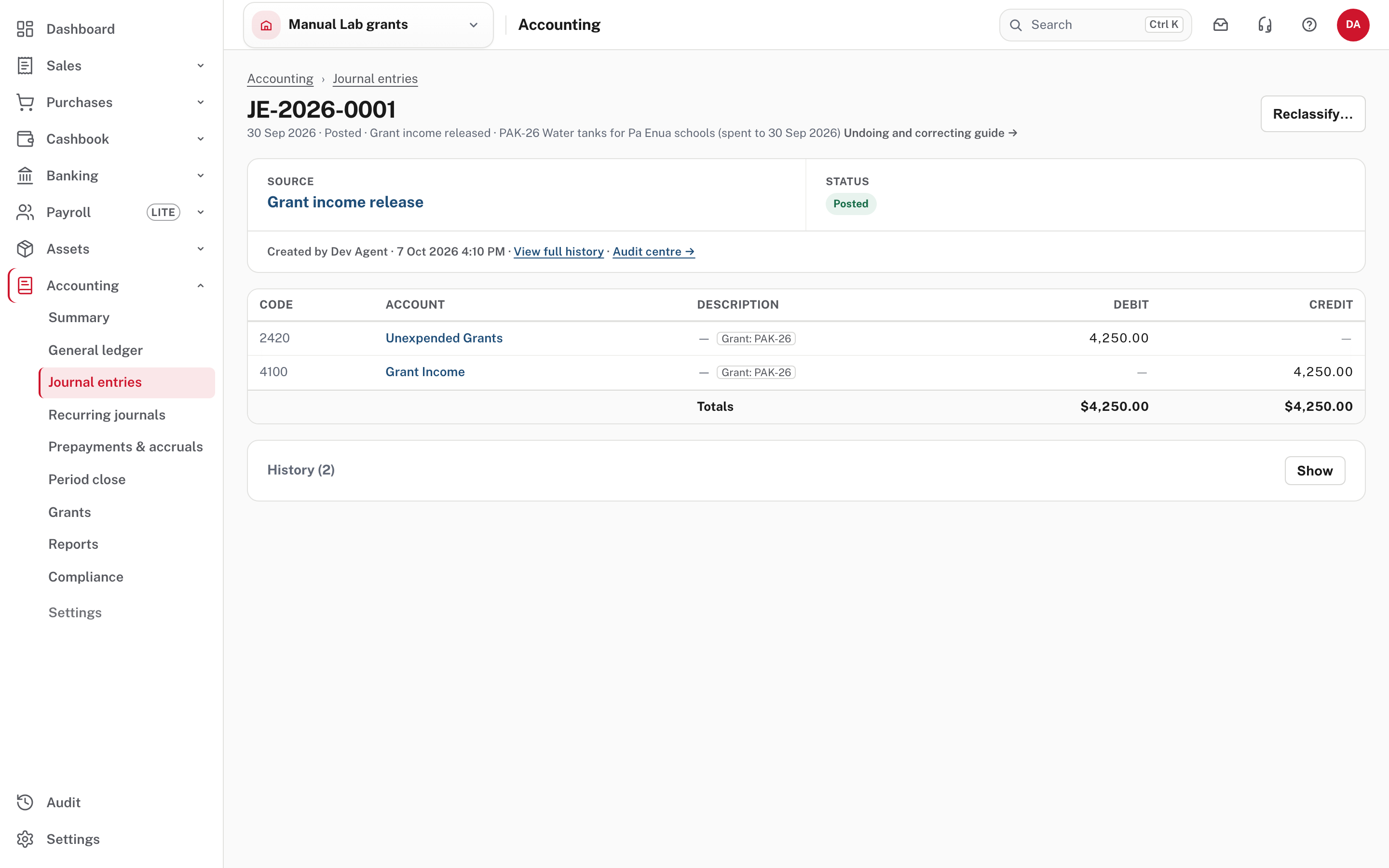
Because it works on totals to date, a cost moved to another grant, a cost the donor rejected or a late bill is put right by the next release. In the picture above, a further $400 of spending is dated 5 October: the Grants page shows it as To release and the next release picks it up. A release into a locked period is held back, and the Grants page says which grants. An asset bought with grant money counts as spent when it is bought, so its depreciation isn't counted again (not pictured).
Choose PAK-26 in the list to open the acquittal.
Step 7. The acquittal
This is the statement of receipts and expenditure a donor asks for.
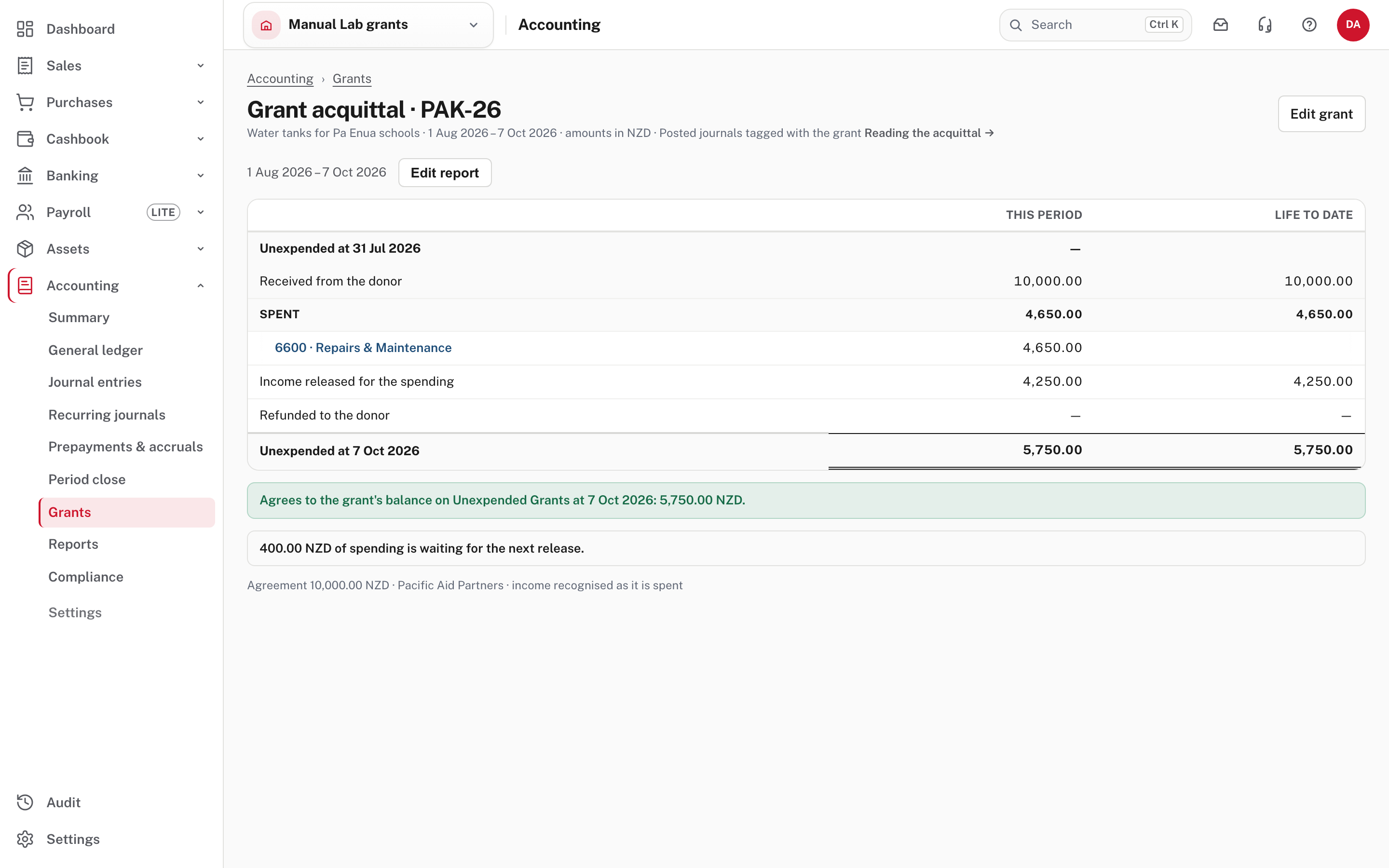
It shows, for a period (change it with Edit report; it opens from the grant's start date to today) and for the life to date: the money unexpended at the start, received from the donor, spent by account (each account opens its transactions), income released for the spending, refunded to the donor, and unexpended at the end. The green line Agrees to the grant's balance on Unexpended Grants checks the closing figure, and notes warn when spending is over the agreement or waiting for the next release ("400.00 NZD of spending is waiting for the next release").
Here the closing figure, 5,750.00, is the 10,000.00 received less the 4,250.00 released. After the next release it becomes 5,350.00: 10,000 received less 4,650 spent. Edit grant (top right) goes back to the grant.
Close grant (on the grant, at its foot) closes a finished grant whose unexpended balance is nil (refunded, or carried to a new grant with a journal between the two tags). A closed grant takes no new entries and can be reopened. Not pictured: closing a grant.
Grants and VAT
Grant money is outside the scope of VAT, and most organisations that receive grants are not VAT registered anyway. The donor's receipt and the release carry no VAT. What the grant money buys is an ordinary purchase: a company that is registered claims the VAT on it as usual (the $3,000 payment above carried $450.00 of VAT, which goes on the VAT return; see VAT: registration, tax codes and rate changes and the tax audit). More detail: Grants: VAT.
Leave the Grant tag optional
Start keeping grants sets the Grant dimension to optional, and that is the setting to keep. If you make it required (on Settings → Accounting & tax → Reporting dimensions, choose the pencil on Grant, then Applies to and Required on in-scope lines), Easy refuses a cash-book payment even when its line carries the grant ("Grant is required on lines to this account"). If the dimension applies to profit and loss accounts only, it also refuses the release ("Not released: PAK-26: The Grant dimension doesn't apply to this account"). Not pictured: bills and payroll with the tag required.
To check that no spending is untagged, use Profit and loss by dimension for Grant, which sets each grant's spending against the whole (Reporting dimensions).
Check before you continue
Check before you continue
- Each donor agreement is a grant with the right amount, dates and way of recognising income.
- The donor's payments are on Unexpended Grants and carry the grant (the Grants page says Agrees).
- Everything you spend from a grant carries its Grant tag, and spending that isn't grant money carries none.
- The release has run to the last period end, so no grant says To release that you did not expect.
- The acquittal's closing figure agrees to Unexpended Grants, and spending is not over the agreement.