Leave: requests, approval and balances
Do this whenever someone takes leave. A leave request is entered (by payroll, or by the employee in self-service), approved by the right person, and then flows through to the timesheet and the pay run, where it comes off the balance.
About the screenshots
Screenshots are from Easy's demo company, Little Polynesian Café. Names, dates and hours are examples.
Before you start
Leave needs Full Payroll and the set-up from chapter 1, step 6: the leave types and their entitlements, and each employee's assigned approver on their record. Leave requests and balances are part of Full Payroll; Payroll Lite has no leave.
Step 1. See the requests
Payroll → Leave → Requests.
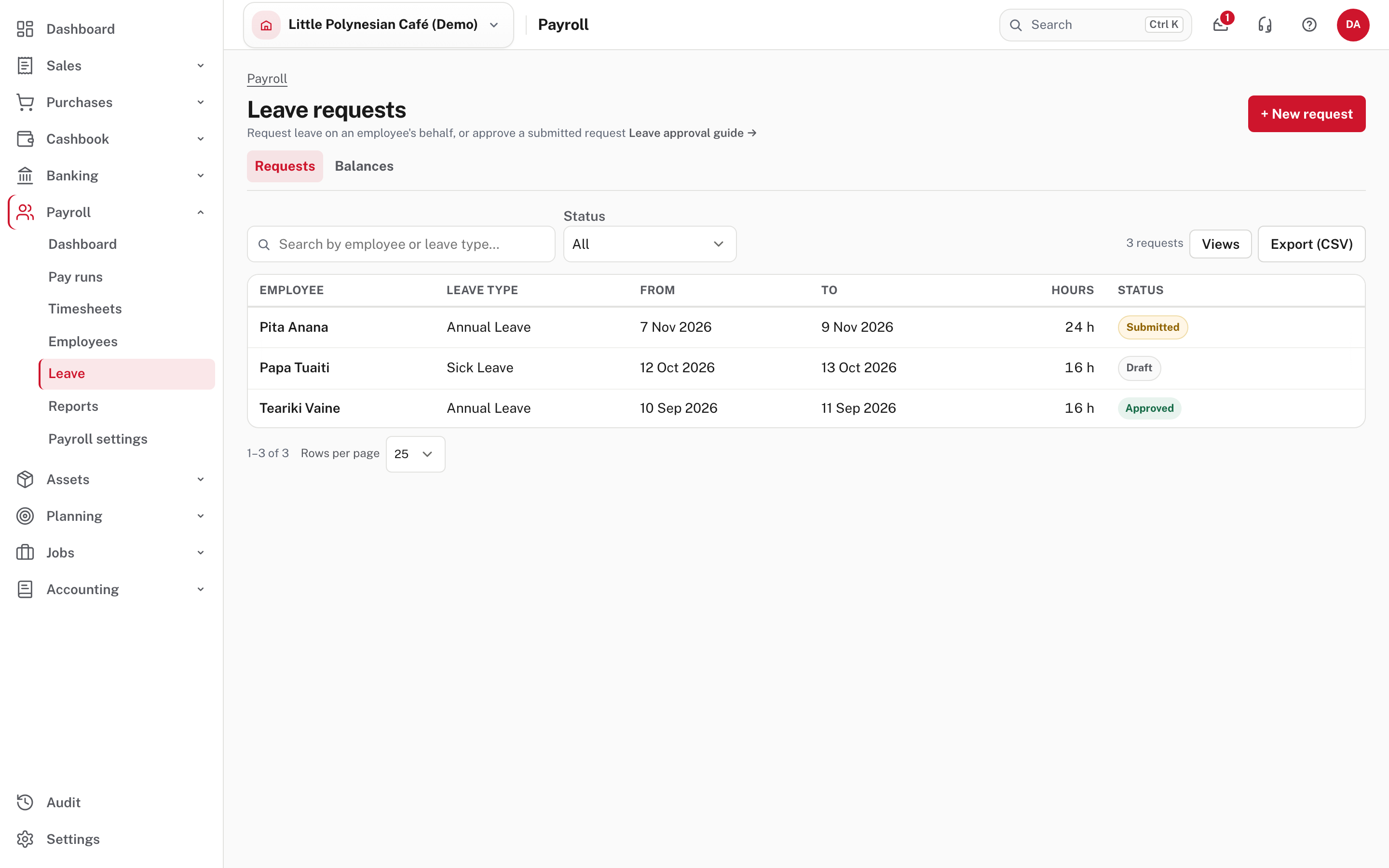
The list shows each request's employee, leave type, dates, hours and status. Filter by status: Draft, Submitted, Awaiting final approval, Approved, Declined or Cancelled. Balances (the tab beside it) shows everyone's leave in hours.
Step 2. Request leave
Choose + New request. You can request leave on an employee's behalf, and employees can request their own in self-service (For employees).
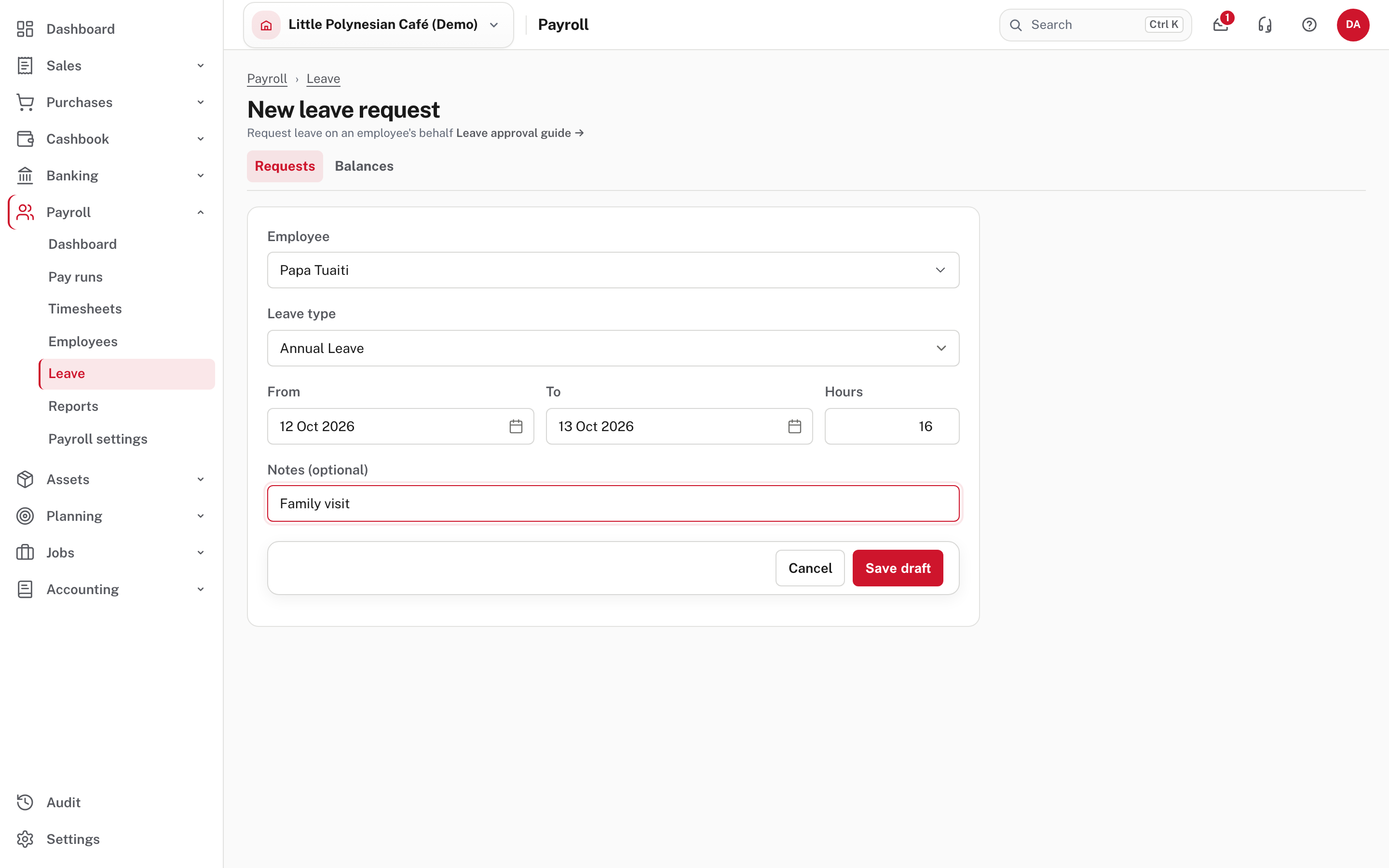
Choose the employee, the leave type, the From and To dates, the hours, and an optional note.
Type the hours yourself
The Hours box starts at 0 and is not worked out from the dates. Enter the total hours of leave (two eight-hour days is 16). Easy refuses a request with zero hours.
Choose Save draft.
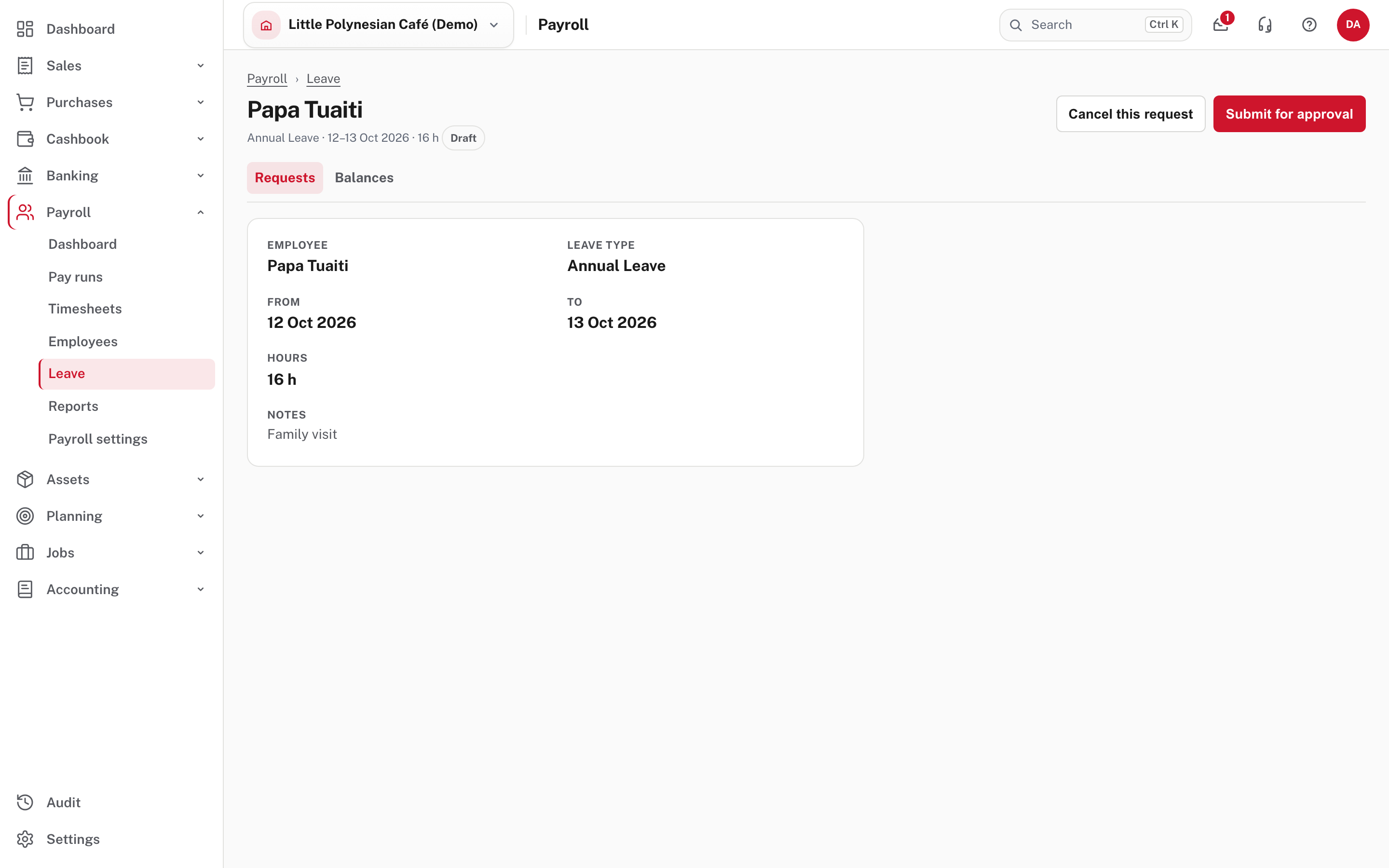
A draft can still be cancelled. Choose Submit for approval.
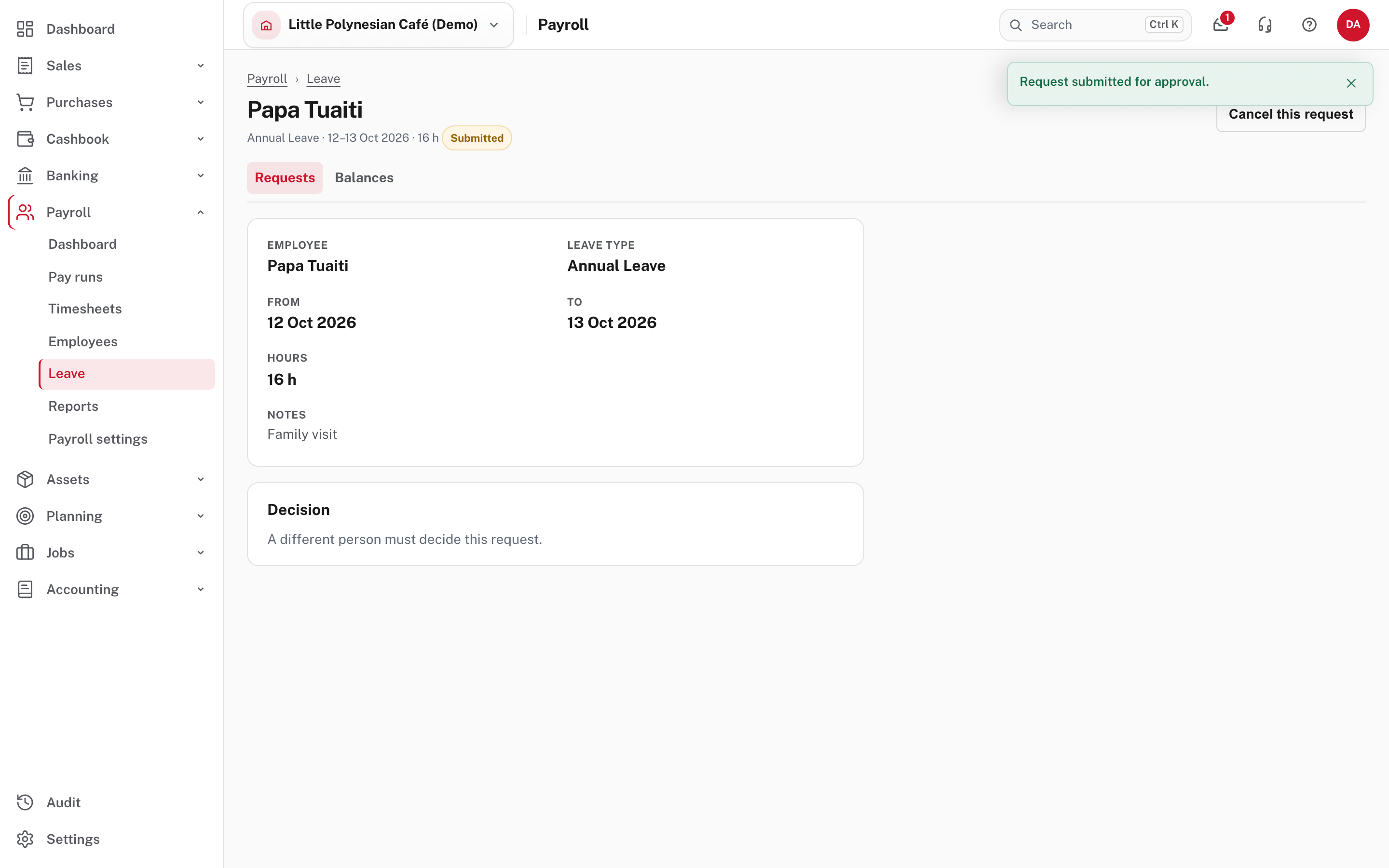
The request is now Submitted. Because the person who submitted it can never approve their own request, the Decision box says A different person must decide this request.
Step 3. Approve or decline
The employee's assigned approver gets the request (it appears under My actions in Mail). If the employee has no approver, anyone listed under Who can approve today on Payroll settings → Approvals may decide it. Open the request.
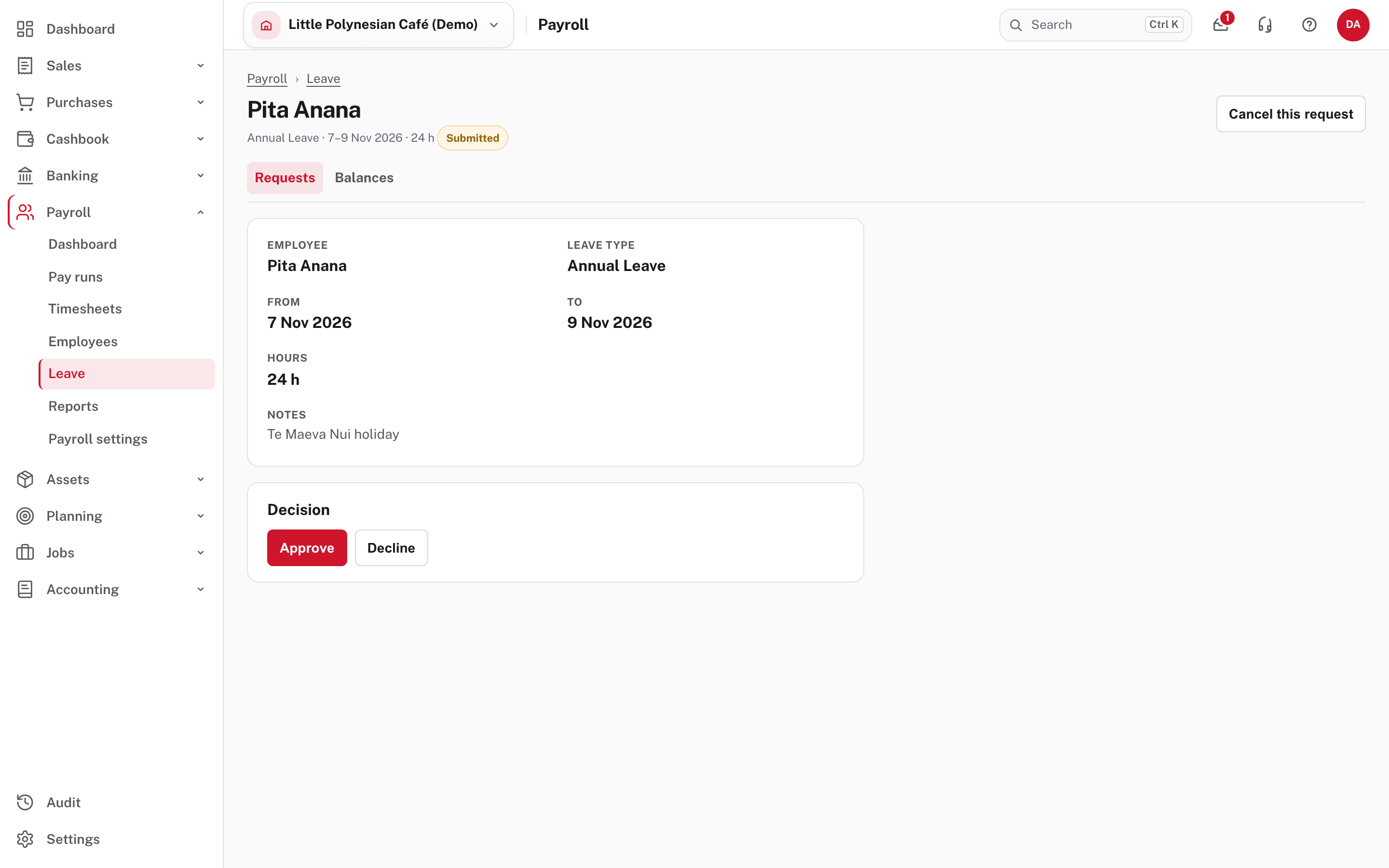
Choose Approve or Decline.
| The approver is… | What happens |
|---|---|
| An employee who has their own approver set | A second sign-off is needed before the request is final (status Awaiting final approval). |
| Anyone else | One sign-off is enough. |
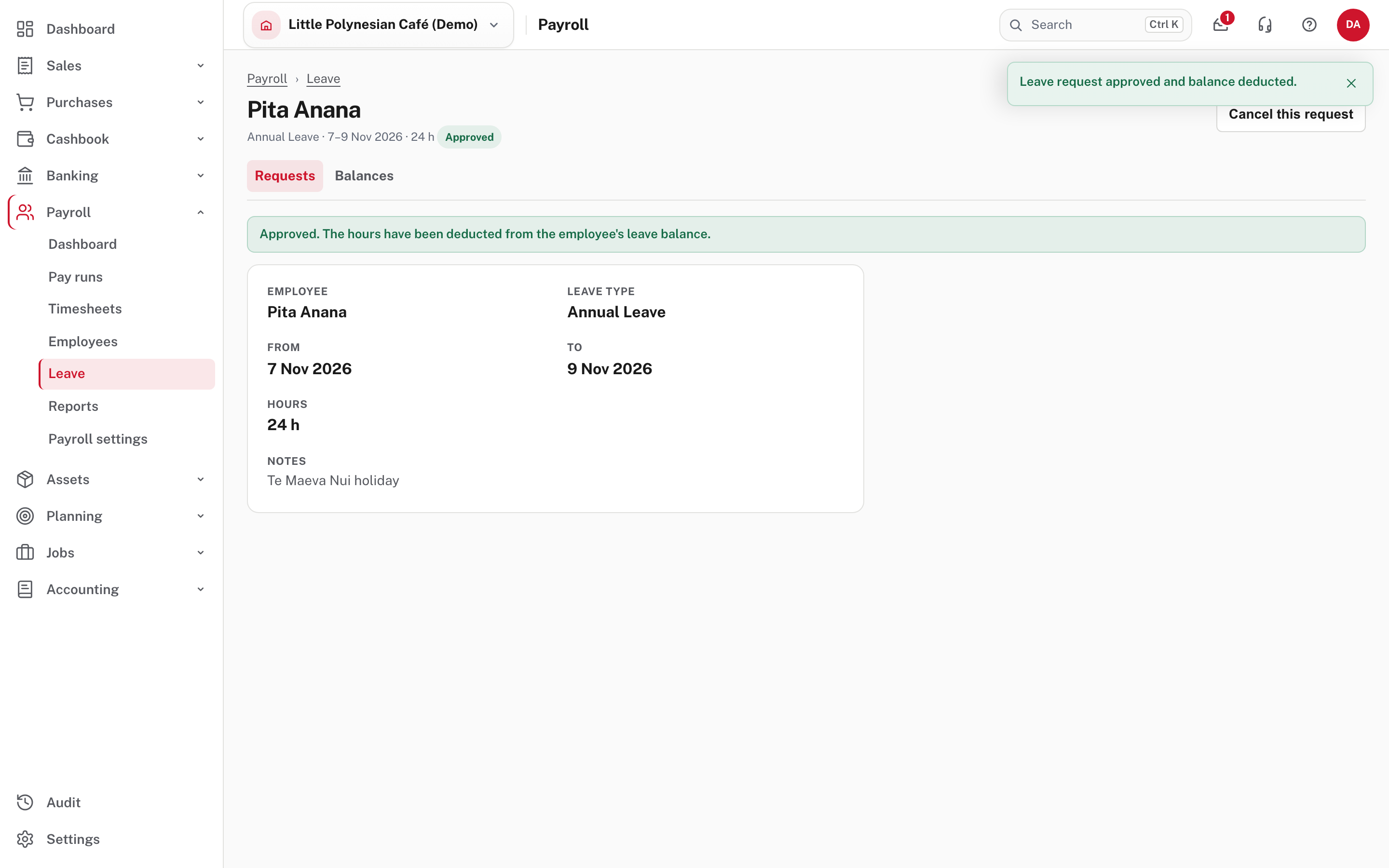
An approved request is final. Cancel this request is still offered while it can be cancelled.
More detail: How leave approval works.
Approved leave does not come off the balance straight away
Easy's message after approving says the hours "have been deducted from the employee's leave balance". In fact the balance only changes when the pay run for that period is finished: approved leave goes onto the timesheet, and comes off the balance when the run is finished (Leave balances and accrual). Until then the employee's Used figure stays as it was.
Step 4. Let it flow into the pay run
Leave that is approved when you Create timesheets is drafted onto the employee's timesheet for the period (see Run a pay period, step 1), and is paid at their ordinary rate in the pay run. Approve leave before you create the timesheets, and check the leave is on the timesheet before you approve it. When the pay run is finished, the leave comes off the balance of the year the leave day falls in.
Step 5. Read the balances
Payroll → Leave → Balances.
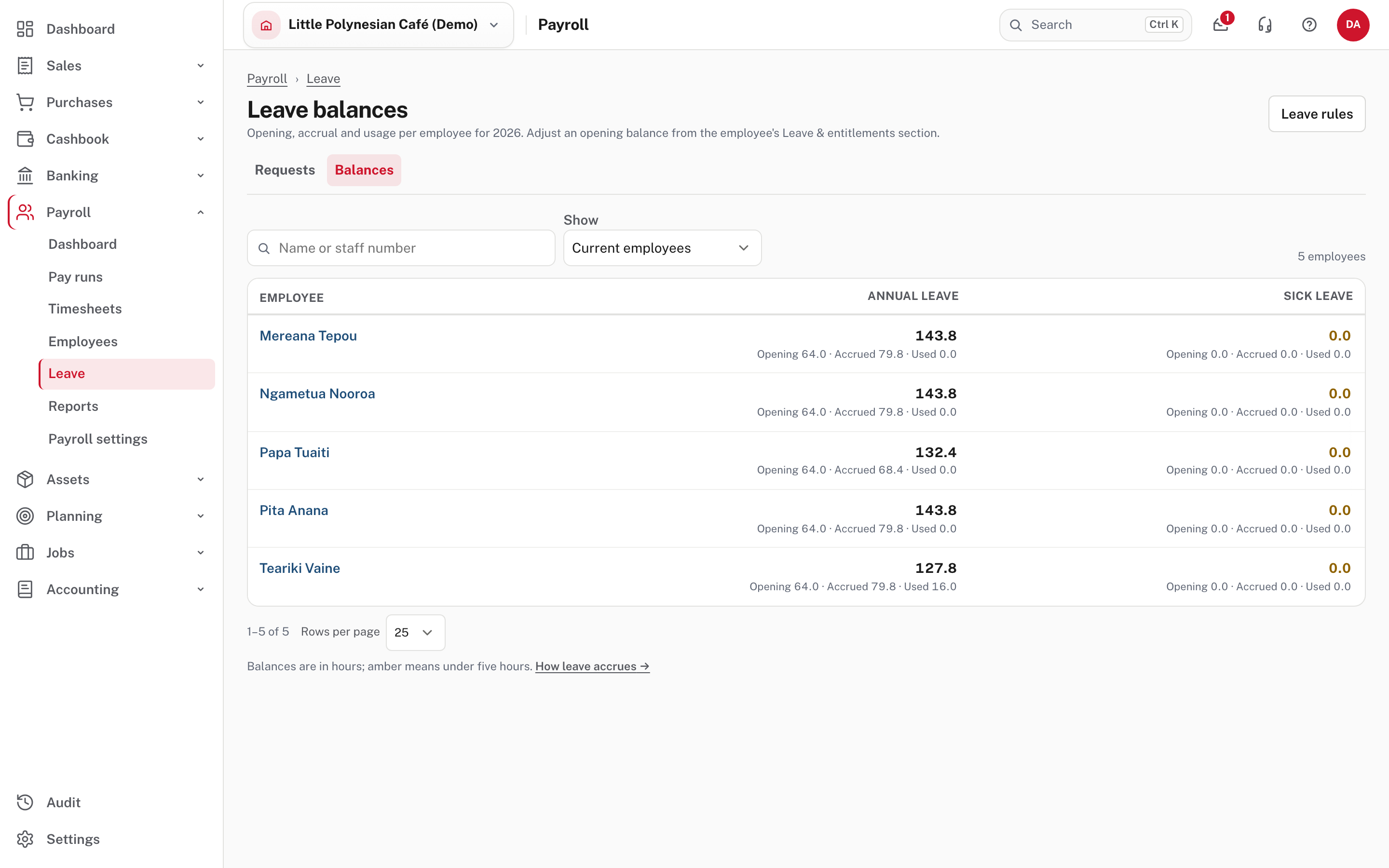
Each employee and leave type shows the balance in hours, with Opening, Accrued and Used beneath. Amber means under five hours. Filter with Show: current employees, low balance, former employees or everyone.
How it builds up:
- Accrual. Leave accrues when a normal pay run is finished. A type set to accrue pro rata builds a little each pay period. A type granted on the work anniversary (usually sick leave) gives the whole year's hours at once, on the start date and then on each anniversary. An extra one-off payment does not accrue leave.
- A new year. Balances are kept per calendar year, and each type's Carry unused hours into the next year switch decides what the new year starts with: carry over (usually annual leave), last until next anniversary (sick leave), or reset on 1 January.
- Opening balances. To set where someone starts, use Adjust on their Leave & entitlements section (chapter 1, step 9).
- First leave. Months of service before first leave in the leave rules sets a wait before a type can be taken (the Act allows up to six months).
More detail: Leave balances and accrual.
Step 6. What the business owes in leave
Payroll → Reports → Leave liability.
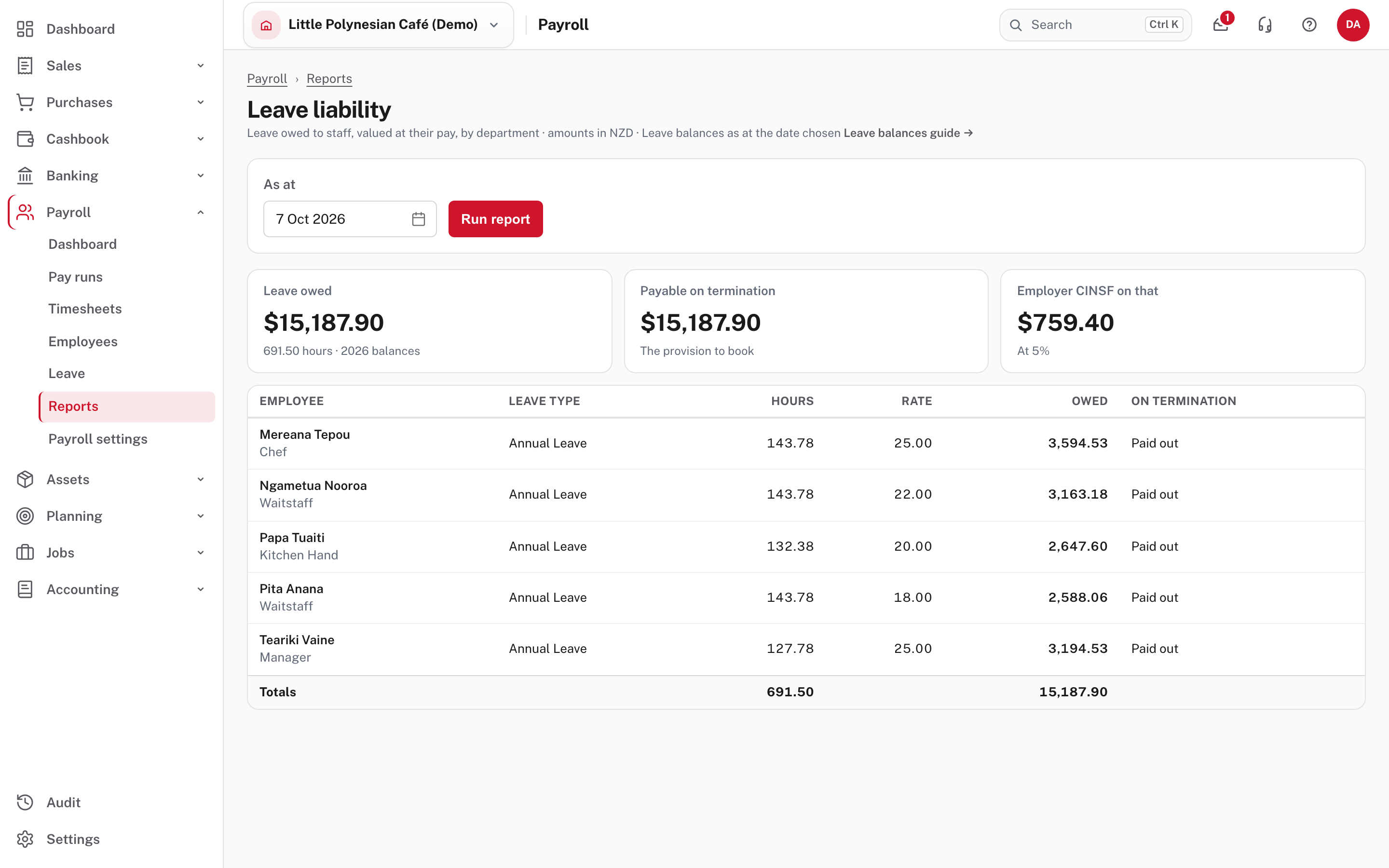
It values every active employee's balance at their pay (the hourly rate, or the period salary over the ordinary hours) and shows, as at the date you choose, the leave owed, the amount payable on termination, and the employer CINSF on that. It is the provision to book: your accountant can use it to record the leave owing at the month or year end. Where employees have a department, it is shown by department first.
When someone leaves
Each leave entitlement rule has a Pay out on termination setting. Paid out: the unused balance is cashed out and closed when the employee's final pay run is finished. Forfeited: the balance is lost (sick leave, usually). See Starters, leavers and changes to pay.
Check before you continue
Check before you continue
- Every leave request is entered with the right type, dates and hours, and has been decided.
- Approved leave appears on the timesheet before the pay run is built.
- After the pay run is finished, the balance has come down by the leave taken.
- Balances look right, and no one has an unexpectedly low (amber) balance.
- At month or year end, the Leave liability report has been used for the provision.