Integrations and API keys
An API key lets another system (a website, a reporting tool, an HR app) read or write some of your company's data, server to server, without anyone signing in. A webhook goes the other way: Easy calls an address of yours when something happens. You make a key when a developer or a supplier asks for one, and you review the list now and then. The Owner or an Administrator does it. It goes with People, roles and access and Approvals and controls, because a key is a way into the books that has no person behind it.
About the screenshots
Screenshots are from Easy's demo company, Little Polynesian Café, running on a local computer, so the Base URL shows http://127.0.0.1:5054. A live
company shows its own address. The key, Manual: reporting tool, is a made-up example that was revoked after the pictures. Its secret is painted over
and is not written anywhere in this manual. No webhook address was added: Easy sends only to a public https:// address, and a real delivery
would leave the machine, so that part is described from Easy's Help and source and flagged where it is.
Before you start
- The REST API is a module. The pages below are behind it. In the demo it is on. If it is off for your company, these pages are gated under the name "The REST API" (from Easy's source; not shown in the demo). A company on Easy Payroll answers only the payroll, ledger-reading and PAYE/CINSF endpoints, whatever scopes a key has (Help).
- Only an Owner or an Administrator opens these pages. A key can never act with more reach than the person who makes it (Help and source: the Acts as list offers only roles you may grant).
- Know what the system needs, and nothing more. Give a key the smallest set of scopes that does the job. A reporting tool needs read; it should never hold write.
- Plan who holds the token. It is shown once. Whoever has it can do what the key may do until you revoke it.
Step 1. Open Integrations
Settings → Integrations → Integrations.
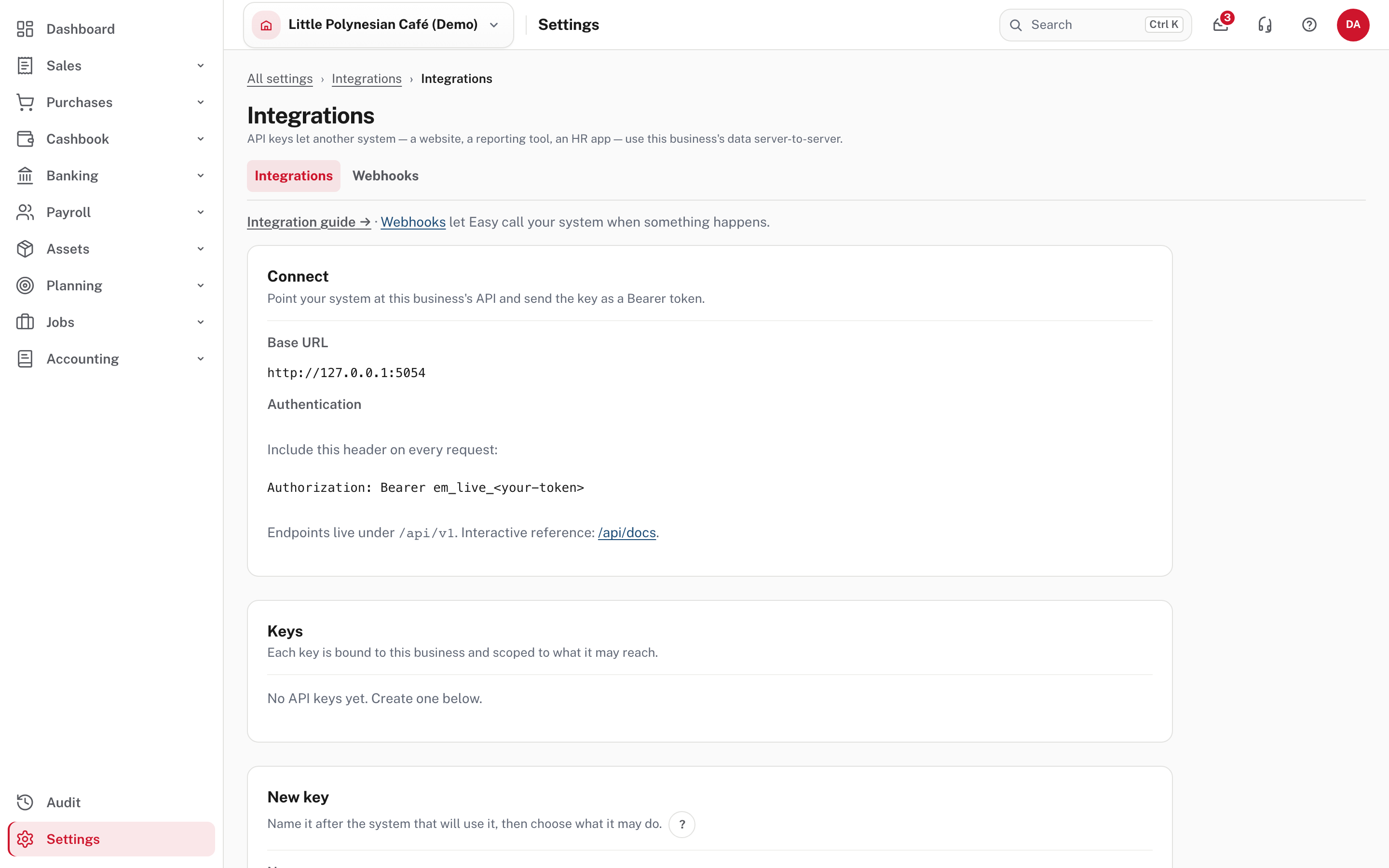
The Connect card gives what the other system needs: the Base URL, the header to send on every request
(Authorization: Bearer em_live_<your-token>), and the fact that endpoints live under /api/v1. The Webhooks tab beside it is step 7. Below are Keys
(none in a fresh company: "No API keys yet") and New key.
Step 2. Make a key
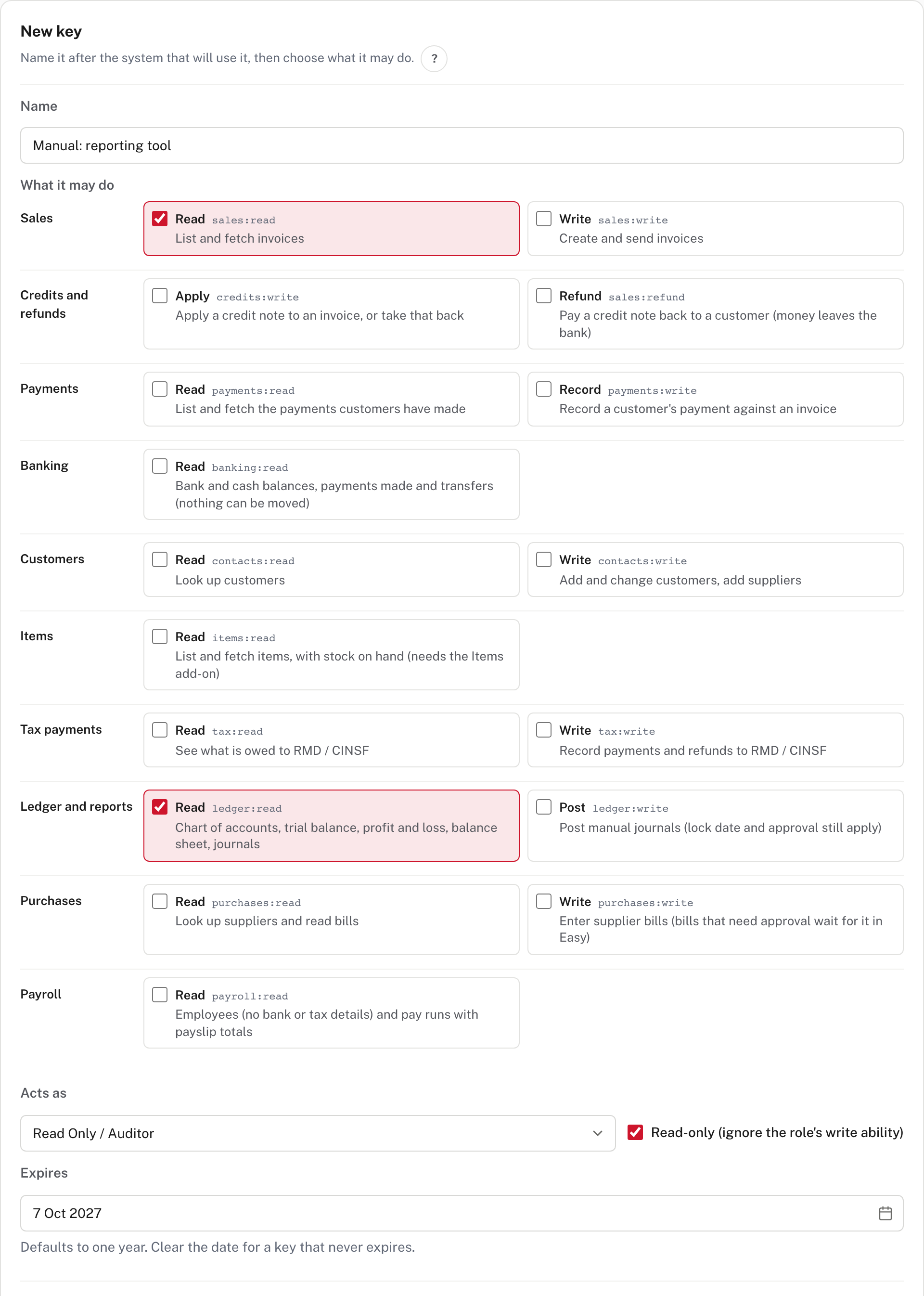
| Field | What to do |
|---|---|
| Name | The system that will use it ("Shop website", "Reporting tool"). It is how you tell keys apart later. Easy refuses a key with no name ("Give the key a name.", from its source) |
| What it may do | Tick the scopes, grouped by area. Each says what it does in a line. Easy refuses a key with none ("Choose at least one scope.", from its source) |
| Acts as | The role the key works as. It never gets more than that role: the demo offered Owner, Administrator, Accountant, Data Entry and Read Only / Auditor |
| Read-only | "Ignore the role's write ability." Tick it for anything that only reports |
| Expires | Starts one year ahead. Clear the date for a key that never expires: your choice, and a forgotten key then stays live for ever |
The scopes, as the screen lists them:
| Area | Scopes |
|---|---|
| Sales | sales:read (list and fetch invoices), sales:write (create and send invoices) |
| Credits and refunds | credits:write (apply a credit note, or take that back), sales:refund (pay a credit note back to a customer: money leaves the bank) |
| Payments | payments:read, payments:write (record a customer's payment against an invoice: money arrives in a bank account) |
| Banking | banking:read (balances, payments made, transfers: nothing can be moved) |
| Customers | contacts:read, contacts:write (add and change customers, add suppliers) |
| Items | items:read (needs the Items add-on) |
| Tax payments | tax:read, tax:write (record payments and refunds to RMD and CINSF) |
| Ledger and reports | ledger:read (chart of accounts, reports, journals), ledger:write (post manual journals: the lock date and journal approval still apply) |
| Purchases | purchases:read, purchases:write (enter supplier bills: a bill that needs approval is saved and waits for a person in Easy) |
| Payroll | payroll:read (employees without bank or tax details, and pay runs with payslip totals) |
The scopes are separate on purpose, so a key that only raises invoices cannot mark them paid, apply a credit or refund one. In the picture the key has two ticked: Sales read and
Ledger and reports read, acting as Read Only / Auditor with Read-only ticked. The rest of the rules are in
Scopes. Per Help, a ledger:write journal obeys the lock date and mandatory dimensions, and a bill or journal that your approval policy wants approved is saved and
answered with status 202, then posts once a person approves it in Easy.
Choose Create key.
Step 3. Copy the token

A green box says Copy this token now. It is shown only once. Store it somewhere safe: Easy keeps only a hash. (The token itself is painted over here.) Copy it into the other system's settings, or a password manager, before you leave the page.
There is no way to see the token again
Easy stores only a hash. If the token is lost or has been shown to someone it should not have been, revoke the key and make a new one (step 6). Never email a token, paste it into a chat, or put it in a file that is kept in version control. Treat it as you would a bank password.
Step 4. Try the key
Check that the key does exactly what you meant. Three read-only calls to the demo's own API with this key show it:
curl -H "Authorization: Bearer em_live_<your-token>" "https://<your-easy-address>/api/v1/invoices?pageSize=1"
| Request | Answer | Why |
|---|---|---|
GET /api/v1/invoices with the key |
200 | The key holds sales:read |
GET /api/v1/employees with the key |
403, code insufficient_scope |
It does not hold payroll:read |
GET /api/v1/invoices with no key |
401, code unauthorized |
A request needs a key |
Every refusal has the same shape: a status, a title, a detail and a stable code to test for. The others, from Help: not_found (404), validation_failed (422), period_locked
(409, the date is in a closed period), company_read_only (403), not_in_plan (403) and rate_limited (429). More: Errors.
Step 5. Check on your keys
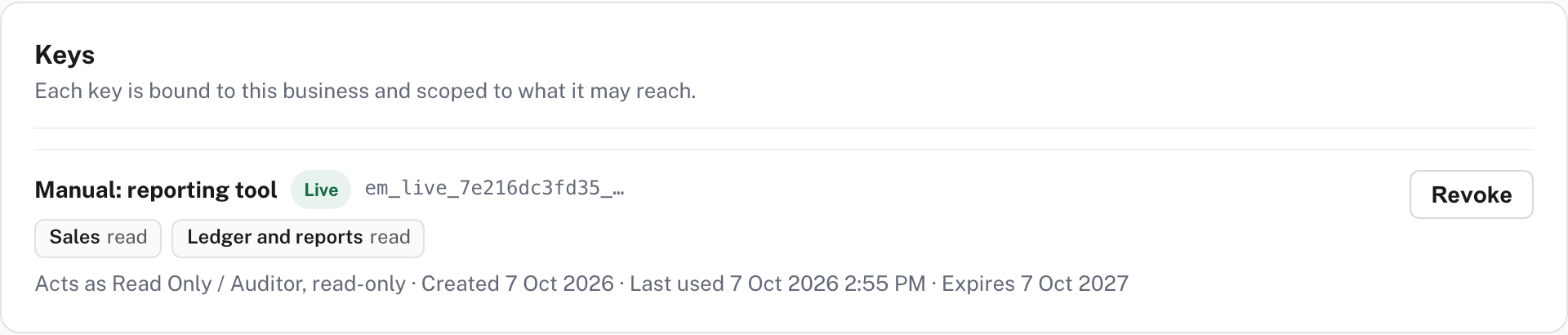
Each key shows its name, whether it is Live, Expired or Revoked, the start of its token (so you can tell which key a system holds without the secret), the scopes it holds, who it acts as, when it was created, when it was last used and when it expires. After a call, Last used changes from Never used to the time of the call. A key nobody has used for months, or one used by a system you no longer run, is a key to revoke. Working keys are listed first, newest first; revoked and expired ones sink below as history.
Step 6. Revoke a key
Choose Revoke on the key.
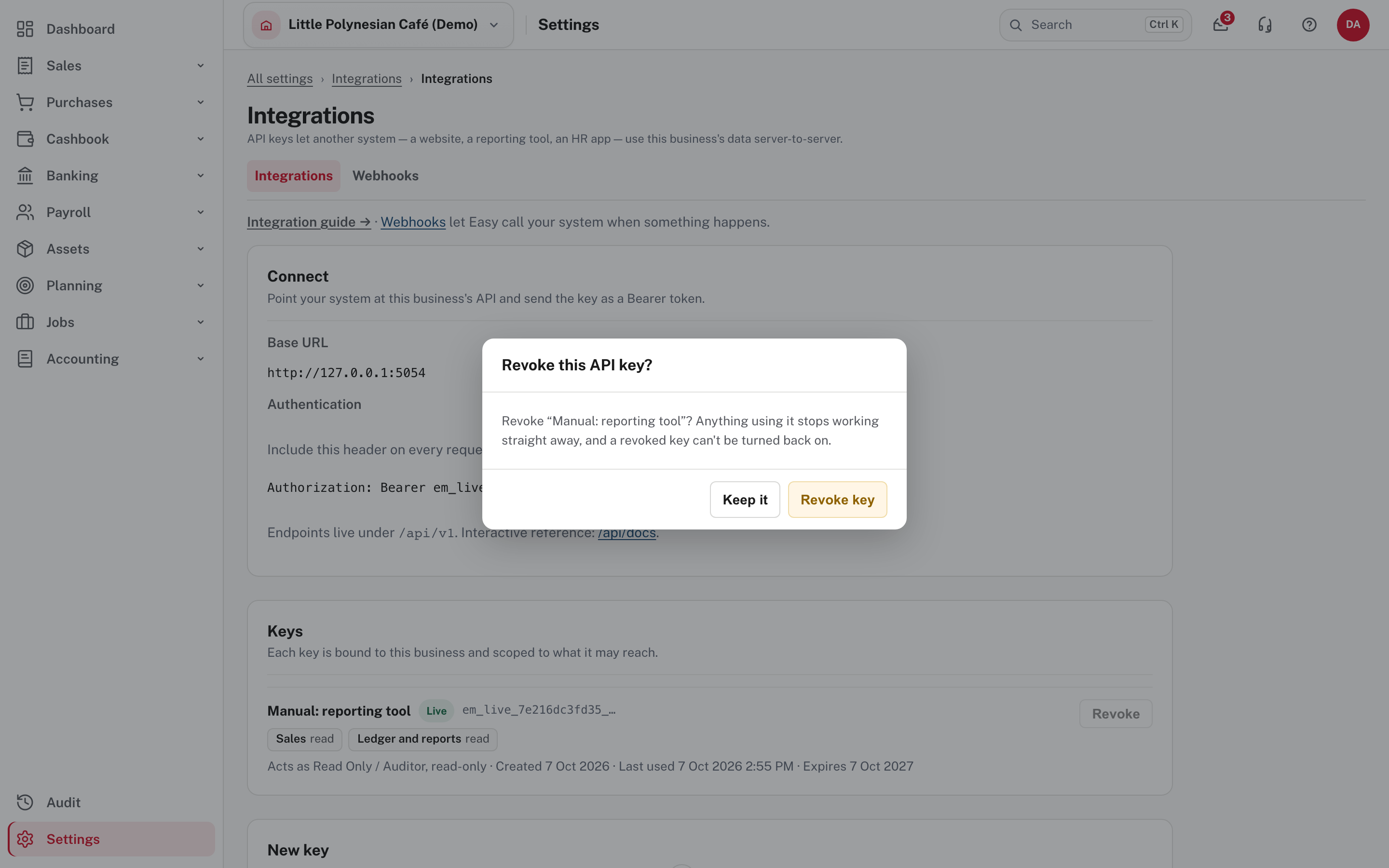
Easy asks: "Anything using it stops working straight away, and a revoked key can't be turned back on." Choose Revoke key (or Keep it).
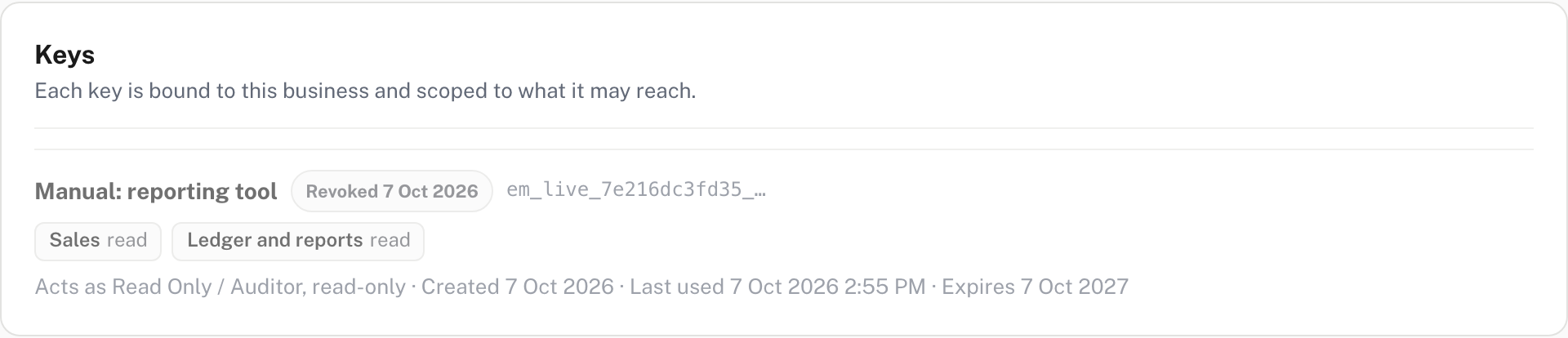
It now reads Revoked with the date, and it stays as history: the screen offers no delete and no way to switch it back on. A call with the revoked key now answers 401. If the system still needs access, make a new key and update it there. Do this at once if a token may have been seen by someone else, when the person who built the integration leaves, and when you stop using the system.
Step 7. Webhooks: Easy calls your system
Settings → Integrations → Webhooks.
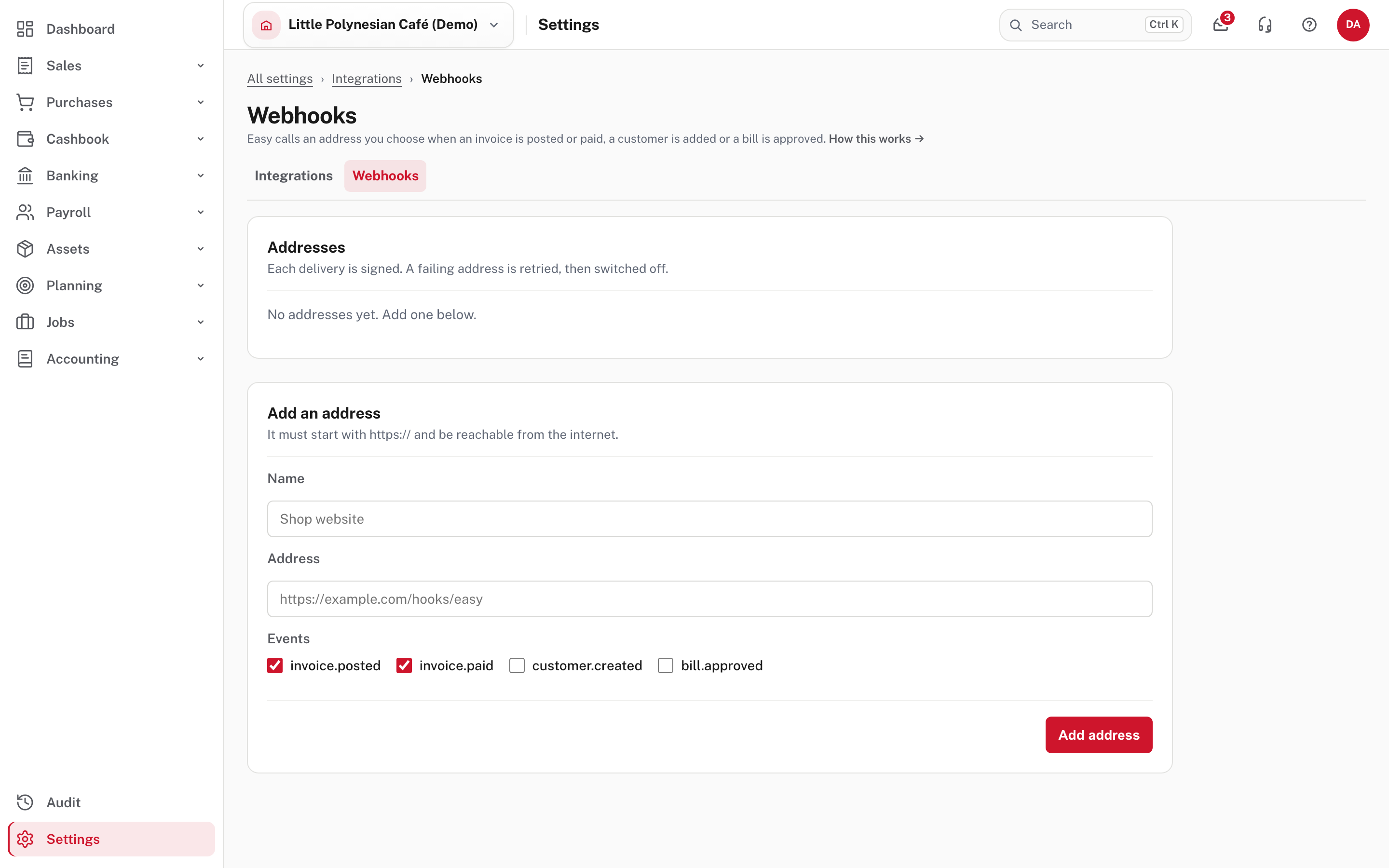
A webhook is an address of yours that Easy calls when something happens, so your system hears about it instead of asking again and again. Not shown in the demo: a webhook working (see the note at the top). What follows is from Easy's Help and the page's own wording.
- Add an address: a Name, an Address that starts with
https://and can be reached from the internet, and the Events it wants. The four areinvoice.posted,invoice.paid(both ticked to begin with),customer.createdandbill.approved. - The signing secret is shown once when you add it, like a token. You can make a new one at any time (New secret) and the old one stops working.
- A delivery carries ids only: the event, the time, your company id and the ids of the record concerned. No names, amounts or bank details: your system reads the record through the API with its own key. That keeps personal data out of a request sent to an address Easy does not control.
- Each delivery is signed. The
X-EasyMoni-Signatureheader ist=<unix seconds>,v1=<hex>, an HMAC-SHA256 of<t>.<body>with the secret. Your system recomputes it over the raw body and refuses a delivery whose time is more than a few minutes old.X-EasyMoni-Deliveryis the same on every retry of one event, so a repeat can be dropped. - If your system is down, Easy expects a 2xx answer within 10 seconds, tries again after 1 minute, 5 minutes, 30 minutes, 2 hours, 6 hours and 24 hours, then gives up. An address that fails 20 times in a row is switched Off with the reason shown, for you to fix and switch on.
- Buttons on an address: Deliveries (what was sent and how each went), Send test (a
pingevent), Switch off / Switch on, New secret and Remove. - Refused addresses: only
https://on the standard port, with a host name (not an IP address), never one that resolves inside a private network, and Easy does not follow redirects.
More: Webhooks.
Limits, and sending the same request twice
From Easy's Help; not tried in the demo:
- A company can have 25 live keys at most. Revoke one to make room.
- Each key can make 60 requests a minute; past that the answer is 429
rate_limitedwith aRetry-Afterheader. - On any request that creates or changes something, send an
Idempotency-Keyheader (1 to 128 characters, no spaces, for example a UUID). If a request times out, send it again with the same key and content: Easy returns the original answer and does the work once, so a retry cannot create a second invoice or send a second email. Keys are kept for 24 hours and belong to the key that sent them (Retrying safely).
The reference
The Connect card links to an interactive reference at /api/docs. The same description in machine-readable form (OpenAPI) is at /openapi/v1.json. Not shown in the demo: the interactive
reference page.
Other ways Easy connects outside
An API key is only one of them. The others have their own pages:
- Card payments through BCI and your own payment link: Settings → Banking & payments → Getting paid (Chasing overdue invoices, step 6).
- Bills by email: Settings → Purchases → Email-in bills (Bills by email and the capture inbox).
- Email sending itself: Emails and notifications.
When something goes wrong
| What you see | What to do |
|---|---|
The other system gets 401 unauthorized |
The token is missing, wrong, expired or revoked. Check the key's badge on the list and that the header is Authorization: Bearer … |
403 insufficient_scope |
The key lacks the scope that call needs. The key list offers only Revoke, so make a new key that has it |
403 company_read_only |
The company is view-only just now (from Help; not shown in the demo) |
409 period_locked |
The date is in a closed period. Fix the date or have an accountant move the lock date |
| 202 on a write | Approval is on for that kind. The record waits for a person in Easy |
429 rate_limited |
Slow down; wait the number of seconds in Retry-After |
| A webhook address is Off | Read the reason under it, fix your system, then Switch on |
Not shown in the demo, except 401 and 403 insufficient_scope: the rest are from Easy's Help.
Check before you continue
Check before you continue
- Every key is named after the system that uses it, and holds only the scopes that system needs.
- A key that only reports is ticked Read-only and acts as Read Only / Auditor.
- Each token is stored somewhere safe, and nobody has been sent one in an email or a chat.
- You tried the key (a call it should allow, and one it should refuse) before handing it over.
- Keys nobody uses, and keys for people or systems that have gone, are revoked.
- Any webhook address is
https://, its signing secret is kept, and its deliveries are checked for the signature.