VAT: registration, tax codes and rate changes
Do this once when the company registers for VAT, and again when RMD changes a rate. VAT in Easy has three parts: whether the company is registered, the tax codes each line can carry, and the return basis the monthly return uses. Get them right before the first invoice, because every VAT figure flows from them.
About the screenshots
Screenshots are from Easy's demo company, Little Polynesian Café, which is VAT registered at the standard 15%.
Before you start
- Know the date the registration took effect. Registration is compulsory once turnover from taxable activity tops $40,000 in any 12 months, and voluntary from $20,000.
- Know your basis with RMD: VAT on invoices (accrual) or on payments (when cash moves).
- Only the Owner, an Administrator or an Accountant can change tax settings (People, roles and access).
Step 1. Register for VAT (or switch it off)
Settings → Accounting & tax → Tax.
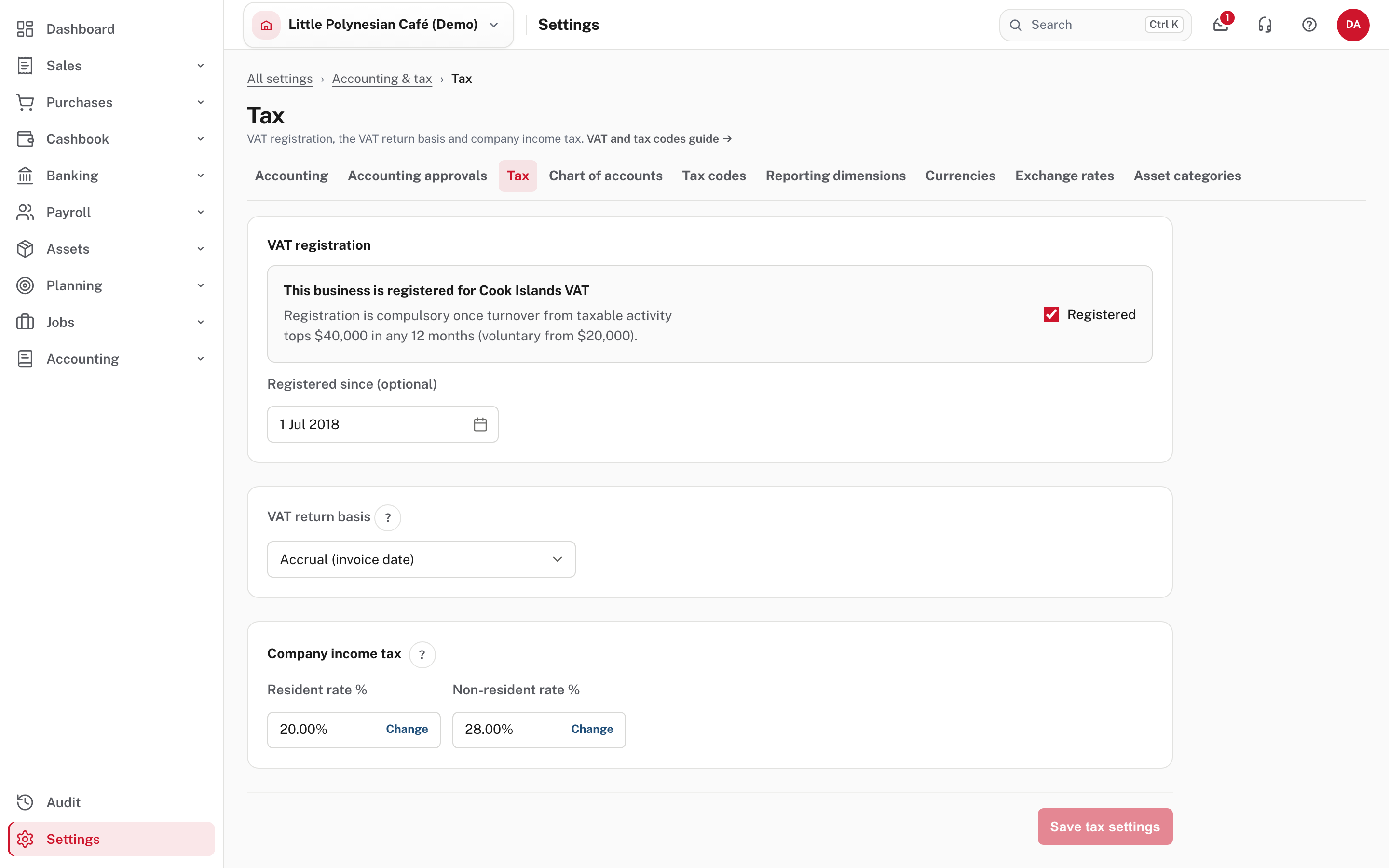
- Registered switches VAT on, with an optional Registered since date.
- VAT return basis says how the return counts VAT (here Accrual (invoice date)).
- Company income tax shows the resident and non-resident rates; Change edits one.
Change registration on the day the change takes effect. Documents already raised keep the treatment they were raised with, and past returns don't move.
When the company is not VAT registered
With registration off:
- invoices, quotes and bills don't show a VAT column or totals, and every line is coded N (No VAT);
- invoices are headed Invoice, not Tax Invoice (also set it on the branding page: Invoice branding);
- the monthly RM205 return and the VAT part of Compliance are hidden.
More detail: VAT registration and tax codes.
Step 2. Know the tax codes
Settings → Accounting & tax → Tax codes.
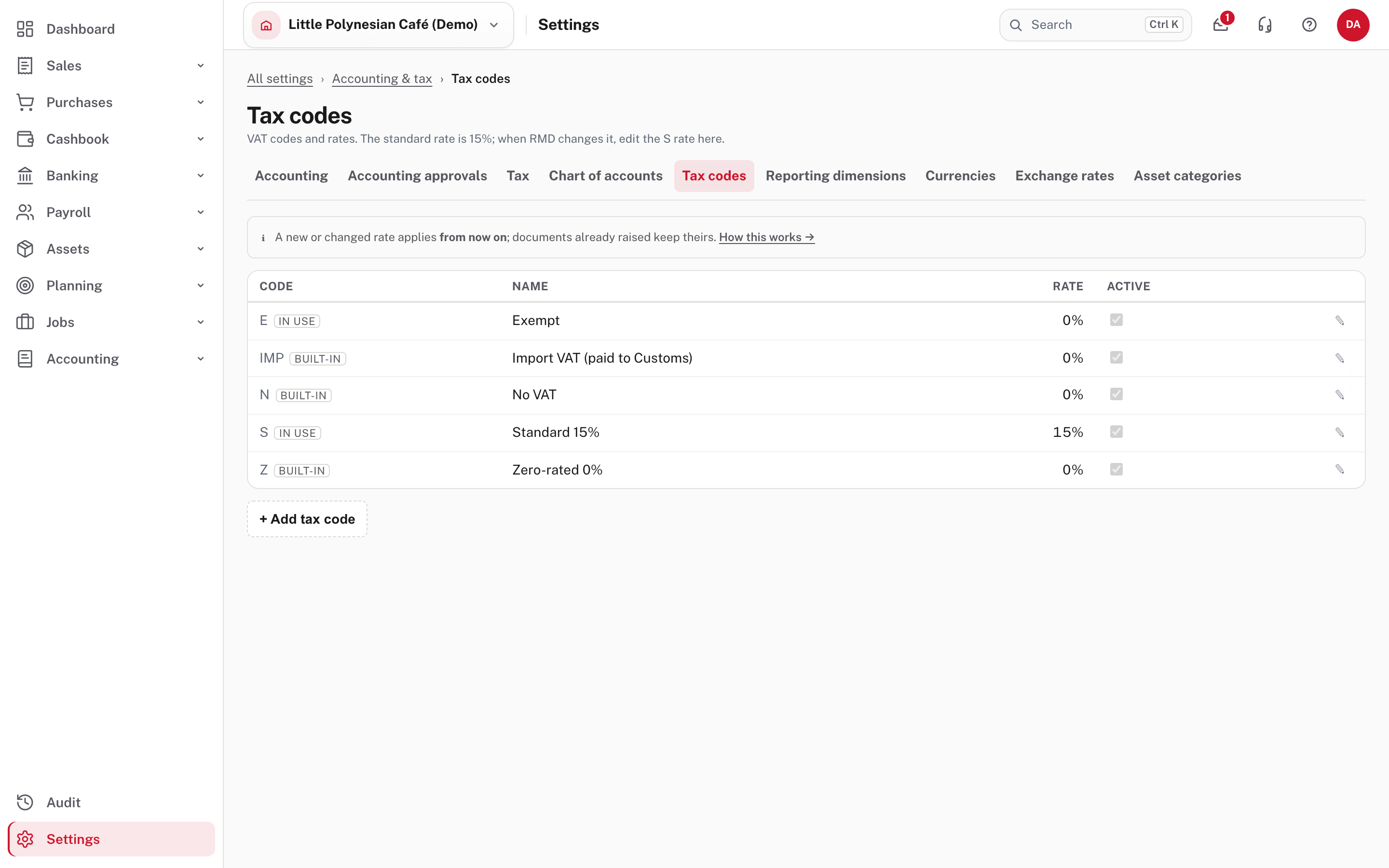
| Code | Name | Rate | Used for |
|---|---|---|---|
| S | Standard 15% | 15% | Most sales and purchases |
| Z | Zero-rated 0% | 0% | Sales that are taxable at 0% (counted in box 6 of the return) |
| E | Exempt | 0% | Exempt supplies |
| N | No VAT | 0% | Outside VAT altogether: not in any box (wages, owner money) |
| IMP | Import VAT (paid to Customs) | 0% | VAT you paid to Customs on imports (box 13) |
Codes marked BUILT-IN are part of Easy. A code marked IN USE has documents on it. A code that is in use can have its name and rate changed, but not its short code. A line's default code comes from the account it is coded to: the chart of accounts has a Default VAT column (Set up your company, step 5).
Exempt is not the same as No VAT
Exempt is a VAT treatment RMD knows about; No VAT means VAT does not apply at all. Ask your accountant which a sale needs.
Step 3. When RMD changes the rate
Choose the pencil on the S row.
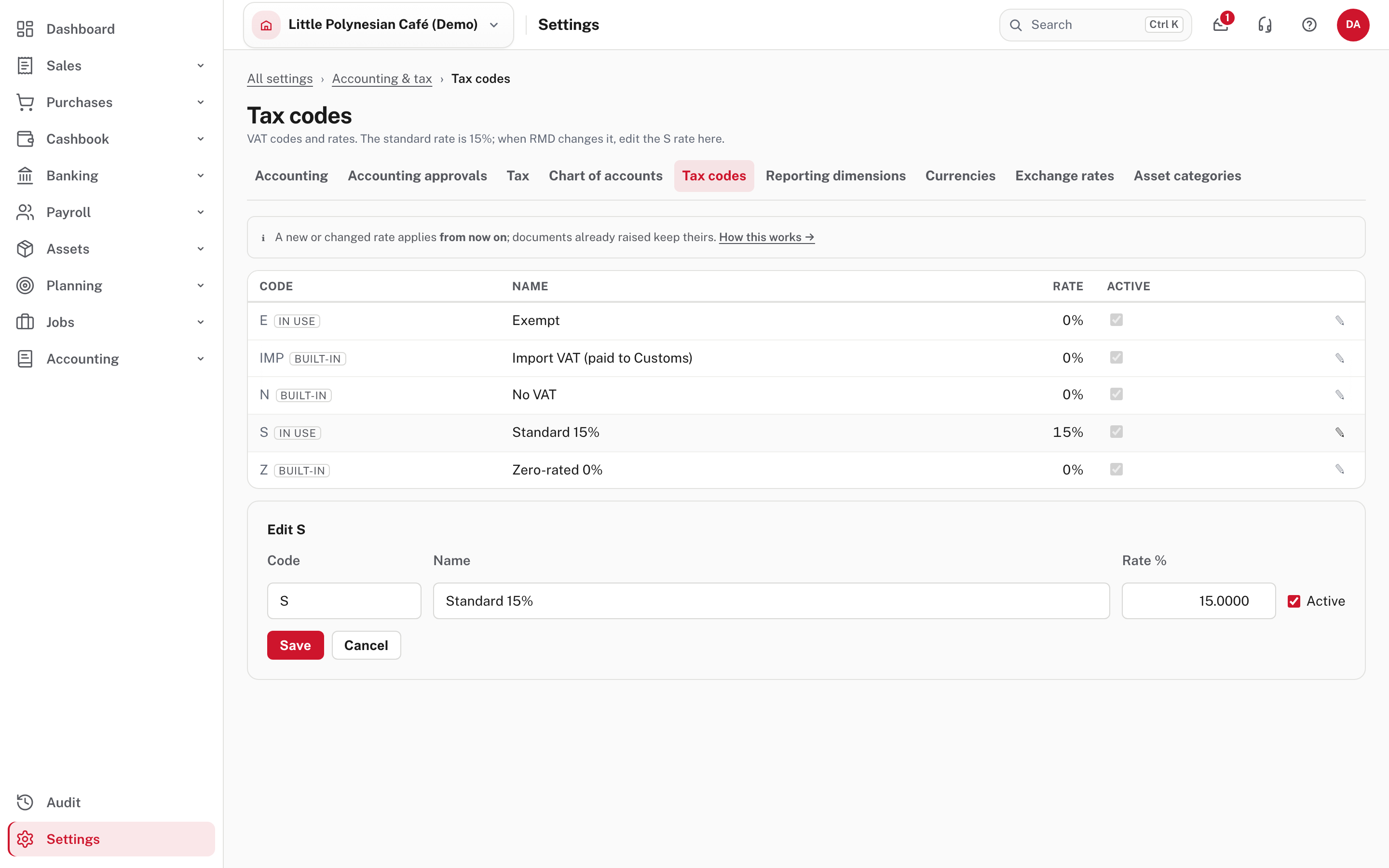
Change Rate % and Save. A new or changed rate applies from now on. Invoices, quotes and bills already raised keep the rate they were created with, so past VAT returns don't move. Do it on the day the new rate starts, and check the next invoice you raise.
Don't change the rate to fix an old document
A changed rate does not reach back. To correct one document, undo it and raise it again, or credit it (Credit notes, undoing and correcting).
Step 4. Add a code (rarely needed)
Choose + Add tax code for a code the built-in set does not cover.
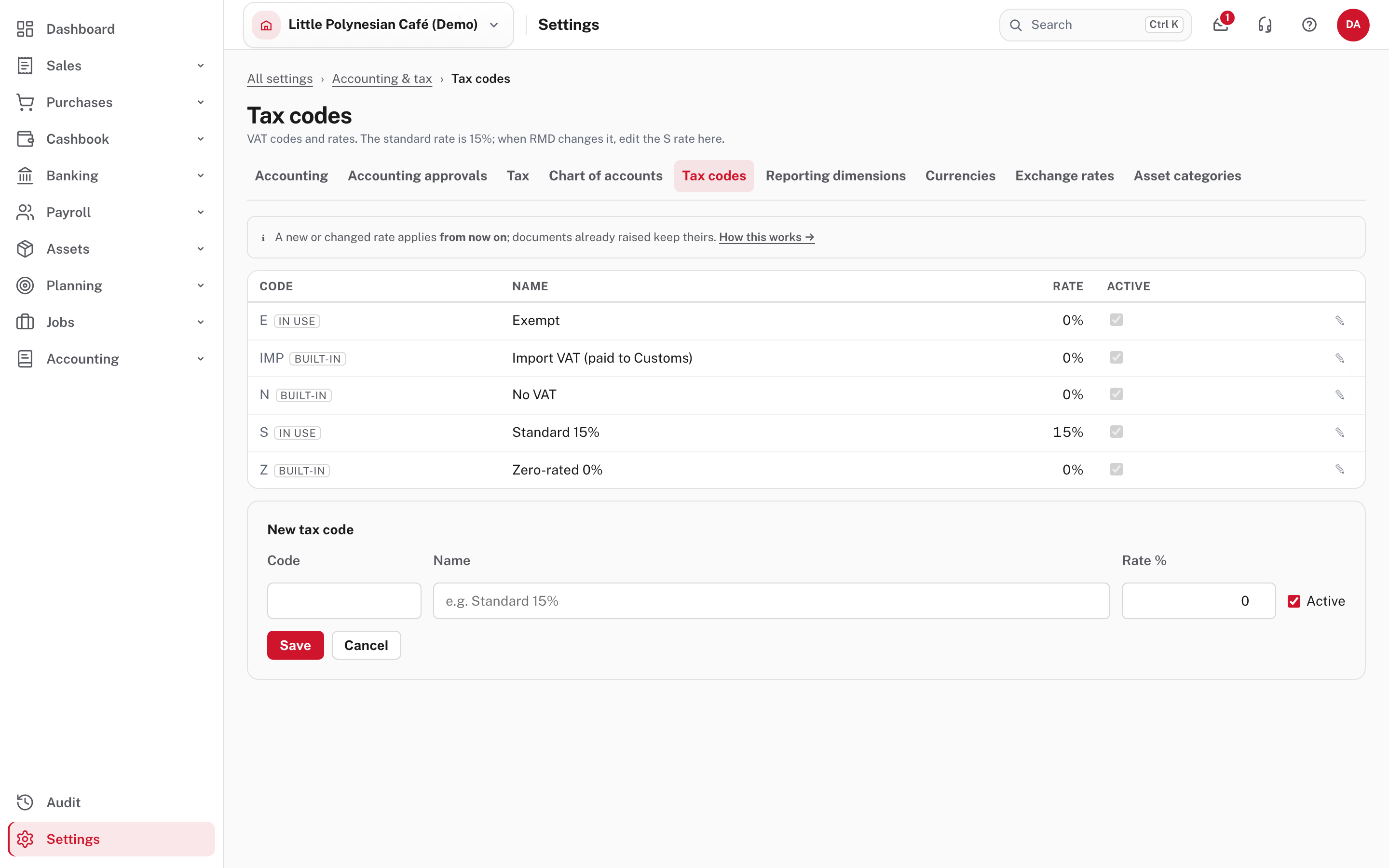
Give it a short code, a name and a rate, and keep it Active. Untick Active to stop a code being used; it stays on the documents that already carry it.
Step 5. Check how VAT reaches the return
Once codes are right, the monthly return works itself out: sales boxes from the lines coded S, Z and E, purchase boxes from the lines coded S, the import VAT from IMP, and N lines appear in none. See Monthly VAT and PAYE returns.
If a figure on the return surprises you, open the tax audit: it lists every VAT-bearing line behind each box, so a wrong code is easy to find (Tax audit: checking VAT before you file).
Check before you continue
Check before you continue
- The registration (and its start date) match what RMD holds, and the return basis is the one you filed on before.
- The standard rate is 15%, or the rate RMD currently sets, and the next invoice shows the right VAT.
- Accounts that carry no VAT (wages, owner money) default to N, and income and expense accounts default to the code you expect (check Default VAT on the chart of accounts; a bank fee account may be exempt).
- If VAT is off, documents say Invoice and no VAT column shows.
- After any rate change, you checked the first new document, and the old ones kept their VAT.