Items, stock and stocktake
An item is something you sell or buy, saved once so that invoice, quote, bill and purchase order lines fill themselves in. An item can be a service (an hour of work, a delivery fee) or a good, and a good can be tracked: Easy then keeps a quantity and a cost for it, takes it out of stock when you sell it, puts it in when you buy it, and lets you count it against the shelves. You set an item up once, then count the tracked goods whenever you check stock (monthly, or before the year end). The Owner, an Administrator or an Accountant does the counting. It sits between Enter and approve bills (stock comes in) and Raise, send and get paid for an invoice (stock goes out).
About the screenshots
Screenshots are from Easy's demo company, Little Polynesian Café. Items named Manual IT … are examples added for this chapter, and every price and quantity is made up. The pictures show an Accountant's screens; an Owner or Administrator sees the same ones.
Before you start
- Items is a module of its own, and your plan has to include it. It is on in the demo. A company that has it off has no Items in its Sales menu (Turning modules and features off).
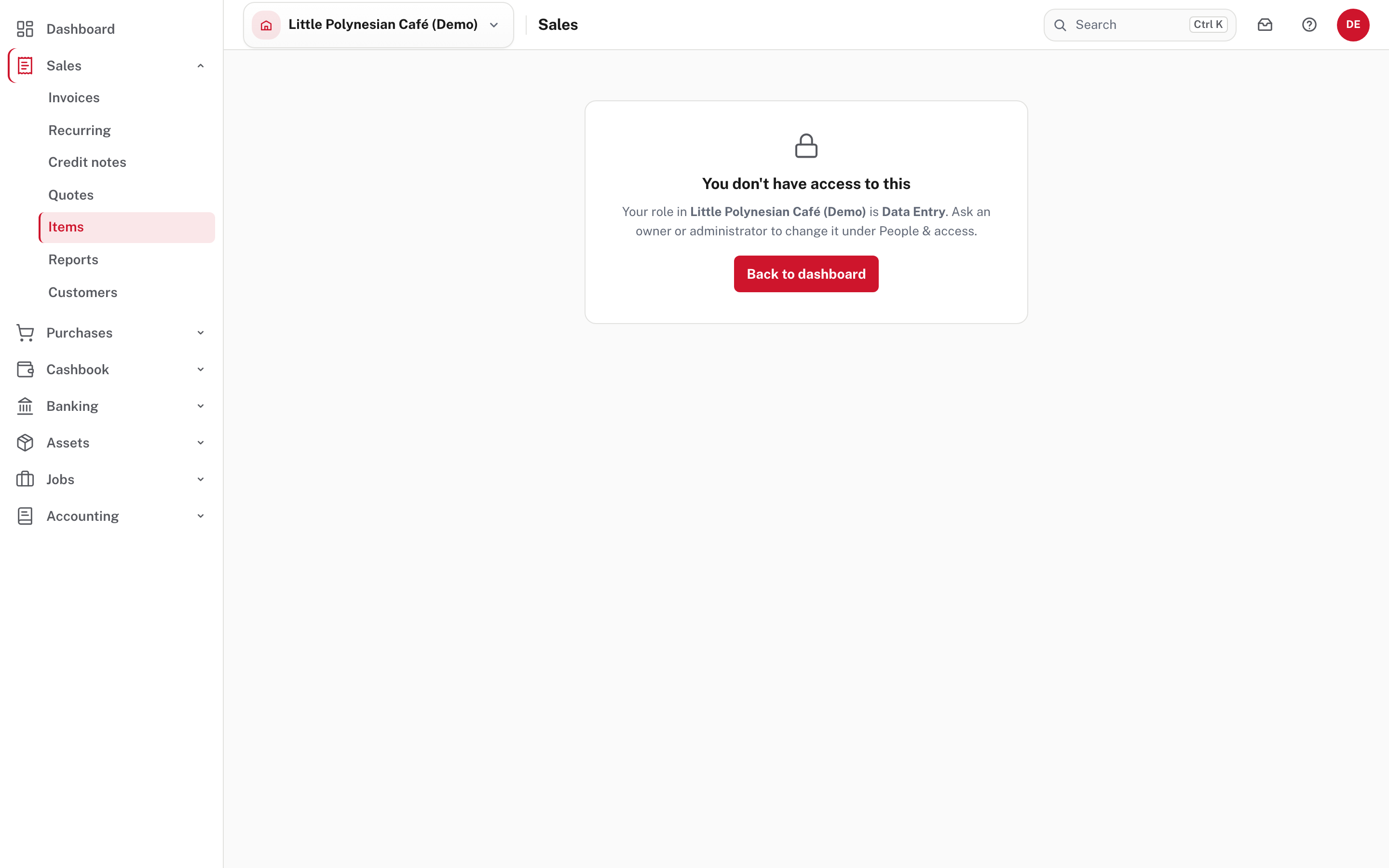
- Who can do what. The Owner, Administrators and Accountants can do everything in this chapter. Data entry can add and edit items and read their stock, but can't adjust or count stock: Data entry has no Stocktake in its menu, and the Stock adjustment box on an item is not shown to it (People, roles and access).
- Know your VAT codes. An item carries a VAT code for selling and one for buying; S is Standard 15%, Z zero-rated, E exempt and N no VAT (VAT registration, tax codes and rate changes).
- Your stock accounts exist. Tracked goods are held in the Inventory on Hand account and costed out to Cost of Goods Sold, both in the standard chart.
Step 1. See your items
Sales → Items.
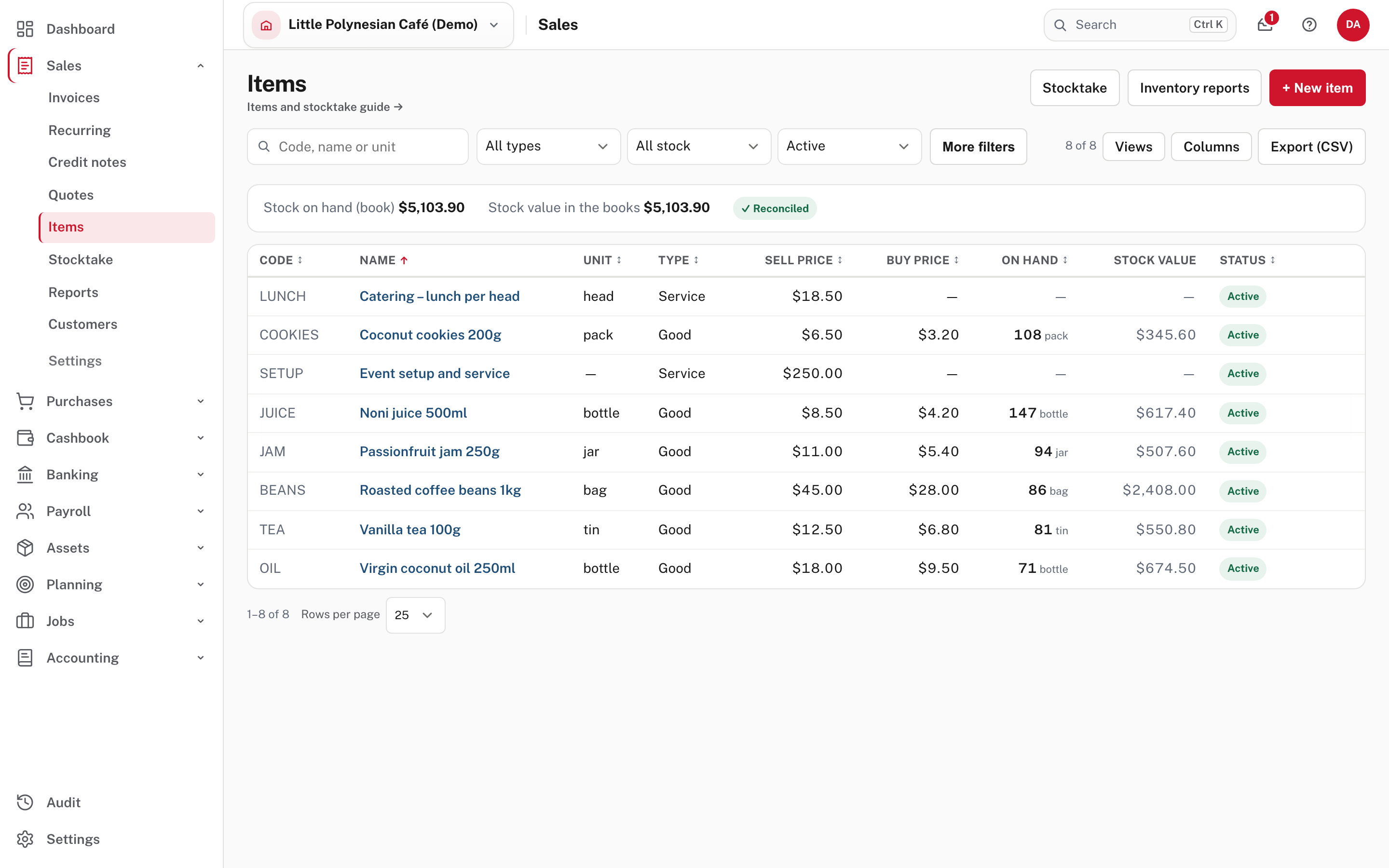
The register lists every item with its Code, Name, Unit, Type (Service or Good), Sell price, Buy price, and, for a tracked good, On hand and Stock value, then its Status. The three filters narrow it by type (goods or services), by stock (tracked or not) and by status (active or archived); Columns hides the columns you don't use and Export (CSV) saves the list.
Above the table, for a company with tracked goods, one strip compares Stock on hand (book), the total of the stock records, with Stock value in the books, what the Inventory on Hand account holds. They should agree and the strip says ✓ Reconciled. If they don't, it shows a Variance instead (see Cost rounding).
Step 2. Add a service
Sales → Items → + New item.
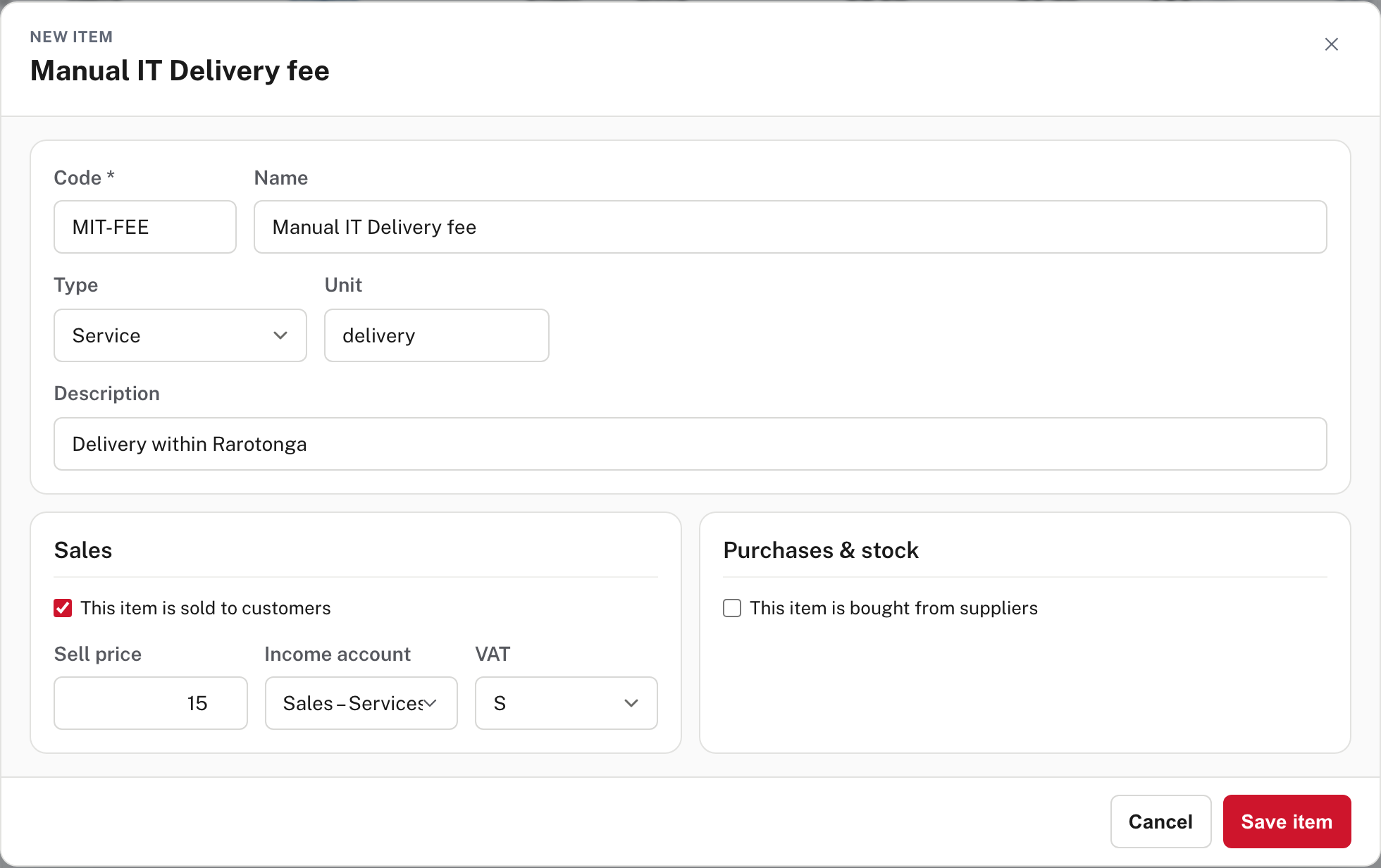
| Field | What to put |
|---|---|
| Code | Required, up to 40 characters, and no two items may share one. It identifies the line on quotes and invoices, so make it short and recognisable |
| Name | What the customer reads on the document |
| Type | Service (the default) or Good |
| Unit | hour, day, each, delivery: printed beside the quantity |
| Description | Optional extra wording |
| This item is sold to customers | Tick it for something you invoice. Then set the Sell price (up to four decimal places), the Income account it is credited to, and the VAT code |
| This item is bought from suppliers | Tick it for something you buy, and set the Buy price, the Expense / asset account it is charged to, and the VAT code |
An item must be sold, bought or both. Choose Save item: the form closes and the item is in the register. The prices, VAT and account are defaults: Add from item on an invoice or bill line fills the line from them. To change an item later, use Edit in the row's menu or Edit item on its own page.
To take an item out of use without losing its history, choose Edit, then Archive; Restore brings it back. An item can be archived but not deleted.
Step 3. Add a stock item
Sales → Items → + New item, then set Type to Good and tick Track stock on hand (weighted-average cost).
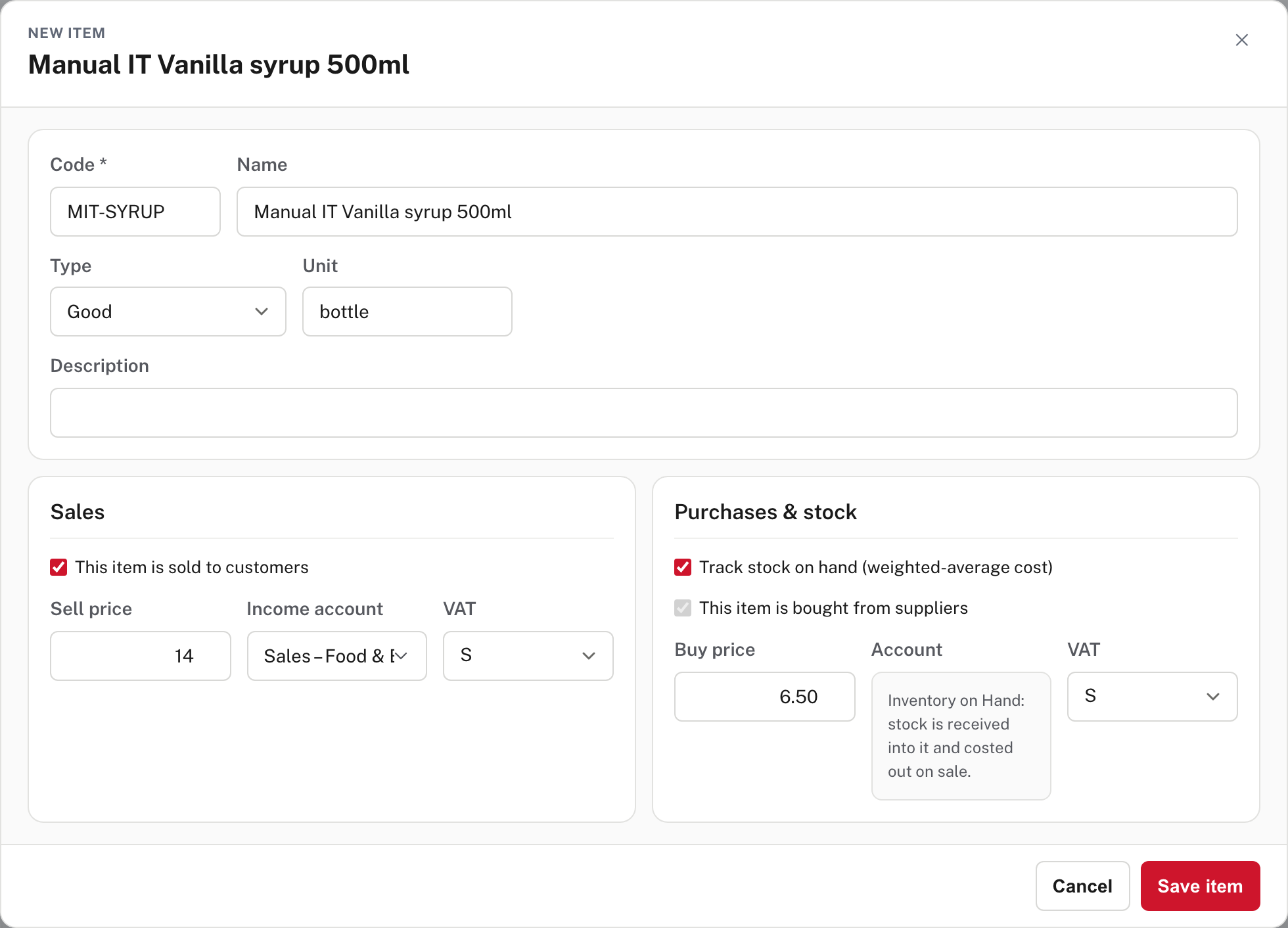
Ticking the box makes the item a bought item too: the Buy price and its VAT code appear, and the account is fixed as Inventory on Hand ("stock is received into it and costed out on sale"). Fill in the sell side as for a service.
Easy values tracked stock at a weighted-average cost: buying more re-averages the cost, and selling takes stock out at the current average. For example, 24 bottles at $6.50 plus 12 more at $7.10 make 36 bottles at $6.70 each.
A new tracked item starts at 0 on hand and $0.00 of value.
Decide on tracking before the first movement
Once a tracked item has any stock movement, Easy won't let you change its tracking setting. If you untick the box and save, it says so and saves nothing.
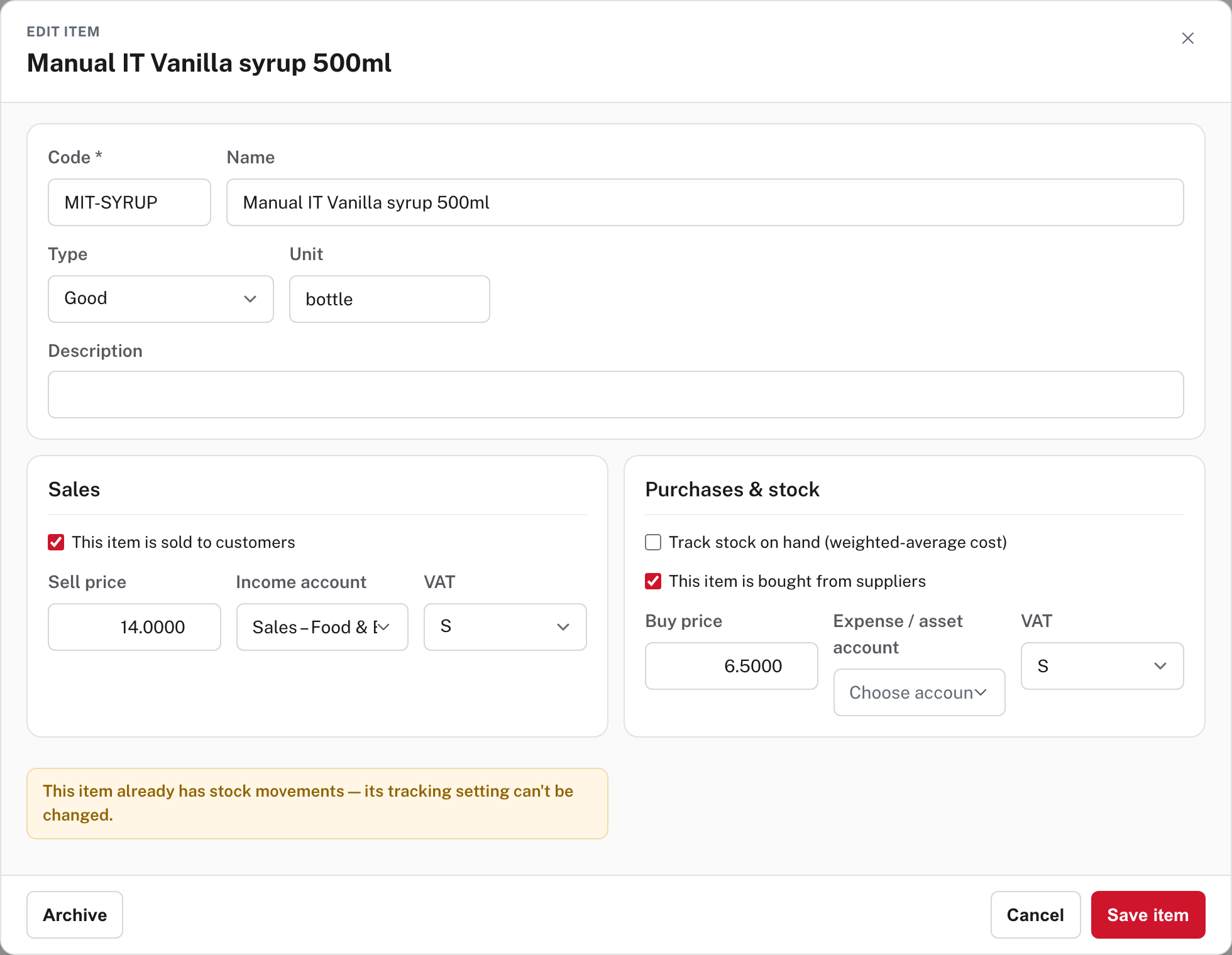
An untracked good is sold and bought like a service: it has prices and VAT but no quantity, and it is not on the stocktake sheet.
Step 4. Put stock in and take it out
Most stock moves on its own. Record a bill with the item on a line and the quantity goes in; finalise an invoice with the item on a line and it goes out. Open any tracked item to see its history.
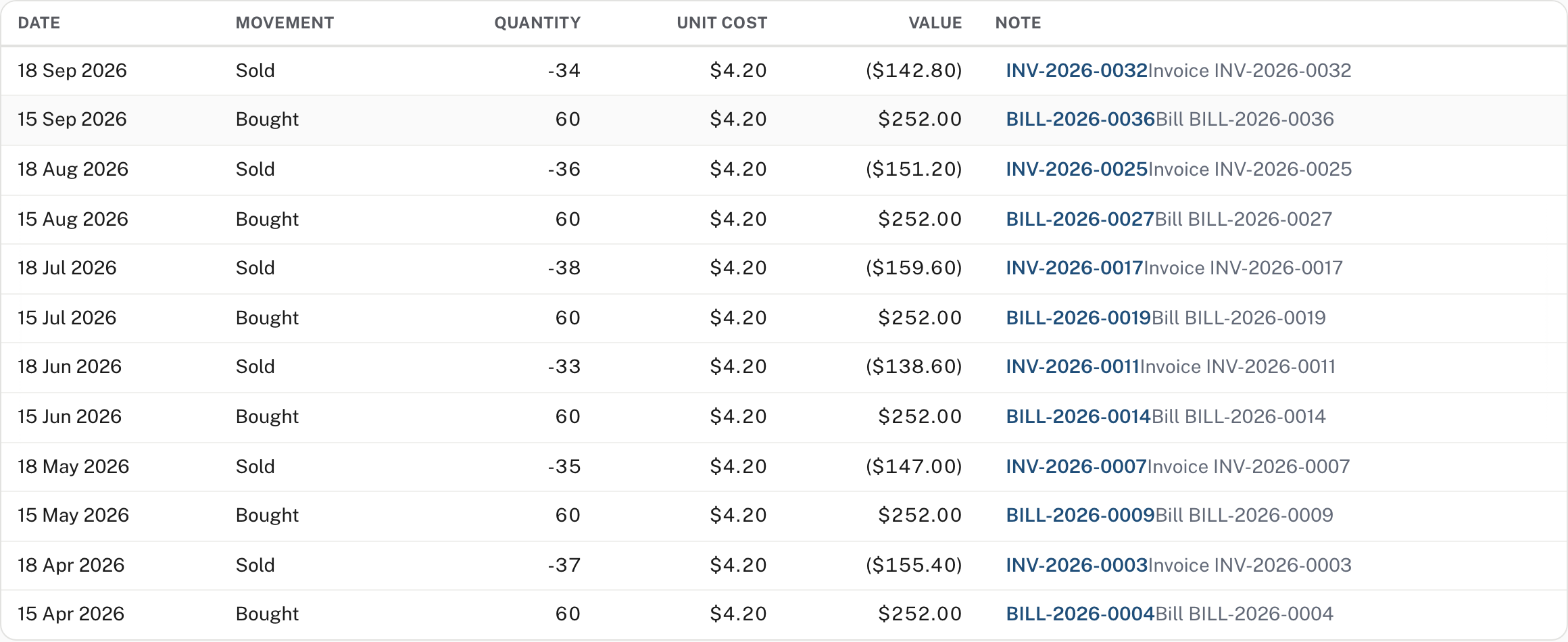
The movement words are Bought, Sold, Adjustment, Opening and Landed cost. A bill or an invoice is the link in the Note column. Freight and duty on imported stock are added to its cost as a landed cost (Landed costs and import VAT). An invoice that is undone or credited puts tracked stock back (Credit notes, undoing and correcting).
Use the Stock adjustment box on the item's own page only for what no document covers: opening stock when you start using Easy, or a correction.
Sales → Items → the item's name.
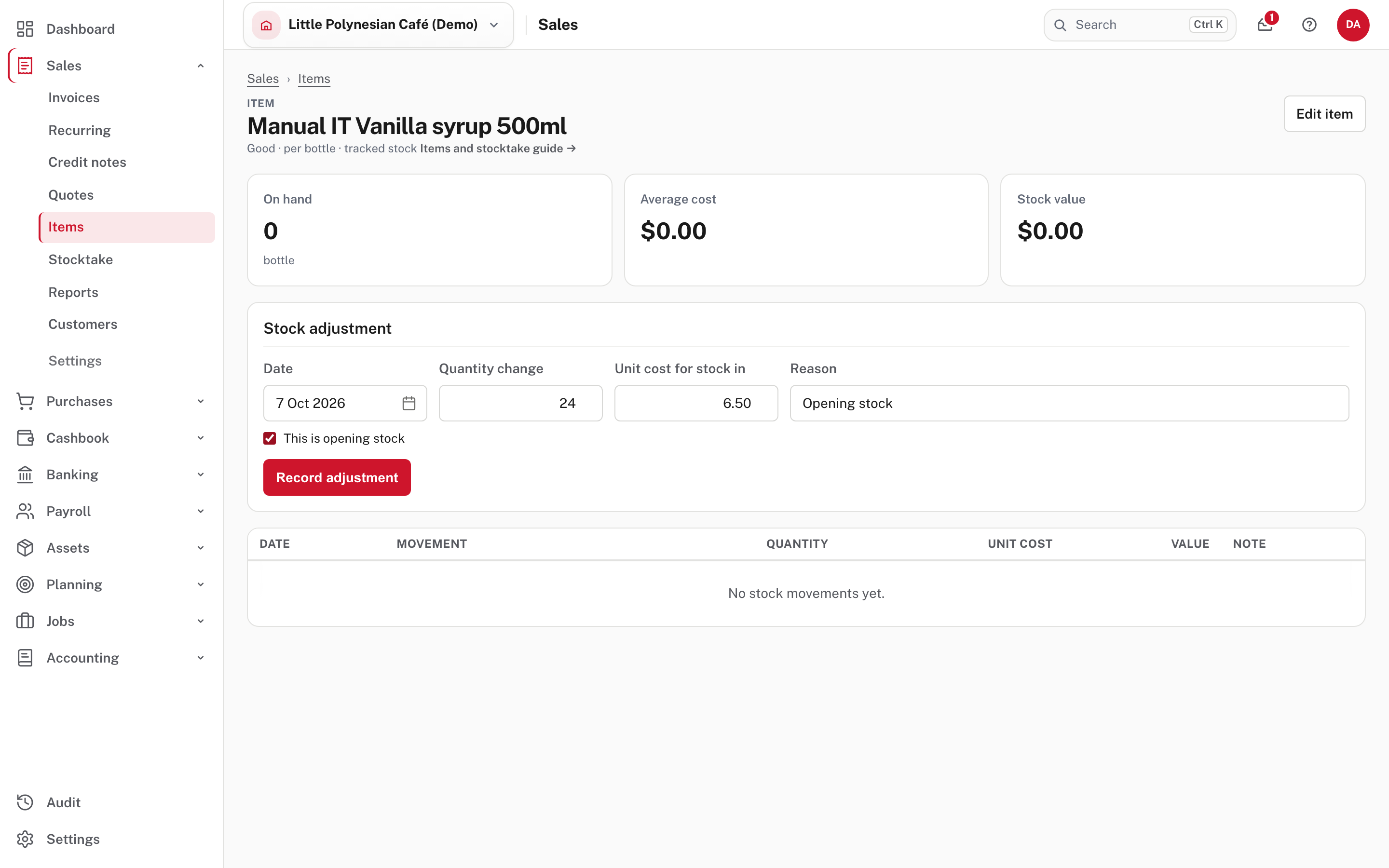
| Field | What it does |
|---|---|
| Date | The date of the movement (today to begin with) |
| Quantity change | The change, not the total: 24 puts 24 in, -2 takes 2 out |
| Unit cost for stock in | The cost of each unit coming in. It is only used when the quantity is more than zero: stock going out always leaves at the current average cost |
| Reason | Shown in the history and on the journal |
| This is opening stock | Labels the movement Opening instead of Adjustment |
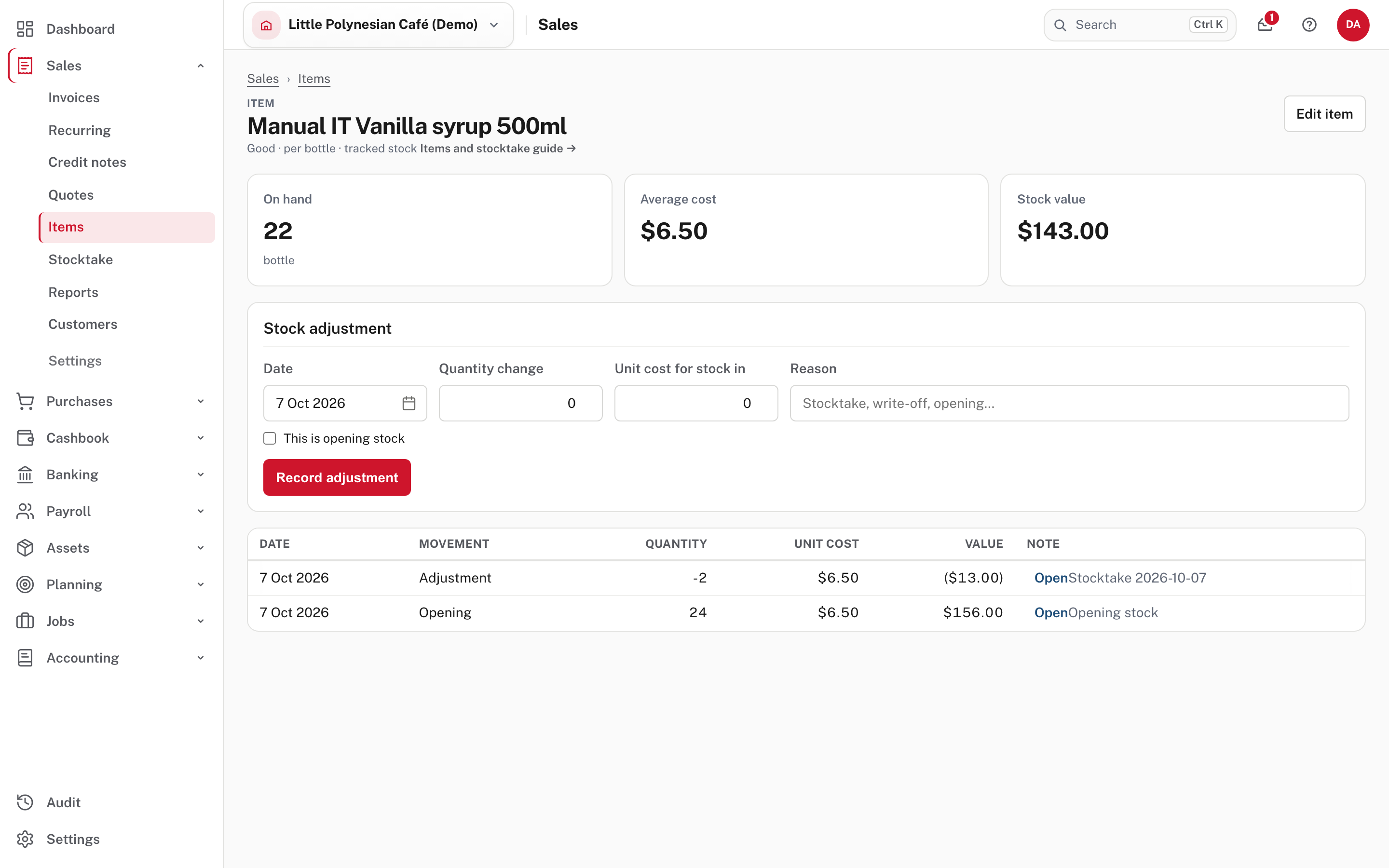
Choose Record adjustment. Easy says Adjustment recorded., and the page now shows 24 on hand at an average cost of $6.50, so $156.00 of stock.
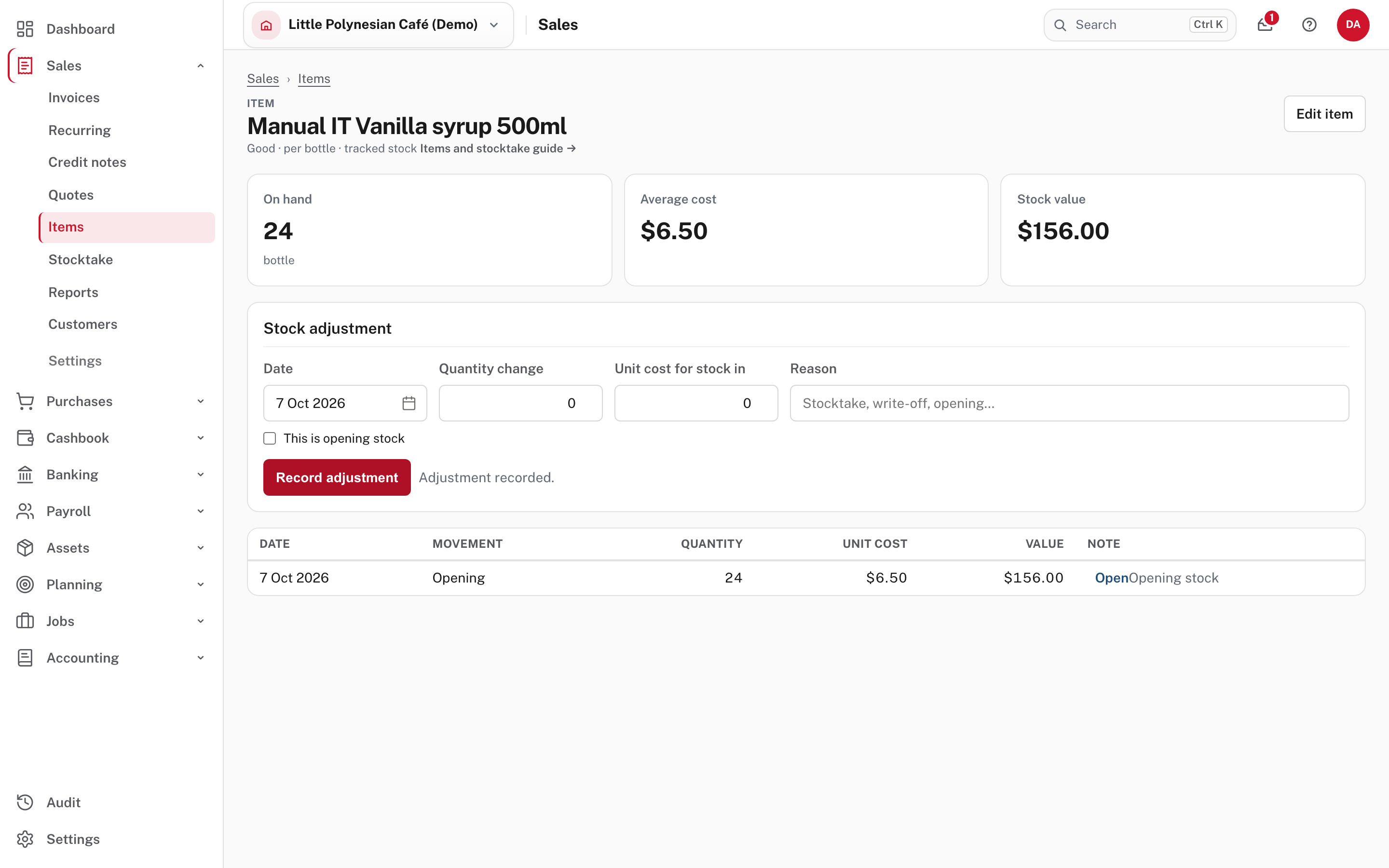
The Open link beside the movement opens the journal it made.
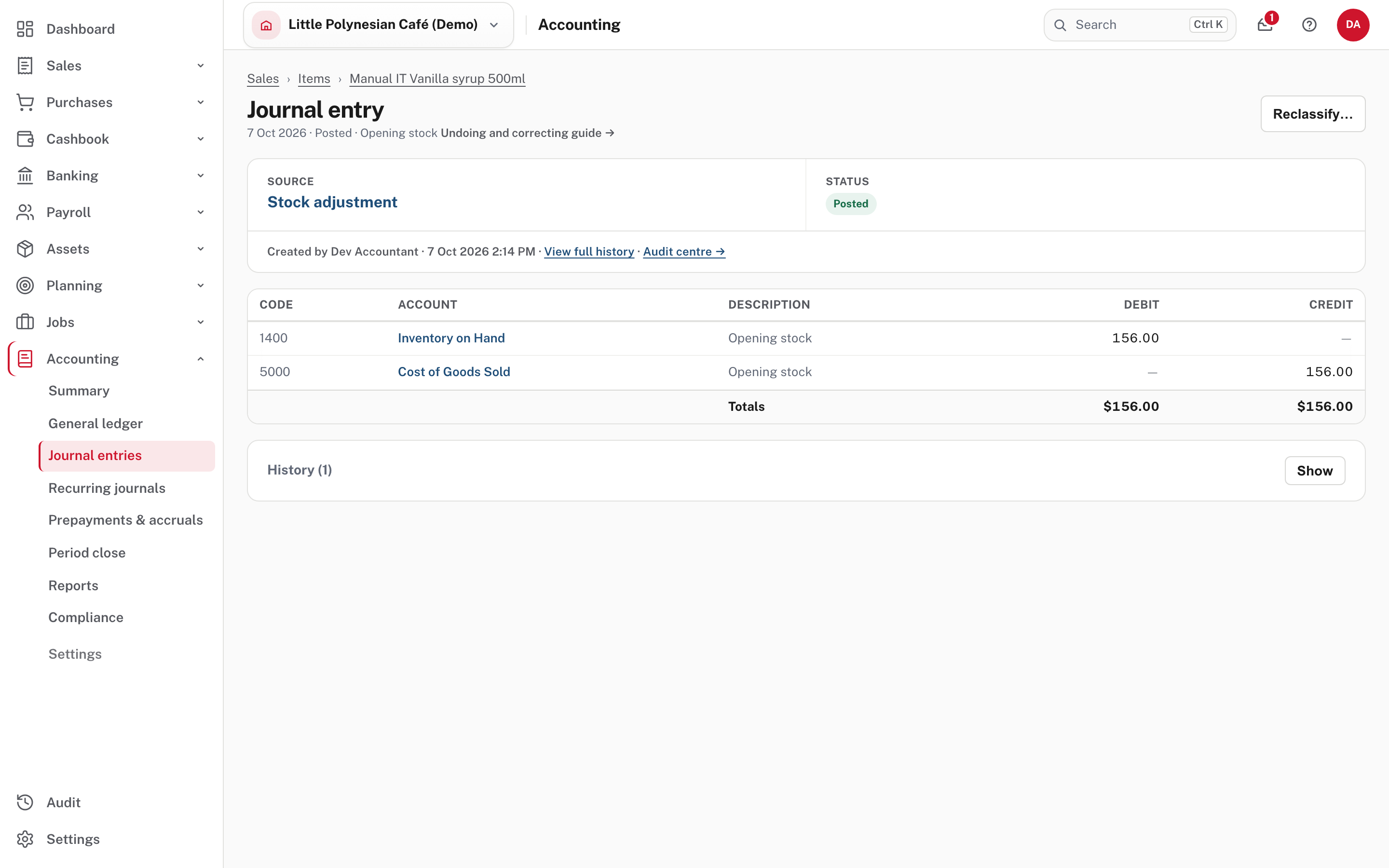
A stock adjustment is booked against Cost of Goods Sold
Stock put in by adjustment is a debit to Inventory on Hand and a credit to Cost of Goods Sold, which raises profit for the period. That is right for opening stock and for a found item, but stock you bought belongs on a bill, so the cost comes from the supplier's invoice and the supplier is owed the money. You can't correct Inventory on Hand with a manual journal either (Manual journals and journal approval).
Step 5. Count your stock
Sales → Stocktake (or Stocktake at the top of Items).
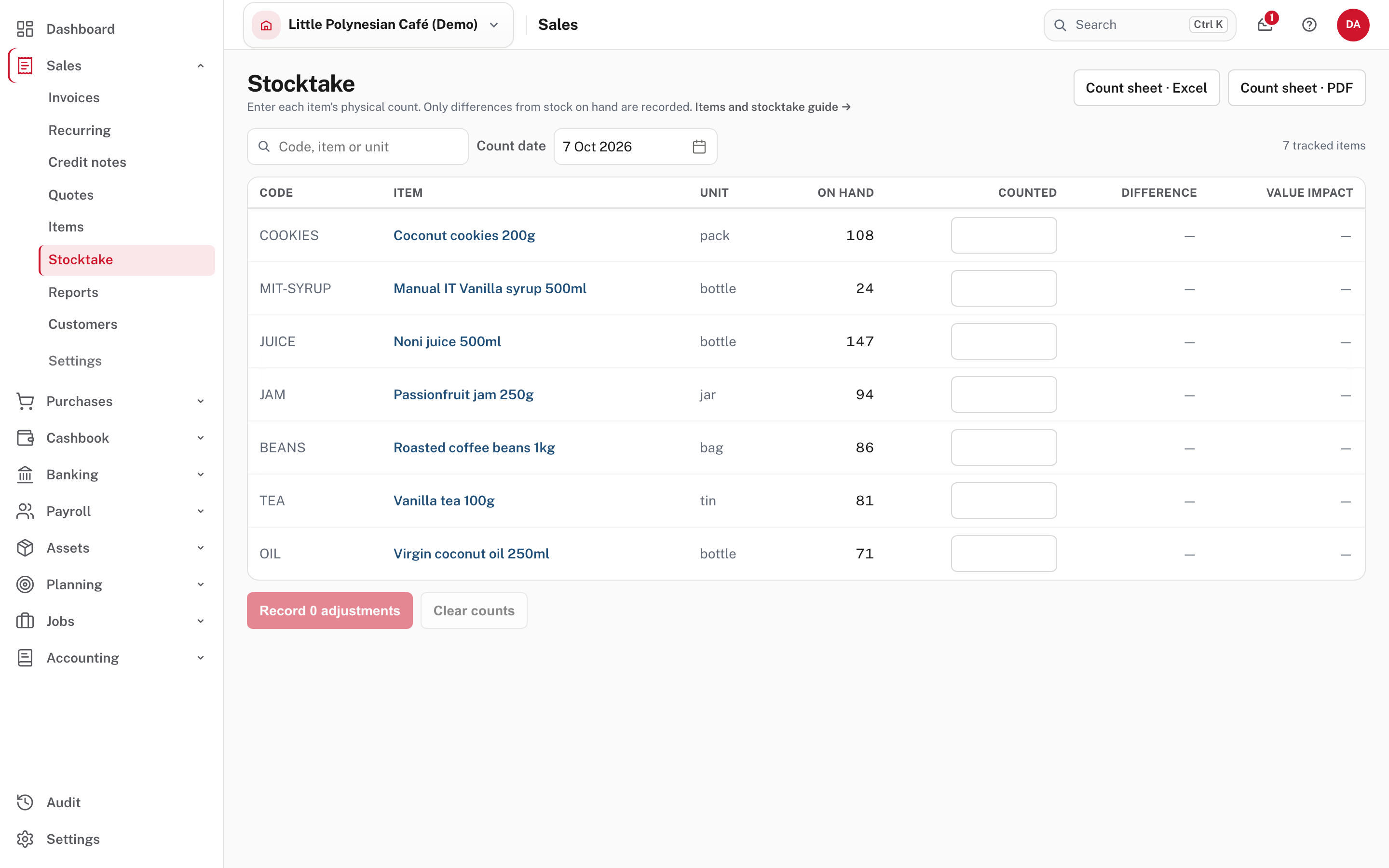
The sheet lists every active tracked good with the quantity On hand according to the books. Services, untracked goods and archived items are not on it. Count sheet · Excel and Count sheet · PDF (top right) give you the same list with an empty Counted column to take to the shelves. Not shown in the demo: the two files.
- Set the Count date. The adjustments are made on this date.
- Count the shelves and type each item's quantity in Counted. Only count what you actually counted: a blank box is not a zero count, and Easy leaves that item alone. Search narrows the list by code, name or unit.
- Read Difference (counted minus on hand) and Value impact (the difference at the item's average cost; a loss is in brackets).
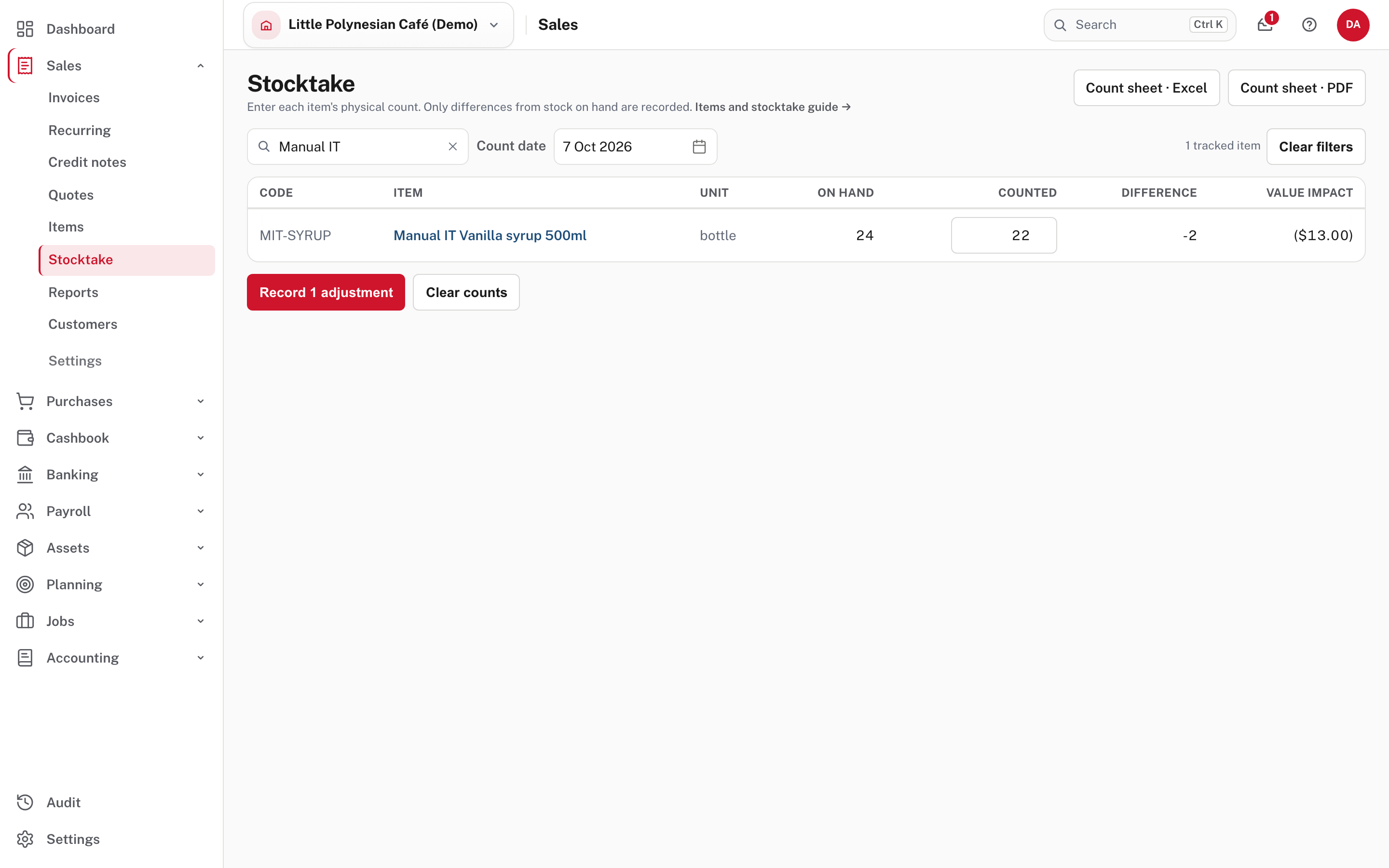
- Choose Record 1 adjustment (the button counts the items that differ). Clear counts empties the boxes without recording anything.
Easy answers Recorded 1 adjustment · net stock value ($13.00). Each item that differs gets one Adjustment movement with the note Stocktake and the count date (here Stocktake 2026-10-07), and one journal; an item counted at exactly what the books say gets nothing.
Don't use the stocktake to start a brand-new item
A stocktake adjusts at the item's current average cost, and an item with nothing on hand yet has none. A count of 5 on such an item puts 5 on the shelf at $0.00 of value and posts no journal (not shown in the demo). To bring in opening stock, use the Stock adjustment box above and give a Unit cost for stock in.
Step 6. Check the result
Open the item again: On hand is now 22 and the history has the Adjustment next to the Opening movement.
Sales → Items → Inventory reports shows the stock for the whole company.
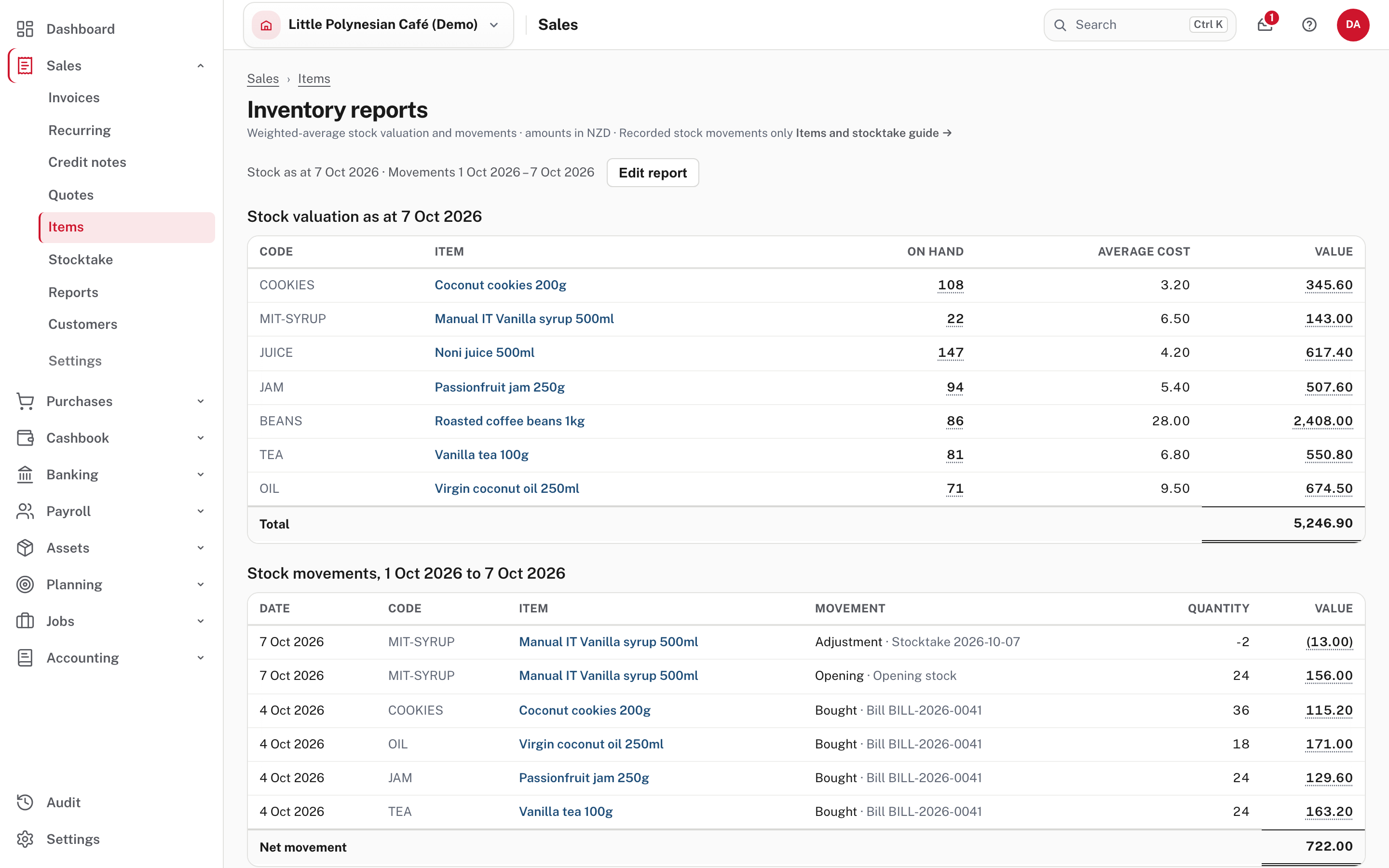
It has two tables. Stock valuation shows each tracked item's quantity, average cost and value at the Stock as at date; Stock movements lists every movement in the period. Choose Edit report to change the dates. An item's quantity or value opens the item and its history; a movement's value opens its journal. Use it to explain a surprising figure before you change anything.
The Items strip should still say ✓ Reconciled, and the month-end check compares Inventory on Hand with the stock records (Month-end checklist). Stock is counted before the year end (Year-end annual statements).
Cost rounding
Not shown in the demo
The demo's stock agrees with the books, so the Variance strip and the Clear the rounding difference button don't appear there.
Stock is costed to four decimal places, so a purchase or sale can differ from the stock records by a cent or two. Easy puts that difference on cost of sales in the same entry, and each night moves the few cents left on an item that is out of stock to cost of sales too. If the strip above the register still shows a Variance from older purchases, Clear the rounding difference shows you the amount and moves it to cost of sales when you choose Clear it.
Use it for rounding only. A larger difference means something reached Inventory on Hand without a stock record, such as a manual journal or a mistyped bill, so choose Open its transactions and find that first.
More detail: Items and stocktake.
When something goes wrong
| What you see | What it means |
|---|---|
| Another item already uses code … | Codes are unique. Choose another, or edit the existing item |
| Mark the item as sold, purchased, or both. | Tick at least one of the two boxes (a tracked good counts as bought) |
| This item already has stock movements … | Tracking can't be switched off after the first movement |
| Recorded 2, 1 failed: … (stocktake) | Each adjustment is made on its own: the ones before the failure stay recorded, and the message names the item and why. Fix it and count that item again |
| You don't have access to this on Stocktake | Your role is Data entry; ask an Owner or Administrator (People, roles and access) |
Not shown in the demo: the Recorded … failed message.
Check before you continue
Check before you continue
- Every item has a short, unique code, the right VAT codes and the right income or expense account.
- Goods you hold are tracked before their first movement, and goods you don't hold are not.
- Stock came in on bills, not on adjustments, apart from opening stock and corrections.
- Each stocktake counted only what was counted, and its adjustments are the differences you expected.
- The Items strip says ✓ Reconciled, or any variance is only cost rounding.