Emails and notifications
Easy sends email for your company in four ways: documents you choose to email (an invoice, a statement, a purchase order), automatic emails (reminders, a note that something is waiting for someone, a decision), payroll emails, and invitations. This chapter shows where each is switched on or off and reworded, how to check an email really went, and what to do when it did not. You set it up once, then look at it when someone says an email never arrived. The Owner or an Administrator does it. It goes with Chasing overdue invoices, Approvals and controls and People, roles and access.
About the screenshots
Screenshots are from Easy's demo company, Little Polynesian Café. Email sending is not set up on the local demo server, so no email was sent for this chapter, and every screen says so. The two rows in Email activity are sample entries marked "Not sent". Anything about an email actually leaving, arriving or being resent is described from Easy's Help and source and flagged as not shown.
Before you start
- Sending is set up by Project Five on the server, not by you. If it isn't, Easy says so wherever you look: a yellow note on Settings → Email, Not set up on the Payroll emails page, and a greyed Email button on every document (Step 7).
- Only an Owner or an Administrator can change email settings and wording on Settings → Email and the Sales and Purchases emails pages (Roles explained). Payroll email (payslips, tax certificates, bank-detail alerts) shows in Email activity only to people who can open Payroll (Work inbox and email activity).
- Who a company's emails come from. Every email arrives from your business ("Your Trading Name via Easy"), on Easy's sending address, with replies going to your reply-to address (Who the email is from).
Step 1. Reply-to, signature and copies
Settings → Documents & email → Email.
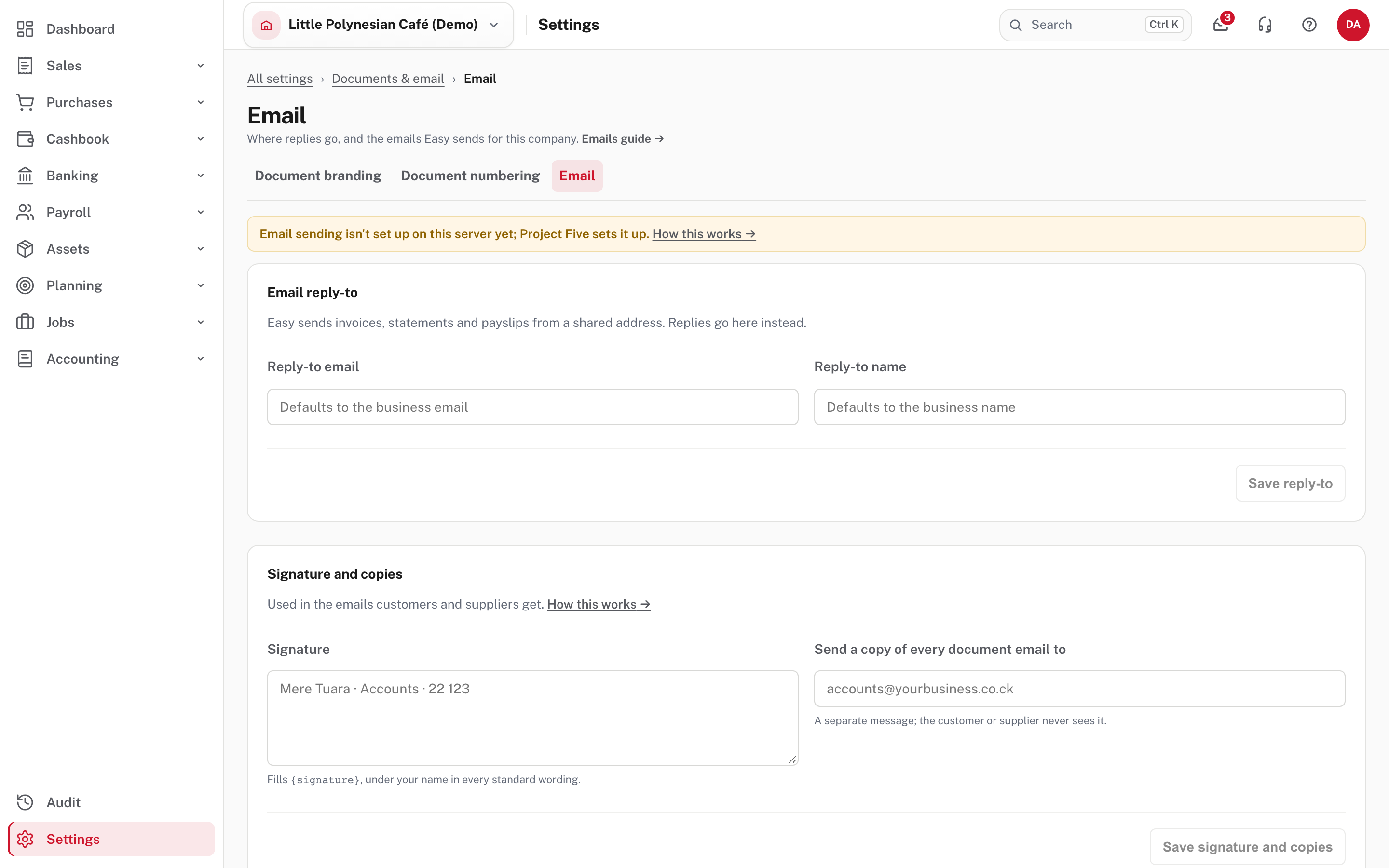
| Card | What it does |
|---|---|
| Email reply-to | Where a customer's or supplier's reply goes. Reply-to email and Reply-to name both default to your business email and name (Business details) |
| Signature and copies: Signature | Fills {signature}. The standard wording puts it on its own line under your company's name in every customer and supplier email. With none, the line is left out |
| Send a copy of every document email to | One address, such as accounts@, gets its own separate copy of every document email (invoice, quote, credit note, statement, receipt, reminder, purchase order, remittance advice). The customer never sees it, and a copy that fails does not stop the real email |
Each card has its own save button (Save reply-to, Save signature and copies), greyed out until you change something. More detail: Customer and supplier emails.
Step 2. The emails behind Mail, and invitations
Further down the same page is the list of company-wide emails.
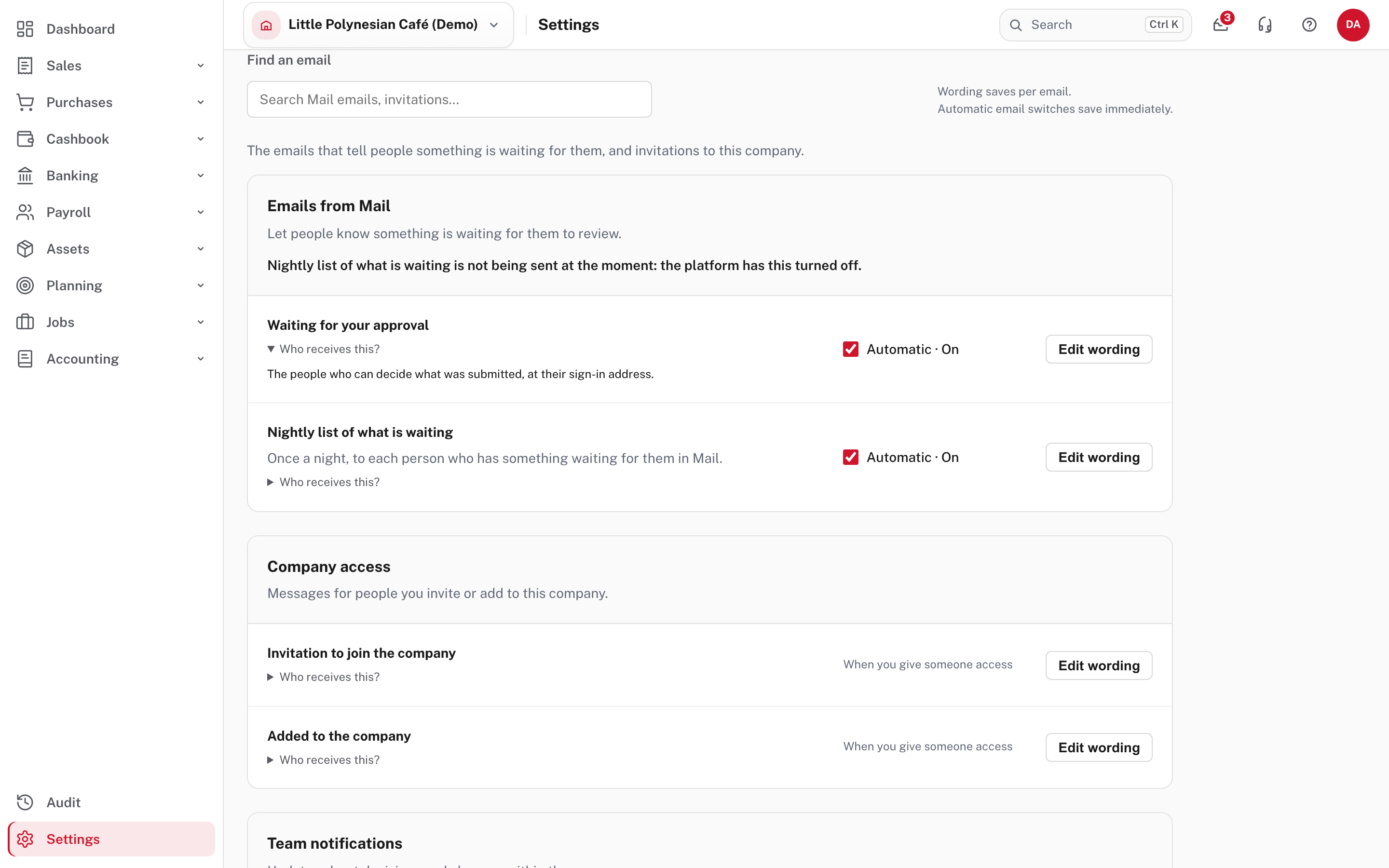
Open Who receives this? on a row to see who gets it. The rows:
| When it goes | Switch | |
|---|---|---|
| Waiting for your approval | When something is submitted, to the people who can decide it (their sign-in address). Nobody gets more than one a kind every four hours | Automatic · On |
| Nightly list of what is waiting | Once a night, to each person who has something waiting in Mail. Nobody with nothing waiting gets one | Automatic · On |
| Invitation to join the company | When you invite someone | No switch: it goes when you invite |
| Added to the company | When you give someone access | No switch |
| Journal decided | When a manual journal someone submitted is approved or sent back, to the person who submitted it | Automatic · On |
In the demo the page also said "Nightly list of what is waiting is not being sent at the moment: the platform has this turned off". The platform operator can turn the nightly list off for every company at once. If it has, your own switch still saves, and nothing is sent until it is turned back on (Turning one off).
None of these emails carries an amount or an account number. A switch saves immediately; wording saves per email (step 4). The page groups them in three cards: Emails from Mail, Company access and Team notifications.
Step 3. Customer and supplier emails
Settings → Sales → Sales emails, and Settings → Purchases → Purchases emails.
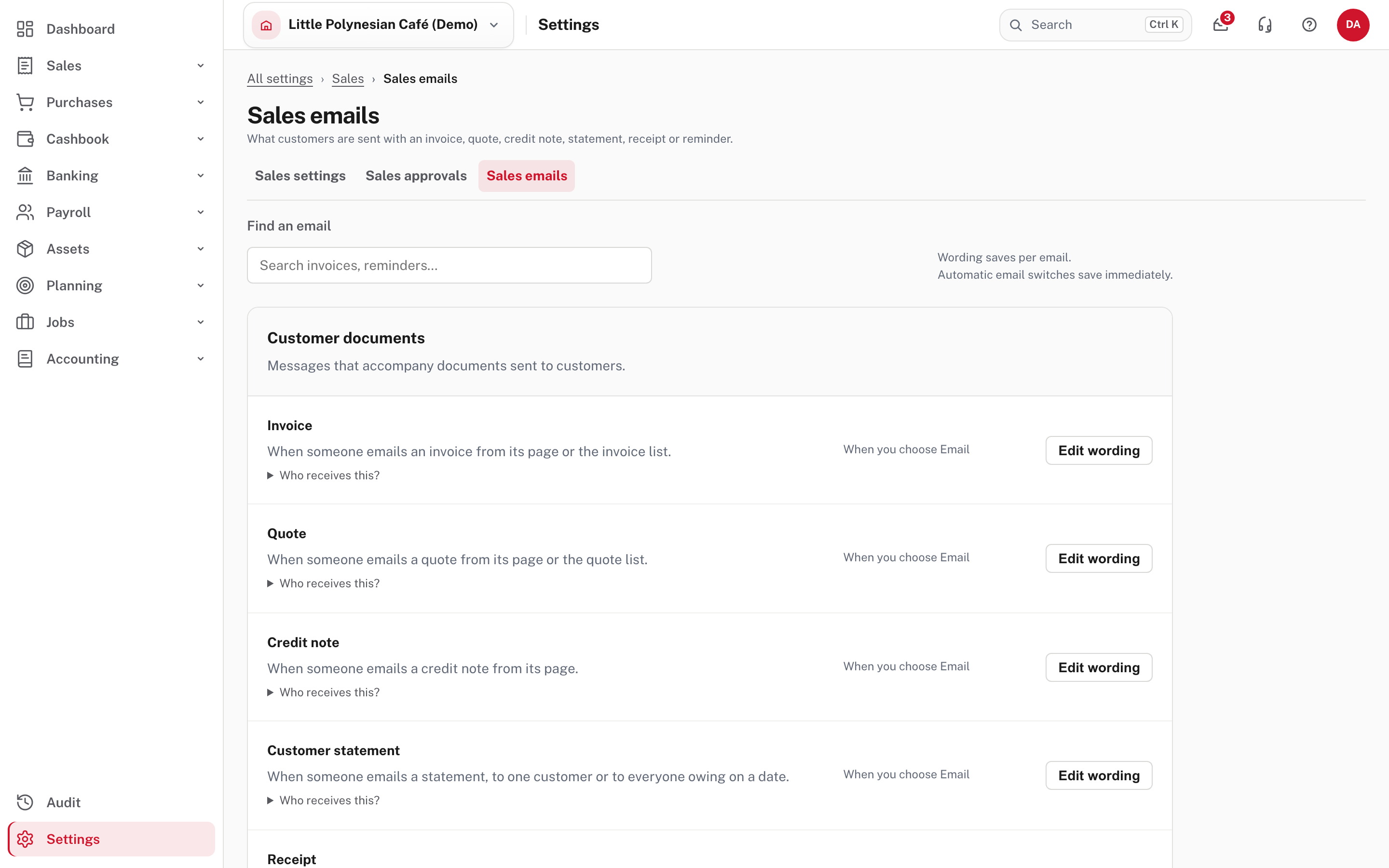
The Sales list holds the invoice, quote, credit note, customer statement and receipt (each "When you choose Email": someone sends it, so there is no switch), the recurring invoice (automatic, on), the reminders, and Quote, invoice or credit note decided (what the person who submitted one hears when it is approved or sent back). The Purchases list holds the purchase order and remittance advice the same way, and the emails that tell the person who submitted a bill, purchase order or supplier payment run what was decided.
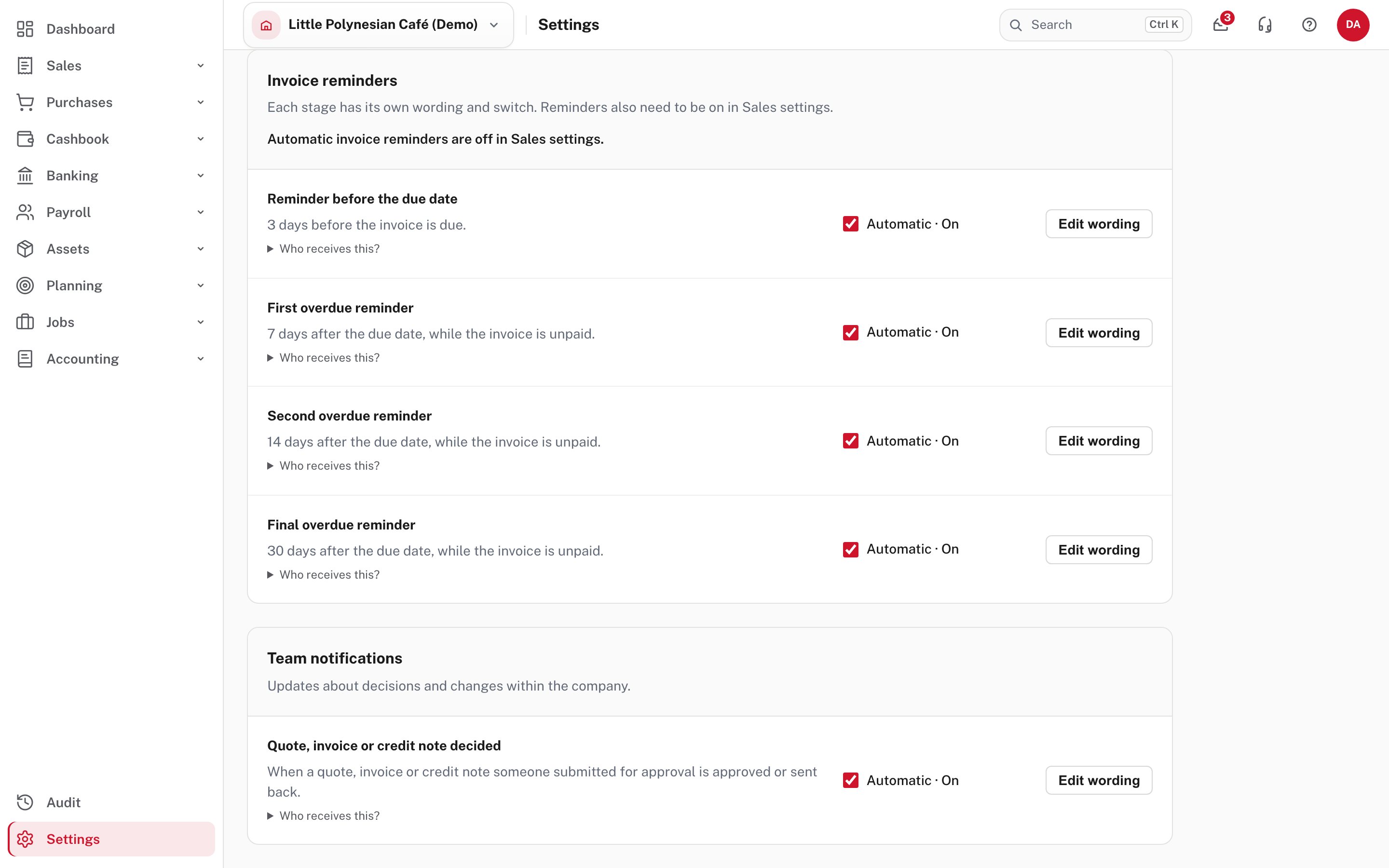
The four reminder stages each have their own switch. A stage switched off is skipped and the next one still goes. The group's heading says Automatic invoice reminders are off in Sales settings, because the stage switches are only half of it: reminders run only while they are also on in Settings → Sales settings, and in the demo they are off even though every stage reads On. Decision emails (a bill, purchase order or payment run decided) also need "Tell the person who submitted it" on for that kind under Purchases approvals. The whole story of reminders is in Chasing overdue invoices, step 5.
Step 4. Reword an email
Choose Edit wording on a row.
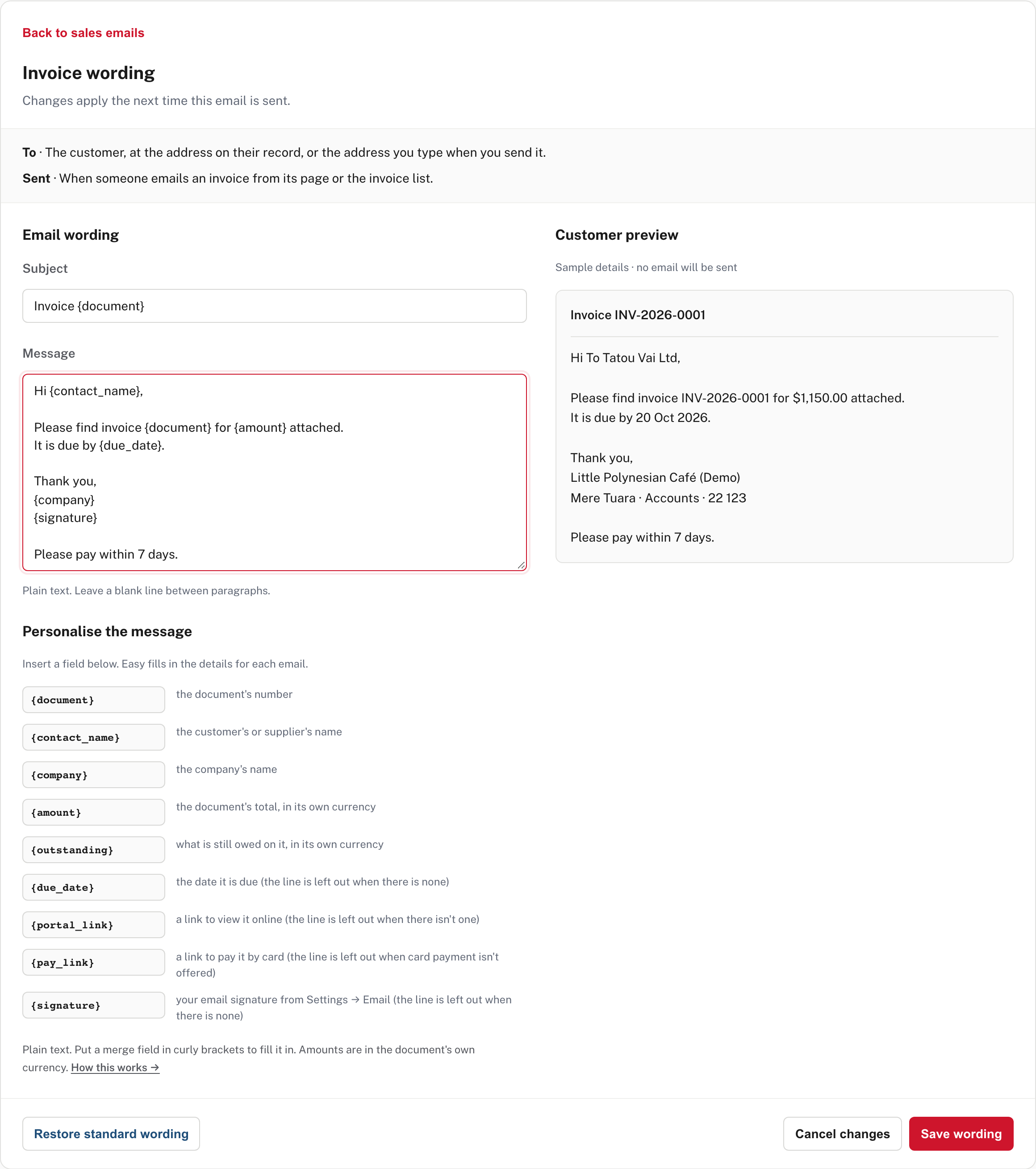
- Subject and Message are plain text. Put a merge field in curly brackets and Easy fills it in for each email. Choose a field under Personalise the
message to insert it. For the invoice they are
{document},{contact_name},{company},{amount},{outstanding},{due_date},{portal_link},{pay_link}and{signature}. A line whose field is empty (no due date, no card-payment link, no signature) is left out of the email, so put such a sentence on its own line, as the standard wording does. - Customer preview shows the message with sample details (here a made-up customer and the café's own signature) and says no email will be sent. In the picture a line was added at the end and the preview follows it.
- Customer and supplier emails may state amounts (
{amount},{outstanding}), in the document's own currency. Payroll and Mail emails never can: those fields do not exist, so a wording change can't put pay figures or an account number into a message. - Save wording keeps it. Cancel changes leaves without saving. Restore standard wording puts Easy's own text back. A row you have reworded shows a Reworded badge. Changes apply the next time that email is sent.
The editor refuses wording that would break the email. An invitation must keep {link}, the single-use link that accepts it:
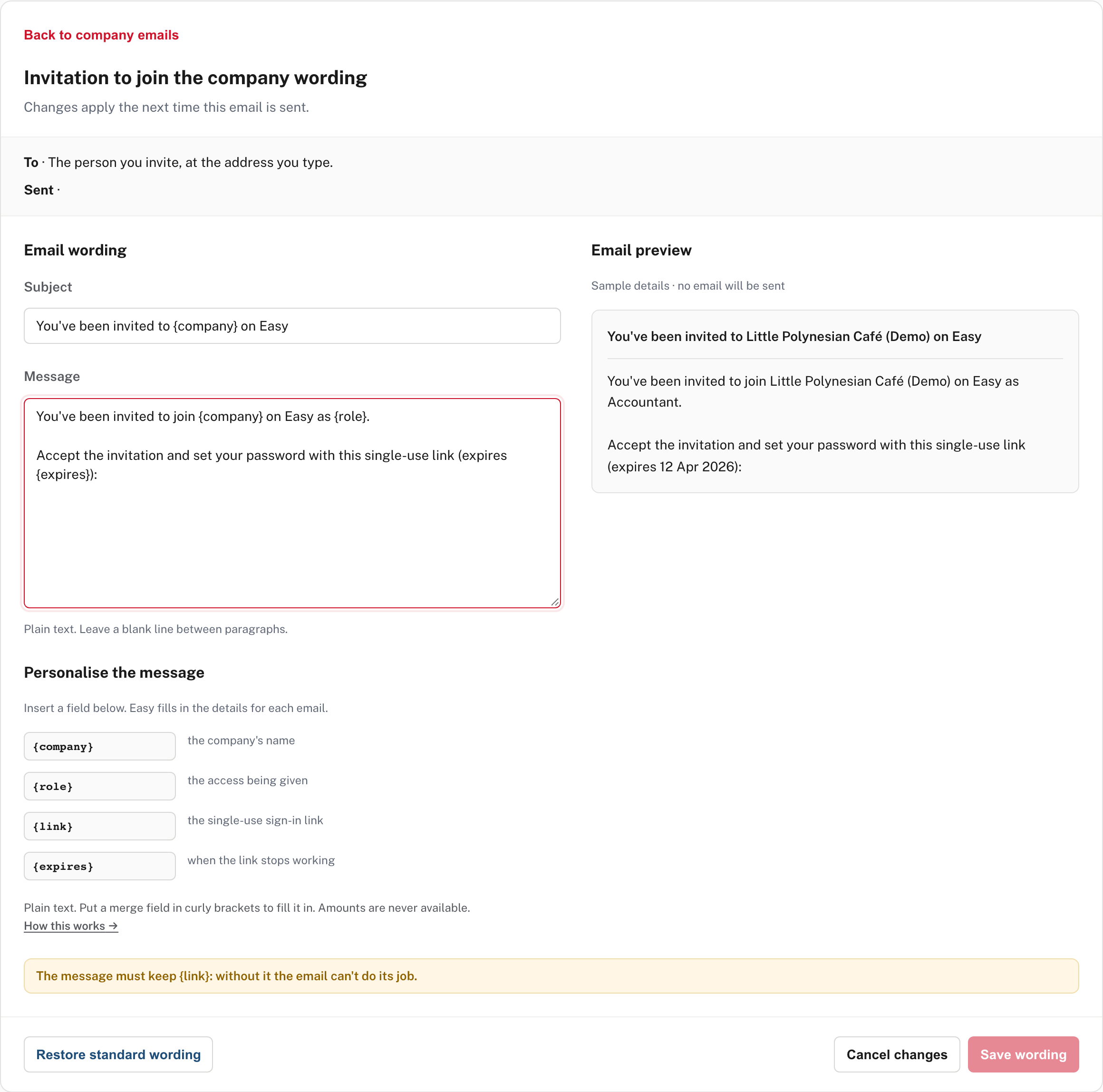
"The message must keep {link}: without it the email can't do its job." Save wording is greyed out until it is back.
When someone emails one document, the send dialog opens with this wording filled in for that document. They can change it for that one email without changing the saved wording. A bulk send, a recurring invoice and a reminder go out in the saved wording as it stands (from Easy's Help; the send dialog needs email set up, so it is not shown).
Step 5. Payroll emails
Payroll → Payroll settings → Emails & notifications.
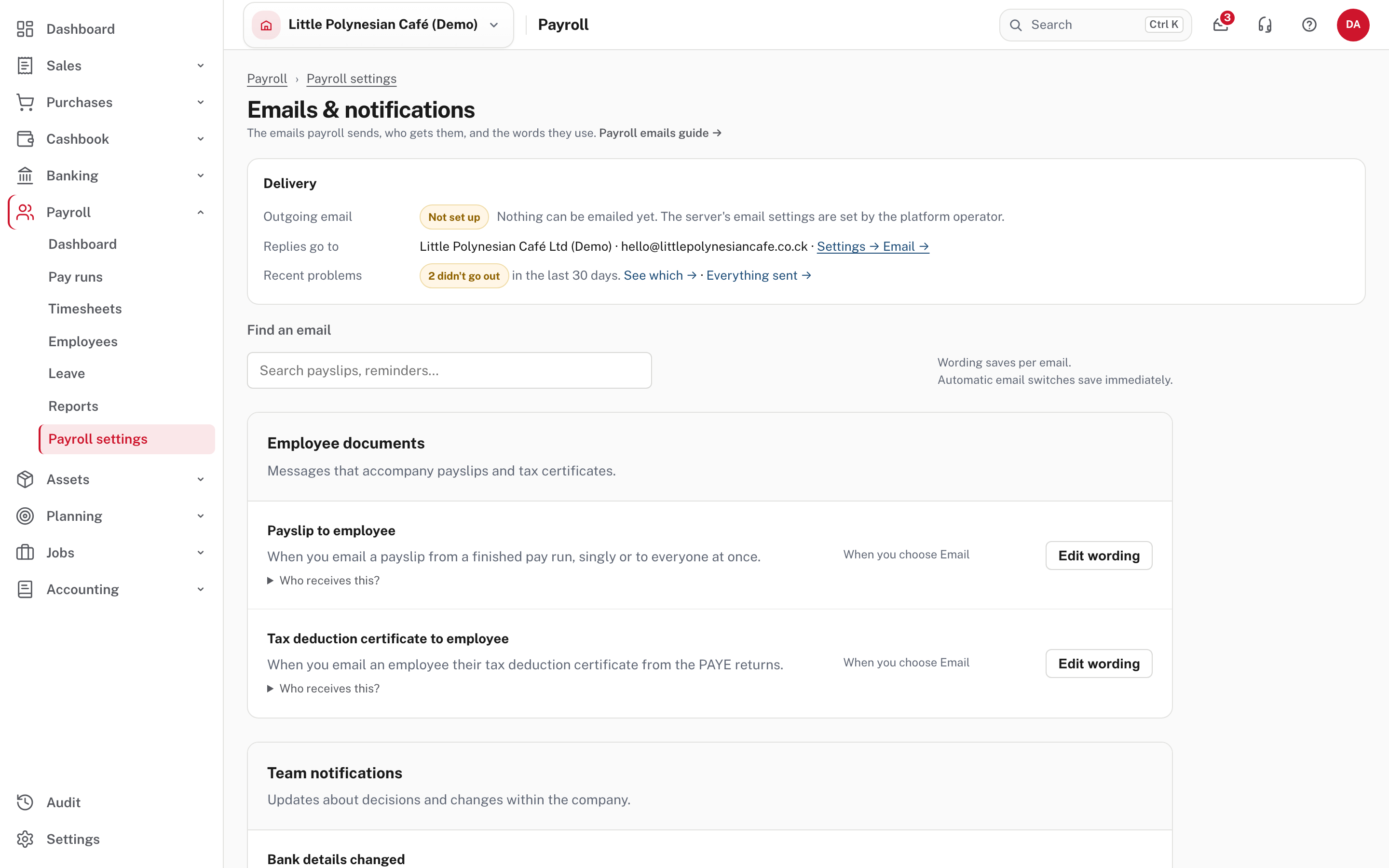
The top card, Delivery, answers three questions: is email set up (Outgoing email: Not set up, with the words "Nothing can be emailed yet. The server's email settings are set by the platform operator"), where replies go, and whether any email failed (Recent problems: "2 didn't go out in the last 30 days", with links to See which and Everything sent).
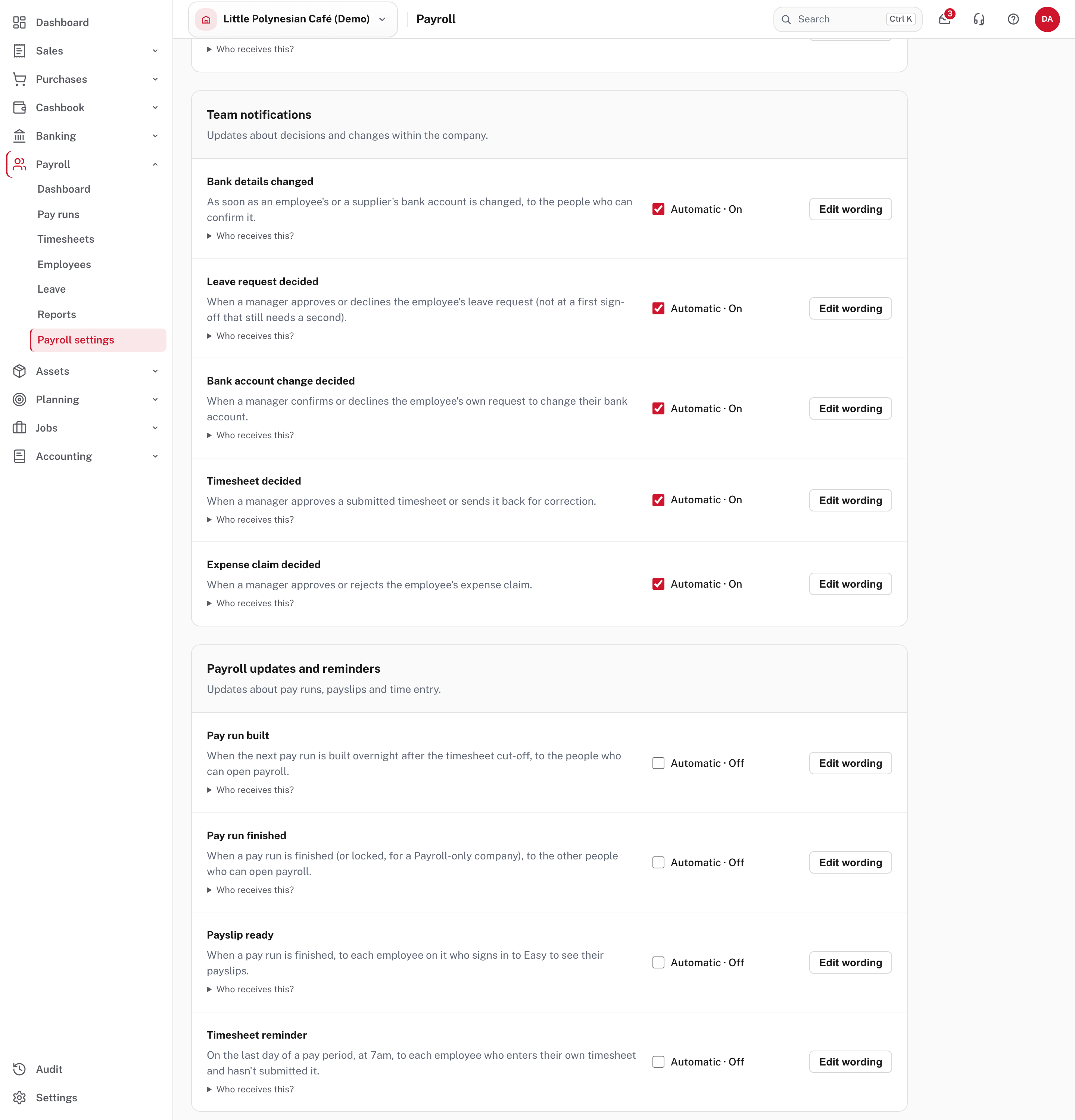
| Group | Emails | Default |
|---|---|---|
| Employee documents | Payslip to employee, Tax deduction certificate to employee: sent when you choose Email | Manual |
| Team notifications | Bank details changed; Leave request decided; Bank account change decided; Timesheet decided; Expense claim decided | On |
| Payroll updates and reminders | Pay run built; Pay run finished; Payslip ready; Timesheet reminder | Off until you switch them on |
The four in the last group are off on purpose, so a company that never opens this page tells nobody anything new. Timesheet reminder goes at 7am on the last day of a pay period to each employee who enters their own timesheet and hasn't submitted it (For employees). A decision email also needs the email option ticked on that kind's Approval policy (the page says so at the foot). The footer link What's not here explains where the rest are. More detail: Payroll emails and wording.
Step 6. Check that an email actually went
Mail (the envelope in the top bar) → Email activity.
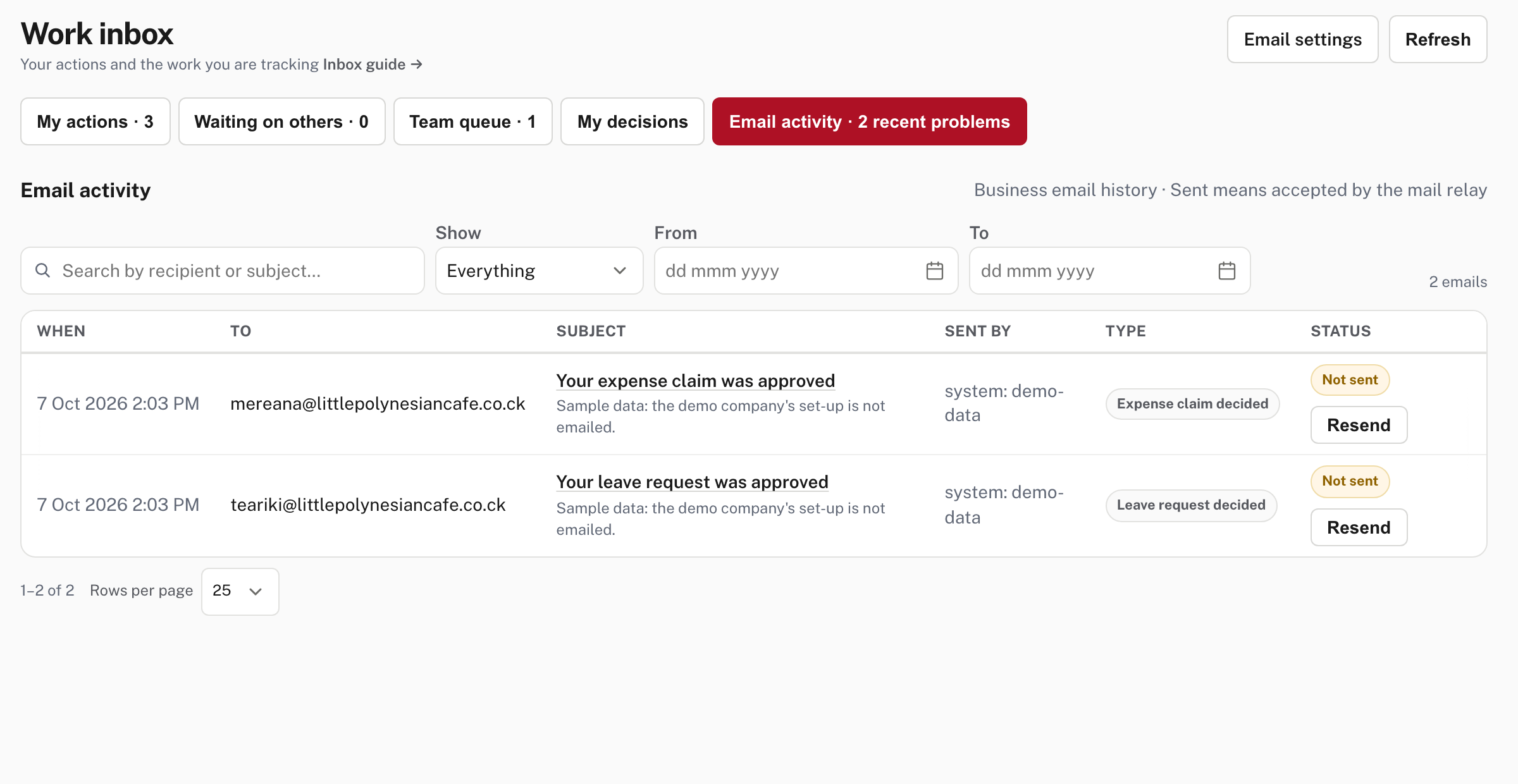
This is the company's email history. Search by recipient or subject, choose Show (Everything, Sent, Failed, Not sent, Didn't go out, Documents), and
narrow by date. Each row says when, to whom, the subject, Sent by (a person, API: <key name> or system: <job name>), the kind, and the status. The tab shows
how many recent problems there are, and the Email settings button (top right) opens Settings → Email.
Sent does not mean delivered
Sent means the mail relay accepted the message. It does not prove it reached an inbox. A Failed or Not sent row carries the reason: read it before you retry. In the demo both rows read Not sent, with the reason "Sample data: the demo company's set-up is not emailed".
A subject that names a record (an invoice, a leave request) opens it. Resend on a row that did not go out is described from Easy's Help (not shown in the demo, where email is not set up):
- It rebuilds the email from the record as it stands now and sends it to the address on the person's record today, so a corrected address is picked up. It never re-sends a copy of the first attempt.
- It will not resend when the email is turned off, when a later email about the same record already went out, or when the record no longer shows that decision.
- Payslips and tax certificates are rebuilt where they are made: email them again from the pay run or from the PAYE annual return.
If an email is switched off, its row is not silent: it shows "didn't go out" with the reason "This notification is turned off". The one exception is the nightly list, which leaves no row at all when it is off for the whole company (Turning one off).
When someone says "I never got it", work through this in order:
- Email activity. Search for them. No row at all means the email was never tried: the switch is off, the stage was skipped, or a wording or customer setting stopped it.
- The status. Failed or Not sent carries the reason. Sent means the relay took it: ask them to look in spam, and check the address on the record.
- The address. Customers can have up to five emails; one with none can't be emailed; a customer marked Leave out of bulk statement emails is skipped in a bulk run.
- Resend, once the cause is fixed.
Step 7. When email is not set up

Where sending is not set up, every Email button (invoice, quote, credit note, receipt, purchase order, the lists and payslips) is greyed out with an Email isn't set up link to Settings → Email, which explains it. Easy still lets you PDF the document so you can send it yourself, and the People & access page shows the secure link to copy instead (People, roles and access). Not shown in the demo: how Project Five sets sending up.
Check before you continue
Check before you continue
- Settings → Email shows your reply-to address and signature, and no "not set up" note on a live company.
- You know which automatic emails are on, and the ones that are off on purpose (the payroll updates and reminders) are off because you chose it.
- The wording you changed reads well in the preview, and every invitation still carries its link.
- Invoice reminders are switched on in Sales settings if you want them, as well as each stage here.
- Someone looks at Email activity after anything important is sent, and no recent problem has been left unread.
- When an email fails, the reason on its row has been read before Resend is pressed.