Credit notes, undoing and correcting
Things go wrong: a customer is charged too much, goods come back, an invoice goes to the wrong customer. Easy never lets you quietly change a recorded figure. Every correction is a new entry that shows what was done, so the books can always be explained. This chapter shows the three tools and when to use each.
About the screenshots
Screenshots are from Easy's demo company, Little Polynesian Café. Names and amounts are examples.
Which tool to use
| The problem | Use | What it does |
|---|---|---|
| The customer was charged too much, or sends some goods back | Credit this invoice (a credit note) | Takes some or all of the invoice off what they owe, and keeps the original |
| The invoice should never have existed (wrong customer, a duplicate) | Undo invoice | Records the opposite entry dated today and marks it Undone |
| The money was entered wrongly | Undo receipt / Undo payment | Reopens the invoice or bill it paid, then you record it again |
| A line went to the wrong income account | Edit accounts or Reclassify | Moves it, without changing what the customer owes |
The rule of thumb
Fixing an amount? Raise a credit note. Fixing a mistake? Undo it and do it again. Never fix what customers owe with a journal.
Before you start
- You are the Owner, an Accountant or someone allowed to keep the books. Data entry cannot finalise a credit note or undo a recorded document (People, roles and access).
- The period is not locked for the date you are working on. The lock date still wins (Month-end).
Part 1. Credit an invoice
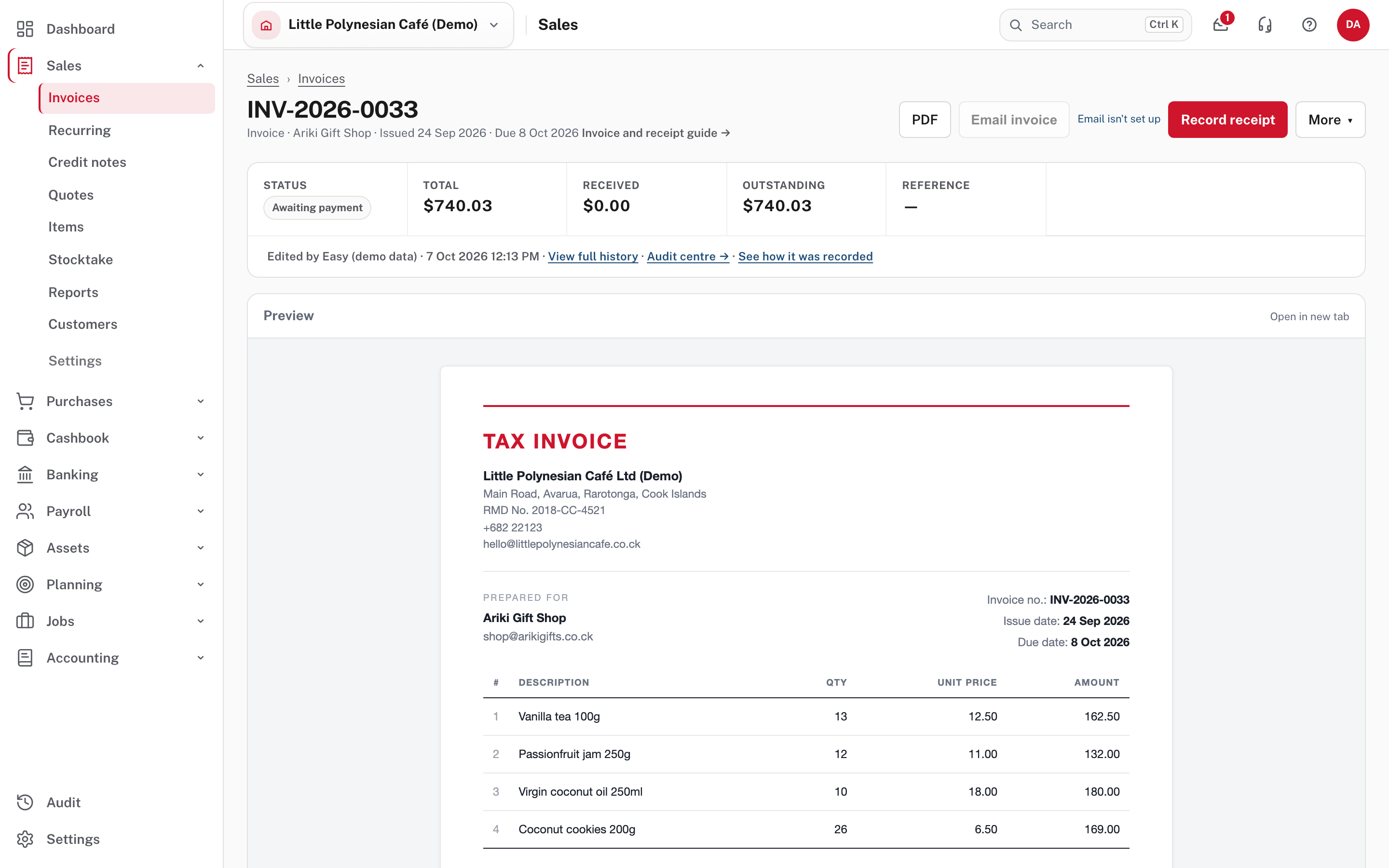
Open the invoice and choose More.
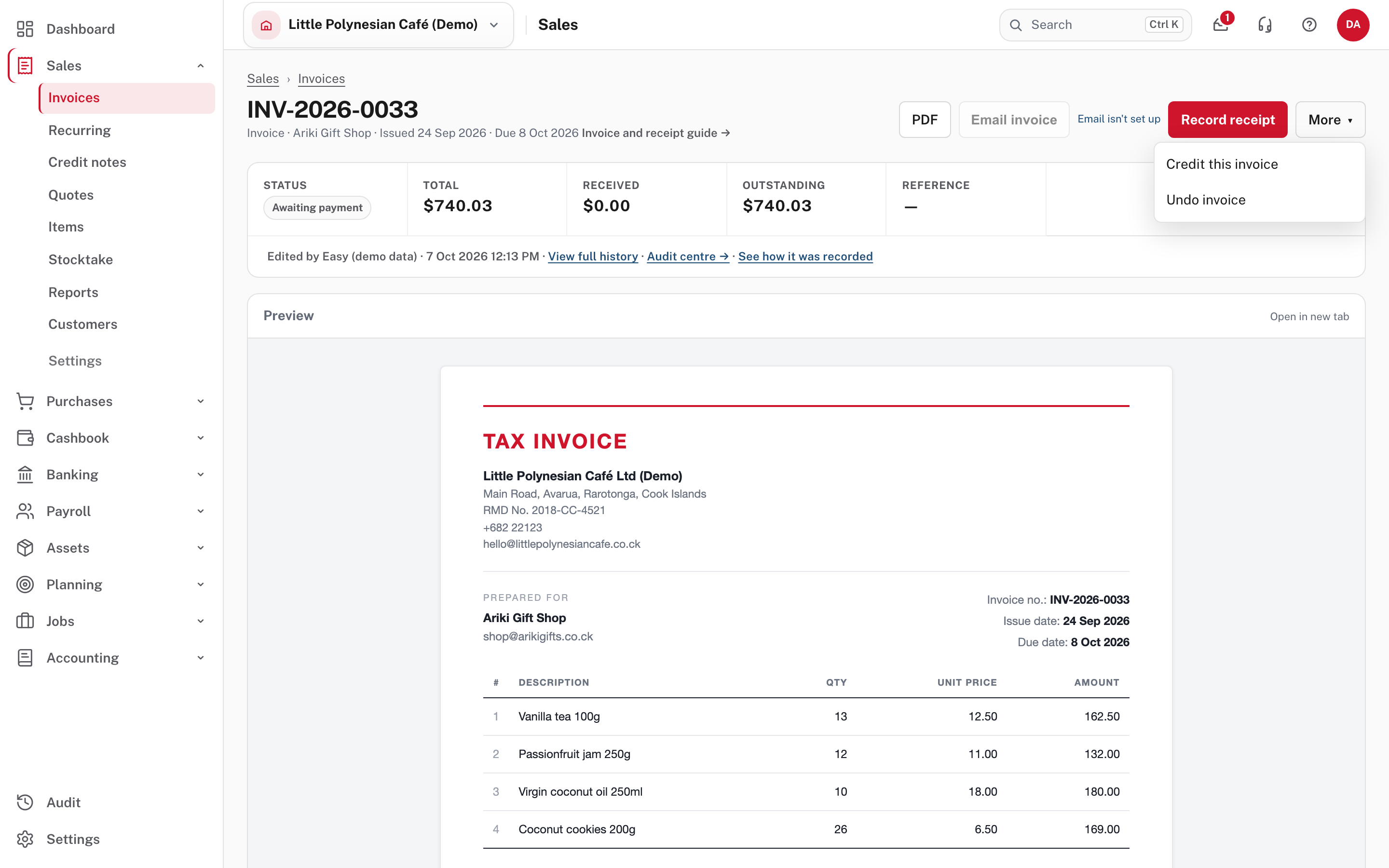
Choose Credit this invoice. A new credit note opens, filled in from the invoice.
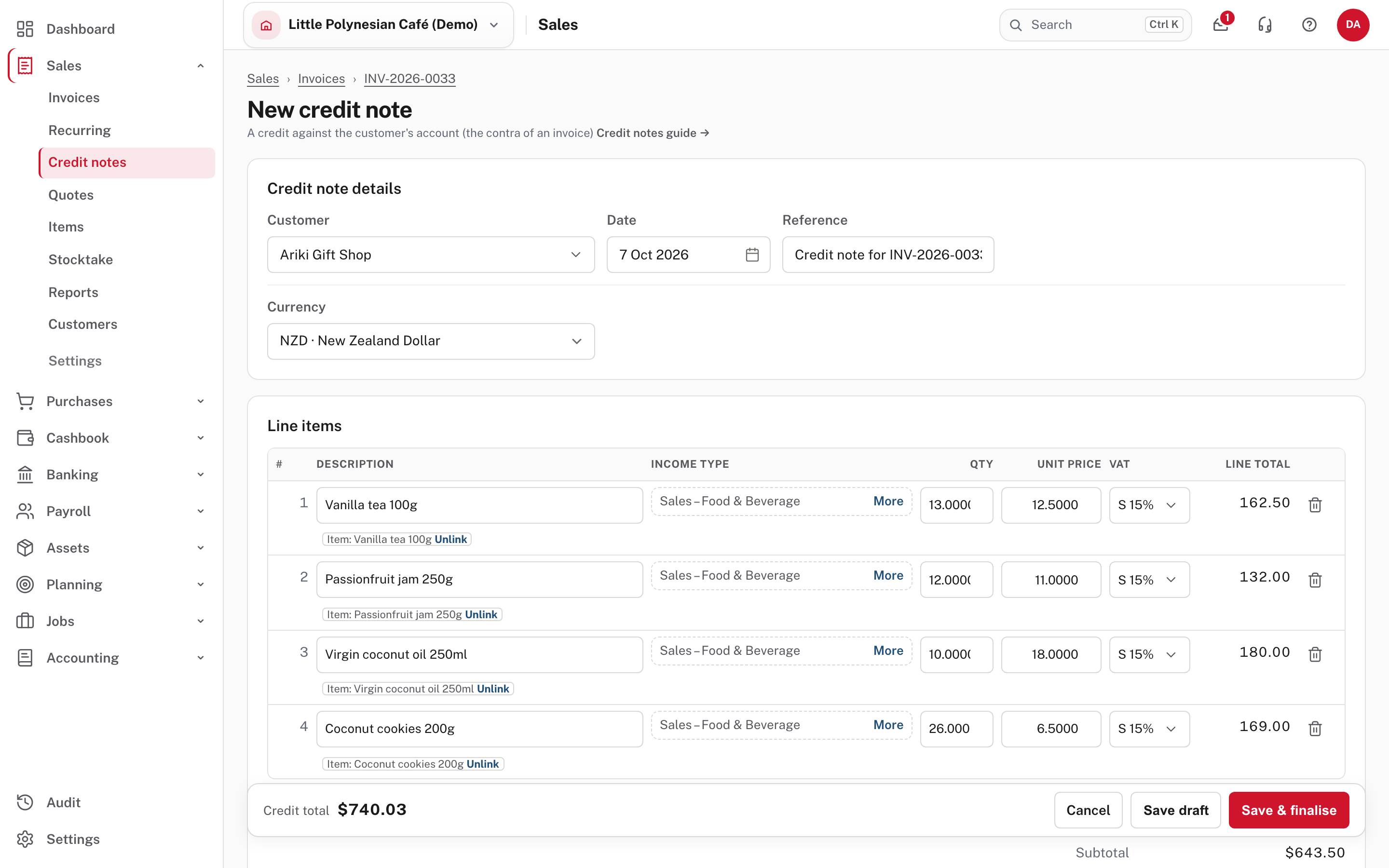
It carries the customer, the reference ("Credit note for INV-…") and every line of the invoice. Change the lines to what you are crediting: delete the lines that are not part of it (the bin at the end of each line), and change the quantity or price of the rest. A line from a stock item says Item: … and can be Unlinked if you are not returning the goods to stock.
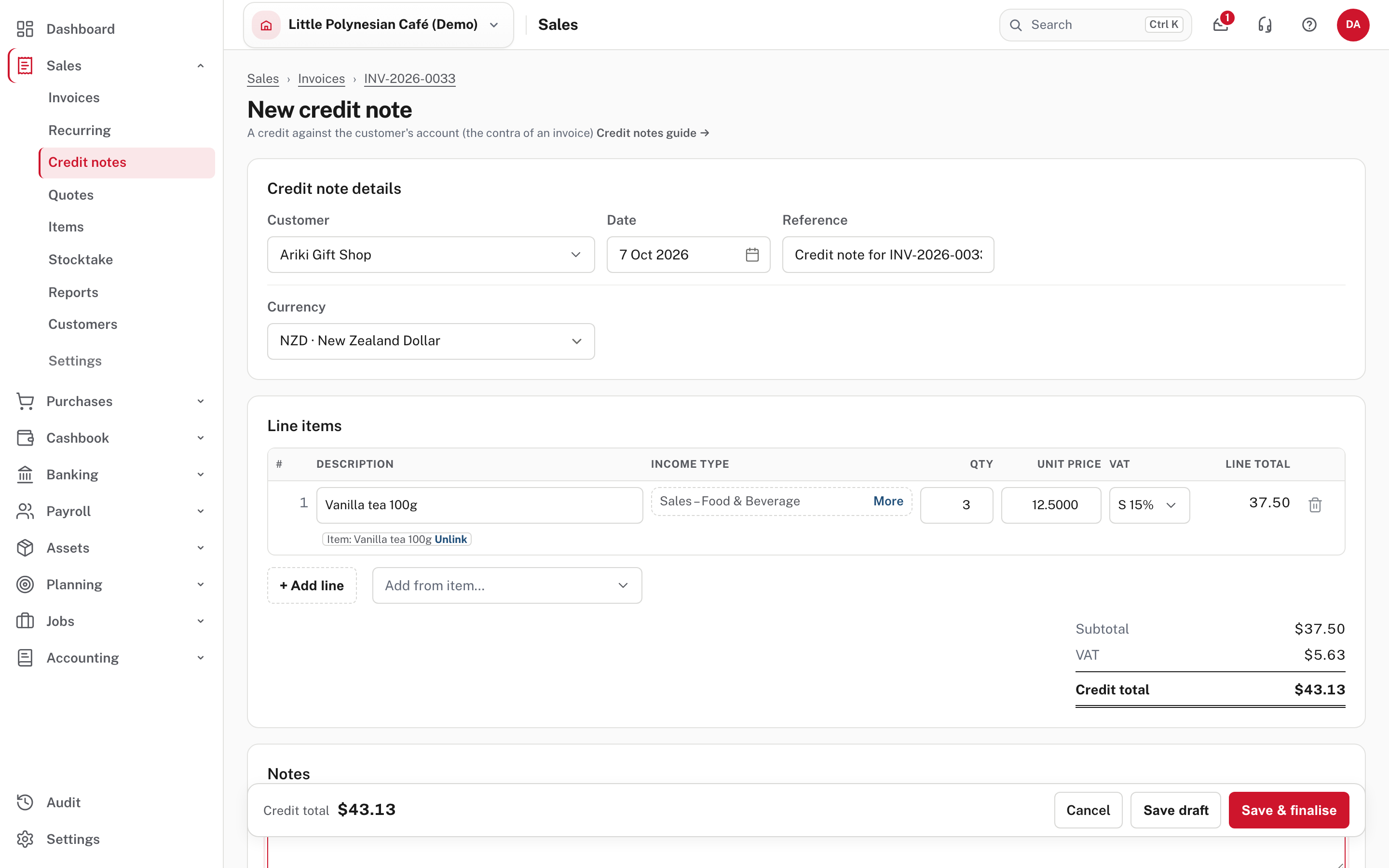
Add a note saying why, then choose Save draft if someone must check it first, or Save & finalise.
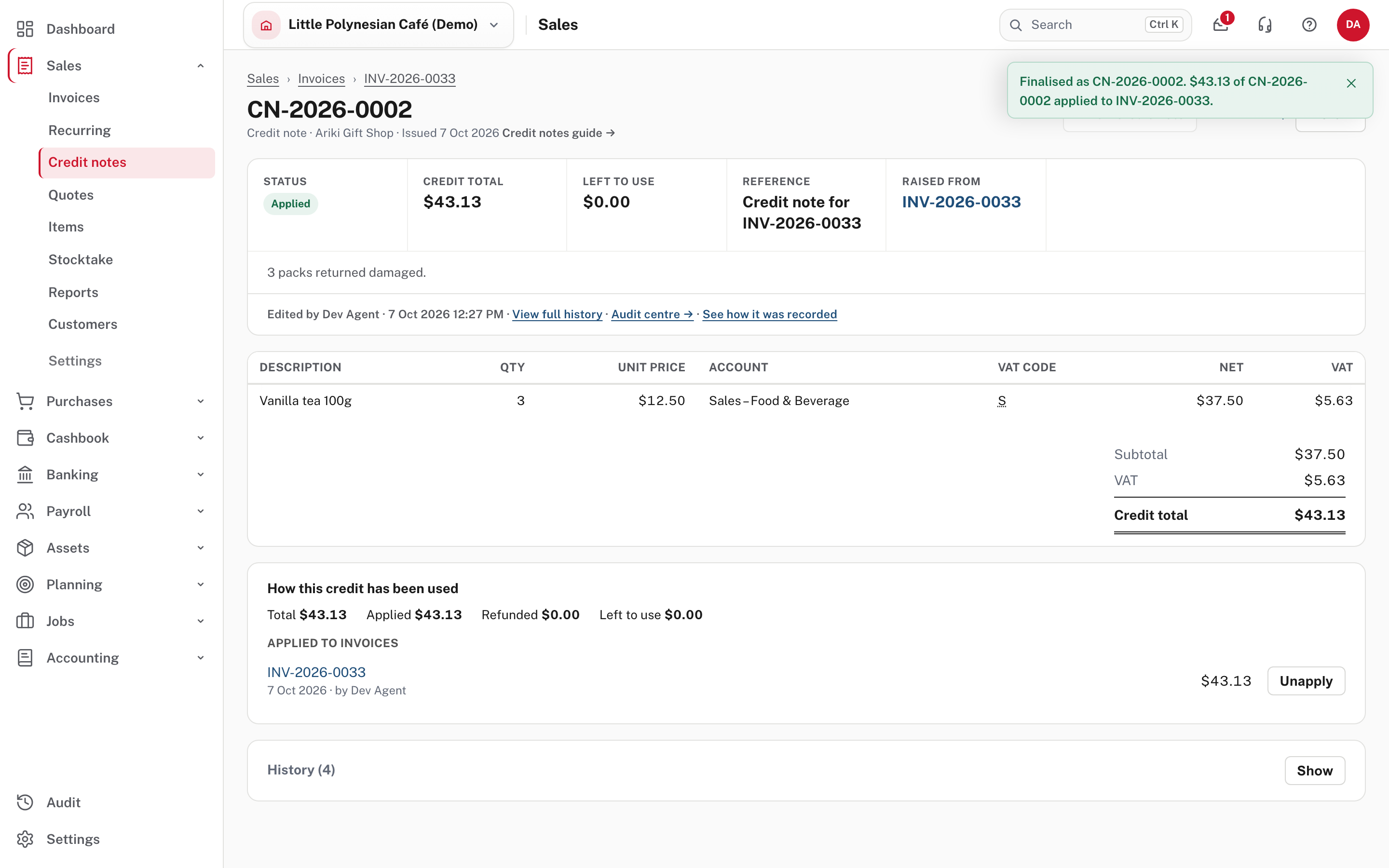
The credit goes against that invoice straight away, up to what the invoice still owes, and the invoice's outstanding amount falls.
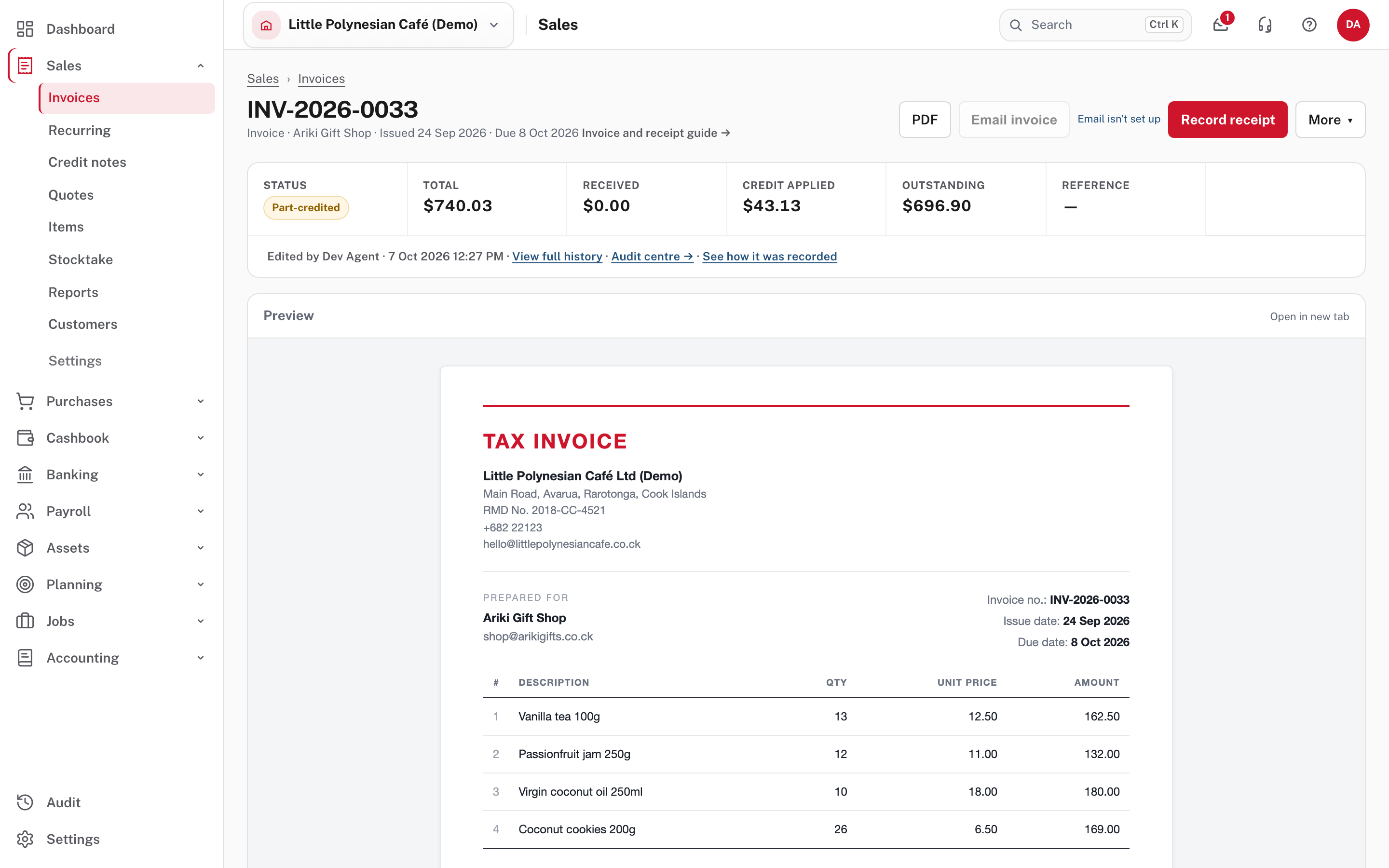
The invoice now reads Part-credited, with Credit applied and a lower Outstanding. Easy remembers which invoice it came from (Raised from), even if you saved a draft and finalised it later, or it waited for approval first.
- If the credit is bigger than what is still owed, the rest stays on the credit note as an unapplied credit.
- If the invoice is already paid, or you changed the customer or currency, the credit note is finalised unapplied, and the message says why.
- Unapplied credit notes stay visible in the register and in aged receivables until they are allocated. Check for one before you chase a customer (Chasing overdue invoices).
The credit notes list
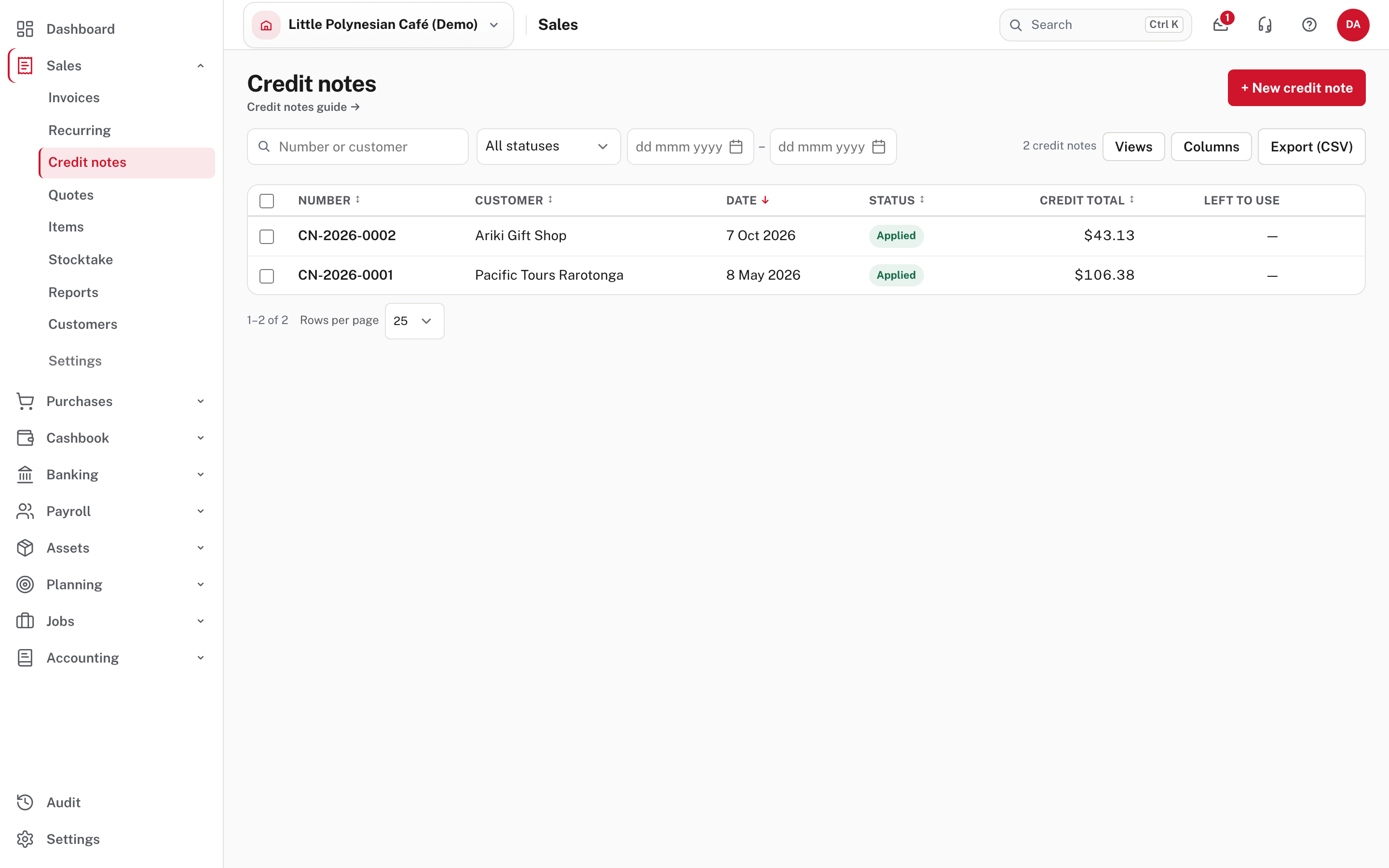
Sales → Credit notes lists every credit note with its status (Draft, Finalised, Applied, Undone or cancelled), its credit total and left to use. Customer credit notes always number CN-…: that prefix can't be changed.
If the customer has already paid, you can refund them from the cash book, or leave the credit to use against their next invoice.
Part 2. Undo an invoice
Use this when the invoice should not exist. Open it, choose More, then Undo invoice.
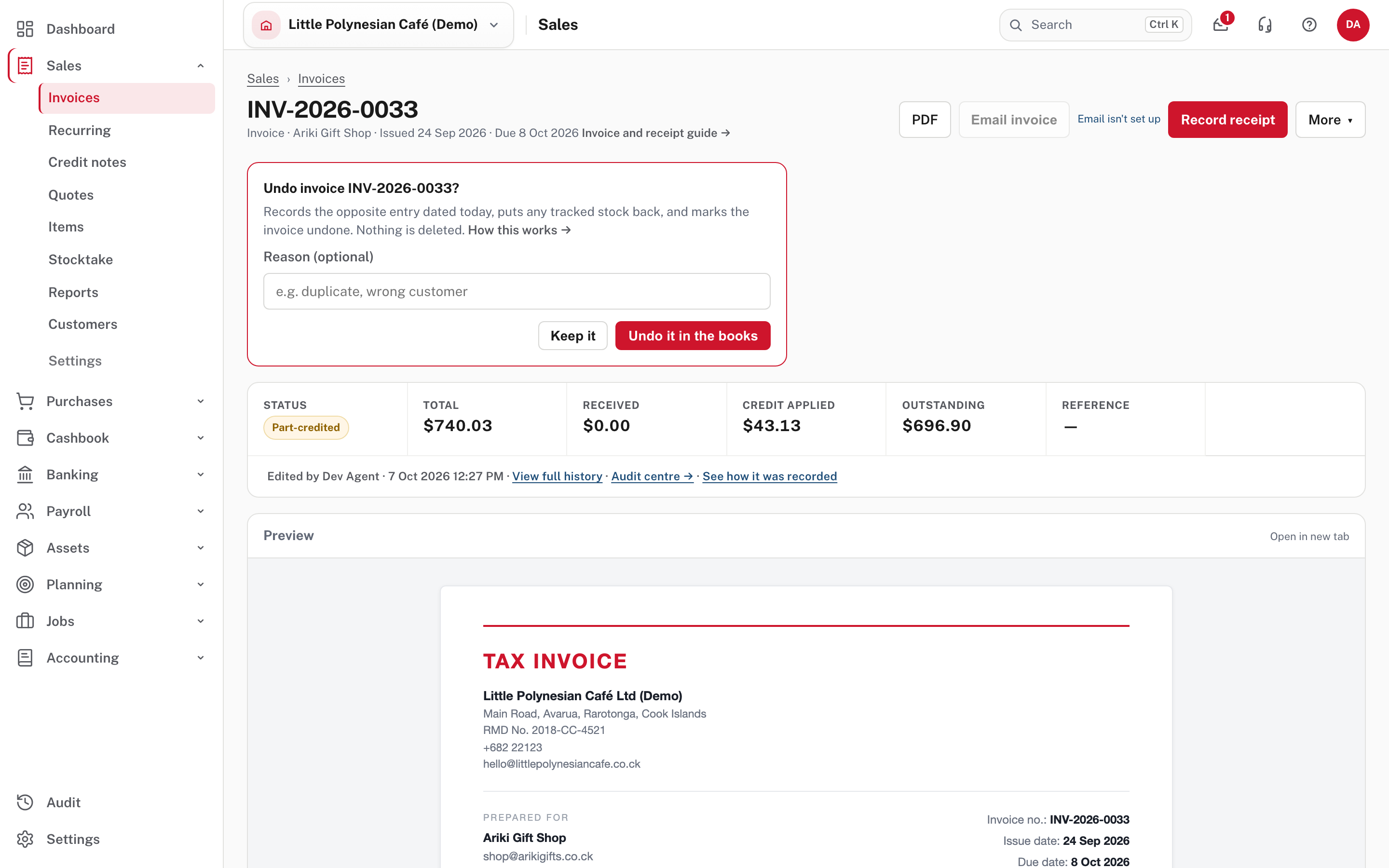
Easy explains what will happen: it records the opposite entry dated today, puts any tracked stock back, and marks the invoice undone. Nothing is deleted. Add a reason (optional, but worth giving), then choose Undo it in the books, or Keep it to change your mind. The same applies to a bill, credit note, receipt, payment or transfer. A pay run is undone from its own page (Undo this pay run) and a payment run with Undo run.
- A document that still has money applied to it can't be undone until the receipt or payment is undone first. When you undo a receipt or payment, the invoices or bills it was applied to open again.
- A draft that is thrown away never reached your accounts, so there is nothing to undo.
Part 3. Correct without changing what is owed
- Edit accounts (under Reclassify income accounts on an invoice) changes the income account of each line, in place. Amounts, tax, what the customer owes, the number, customer and dates don't change. Easy offers it where the company allows editing recorded entries (Settings → Accounting, Edit posted manual journals); it isn't shown on the demo invoice above.
- Reclassify moves an amount from one account to another with one balanced correcting journal, leaving the source entry unchanged. Depreciation and asset-disposal journals can't be reclassified, because each one matches the asset register: correct them on the Depreciation page by recalculating, undoing the run or reversing the disposal.
- A receipt coded straight to a bank or income account doesn't show against the invoice. Always use Record receipt on the invoice so it is matched to it.
- A customer who paid too much or twice: see Receipts, payments and transfers, where the extra can be kept as an on-account credit.
More detail: Undoing, correcting and allocating.
Check before you continue
Check before you continue
- The credit note is finalised and shows the right Applied amount against the invoice.
- The invoice's Outstanding is what you and the customer both expect.
- Any stock that came back has been put back (check the item linked to the line).
- You gave a reason when you undid something, so the audit trail explains it.
- The correction is dated in an open period.