Jobs and profitability
A job is one piece of work you want to see the profit on: a catering event, a fit-out, a monthly class. You set the job up, then tag the invoice, bill and journal lines that belong to it, and Easy adds up the income and the costs for you. This is for the Owner or an Accountant, once per job and then whenever you want to know how it is going. It builds on Raise, send and get paid for an invoice and Enter and approve bills, and a job can have its own budget (Budgets).
About the screenshots
Screenshots are from Easy's demo company, Little Polynesian Café. The demo already has four jobs (JOB-2026-0001 to 0004). The job Manual JB Terrace refit (JOB-2026-0005) and its invoice and bill are examples added for this chapter, and every amount is made up. The pictures show an Accountant's screens; an Owner or Administrator sees the same ones.
Before you start
- Jobs is a module of its own, and your plan has to include it. It is on in the demo. A budget comparison on a job also needs Planning, and the job page says so when Planning is off (not shown in the demo) (Turning modules and features off).
- Who can do what. Anyone who can see Jobs can read a job. Creating, editing and moving a job along needs a role that keeps the books (People, roles and access).
- A job is tagged through a reporting dimension. When you save a job, Easy gives it its own value in a reporting dimension (in the demo, Project). You don't create that value yourself, and you shouldn't edit it in Settings (Reporting dimensions).
Step 1. See your jobs
Jobs → Jobs.
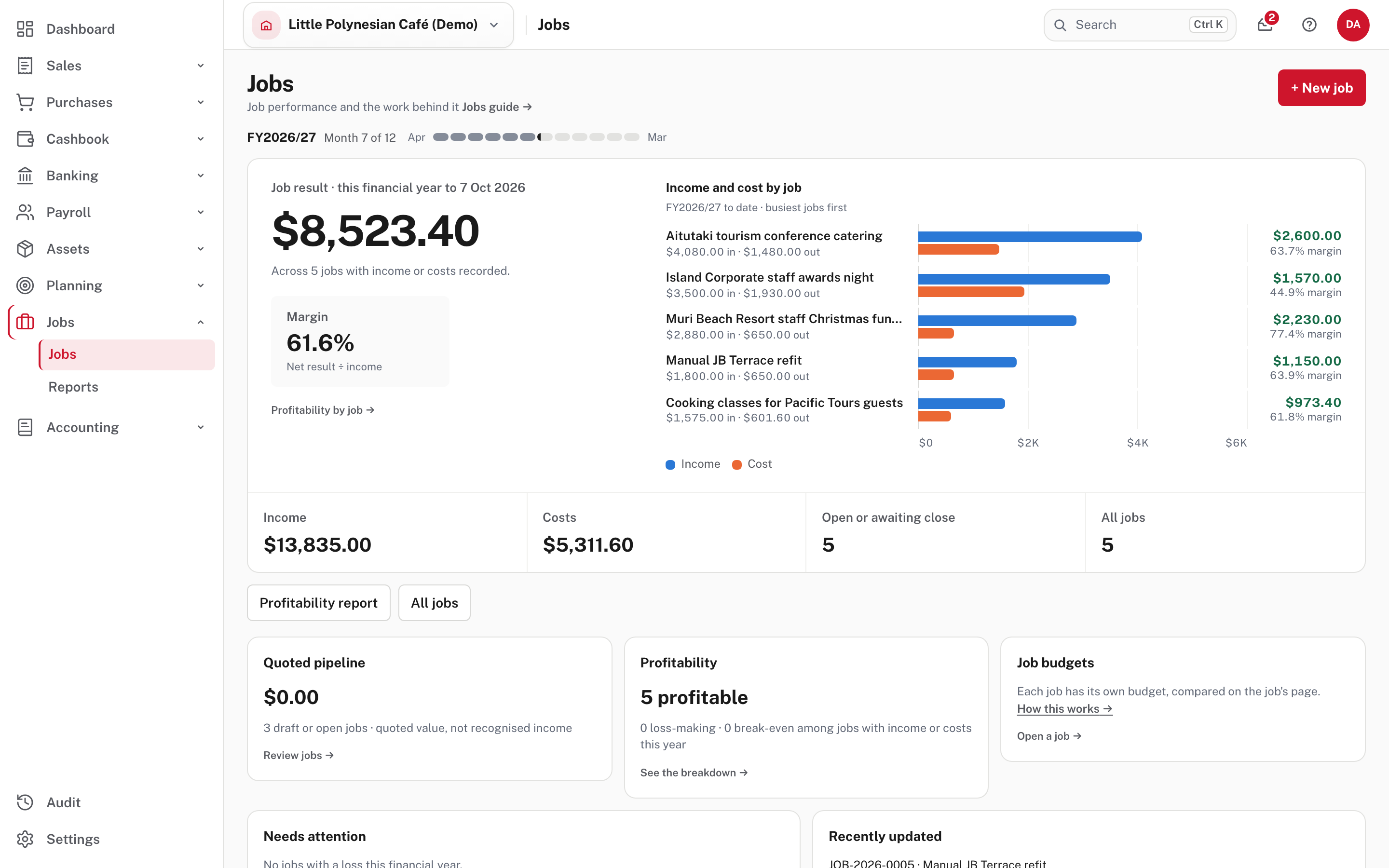
The top of the page answers "how are my jobs doing this financial year?". The big figure is the job result: the income minus the costs recorded against jobs, this financial year to today. Beside it are the margin (result divided by income) and a bar for each job's income and cost. Below are Income, Costs, Open or awaiting close and All jobs, and panels for Quoted pipeline (the quoted value of draft and open jobs, which is "not recognised income"), Profitability (how many jobs made a profit, a loss or broke even), Job budgets (a pointer to how budgets work) and Needs attention (jobs with a loss this year). Recently updated lists the jobs touched last.
Under them is the register of All jobs.
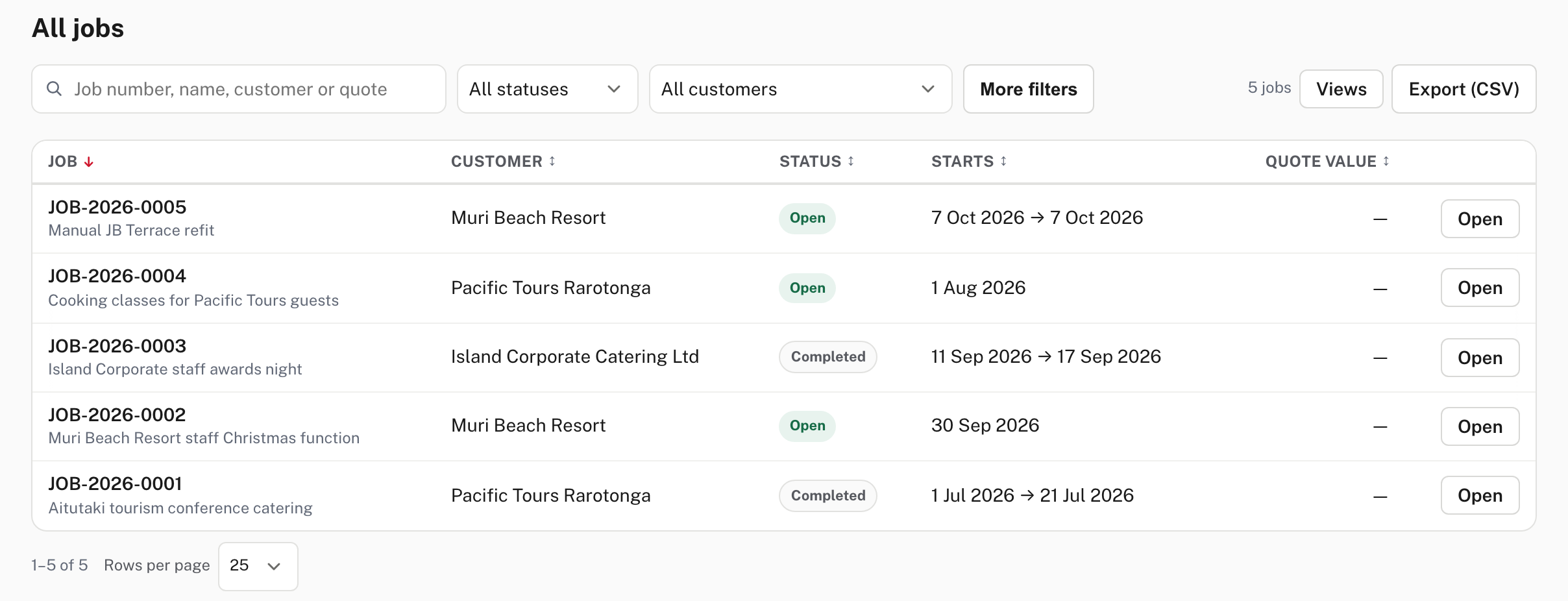
Search by job number, name, customer or quote, filter by status and customer, or open More filters for Activity (active, or closed or cancelled) and the Started from and to dates. Export (CSV) saves the list. A job without a customer shows Internal.
Step 2. Set up a job
Jobs → Jobs → + New job.
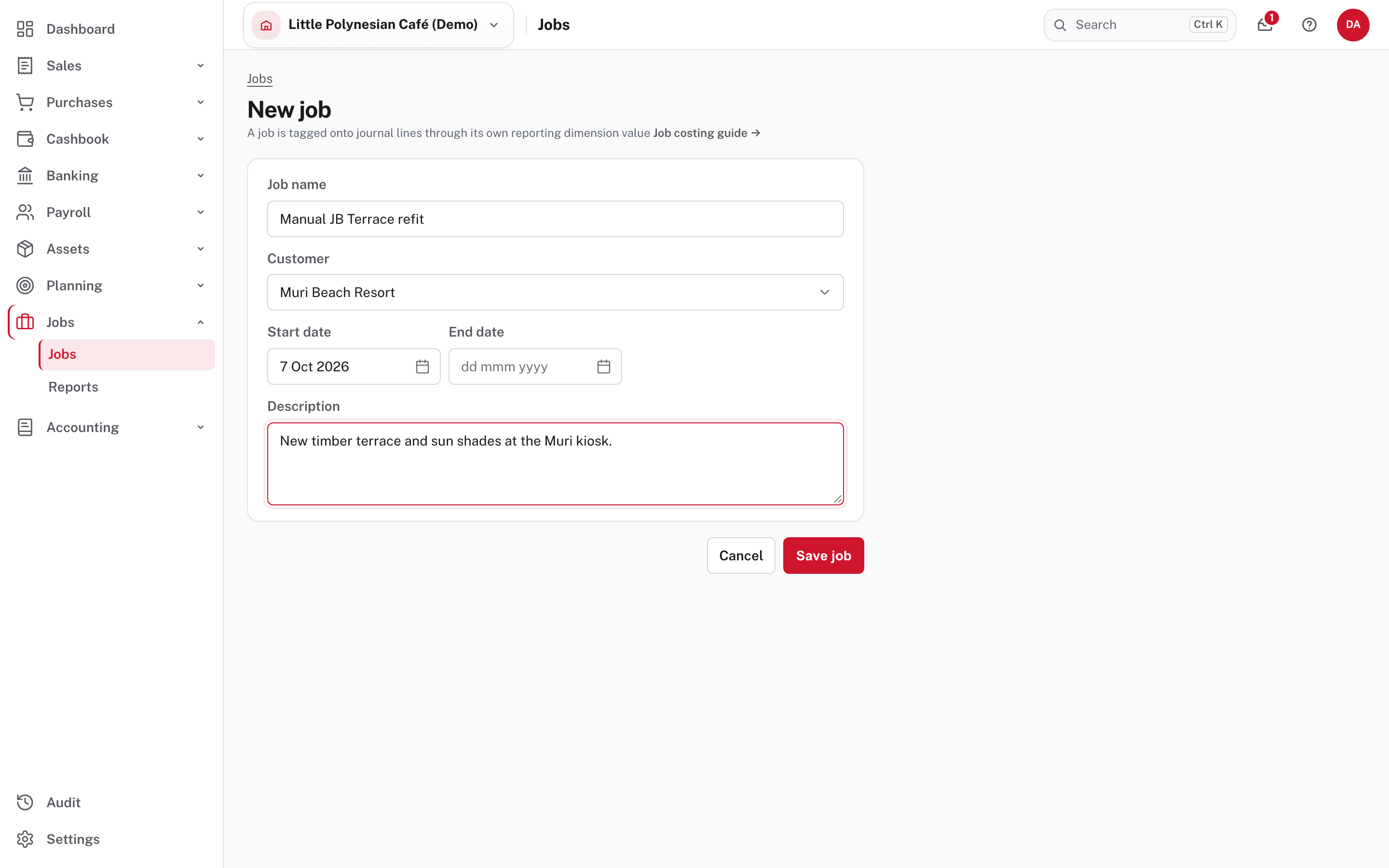
| Field | What to put |
|---|---|
| Job name | What you will recognise it by. It also becomes the name of the job's reporting value, so keep it short |
| Customer | The customer the work is for. Leave it empty (Internal (no customer)) for your own project |
| Start date | Today to begin with. Job to date figures count from here |
| End date | Optional. If it is empty when you mark the job complete, today becomes the end date |
| Description | Optional notes on the scope |
Choose Save job. Easy numbers it (JOB-2026-0005) and opens it as a Draft.
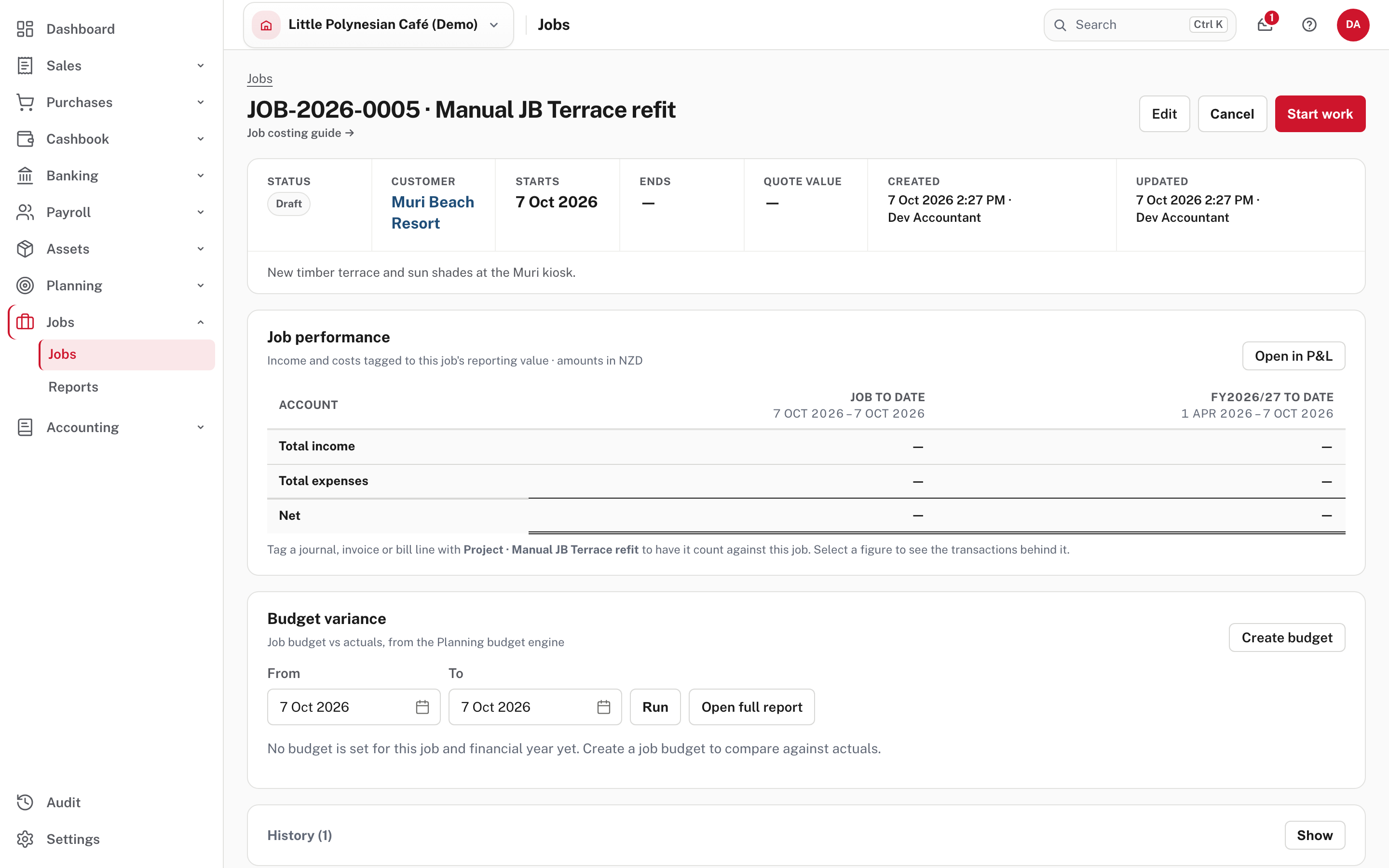
The job page shows its Status, Customer, Starts, Ends and Quote value, then Job performance (empty so far) and Budget variance. Quote value shows a dash unless the job came from a quote. On an accepted quote, Convert to job makes the job for you, with the quote's amount without VAT as its quote value (not shown in the demo: Make a job from a quote).
The note under the table is the one to remember: tag a journal, invoice or bill line with Project · the job's name to have it count against this job.
Step 3. Start work
Choose Start work. The job is now Open. Each status offers what comes next:
| Status | Buttons | What they do |
|---|---|---|
| Draft | Start work, Cancel, Edit | Start work opens the job |
| Open | Mark complete, Cancel, Edit | Mark complete records that the work is done |
| Completed | Close job, Reopen, Cancel, Edit | Close job signs it off; Reopen goes back to Open |
| Closed | Reopen only | Reopen goes back to Completed |
| Cancelled | Reinstate | Back to Draft |
Cancel asks you to say why. A cancelled job can be reinstated. Not shown in the demo: Cancel and Reinstate.
Step 4. Tag income and costs to the job
Tag each line that belongs to the job when you enter it. On an invoice, a bill or a journal line, choose the job in the Project box under the line.
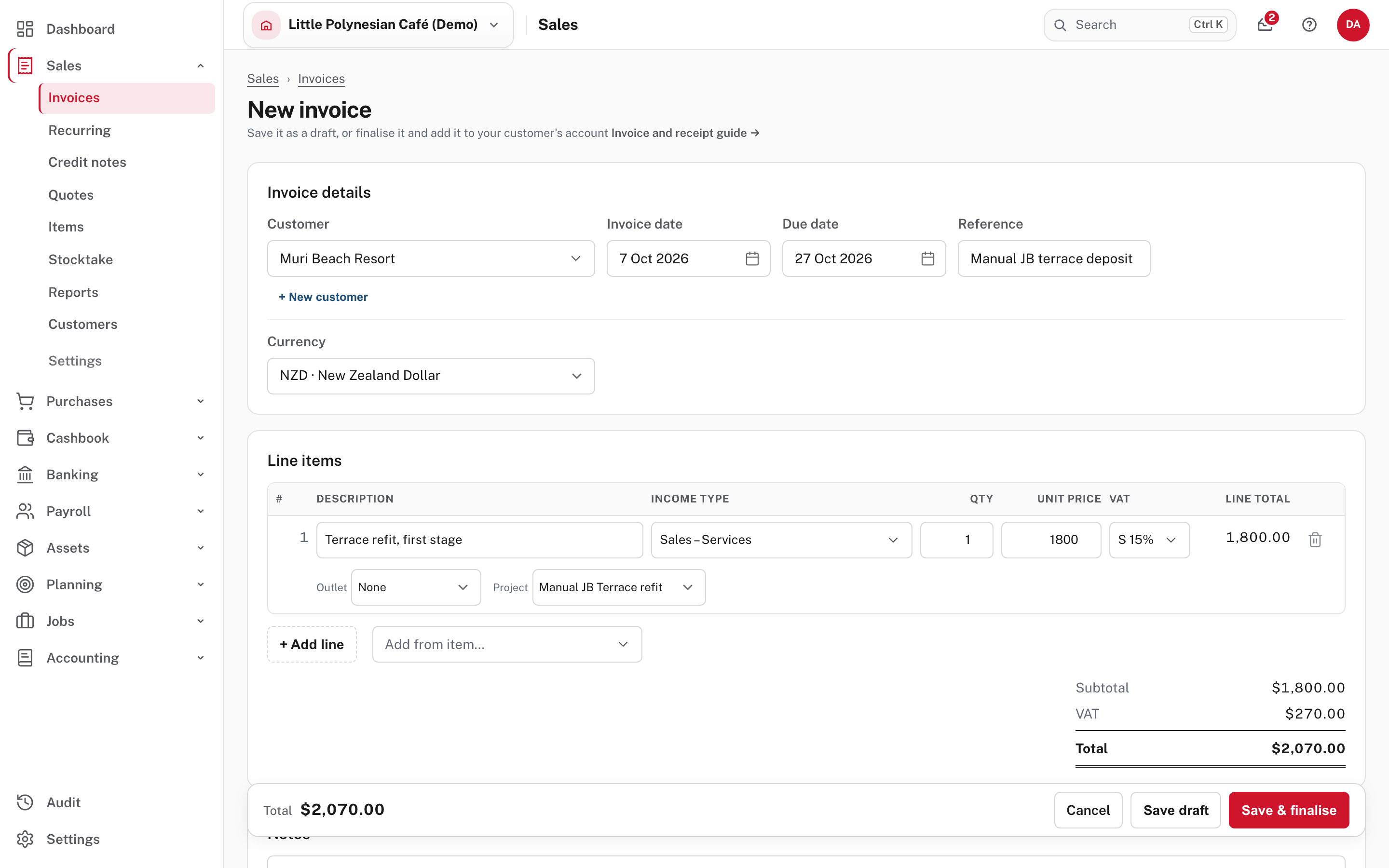
Then finalise the invoice (or record the bill) as usual. Here, an invoice of $1,800 plus VAT went to Muri Beach Resort and a bill of $650 from Rarotonga Pantry Wholesale was recorded, both with the job in Project.
Tag the lines, not just the customer
Putting the job's customer on a document is not the same as tagging it. Only a line with the job in Project counts toward the job, so check each line before you finalise or record it. A line left on None counts toward no job.
A job that is Open or Completed is offered in the Project box. Once it is Closed, it is no longer offered (nor is a cancelled job), so tag everything before you close it.
To fix a wrongly tagged line, correct it on its own document, or ask your accountant to correct it by journal (Credit notes, undoing and correcting, Manual journals).
Step 5. Read the job
Open the job from Jobs → Jobs.
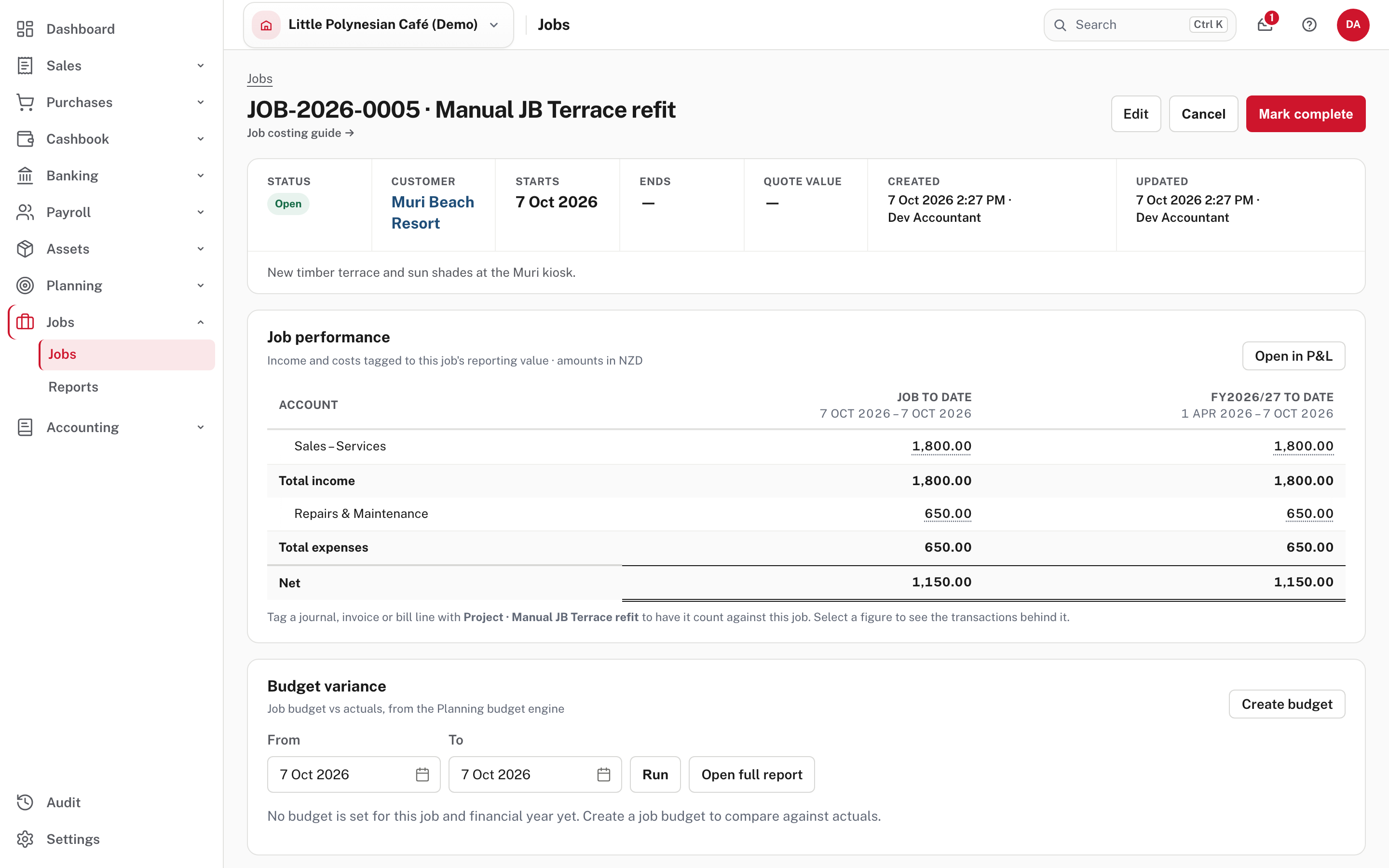
Job performance has one row for each account the job has touched, in two columns:
- Job to date: from the job's start date to today, even after the job has ended, so a late supplier bill dated after the end date still counts.
- FY2026/27 to date: this financial year to today.
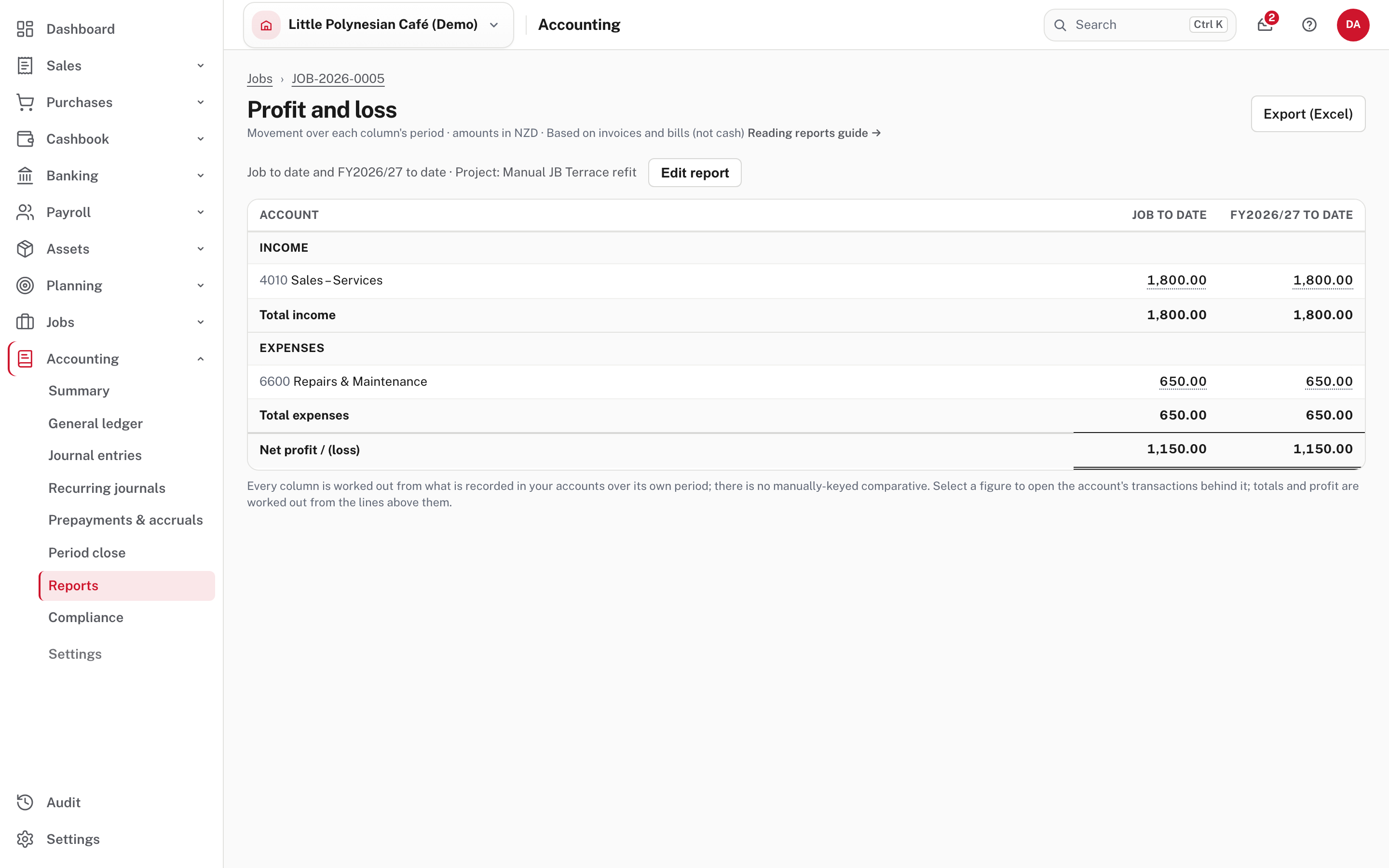
Income is counted without VAT, so the $1,800 invoice shows as 1,800.00, not the $2,070 total. Net is income minus expenses. A figure with a dotted underline opens the transactions behind it.
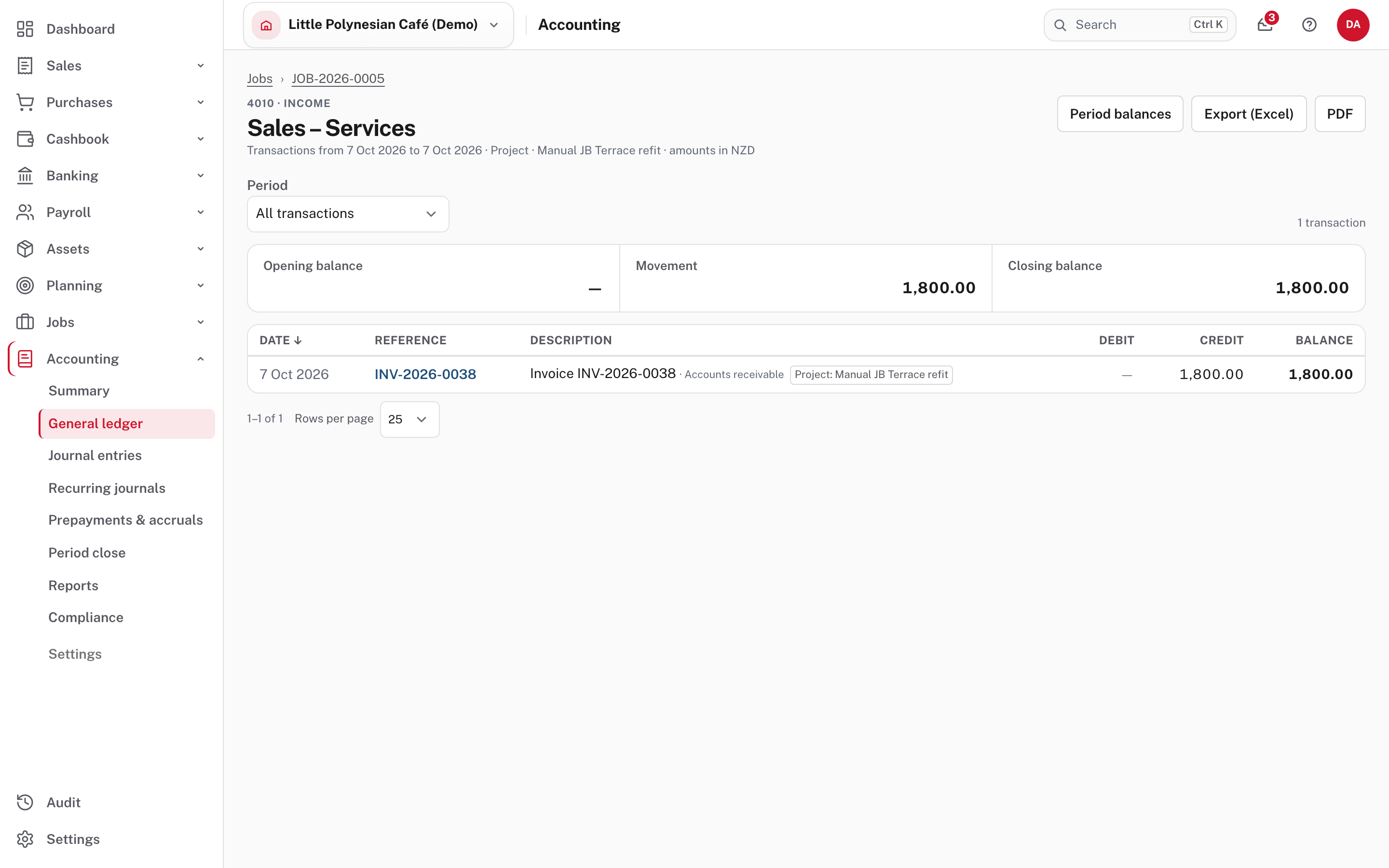
Open in P&L shows the whole job as a profit and loss, filtered to the job.
The Budget variance panel compares the job with its budget. With no budget it says No budget is set for this job and financial year yet, and Create budget opens the budget editor for this job (Budgets). A budget is a plan: it records nothing in your accounts.
Step 6. Compare your jobs
Jobs → Reports.
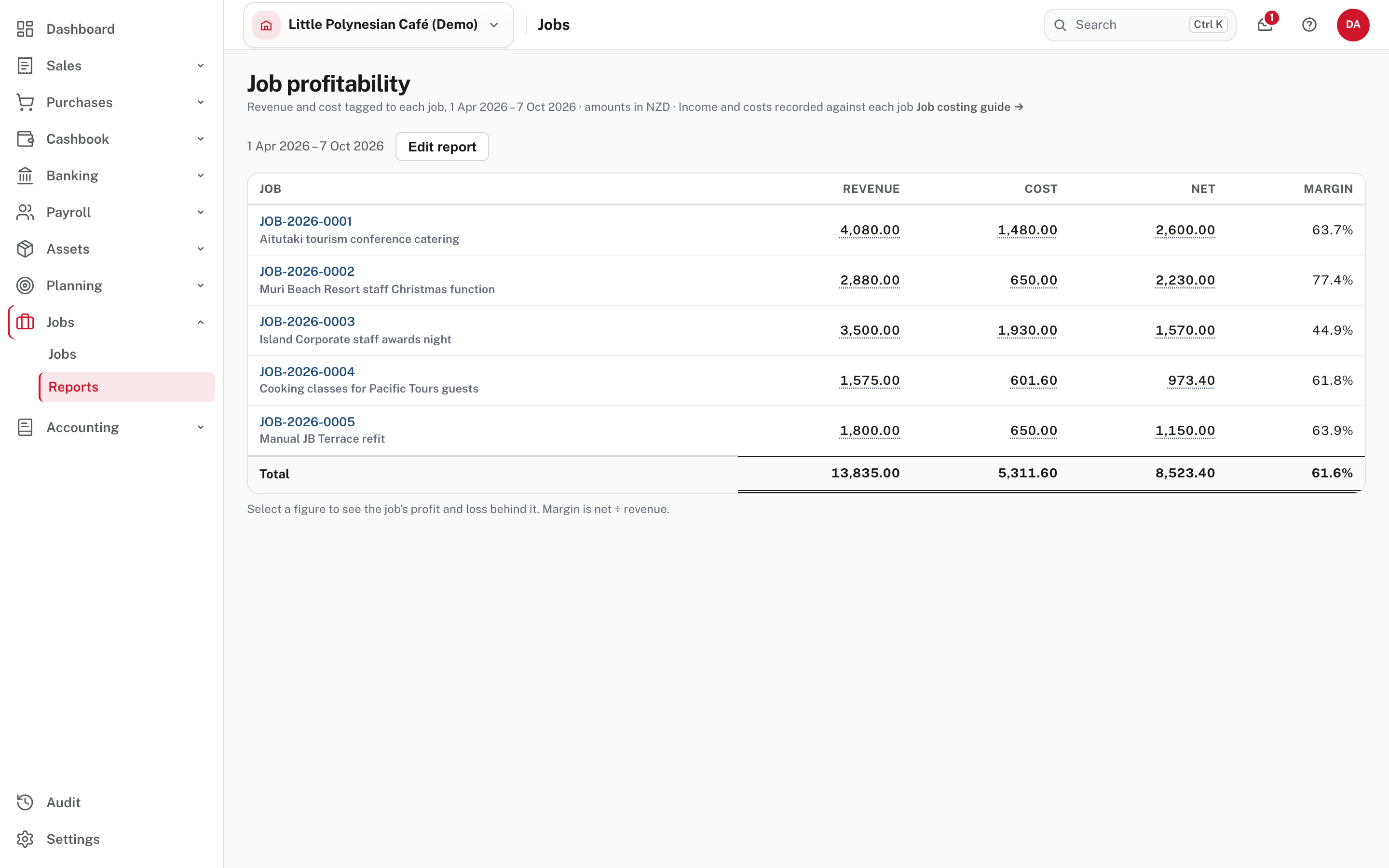
The report lists each job's Revenue, Cost, Net and Margin (net divided by revenue) for a period, with a total. It starts on the financial year to today; choose Edit report to change the dates. A job's number opens the job; a figure opens the job's profit and loss for the same dates.
Step 7. Finish and close the job
When the work is done, choose Mark complete.
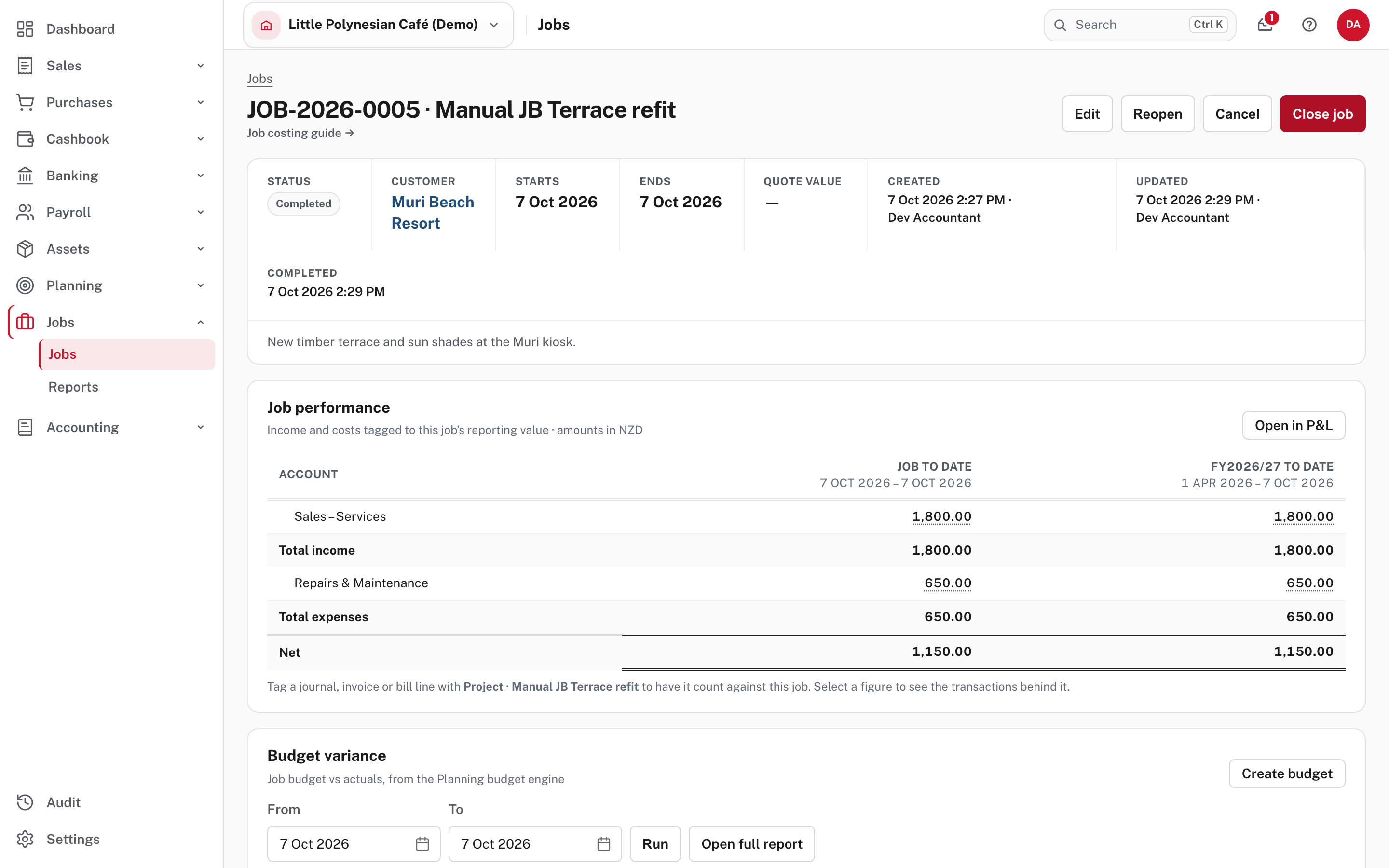
Ends now shows today, because the job had no end date. Close job signs the job off. It waits until nothing unposted is still tagged to the job, and the page lists what is in the way under Before closing: unposted invoice lines (a draft or sent invoice) and unposted bill lines. Not shown in the demo: that list, because everything tagged here was already finalised or recorded.
A closed job keeps all its figures and still appears in the reports. It is also taken out of the Project box, and a budget can't be saved for it (Easy says That budget scope is inactive or unavailable.). So give the job its budget before you close it. Reopen brings a closed job back if something was missed.
More detail: Jobs and profitability.
Check before you continue
Check before you continue
- Each job has a clear name, the right customer (or none, for internal work) and a start date.
- Every invoice, bill and journal line that belongs to a job has the job in Project.
- The job page's figures are the ones you expect, and its Net matches the job's profit and loss.
- Jobs that are finished are marked complete, and closed once nothing unposted is tagged to them.
- A job that needs a budget has one (Budgets).