Sales, spend and the registers
Three reports answer the questions an owner asks most: who buys from you, what you sell and who you pay. They are Sales by customer, Sales by item and Spend by supplier. Beside them are four registers, plain lists of what was recorded: invoices and credit notes, bills and supplier credit notes, money received and money paid out. Read them monthly, or whenever you need to answer a question about a customer, a product or a supplier. They belong with Reading the financial reports, which covers the statements built from the same entries.
About the screenshots
Screenshots are from Easy's demo company, Little Polynesian Café. Every customer, supplier and amount is made up, so your figures will differ. Some entries named Manual: … were added for other chapters of this manual.
Before you start
- Invoices are finalised and bills are recorded. The three analyses count only those. A draft, or a document still waiting for approval, is left out until it is finalised or recorded.
- Pick items on invoices if you want Sales by item to be useful. Lines typed as free text all land in one row.
- Who can read them. Any role that can read the books; the self-service Employee role can't. They change nothing.
Step 1. Find the reports
Sales → Reports and Purchases → Reports
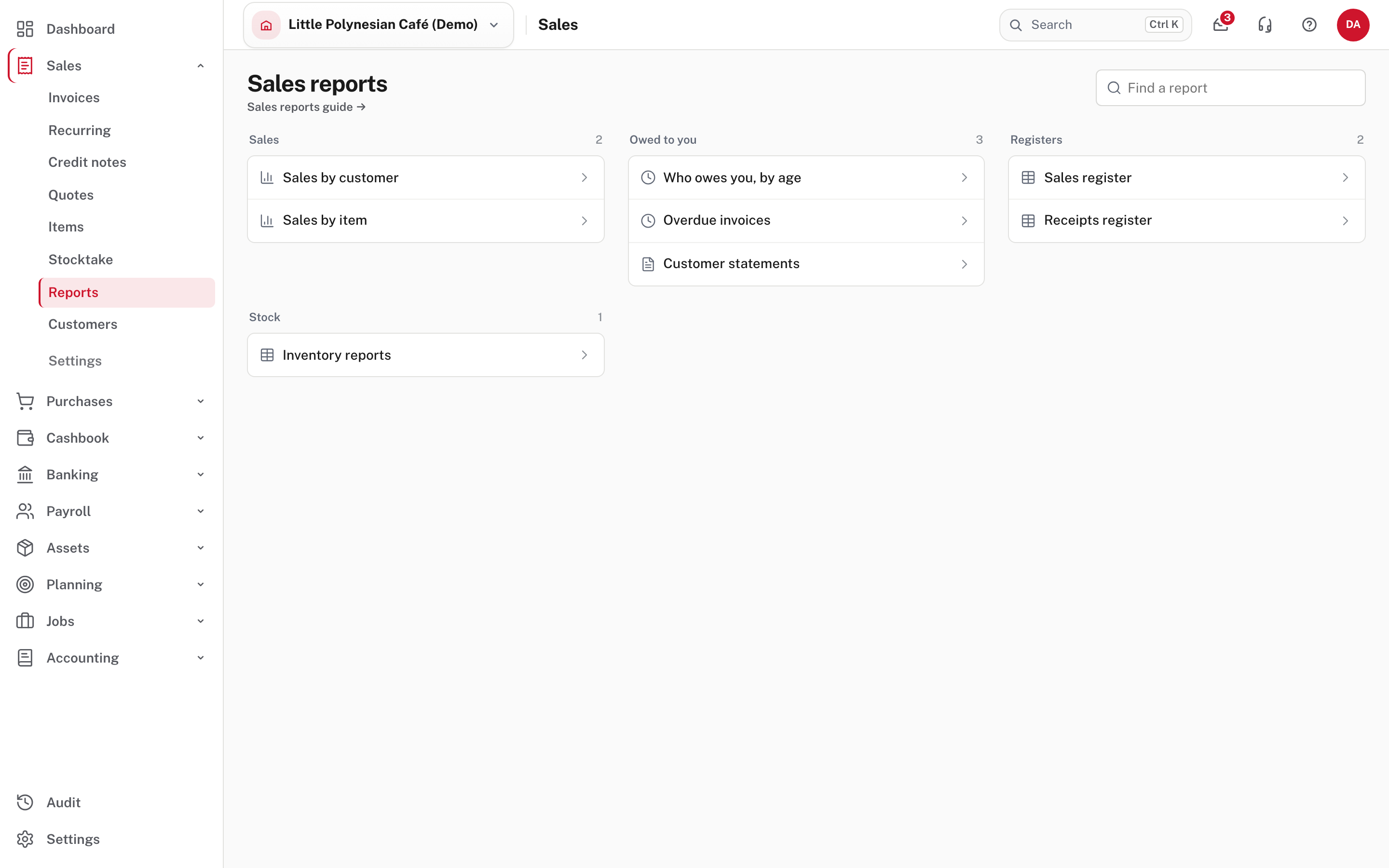
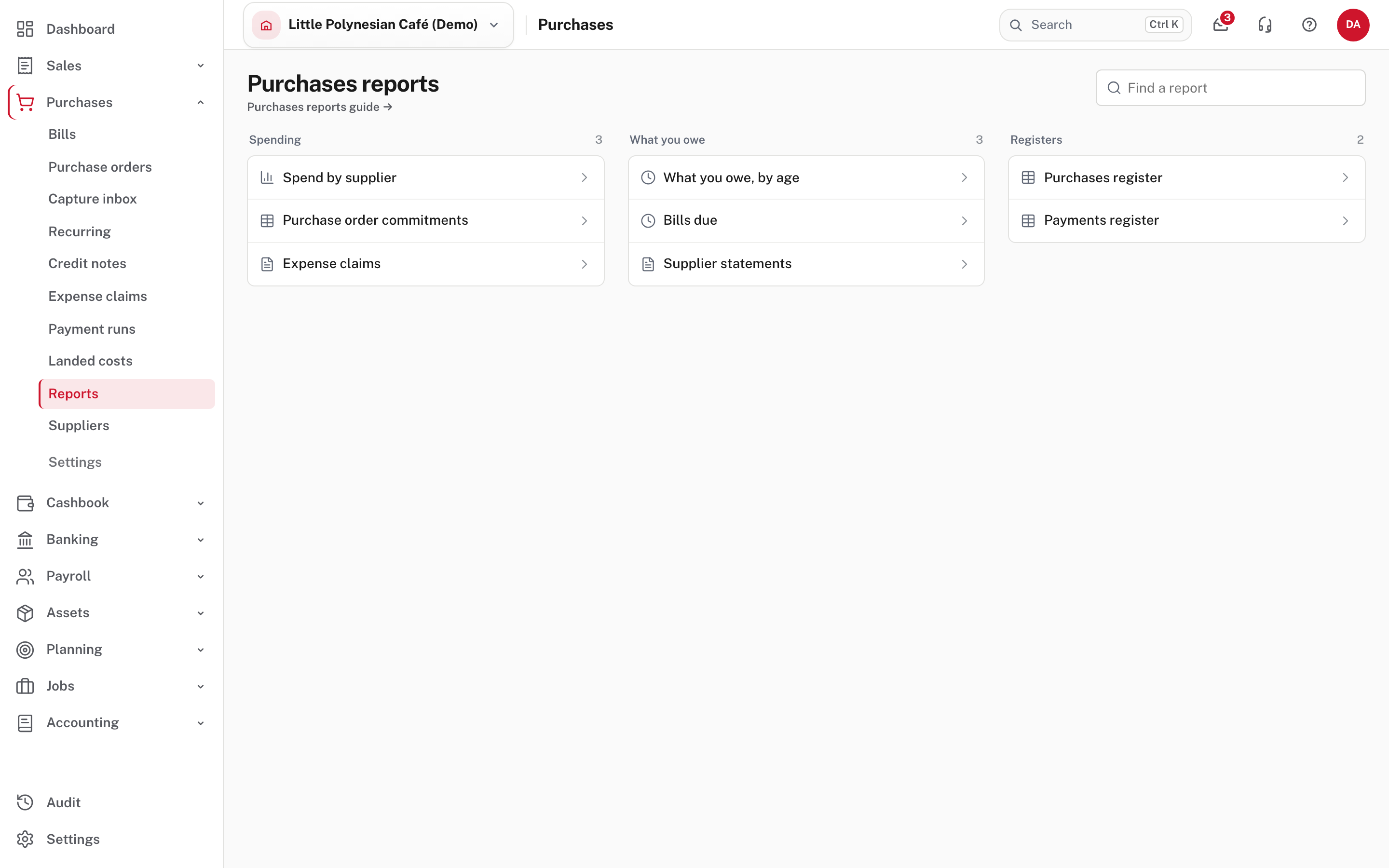
Each module keeps its reports on its own Reports tab, in groups. Under Sales: Sales by customer and Sales by item; Who owes you, by age, Overdue invoices and Customer statements (see Chasing overdue invoices); the Sales register and Receipts register; and Inventory reports. Under Purchases: Spend by supplier, Purchase order commitments and Expense claims; What you owe, by age, Bills due and Supplier statements (Pay suppliers); the Purchases register and Payments register. Find a report at the top right searches every module you can open.
Step 2. Sales by customer
Sales → Reports → Sales by customer
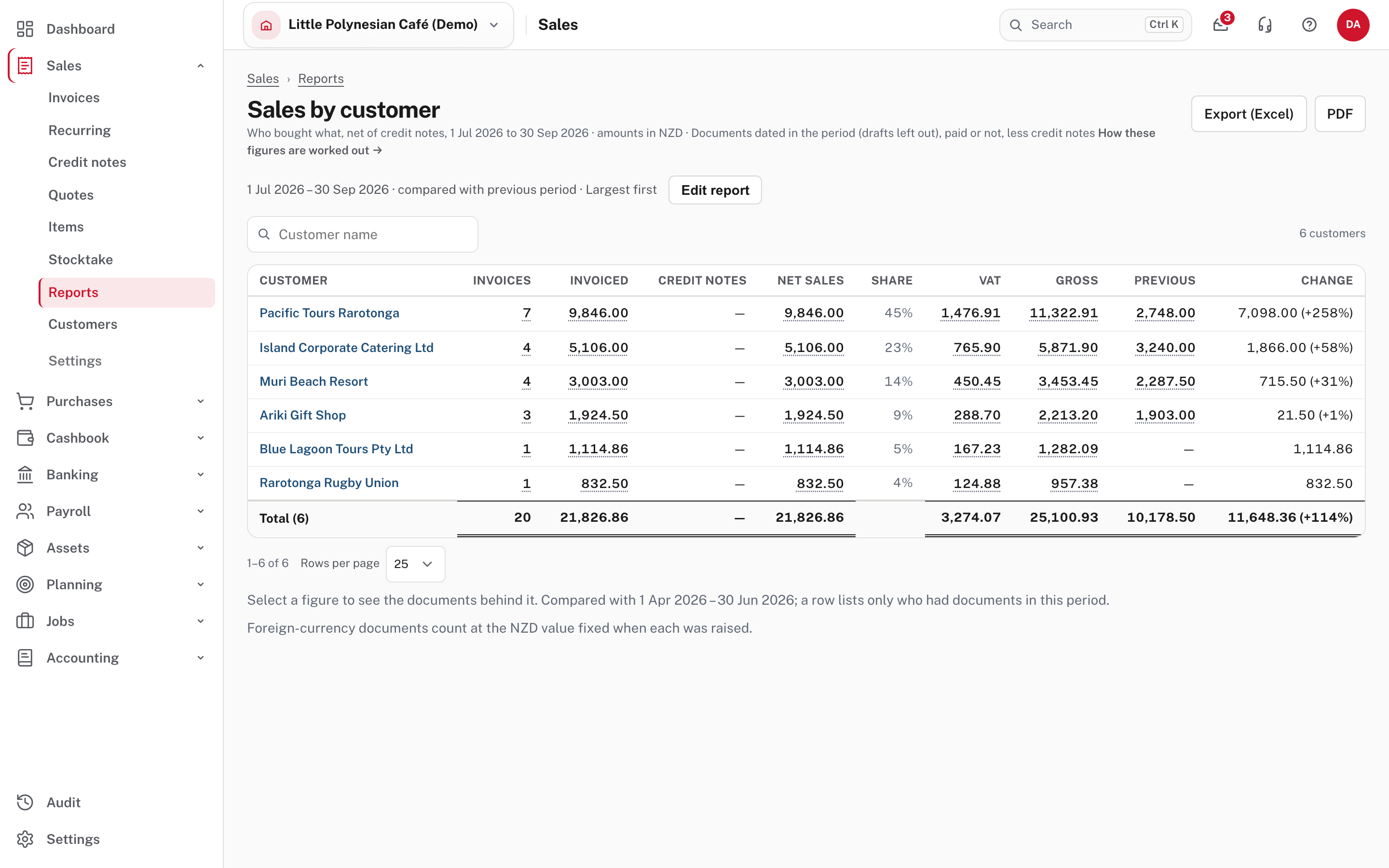
One row for each customer with invoices or credit notes in the period.
| Column | What it shows |
|---|---|
| Invoices | How many invoices |
| Invoiced | What they came to, before VAT |
| Credit notes | What credit notes took off (and how many notes) |
| Net sales | Invoiced less credit notes, before VAT |
| Share | That row's part of the total net sales |
| VAT, Gross | The VAT, and net plus VAT. A company that is not VAT-registered sees no VAT column |
| Previous, Change | Only when you compare: the same measure for the earlier period, and the difference with a percentage |
The line under the title says what is counted: documents dated in the period (drafts left out), paid or not, less credit notes. An invoice counts in the period it is dated, whether or not it has been paid. Every amount is in the base currency (NZD here); a foreign-currency invoice counts at the NZD value fixed when it was raised, so rows add up. The Total row is always there.
Choose the period and the comparison
The report opens on the month to date: the 1st of this month to today. Choose Edit report to change what it shows.
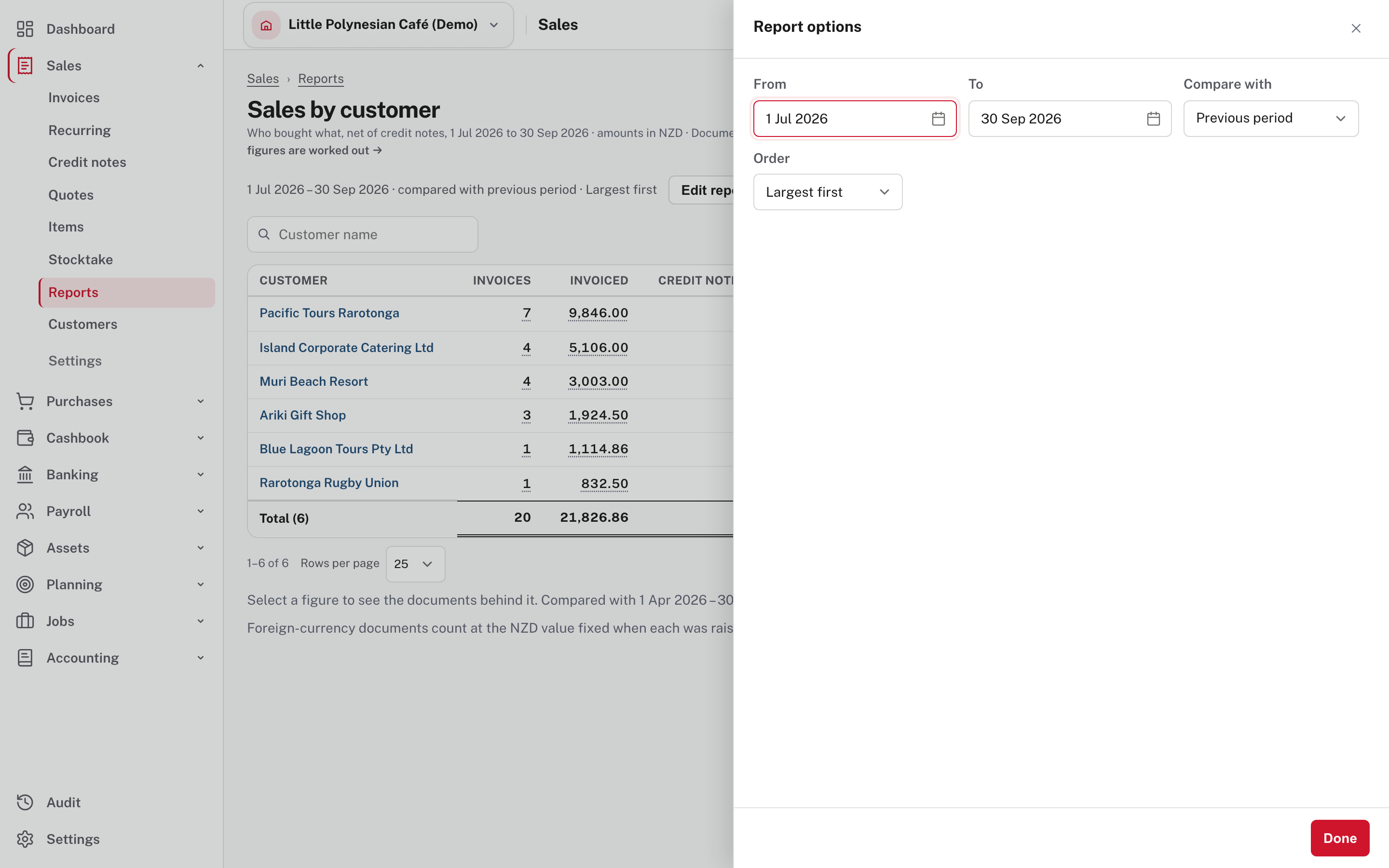
| Setting | Choices |
|---|---|
| From, To | Any two dates |
| Compare with | No comparison, Previous period or Same dates last year |
| Order | Largest first, Smallest first, By name or Most documents |
Previous period is the same number of months just before, for whole months (July to September against April to June, as in the picture), and the same number of days just before for any other dates (Help). Here net sales went from $10,178.50 to $21,826.86, +114%. A customer who bought only in the earlier period is not listed, but the Previous total still includes them. Where the earlier period has nothing, Previous shows a dash (see Blue Lagoon Tours Pty Ltd). The search box finds a customer by name. Every setting is kept in the page address, so you can go back, bookmark the report or send the link.
Step 3. Sales by item
Sales → Reports → Sales by item
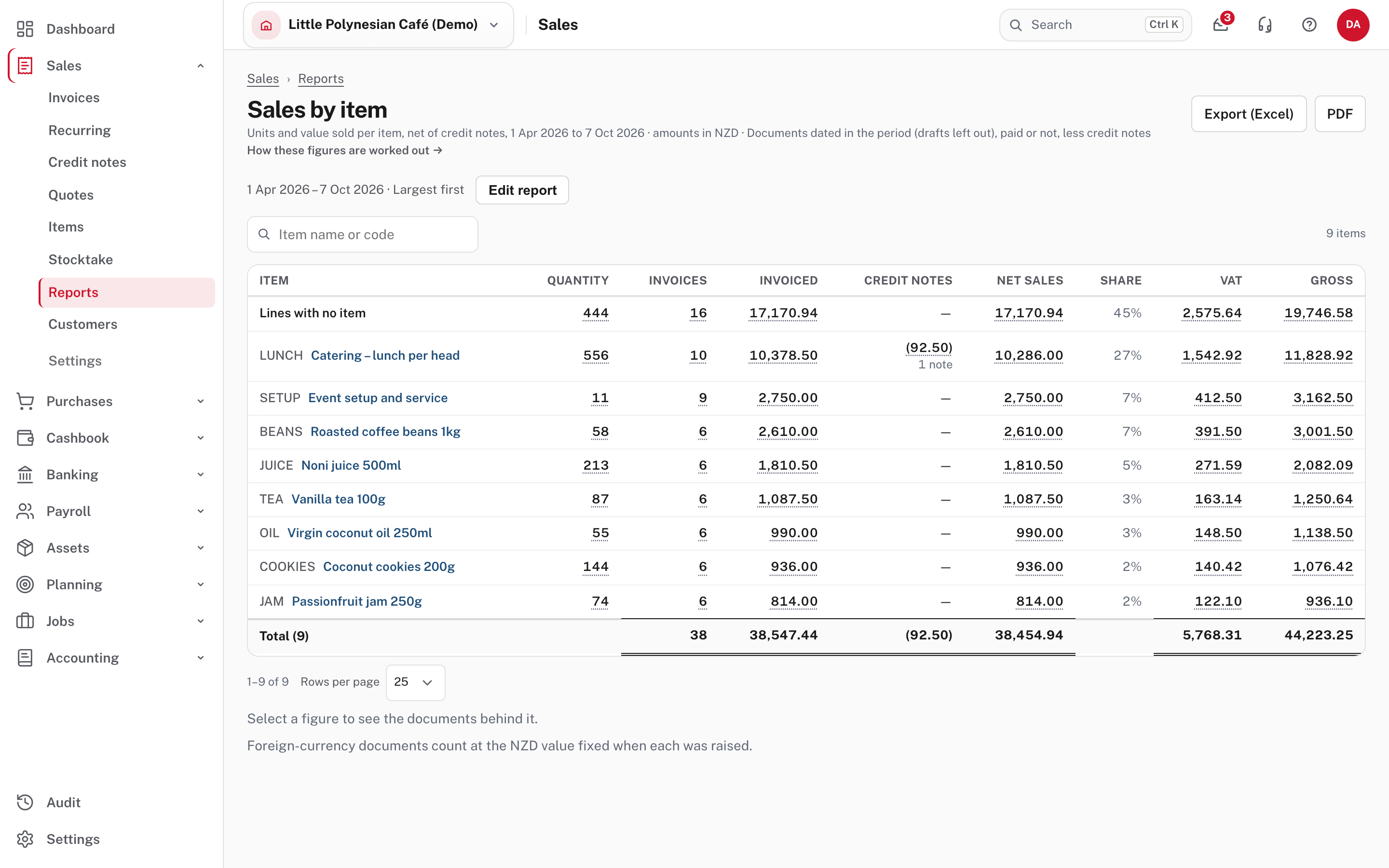
The same report, one row for each item: the Quantity sold (less quantity credited), then the same money columns. The name of an item opens the item. An invoice with the same item on two lines counts once in Invoices.
Look at the first row, Lines with no item: 444 units and 45% of the net sales in these dates. Those are invoice lines typed as free text instead of picked from your items, so the report cannot say what was sold. The more lines you pick from Sales → Items, the more this report tells you (Help). The search box finds an item by name or code.
Step 4. Spend by supplier
Purchases → Reports → Spend by supplier
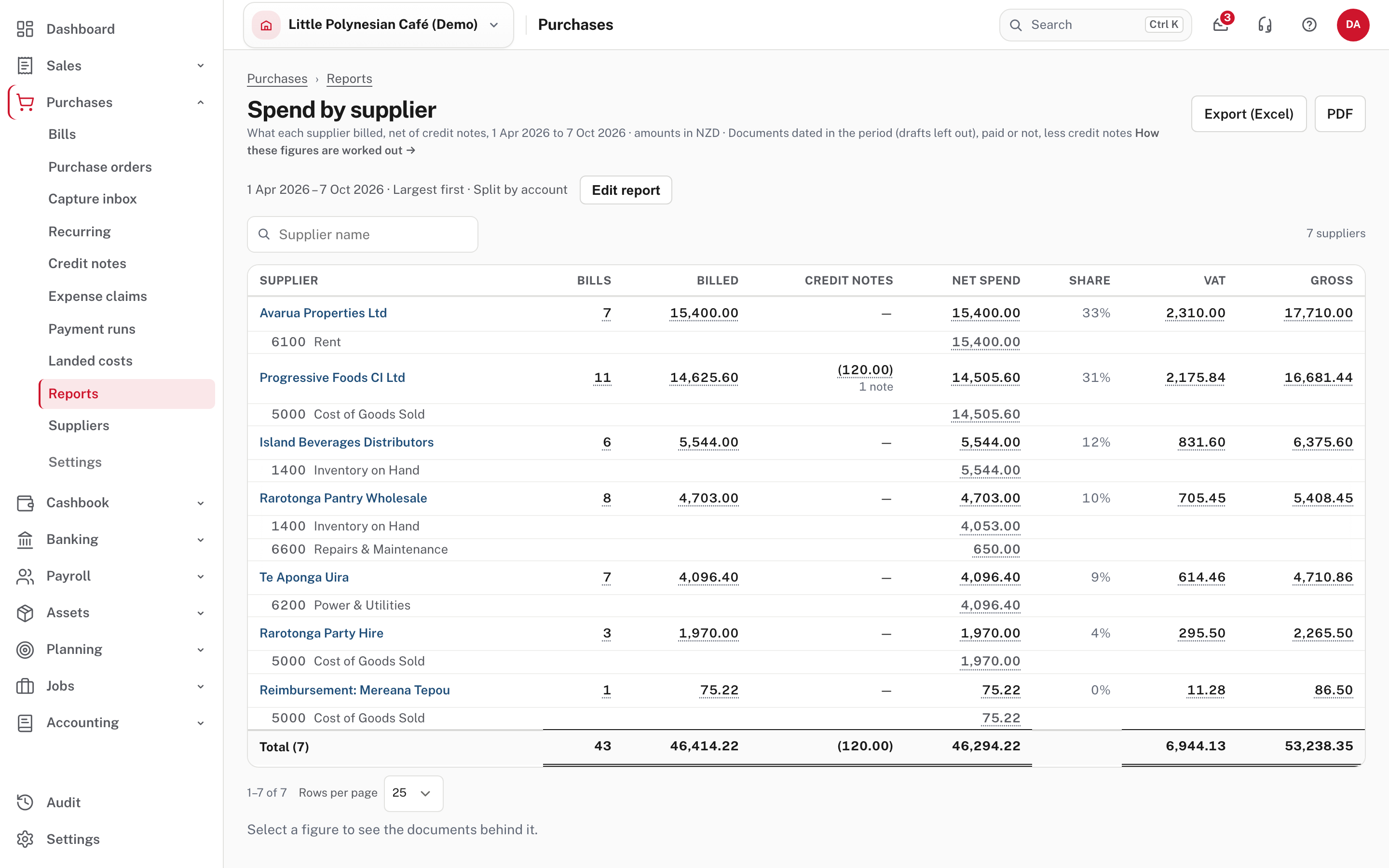
The mirror image, for recorded bills and supplier credit notes: Bills, Billed, Credit notes, Net spend, Share, VAT and Gross. Dates, comparison, order and search work as above. A supplier's name opens their statement for the same dates.
Tick Split by account in Edit report and each supplier shows, underneath, the accounts its bills were coded to (net of credit notes); choose an account's amount to see those lines (Help). Two things to notice in the picture:
- Spend is not the same as expenses. Island Beverages Distributors is all coded to 1400 Inventory on Hand: stock bought for resale is spend, but it goes to the Inventory on Hand account, not to an expense account.
- Expense-claim reimbursements appear as a supplier, here Reimbursement: Mereana Tepou.
Step 5. Follow any figure to its documents
Every figure that is not worked out from others is a link. Choose Pacific Tours Rarotonga's net sales and Easy lists the documents that make it up.
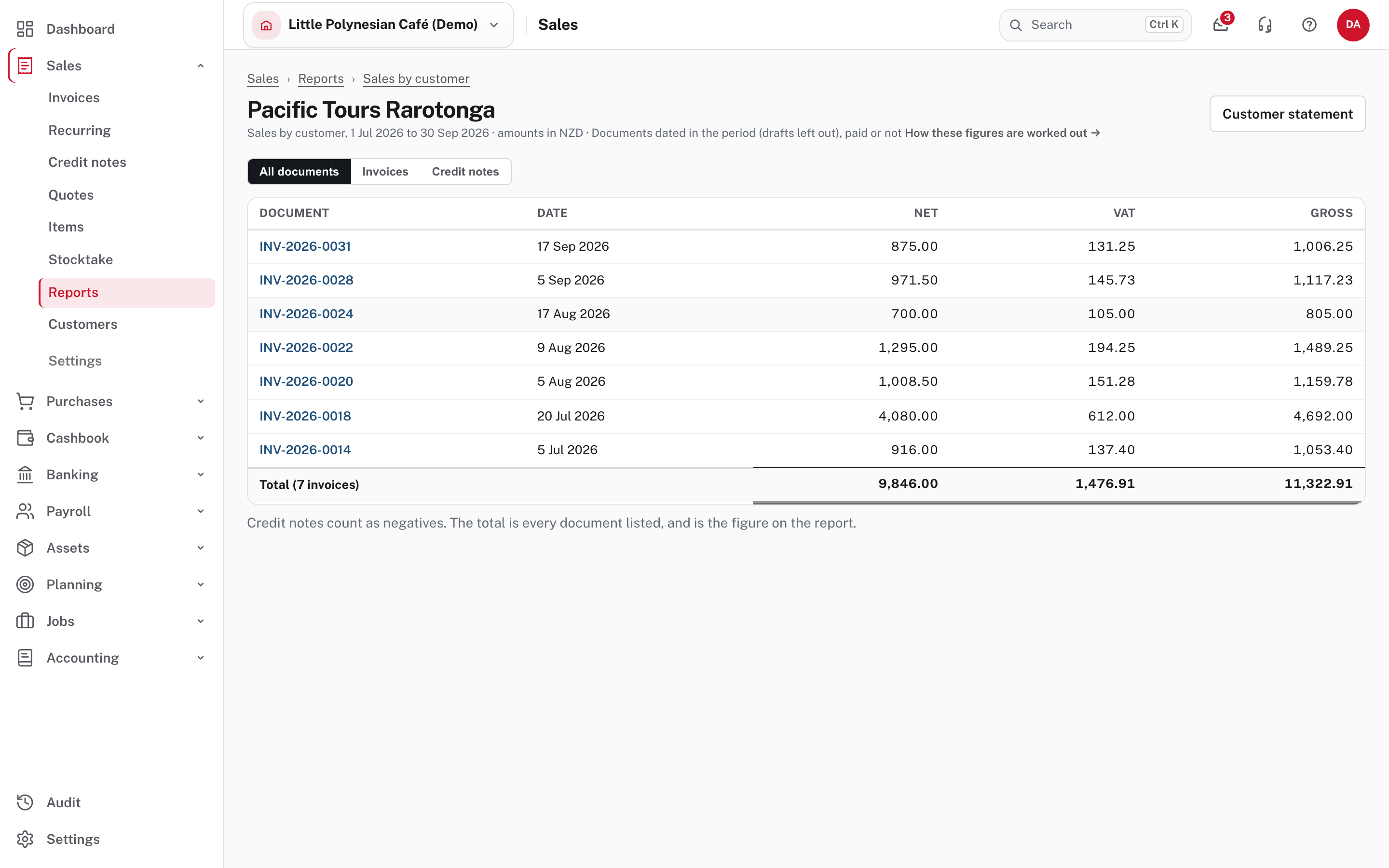
The list shows each document with its date, Net, VAT and Gross, newest first, and its Total is the figure you chose. The buttons above switch between All documents, Invoices and Credit notes; each document number opens the document, and Customer statement opens the statement for the same dates. On the report, the invoice count and Invoiced open the invoices, Credit notes the credit notes, and Net, VAT, Gross and Previous all of them. Share and Change are worked out, so they open nothing (Help). Going back returns to the report as you left it.
Step 6. The registers
A register is a list, not an analysis: one row for each document or payment.
Sales register and Purchases register
Sales → Reports → Sales register and Purchases → Reports → Purchases register
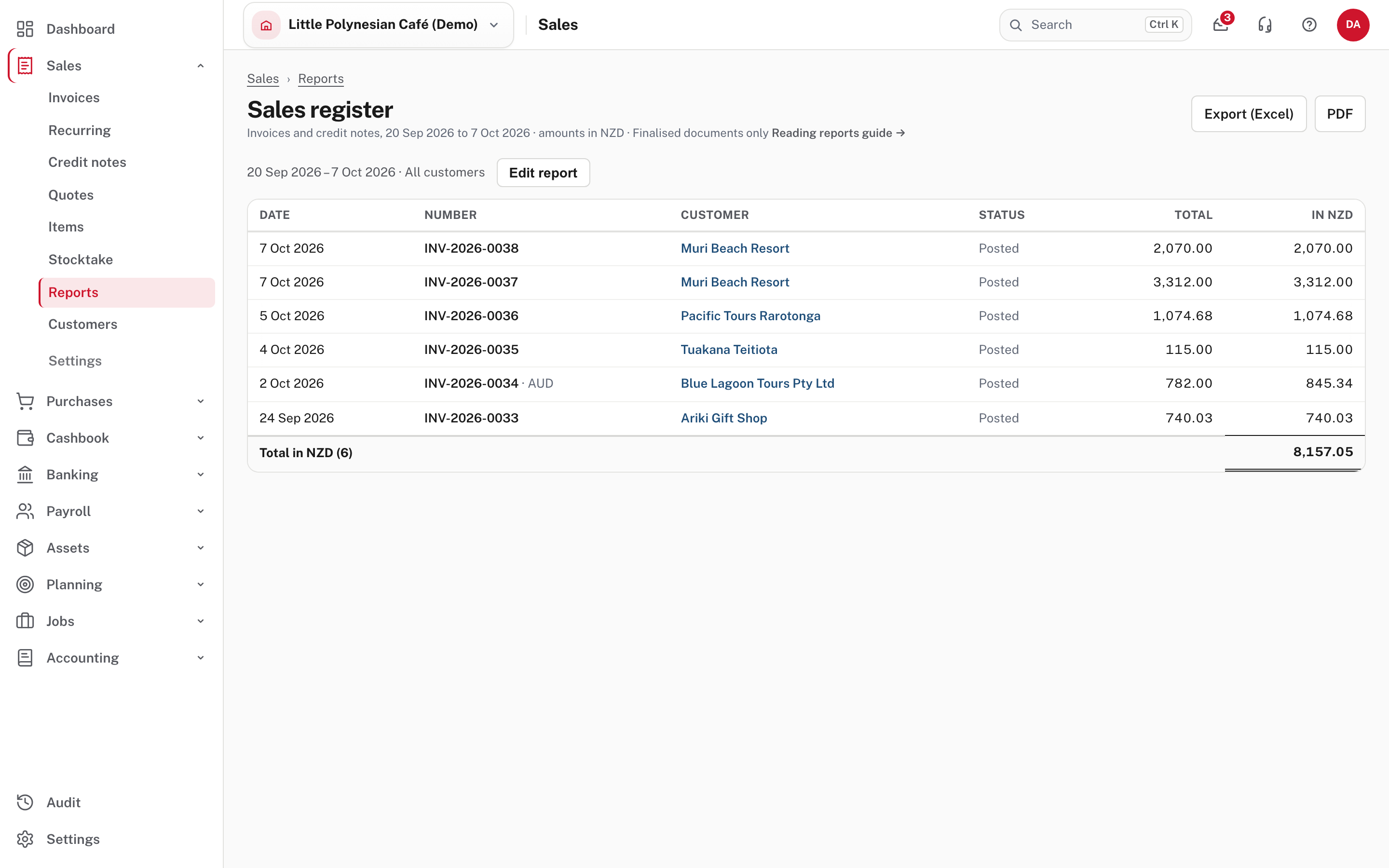
The Sales register lists finalised invoices and credit notes with their Date, Number, Customer, Status and Total, and In NZD (a foreign-currency invoice, like the AUD one here, shows both). The Purchases register is the same for recorded bills and supplier credit notes. Edit report sets From, To, the Customer (or Supplier) and Include drafts, which adds the drafts the register leaves out. The Purchases register's note says credit notes count as negatives.
Receipts register and Payments register
Sales → Reports → Receipts register and Purchases → Reports → Payments register
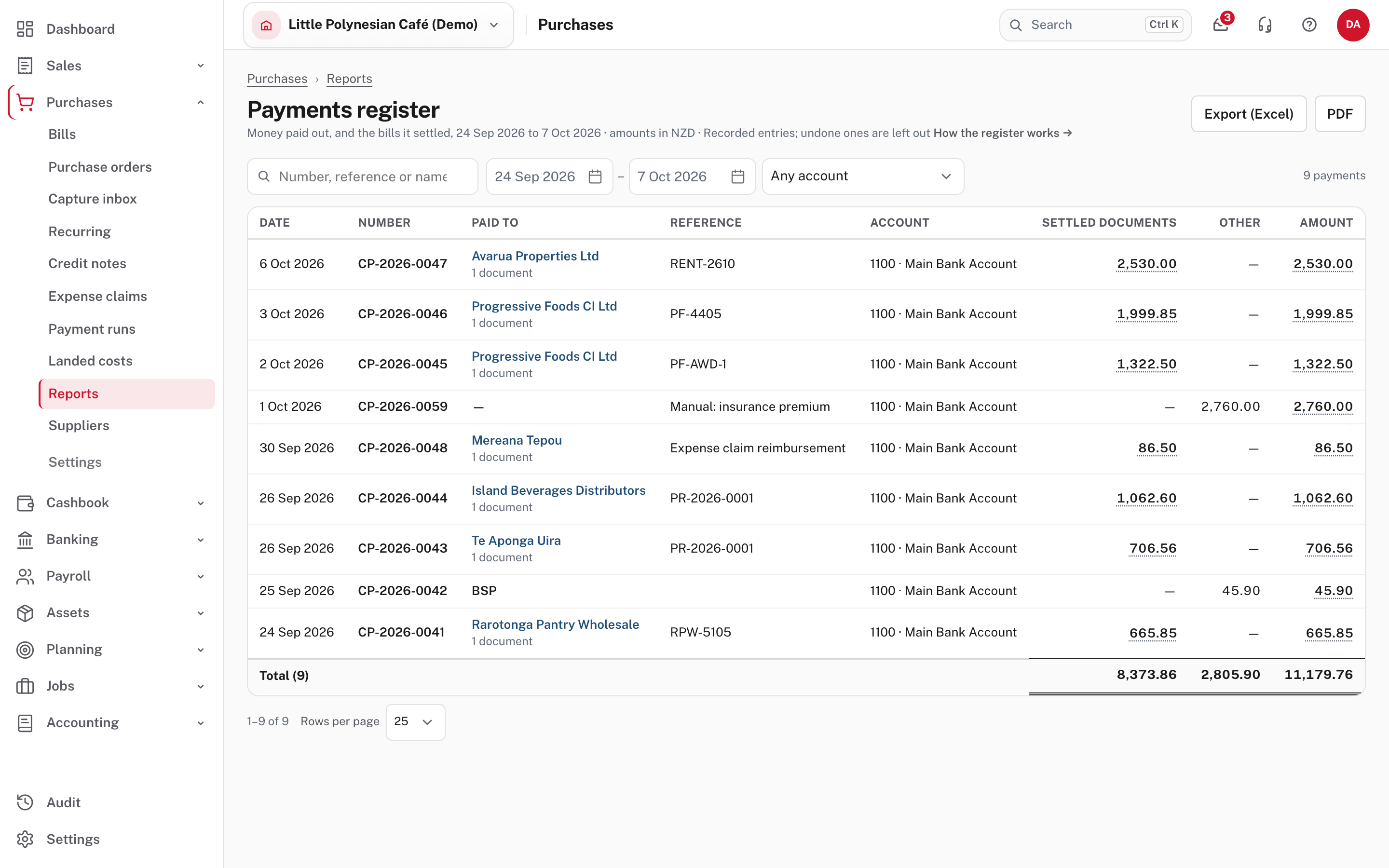
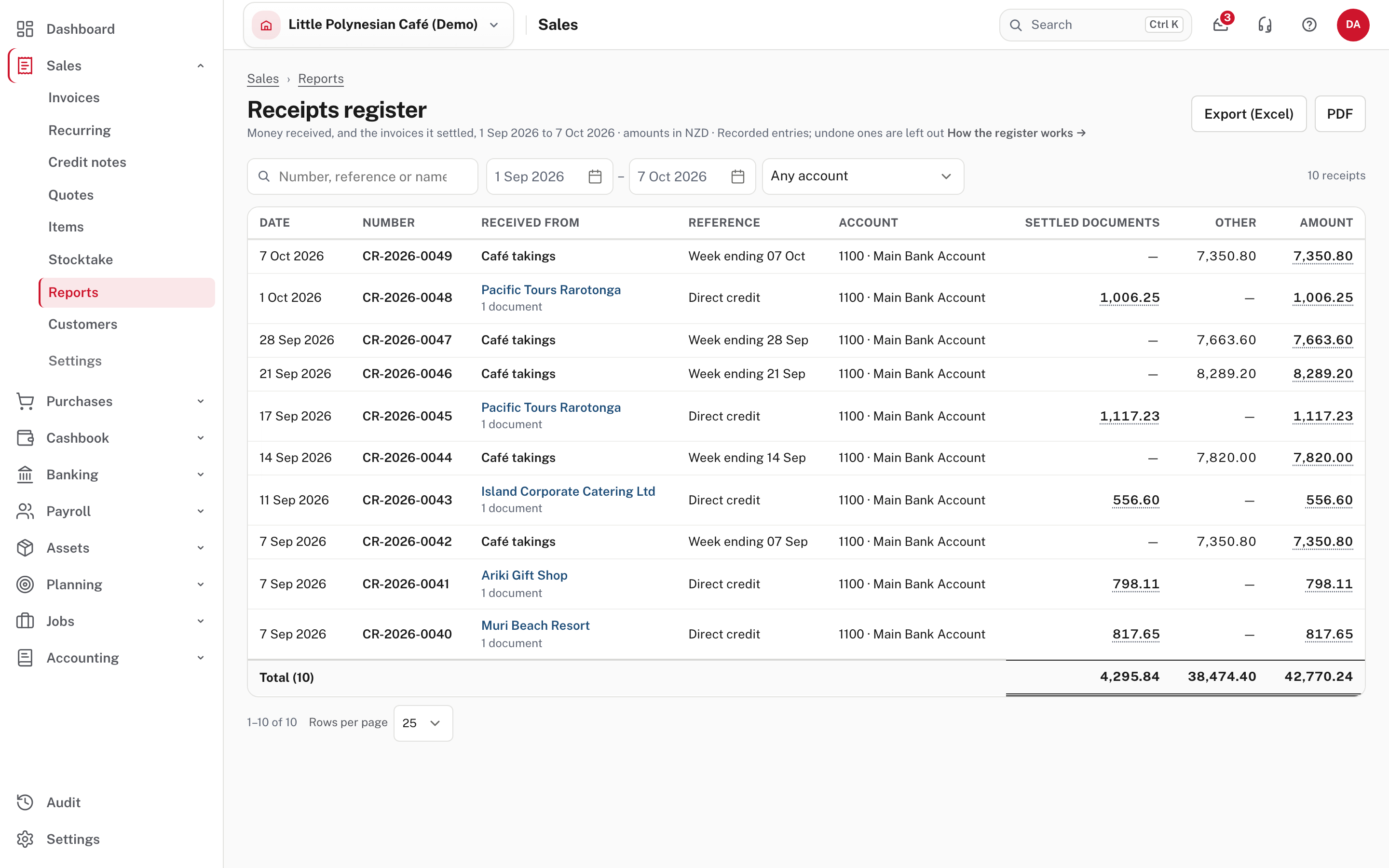
These list money that moved through a bank or cash account, from the cashbook. The bar above the list searches by number, reference or name, sets the dates and picks one account. Each row shows the Account, the Amount, and how the amount splits:
- Settled documents is the part applied to invoices, bills or credit notes. Choose it to see which ones.
- Other is the rest: money coded straight to an account, the VAT on it, or money kept on account as a credit.
In the picture, customer receipts such as Pacific Tours Rarotonga's are all Settled documents, while the café's weekly takings are all Other. In the payments, the supplier payments are settled, while the bank charge and the made-up insurance premium from Prepayments and accruals are Other. A name opens that person's statement, the number opens the receipt or payment, and undone receipts and payments are left out. A customer refund is in the Payments register, and a supplier's refund in the Receipts register (Help).
Sales by customer is not all your income
The three analyses count invoices and credit notes. In the demo, the Profit and loss for the year shows several times what Sales by customer does, because the weekly café takings are recorded as money in, straight to an income account, with no invoice. They are in the Receipts register under Other, and not in Sales by customer. If you record takings that way, expect Profit and loss to be larger than your customer sales.
Step 7. Keep a copy: Excel and PDF
Every report on this page has Export (Excel) and PDF at the top right. Both are rebuilt from the dates and filters on the
screen and hold every row, not only the page you are looking at (Help). Credit notes
are negative there too, and the note under the heading names the currency. Spend by supplier's Excel file carries the account split on
a second sheet. The files take their name from the report and the dates, for example sales-by-customer-2026-07-01-2026-09-30.xlsx.
When a figure looks wrong
- Check the dates. The analyses open on the month to date, and a customer with nothing in the dates is not listed.
- Check the status. Drafts, documents waiting for approval and cancelled documents are not counted.
- Opening balances are not sales or spend. What was owed before you started with Easy is left out, and so are on-account credit notes (an overpayment kept as credit, or a deposit paid to a supplier).
- Open the figure. The documents behind it show which invoice or bill is in, and the one you expected is not.
- A register that does not match a report usually differs in what it lists: the registers show documents and payments, the analyses group them by customer, item or supplier.
Check before you continue
Check before you continue
- You know which dates a report opened on, and set both From and To for the period you meant.
- Net sales on Sales by customer and Sales by item have the same total for the same dates.
- Most invoice lines are picked from items, so Lines with no item is small.
- A supplier or customer figure that surprised you has been opened down to its documents.
- You know which income is recorded without an invoice (takings, say), so you do not expect it in the customer reports.
- The Excel or PDF you send was made after setting the dates, not before.