Manual journals and journal approval
A manual journal moves an amount between ordinary accounts when no invoice, bill, receipt, payment or other document does it for you: an accrual, a correction, a year-end adjustment. Because it can move money between almost any two accounts, treat it with care. Easy checks every journal, keeps it visible, and can ask a second person to approve it first.
About the screenshots
Screenshots are from Easy's demo company, Little Polynesian Café. The journal is a made-up accrual of $89.
Before you start
- Is a journal really the right tool? Money in and out belongs in the cashbook; customer and supplier items belong on invoices and bills; stock, assets and payroll have their own screens. Use a journal only for what none of those cover.
- Control accounts are off limits. Trade debtors and creditors, VAT, PAYE, inventory, fixed-asset cost and so on belong to their own subledgers and can't be moved by a manual journal. Neither can bank or cash accounts (use a receipt, payment or transfer). The account picker already leaves them out. See System control accounts.
- Who can post. The Owner, Administrators and Accountants. Data entry can prepare a journal, which is sent for approval or saved as a draft for an accountant to post (People, roles and access).
- The date is in an open period: a locked period refuses it.
Step 1. Open the journal register
Accounting → Journal entries.
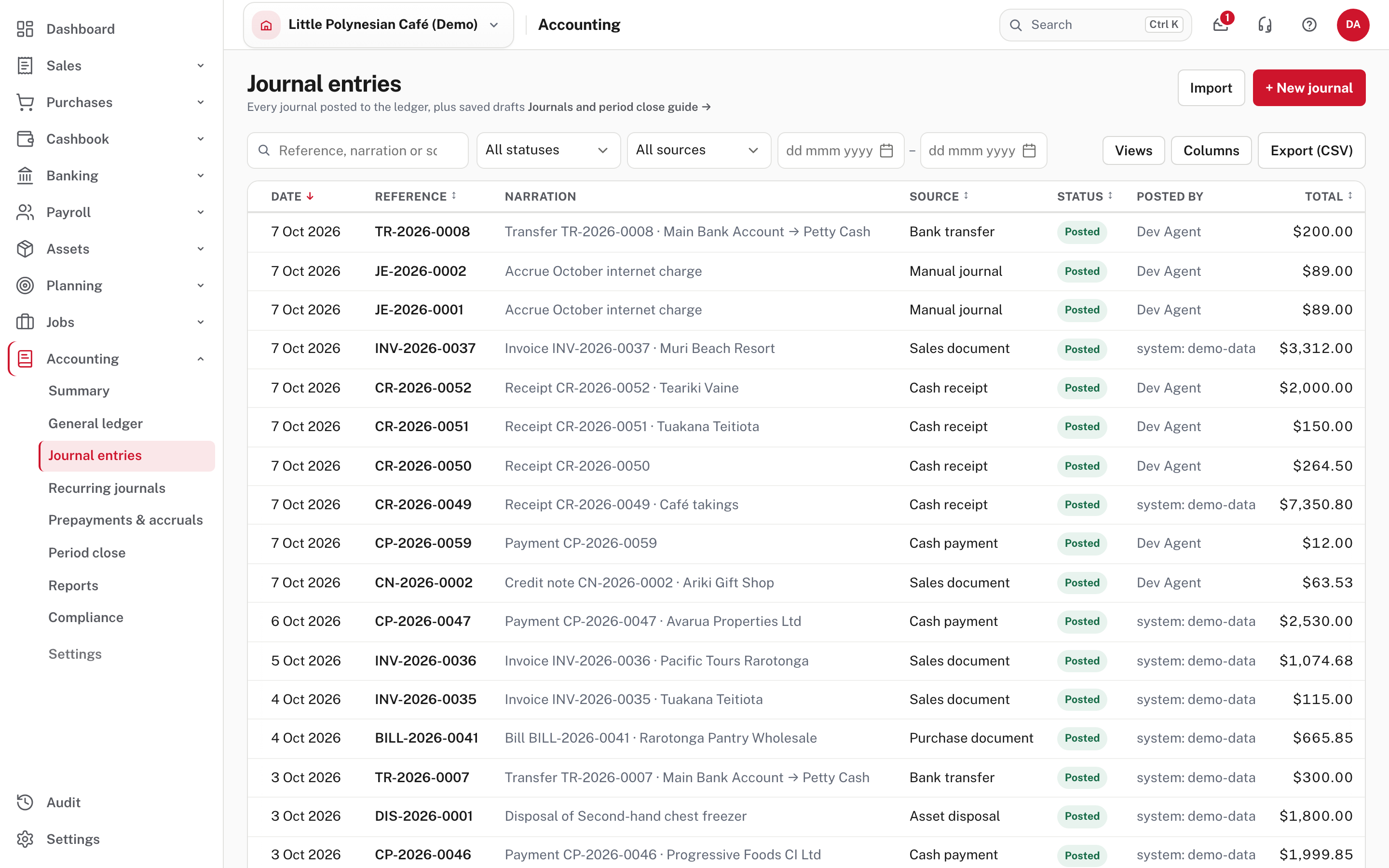
The register lists every journal posted to the ledger, whatever made it: filter by status (Draft, Posted) and by source (manual journal, sales document, purchase document, cash receipt, payroll run, depreciation run and many more). Each row shows its date, reference, narration, source, status, who posted it and the total. Under the list, the debits and credits of what you have filtered add up (they are always equal, and a warning appears if not). Export (CSV) saves the filtered list. A journal that was reversed, or that reverses another, says so beside its status.
Step 2. Enter the journal
Choose + New journal.
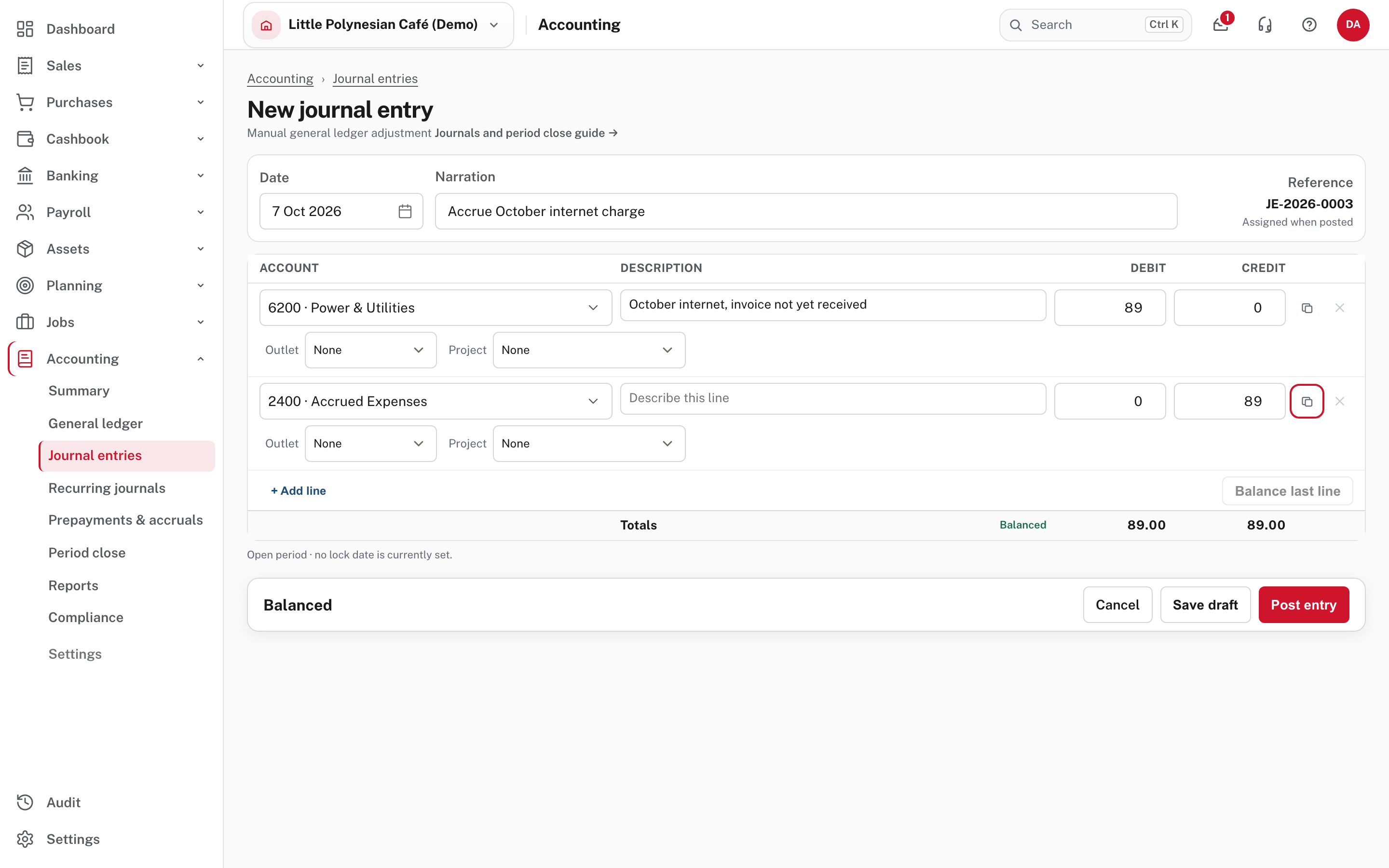
- Date and a narration that will make sense in a year ("Accrue October internet charge", not "adj").
- Lines. For each line, choose an account, a description, and a debit or a credit. + Add line adds more. Outlet and Project (your reporting dimensions) appear on each line; if a dimension is marked required for the account, fill it in.
- Balance last line fills the last line with whatever makes debits equal credits.
- Read the totals and difference: it must be $0.00. A bar tells you whether the period is open.
The reference (here JE-…) is assigned when you post. Choose Save draft while it needs review (a draft is not in the books), or Post entry.
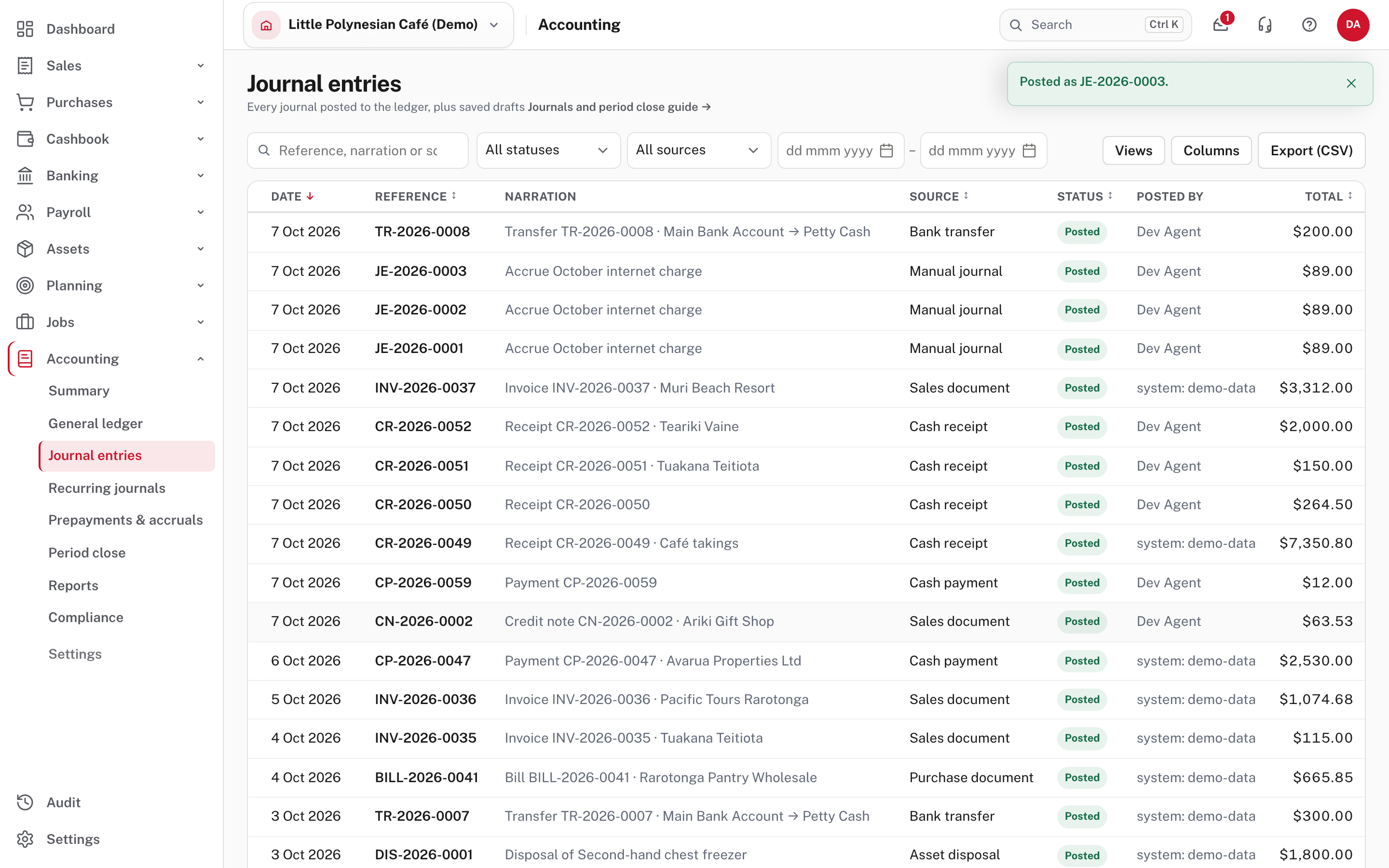
"Posted as JE-…" confirms it. Posting creates the reference and changes your reports.
Step 3. Check a posted journal
Open it from the register.
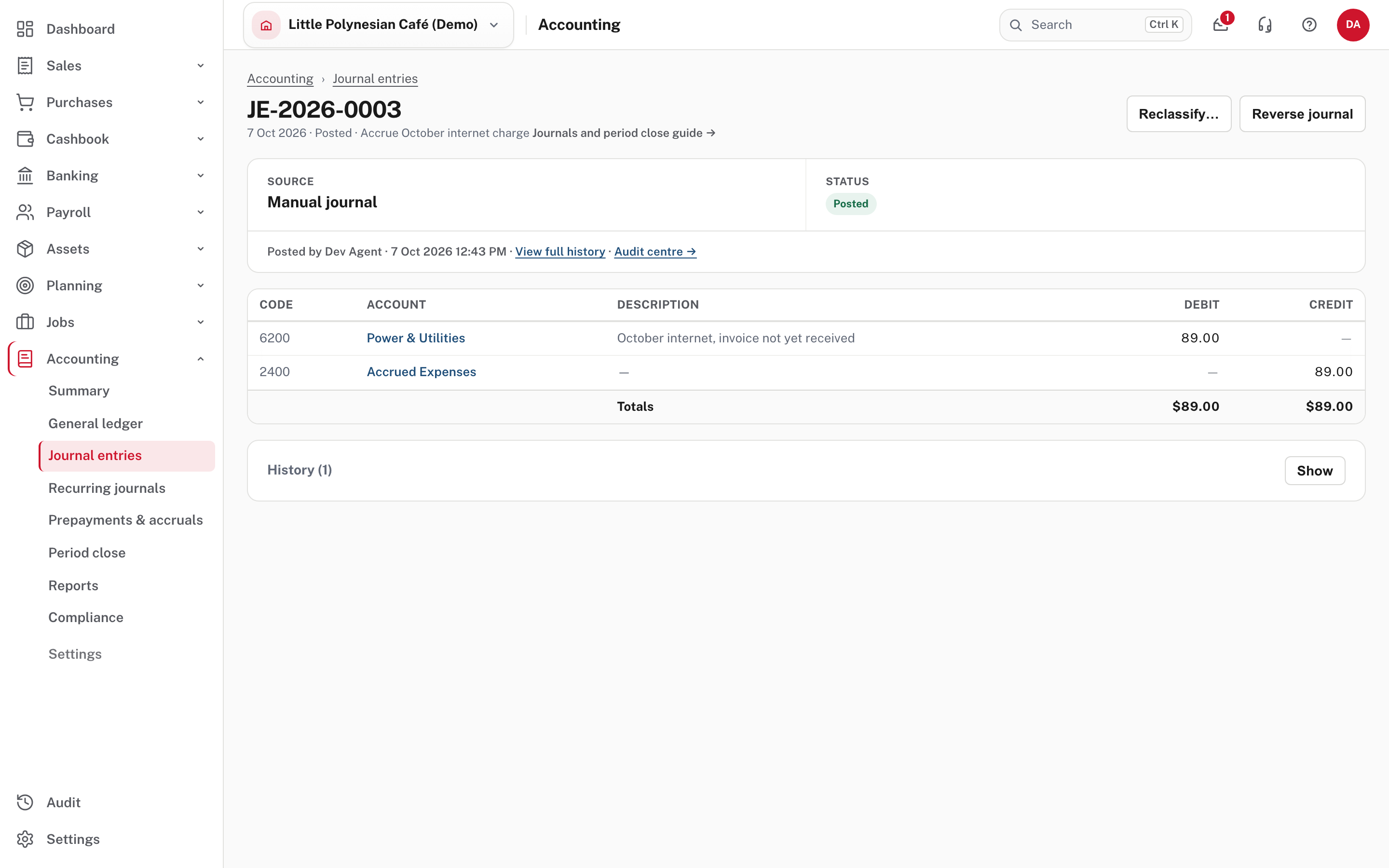
It shows the source (Manual journal), the status, who posted it and when, and every line with its account (a link to that account's ledger), debit and credit. View full history and Audit centre show who did what. In the register it carries the reference JE-….
Step 4. Correct or reverse a journal
An error in a posted journal is never edited in secret. Use the correction that fits:
- Reverse journal posts the exact opposite entry on a date you choose, so together the two change nothing. It is the right tool for an accrual you want taken back on the first day of next month.
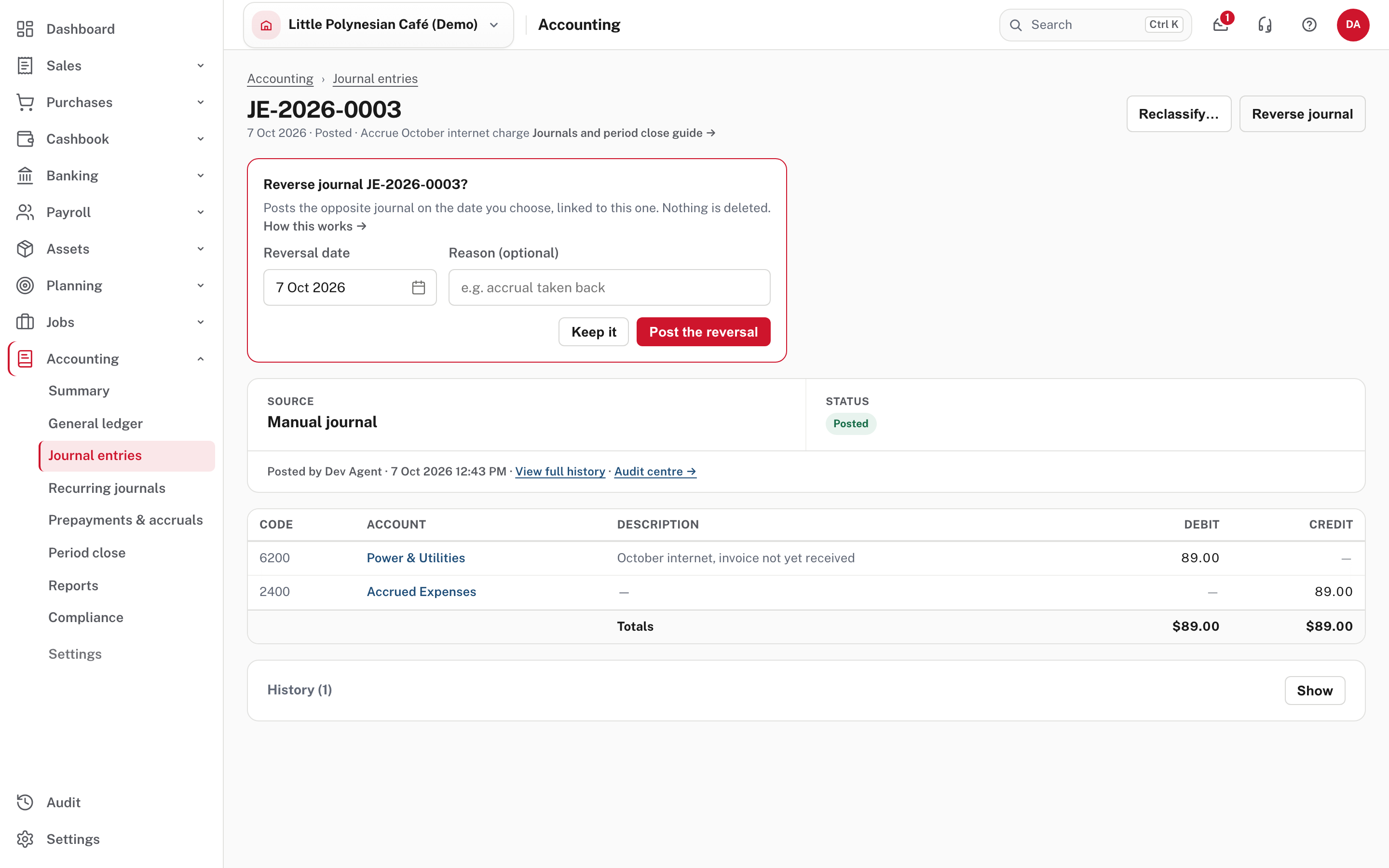
Choose the reversal date (today unless you change it) and give a reason, then Post the reversal (or Keep it). The reversal can't be dated before the journal or on or before the lock date; the journal being reversed may itself be in a locked period, because it is not changed.
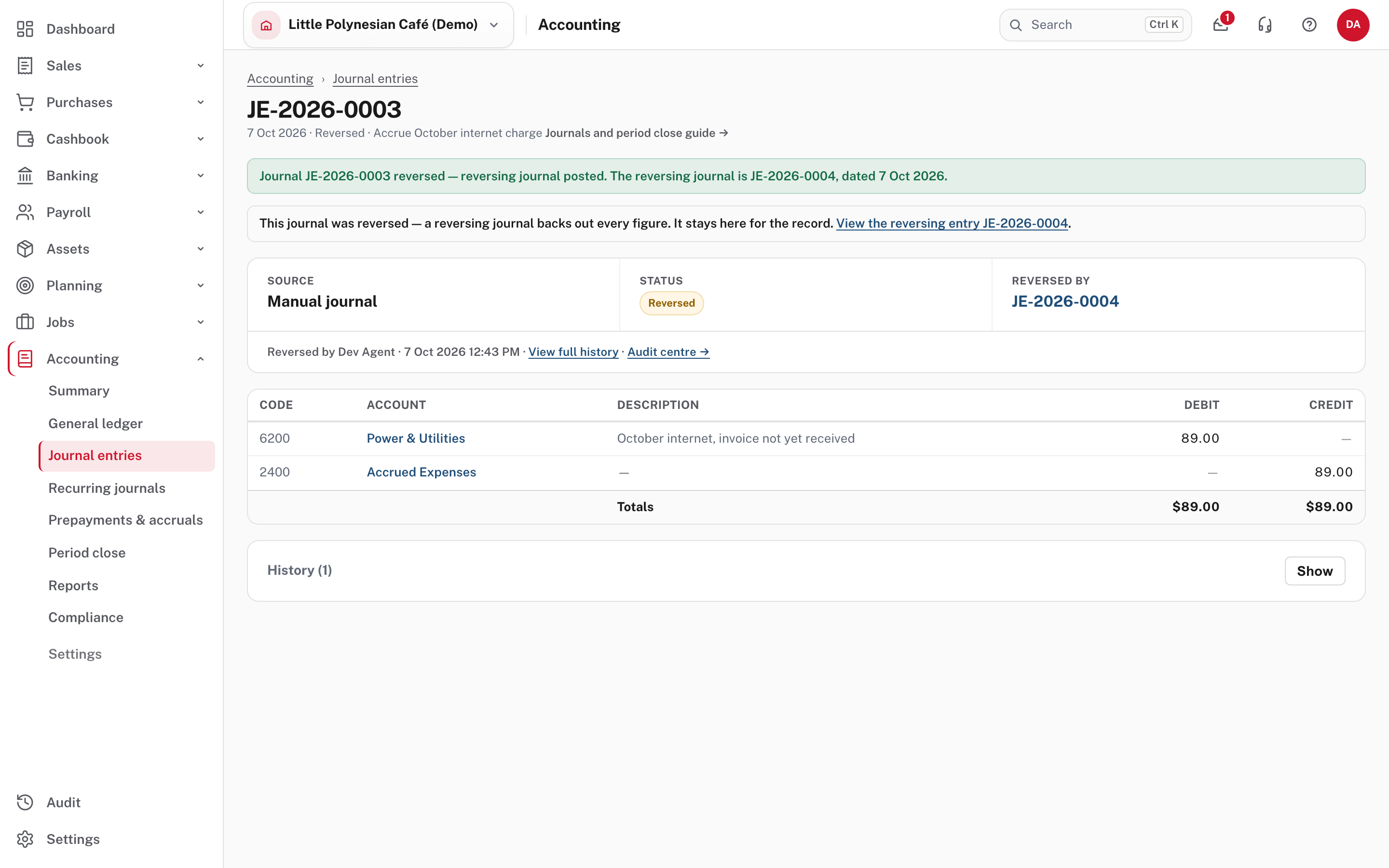
The two journals link to each other ("Reversed by" and "Reverses"), the register shows both, and the audit trail records who did it and why. A journal can be reversed only once, and a reversal can't itself be reversed: post a new journal instead. - Reclassify… moves an amount from one account to another with one balanced correcting journal, leaving the source entry as it was (Credit notes, undoing and correcting, part 3). - A posted manual journal can be edited in place only when the company allows it (Settings → Accounting, Edit posted manual journals) and the date is open. - Only manual journals are reversed this way. A journal that an invoice, bill, receipt, payment or other document posted is undone by undoing that document.
More detail: Journals and period close.
Many journals at once
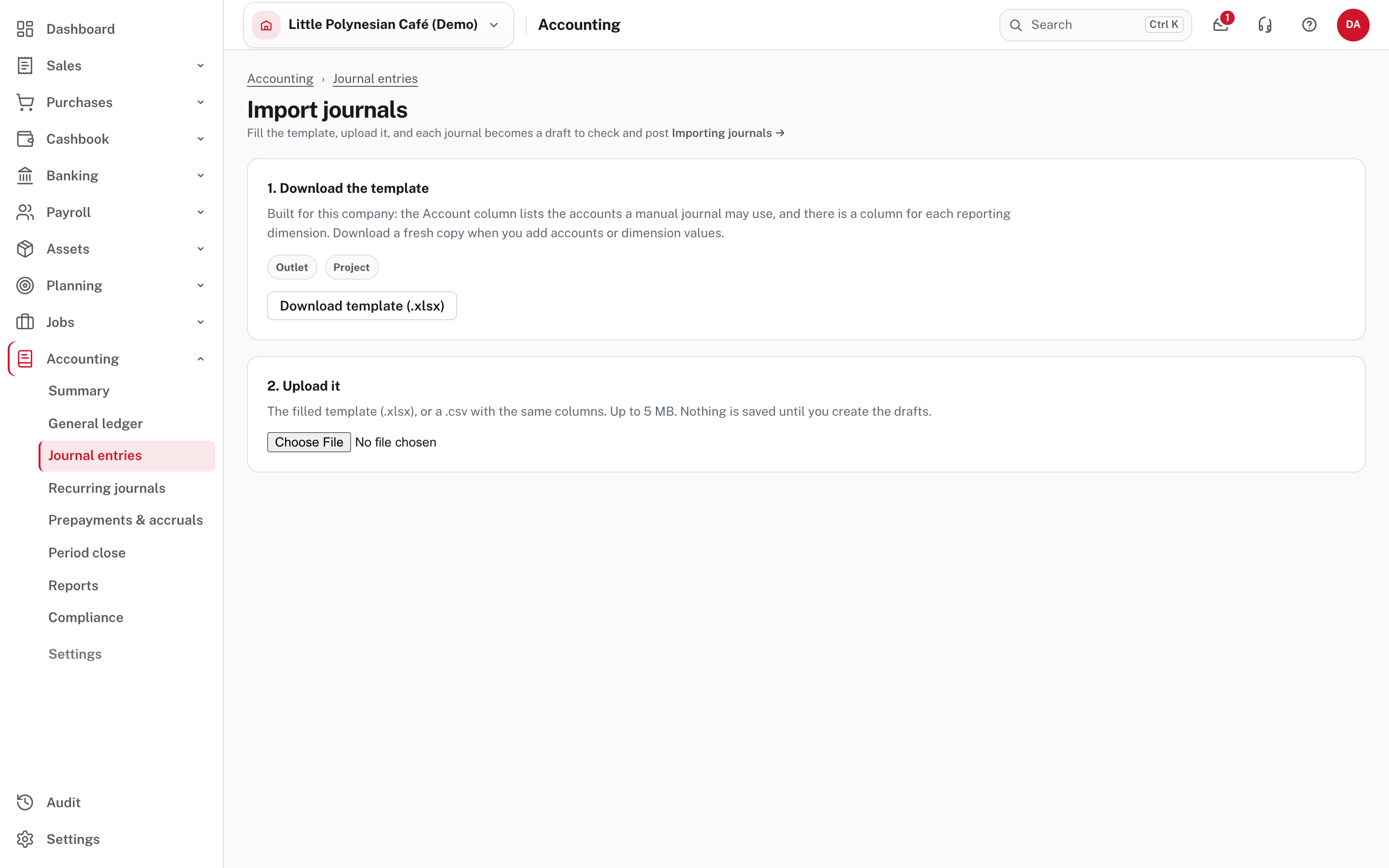
Journal entries → Import. Download template (.xlsx) gives a workbook made for your company: its Account column lists the accounts a manual journal may use, and it has a column for each reporting dimension (here Outlet and Project). Fill the Journals sheet one row per line; rows with the same Journal value (J1, J2 …) make one journal, and the How to fill sheet has a worked example. Upload it (up to 5 MB): Easy checks every journal by the same rules as one typed by hand and lists what to fix, row by row. Nothing is saved until every journal is right, and then they are saved as drafts. Tick them on the list and choose Post (a journal that needs approval is sent for approval instead), Send for approval, or Delete to remove the drafts.
Moving a company's history in is different: that is Setup import under Settings, which posts straight to the ledger (Opening balances).
Recurring journals
For an entry you make the same way every period (a monthly insurance release, say).
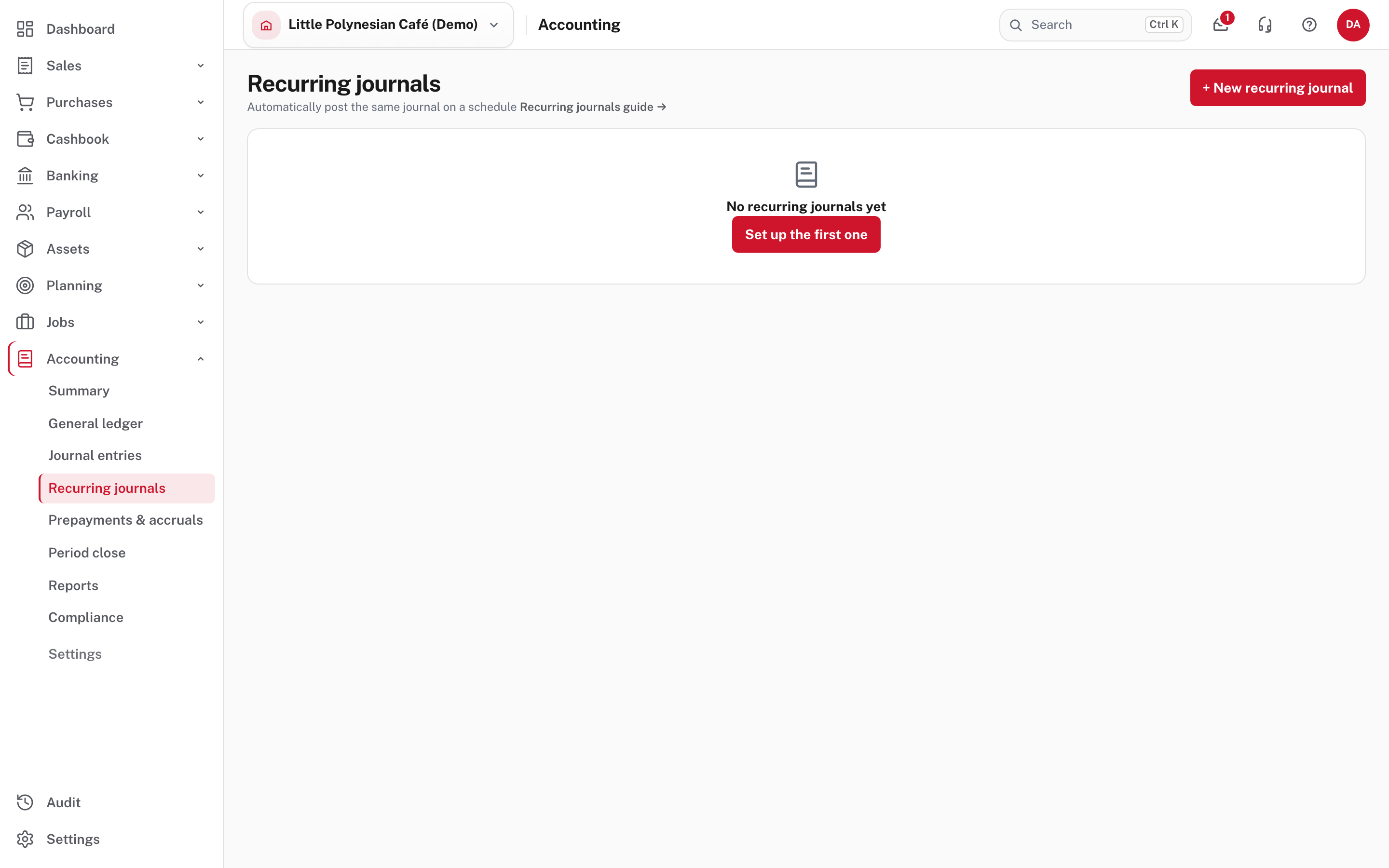
Accounting → Recurring journals → New recurring journal. Choose the manual journal to copy, how often it repeats and the next date; leave the end date and remaining count blank to keep going. What happens each run is either Create a draft, for you to check and post, or Create and post. Due journals are made each night. Untick Active to pause a schedule without deleting it.
Step 5. Ask a second person to approve journals
Settings → Accounting & tax → Accounting approvals. It is off until you switch it on: while it says No approval needed, journals post as you enter them.
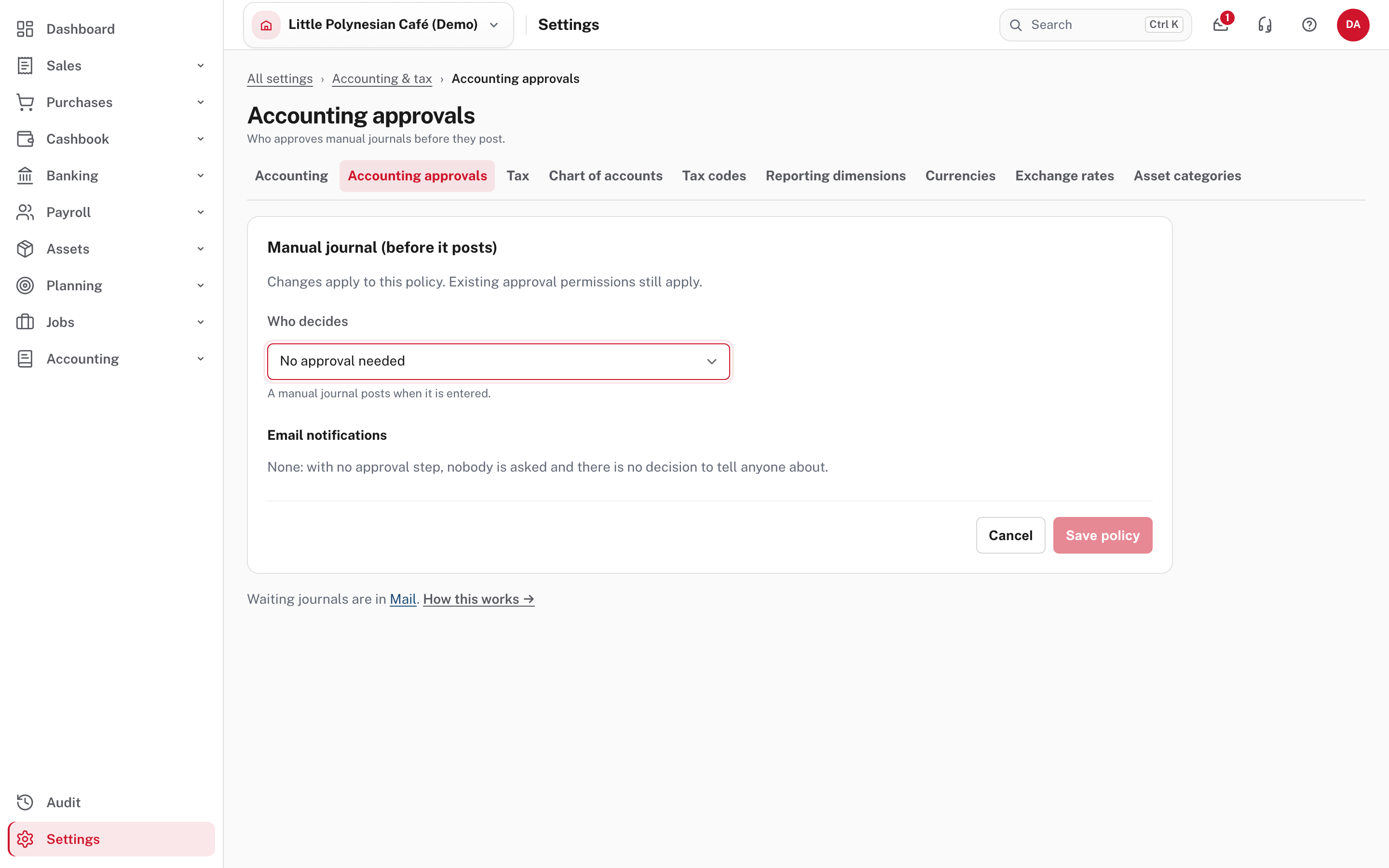
Choose Edit and set who decides:
| Choice | What it means |
|---|---|
| No approval needed | A manual journal posts when it is entered |
| The person who prepared it | They still can't post until it is approved, and the record says who approved it |
| Someone else | Anyone who can post journals, except the person who prepared it |
| One named person | That one person decides every journal |
Tick Only when the amount is over a limit (a financial delegation) and enter the limit: a journal is measured by its total debits; at or under the limit it posts straight away, and over it needs approval. You can also choose whether people are emailed when something is submitted and when it is decided. If you are the only person who could approve, you may approve your own journal with a short reason, which is kept with the approval.
When approval is on:
- You enter the journal and press Post as usual. It is saved as a draft and sent for approval in the same click, and you land on the draft.
- The approver approves it or sends it back, from the draft or from Mail (My actions). You are emailed the decision.
- Once approved, press Post on the draft.
Journals already posted are not affected. While journals need approval, a posted journal can't be edited in place and a Reclassify can't post at once, because neither leaves a draft for anyone to approve: enter the correction as a new journal and submit it. A recurring journal set to Create and post is checked the same way: one that needs approval is saved as a draft and submitted.
Only the policy page is shown
The demo has approval switched off, so the approver's side (the draft waiting in Mail) is described from Easy's Help and isn't pictured.
More detail: Journal approval.
Good practice
- Give every journal a narration a stranger could follow, and attach the working (the invoice, the calculation) where Easy allows.
- Have the owner or board review all manual journals each month if there is no second approver. The register's Source filter set to Manual journal makes that a two-minute job.
- Prefer a reversing accrual to a one-way adjustment, so the next month's actual bill doesn't double up.
Check before you continue
Check before you continue
- Each journal balances to $0.00, uses the right accounts and has a narration someone else could understand.
- It is dated in the right (open) period, and an accrual has a reversal date.
- No journal is a workaround for something a document should record (an invoice, a bill, a payment).
- If approval is on, nothing is left waiting in Mail.
- The month's manual journals have been looked at by someone other than the person who entered them.