Cash flow forecast
The cash flow forecast shows your bank and cash balance week by week for the next few months, built from what Easy already knows: the invoices customers owe you, the bills you owe, your recurring schedules, your payroll and your tax. It answers one question, "will I have the cash?", before the answer is a surprise. The Owner looks at it weekly, and tries "what if" changes before a big payment. It is a forecast, not a record: nothing you do on this page changes your accounts. It sits beside Budgets (a plan for profit), and it depends on chasing overdue invoices and paying suppliers.
About the screenshots
Screenshots are from Easy's demo company, Little Polynesian Café, on 7 October 2026. Every figure is made-up demo data, and it moves as the demo's invoices and bills change. The saved scenario Manual CF Drawings and late payers is an example added for this chapter. The pictures show an Accountant's screens; an Owner or Administrator sees the same ones.
Before you start
- Planning is a module of its own, and your plan has to include it. It is on in the demo (Turning modules and features off).
- The forecast is only as good as your records. It reads open invoices, bills and schedules, so enter them and apply receipts first. A receipt recorded but not applied leaves its invoice looking owed.
- Who can do what. Anyone who can see Planning can run the forecast, change its settings, add manual movements and load a saved scenario. Saving and deleting a scenario needs the right to manage planning: the Owner, Administrators, Accountants and Developers. Anyone else doesn't see the save and delete controls (not shown in the demo).
- It always shows cash. The forecast is about when cash moves, whatever reporting basis the company uses (What it shows).
Step 1. Open the forecast
Planning → Cash flow forecast.
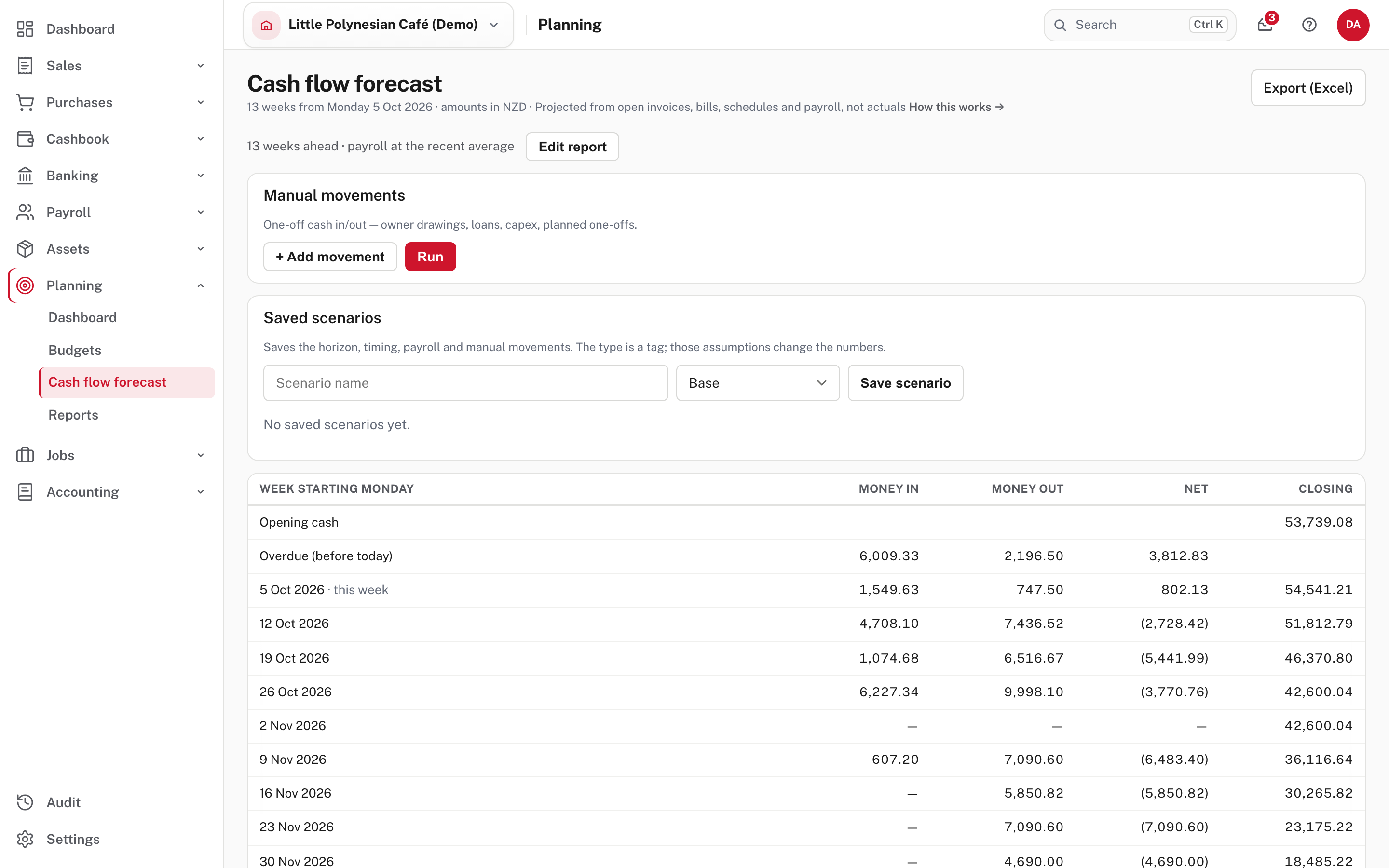
The line under the title says what you are looking at: 13 weeks from Monday 5 Oct 2026 · amounts in NZD · Projected from open invoices, bills, schedules and payroll, not actuals. The first line of the page, 13 weeks ahead · payroll at the recent average, is the report's settings (Step 4), and Edit report changes them. Below are the Manual movements and Saved scenarios boxes, then the weekly table. Export (Excel) is at the top right.
Step 2. Read the weekly table
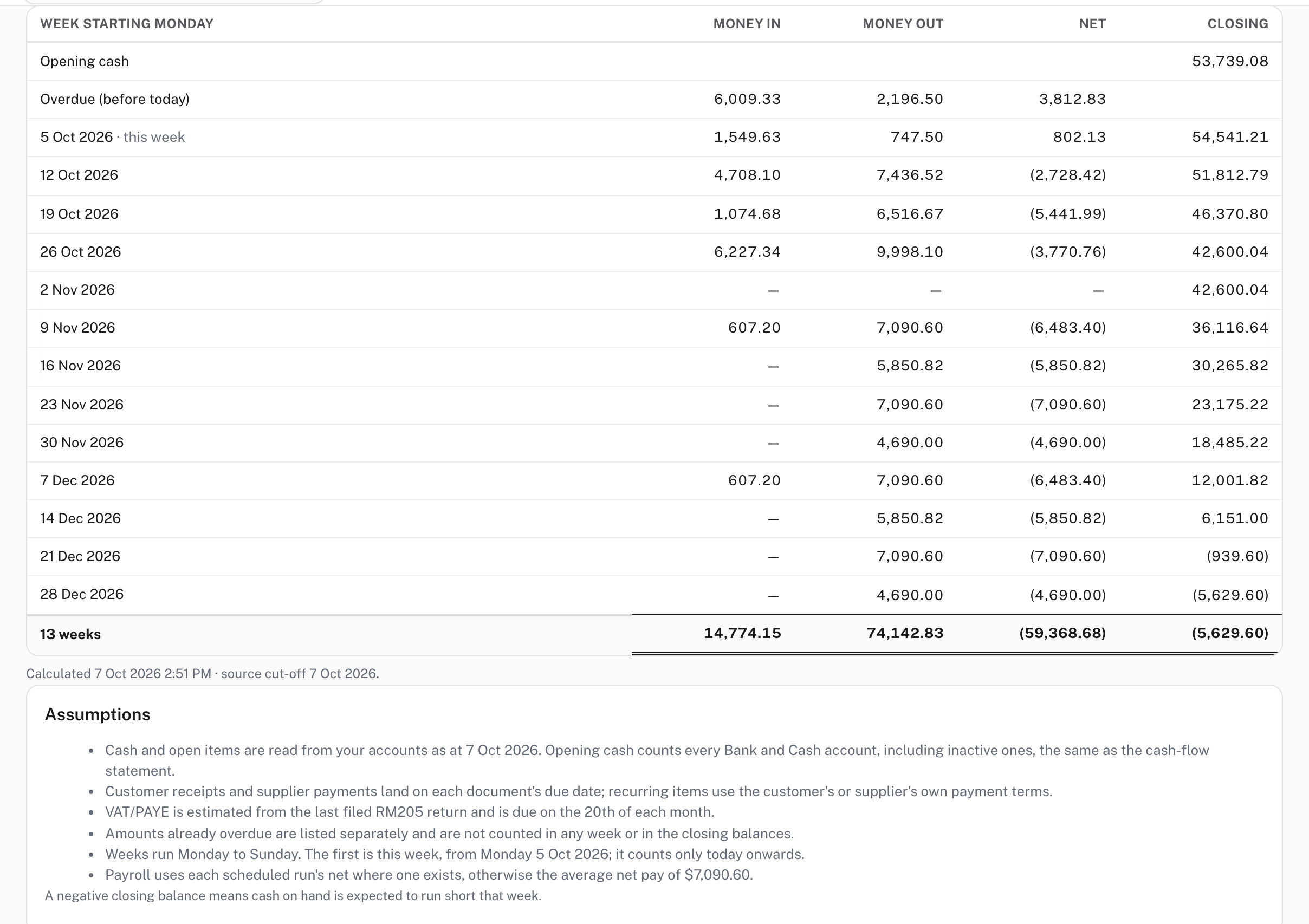
| Row or column | What it means |
|---|---|
| Opening cash | What your Bank and Cash accounts hold today, including any account you have made inactive. It is the same figure the cash-flow statement reconciles to |
| Overdue (before today) | Money in and out that was already due before today. It is listed but not counted in any week or in the closing balances |
| Week starting Monday | A calendar week, Monday to Sunday, labelled with its Monday. The first is this week; it starts on this week's Monday but counts only movements from today onwards |
| Money in, Money out, Net | What is expected to arrive, leave, and the difference. Negative figures are in brackets |
| Closing | The balance at the end of that week: the one before it plus the net |
| 13 weeks (last row) | The totals for the weeks, and the closing balance at the end |
A week with nothing due shows dashes (here the week of 2 Nov). A negative closing balance means cash on hand is expected to run short that week: in the demo it happens in the week of 21 Dec, and Easy shows the figure in brackets.
Because overdue amounts are left out of the weeks, a late customer does not make the forecast look better than it is. It also means the overdue Money in is cash you are still owed: chase it (Chasing overdue invoices).
The Assumptions box under the table states, in plain words, how this run was worked out: the date the figures are read as at, how documents are timed, that VAT and PAYE come from the last filed return, that overdue is excluded, and what payroll uses. It also states any what-if you have set (Step 4). Read it before you rely on a number.
Step 3. See what is behind each week
Scroll to Movement detail: every movement the table adds up, in date order.
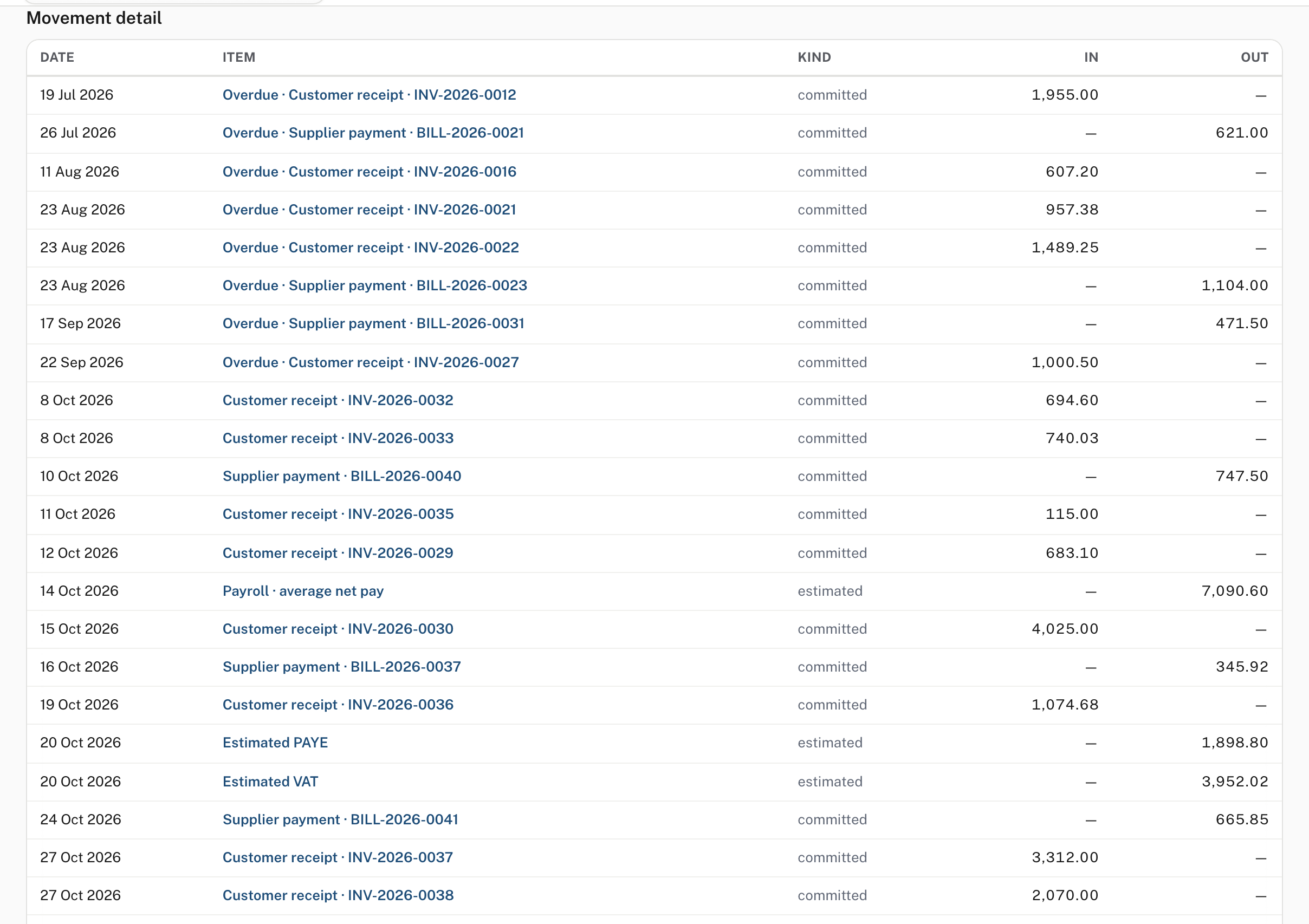
Each row has a date, an item, a kind and an amount. Choose the item's name to open the invoice, bill or schedule behind it. The page remembers its settings in its address, so Back returns to the same forecast.
The Kind says how sure Easy is:
| Kind | What it is | Examples in the demo |
|---|---|---|
| committed | An open document already owed or due | Customer receipt · INV-2026-0032, Supplier payment · BILL-2026-0040, CINSF contributions |
| scheduled | A recurring schedule | Recurring invoice, Recurring bill |
| estimated | A modelled figure, not yet a document | Payroll · average net pay, Estimated PAYE, Estimated VAT, Estimated CINSF |
How each is timed:
- Customer receipts and supplier payments fall on each document's due date. A recurring invoice or bill uses the customer's or supplier's payment terms, with 14-day and 30-day defaults where none are set.
- VAT and PAYE are estimated from the last filed RM205 return and fall due on the 20th of each month (Estimated VAT and Estimated PAYE on 20 Oct, 20 Nov and 20 Dec here).
- Payroll uses the net pay of each scheduled, unposted pay run where there is one, otherwise the recent average net pay (here $7,090.60 each fortnight, labelled average net pay). Two runs on the same pay date are added together. If the company has no pay calendar, Easy does not project payroll and says so on the page (not shown in the demo, which has a pay calendar).
- A customer invoice in another currency is counted at its value in the base currency, with the original shown (here INV-2026-0034 (AUD 782.00)).
The forecast cannot see what is not recorded
It projects open items and schedules only. Sales you have not yet invoiced, or bills you have not yet entered, are not in it, which is why money in thins out in the later weeks. Add a one-off yourself in the next step if you know one is coming.
More detail: When each movement is expected.
Step 4. Ask "what if"
Choose Edit report.
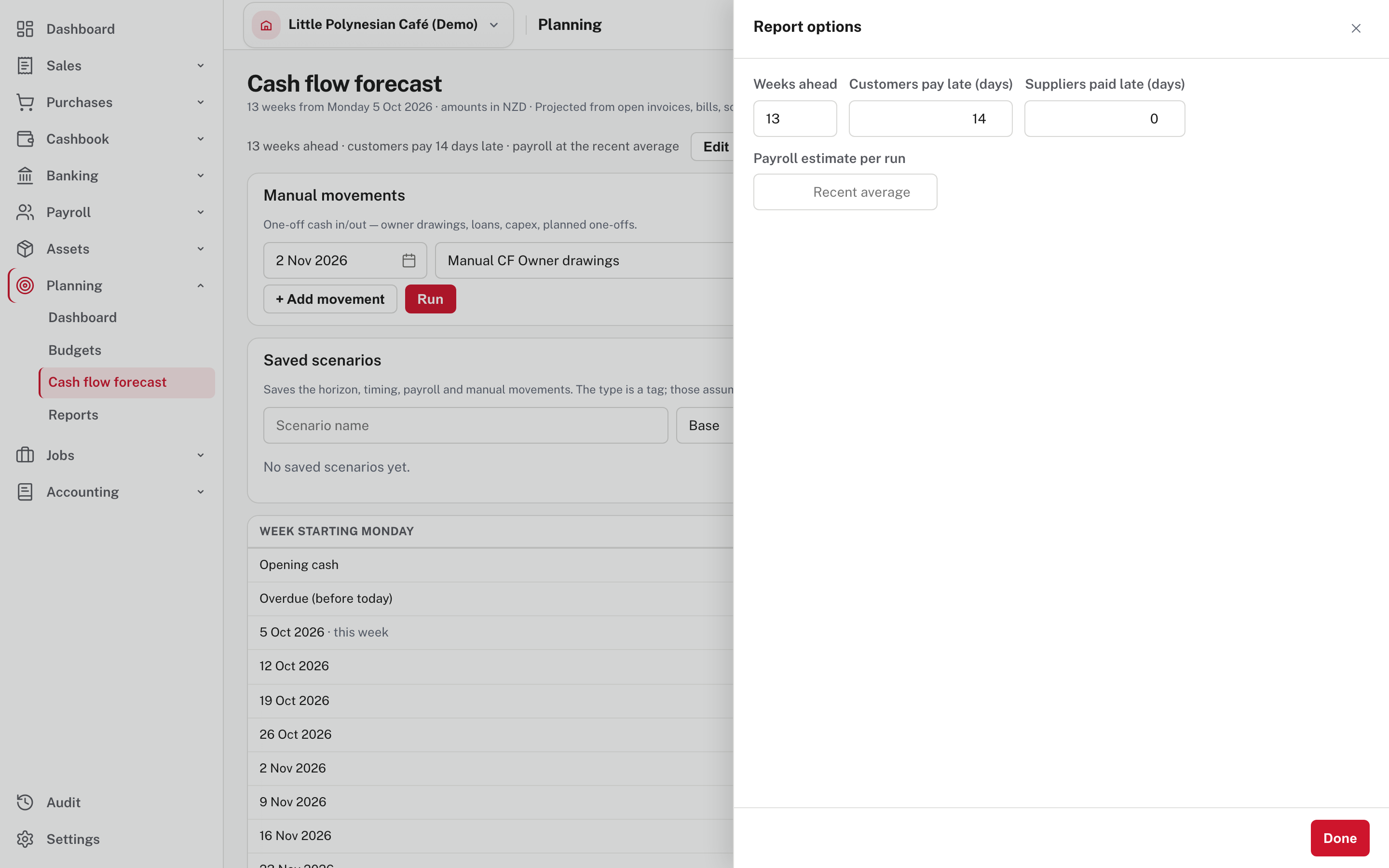
| Setting | What it does |
|---|---|
| Weeks ahead | The length of the forecast, 4 to 26 weeks (13 to begin with) |
| Customers pay late (days) | Moves every customer receipt, including recurring invoices, that many days after its due date |
| Suppliers paid late (days) | Does the same for supplier payments, including recurring bills |
| Payroll estimate per run | Replaces the recent average for pay dates with no prepared pay run. A prepared run keeps its own net pay. Left empty it says Recent average |
Each delay can be up to 90 days. Each setting applies as you change it, the page summary above repeats it (customers pay 14 days late), and the Assumptions box says it too.
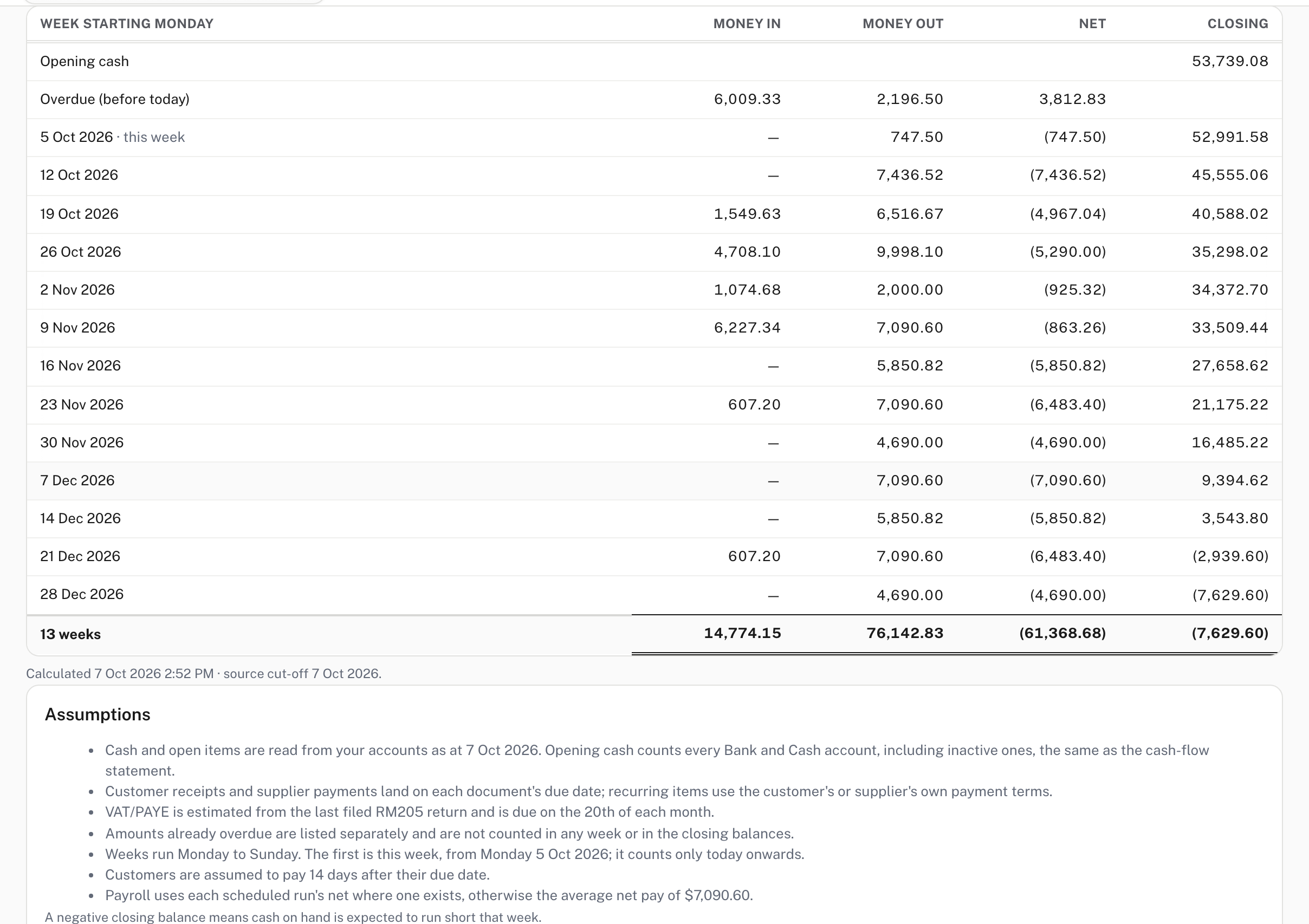
Here customers pay 14 days late. The $1,549.63 due in the week of 5 Oct now arrives in the week of 19 Oct, the weeks before it show no money in, and the Assumptions box adds Customers are assumed to pay 14 days after their due date. A delay can also move an item out of the overdue list into a future week (not shown in the demo, where the overdue amounts stay in the overdue row).
Step 5. Add a one-off movement
For cash the forecast can't know about: owner drawings, a loan, a planned purchase, a grant.
In Manual movements choose + Add movement, then set the date, a label and the amount (a plus for money in, a minus for money out), and choose Run.
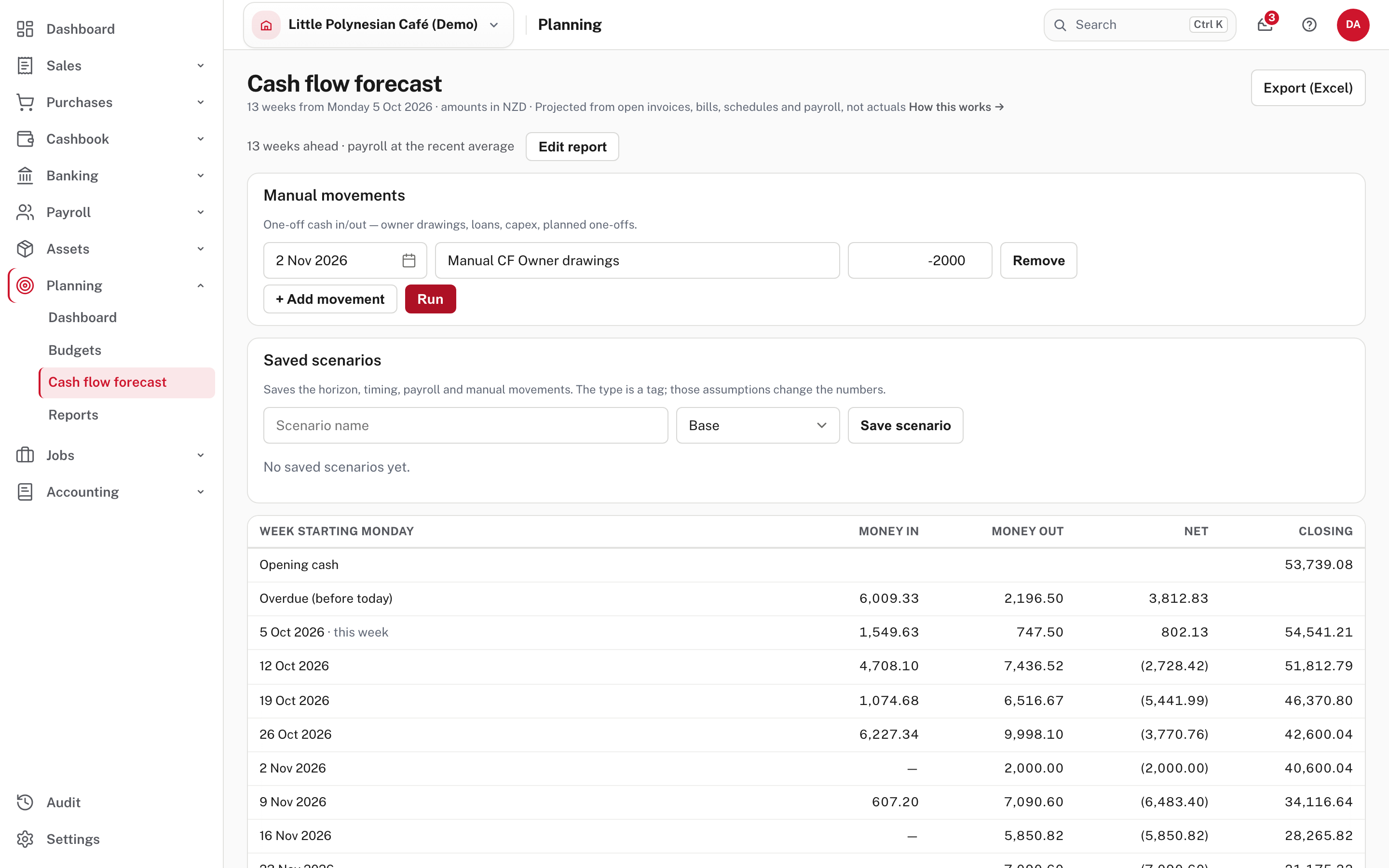
Here Manual CF Owner drawings of -2,000 on 2 Nov makes the week of 2 Nov show 2,000.00 in Money out and lowers every closing balance from then on by that much (42,600.04 becomes 40,600.04). Manual movements are counted as estimated. Remove takes one away.
Manual movements are not kept unless you save them
They stay on the page only. If you leave, Easy asks first (Your manual movements haven't been saved as a scenario; not shown in the demo). Save them in a scenario, next step, to keep them.
Step 6. Save and reload a scenario
In Saved scenarios give the picture a name, choose a type and choose Save scenario.
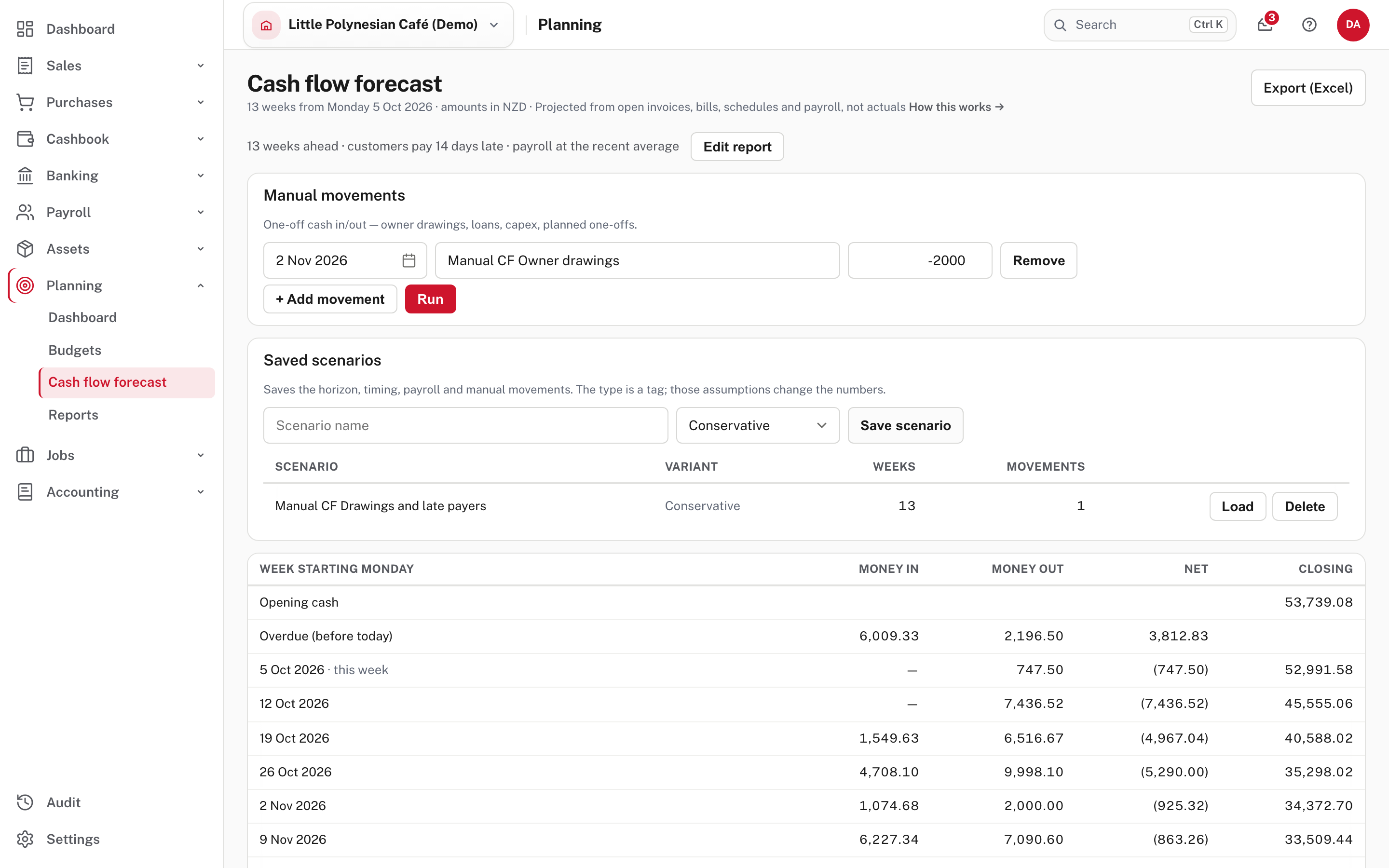
A scenario keeps the number of weeks, both delays, the payroll estimate and the manual movements. Base, Optimistic and Conservative are only a tag to help you tell scenarios apart: it is the delays, the payroll estimate and the movements that change the numbers. The list shows each scenario's Variant, Weeks and Movements. Choose Load to bring one back: the settings, the movement and the 14-day delay come back and the forecast runs again. Delete asks you to confirm, and says your accounts are not affected (not shown in the demo).
Step 7. Take a copy
Choose Export (Excel). The workbook has two sheets: Cash flow forecast, the weekly table, and Movement detail, every movement with its date, item, category (committed, scheduled or estimated), money in, money out and where it came from, so each weekly total can be traced to its source. The download uses what is on screen, including the delays, the payroll estimate and manual movements you have not yet saved. Not shown in the demo: the downloaded file.
More detail: Cash flow forecast.
Common mistakes
- Treating the forecast as a promise. Its committed rows are real documents, but their timing is the due date, and customers pay when they pay. Try Customers pay late before you decide something is safe.
- Forgetting the overdue row. It is not in the closing balances. If a large overdue receipt arrives, your real balance will be above the forecast, and if it never does, the forecast was never counting on it.
- Leaving out a one-off. A payment that is not an invoice, bill or schedule, such as a deposit or a loan repayment, is invisible until you add it as a manual movement.
Check before you continue
Check before you continue
- Invoices, bills and receipts are up to date, so the open items are the real ones.
- You have read the Assumptions box and know what payroll and tax are using.
- You have looked for the first week with a negative closing balance, and know what you will do about it.
- Known one-offs (drawings, a loan, a purchase) are in as manual movements, and kept in a scenario if you want them next time.
- You have tried Customers pay late at a realistic number, and the forecast still holds.