Year-end: the annual statements
Do this once a year, after the last month is closed. Easy produces a pack of annual financial statements as one PDF for your accountant, the owners and the bank. It is worked out from your books, shows last year beside this year, and needs only a few words typed.
About the screenshots
Screenshots are from Easy's demo company, Little Polynesian Café, for FY2026/27 (its year to 31 March 2027, which is still running). A real year-end is run after the year has ended.
Before you start
Year-end is the end of twelve month-ends, so the real work is done already:
- Every month is closed and the last one is signed off (Month-end checklist).
- Every bank account is reconciled to the year-end statement (Bank reconciliation).
- Fixed assets have been depreciated to the year end, stock has been counted, and any year-end journals (accruals, prepayments, leave owing) are posted.
- VAT and PAYE for the last month are filed and paid, and the company's tax return can be prepared (Company income tax return).
- The company's legal form is right (Settings → Business details): it decides how the statements are laid out.
Step 1. Open the annual statements
Accounting → Reports → Annual financial statements.
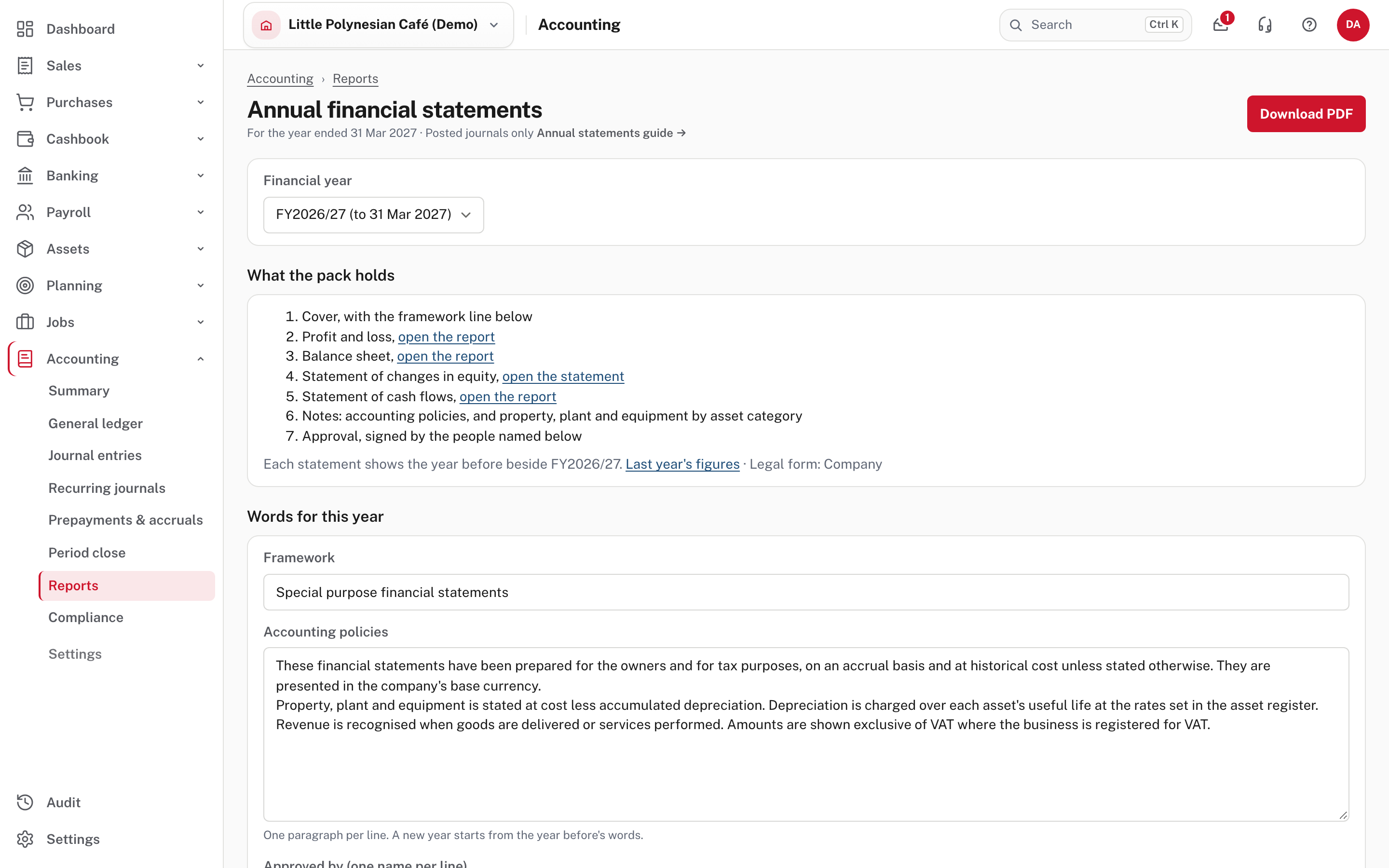
Choose the financial year. The page lists what the pack holds:
- A cover with the business name, the year end and the framework line.
- The profit and loss (a not-for-profit's statement of financial performance).
- The balance sheet (statement of financial position).
- The statement of changes in equity (a not-for-profit's changes in net assets).
- The statement of cash flows.
- Notes: the accounting policies, and property, plant and equipment by asset category if the company keeps an asset register.
- An approval page with a line for each person named to sign.
Each of statements 2, 3 and 5 has an open the report link, and the equity statement an open the statement link, so you can read each one before it goes in the pack. Every statement shows last year beside this year.
Step 2. Check the equity statement
Choose open the statement.
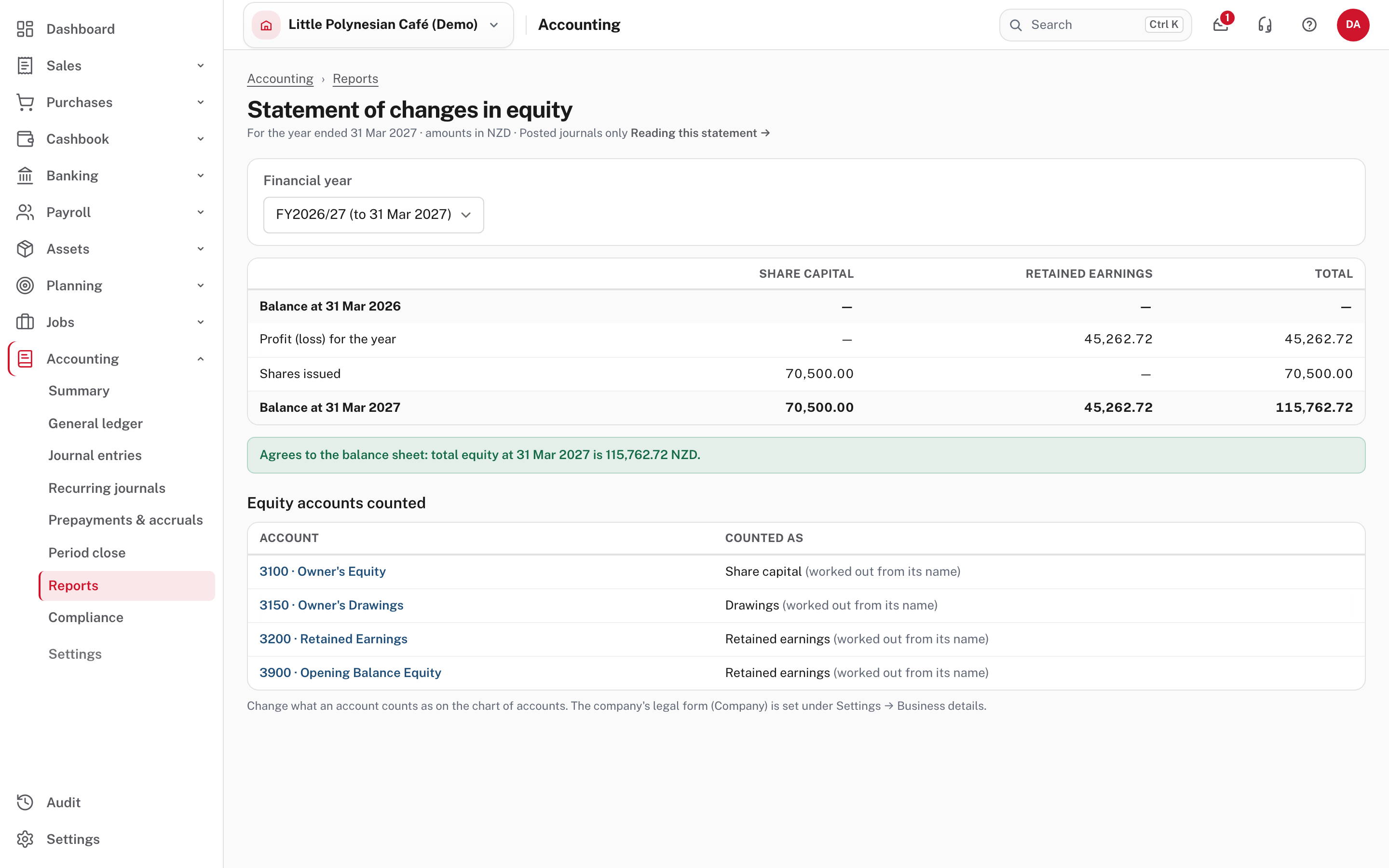
It shows how equity moved during the year: the balance the day before the year began, the profit or loss for the year, money the owners put in or took out, dividends, revaluations and transfers, and the balance at year end. Easy works it out from your accounts, so no closing journal is needed. A green line confirms "Agrees to the balance sheet: total equity at 31 Mar 2027 is …". If it says it does not agree, find out why before you go on.
- Drawings and dividends count for their year only. What they held before the year is part of the opening capital or retained earnings.
- The columns follow your legal form: a company shows share capital, reserves and retained earnings; a sole trader or partnership shows the owners' equity; a not-for-profit shows accumulated funds, restricted funds and reserves.
- Equity accounts counted lists every equity account and what it counts as (share capital, owner's capital, drawings, dividends, a reserve, a revaluation reserve, restricted funds or retained earnings), "worked out from its name". If the guess is wrong, open the account on the chart of accounts and choose Counted as.
More detail: Annual financial statements.
Step 3. Last year's figures (only if Easy doesn't have them)
If the company's earlier years are not in Easy, you can type last year's trial balance so the comparative column has something to show.
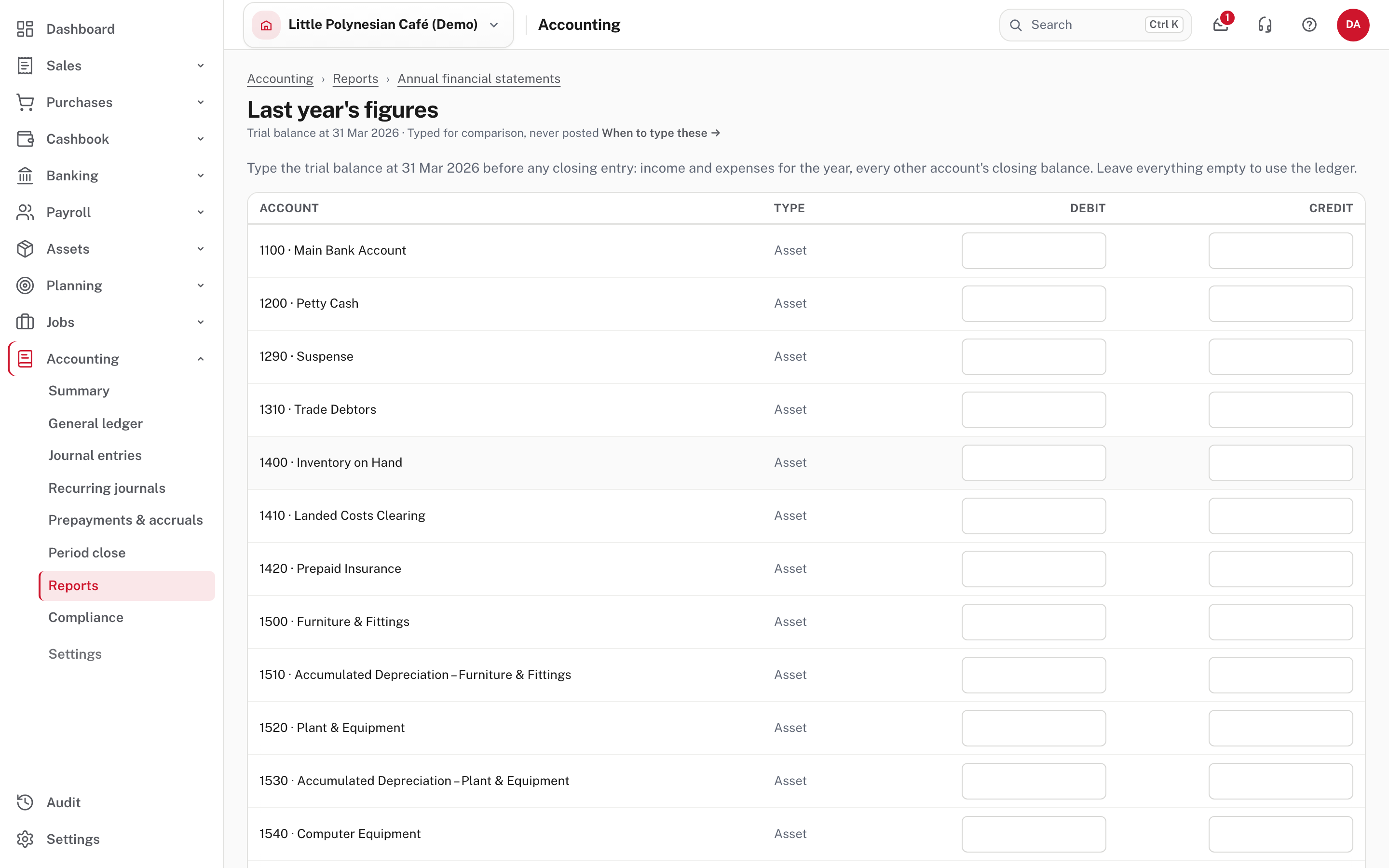
Choose Last year's figures on the annual statements page. Type the trial balance as it stood at the year end, before any closing entry: the year's income and expenses, and every other account's closing balance. Debits must equal credits. These figures are used only for the comparative column: they are never recorded in your accounts and move no balance. While they are typed, last year's statement of changes in equity is not shown, because there is no opening balance to start it from. Leave everything empty to use the ledger.
Step 4. Write the words for the year
Scroll down: the framework, accounting policies and approvers are the only things typed on the page.
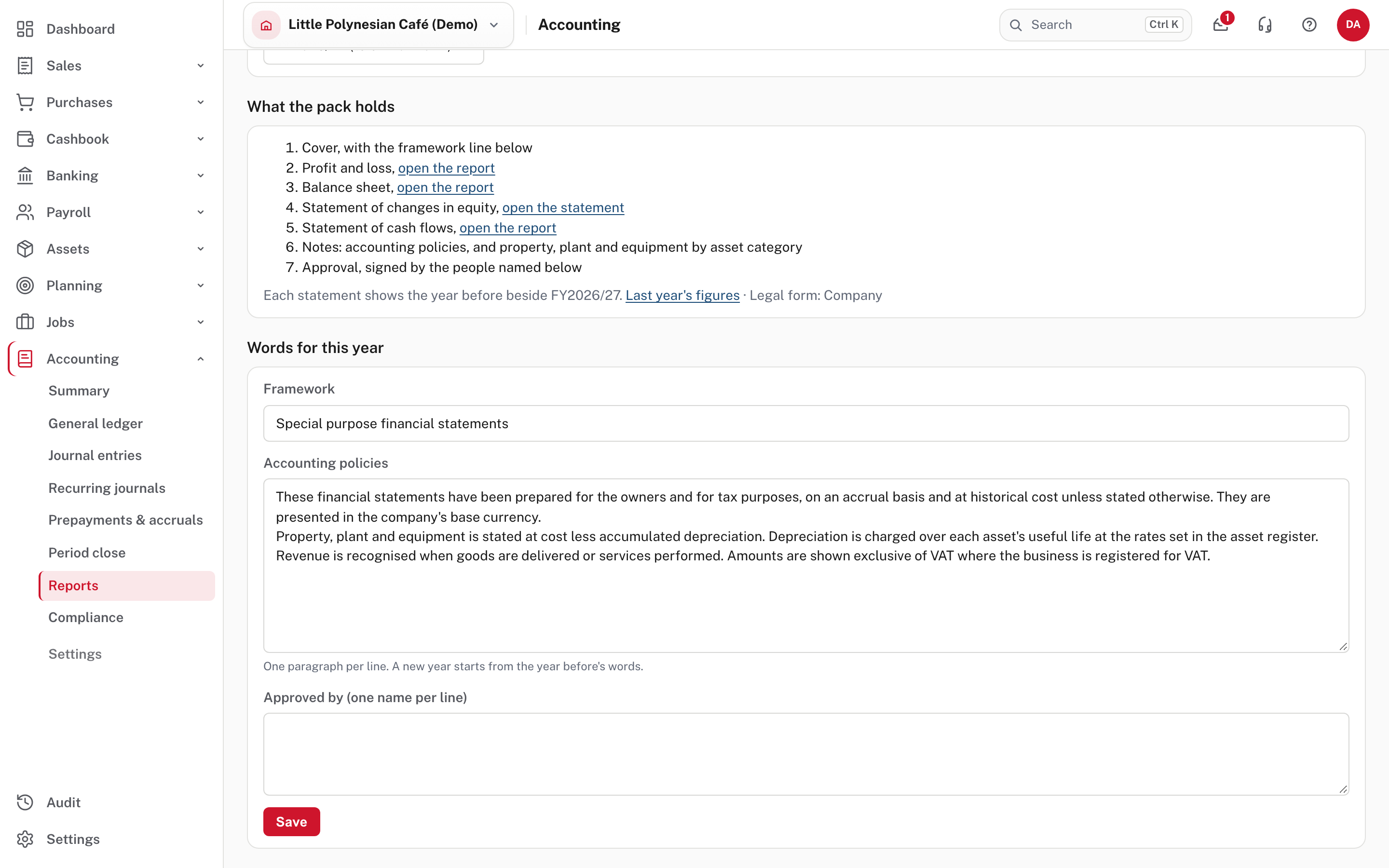
- Framework: the line on the cover (here Special purpose financial statements).
- Accounting policies: one paragraph per line. A new year starts from the year before's words, so change only what changed.
- Approved by: one name per line; each gets a signing line on the approval page.
An Owner, Administrator or Accountant can edit the words and last year's figures. Anyone who can read the books can download the PDF.
Step 5. Download the pack
Choose Download PDF (top right). Read it through once, front to back, before it leaves the building: the cover, each statement, the notes and the approval page.
Give your accountant the PDF, the month-end packs for each month, the bank reconciliation reports, and the VAT, PAYE and company tax returns. Statements are worked out from posted journals only, so check there are no drafts you meant to post.
Check before you continue
Check before you continue
- Every month of the year is signed off, and every bank account is reconciled to its year-end statement.
- The equity statement says Agrees to the balance sheet.
- The framework, policies and approvers' names are right for this year.
- Last year's comparatives are correct (from the ledger, or typed in and checked).
- The PDF has been read end to end, then signed by the people named on the approval page.