Reading the financial reports
Easy's reports are all worked out from the same entries in your accounts, so they always agree with each other. This chapter shows where they live, how to read the main ones, and how to follow any figure back to the entries behind it. Read them monthly, after the month-end close (Month-end checklist).
About the screenshots
Screenshots are from Easy's demo company, Little Polynesian Café. All figures are examples.
Where the reports are
Accounting → Reports is the home for the financial statements, the month-end reports and the tax returns. Every module also has its own Reports tab (Sales, Purchases, Banking and so on).
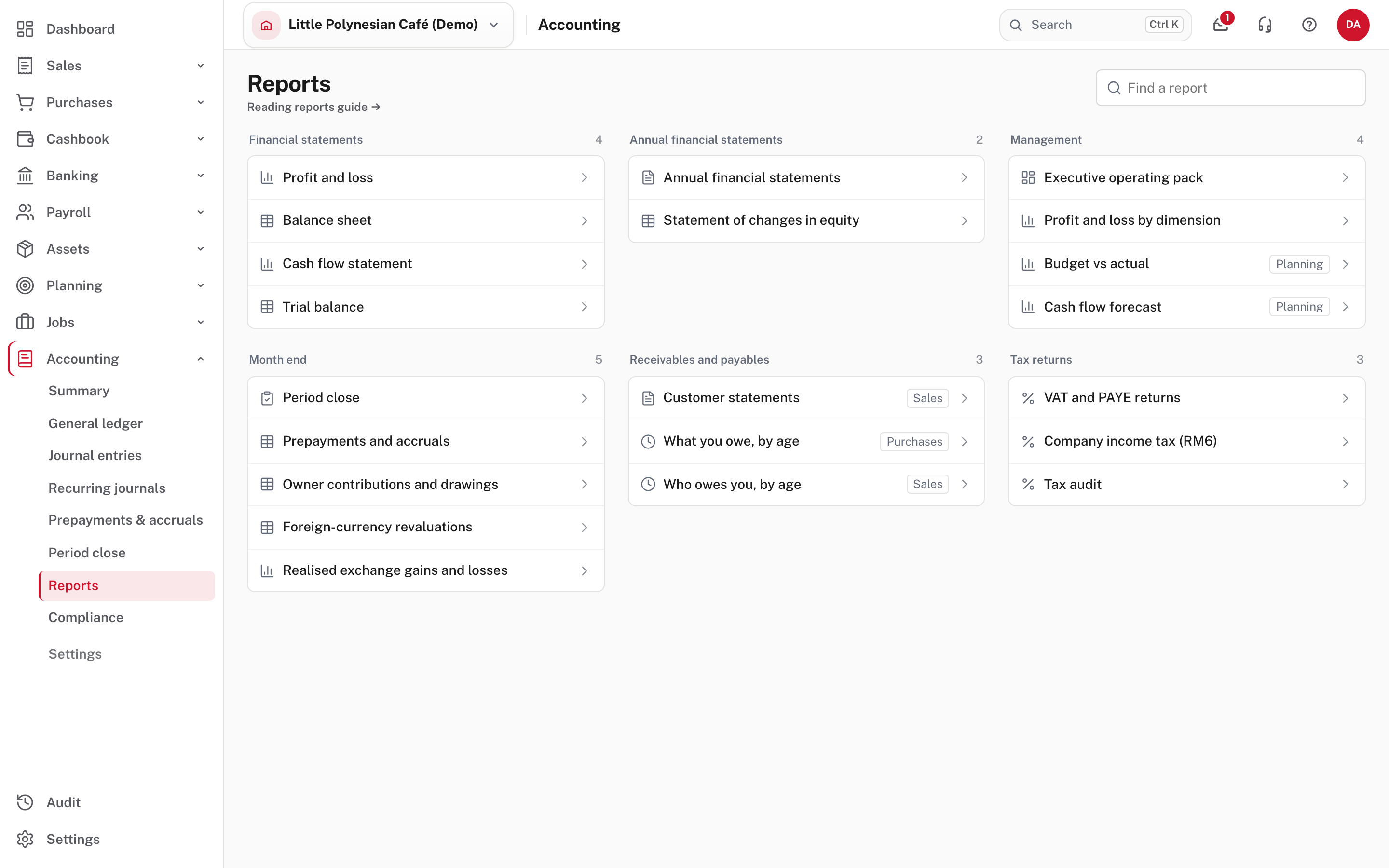
The groups are Financial statements (profit and loss, balance sheet, cash flow, trial balance), Annual financial statements, Management (the executive operating pack, profit and loss by dimension, budget vs actual and the cash flow forecast), Month end, Receivables and payables, and Tax returns. A tag such as Sales or Planning shows which module a report belongs to. Find a report at the top right searches every module you can open ("aged", "PAYE"). Your saved layouts of the profit and loss, balance sheet and trial balance are listed here too.
Start with the Executive operating pack for a quick look, then open the detailed report to investigate.
The dates a report opens on
A report over a period (profit and loss, cash flow, owner money) opens on your financial year to date: from the first day of the year (1 April unless you changed it under Settings → Accounting) to today. The trial balance opens as at today. Change the dates to see any other period; the dates stay in the page address, so going back returns to them.
Profit and loss
Reports → Profit and loss.
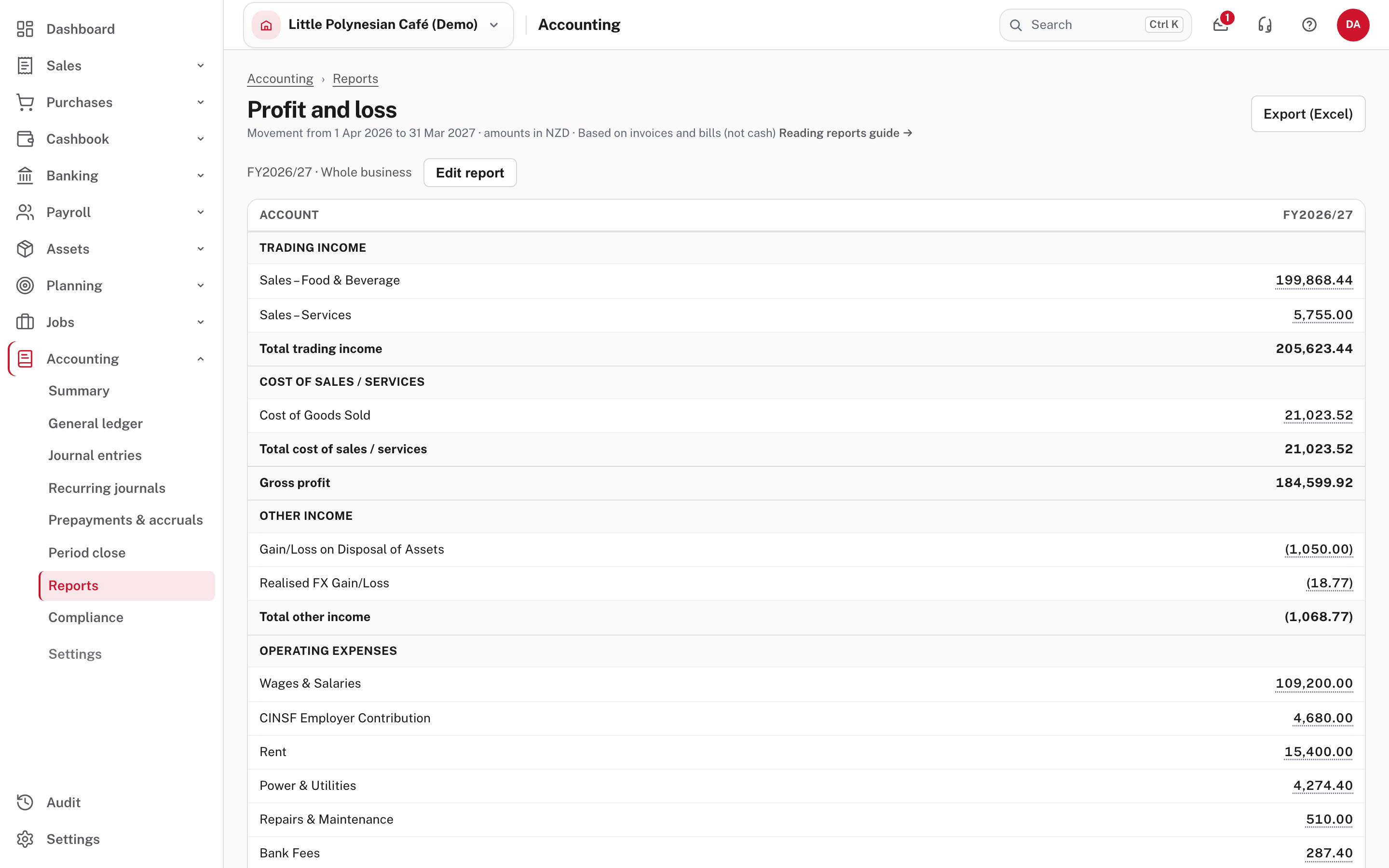
It shows the movement for the period: trading income, then cost of sales and gross profit, other income (a loss on selling an asset shows in brackets), operating expenses, and the net profit at the foot. The line under the title says what the report is based on: invoices and bills, not cash (accrual) unless you chose the cash basis.
Choose Edit report to change what you see.
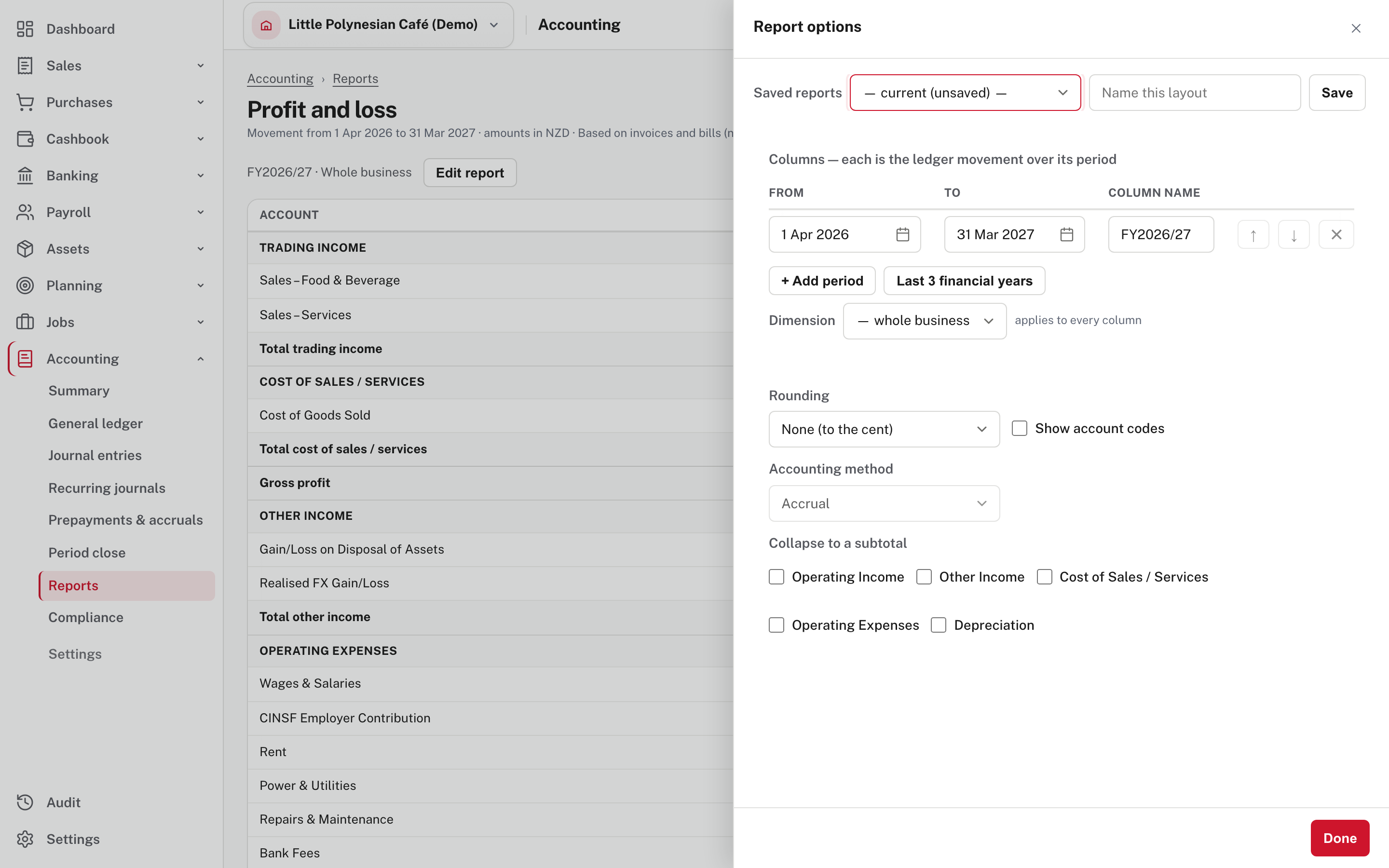
- Columns: each is a period you name. + Add period adds another, and Last 3 financial years adds three at once, side by side.
- Dimension: show the whole business, or one Outlet or Project (Reporting dimensions).
- Rounding: to the cent, whole dollars, or thousands. Show account codes adds the codes.
- Accounting method, and Collapse to a subtotal to fold a whole section down to one line.
- Saved reports: name a layout and Save, and it appears on the Reports page for next time.
Follow any figure to the entries behind it
Every figure with a dotted underline opens what makes it up.
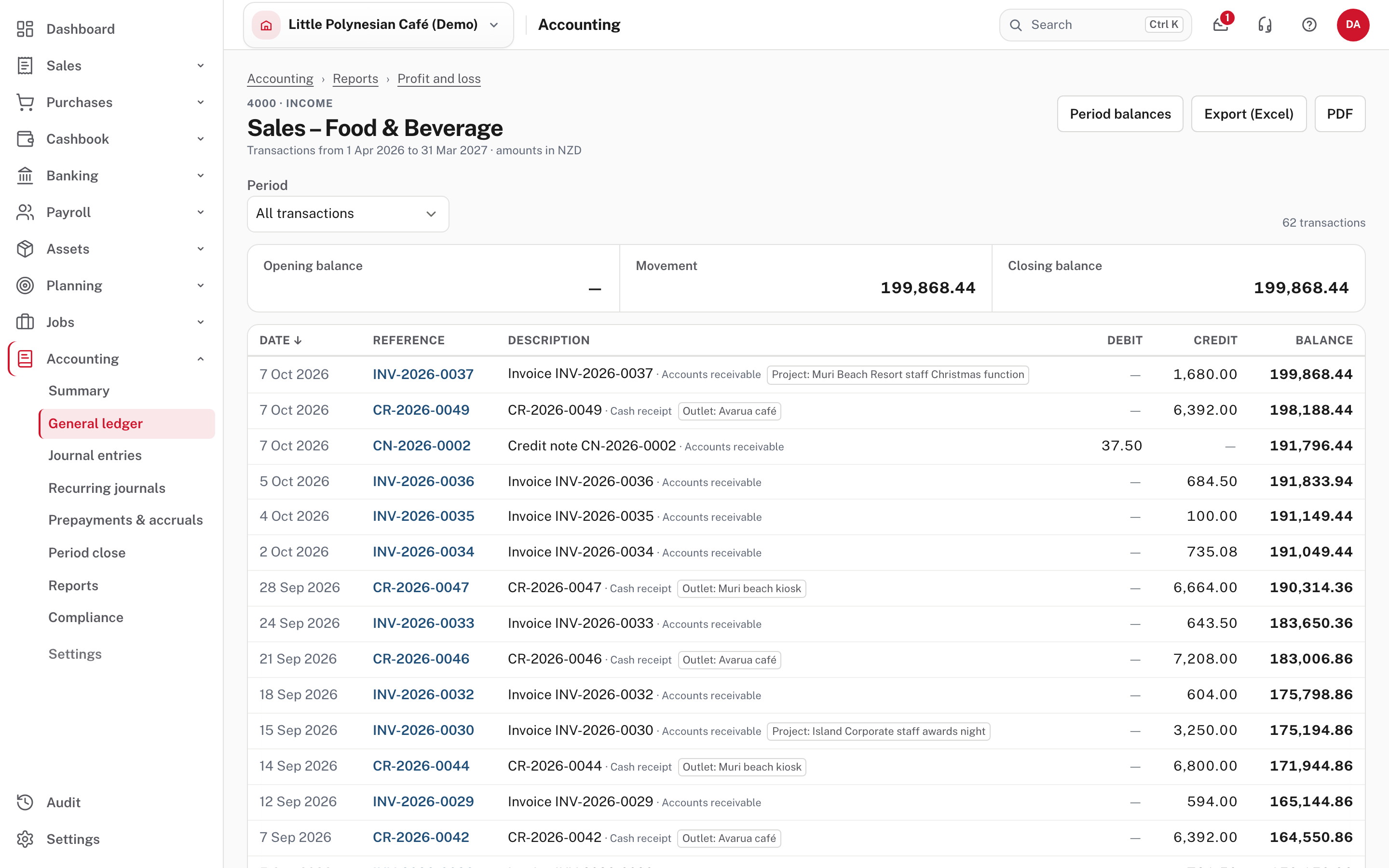
On the profit and loss, balance sheet, trial balance and summary, an account's figure opens that account's transactions for the same dates, where the movement or closing balance is the figure you chose. Each reference opens the invoice, receipt or journal behind it. Totals, profit and "computed" lines (such as prior years' earnings) are worked out from other lines, so they open nothing. The steps you took appear above the title (Accounting › Reports › Profit and loss): choose any step to go back exactly as you left it. Period balances, Export (Excel) and PDF are on the account page.
Balance sheet
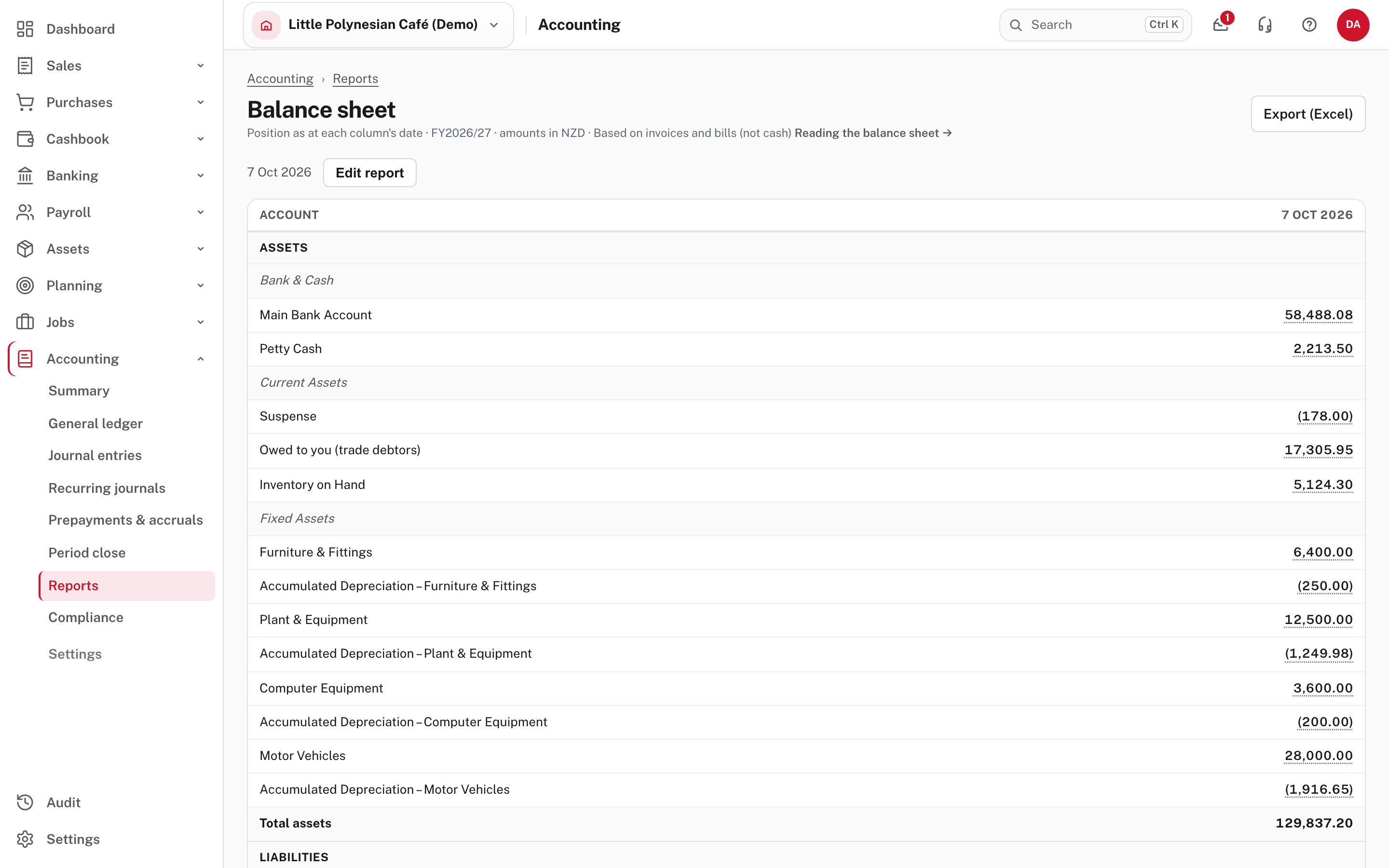
Every column is worked out from everything recorded in your accounts as at its date. Prior years' profit and loss is included in retained earnings without an automatic closing journal: Easy never closes the books off at year end, so you will not find a "close the year" step. Retained earnings opens its account only when nothing in it is worked out from earlier years.
Trial balance
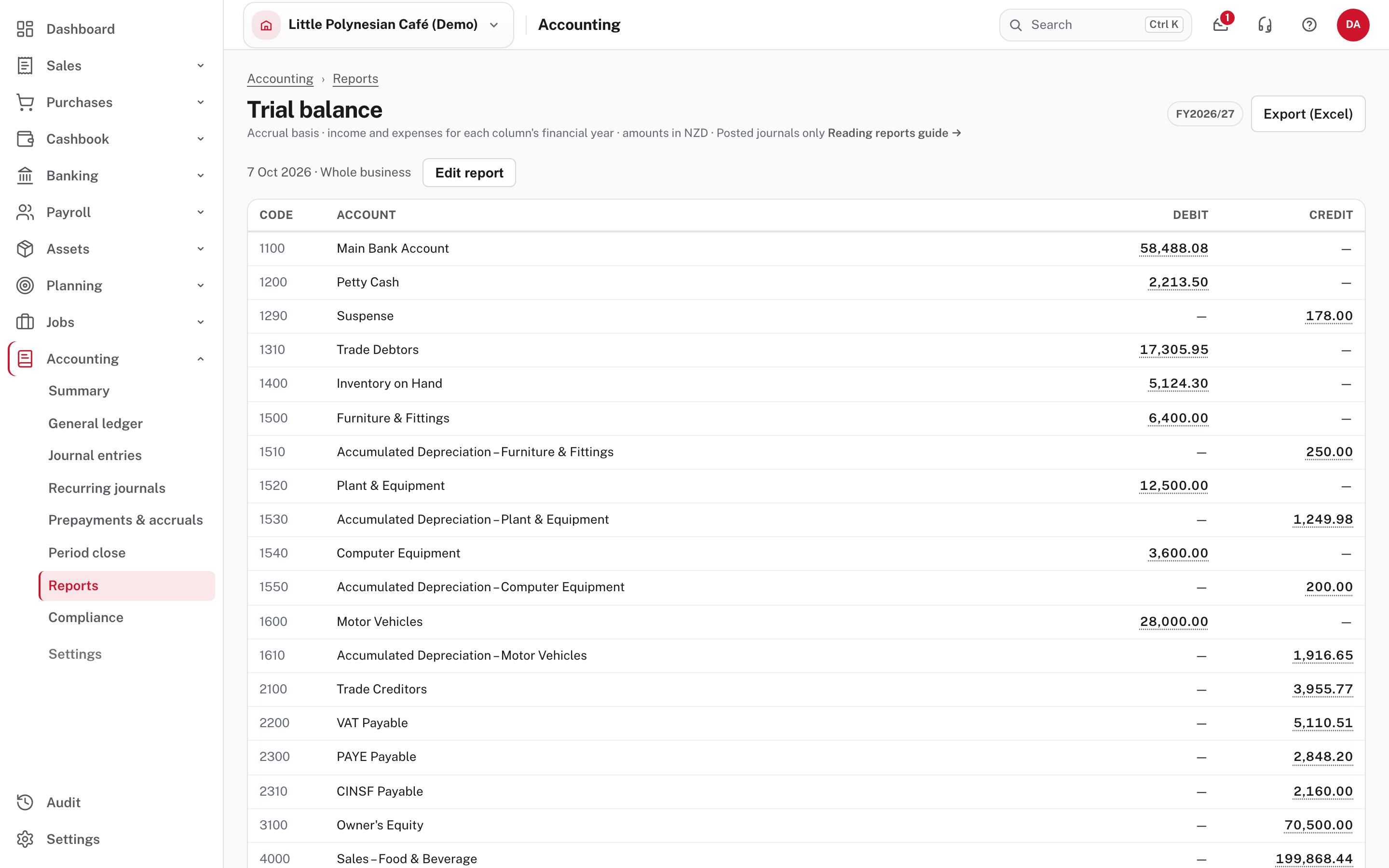
Every account's balance as at the date, in debit and credit columns, which must add up to the same total. It opens as at today with the year's income and expenses. An accountant's tool, and the first thing to look at when something doesn't agree.
Cash flow
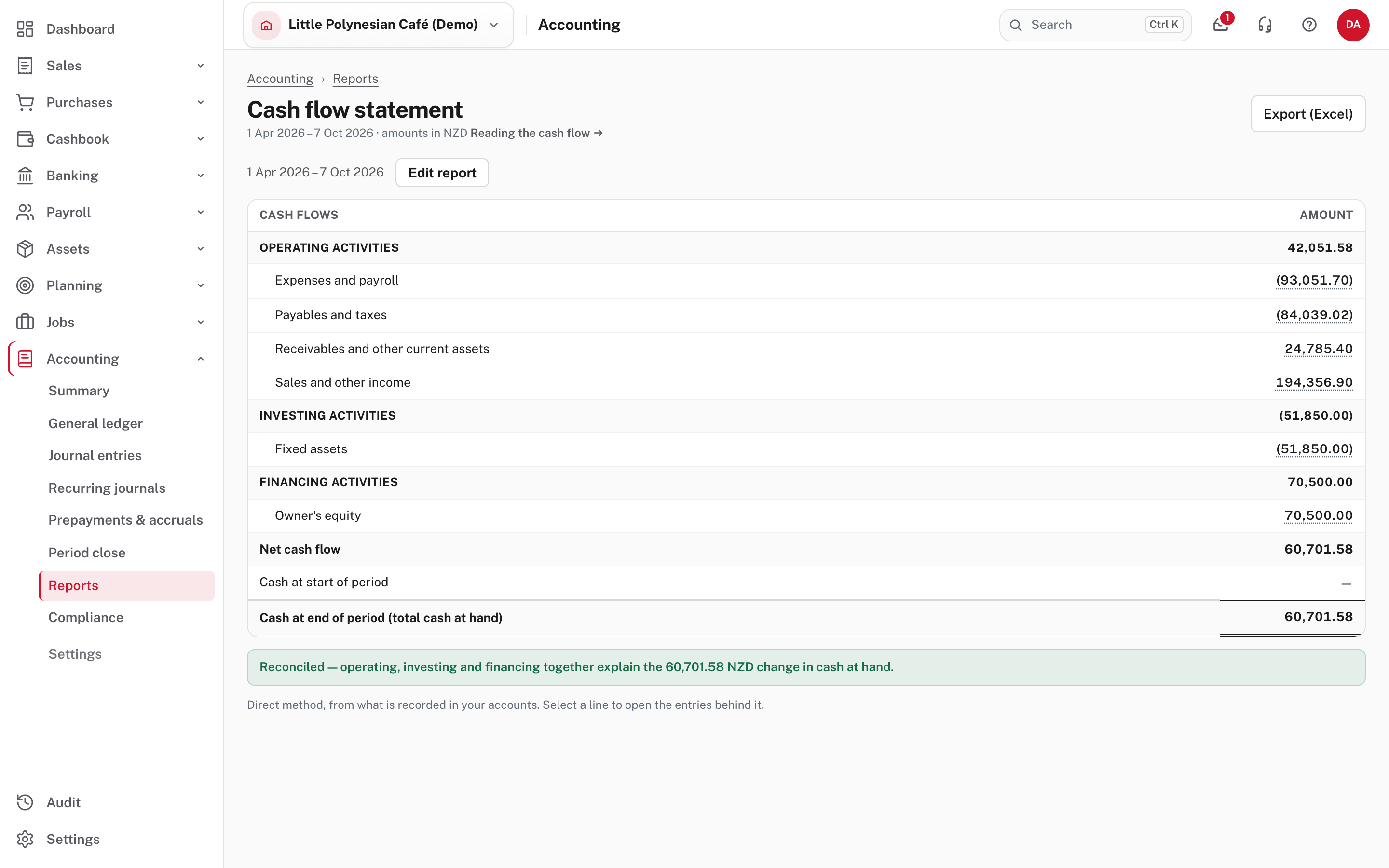
The statement uses the direct method, built from the journals in your accounts. Each journal that moves a bank or cash account is placed by the account it mostly moved against. Transfers between your own bank and cash accounts are left out, because they net to zero. Choose a line to see the journals placed in it; their cash adds up to the line. Cash at the start and end is the balance of every bank and cash account. The period-close check compares it with the bank and cash ledger.
Executive operating pack
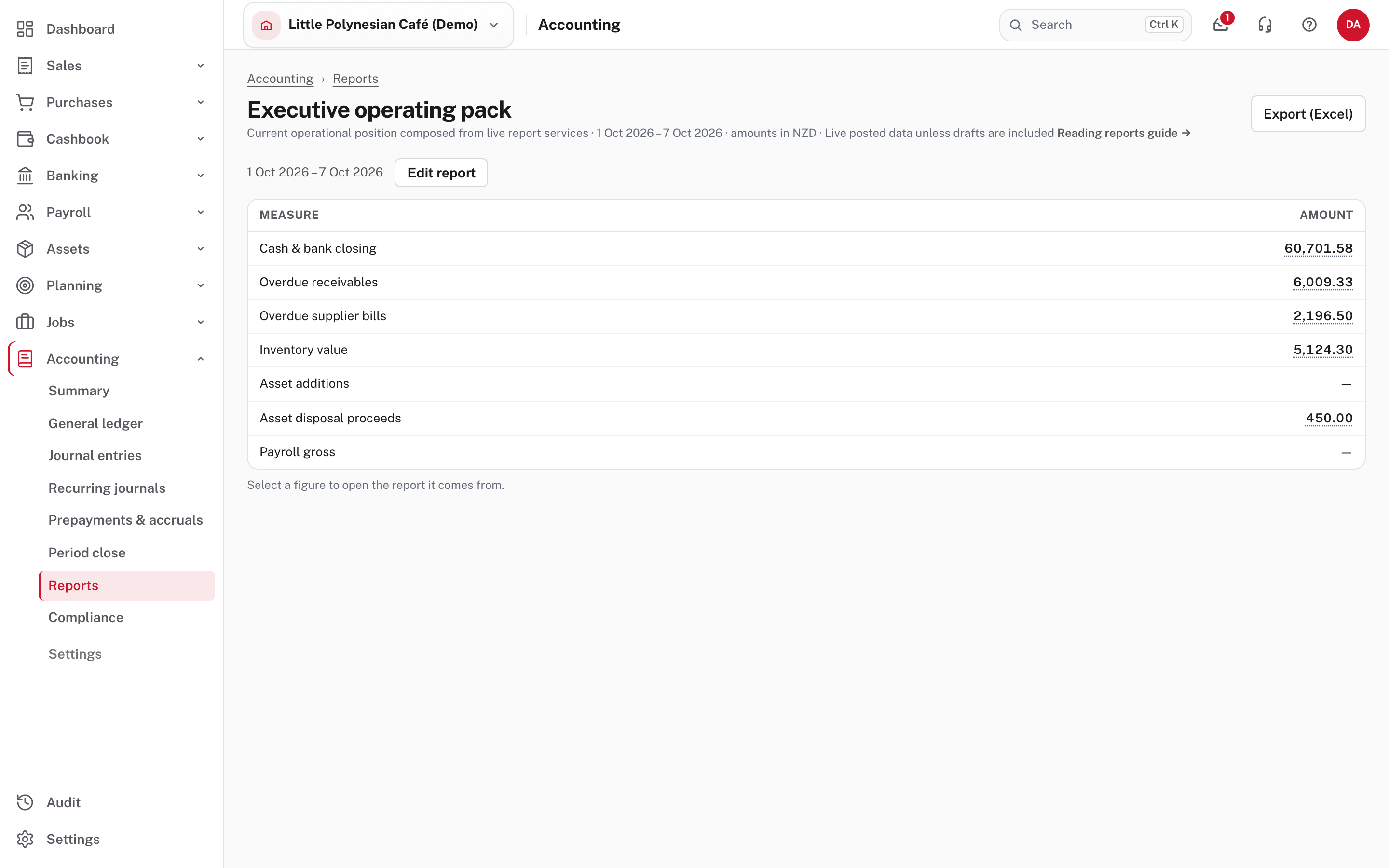
A one-page look at where the business stands now: cash and bank, overdue receivables, overdue supplier bills, inventory value, asset additions and disposal proceeds, and payroll gross, for the dates you choose. Choose a figure to open the report it comes from.
The accounting summary
Accounting → Summary shows the balance sheet beside the profit and loss, as at a date, in one column each. It carries the same figures as the full reports. Choose any amount to open that account's transactions.
Budget variance
If you use Planning, Budget vs actual compares actuals with budget for the same window. A positive variance is always favourable: for income it means actual above budget, for an expense actual below budget. Annual budget is the whole year's budget for the account; Budget still to come is the part planned after the period you are reporting on. If a budget has been reforecast, a Budget version box lets you compare against any version.
More detail: Reading the reports.
When a figure looks wrong
- Open it. The transactions behind it say which entry is odd.
- Check the dates: a report that opened on the financial year to date will not match one you ran for a calendar month.
- Check the basis: accrual (invoices and bills) and cash (receipts and payments) give different profits for the same period.
- Check for drafts: reports use posted entries only, unless a report says drafts are included.
Check before you continue
Check before you continue
- You opened each statement for the right dates and the right basis.
- The balance sheet balances, and the trial balance's debits equal its credits.
- Profit and cash tell a story you can explain (a profit with falling cash usually means money owed to you has grown).
- Any figure that surprised you has been opened and traced to an entry.
- You saved the layouts you use every month.